
Easy Map What is Easy Map A tool
- Slides: 23
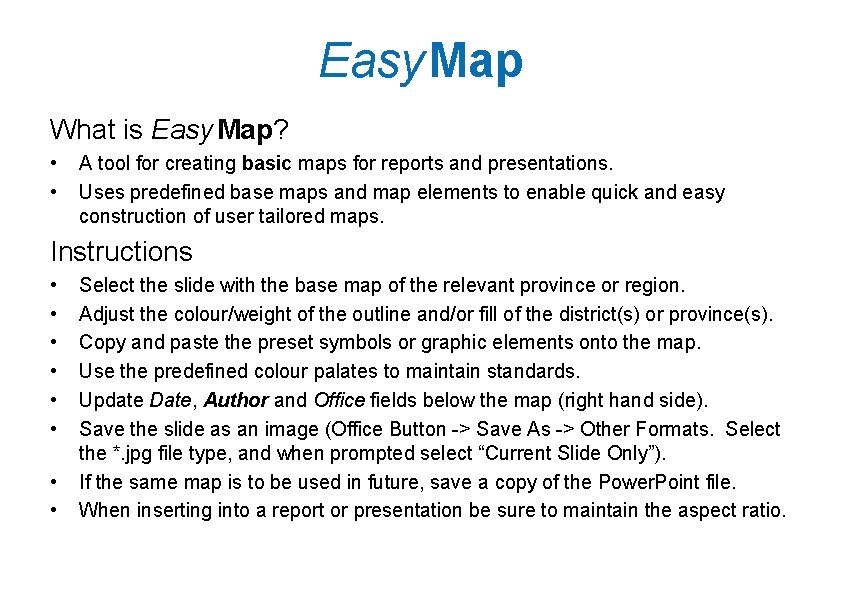
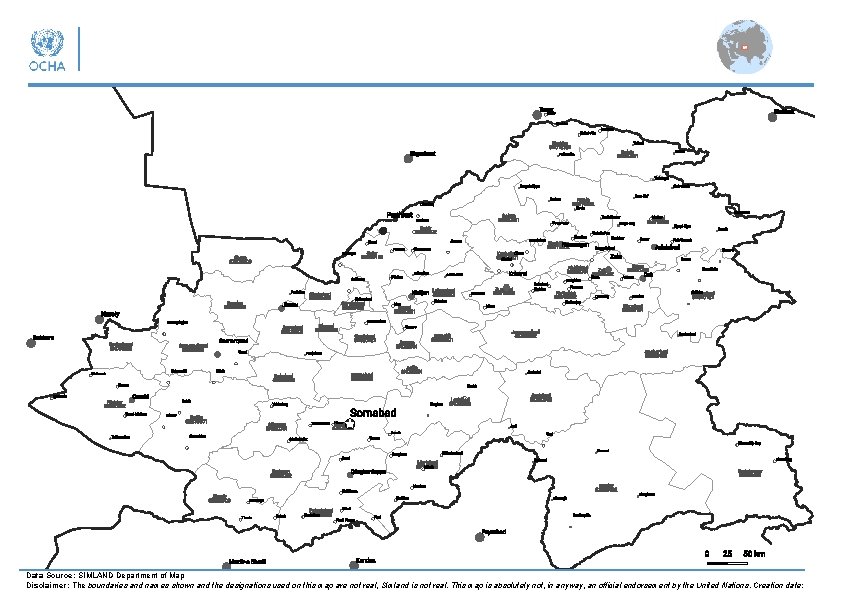
Easy Map What is Easy Map? • • A tool for creating basic maps for reports and presentations. Uses predefined base maps and map elements to enable quick and easy construction of user tailored maps. Instructions • • Select the slide with the base map of the relevant province or region. Adjust the colour/weight of the outline and/or fill of the district(s) or province(s). Copy and paste the preset symbols or graphic elements onto the map. Use the predefined colour palates to maintain standards. Update Date, Author and Office fields below the map (right hand side). Save the slide as an image (Office Button -> Save As -> Other Formats. Select the *. jpg file type, and when prompted select “Current Slide Only”). If the same map is to be used in future, save a copy of the Power. Point file. When inserting into a report or presentation be sure to maintain the aspect ratio.
Data Source: SIMLAND Department of Map Disclaimer: The boundaries and names shown and the designations used on this map are not real, Simland is not real. This map is absolutely not, in anyway, an official endorsement by the United Nations. Creation date:
Data Source: SIMLAND Department of Map Disclaimer: The boundaries and names shown and the designations used on this map are not real, Simland is not real. This map is absolutely not, in anyway, an official endorsement by the United Nations. Creation date:
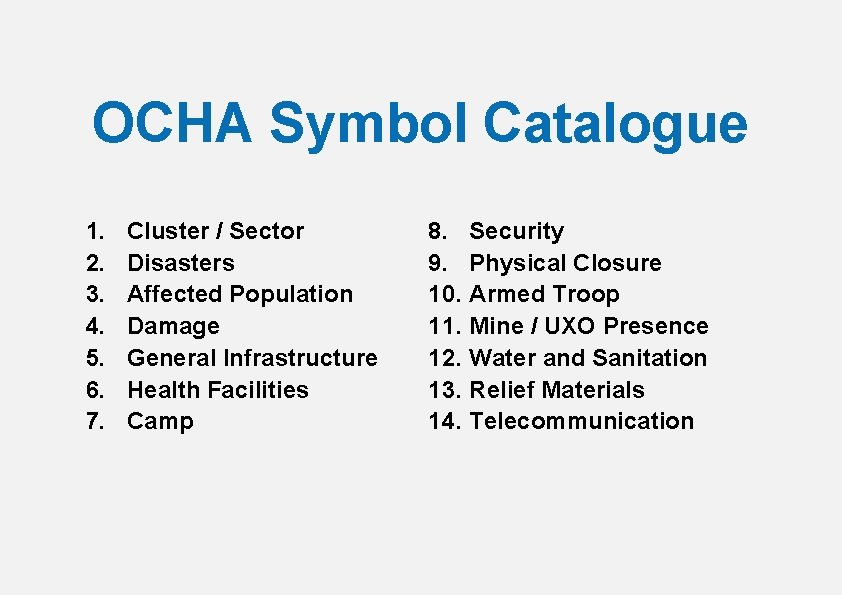
OCHA Symbol Catalogue 1. 2. 3. 4. 5. 6. 7. Cluster / Sector Disasters Affected Population Damage General Infrastructure Health Facilities Camp 8. Security 9. Physical Closure 10. Armed Troop 11. Mine / UXO Presence 12. Water and Sanitation 13. Relief Materials 14. Telecommunication
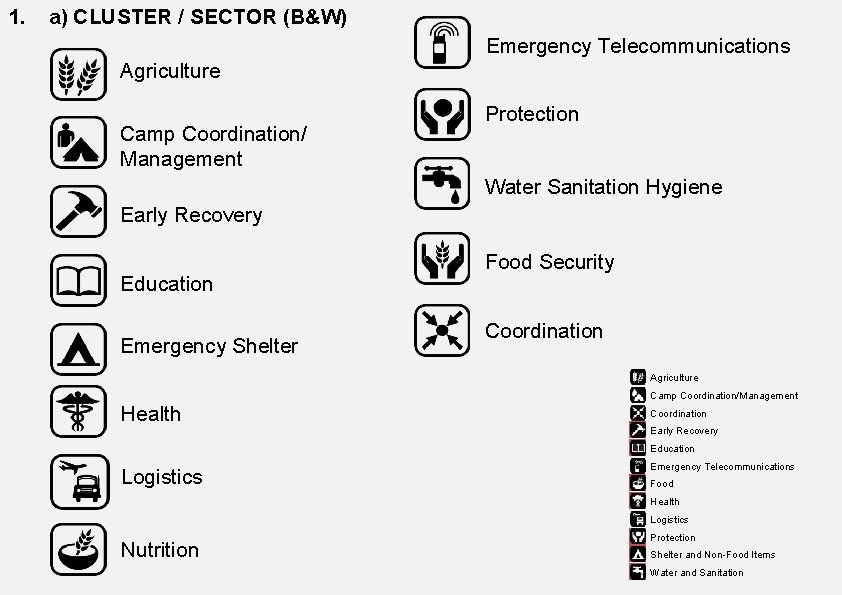
1. a) CLUSTER / SECTOR (B&W) Emergency Telecommunications Agriculture Camp Coordination/ Management Protection Water Sanitation Hygiene Early Recovery Education Emergency Shelter Food Security Coordination Agriculture Camp Coordination/Management Health Coordination Early Recovery Education Logistics Emergency Telecommunications Food Health Logistics Nutrition Protection Shelter and Non-Food Items Water and Sanitation
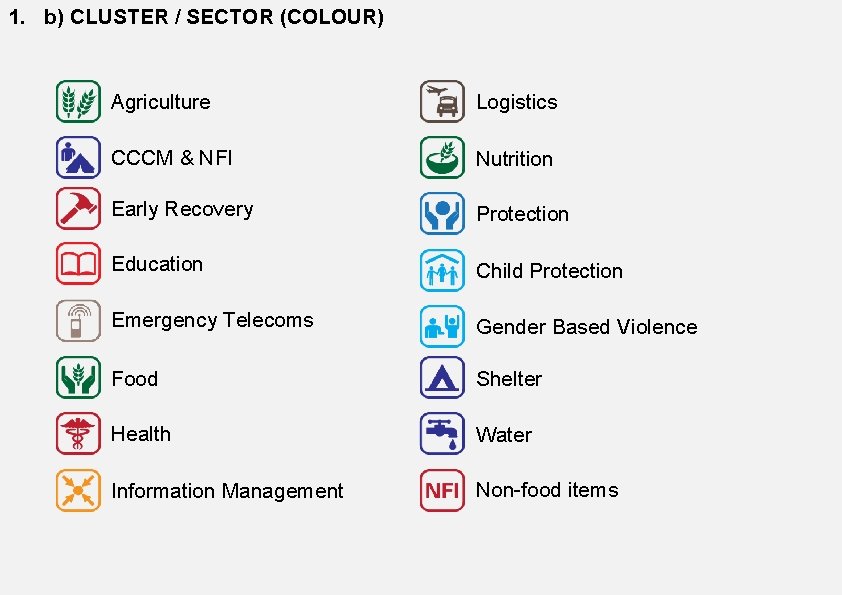
1. b) CLUSTER / SECTOR (COLOUR) Agriculture Logistics CCCM & NFI Nutrition Early Recovery Protection Education Child Protection Emergency Telecoms Gender Based Violence Food Shelter Health Water Information Management Non-food items
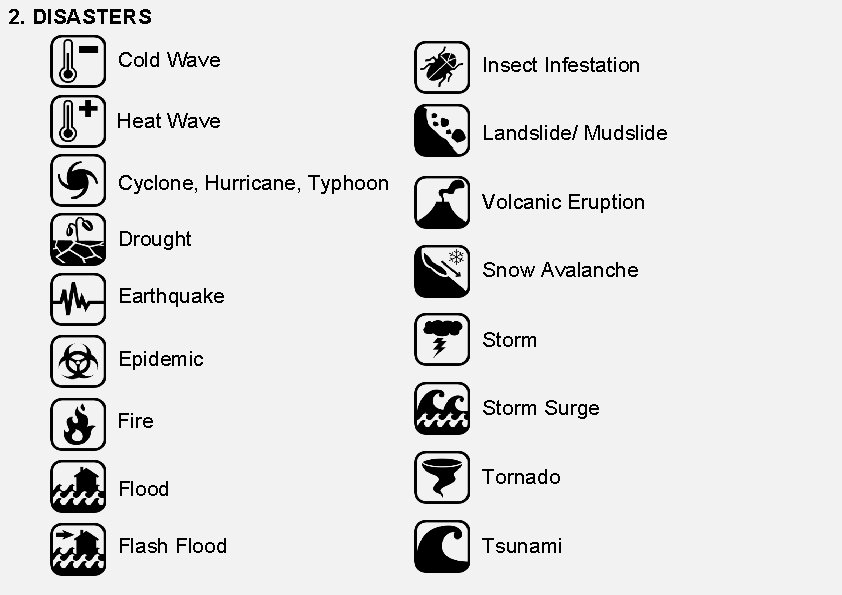
2. DISASTERS Cold Wave Heat Wave Cyclone, Hurricane, Typhoon Insect Infestation Landslide/ Mudslide Volcanic Eruption Drought Snow Avalanche Earthquake Epidemic Fire Flood Flash Flood Storm Surge Tornado Tsunami
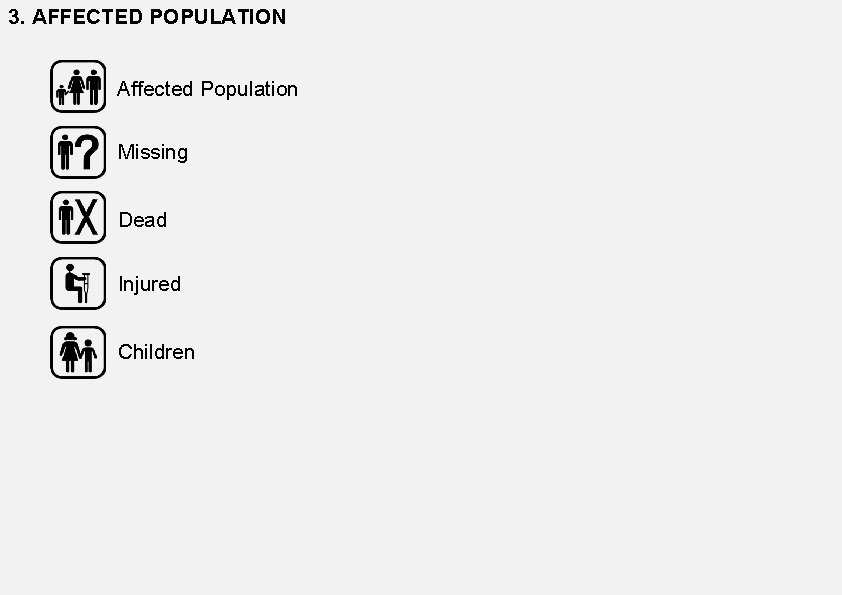
3. AFFECTED POPULATION Affected Population Missing Dead Injured Children
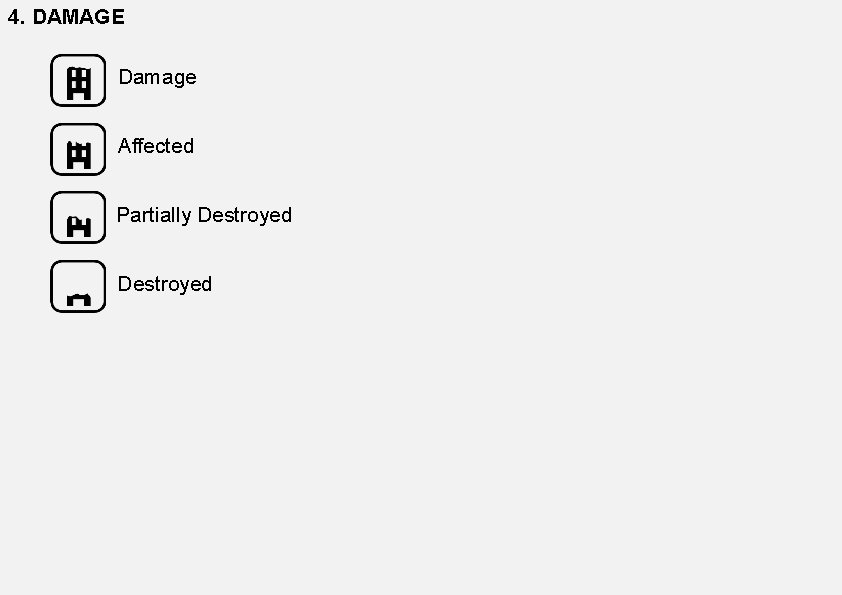
4. DAMAGE Damage Affected Partially Destroyed
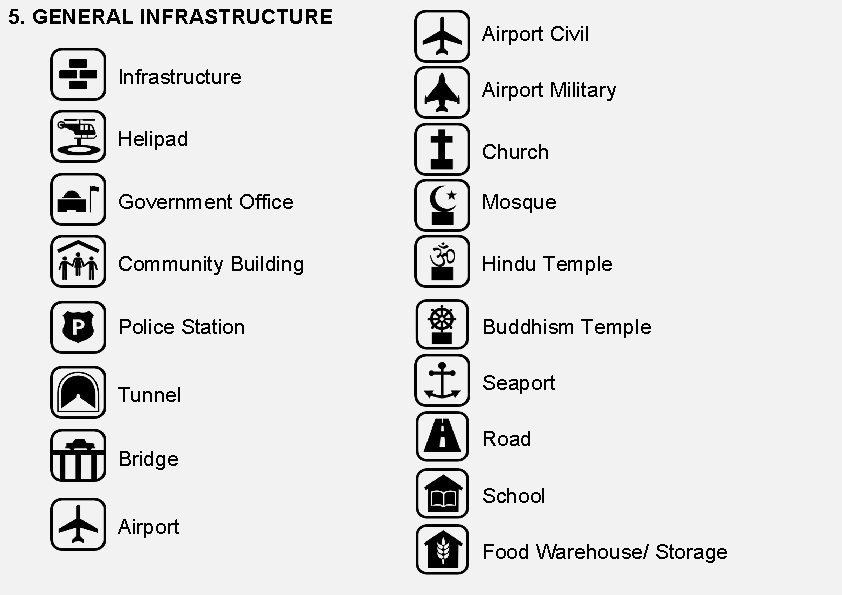
5. GENERAL INFRASTRUCTURE Infrastructure Helipad Airport Civil Airport Military Church Government Office Mosque Community Building Hindu Temple Police Station Buddhism Temple Tunnel Bridge Seaport Road School Airport Food Warehouse/ Storage
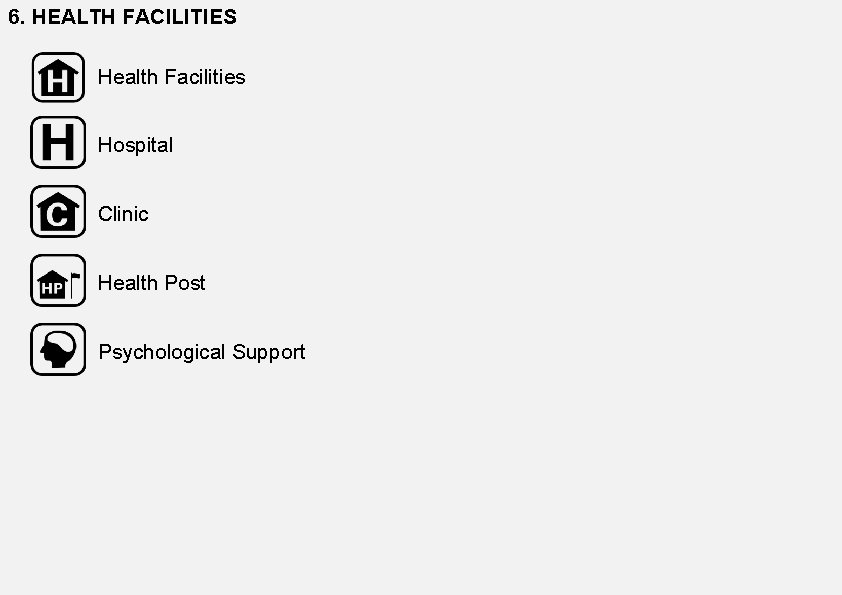
6. HEALTH FACILITIES Health Facilities Hospital Clinic Health Post Psychological Support
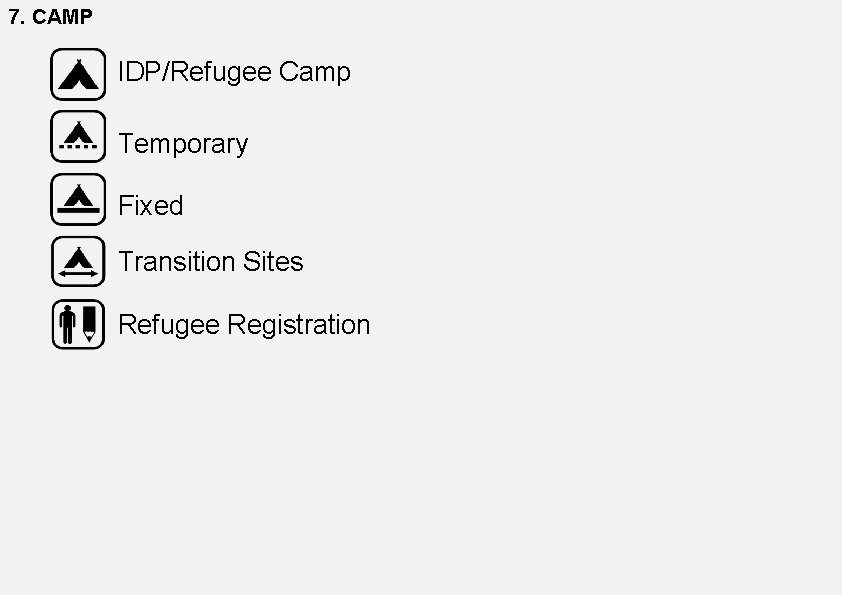
7. CAMP IDP/Refugee Camp Temporary Fixed Transition Sites Refugee Registration
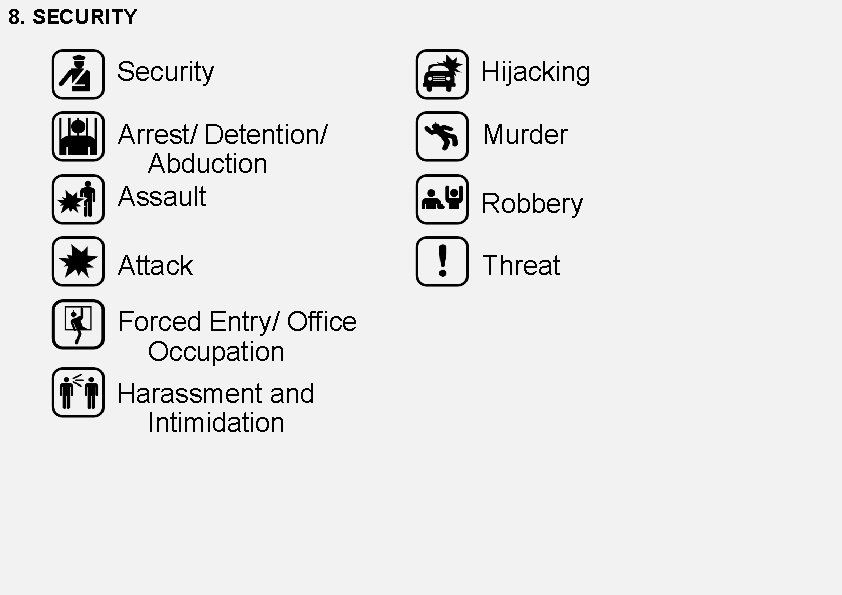
8. SECURITY Security Hijacking Arrest/ Detention/ Abduction Assault Murder Robbery Attack Threat Forced Entry/ Office Occupation Harassment and Intimidation
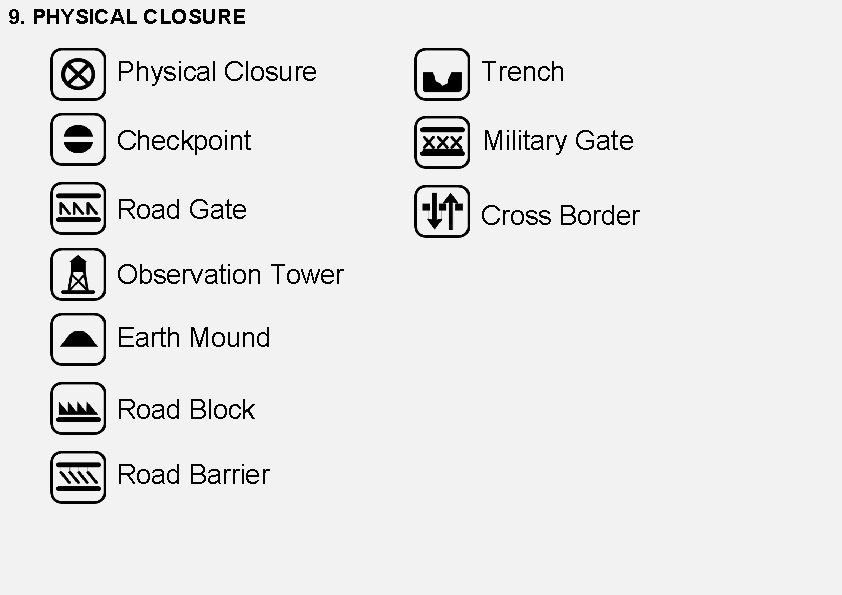
9. PHYSICAL CLOSURE Physical Closure Trench Checkpoint Military Gate Road Gate Cross Border Observation Tower Earth Mound Road Block Road Barrier
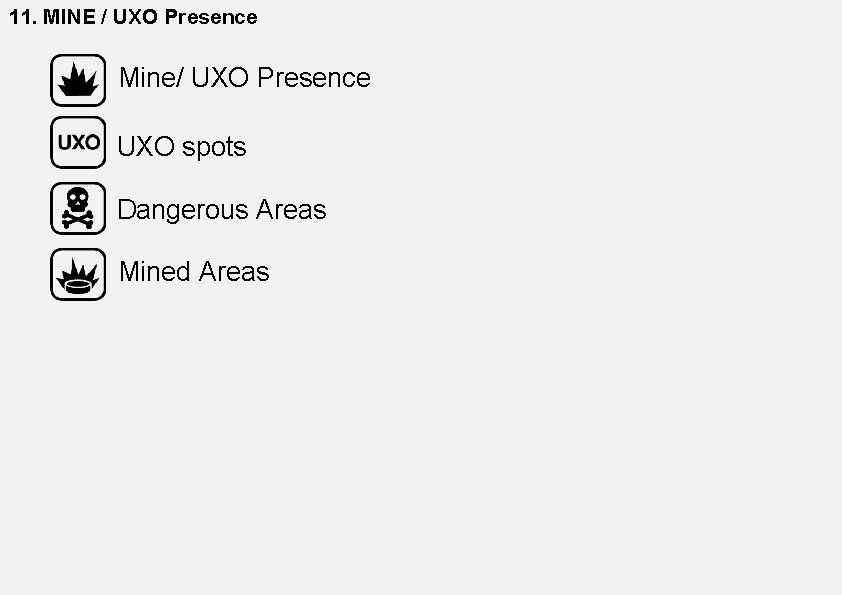
11. MINE / UXO Presence Mine/ UXO Presence UXO spots Dangerous Areas Mined Areas
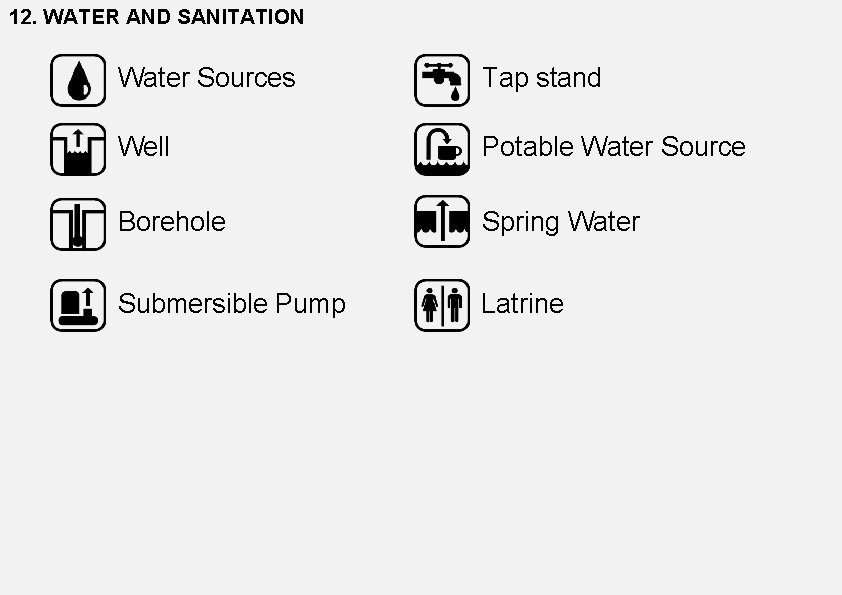
12. WATER AND SANITATION Water Sources Tap stand Well Potable Water Source Borehole Spring Water Submersible Pump Latrine
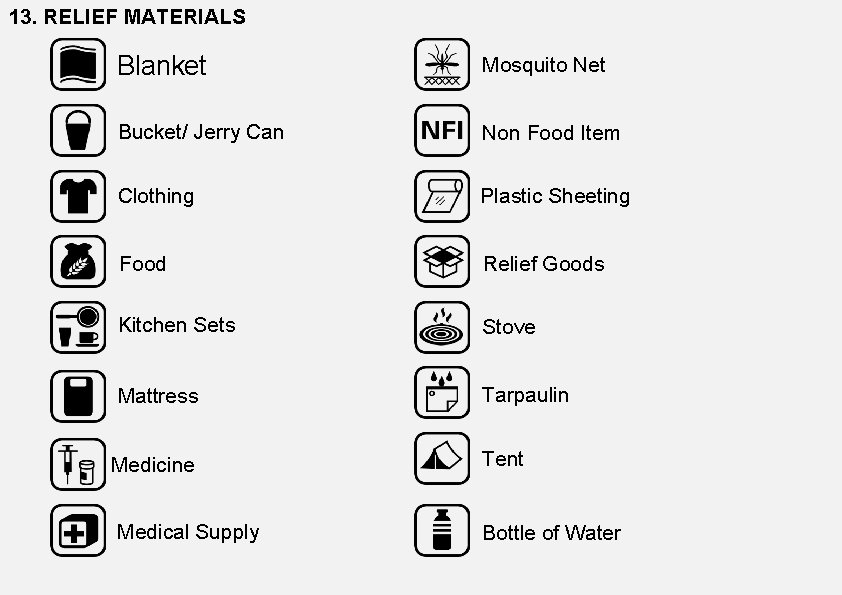
13. RELIEF MATERIALS Blanket Mosquito Net Bucket/ Jerry Can Non Food Item Clothing Plastic Sheeting Food Relief Goods Kitchen Sets Stove Mattress Tarpaulin Medicine Tent Medical Supply Bottle of Water
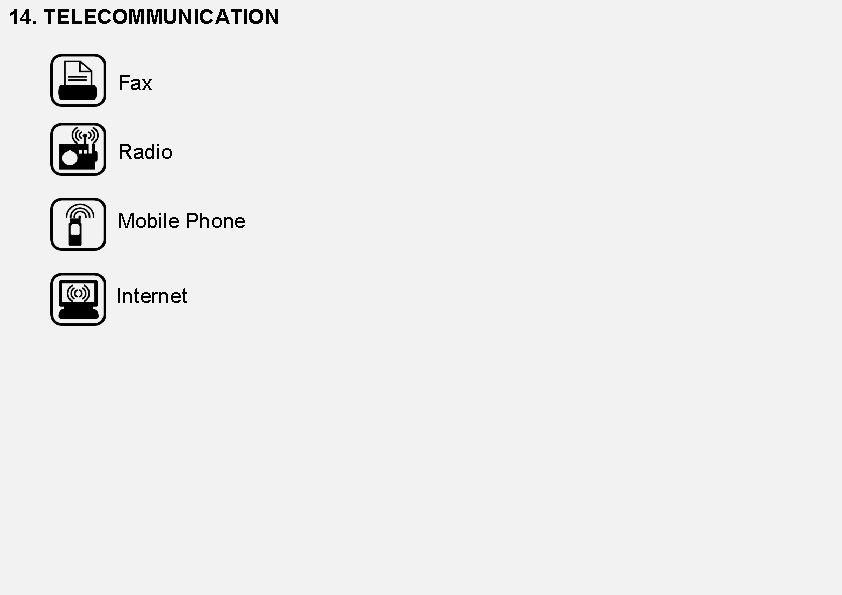
14. TELECOMMUNICATION Fax Radio Mobile Phone Internet
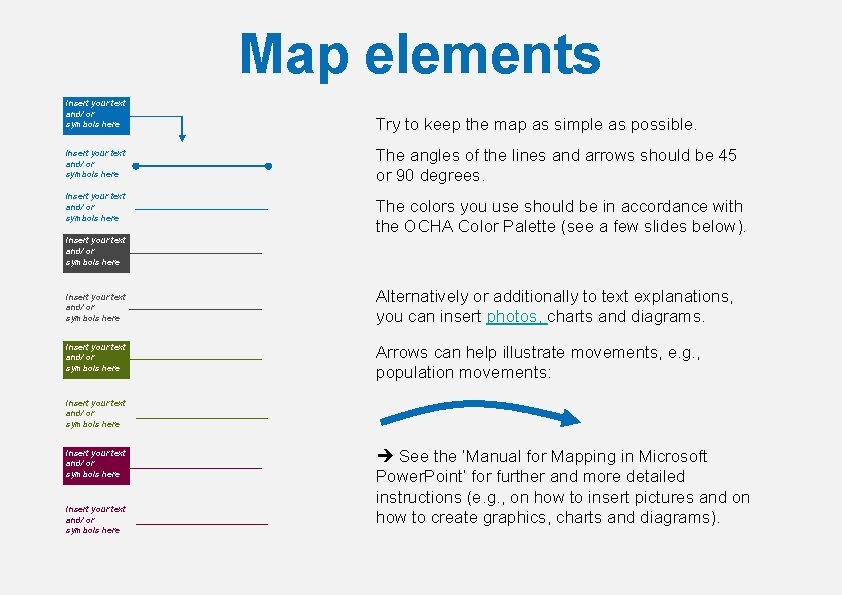
Map elements Insert your text and/ or symbols here Insert your text and/ or symbols here Try to keep the map as simple as possible. The angles of the lines and arrows should be 45 or 90 degrees. The colors you use should be in accordance with the OCHA Color Palette (see a few slides below). Alternatively or additionally to text explanations, you can insert photos, charts and diagrams. Arrows can help illustrate movements, e. g. , population movements: Insert your text and/ or symbols here See the ‘Manual for Mapping in Microsoft Power. Point’ for further and more detailed instructions (e. g. , on how to insert pictures and on how to create graphics, charts and diagrams).
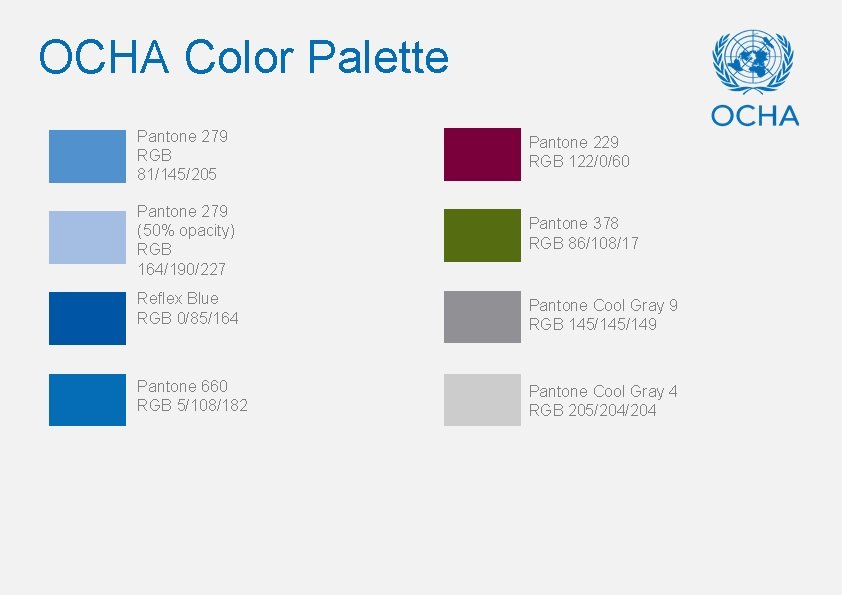
OCHA Color Palette Pantone 279 RGB 81/145/205 Pantone 229 RGB 122/0/60 Pantone 279 (50% opacity) RGB 164/190/227 Pantone 378 RGB 86/108/17 Reflex Blue RGB 0/85/164 Pantone Cool Gray 9 RGB 145/149 Pantone 660 RGB 5/108/182 Pantone Cool Gray 4 RGB 205/204
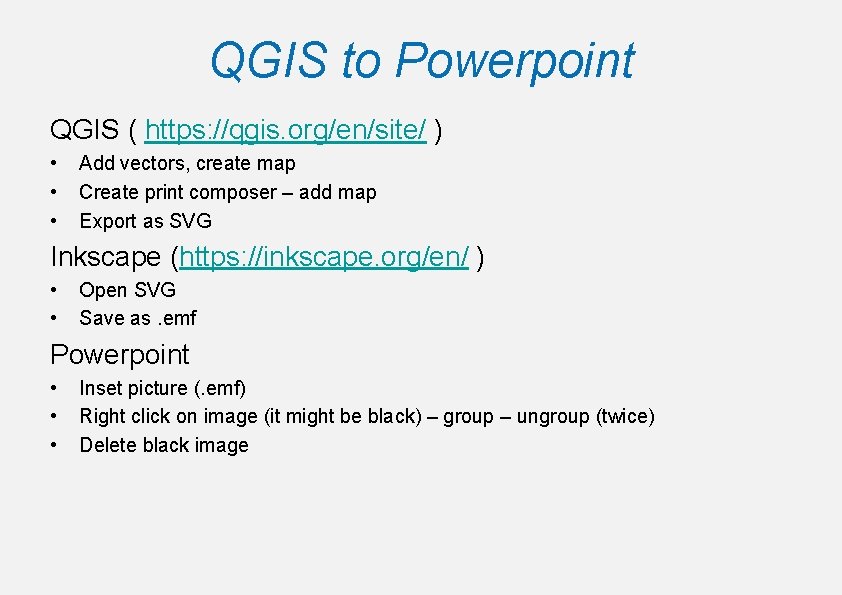
QGIS to Powerpoint QGIS ( https: //qgis. org/en/site/ ) • • • Add vectors, create map Create print composer – add map Export as SVG Inkscape (https: //inkscape. org/en/ ) • • Open SVG Save as. emf Powerpoint • • • Inset picture (. emf) Right click on image (it might be black) – group – ungroup (twice) Delete black image