
Easy EDA DesignSimulation Software Lab 1 ContentObjective Learn
Easy EDA Design-Simulation Software Lab 1 Content-Objective: Learn basics of creating an electronic circuit schematic and board layout Easy EDA CAD program. Language-Objective: Create a simple electronic schematic and board layout using Easy EDA program.

Easy EDA Design – Simulation 1 STARTER 1. Canvas: Starter Quiz Content Objective Learn simple electronic design and simulation software principles. TODAY’S AGENDA 1. STARTER assignment. 2. Easy EDA Demo 3. Easy EDA Lab 1 4. Canvas: Easy EDA Lab 1 Assignment. Language Objective Use Easy EDA web-site to create a simple project.
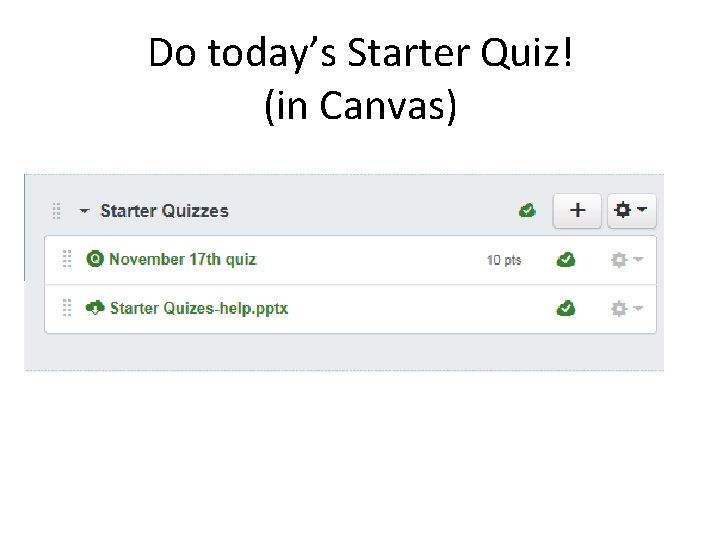
Do today’s Starter Quiz! (in Canvas)
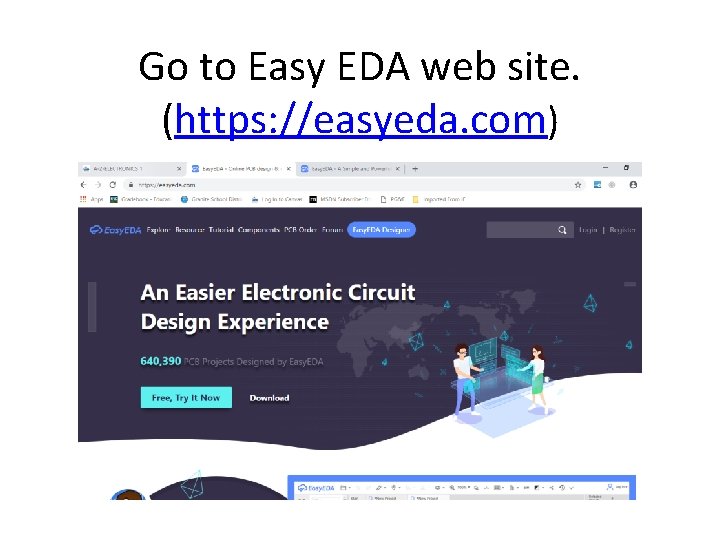
Go to Easy EDA web site. (https: //easyeda. com)

Select “Free, Try It Now”

Easy EDA Web Site
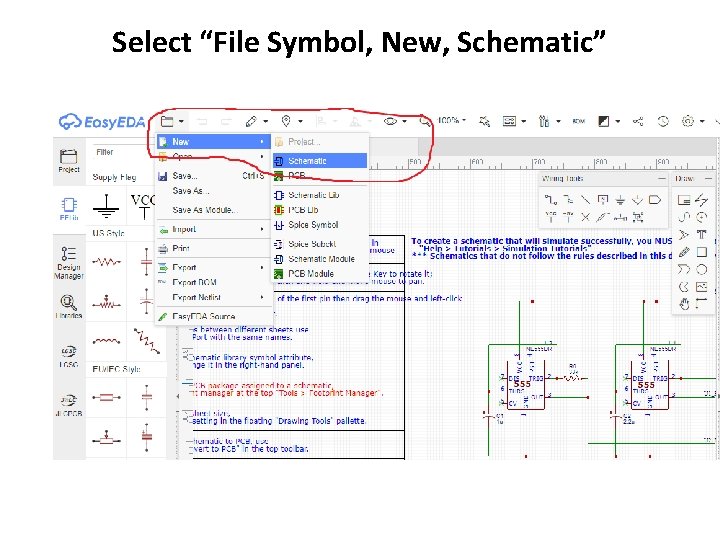
Select “File Symbol, New, Schematic”

Easy. EDA Layout
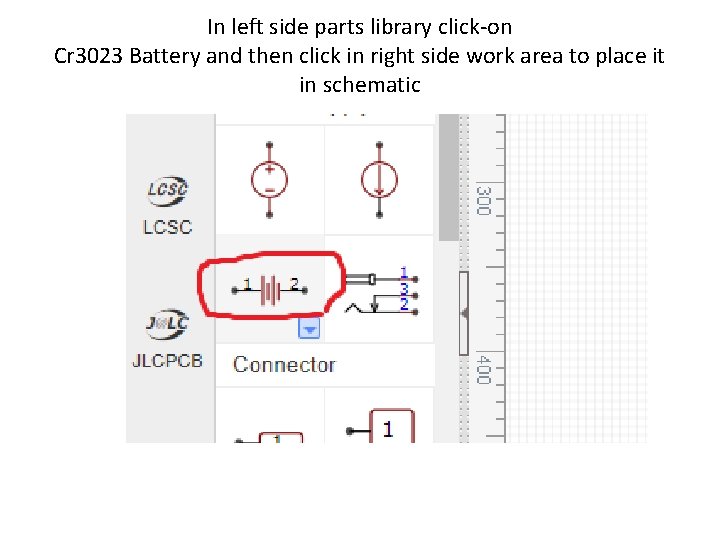
In left side parts library click-on Cr 3023 Battery and then click in right side work area to place it in schematic
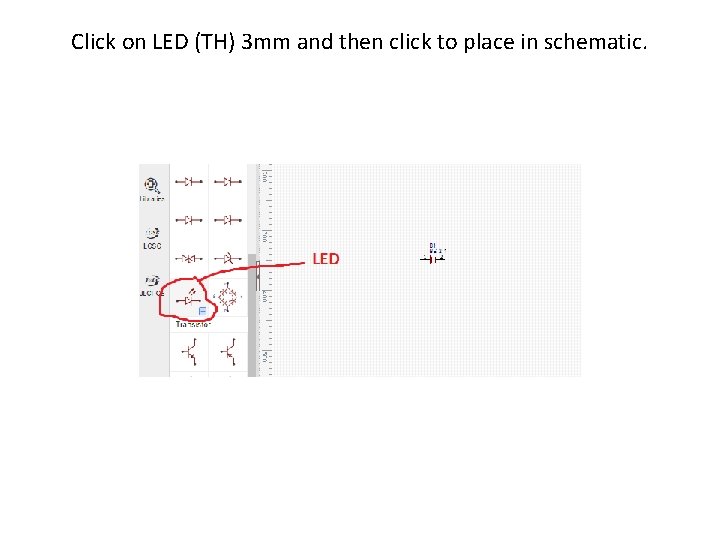
Click on LED (TH) 3 mm and then click to place in schematic.
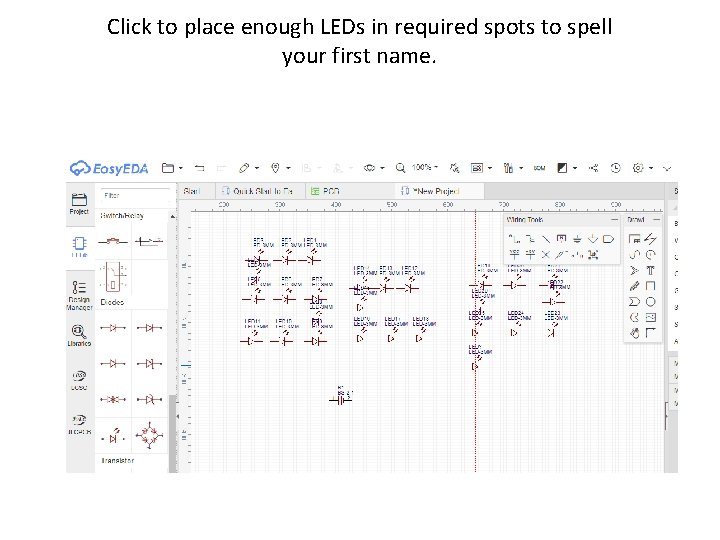
Click to place enough LEDs in required spots to spell your first name.
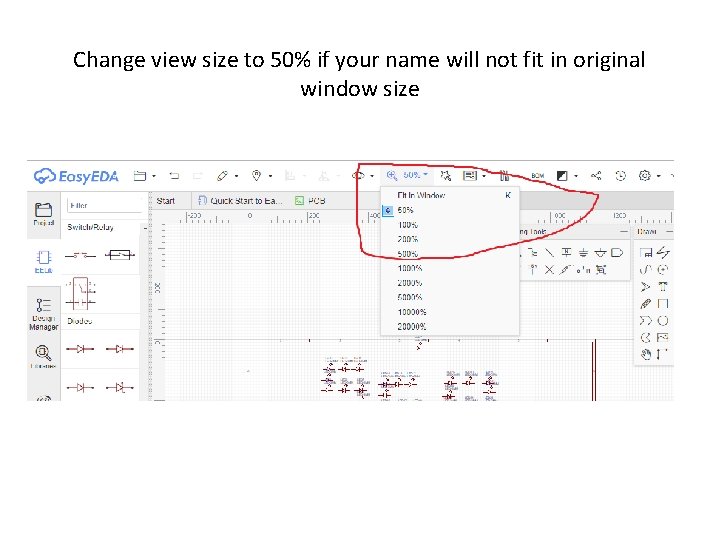
Change view size to 50% if your name will not fit in original window size
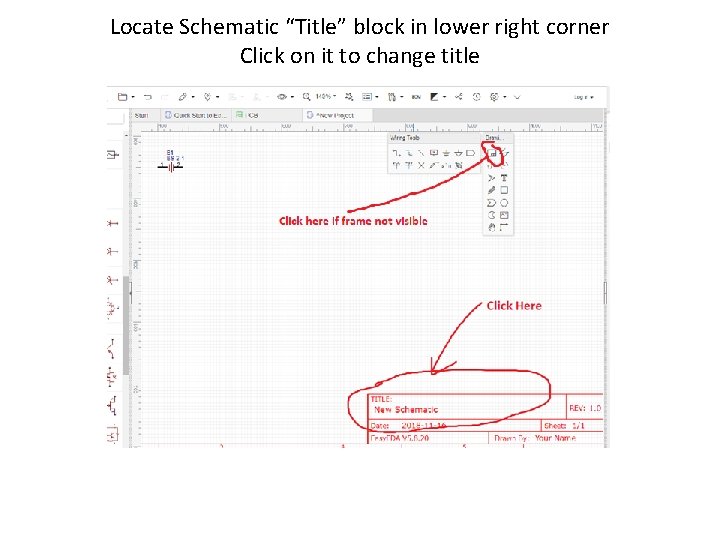
Locate Schematic “Title” block in lower right corner Click on it to change title
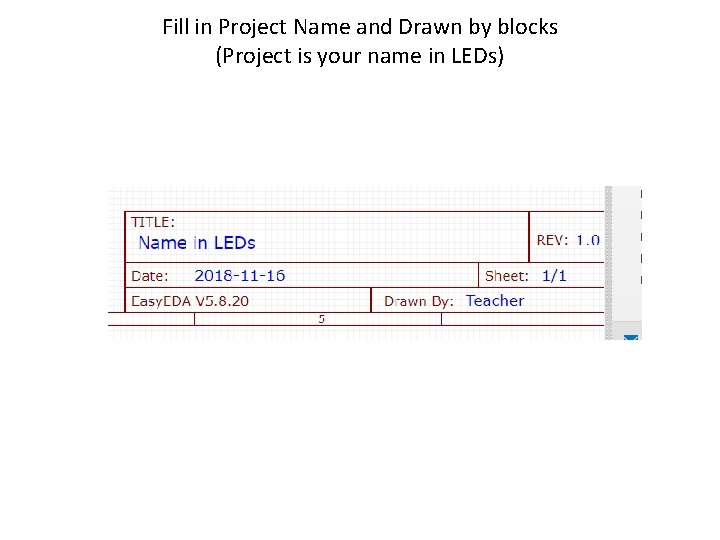
Fill in Project Name and Drawn by blocks (Project is your name in LEDs)
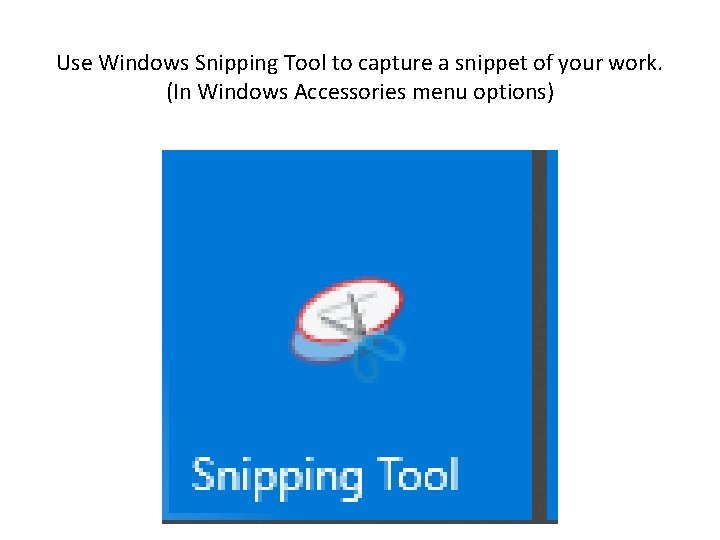
Use Windows Snipping Tool to capture a snippet of your work. (In Windows Accessories menu options)
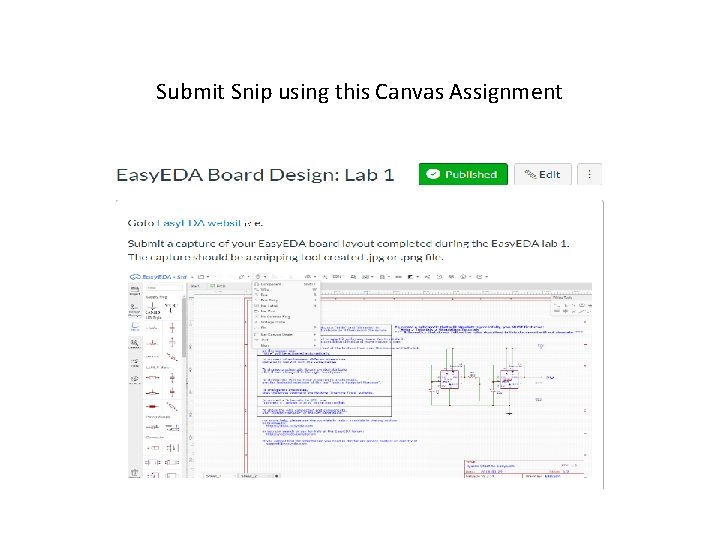
Submit Snip using this Canvas Assignment

End of Lab
- Slides: 17