
e Pro Scheduler Training Self Service Interface e

- Slides: 14
e. Pro Scheduler Training Self Service Interface e. Core Software Inc.
What can I do with e. Pro Scheduler? From home, from the station, or anywhere you have the internet you can… • View your current and future schedules • Request timeoff • Request shift swaps • Request to work open shifts • View your certification information • Submit your work availability • Send messages to the scheduler/message groups
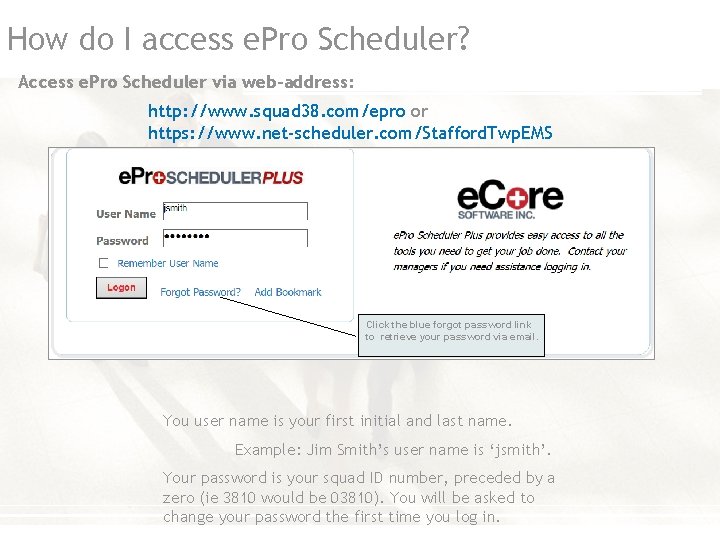
How do I access e. Pro Scheduler? Access e. Pro Scheduler via web-address: http: //www. squad 38. com/epro or https: //www. net-scheduler. com/Stafford. Twp. EMS Click the blue forgot password link to retrieve your password via email. You user name is your first initial and last name. Example: Jim Smith’s user name is ‘jsmith’. Your password is your squad ID number, preceded by a zero (ie 3810 would be 03810). You will be asked to change your password the first time you log in.
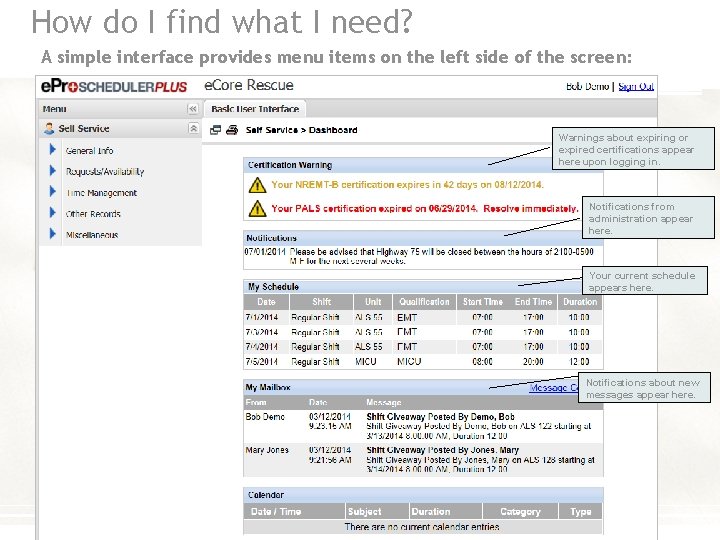
How do I find what I need? A simple interface provides menu items on the left side of the screen: Warnings about expiring or expired certifications appear here upon logging in. Notifications from administration appear here. Your current schedule appears here. Notifications about new messages appear here.
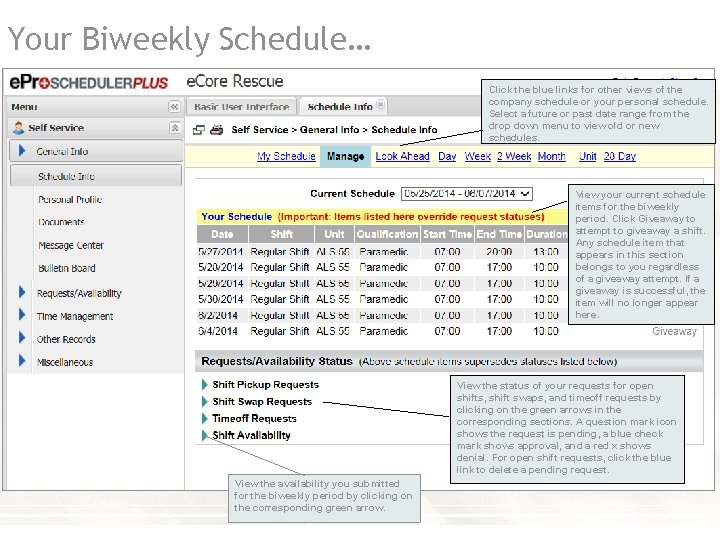
Your Biweekly Schedule… Click the blue links for other views of the company schedule or your personal schedule. Select a future or past date range from the drop down menu to view old or new schedules. View your current schedule items for the biweekly period. Click Giveaway to attempt to giveaway a shift. Any schedule item that appears in this section belongs to you regardless of a giveaway attempt. If a giveaway is successful, the item will no longer appear here. View the status of your requests for open shifts, shift swaps, and timeoff requests by clicking on the green arrows in the corresponding sections. A question mark icon shows the request is pending, a blue check mark shows approval, and a red x shows denial. For open shift requests, click the blue link to delete a pending request. View the availability you submitted for the biweekly period by clicking on the corresponding green arrow.
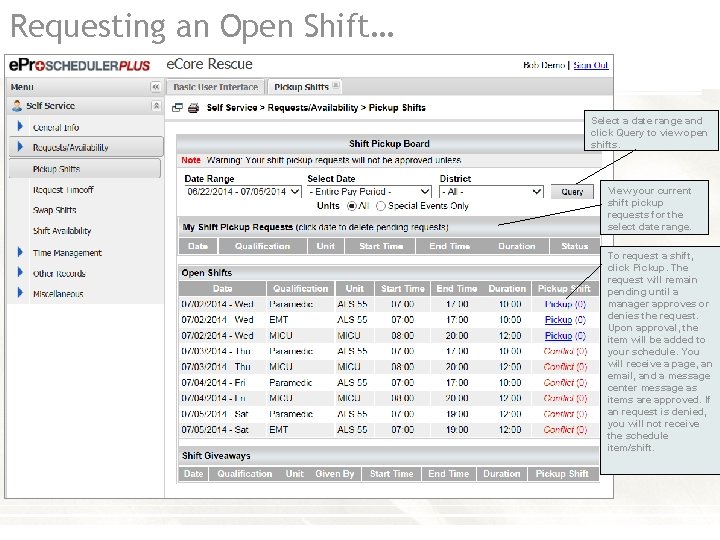
Requesting an Open Shift… Select a date range and click Query to view open shifts. View your current shift pickup requests for the select date range. To request a shift, click Pickup. The request will remain pending until a manager approves or denies the request. Upon approval, the item will be added to your schedule. You will receive a page, an email, and a message center message as items are approved. If an request is denied, you will not receive the schedule item/shift.
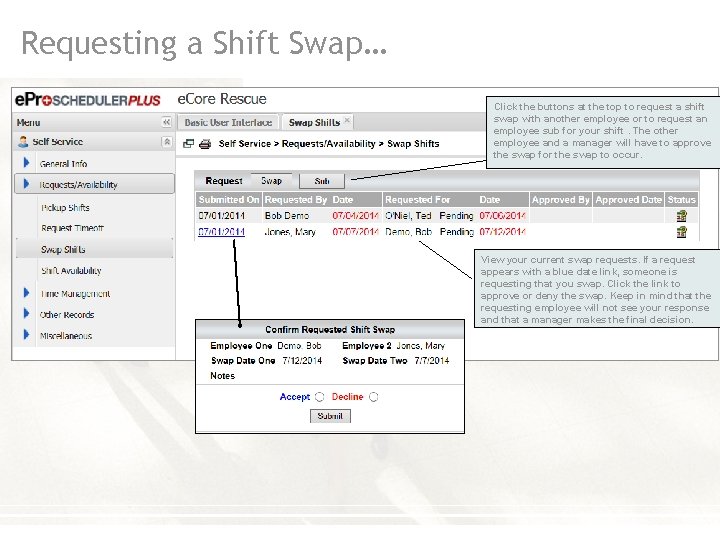
Requesting a Shift Swap… Click the buttons at the top to request a shift swap with another employee or to request an employee sub for your shift. The other employee and a manager will have to approve the swap for the swap to occur. View your current swap requests. If a request appears with a blue date link, someone is requesting that you swap. Click the link to approve or deny the swap. Keep in mind that the requesting employee will not see your response and that a manager makes the final decision.
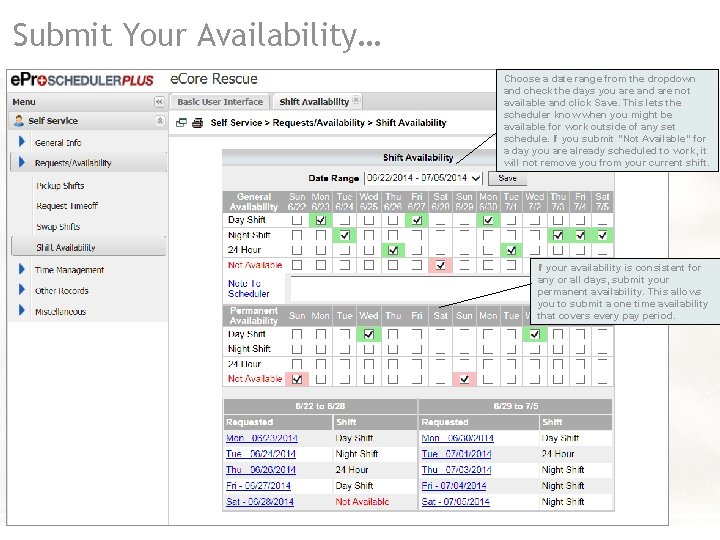
Submit Your Availability… Choose a date range from the dropdown and check the days you are and are not available and click Save. This lets the scheduler know when you might be available for work outside of any set schedule. If you submit “Not Available” for a day you are already scheduled to work, it will not remove you from your current shift. If your availability is consistent for any or all days, submit your permanent availability. This allows you to submit a one time availability that covers every pay period.
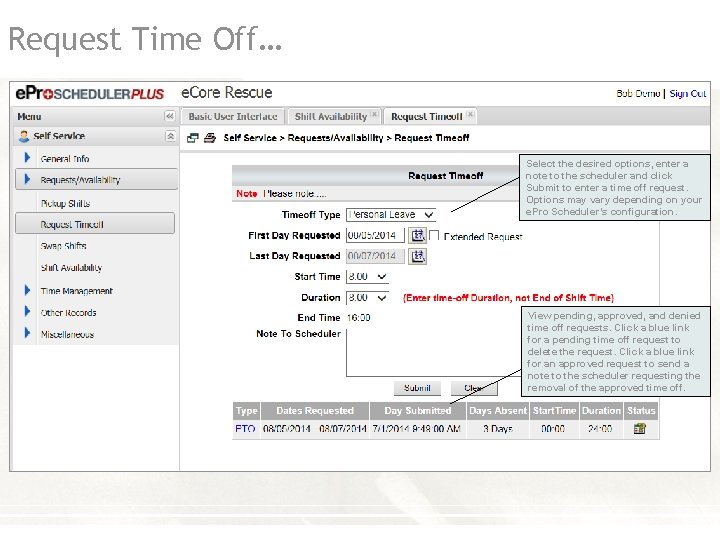
Request Time Off… Select the desired options, enter a note to the scheduler and click Submit to enter a time off request. Options may vary depending on your e. Pro Scheduler’s configuration. View pending, approved, and denied time off requests. Click a blue link for a pending time off request to delete the request. Click a blue link for an approved request to send a note to the scheduler requesting the removal of the approved time off.
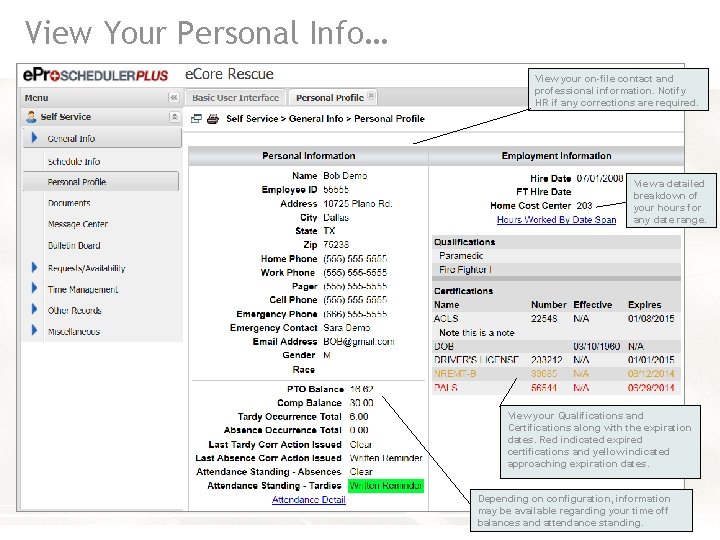
View Your Personal Info… View your on-file contact and professional information. Notify HR if any corrections are required. View a detailed breakdown of your hours for any date range. View your Qualifications and Certifications along with the expiration dates. Red indicated expired certifications and yellow indicated approaching expiration dates. Depending on configuration, information may be available regarding your time off balances and attendance standing.
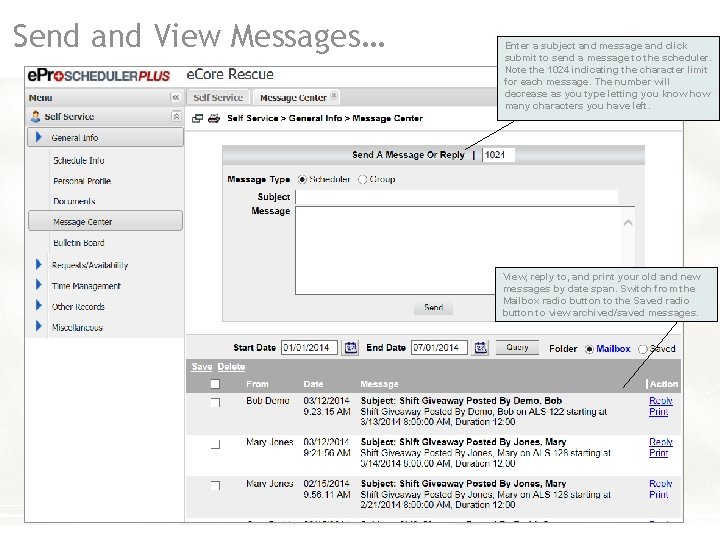
Send and View Messages… Enter a subject and message and click submit to send a message to the scheduler. Note the 1024 indicating the character limit for each message. The number will decrease as you type letting you know how many characters you have left. View, reply to, and print your old and new messages by date span. Switch from the Mailbox radio button to the Saved radio button to view archived/saved messages.
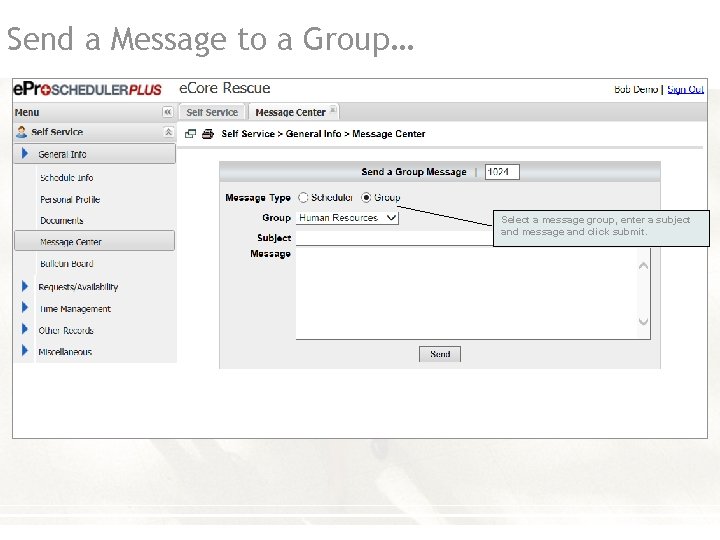
Send a Message to a Group… Select a message group, enter a subject and message and click submit.
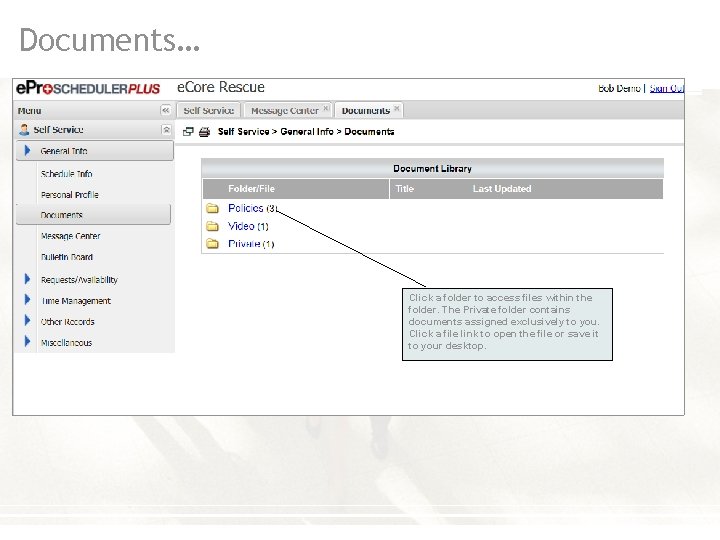
Documents… Click a folder to access files within the folder. The Private folder contains documents assigned exclusively to you. Click a file link to open the file or save it to your desktop.
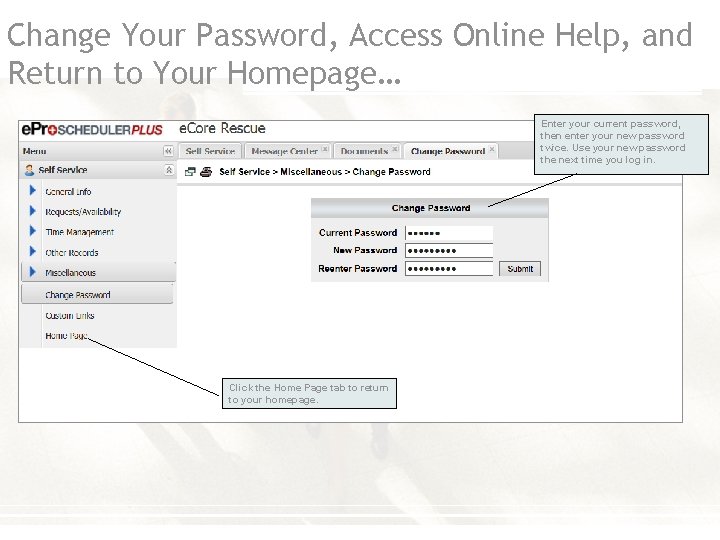
Change Your Password, Access Online Help, and Return to Your Homepage… Enter your current password, then enter your new password twice. Use your new password the next time you log in. Click the Home Page tab to return to your homepage.