
e Portfolios State College of Florida Less time
- Slides: 10
e. Portfolios State College of Florida Less time. Less effort. More awesome.
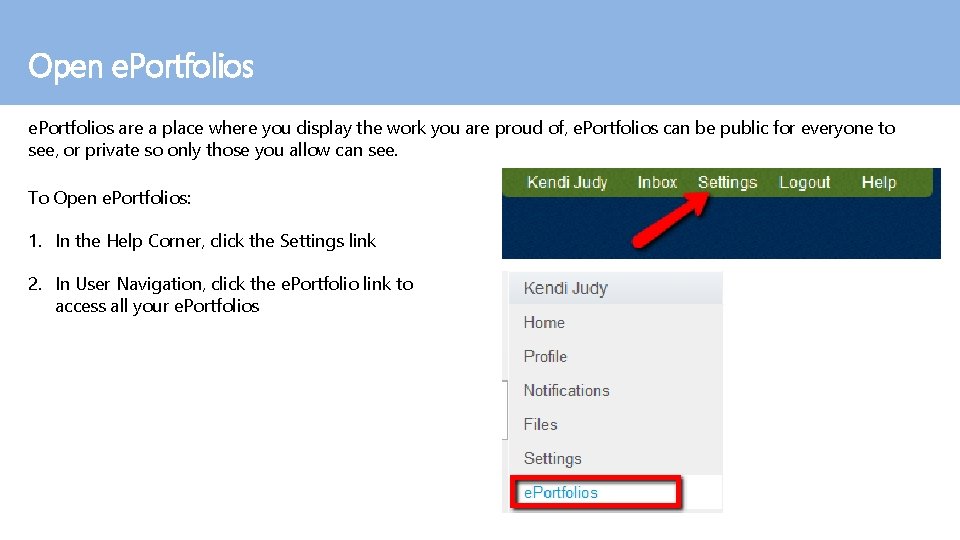
Open e. Portfolios are a place where you display the work you are proud of, e. Portfolios can be public for everyone to see, or private so only those you allow can see. To Open e. Portfolios: 1. In the Help Corner, click the Settings link 2. In User Navigation, click the e. Portfolio link to access all your e. Portfolios
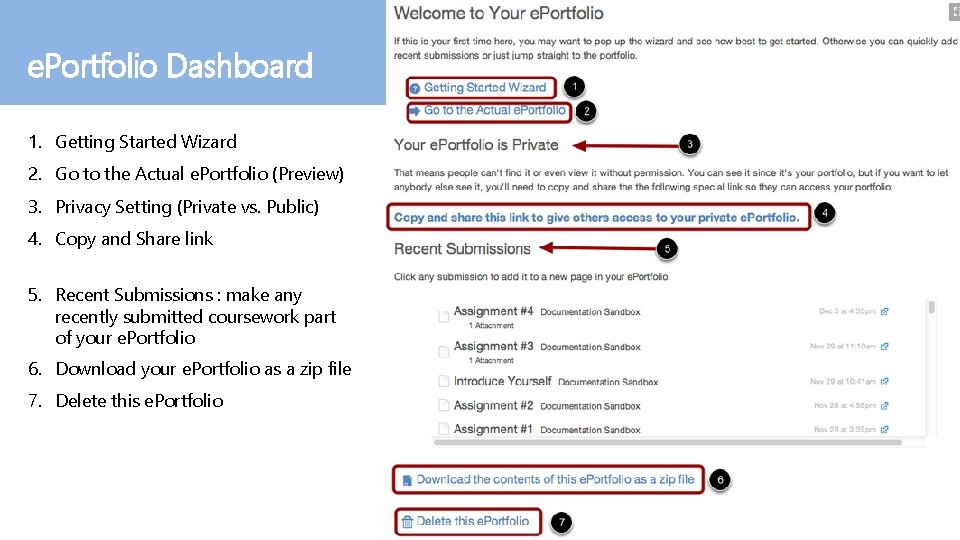
e. Portfolio Dashboard 1. Getting Started Wizard 2. Go to the Actual e. Portfolio (Preview) 3. Privacy Setting (Private vs. Public) 4. Copy and Share link 5. Recent Submissions : make any recently submitted coursework part of your e. Portfolio 6. Download your e. Portfolio as a zip file 7. Delete this e. Portfolio
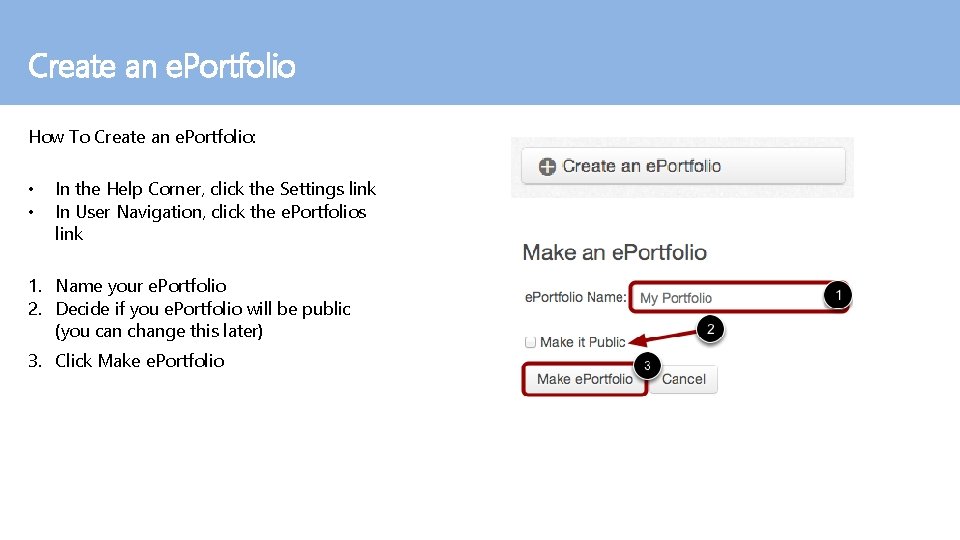
Create an e. Portfolio How To Create an e. Portfolio: • • In the Help Corner, click the Settings link In User Navigation, click the e. Portfolios link 1. Name your e. Portfolio 2. Decide if you e. Portfolio will be public (you can change this later) 3. Click Make e. Portfolio
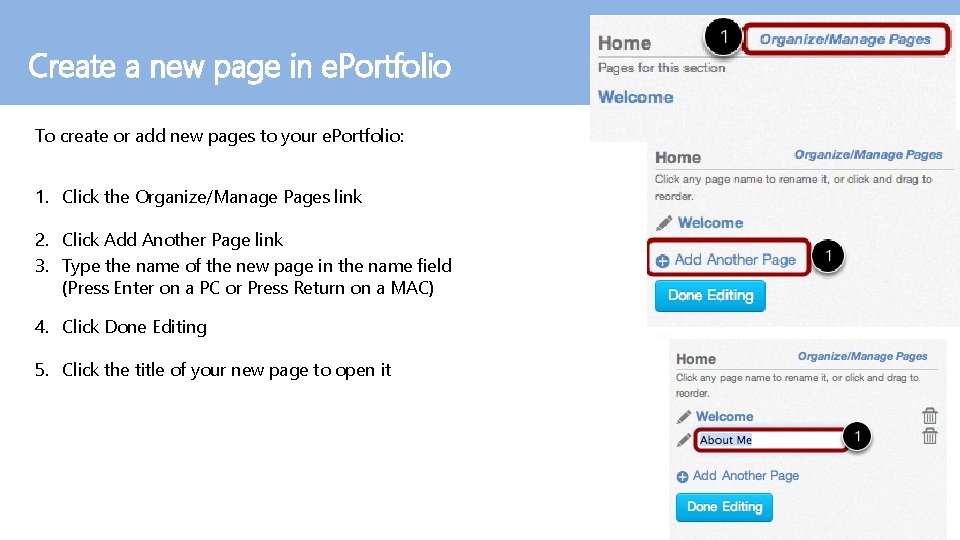
Create a new page in e. Portfolio To create or add new pages to your e. Portfolio: 1. Click the Organize/Manage Pages link 2. Click Add Another Page link 3. Type the name of the new page in the name field (Press Enter on a PC or Press Return on a MAC) 4. Click Done Editing 5. Click the title of your new page to open it
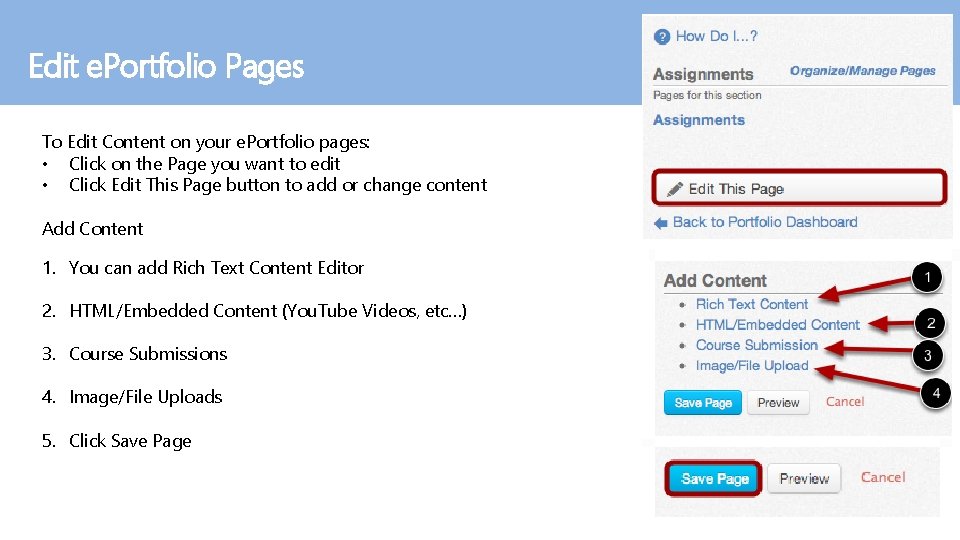
Edit e. Portfolio Pages To Edit Content on your e. Portfolio pages: • Click on the Page you want to edit • Click Edit This Page button to add or change content Add Content 1. You can add Rich Text Content Editor 2. HTML/Embedded Content (You. Tube Videos, etc…) 3. Course Submissions 4. Image/File Uploads 5. Click Save Page
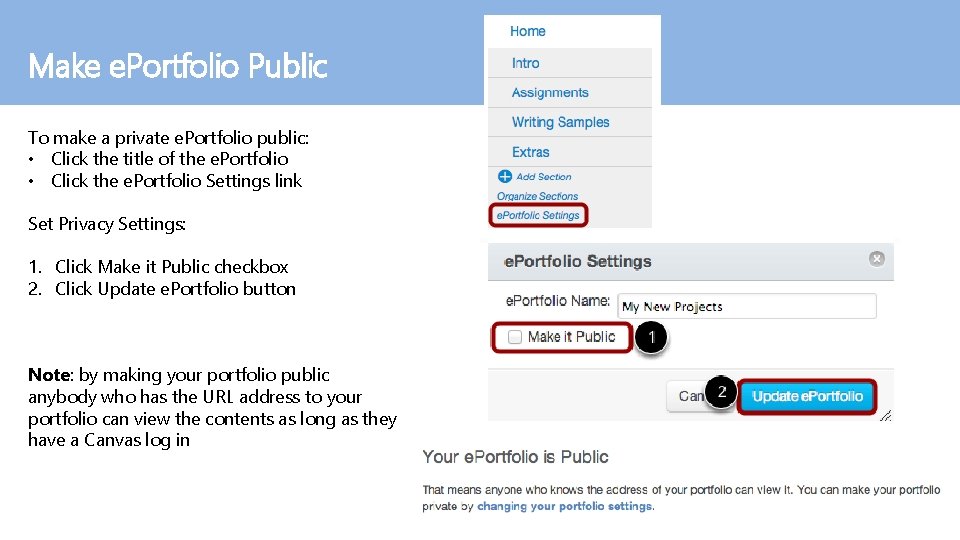
Make e. Portfolio Public To make a private e. Portfolio public: • Click the title of the e. Portfolio • Click the e. Portfolio Settings link Set Privacy Settings: 1. Click Make it Public checkbox 2. Click Update e. Portfolio button Note: by making your portfolio public anybody who has the URL address to your portfolio can view the contents as long as they have a Canvas log in
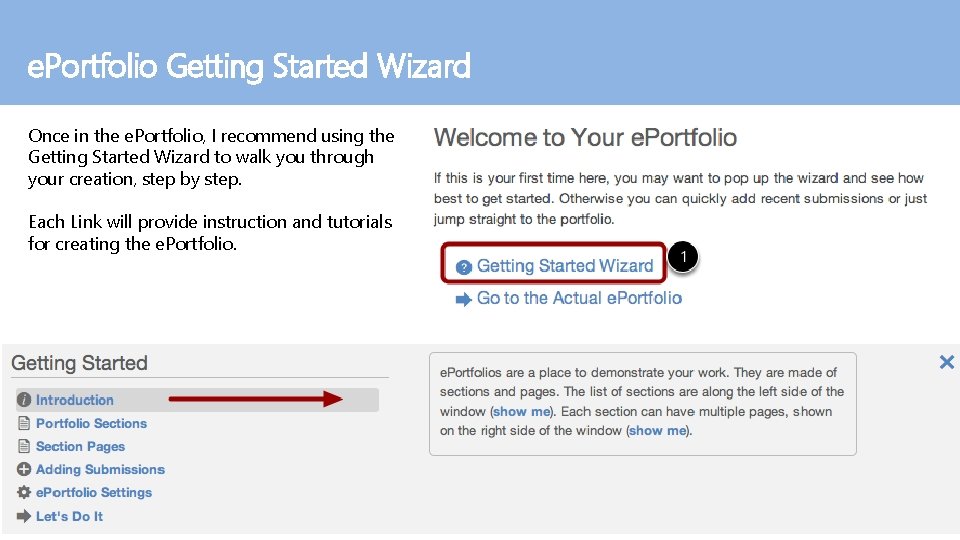
e. Portfolio Getting Started Wizard Once in the e. Portfolio, I recommend using the Getting Started Wizard to walk you through your creation, step by step. Each Link will provide instruction and tutorials for creating the e. Portfolio.
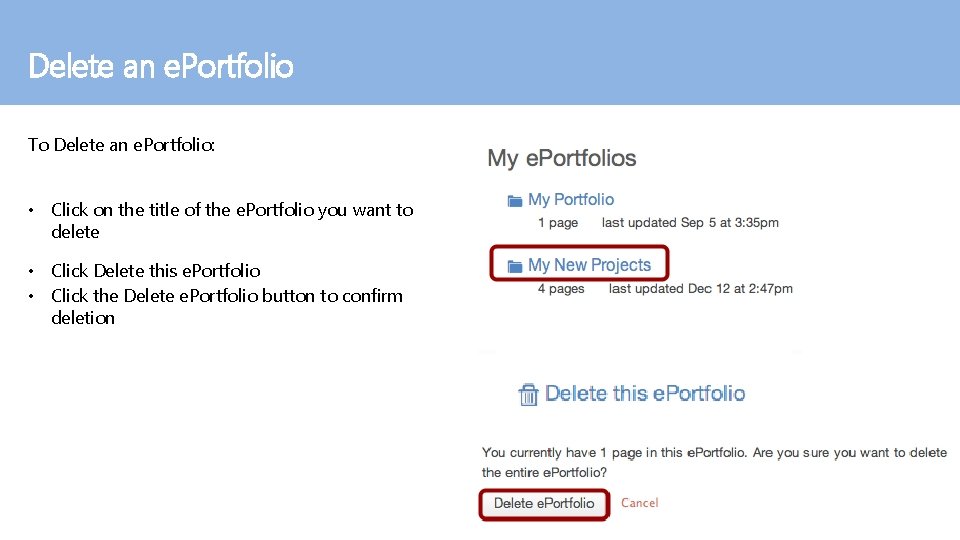
Delete an e. Portfolio To Delete an e. Portfolio: • Click on the title of the e. Portfolio you want to delete • Click Delete this e. Portfolio • Click the Delete e. Portfolio button to confirm deletion
Online Learning Staff Gary Baker Director Phone: 941 -752 -5431 Fax: 941 -751 -8185 Email: bakerg@scf. edu Dale Drees Lead Instructional Designer Phone: 941 -752 -5345 Fax: 941 -751 -8185 Email: dreesd@scf. edu Kendi Judy Specialist, Instructional Designer Phone: 941 -752 -5437 Fax: 941 -751 -8185 Email: judyk@scf. edu John Ewing LMS Administrator Phone: 941 -752 -5254 Fax: 941 -751 -8185 Email: ewingj@scf. edu Melanie Wallace Staff Assistant Phone: 941 -752 -5237 Fax: 941 -751 -8185 Email: wallacm@scf. edu