
e Grants Portal 101 Member Management Facilitators Rose
e. Grants Portal 101 Member Management
Facilitators • Rose David – Program Officer, Ameri. Corps State and National • Jennifer Kerner – Program Officer, Ameri. Corps State and National • Lora Pollari–Welbes – Program Officer, Ameri. Corps State and National
Agenda • e. Grants Portal General Overview • My Ameri. Corps Portal for Members • Member Enrollment/Exit/Suspension • Member Slot information/Slot Transfers • Reports available in e. Grants • Resources • Q&A
e. Grants Portal • An online system designed to streamline recruitment, enrollment, and member management – Creates Service Opportunities – Recruits, Accepts Member Application – Enrolls & Places Members – Creates & Approves Service Changes – Exits Members – Provides Member and Program Oversight
My Ameri. Corps Portal for Members Purpose and Member Action Steps: • • Registers on My Ameri. Corps Searches and Applies for Service Accepts or Rejects Service invitations Enrolls Serves Completes Service & Survey Exits Service & Receives Award Receives Alumni Services Website landing page for Prospective Members: http: //www. nationalservice. gov/programs/americorps/joinamericorps
MEMBER ENROLLMENT
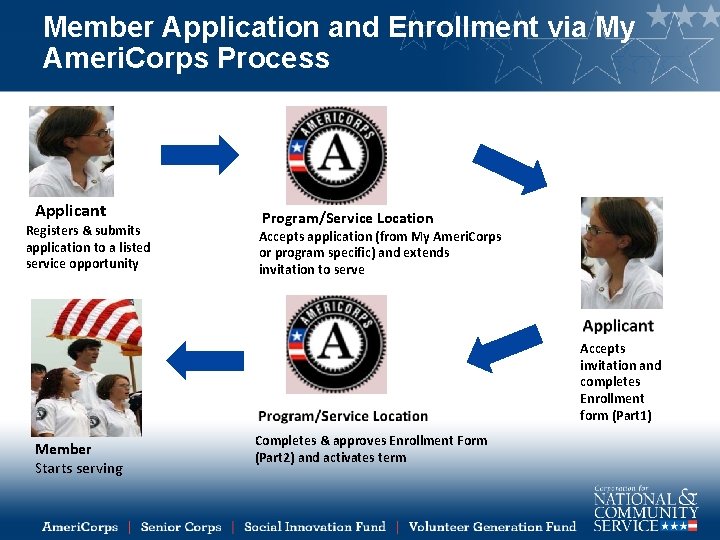
Member Application and Enrollment via My Ameri. Corps Process Applicant Registers & submits application to a listed service opportunity Program/Service Location Accepts application (from My Ameri. Corps or program specific) and extends invitation to serve Accepts invitation and completes Enrollment form (Part 1) Member Starts serving Completes & approves Enrollment Form (Part 2) and activates term
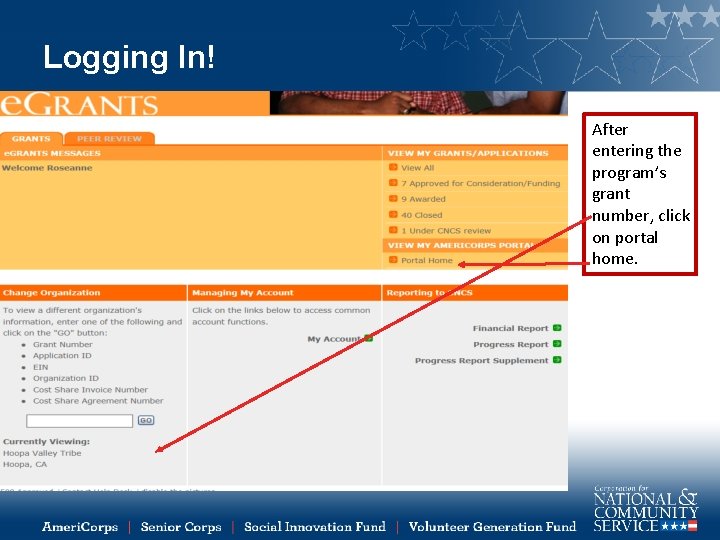
Logging In! After entering the program’s grant number, click on portal home.
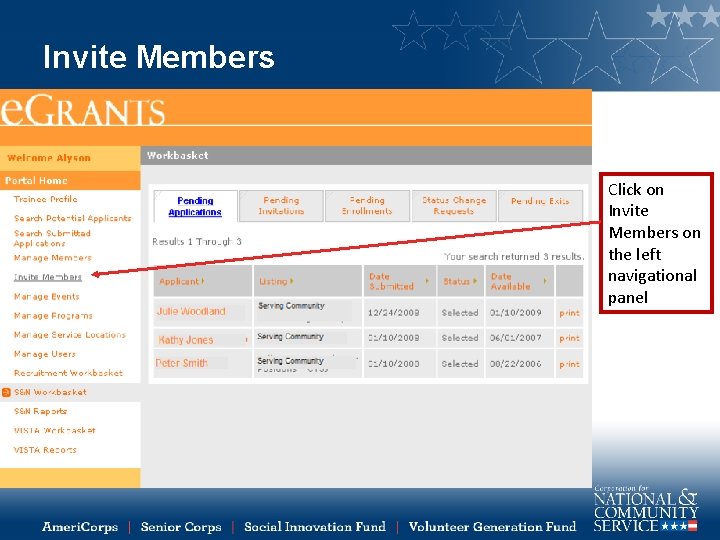
Invite Members Click on Invite Members on the left navigational panel
Invite Members Enter member’s data and select the program, grant year and member’s service location Click on Add Another to send the current invitation and enter another invitation Click Save to send one invitation and return o your homepage Click Cancel to discard any entries you made
Enroll Members – Invited through the invitation process Click S&N workbaskets on the left navigational panel. Then click the Pending Invitations tab located on the top navigational panel Click the member’s name to open the enrollment form Click Delete if you are not going to enroll the member
Enroll Members – Invited through the invitation process The member’s enrollment form will appear under the “Pending Enrollments, ” if you had clicked on “save information” on the member enrollment form from the “Pending Invitations” section or if the invitee had completed the member’s portion of the enrollment form
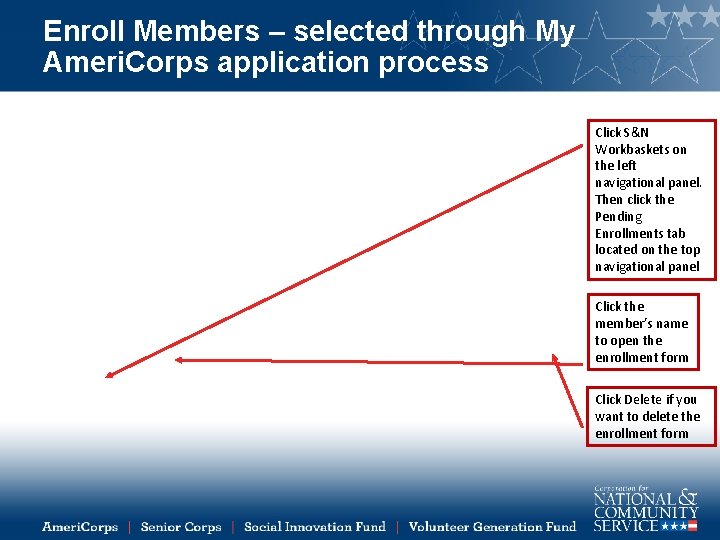
Enroll Members – selected through My Ameri. Corps application process Click S&N Workbaskets on the left navigational panel. Then click the Pending Enrollments tab located on the top navigational panel Click the member’s name to open the enrollment form Click Delete if you want to delete the enrollment form
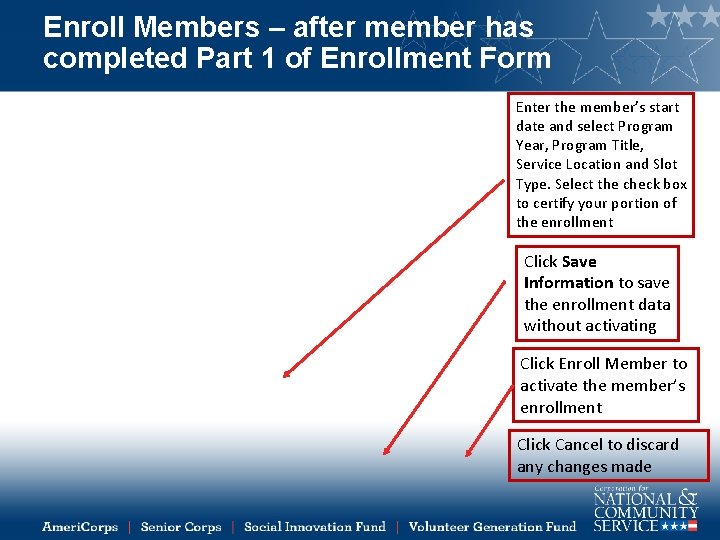
Enroll Members – after member has completed Part 1 of Enrollment Form Enter the member’s start date and select Program Year, Program Title, Service Location and Slot Type. Select the check box to certify your portion of the enrollment Click Save Information to save the enrollment data without activating Click Enroll Member to activate the member’s enrollment Click Cancel to discard any changes made
MEMBER EXIT
Member Exit • When an Ameri. Corps member ends service, the grantee will need to exit them from the e. Grants Portal within 30 days of their last day of service. • Members must complete their own exit form in the Portal unless the program has received a waiver to use paper forms.
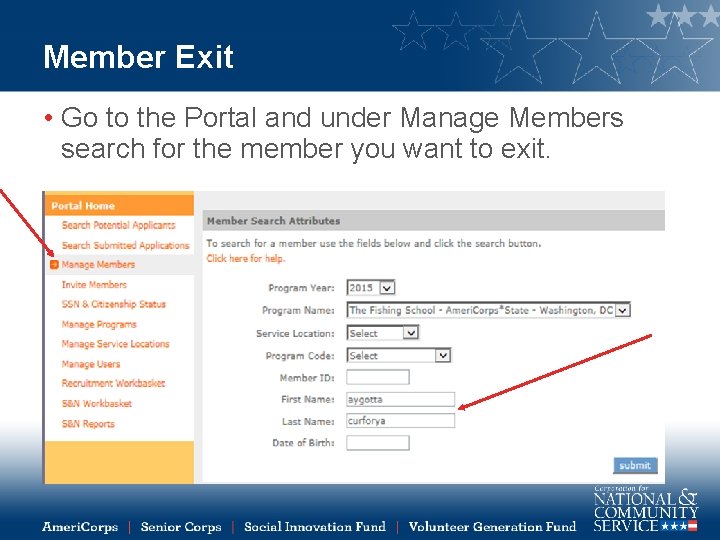
Member Exit • Go to the Portal and under Manage Members search for the member you want to exit.
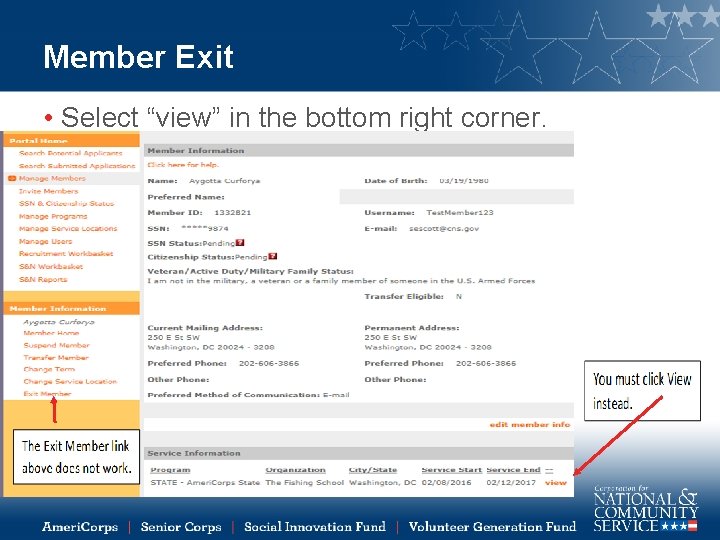
Member Exit • Select “view” in the bottom right corner.
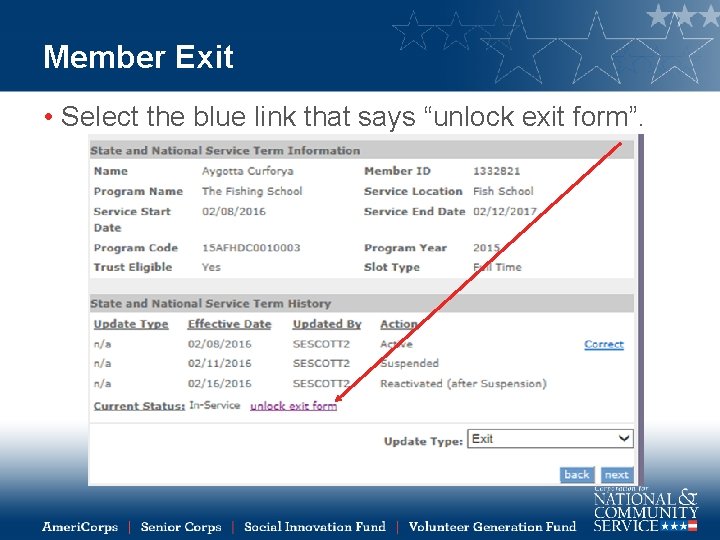
Member Exit • Select the blue link that says “unlock exit form”.
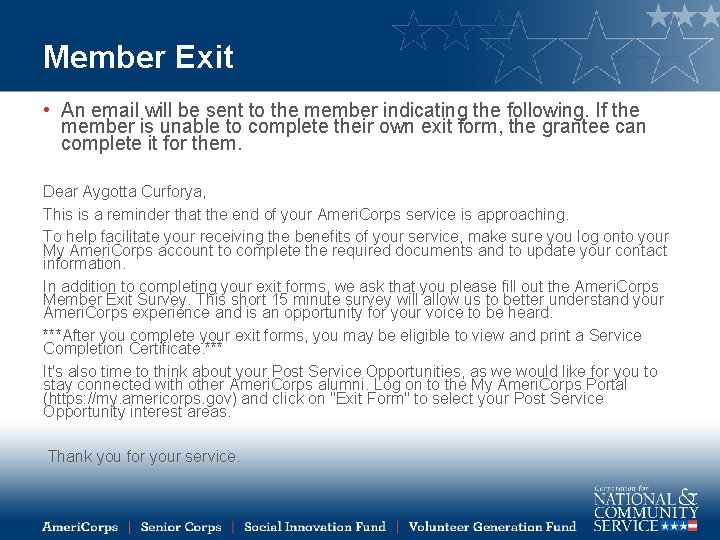
Member Exit • An email will be sent to the member indicating the following. If the member is unable to complete their own exit form, the grantee can complete it for them. Dear Aygotta Curforya, This is a reminder that the end of your Ameri. Corps service is approaching. To help facilitate your receiving the benefits of your service, make sure you log onto your My Ameri. Corps account to complete the required documents and to update your contact information. In addition to completing your exit forms, we ask that you please fill out the Ameri. Corps Member Exit Survey. This short 15 minute survey will allow us to better understand your Ameri. Corps experience and is an opportunity for your voice to be heard. ***After you complete your exit forms, you may be eligible to view and print a Service Completion Certificate. *** It's also time to think about your Post Service Opportunities, as we would like for you to stay connected with other Ameri. Corps alumni. Log on to the My Ameri. Corps Portal (https: //my. americorps. gov) and click on "Exit Form" to select your Post Service Opportunity interest areas. Thank you for your service.
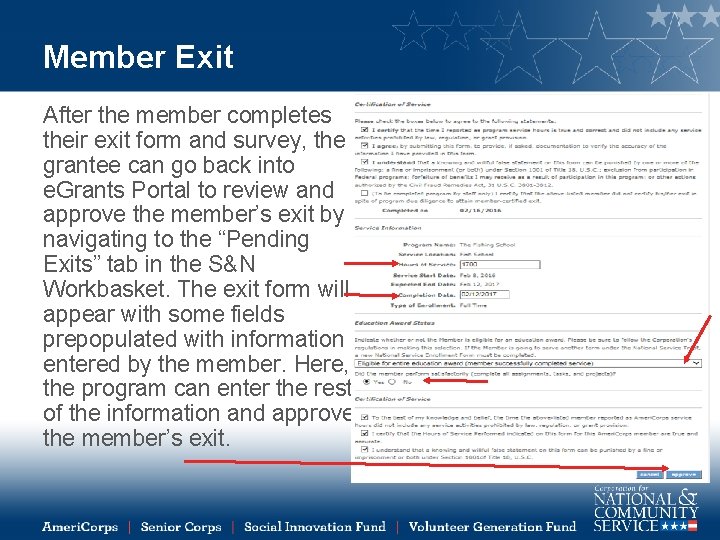
Member Exit After the member completes their exit form and survey, the grantee can go back into e. Grants Portal to review and approve the member’s exit by navigating to the “Pending Exits” tab in the S&N Workbasket. The exit form will appear with some fields prepopulated with information entered by the member. Here, the program can enter the rest of the information and approve the member’s exit.
Member Exit • Once completed, the system will indicate the member has been exited. • Once the program finishes the exit form, the member receives two (2) emails with details regarding the earned Eli Segal Education Award. • The program is responsible for maintaining proper documentation of data entered into the Portal. The required documentation should be part of the program’s policies and must be regularly monitored.
Suspending a Member
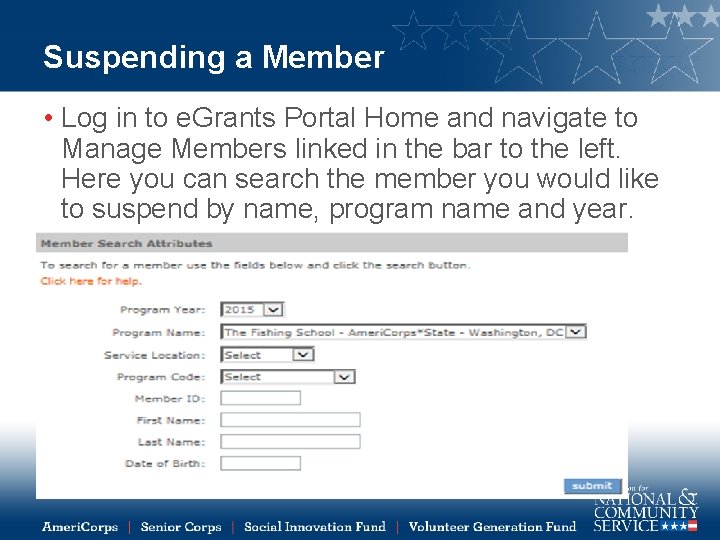
Suspending a Member • Log in to e. Grants Portal Home and navigate to Manage Members linked in the bar to the left. Here you can search the member you would like to suspend by name, program name and year.
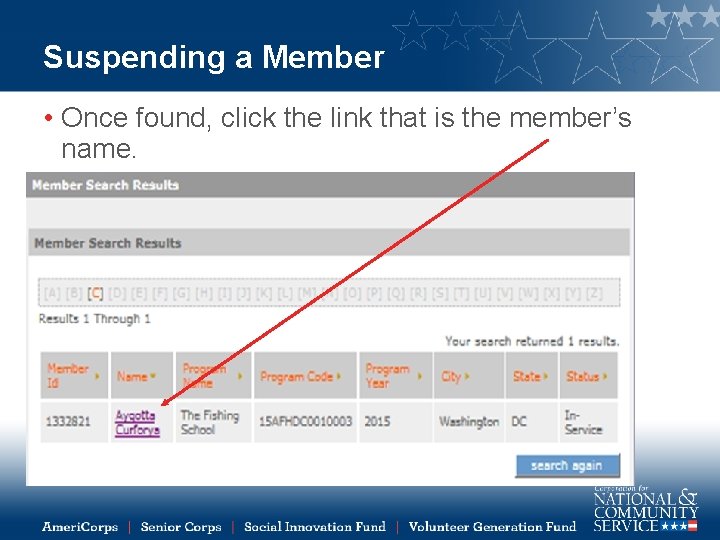
Suspending a Member • Once found, click the link that is the member’s name.
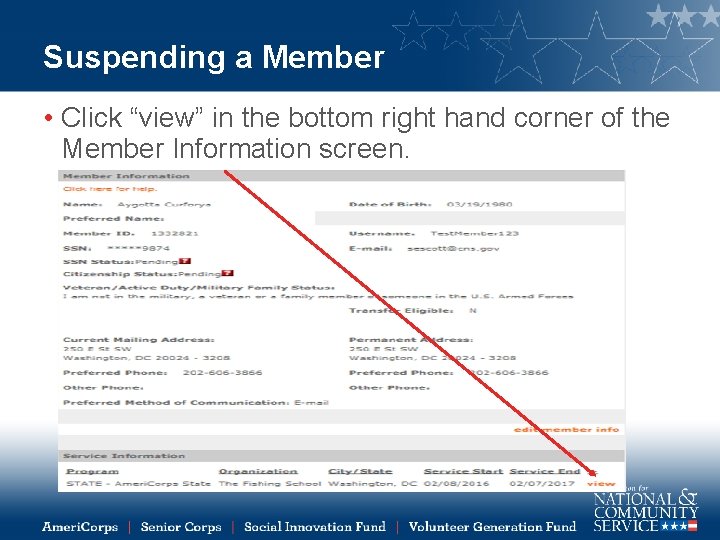
Suspending a Member • Click “view” in the bottom right hand corner of the Member Information screen.

Suspending a Member • On the next screen, choose “Suspend” in the dropdown menu in the bottom right corner. Then click next.
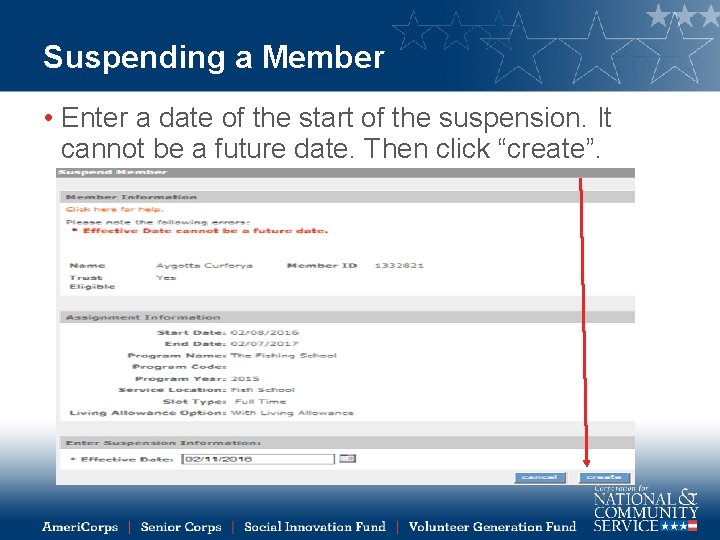
Suspending a Member • Enter a date of the start of the suspension. It cannot be a future date. Then click “create”.
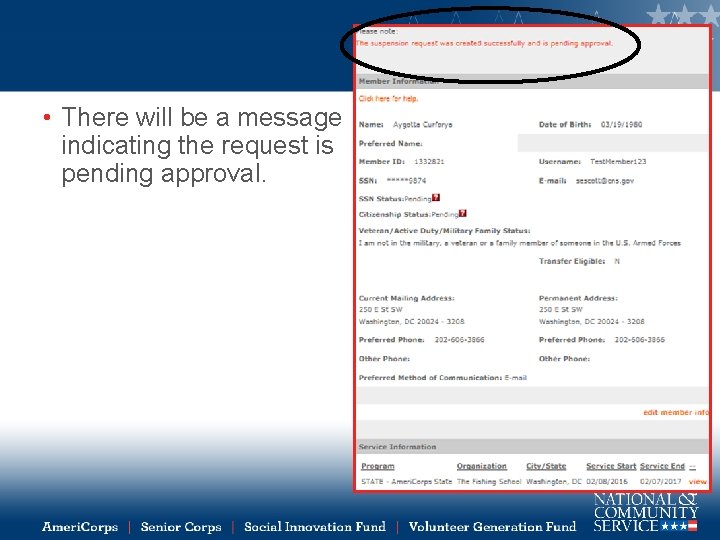
• There will be a message indicating the request is pending approval.
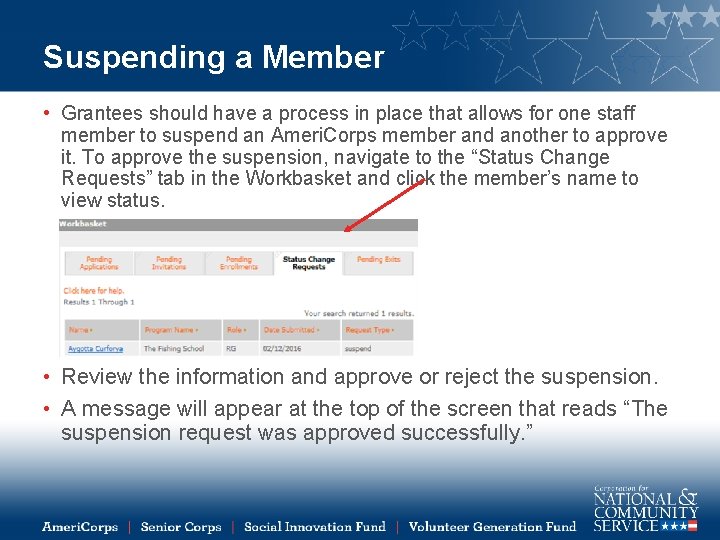
Suspending a Member • Grantees should have a process in place that allows for one staff member to suspend an Ameri. Corps member and another to approve it. To approve the suspension, navigate to the “Status Change Requests” tab in the Workbasket and click the member’s name to view status. • Review the information and approve or reject the suspension. • A message will appear at the top of the screen that reads “The suspension request was approved successfully. ”
Reinstating a Suspended Member
Reinstating a Suspended Member 1. Navigate to the Portal Home in e. Grants. Under Manage Members in the left bar, search the suspended member you wish to reinstate. 2. Click the member’s name to move forward. 3. Click “view” in the bottom right hand corner to open up the screen that offers different actions from which to choose 4. Choose the option in the dropdown menu for “Reinstate” and click next. 5. Enter a date to effectuate the reinstatement. It cannot be a future date. Then click “create”. 6. Navigate to the “Status Change Requests” tab in the Workbasket and click the member’s name to reject or approve the reinstatement. 7. After approval there will be a screen that indicates the approval was accepted and the member has been reinstated. When the member is searched, their status will once again read, “In-service”.
Member Slot Information
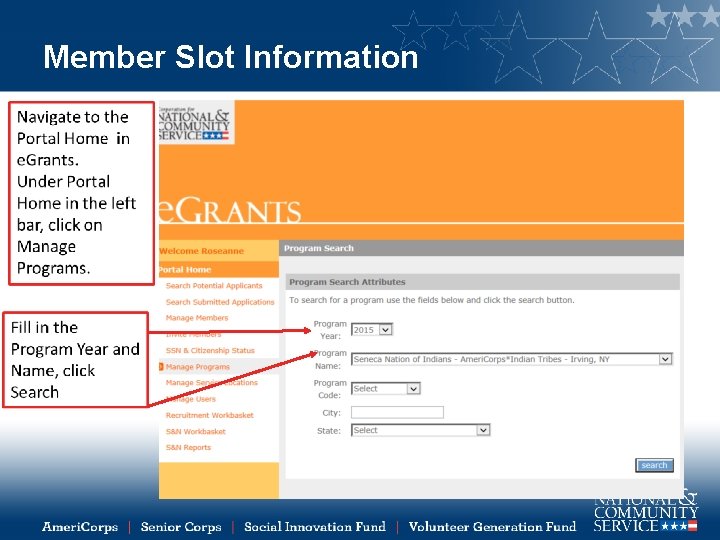
Member Slot Information
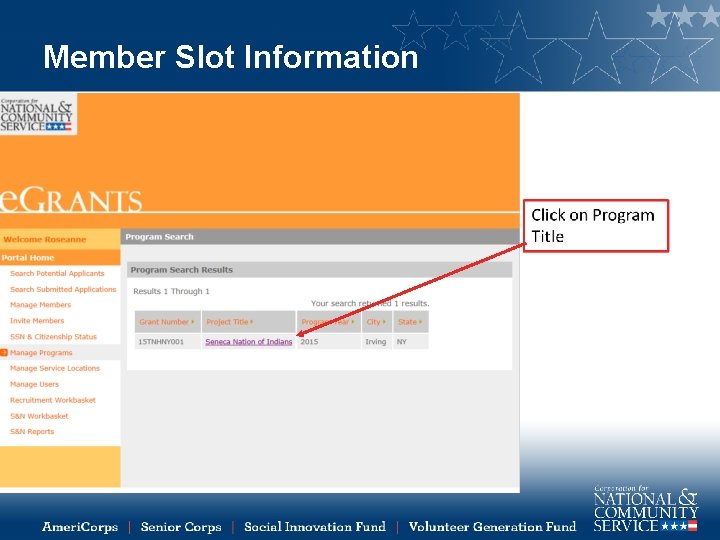
Member Slot Information
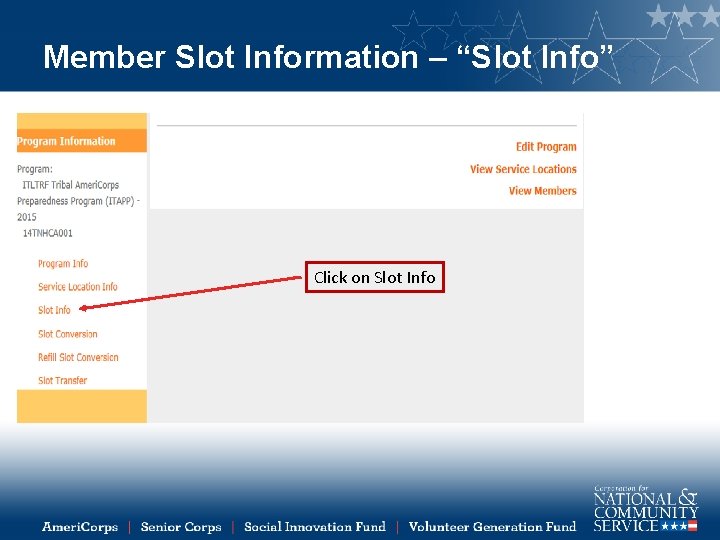
Member Slot Information – “Slot Info” Click on Slot Info
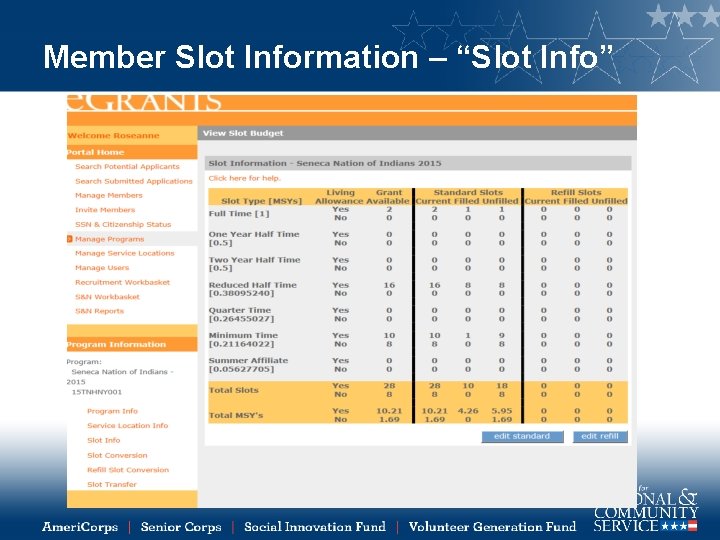
Member Slot Information – “Slot Info”
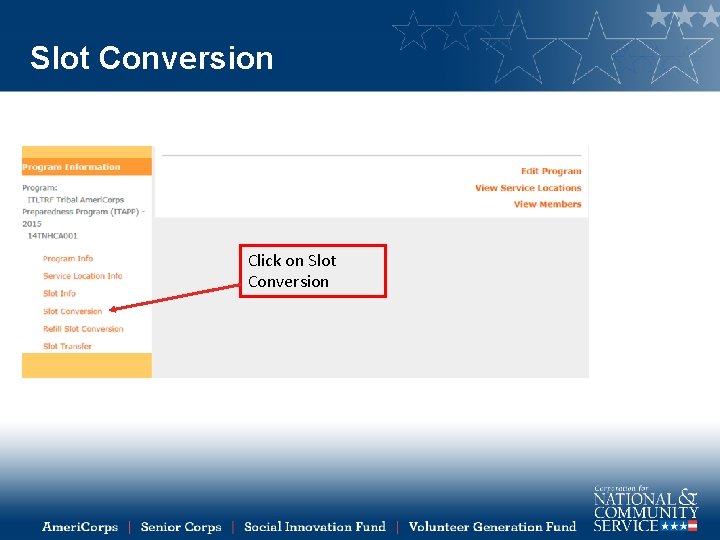
Slot Conversion Click on Slot Conversion
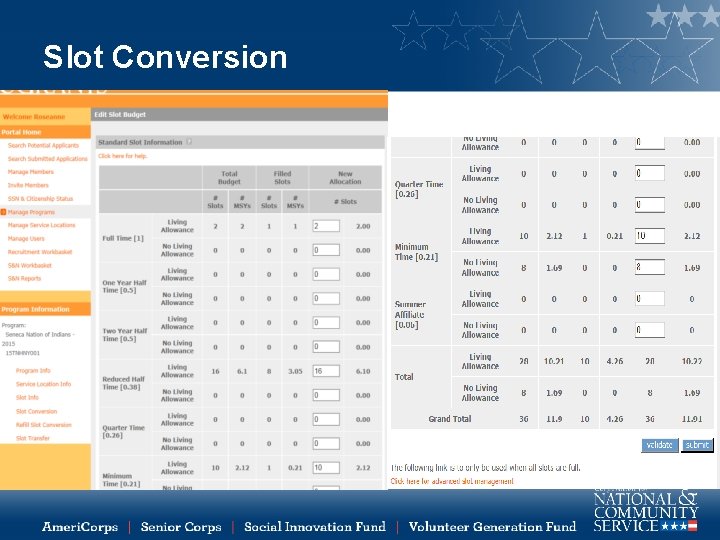
Slot Conversion
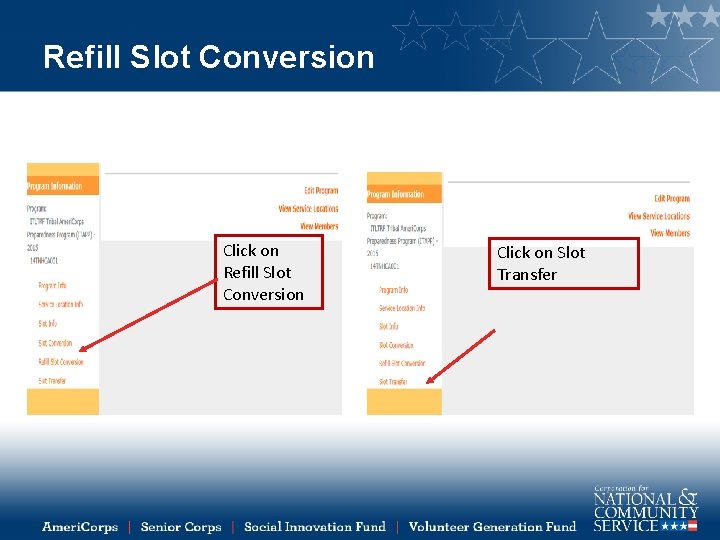
Refill Slot Conversion Click on Slot Transfer
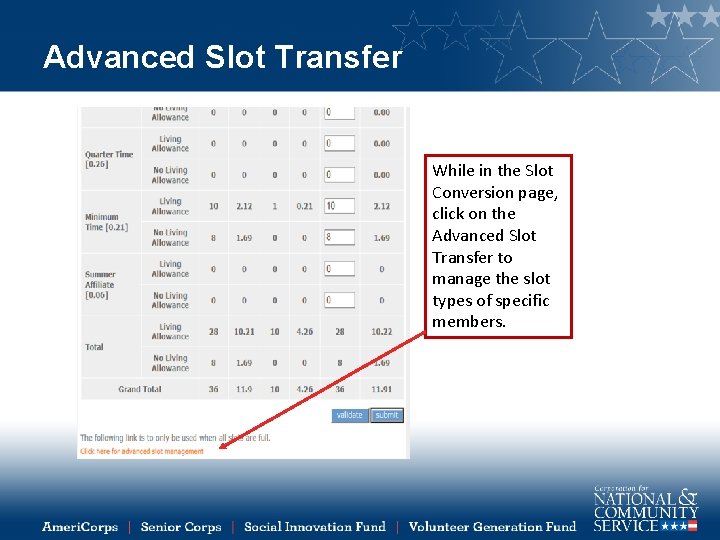
Advanced Slot Transfer While in the Slot Conversion page, click on the Advanced Slot Transfer to manage the slot types of specific members.
State and National Reports
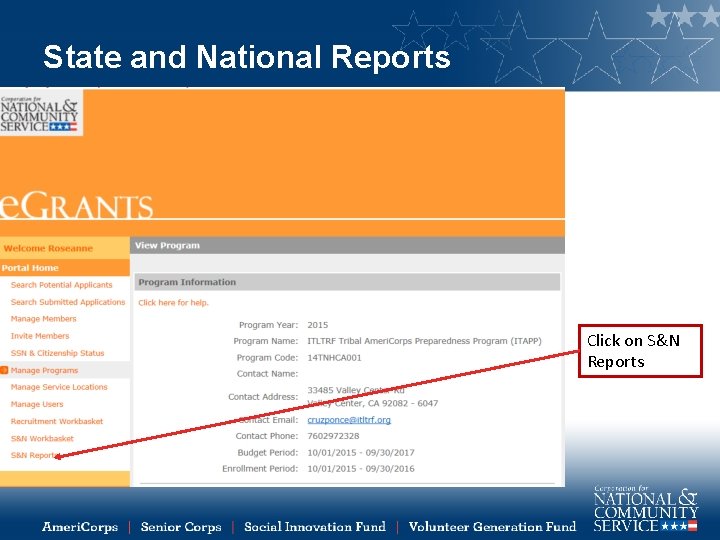
State and National Reports Click on S&N Reports
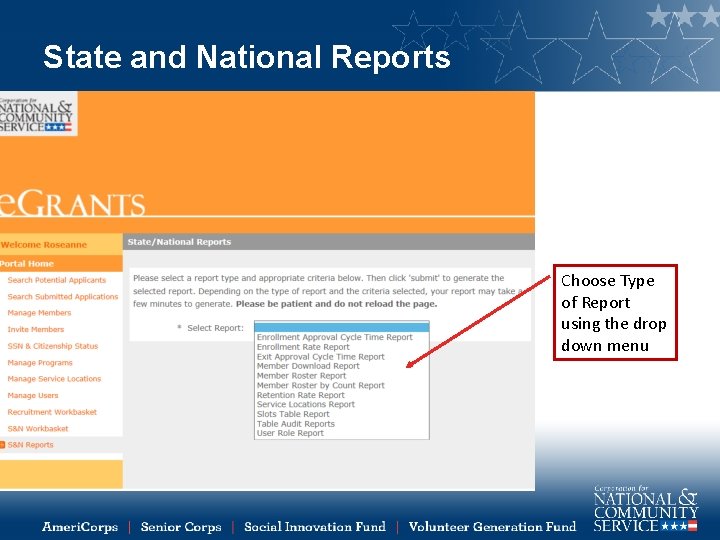
State and National Reports Choose Type of Report using the drop down menu
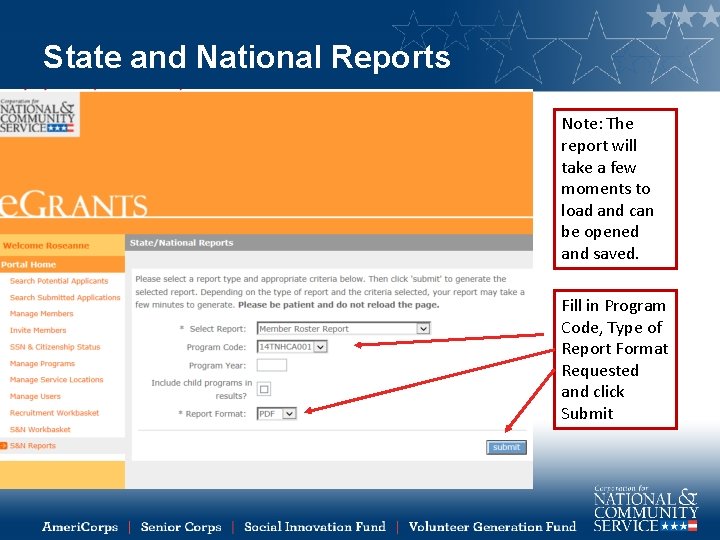
State and National Reports Note: The report will take a few moments to load and can be opened and saved. Fill in Program Code, Type of Report Format Requested and click Submit
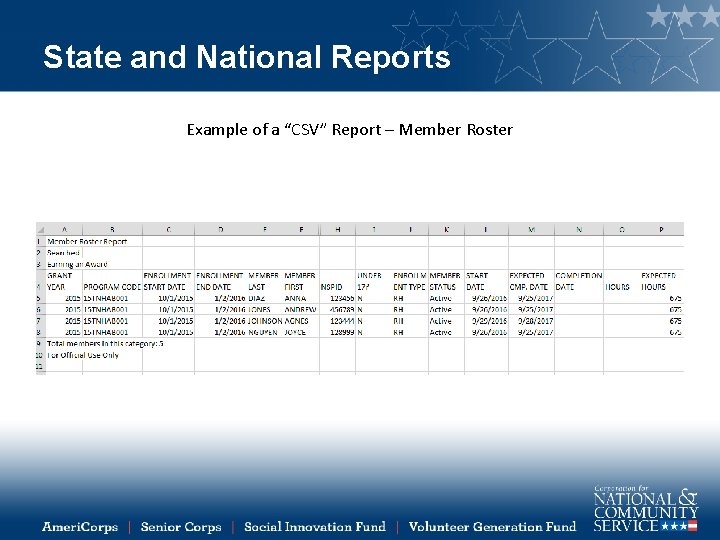
State and National Reports Example of a “CSV” Report – Member Roster
Personally Identifiable Information (PII) What is PII? is any information about an individual maintained by an program, including: • Any information that can be used to distinguish or trace an individual‘s identity such as name, social security number, date and place of birth, mother‘s maiden name, or biometric records • Any other information that is linked or linkable to an individual, such as medical, educational, financial, and employment information When viewing member information and preparing reports programs need to ensure PII is protected – i. e. reports not left on copier, member files under lock and key etc.
Resources • My. Ameri. Corps Support for Ameri. Corps National Programs (e. Grants) http: //www. nationalservice. gov/resources/americorps/mya mericorps-support-americorps-national-programs-egrants • For technical assistance, please contact the e. Grants Help Desk at 1 -800 -942 -2677 • Program Officer
Q&A
Thank you!
- Slides: 50