
e Filing Overview Harris County District Clerk Overview
- Slides: 44
e. Filing Overview Harris County District Clerk
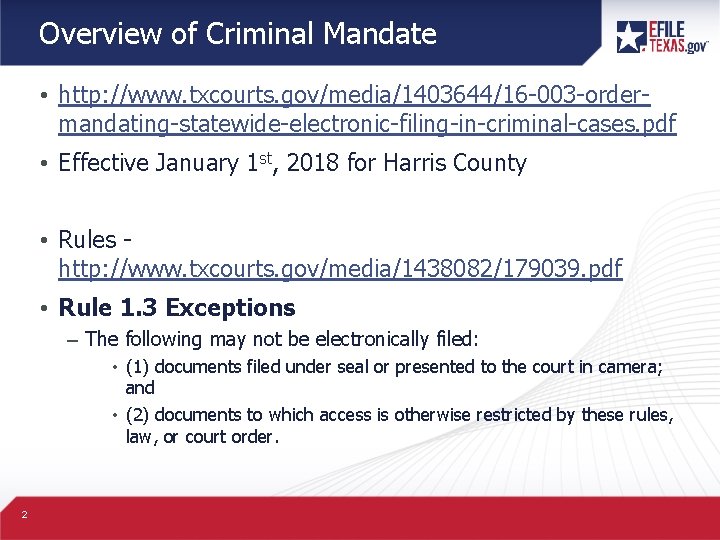
Overview of Criminal Mandate • http: //www. txcourts. gov/media/1403644/16 -003 -ordermandating-statewide-electronic-filing-in-criminal-cases. pdf • Effective January 1 st, 2018 for Harris County • Rules http: //www. txcourts. gov/media/1438082/179039. pdf • Rule 1. 3 Exceptions – The following may not be electronically filed: • (1) documents filed under seal or presented to the court in camera; and • (2) documents to which access is otherwise restricted by these rules, law, or court order. 2
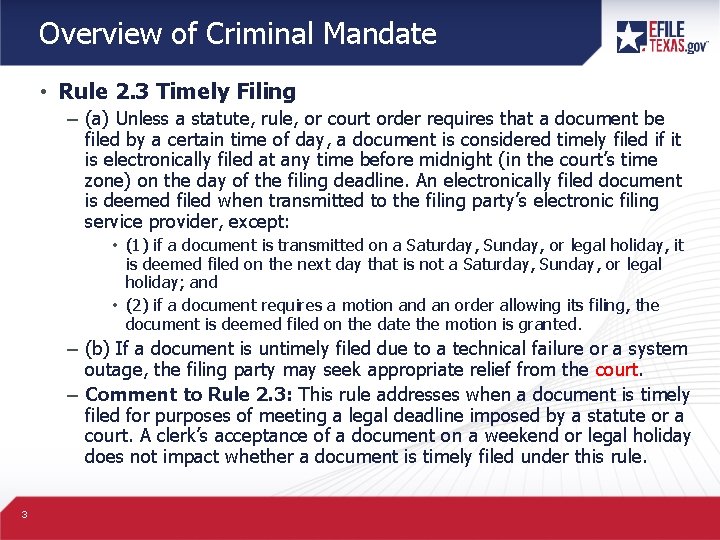
Overview of Criminal Mandate • Rule 2. 3 Timely Filing – (a) Unless a statute, rule, or court order requires that a document be filed by a certain time of day, a document is considered timely filed if it is electronically filed at any time before midnight (in the court’s time zone) on the day of the filing deadline. An electronically filed document is deemed filed when transmitted to the filing party’s electronic filing service provider, except: • (1) if a document is transmitted on a Saturday, Sunday, or legal holiday, it is deemed filed on the next day that is not a Saturday, Sunday, or legal holiday; and • (2) if a document requires a motion and an order allowing its filing, the document is deemed filed on the date the motion is granted. – (b) If a document is untimely filed due to a technical failure or a system outage, the filing party may seek appropriate relief from the court. – Comment to Rule 2. 3: This rule addresses when a document is timely filed for purposes of meeting a legal deadline imposed by a statute or a court. A clerk’s acceptance of a document on a weekend or legal holiday does not impact whether a document is timely filed under this rule. 3
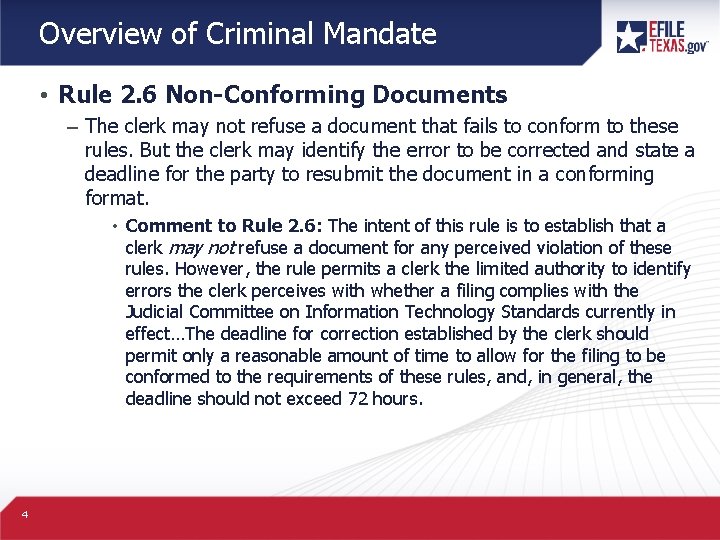
Overview of Criminal Mandate • Rule 2. 6 Non-Conforming Documents – The clerk may not refuse a document that fails to conform to these rules. But the clerk may identify the error to be corrected and state a deadline for the party to resubmit the document in a conforming format. • Comment to Rule 2. 6: The intent of this rule is to establish that a clerk may not refuse a document for any perceived violation of these rules. However, the rule permits a clerk the limited authority to identify errors the clerk perceives with whether a filing complies with the Judicial Committee on Information Technology Standards currently in effect…The deadline for correction established by the clerk should permit only a reasonable amount of time to allow for the filing to be conformed to the requirements of these rules, and, in general, the deadline should not exceed 72 hours. 4
Overview of Criminal Mandate • Questions on Mandate? 5
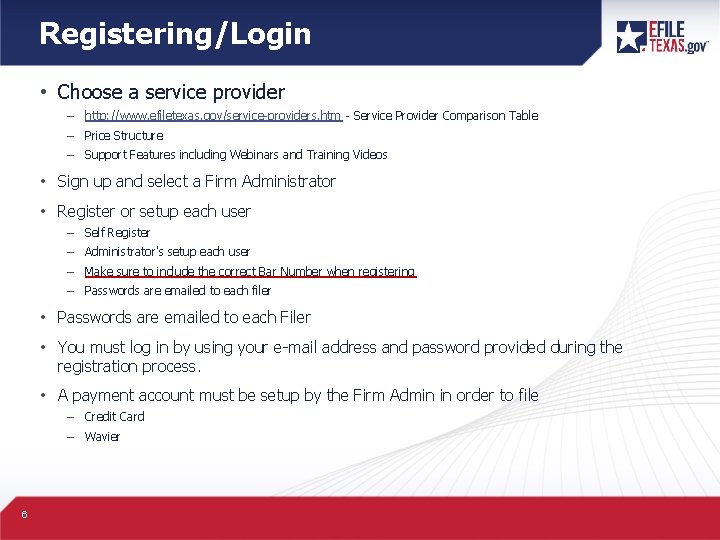
Registering/Login • Choose a service provider – http: //www. efiletexas. gov/service-providers. htm - Service Provider Comparison Table – Price Structure – Support Features including Webinars and Training Videos • Sign up and select a Firm Administrator • Register or setup each user – Self Register – Administrator's setup each user – Make sure to include the correct Bar Number when registering – Passwords are emailed to each filer • Passwords are emailed to each Filer • You must log in by using your e-mail address and password provided during the registration process. • A payment account must be setup by the Firm Admin in order to file – Credit Card – Wavier 6
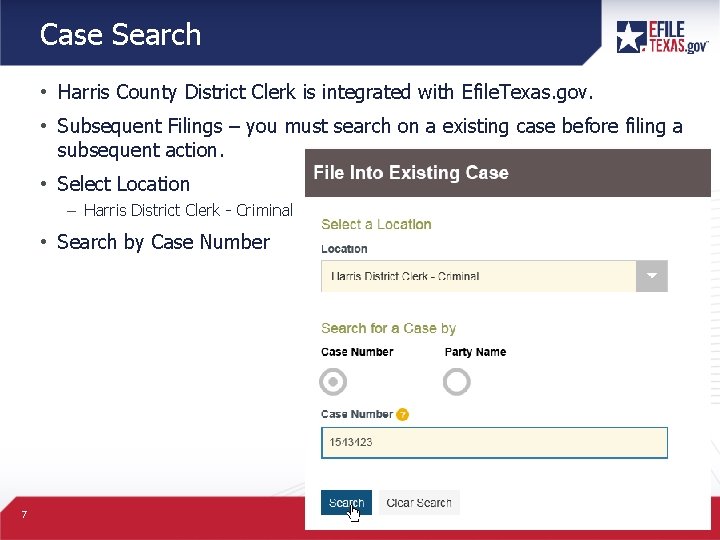
Case Search • Harris County District Clerk is integrated with Efile. Texas. gov. • Subsequent Filings – you must search on a existing case before filing a subsequent action. • Select Location – Harris District Clerk - Criminal • Search by Case Number 7
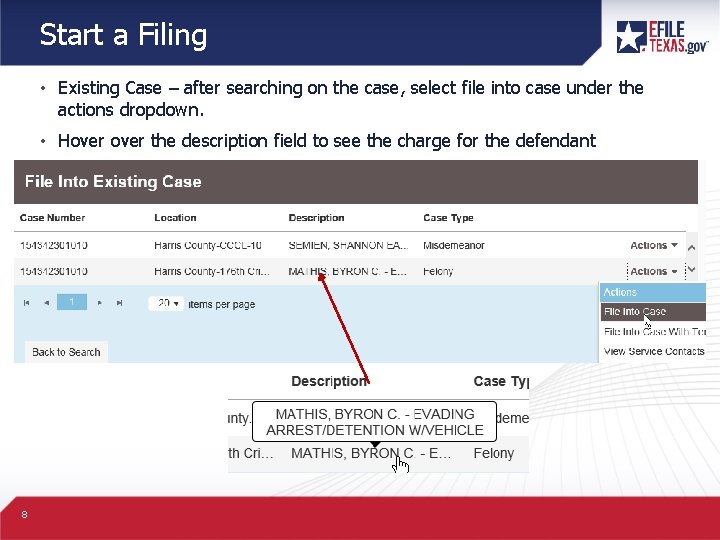
Start a Filing • Existing Case – after searching on the case, select file into case under the actions dropdown. • Hover the description field to see the charge for the defendant 8
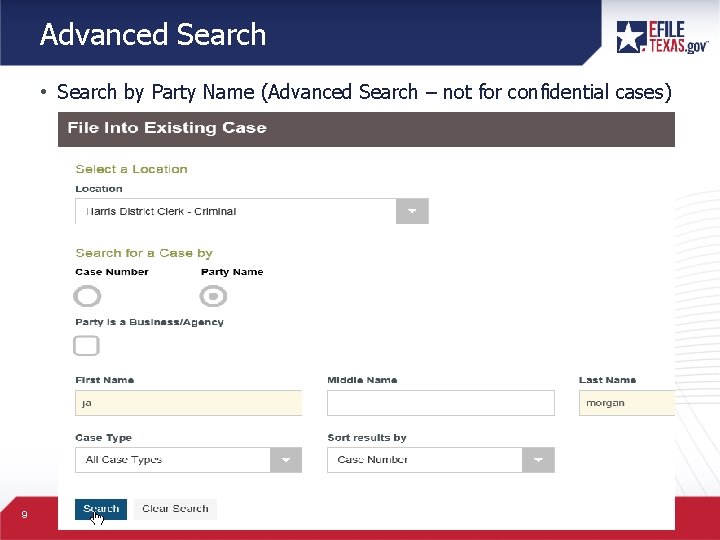
Advanced Search • Search by Party Name (Advanced Search – not for confidential cases) 9
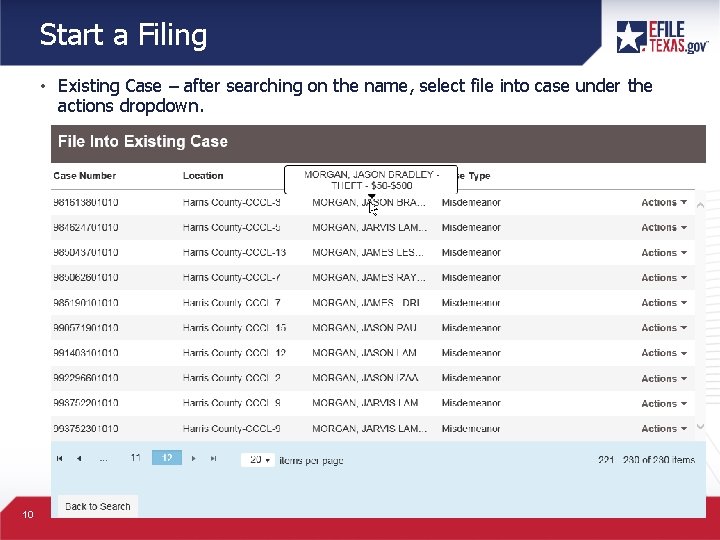
Start a Filing • Existing Case – after searching on the name, select file into case under the actions dropdown. 10
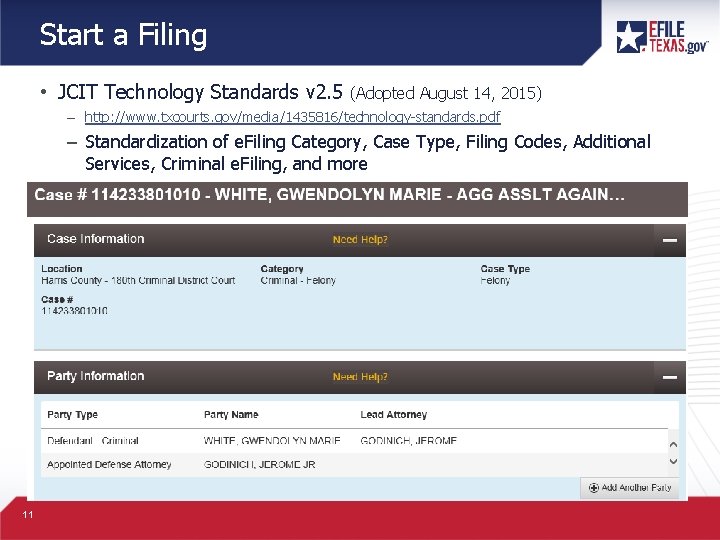
Start a Filing • JCIT Technology Standards v 2. 5 (Adopted August 14, 2015) – http: //www. txcourts. gov/media/1435816/technology-standards. pdf – Standardization of e. Filing Category, Case Type, Filing Codes, Additional Services, Criminal e. Filing, and more 11
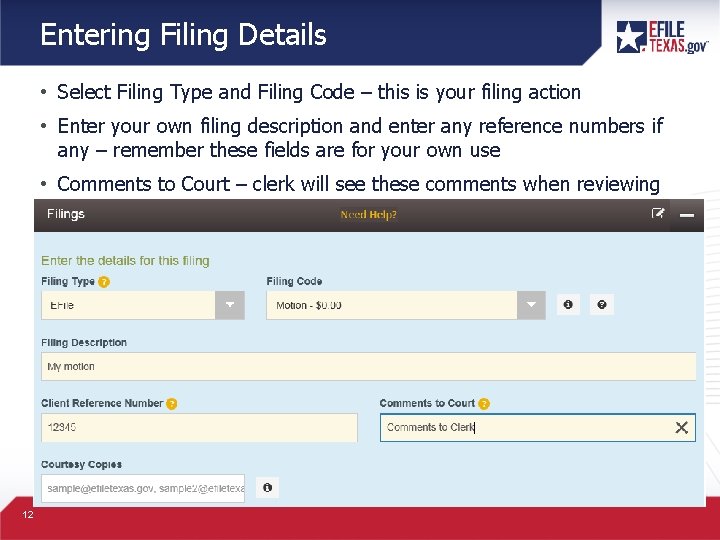
Entering Filing Details • Select Filing Type and Filing Code – this is your filing action • Enter your own filing description and enter any reference numbers if any – remember these fields are for your own use • Comments to Court – clerk will see these comments when reviewing 12
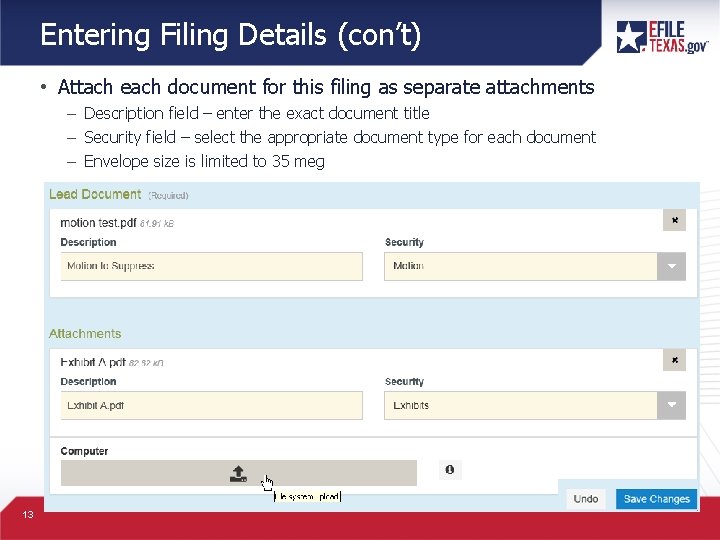
Entering Filing Details (con’t) • Attach each document for this filing as separate attachments – Description field – enter the exact document title – Security field – select the appropriate document type for each document – Envelope size is limited to 35 meg 13
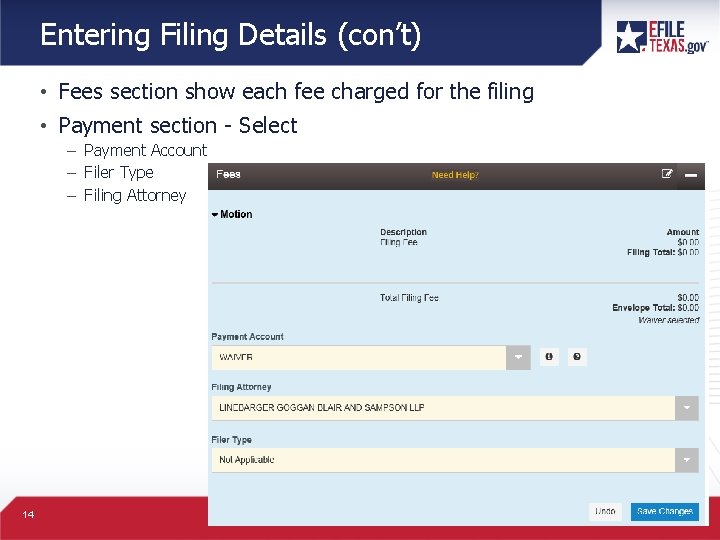
Entering Filing Details (con’t) • Fees section show each fee charged for the filing • Payment section - Select – Payment Account – Filer Type – Filing Attorney 14
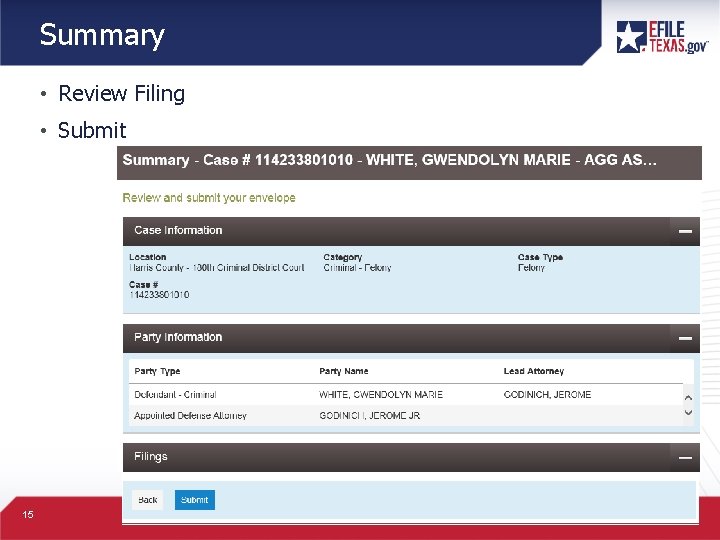
Summary • Review Filing • Submit 15
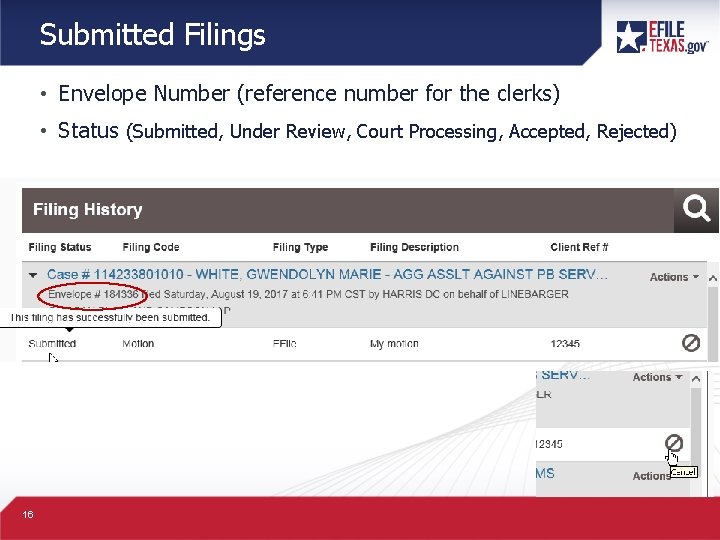
Submitted Filings • Envelope Number (reference number for the clerks) • Status (Submitted, Under Review, Court Processing, Accepted, Rejected) 16
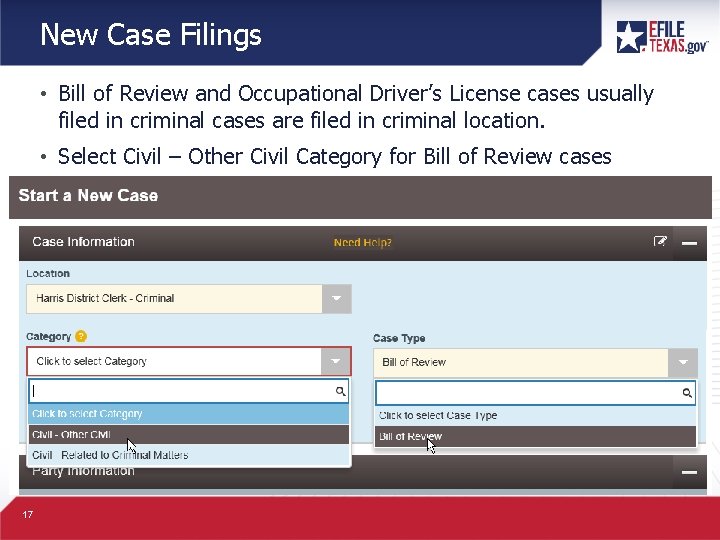
New Case Filings • Bill of Review and Occupational Driver’s License cases usually filed in criminal cases are filed in criminal location. • Select Civil – Other Civil Category for Bill of Review cases 17
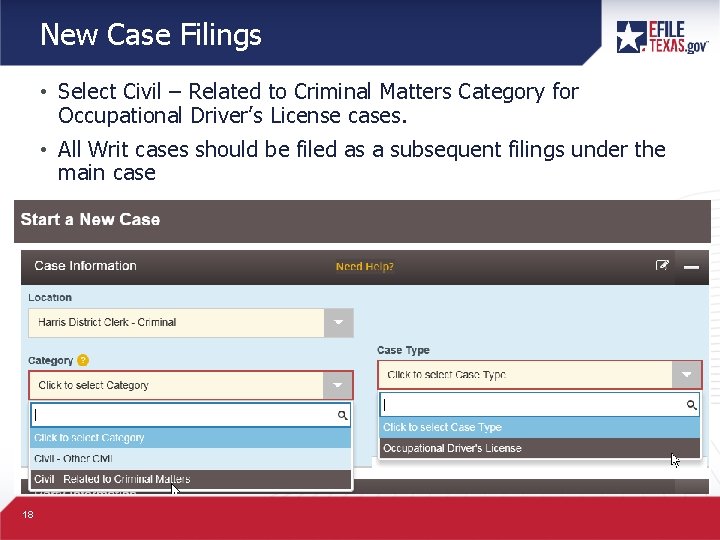
New Case Filings • Select Civil – Related to Criminal Matters Category for Occupational Driver’s License cases. • All Writ cases should be filed as a subsequent filings under the main case 18
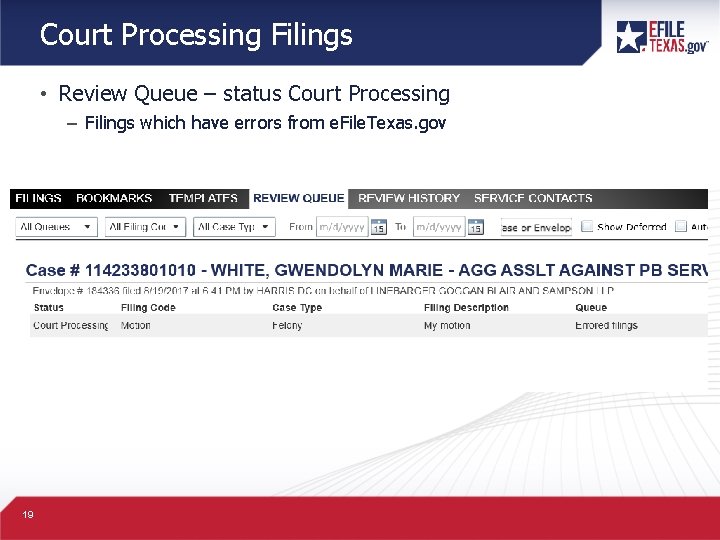
Court Processing Filings • Review Queue – status Court Processing – Filings which have errors from e. File. Texas. gov 19
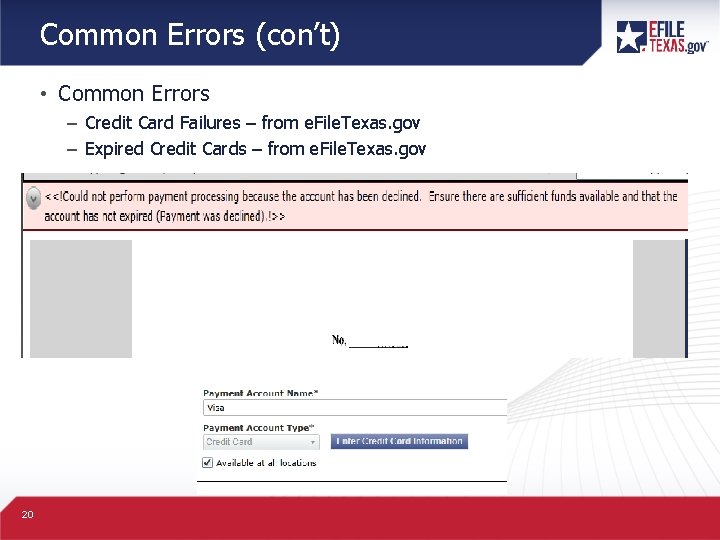
Common Errors (con’t) • Common Errors – Credit Card Failures – from e. File. Texas. gov – Expired Credit Cards – from e. File. Texas. gov 20
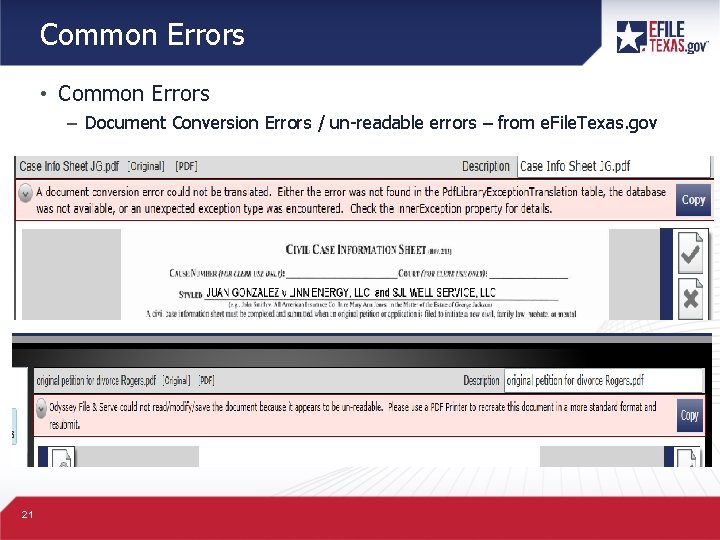
Common Errors • Common Errors – Document Conversion Errors / un-readable errors – from e. File. Texas. gov 21
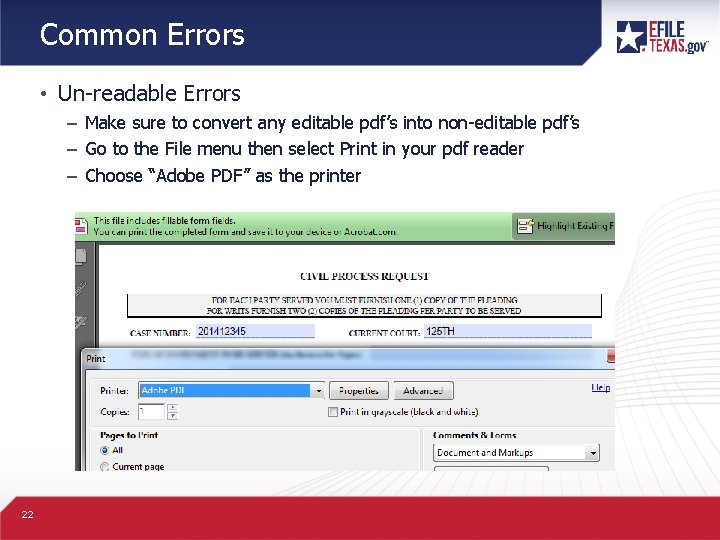
Common Errors • Un-readable Errors – Make sure to convert any editable pdf’s into non-editable pdf’s – Go to the File menu then select Print in your pdf reader – Choose “Adobe PDF” as the printer 22
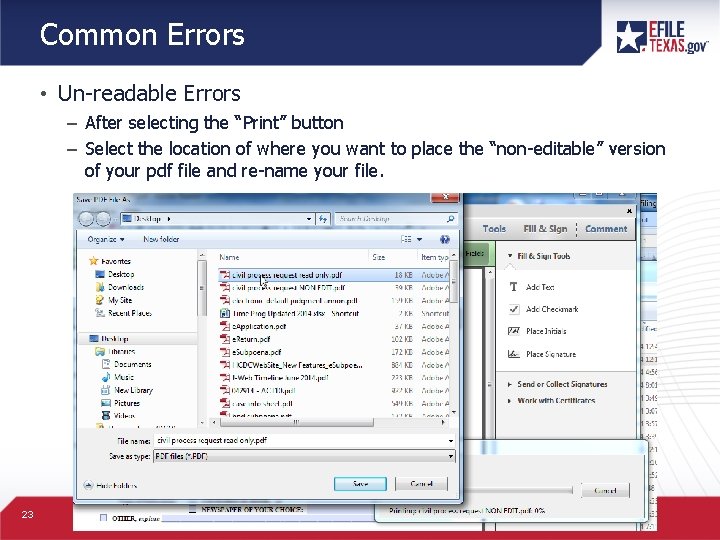
Common Errors • Un-readable Errors – After selecting the “Print” button – Select the location of where you want to place the “non-editable” version of your pdf file and re-name your file. 23
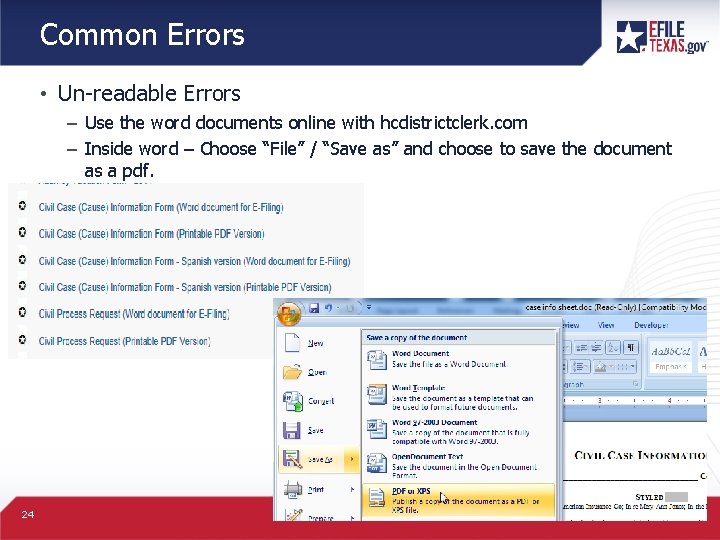
Common Errors • Un-readable Errors – Use the word documents online with hcdistrictclerk. com – Inside word – Choose “File” / “Save as” and choose to save the document as a pdf. 24
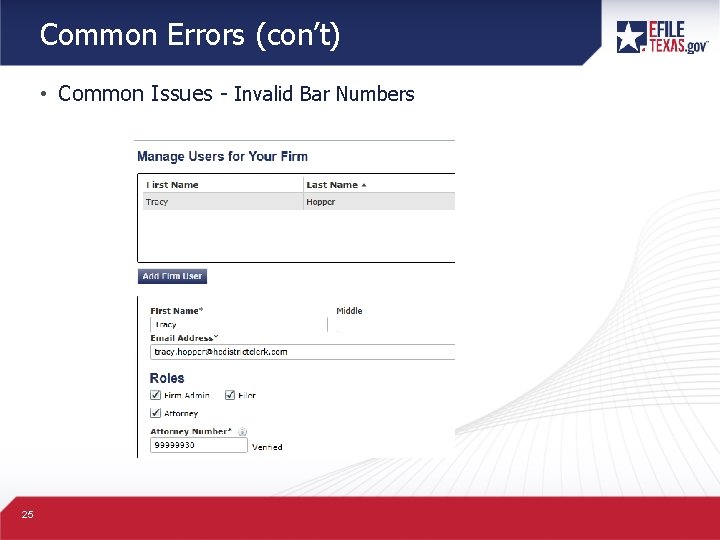
Common Errors (con’t) • Common Issues - Invalid Bar Numbers 25
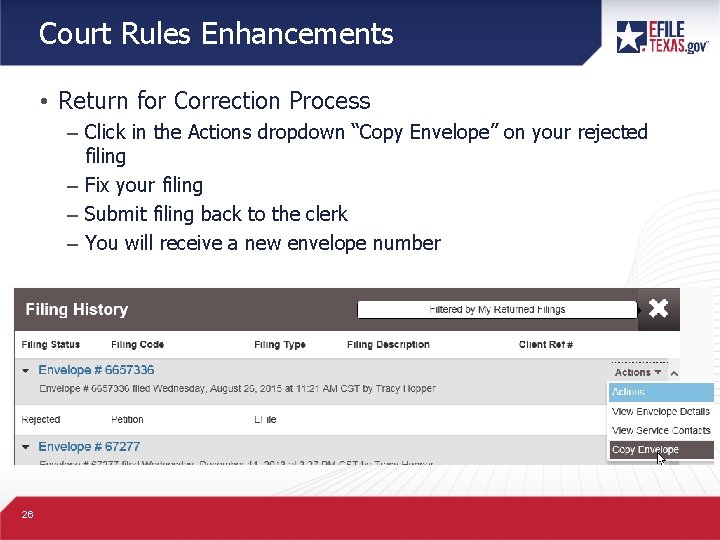
Court Rules Enhancements • Return for Correction Process – Click in the Actions dropdown “Copy Envelope” on your rejected filing – Fix your filing – Submit filing back to the clerk – You will receive a new envelope number 26
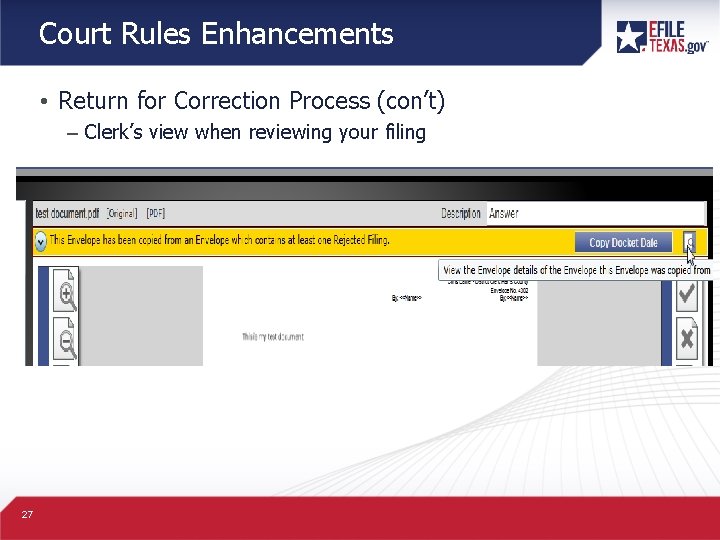
Court Rules Enhancements • Return for Correction Process (con’t) – Clerk’s view when reviewing your filing 27
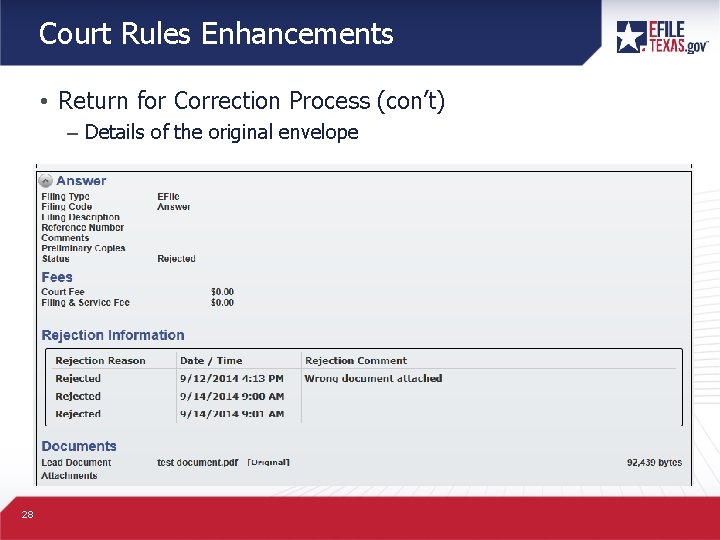
Court Rules Enhancements • Return for Correction Process (con’t) – Details of the original envelope 28
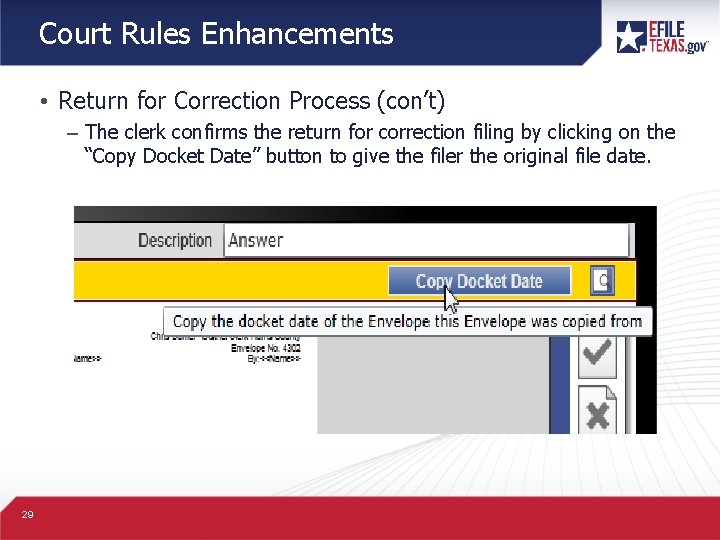
Court Rules Enhancements • Return for Correction Process (con’t) – The clerk confirms the return for correction filing by clicking on the “Copy Docket Date” button to give the filer the original file date. 29
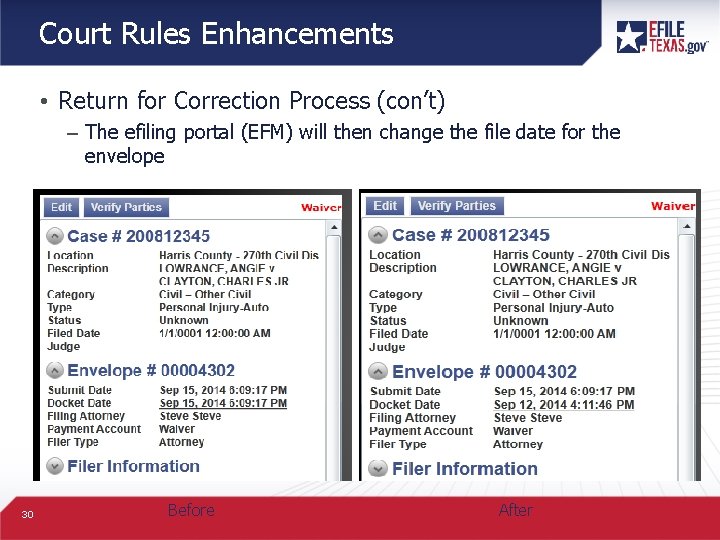
Court Rules Enhancements • Return for Correction Process (con’t) – The efiling portal (EFM) will then change the file date for the envelope 30 Before After
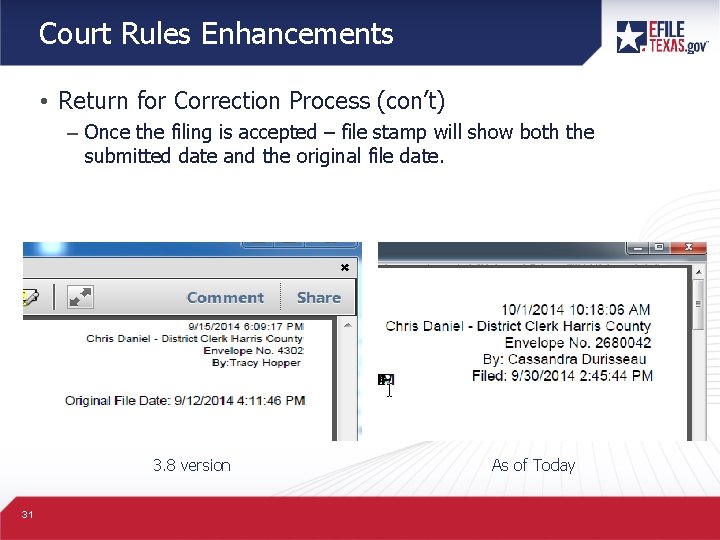
Court Rules Enhancements • Return for Correction Process (con’t) – Once the filing is accepted – file stamp will show both the submitted date and the original file date. 3. 8 version 31 As of Today
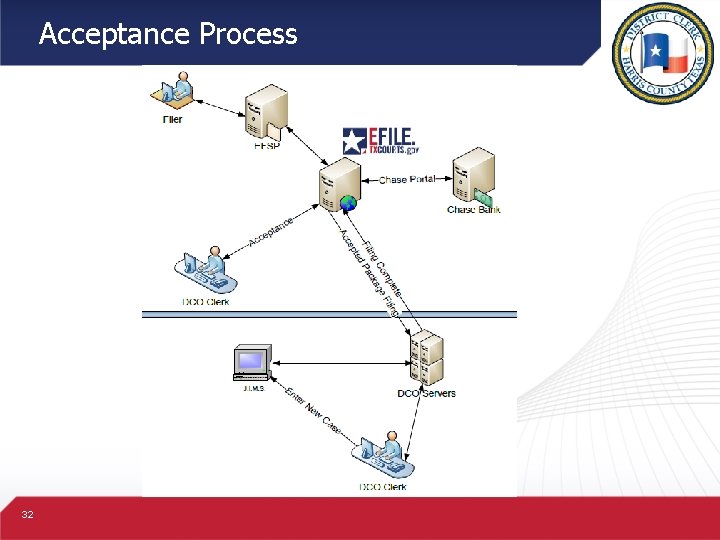
Acceptance Process 32
How to e. File • Questions on e. Filing? 33
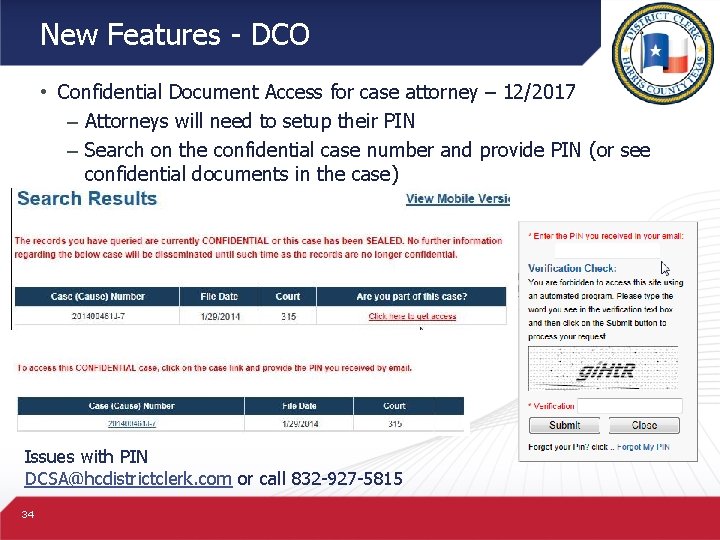
New Features - DCO • Confidential Document Access for case attorney – 12/2017 – Attorneys will need to setup their PIN – Search on the confidential case number and provide PIN (or see confidential documents in the case) Issues with PIN DCSA@hcdistrictclerk. com or call 832 -927 -5815 34
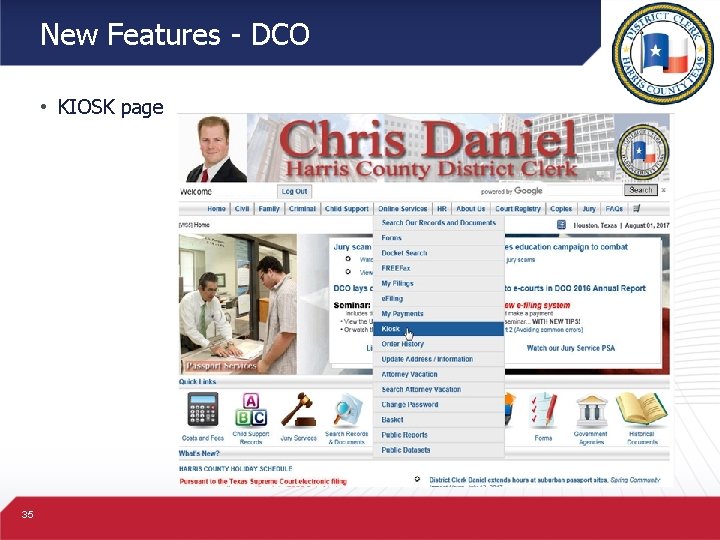
New Features - DCO • KIOSK page 35
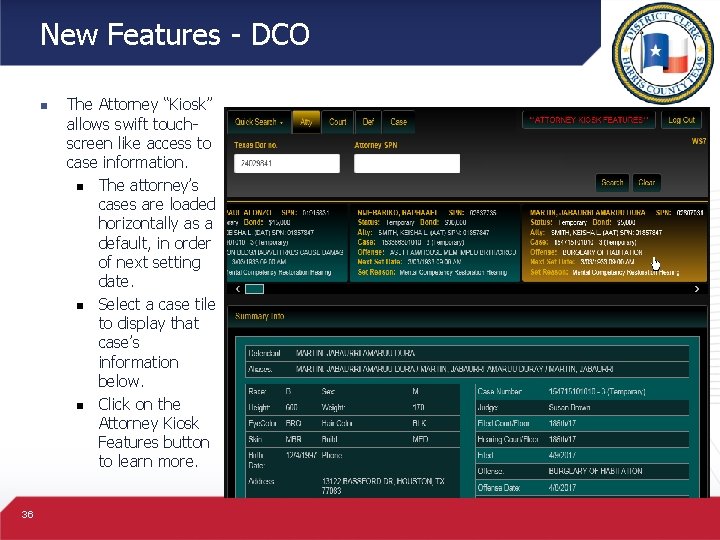
New Features - DCO n 36 The Attorney “Kiosk” allows swift touchscreen like access to case information. n The attorney’s cases are loaded horizontally as a default, in order of next setting date. n Select a case tile to display that case’s information below. n Click on the Attorney Kiosk Features button to learn more.
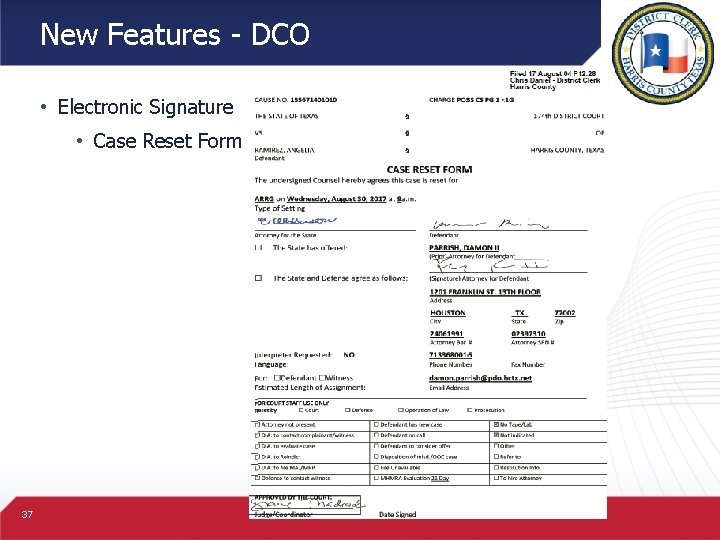
New Features - DCO • Electronic Signature • Case Reset Form 37
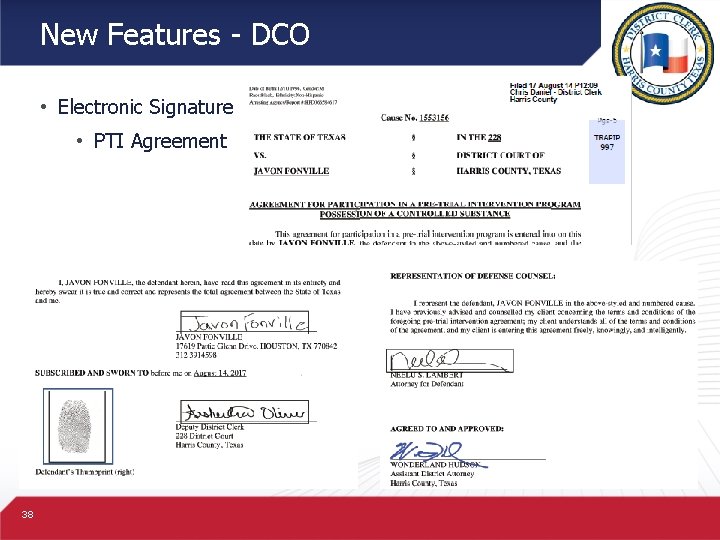
New Features - DCO • Electronic Signature • PTI Agreement 38
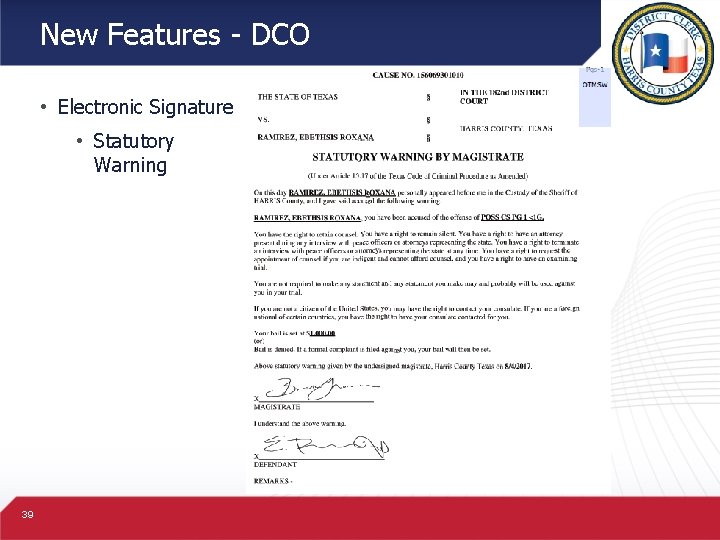
New Features - DCO • Electronic Signature • Statutory Warning 39
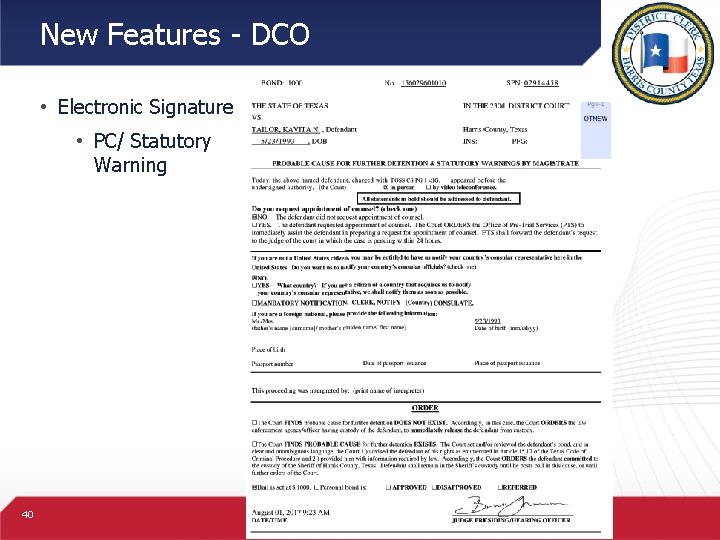
New Features - DCO • Electronic Signature • PC/ Statutory Warning 40
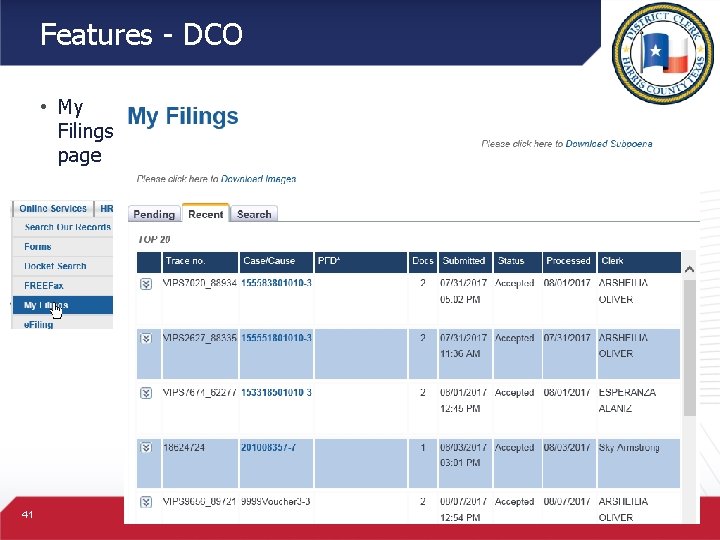
Features - DCO • My Filings page 41
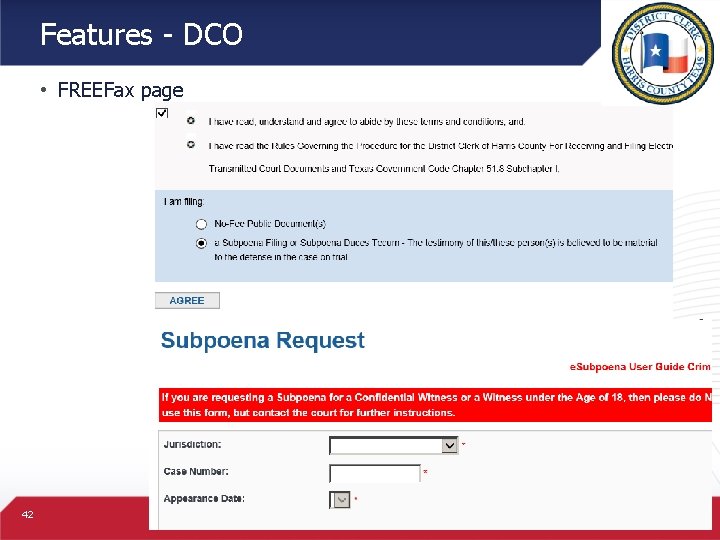
Features - DCO • FREEFax page 42
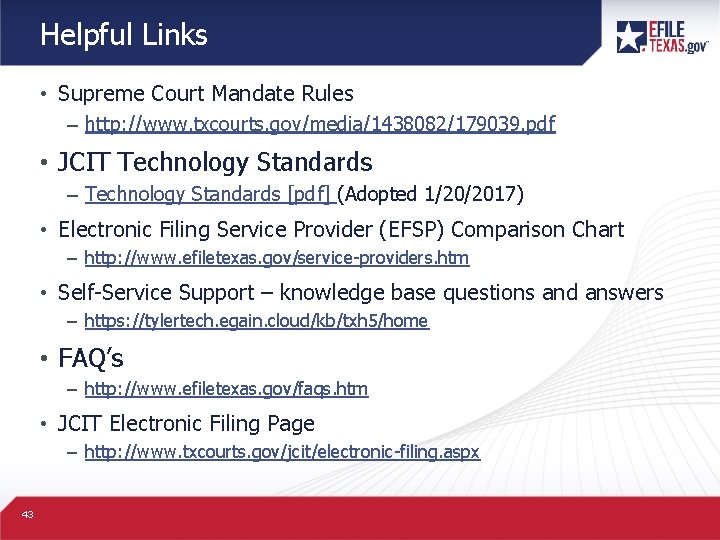
Helpful Links • Supreme Court Mandate Rules – http: //www. txcourts. gov/media/1438082/179039. pdf • JCIT Technology Standards – Technology Standards [pdf] (Adopted 1/20/2017) • Electronic Filing Service Provider (EFSP) Comparison Chart – http: //www. efiletexas. gov/service-providers. htm • Self-Service Support – knowledge base questions and answers – https: //tylertech. egain. cloud/kb/txh 5/home • FAQ’s – http: //www. efiletexas. gov/faqs. htm • JCIT Electronic Filing Page – http: //www. txcourts. gov/jcit/electronic-filing. aspx 43
Questions? District Clerk Chris Daniel E-Filing Seminar Inquiries for the District Clerk Criminale. Filing@hcdistrictclerk. com 44