
e COMMERCE Portal Central Board of Excise and
e COMMERCE Portal Central Board of Excise and Customs Directorate of Systems, CBEC New Registration Process
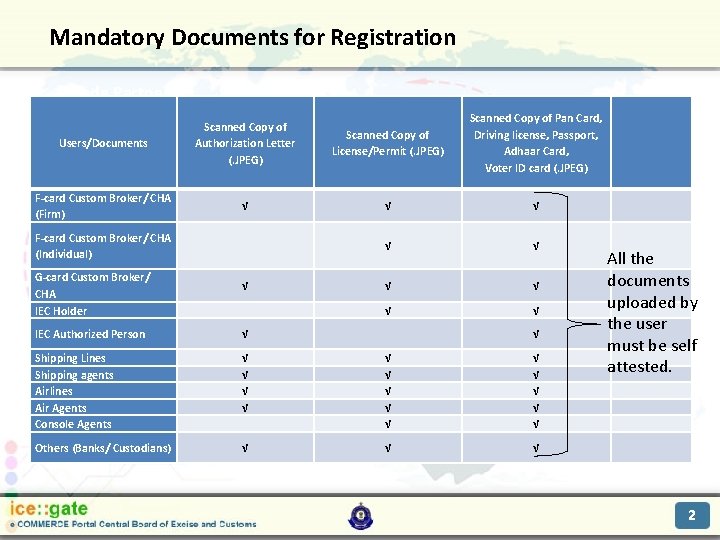
Mandatory Documents for Registration Trade Partners Users/Documents Scanned Copy of Authorization Letter (. JPEG) Scanned Copy of License/Permit (. JPEG) Scanned Copy of Pan Card, Driving license, Passport, Adhaar Card, Voter ID card (. JPEG) F-card Custom Broker/ CHA (Firm) √ √ √ √ √ F-card Custom Broker/ CHA (Individual) G-card Custom Broker/ CHA IEC Holder √ IEC Authorized Person √ √ Shipping Lines Shipping agents Airlines Air Agents Console Agents √ √ √ √ Others (Banks/ Custodians) √ √ √ All the documents uploaded by the user must be self attested. 2
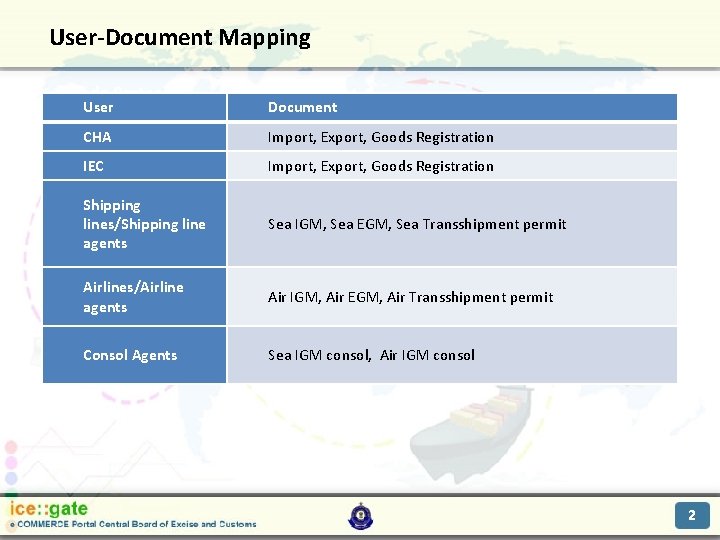
User-Document Mapping Trade Partners User Document CHA Import, Export, Goods Registration IEC Import, Export, Goods Registration Shipping lines/Shipping line agents Sea IGM, Sea EGM, Sea Transshipment permit Airlines/Airline agents Air IGM, Air EGM, Air Transshipment permit Consol Agents Sea IGM consol, Air IGM consol 2
Trade Partners User Registration on ICEGATE Portal 2
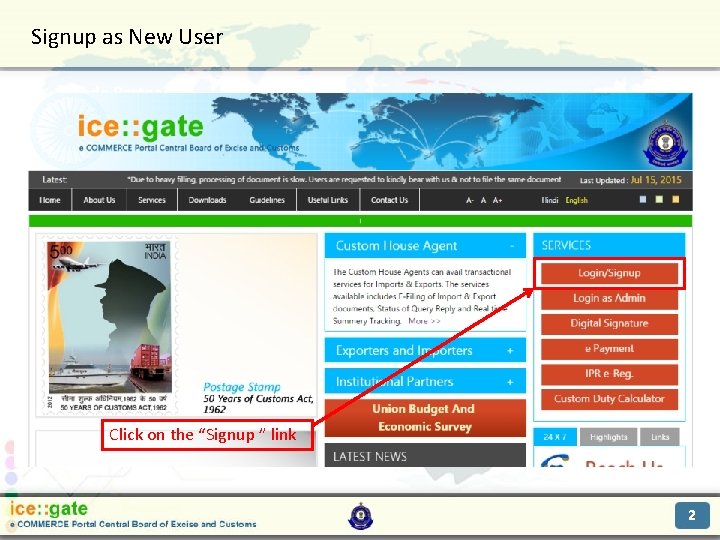
Signup as New User Trade Partners Click on the “Signup ” link 2
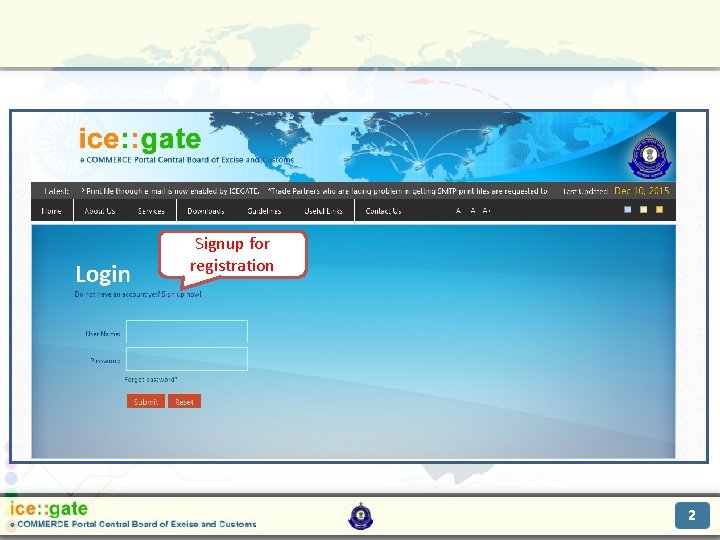
Trade Partners Signup for registration 2
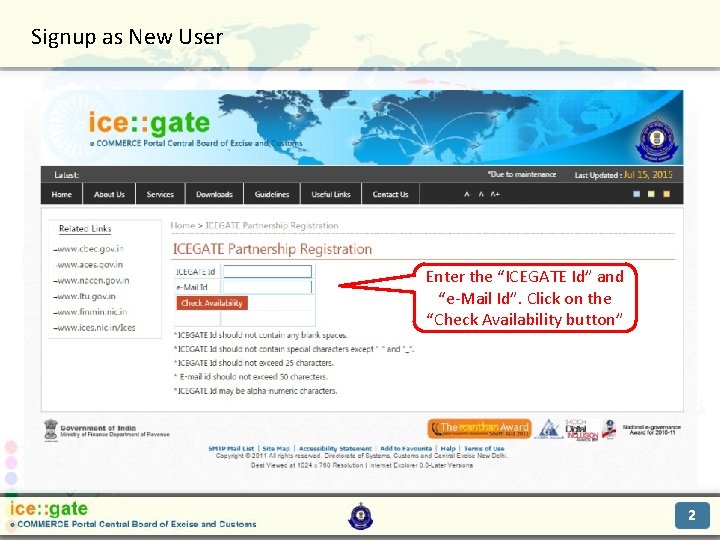
Signup as New User Trade Partners Enter the “ICEGATE Id” and “e-Mail Id”. Click on the “Check Availability button” 2
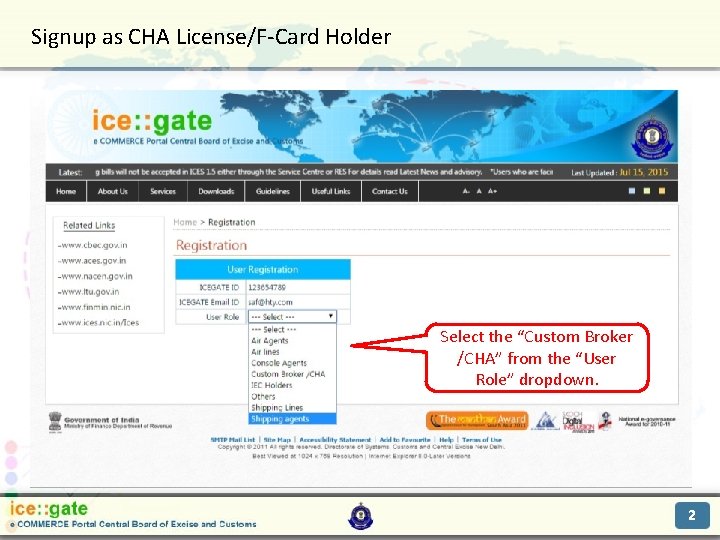
Signup as CHA License/F-Card Holder Trade Partners Select the “Custom Broker /CHA” from the “User Role” dropdown. 2
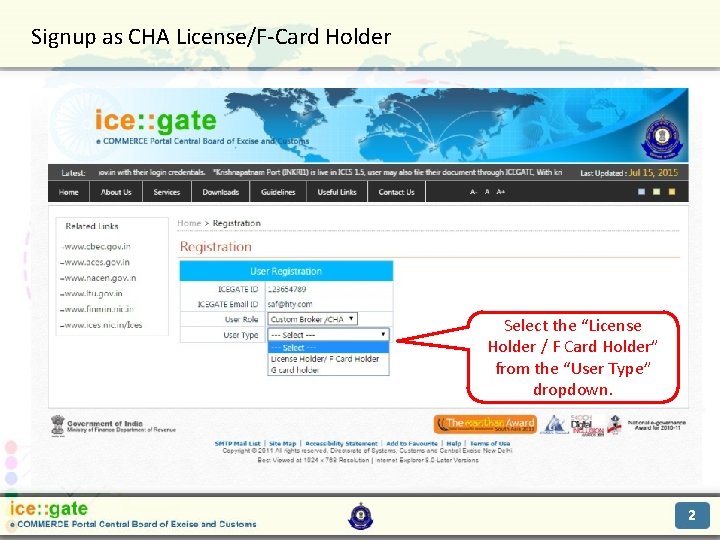
Signup as CHA License/F-Card Holder Trade Partners Select the “License Holder / F Card Holder” from the “User Type” dropdown. 2
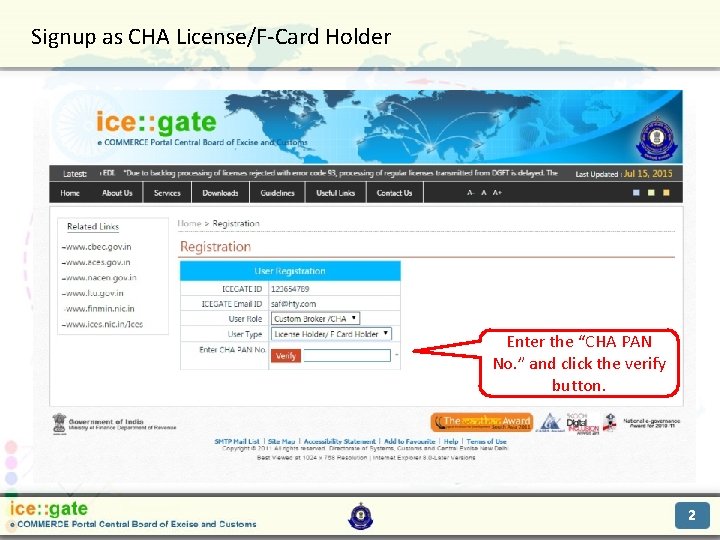
Signup as CHA License/F-Card Holder Trade Partners Enter the “CHA PAN No. ” and click the verify button. 2
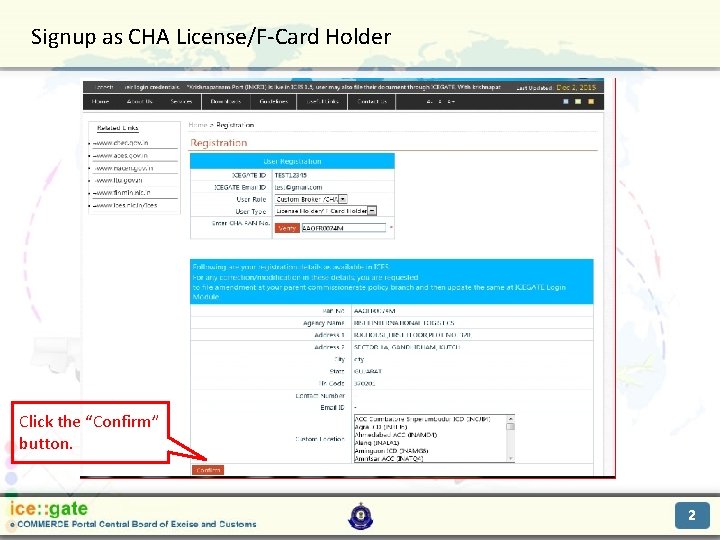
Signup as CHA License/F-Card Holder Trade Partners Click the “Confirm” button. 2

Signup as CHA License/F-Card Holder Trade Partners Select the “Photo Id type” from the dropdown. 2
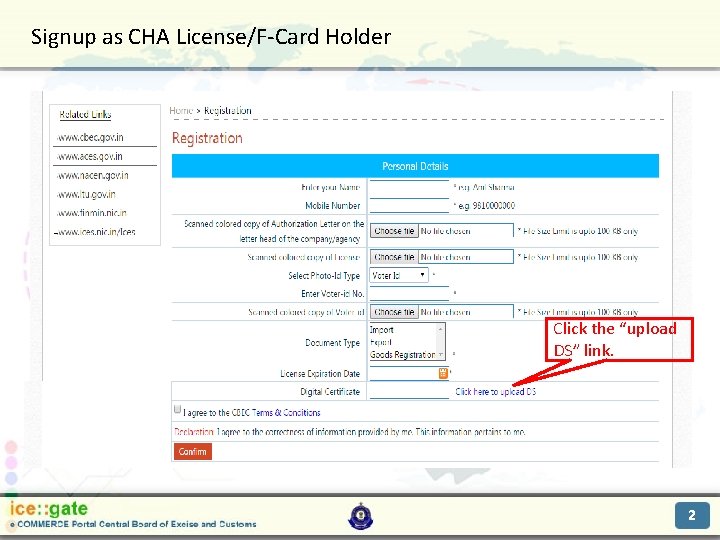
Signup as CHA License/F-Card Holder Trade Partners Click the “upload DS” link. 2
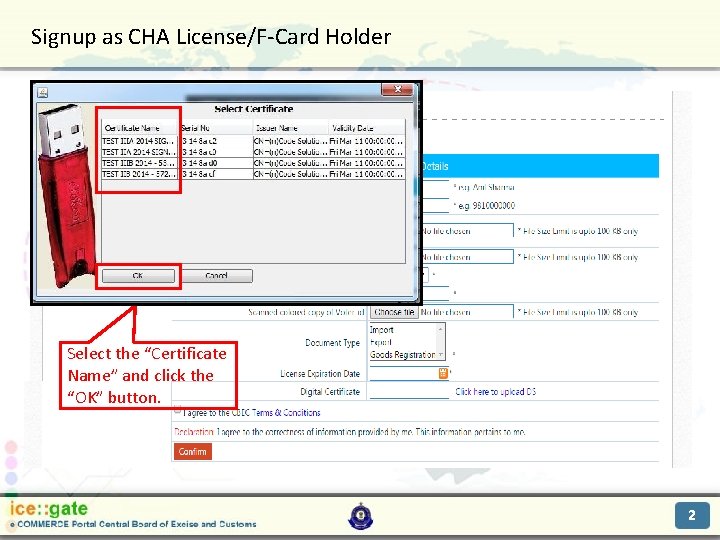
Signup as CHA License/F-Card Holder Trade Partners Select the “Certificate Name” and click the “OK” button. 2

Signup as CHA License/F-Card Holder Trade Partners Click the “OK” button. 2
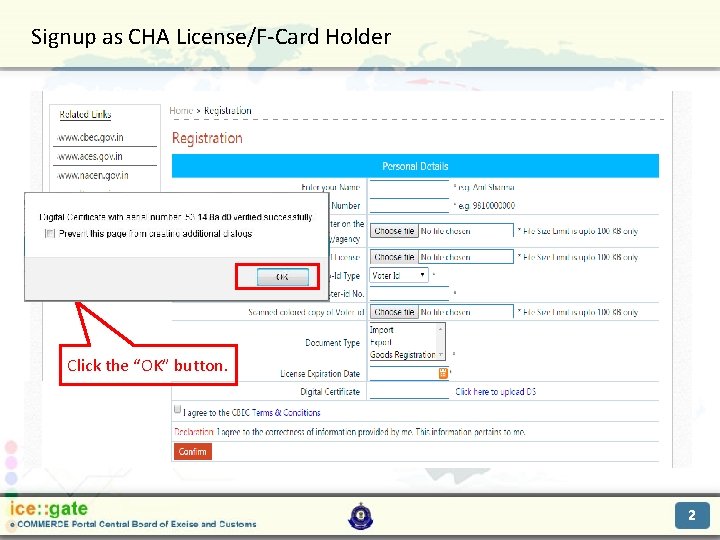
Signup as CHA License/F-Card Holder Trade Partners Click the “OK” button. 2
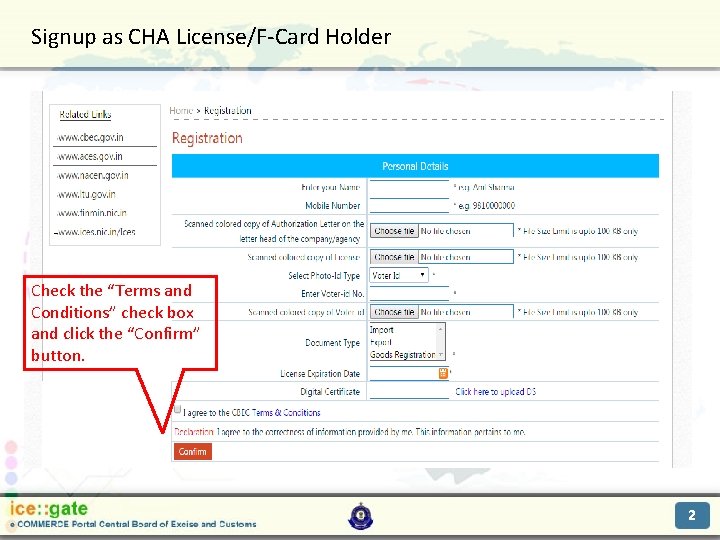
Signup as CHA License/F-Card Holder Trade Partners Check the “Terms and Conditions” check box and click the “Confirm” button. 2
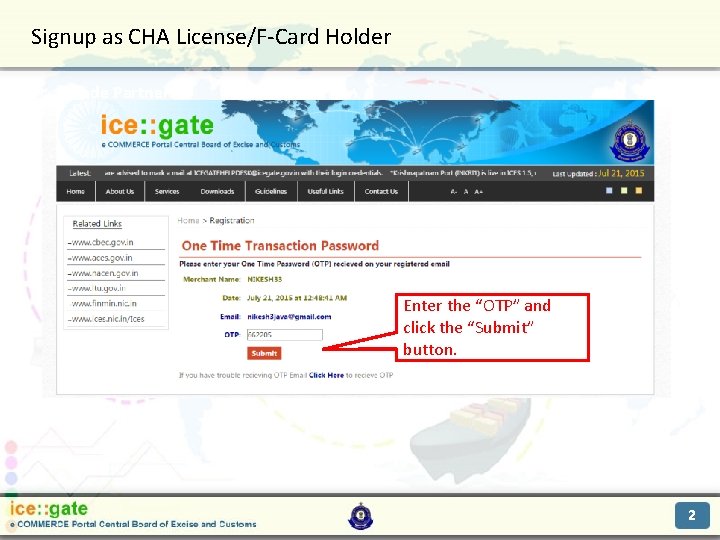
Signup as CHA License/F-Card Holder Trade Partners Enter the “OTP” and click the “Submit” button. 2
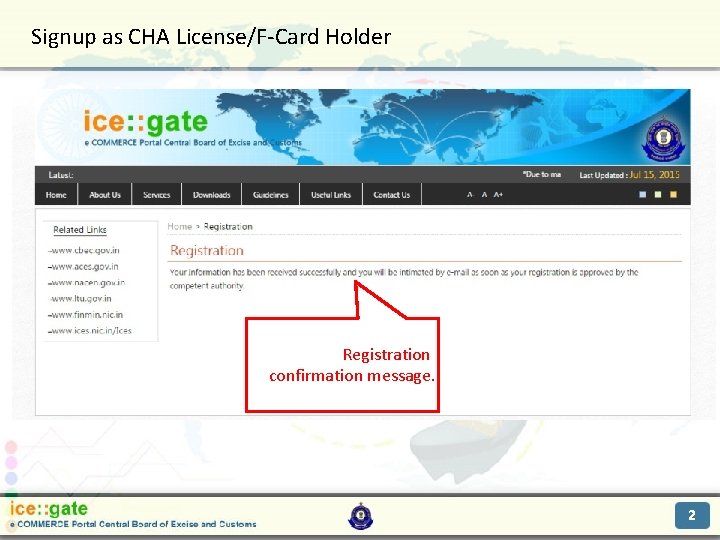
Signup as CHA License/F-Card Holder Trade Partners Registration confirmation message. 2
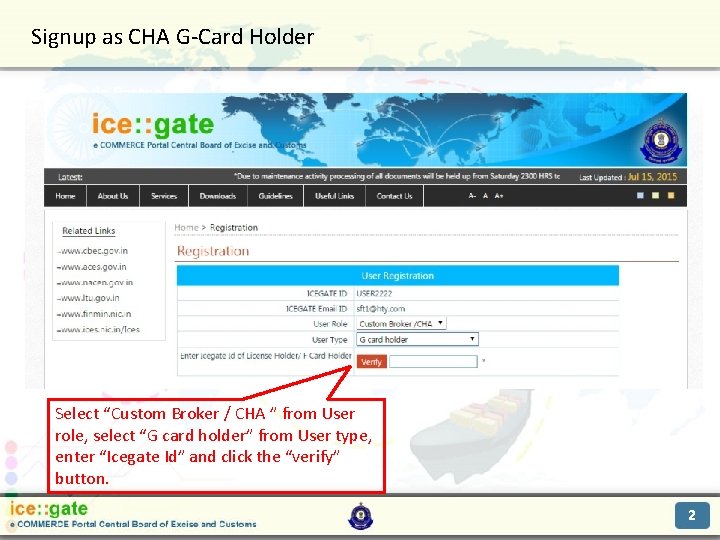
Signup as CHA G-Card Holder Trade Partners Select “Custom Broker / CHA ” from User role, select “G card holder” from User type, enter “Icegate Id” and click the “verify” button. 2
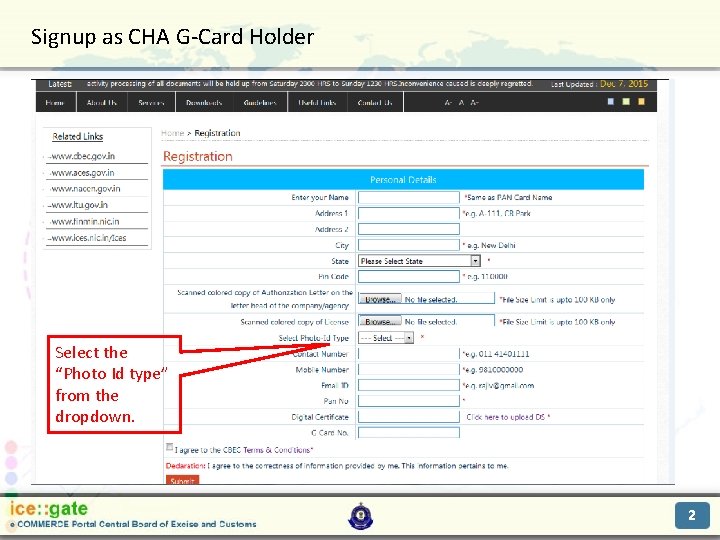
Signup as CHA G-Card Holder Trade Partners Select the “Photo Id type” from the dropdown. 2
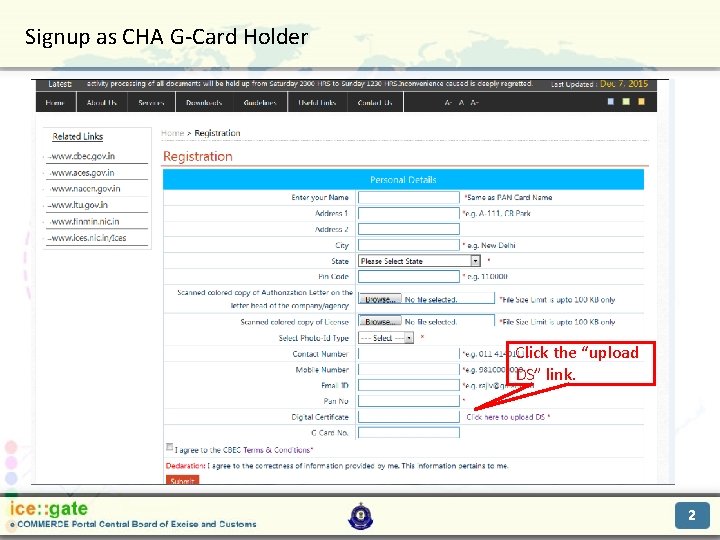
Signup as CHA G-Card Holder Trade Partners Click the “upload DS” link. 2
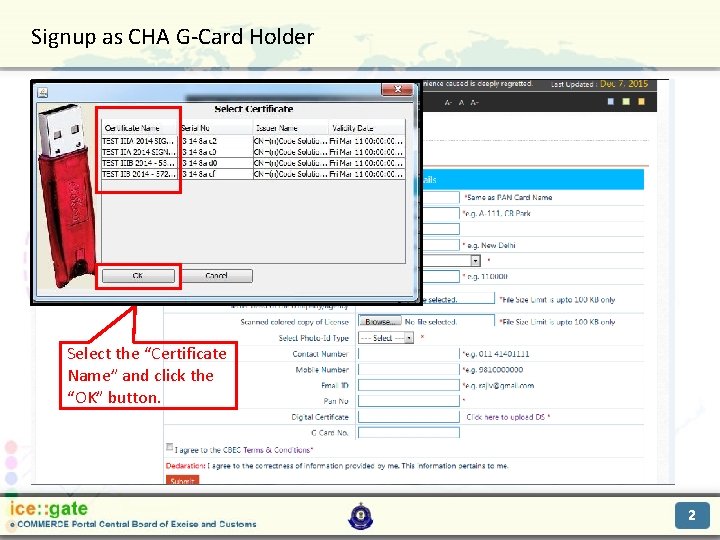
Signup as CHA G-Card Holder Trade Partners Select the “Certificate Name” and click the “OK” button. 2

Signup as CHA G-Card Holder Trade Partners Click the “OK” button. 2
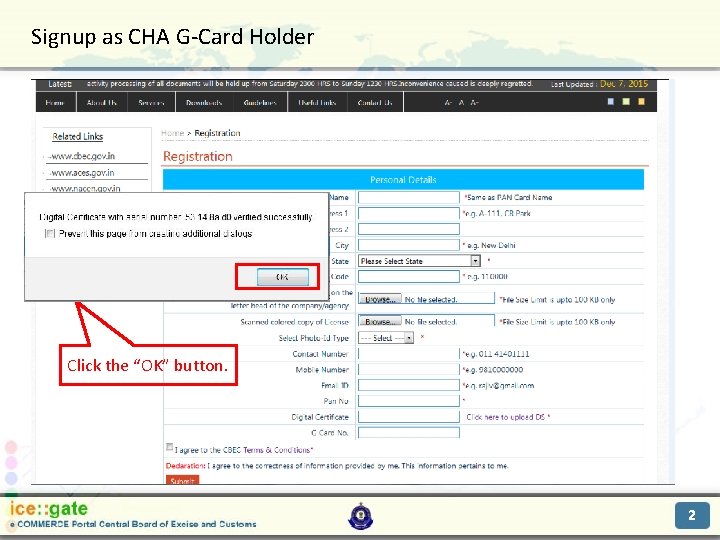
Signup as CHA G-Card Holder Trade Partners Click the “OK” button. 2
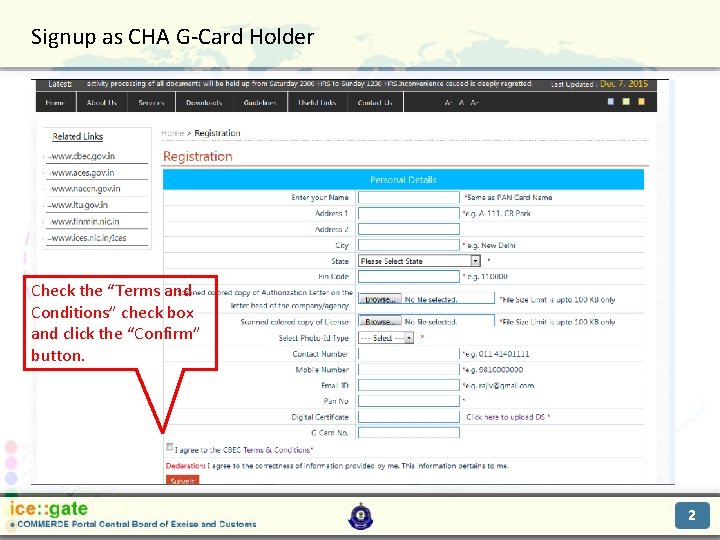
Signup as CHA G-Card Holder Trade Partners Check the “Terms and Conditions” check box and click the “Confirm” button. 2
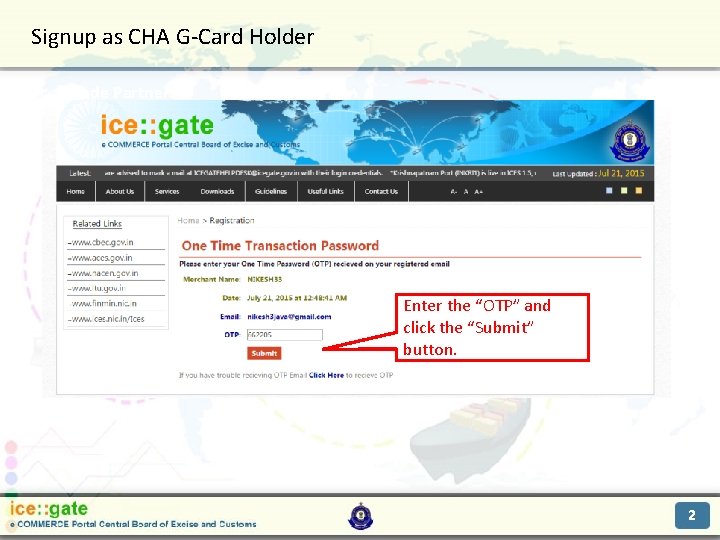
Signup as CHA G-Card Holder Trade Partners Enter the “OTP” and click the “Submit” button. 2
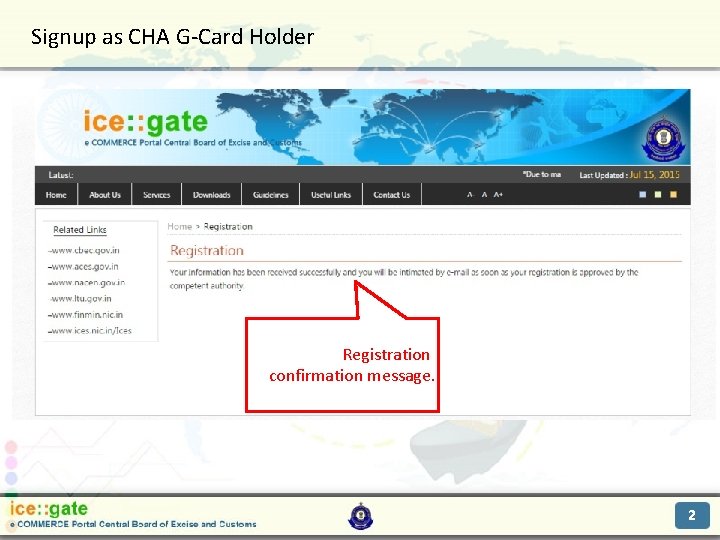
Signup as CHA G-Card Holder Trade Partners Registration confirmation message. 2
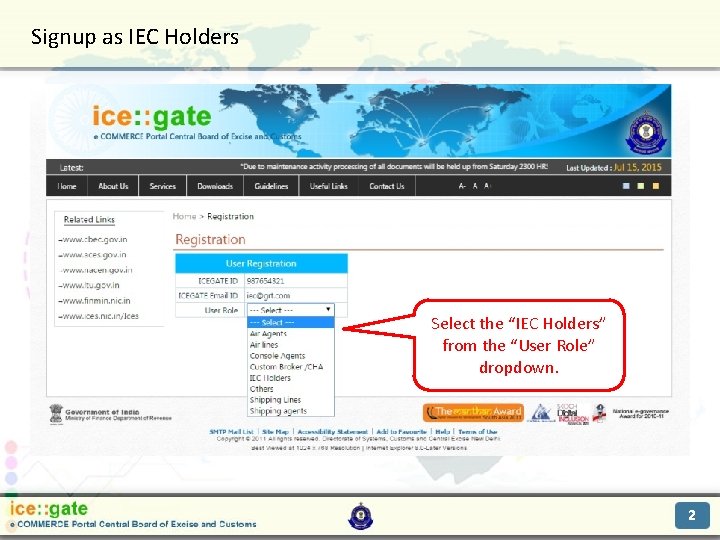
Signup as IEC Holders Trade Partners Select the “IEC Holders” from the “User Role” dropdown. 2
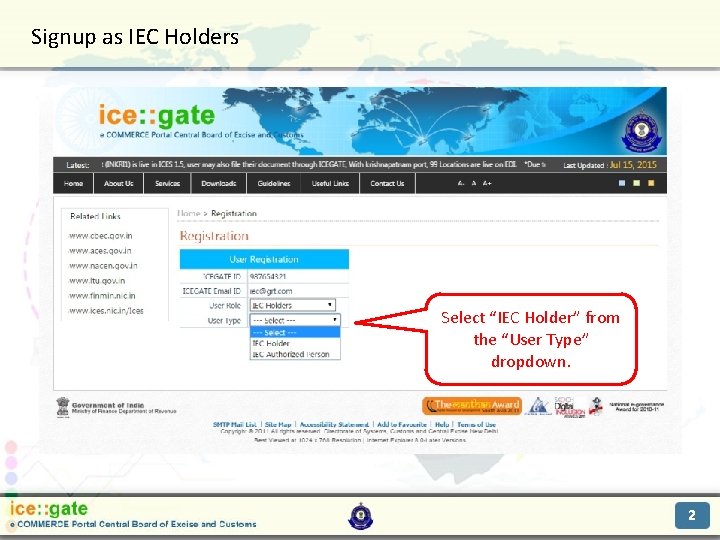
Signup as IEC Holders Trade Partners Select “IEC Holder” from the “User Type” dropdown. 2

Signup as IEC Holders Trade Partners Enter the “IEC” and click the verify button. 2
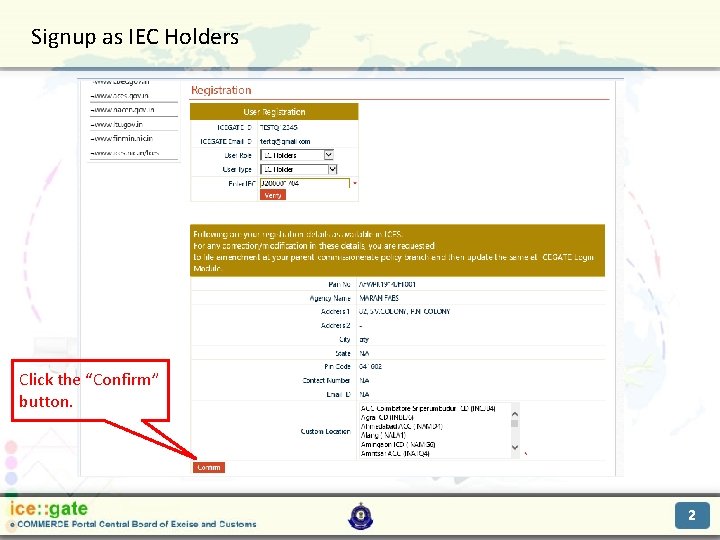
Signup as IEC Holders Trade Partners Click the “Confirm” button. 2
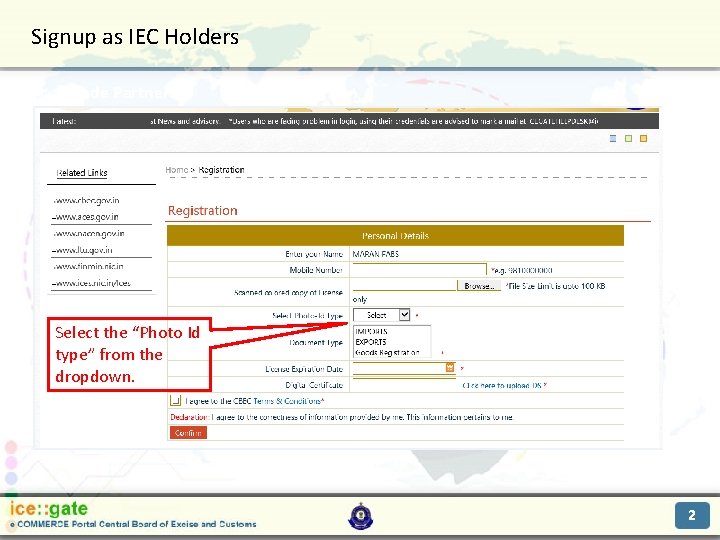
Signup as IEC Holders Trade Partners Select the “Photo Id type” from the dropdown. 2
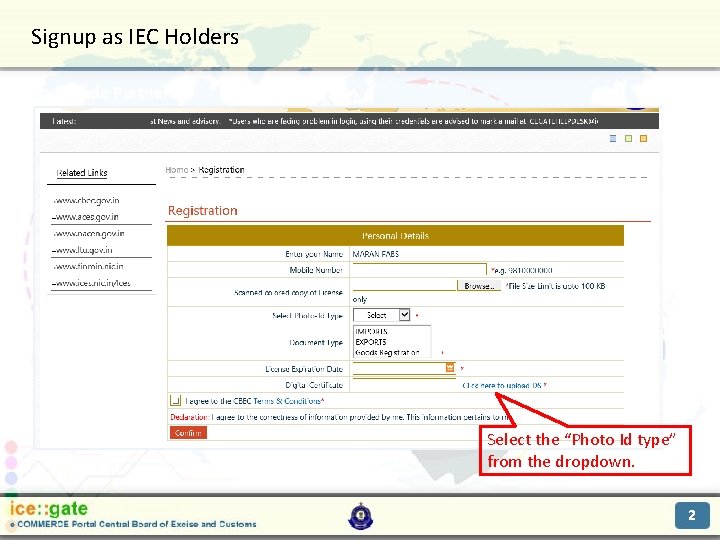
Signup as IEC Holders Trade Partners Select the “Photo Id type” from the dropdown. 2
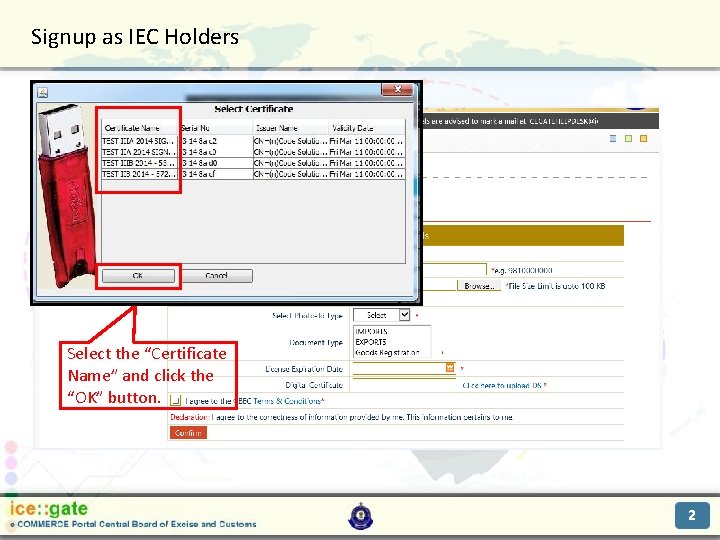
Signup as IEC Holders Trade Partners Select the “Certificate Name” and click the “OK” button. 2
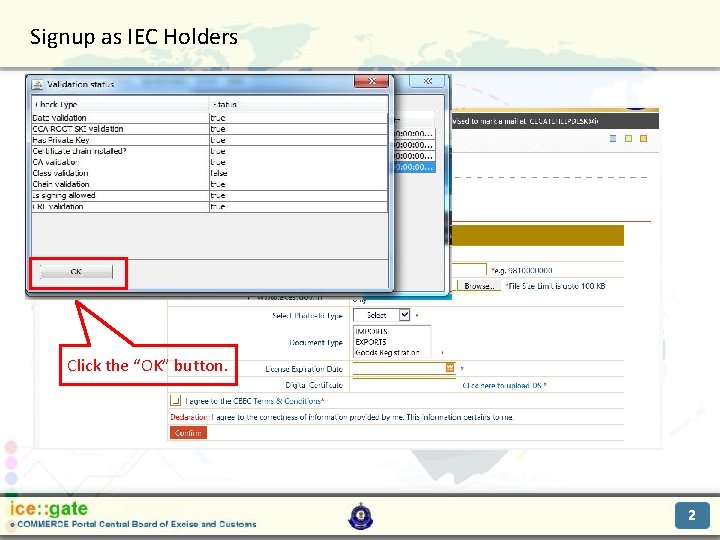
Signup as IEC Holders Trade Partners Click the “OK” button. 2
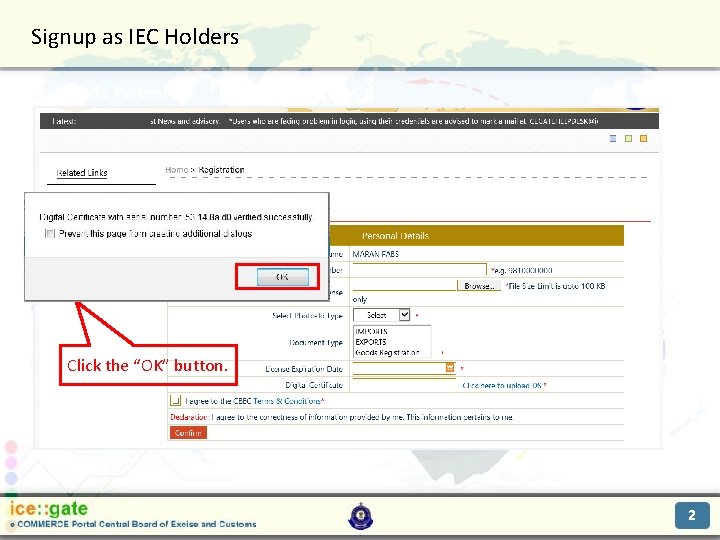
Signup as IEC Holders Trade Partners Click the “OK” button. 2

Signup as IEC Holders Trade Partners Check the “Terms and Conditions” check box and click the “Confirm” button. 2
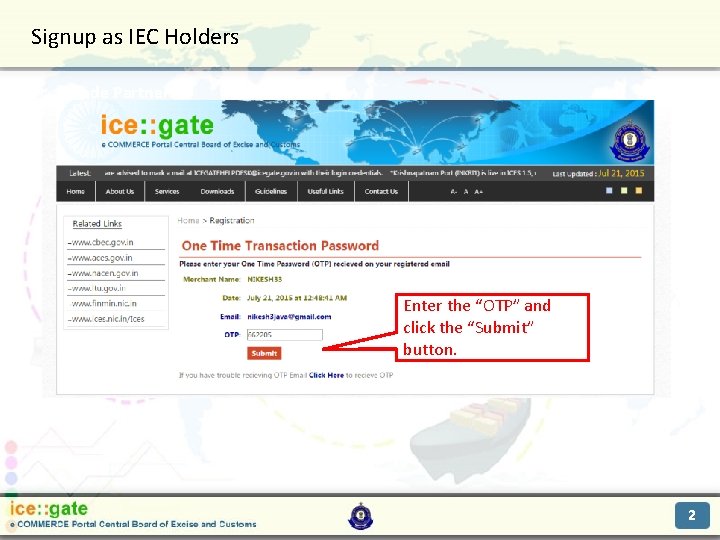
Signup as IEC Holders Trade Partners Enter the “OTP” and click the “Submit” button. 2
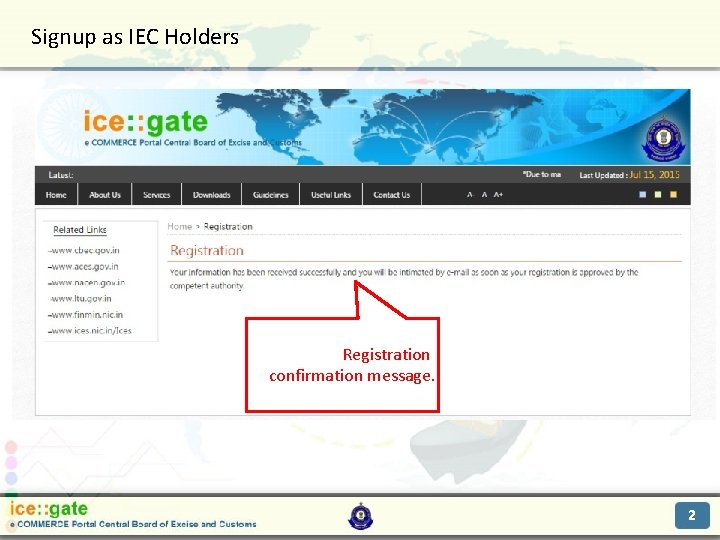
Signup as IEC Holders Trade Partners Registration confirmation message. 2
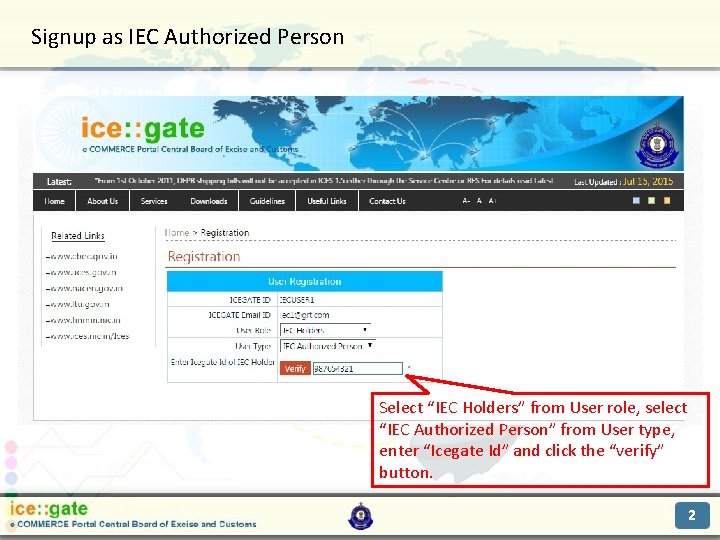
Signup as IEC Authorized Person Trade Partners Select “IEC Holders” from User role, select “IEC Authorized Person” from User type, enter “Icegate Id” and click the “verify” button. 2
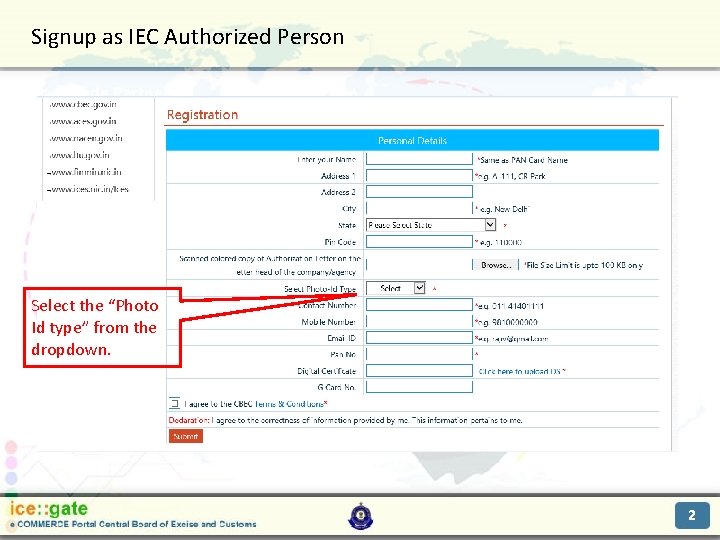
Signup as IEC Authorized Person Trade Partners Select the “Photo Id type” from the dropdown. 2
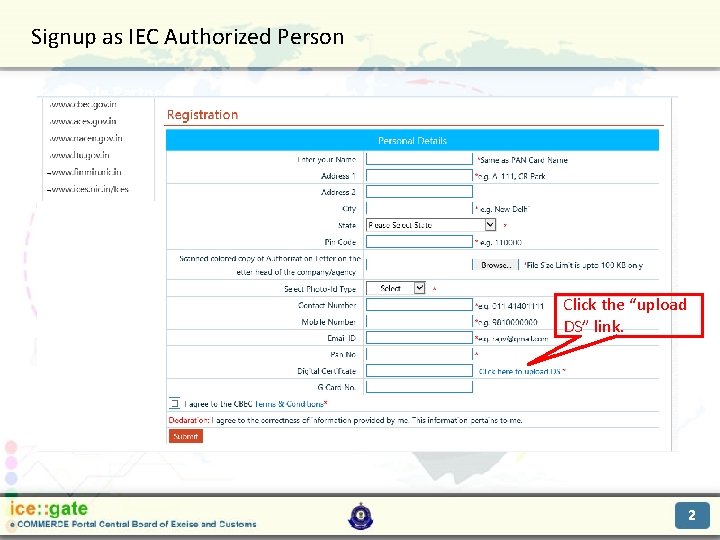
Signup as IEC Authorized Person Trade Partners Click the “upload DS” link. 2

Signup as IEC Authorized Person Trade Partners Select the “Certificate Name” and click the “OK” button. 2
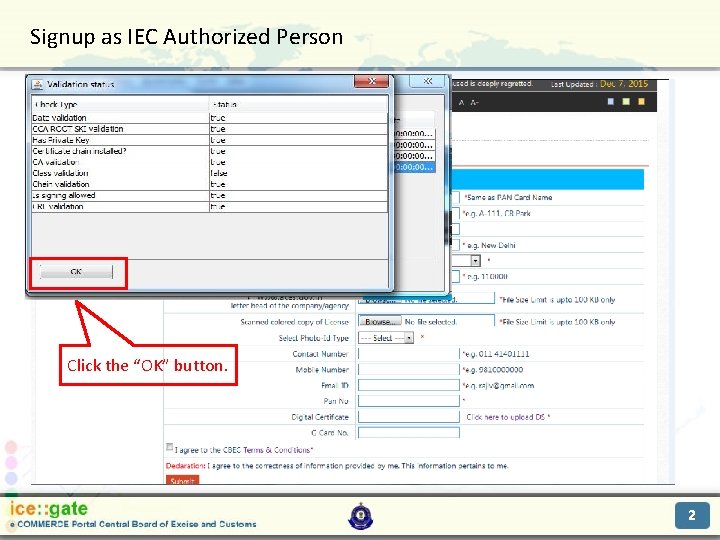
Signup as IEC Authorized Person Trade Partners Click the “OK” button. 2
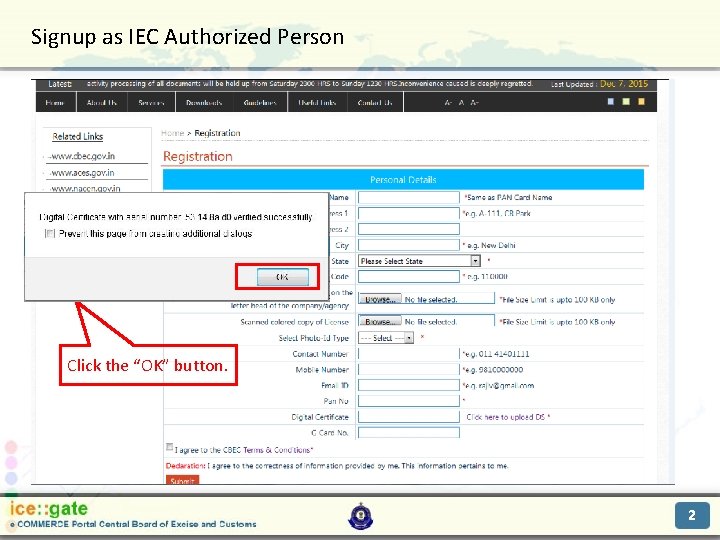
Signup as IEC Authorized Person Trade Partners Click the “OK” button. 2
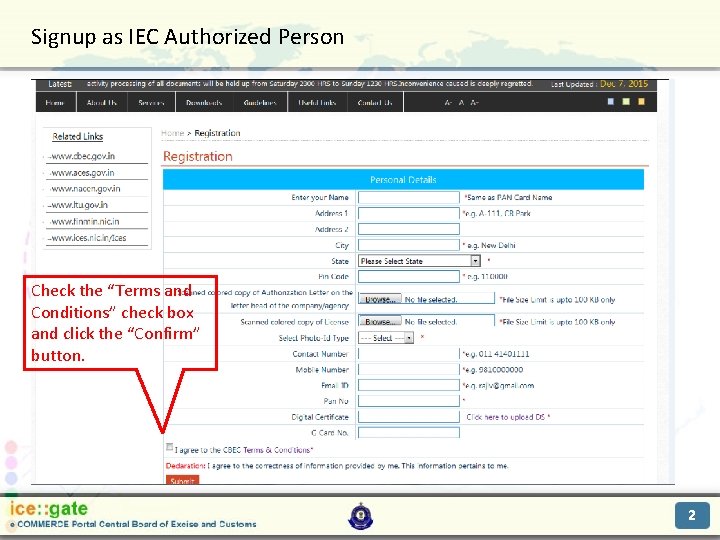
Signup as IEC Authorized Person Trade Partners Check the “Terms and Conditions” check box and click the “Confirm” button. 2
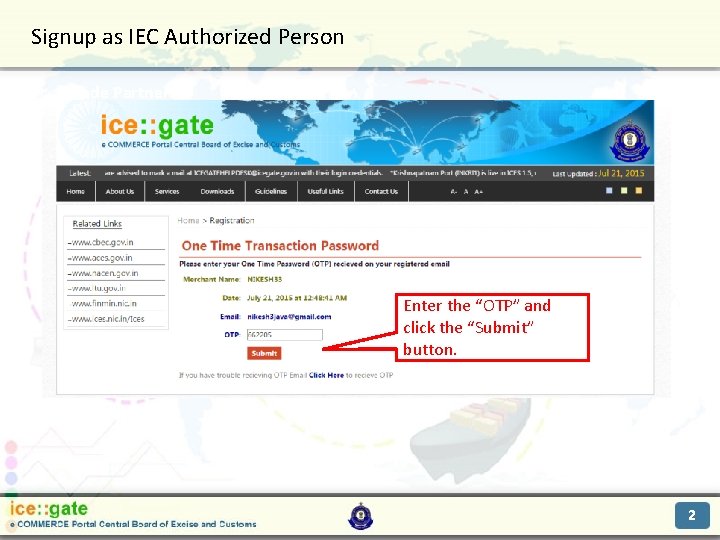
Signup as IEC Authorized Person Trade Partners Enter the “OTP” and click the “Submit” button. 2
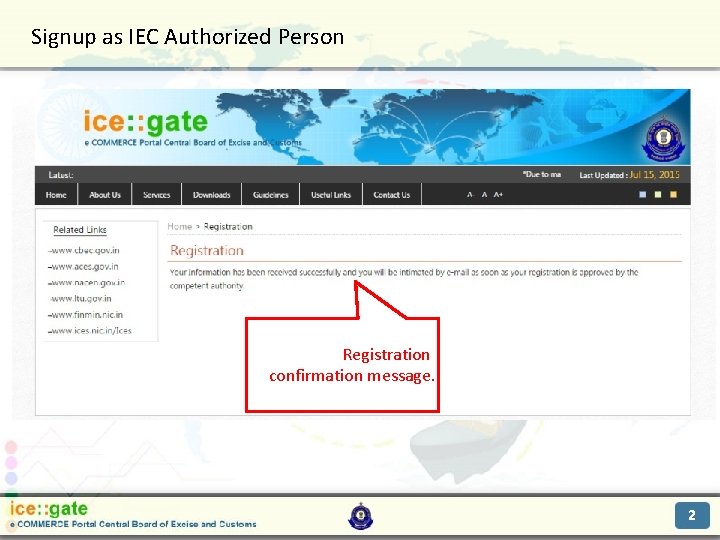
Signup as IEC Authorized Person Trade Partners Registration confirmation message. 2
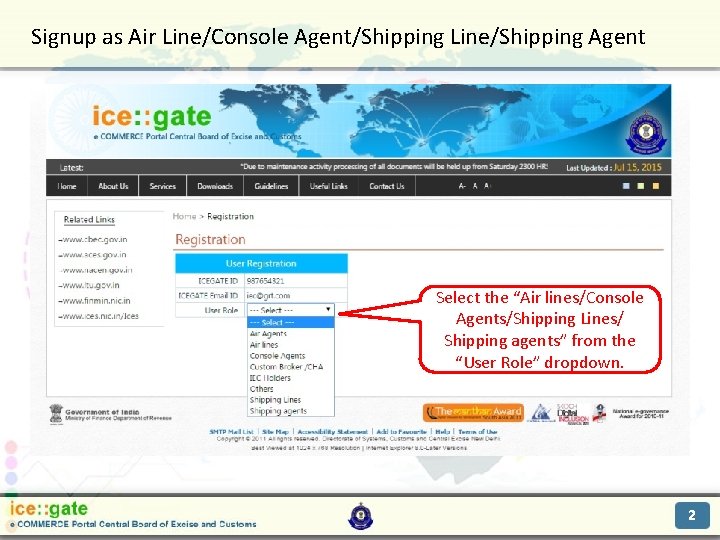
Signup as Air Line/Console Agent/Shipping Line/Shipping Agent Trade Partners Select the “Air lines/Console Agents/Shipping Lines/ Shipping agents” from the “User Role” dropdown. 2
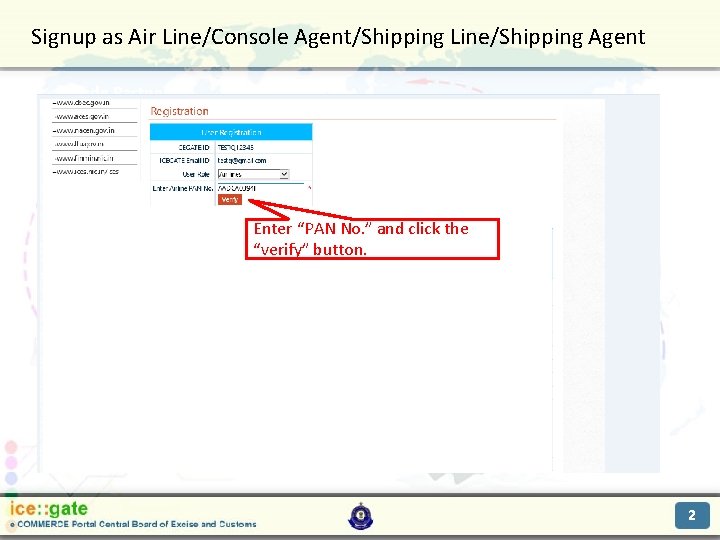
Signup as Air Line/Console Agent/Shipping Line/Shipping Agent Trade Partners Enter “PAN No. ” and click the “verify” button. 2
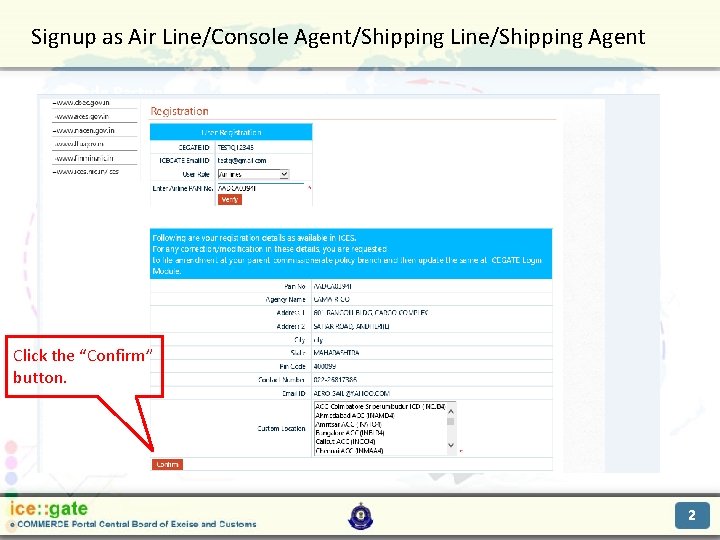
Signup as Air Line/Console Agent/Shipping Line/Shipping Agent Trade Partners Click the “Confirm” button. 2
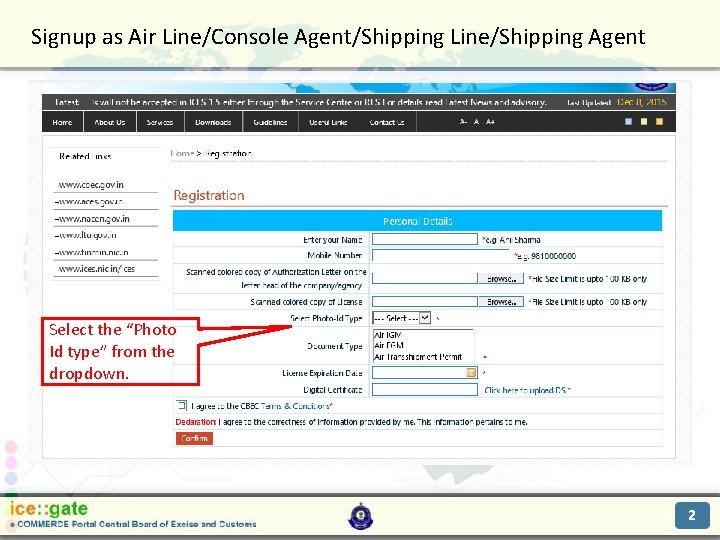
Signup as Air Line/Console Agent/Shipping Line/Shipping Agent Trade Partners Select the “Photo Id type” from the dropdown. 2
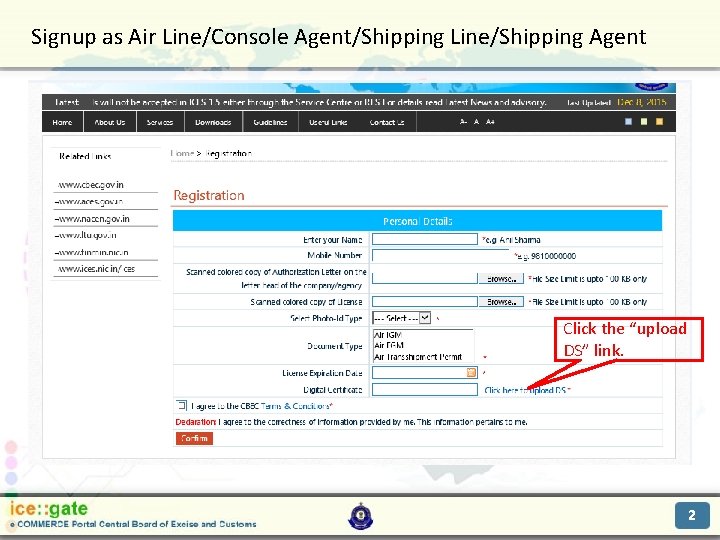
Signup as Air Line/Console Agent/Shipping Line/Shipping Agent Trade Partners Click the “upload DS” link. 2
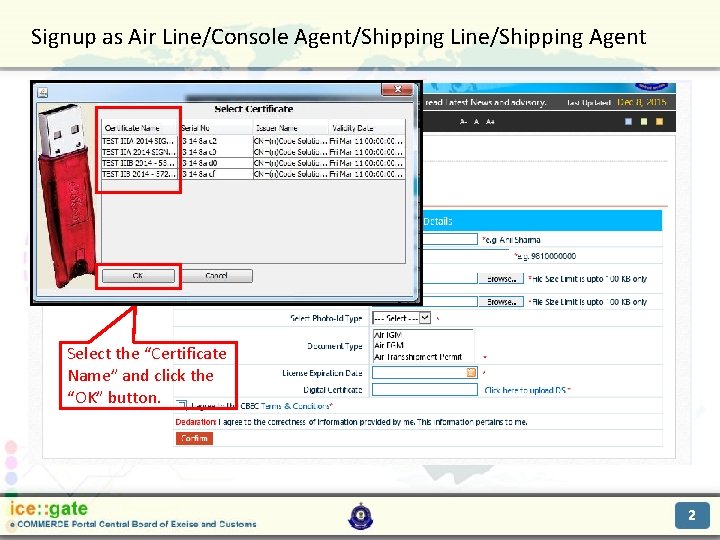
Signup as Air Line/Console Agent/Shipping Line/Shipping Agent Trade Partners Select the “Certificate Name” and click the “OK” button. 2
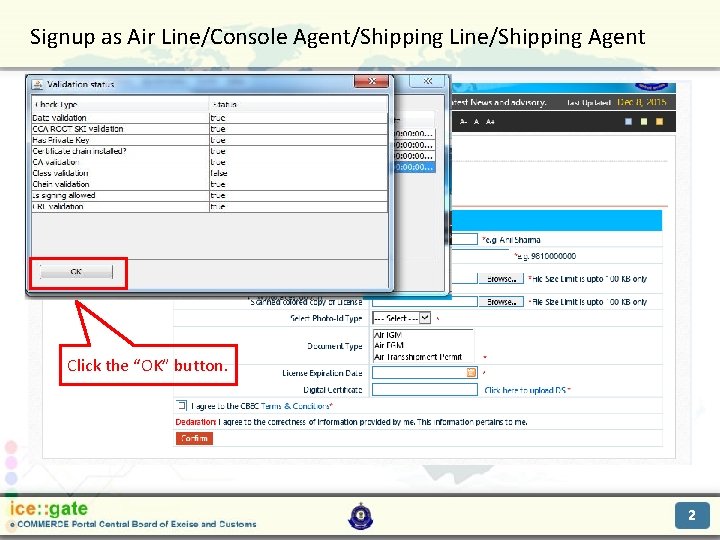
Signup as Air Line/Console Agent/Shipping Line/Shipping Agent Trade Partners Click the “OK” button. 2

Signup as Air Line/Console Agent/Shipping Line/Shipping Agent Trade Partners Click the “OK” button. 2

Signup as Air Line/Console Agent/Shipping Line/Shipping Agent Trade Partners Check the “Terms and Conditions” check box and click the “Confirm” button. 2
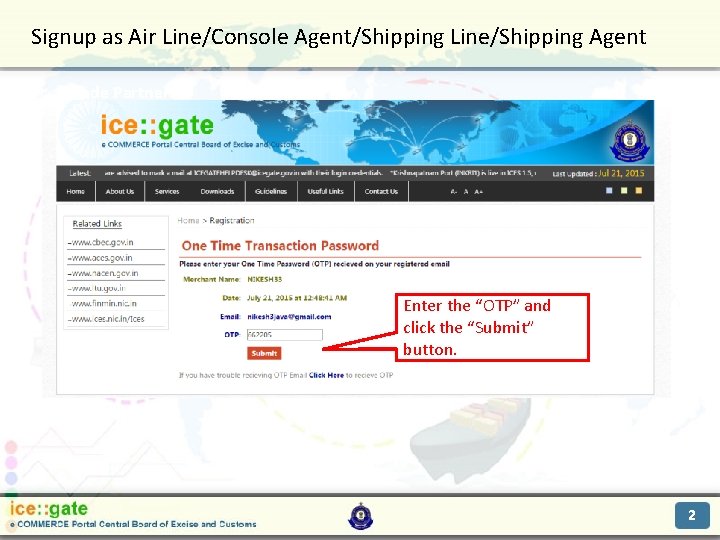
Signup as Air Line/Console Agent/Shipping Line/Shipping Agent Trade Partners Enter the “OTP” and click the “Submit” button. 2
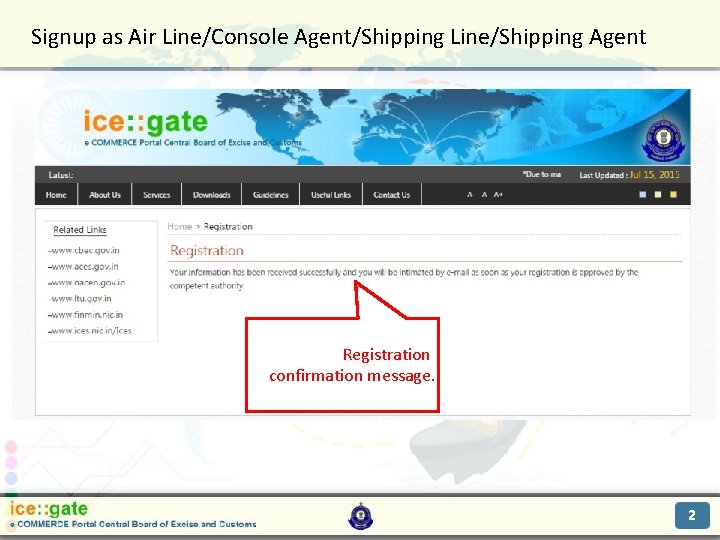
Signup as Air Line/Console Agent/Shipping Line/Shipping Agent Trade Partners Registration confirmation message. 2
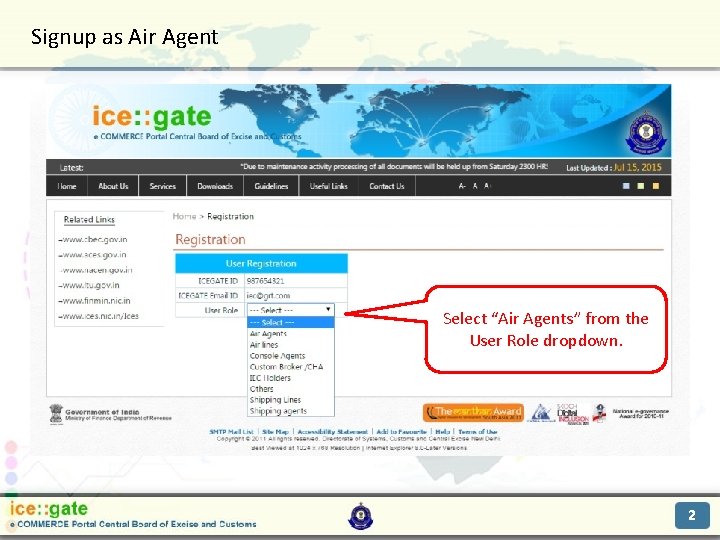
Signup as Air Agent Trade Partners Select “Air Agents” from the User Role dropdown. 2
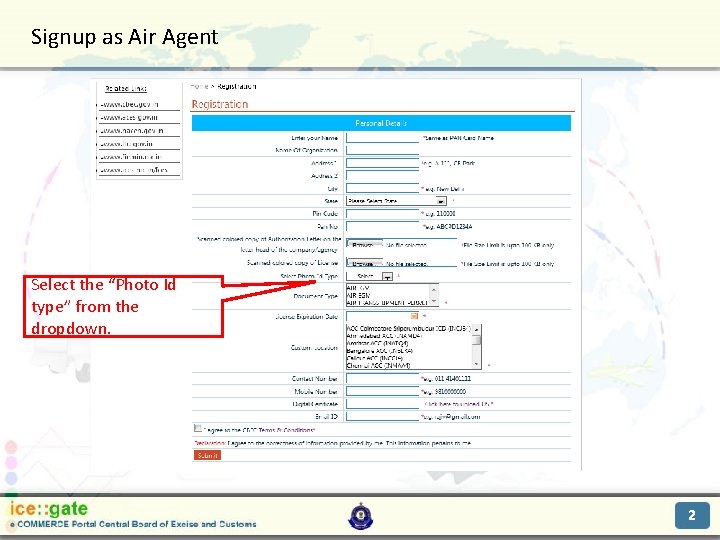
Signup as Air Agent Trade Partners Select the “Photo Id type” from the dropdown. 2
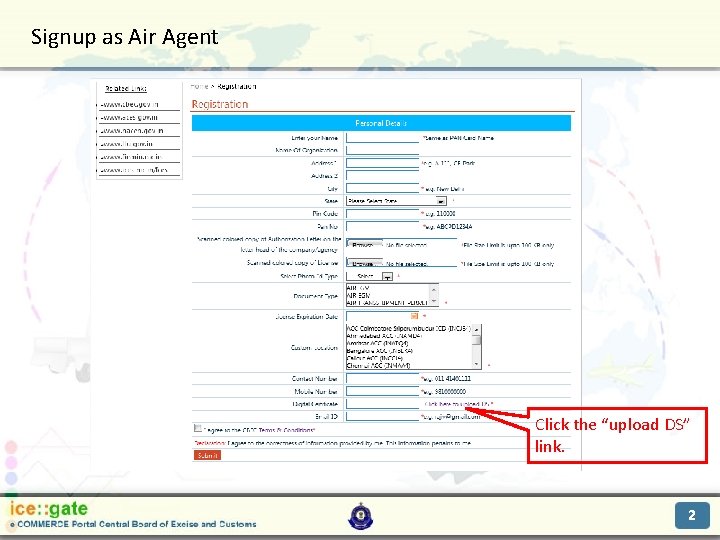
Signup as Air Agent Trade Partners Click the “upload DS” link. 2
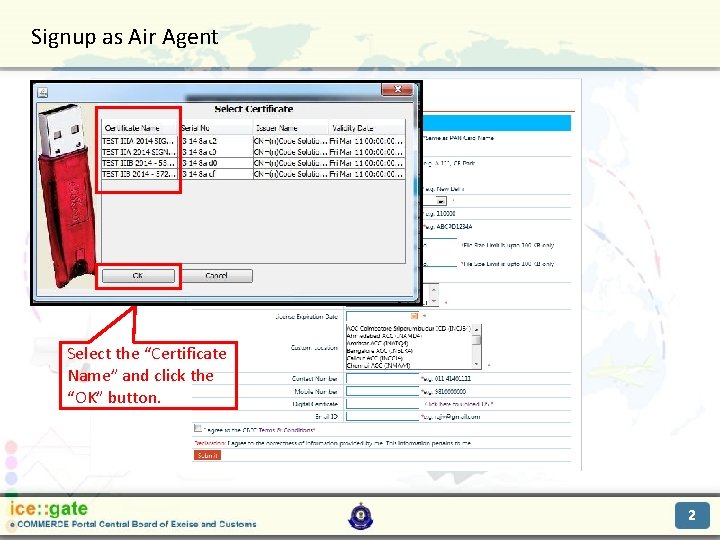
Signup as Air Agent Trade Partners Select the “Certificate Name” and click the “OK” button. 2
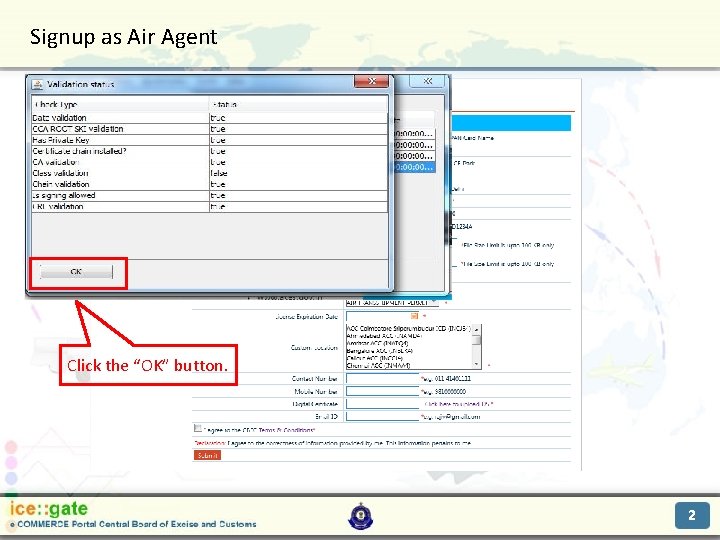
Signup as Air Agent Trade Partners Click the “OK” button. 2
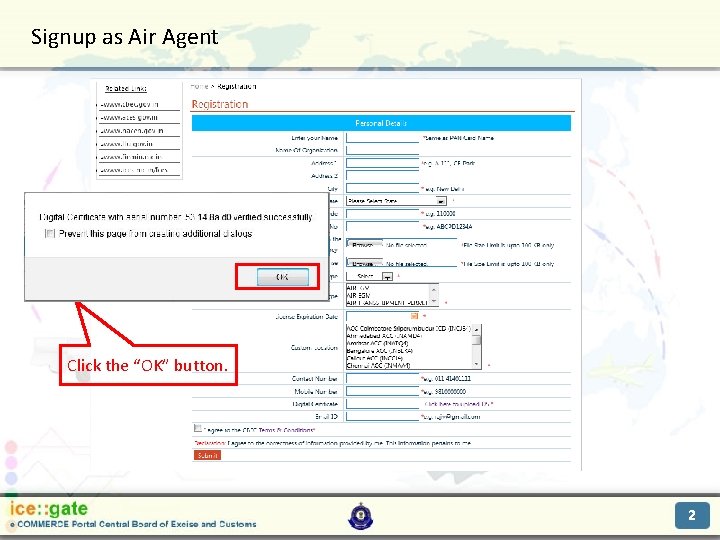
Signup as Air Agent Trade Partners Click the “OK” button. 2
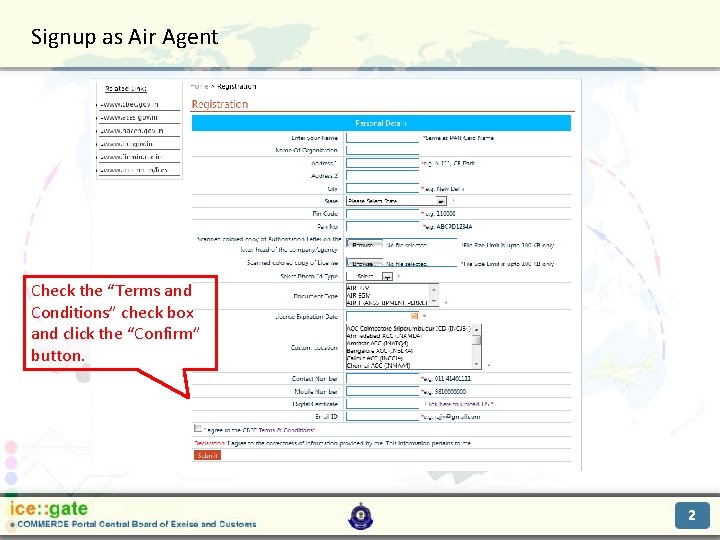
Signup as Air Agent Trade Partners Check the “Terms and Conditions” check box and click the “Confirm” button. 2
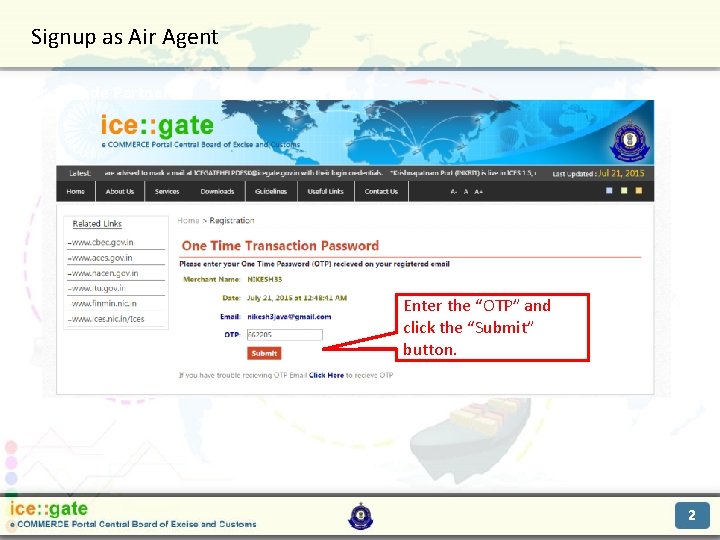
Signup as Air Agent Trade Partners Enter the “OTP” and click the “Submit” button. 2
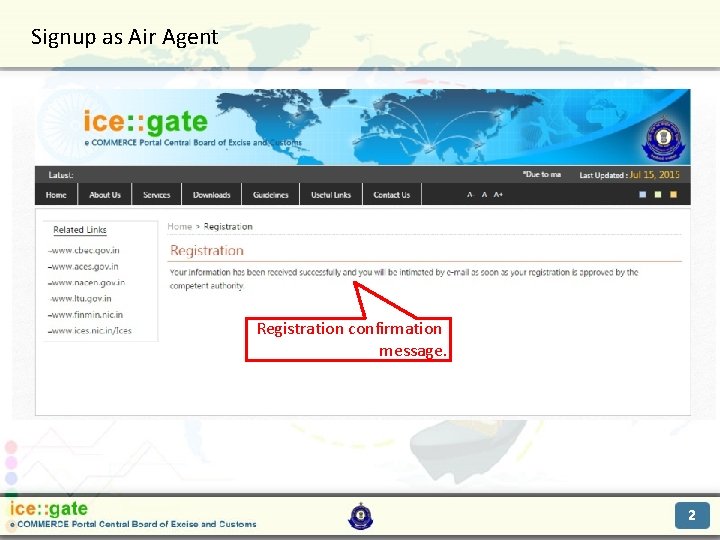
Signup as Air Agent Trade Partners Registration confirmation message. 2
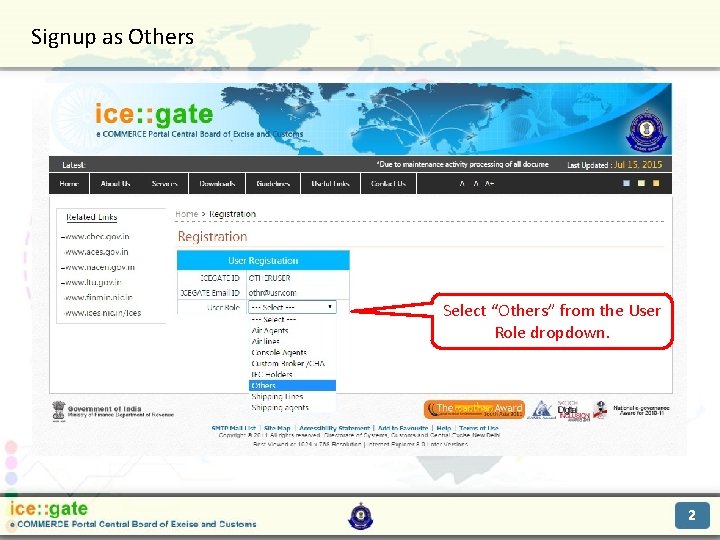
Signup as Others Trade Partners Select “Others” from the User Role dropdown. 2
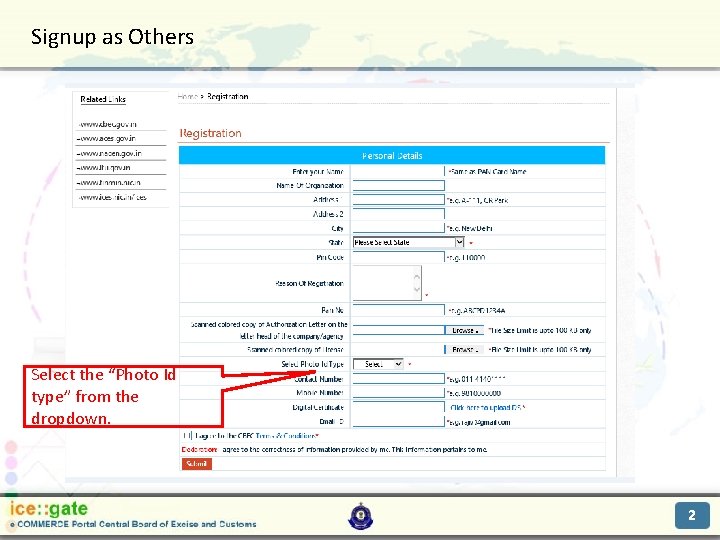
Signup as Others Trade Partners Select the “Photo Id type” from the dropdown. 2
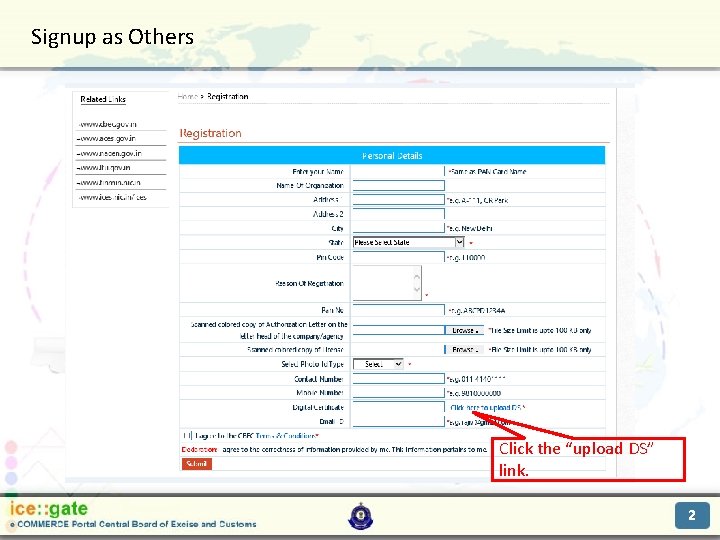
Signup as Others Trade Partners Click the “upload DS” link. 2
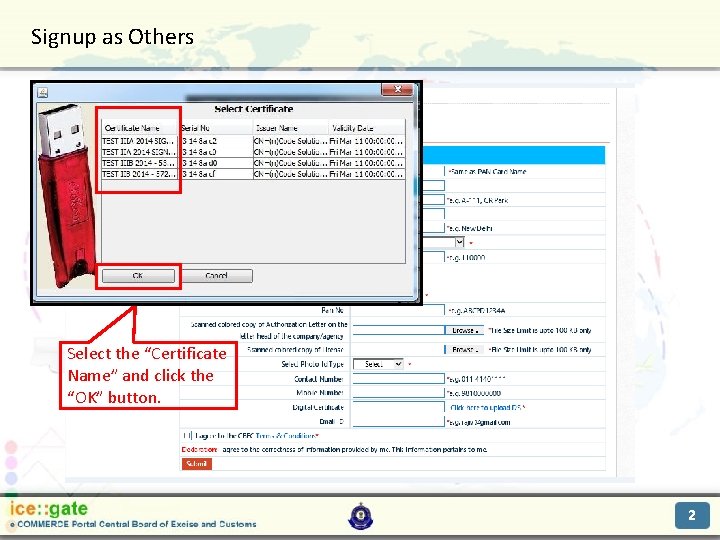
Signup as Others Trade Partners Select the “Certificate Name” and click the “OK” button. 2
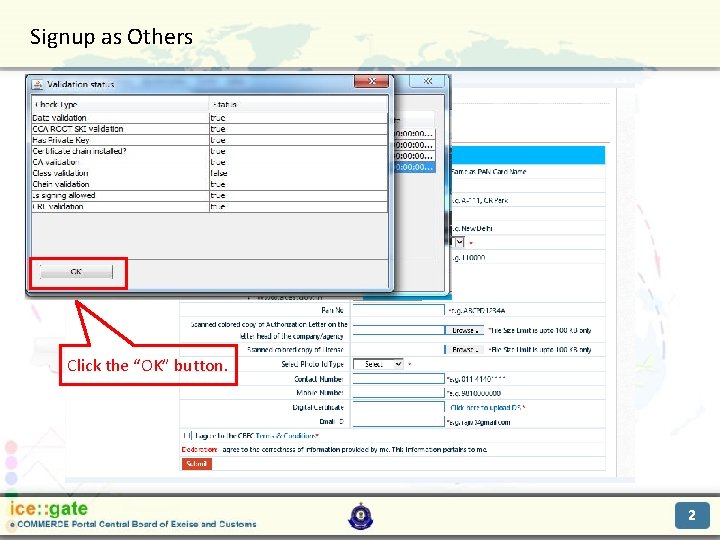
Signup as Others Trade Partners Click the “OK” button. 2
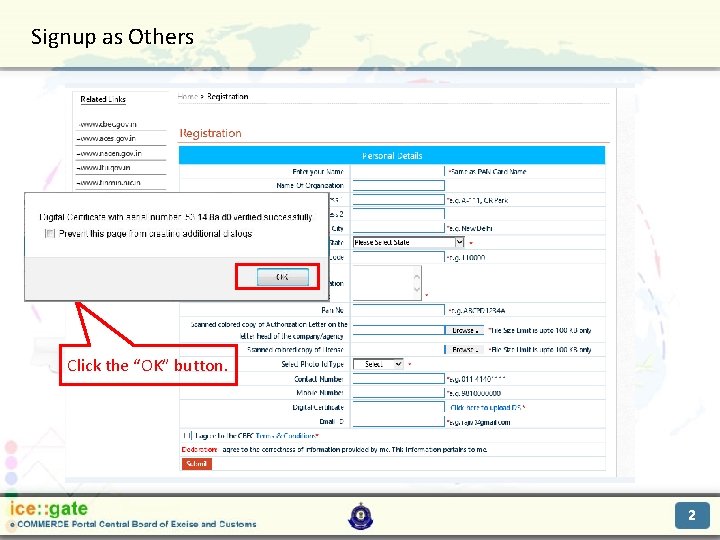
Signup as Others Trade Partners Click the “OK” button. 2
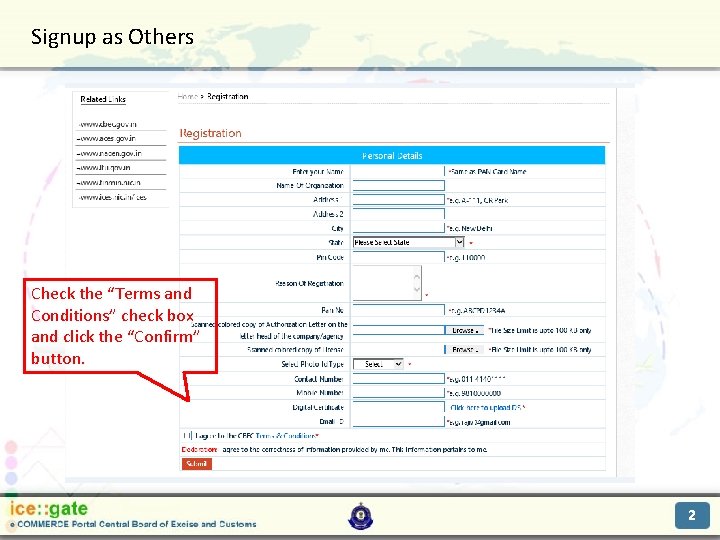
Signup as Others Trade Partners Check the “Terms and Conditions” check box and click the “Confirm” button. 2
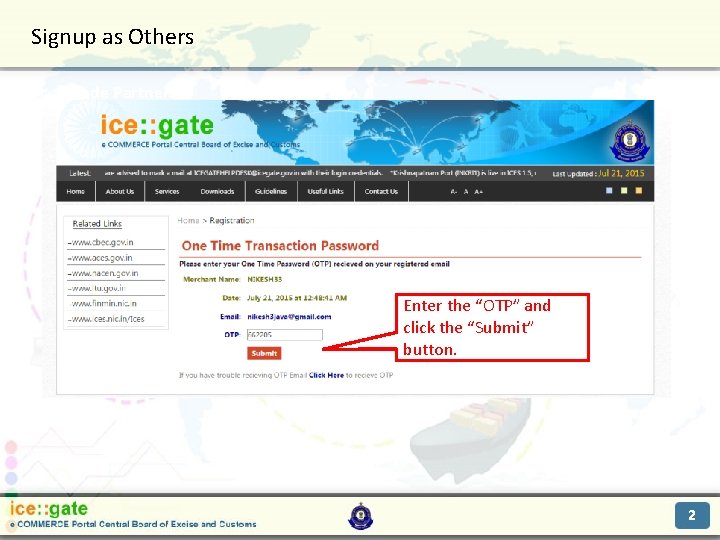
Signup as Others Trade Partners Enter the “OTP” and click the “Submit” button. 2
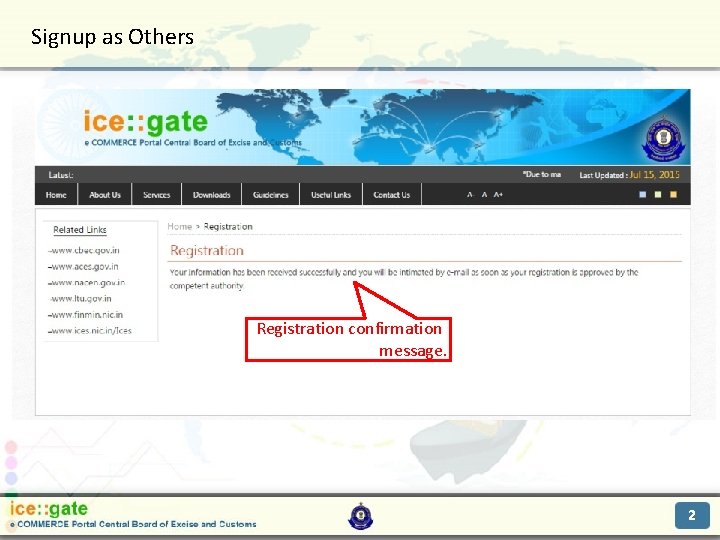
Signup as Others Trade Partners Registration confirmation message. 2
Trade Partners Thank You 2
- Slides: 79