
Dynamics GP 2018 General Ledger and Bank Reconciliation

Dynamics GP 2018 – General Ledger and Bank Reconciliation
Dynamics GP Financial Suite Modules • General Ledger • Bank Reconciliation (and Electronic Bank Rec) • Fixed Assets Management • Budget Management • Inter-fund Management • Financial Reporting 3
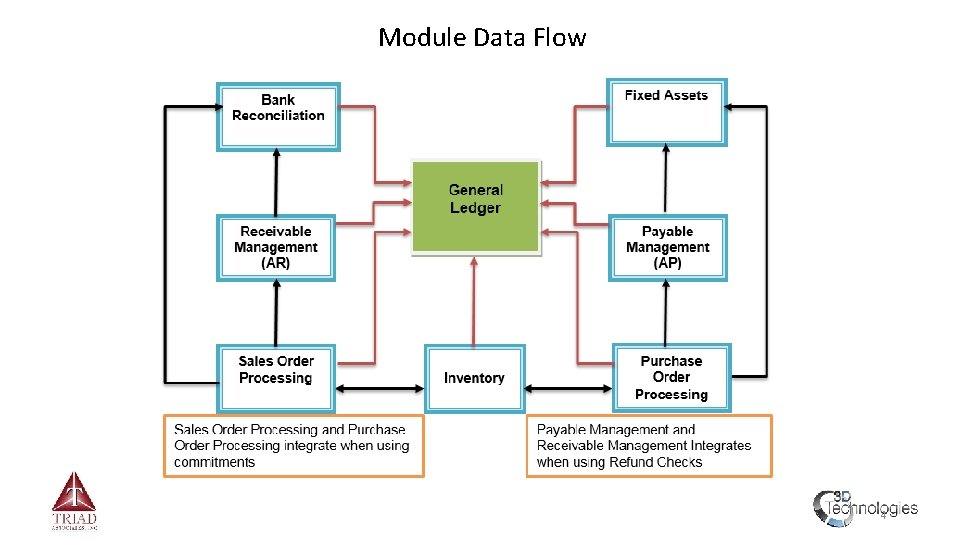
Module Data Flow 4
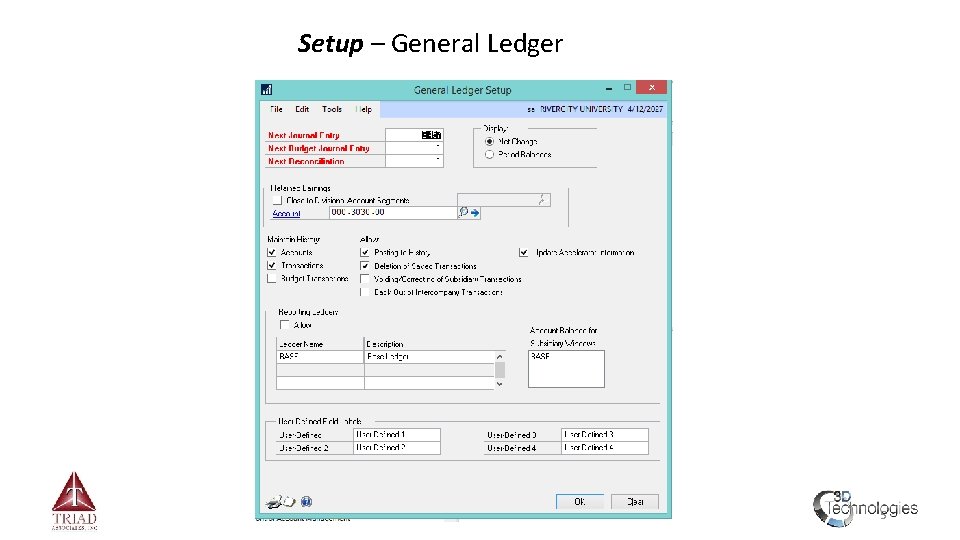
Setup – General Ledger 5
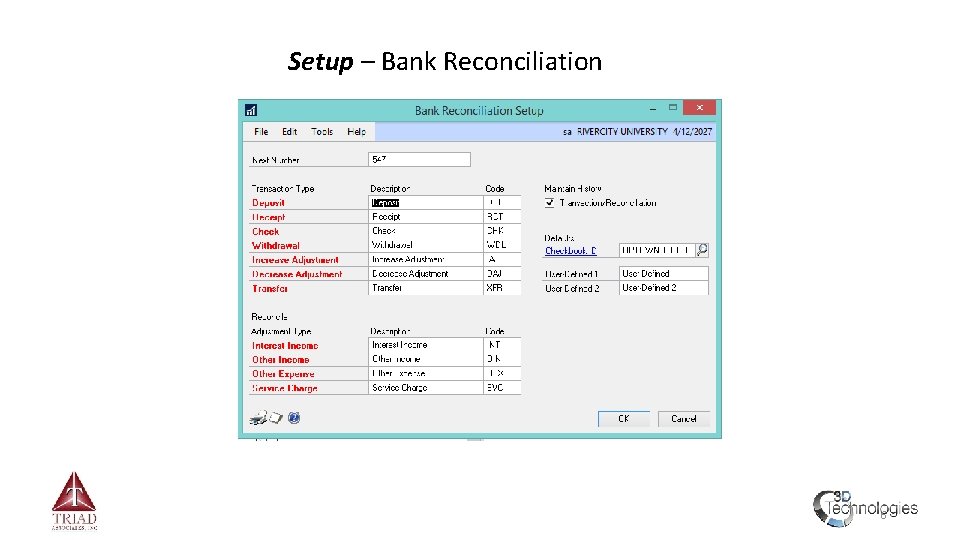
Setup – Bank Reconciliation 6
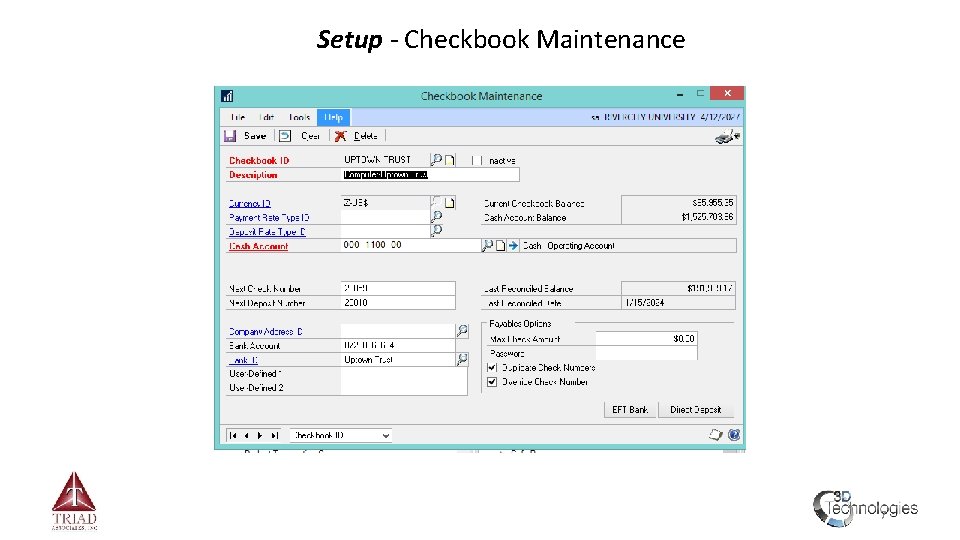
Setup - Checkbook Maintenance 7
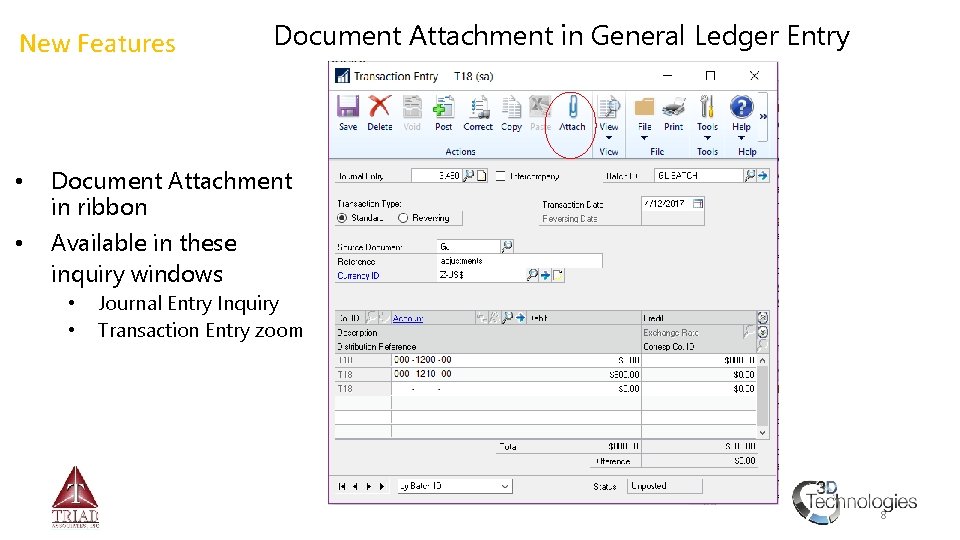
New Features • • Document Attachment in General Ledger Entry Document Attachment in ribbon Available in these inquiry windows • • Journal Entry Inquiry Transaction Entry zoom 8
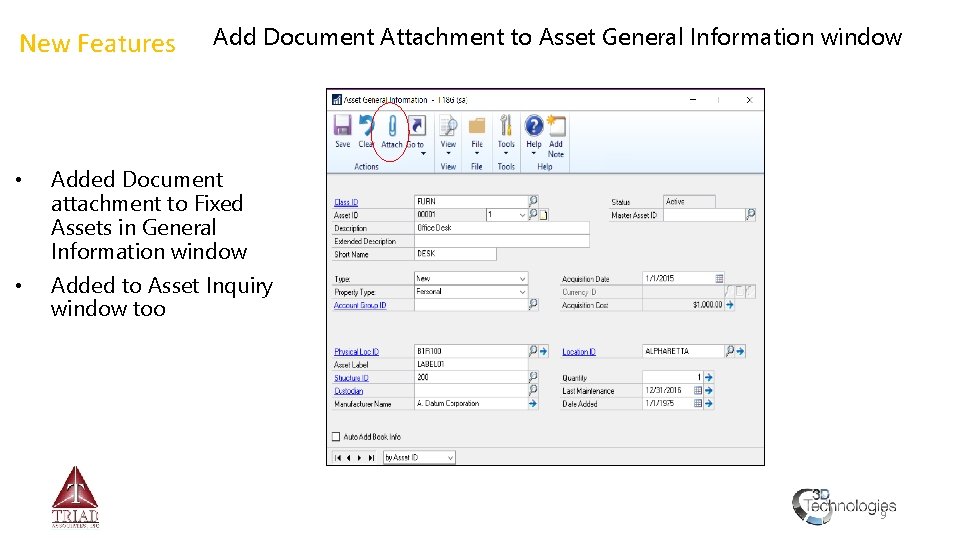
New Features Add Document Attachment to Asset General Information window • Added Document attachment to Fixed Assets in General Information window • Added to Asset Inquiry window too 9
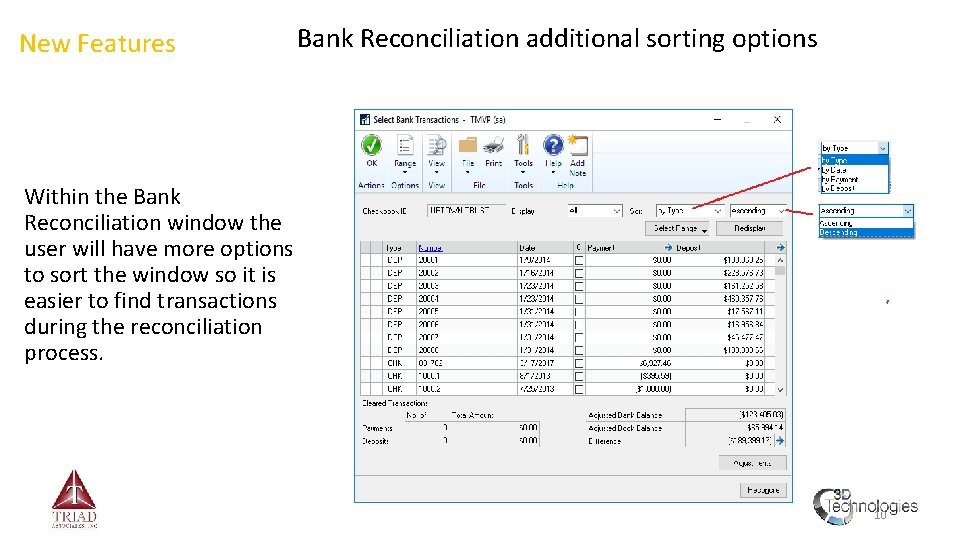
New Features Bank Reconciliation additional sorting options Within the Bank Reconciliation window the user will have more options to sort the window so it is easier to find transactions during the reconciliation process. 10
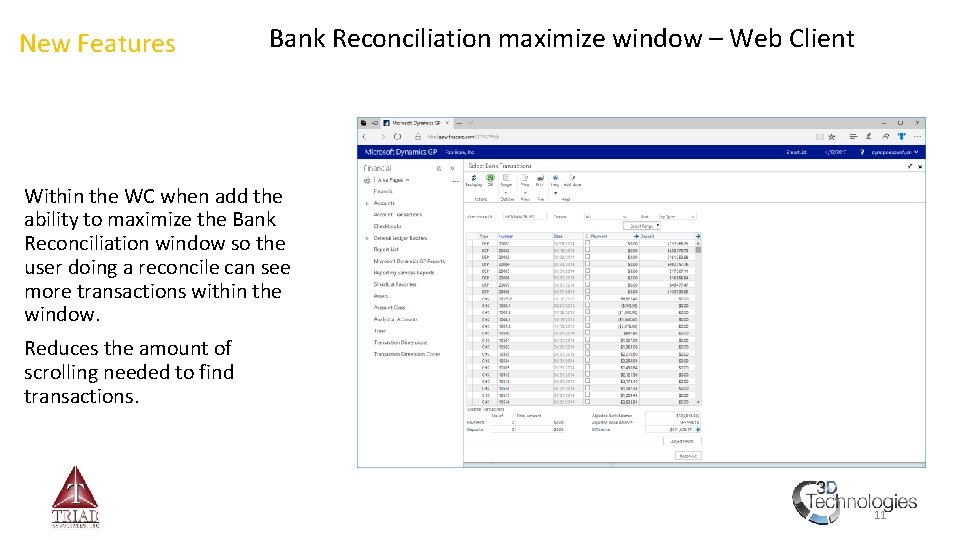
New Features Bank Reconciliation maximize window – Web Client Within the WC when add the ability to maximize the Bank Reconciliation window so the user doing a reconcile can see more transactions within the window. Reduces the amount of scrolling needed to find transactions. 11
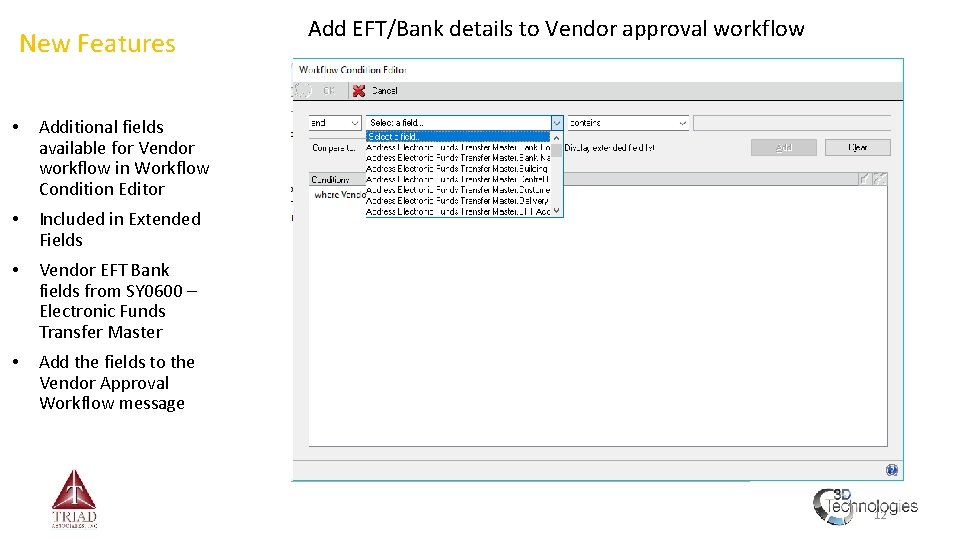
New Features • Additional fields available for Vendor workflow in Workflow Condition Editor • Included in Extended Fields • Vendor EFT Bank fields from SY 0600 – Electronic Funds Transfer Master • Add the fields to the Vendor Approval Workflow message Add EFT/Bank details to Vendor approval workflow 12
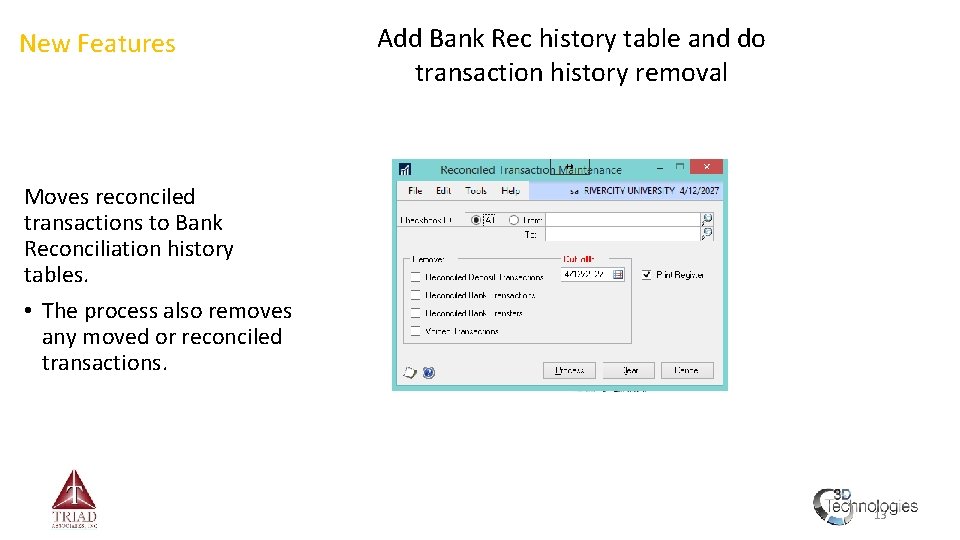
New Features Add Bank Rec history table and do transaction history removal Moves reconciled transactions to Bank Reconciliation history tables. • The process also removes any moved or reconciled transactions. 13
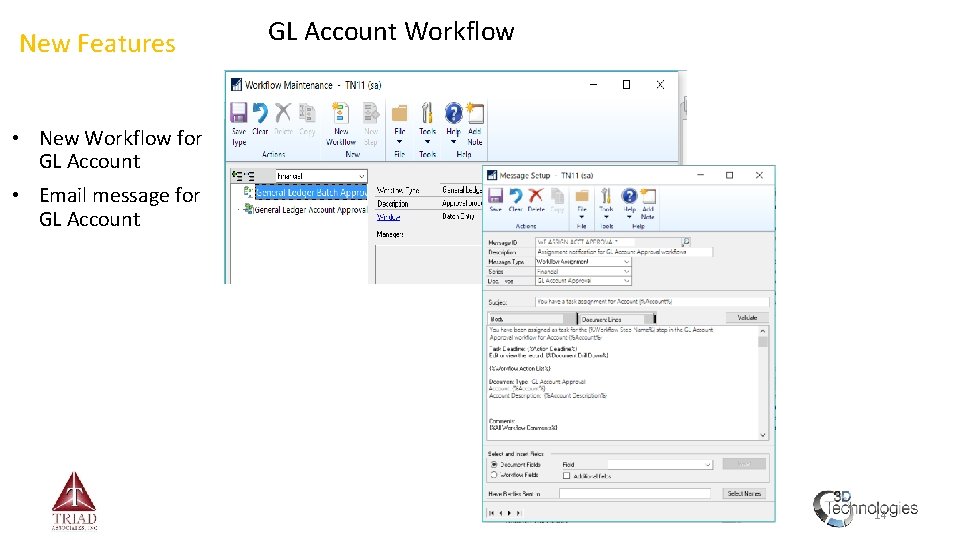
New Features GL Account Workflow • New Workflow for GL Account • Email message for GL Account 14
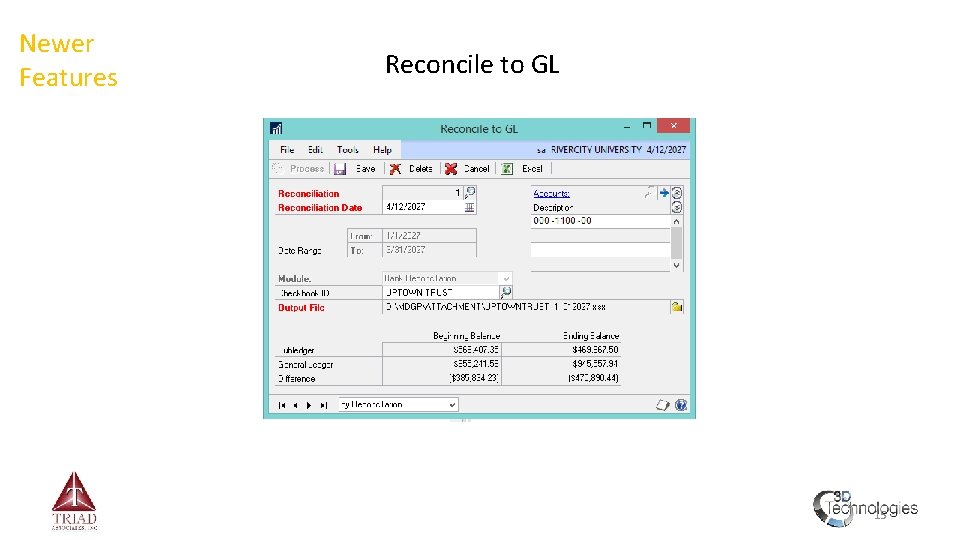
Newer Features Reconcile to GL 15
Year-End Module Closing Order • Purchase Order Processing • Inventory • Receivables • Payables • Fixed Assets • Payroll • General Ledger 16
Fiscal Year-End Process Checklist • Finalize any/all applicable transactions • Reconcile submodules to G/L • Print necessary reports & file • Make a backup when finished • Begin closing process 17
Details of GL Year-End Process • General Ledger (GL) • ALWAYS the final module to be closed!!! • Doesn’t need to be closed immediately • Finalize adjustments; post ‘Single Use’ batches • Print Detailed T/B & MR financials (optional) • Double-check ‘Posting to History’ setting • Setup>Financial>General Ledger • Allows posting to most-recent closed fiscal year only • Also check ‘Maintain History’ & R/E acct. while here • Run the G/L year-end closing process • Routines>Financial>Year-end Closing • Click ‘Close Year’ button once 18
Questions… 19
- Slides: 19