
Dreamweaver MX Overview of Templates n n Templates
- Slides: 12
Dreamweaver MX
Overview of Templates n n Templates represent a web page design or _______ that will be common to multiple pages. There are two situations where templates are especially useful: – Multiple pages need an identical design or layout, – A designer creates the look of the page while content editors add content to the page. n _____ are more useful when you want to repeat specific content on multiple pages, but common design and layout are not important. 2
Creating Templates (p. 277) n n n Create a web page with the desired design (tables, graphics, etc. ). Select File > Save As Template. Select a _____ and give the template a name. Click Save. The template has been saved with a ______ extension in the Templates folder of the site. 3
Adding/Removing Editable Areas (p. 279) n n n By default, all areas of a template are _______, but can be made editable. To make an area editable (such as a table cell, a specific graphic, paragraph, etc. ), select the area. Click the Templates tab in the ____ bar. Click the Editable Region icon, enter a name for the region, OK. Save the file. To remove an editable region, click the tab for the region, select Modify > Templates > Remove Template Markup. 4
Creating Optional Content (p. 285) n n n Optional content is content that is hidden or displayed on a page that is based on the template. Optional content may be based on _____, such as LANGUAGE == ‘English’. To make content in a template optional, select the content. Click the Optional Region icon on the Templates tab of the Insert bar. In the Basic tab of the dialog box, uncheck Show by Default. 5
Inserting Repeating Regions (p. 286) n n n A repeating region is an area that may need to be duplicated, such as for different products in an online _____. Select the repeating region, such as a table row or rows. Click the Repeating Region icon on the Templates tab of the Insert bar. Enter a name for the repeating region, click OK. Select individual cells in the repeating region (use the Tag _____ at the bottom if necessary), click the Editable Region icon, and 6 name the editable region. Save.
Building Pages from a Template (p. 289) n n n To build a page from a template, select File > New, select the Templates tab. Select the appropriate site, the desired template in that site, ____. Click on editable regions (double-click editable graphics) to make changes. Controlling Optional Content (p. 292) n n To show optional content, select Modify > Template Properties. Select the region. Check the Show … check box, OK. 7
Adding Repeating Entries (p. 293) n n n Enter the desired content in the editable regions of the repeating entries. Click the ___ button on the Repeat tab to duplicate a repeating region. Click on a repeating entry and click the up or down _______ on the Repeat tab to change the order of the entries. Save. 8
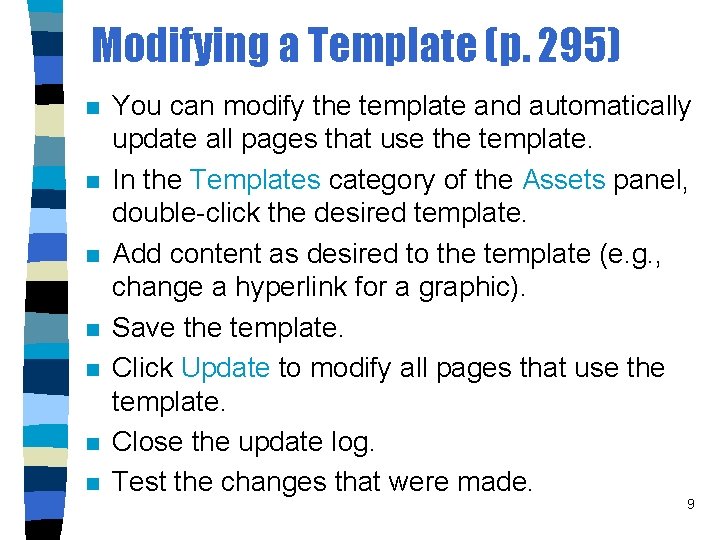
Modifying a Template (p. 295) n n n n You can modify the template and automatically update all pages that use the template. In the Templates category of the Assets panel, double-click the desired template. Add content as desired to the template (e. g. , change a hyperlink for a graphic). Save the template. Click Update to modify all pages that use the template. Close the update log. Test the changes that were made. 9
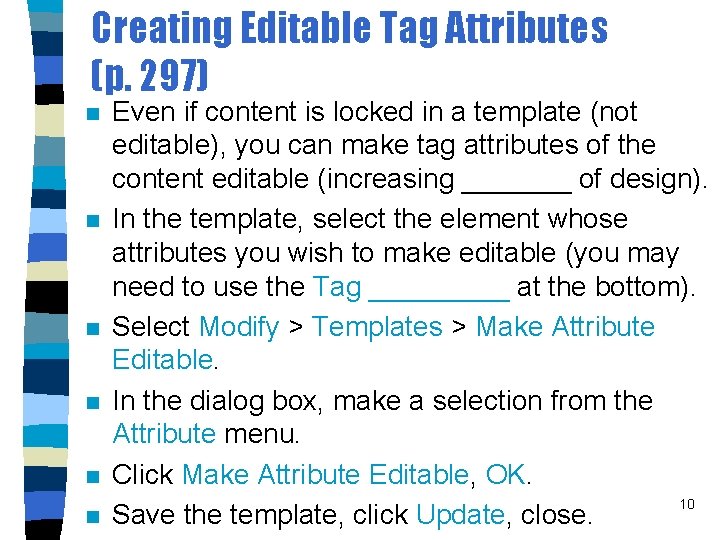
Creating Editable Tag Attributes (p. 297) n n n Even if content is locked in a template (not editable), you can make tag attributes of the content editable (increasing _______ of design). In the template, select the element whose attributes you wish to make editable (you may need to use the Tag _____ at the bottom). Select Modify > Templates > Make Attribute Editable. In the dialog box, make a selection from the Attribute menu. Click Make Attribute Editable, OK. 10 Save the template, click Update, close.
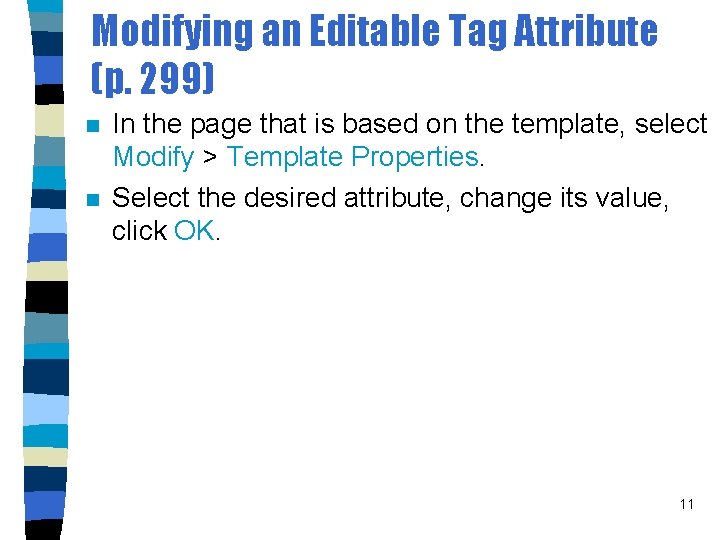
Modifying an Editable Tag Attribute (p. 299) n n In the page that is based on the template, select Modify > Template Properties. Select the desired attribute, change its value, click OK. 11
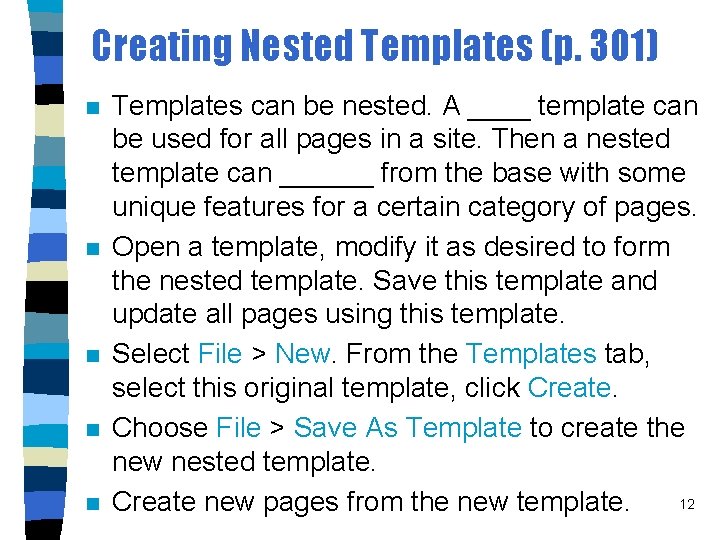
Creating Nested Templates (p. 301) n n n Templates can be nested. A ____ template can be used for all pages in a site. Then a nested template can ______ from the base with some unique features for a certain category of pages. Open a template, modify it as desired to form the nested template. Save this template and update all pages using this template. Select File > New. From the Templates tab, select this original template, click Create. Choose File > Save As Template to create the new nested template. 12 Create new pages from the new template.