
DREAM IDEA PLAN IMPLEMENTATION Introduction to Matlab Present

DREAM IDEA PLAN IMPLEMENTATION

Introduction to Matlab Present to: Amirkabir University of Technology (Tehran Polytechnic) & Semnan University Dr. Kourosh Kiani Email: kkiani 2004@yahoo. com Email: Kourosh. kiani@aut. ac. ir Web: aut. ac. com 2
Course Structure • Spread over 8 weeks • 1 classes per week • 2 hour per class

Plotting Tools
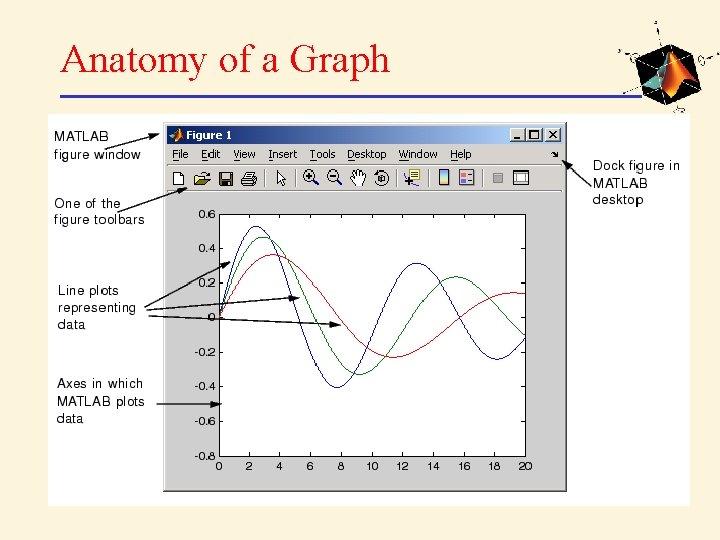
Anatomy of a Graph
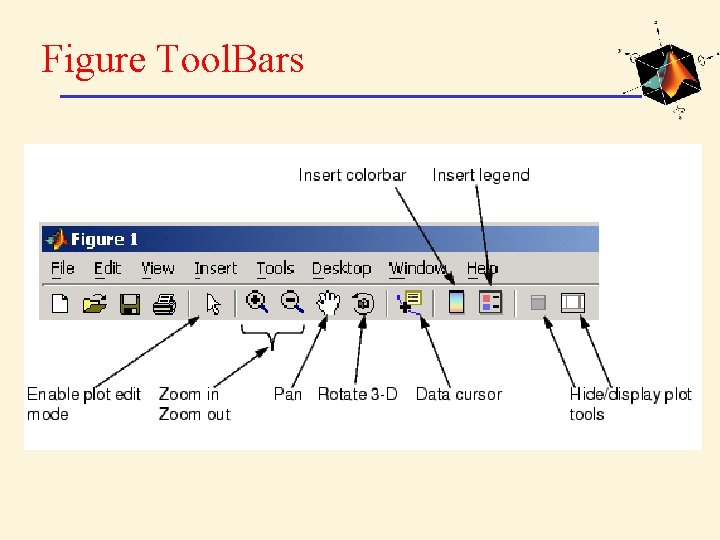
Figure Tool. Bars
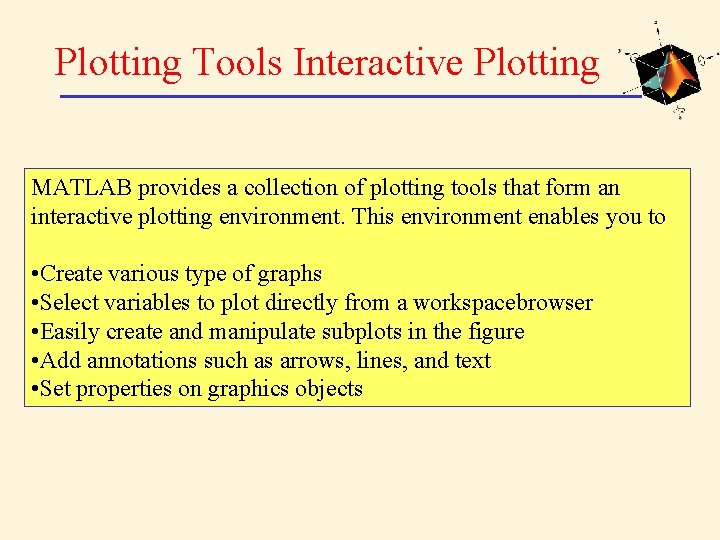
Plotting Tools Interactive Plotting MATLAB provides a collection of plotting tools that form an interactive plotting environment. This environment enables you to • Create various type of graphs • Select variables to plot directly from a workspacebrowser • Easily create and manipulate subplots in the figure • Add annotations such as arrows, lines, and text • Set properties on graphics objects
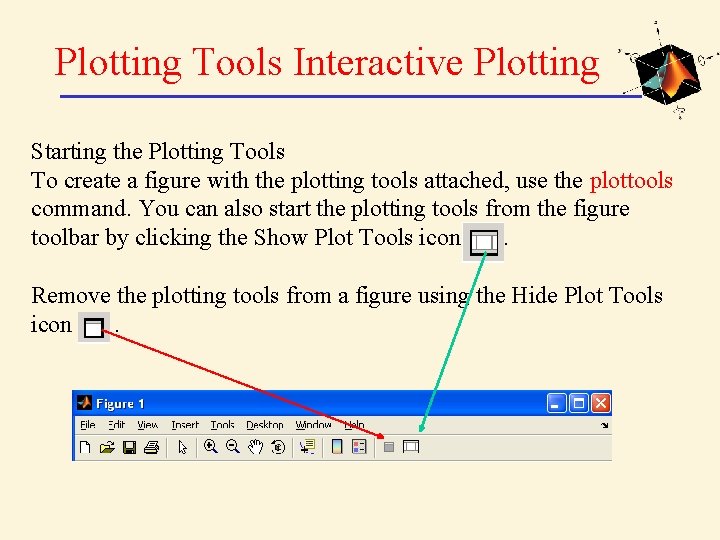
Plotting Tools Interactive Plotting Starting the Plotting Tools To create a figure with the plotting tools attached, use the plottools command. You can also start the plotting tools from the figure toolbar by clicking the Show Plot Tools icon. Remove the plotting tools from a figure using the Hide Plot Tools icon.
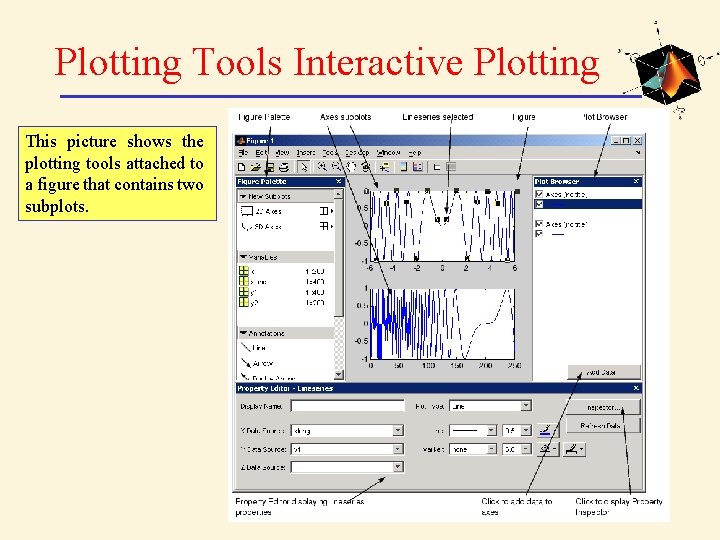
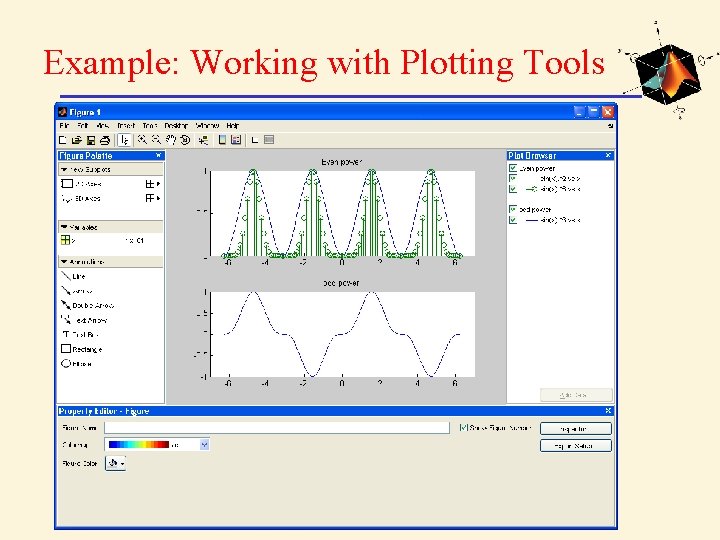
Plotting Tools Interactive Plotting This picture shows the plotting tools attached to a figure that contains two subplots.
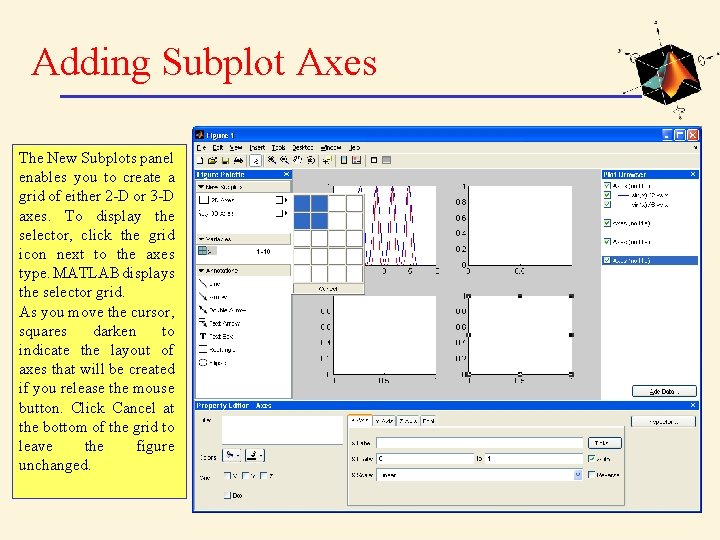
Adding Subplot Axes The New Subplots panel enables you to create a grid of either 2 -D or 3 -D axes. To display the selector, click the grid icon next to the axes type. MATLAB displays the selector grid. As you move the cursor, squares darken to indicate the layout of axes that will be created if you release the mouse button. Click Cancel at the bottom of the grid to leave the figure unchanged.
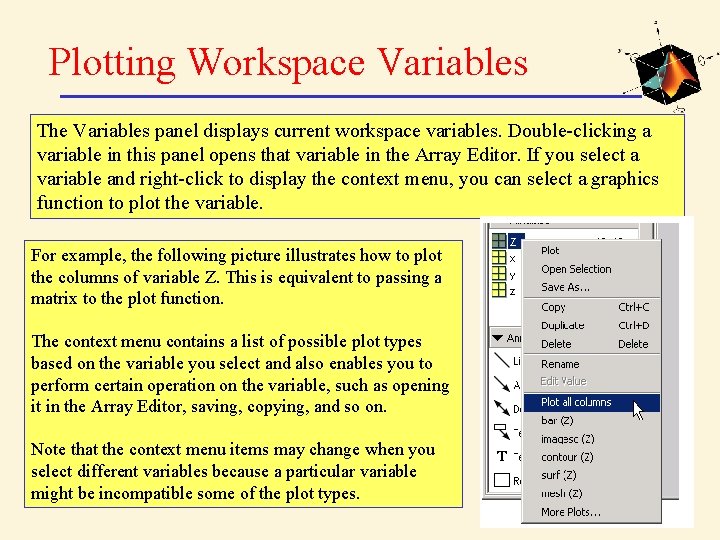
Plotting Workspace Variables The Variables panel displays current workspace variables. Double-clicking a variable in this panel opens that variable in the Array Editor. If you select a variable and right-click to display the context menu, you can select a graphics function to plot the variable. For example, the following picture illustrates how to plot the columns of variable Z. This is equivalent to passing a matrix to the plot function. The context menu contains a list of possible plot types based on the variable you select and also enables you to perform certain operation on the variable, such as opening it in the Array Editor, saving, copying, and so on. Note that the context menu items may change when you select different variables because a particular variable might be incompatible some of the plot types.
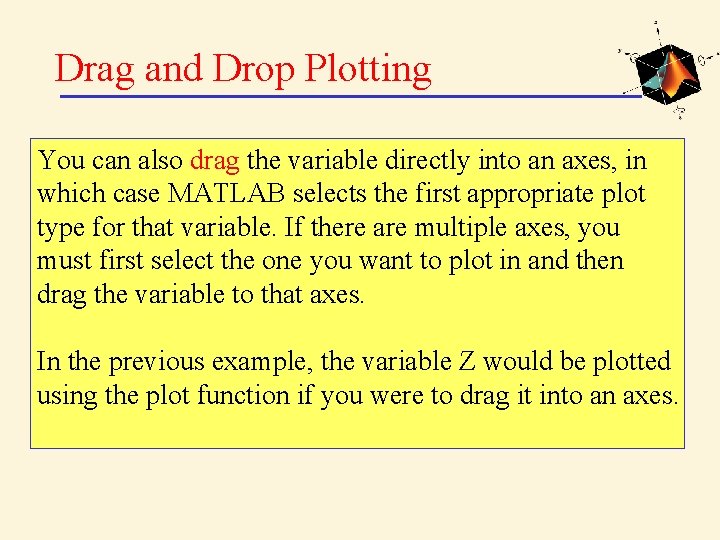
Drag and Drop Plotting You can also drag the variable directly into an axes, in which case MATLAB selects the first appropriate plot type for that variable. If there are multiple axes, you must first select the one you want to plot in and then drag the variable to that axes. In the previous example, the variable Z would be plotted using the plot function if you were to drag it into an axes.
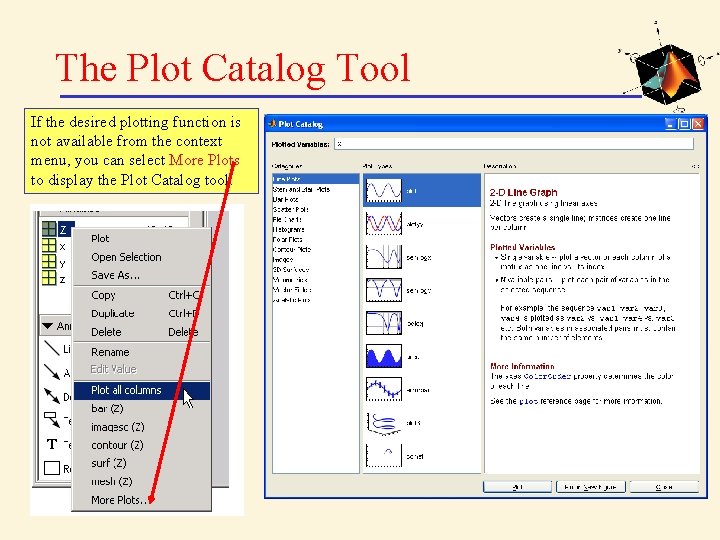
The Plot Catalog Tool If the desired plotting function is not available from the context menu, you can select More Plots to display the Plot Catalog tool.
Adding Annotations to Graphs Annotating graphs with text and other explanatory material can improve the graph's ability to convey information. Graph Annotation Features MATLAB provides a variety of features for annotating graphs, including those that • Add text, lines and arrows, rectangles, ellipses, and other annotation objects anywhere on the figure. • Anchor annotations to locations in data space • Add a legend and colorbar • Add axis labels and titles • Edit the properties of graphics objects
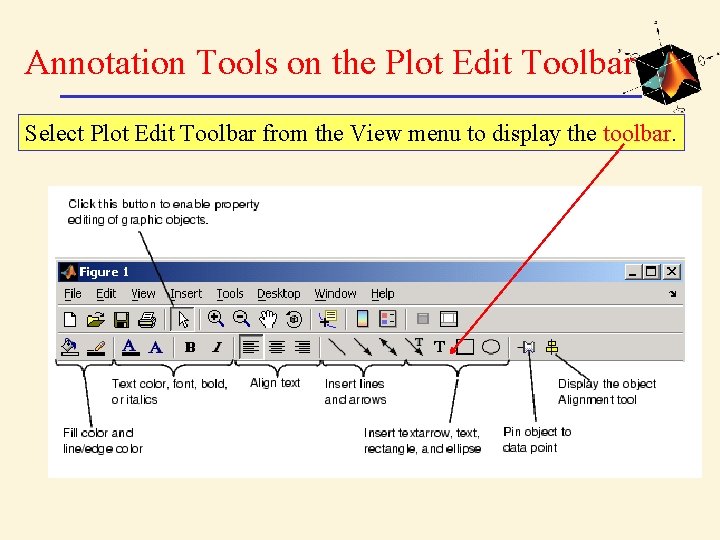
Annotation Tools on the Plot Edit Toolbar Select Plot Edit Toolbar from the View menu to display the toolbar.
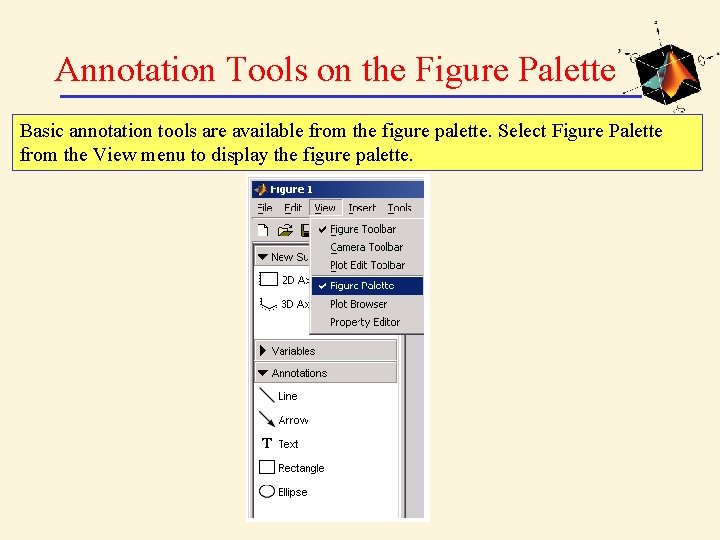
Annotation Tools on the Figure Palette Basic annotation tools are available from the figure palette. Select Figure Palette from the View menu to display the figure palette.

Adding Annotations from the Insert Menu Annotation features are available from the Insert menu.
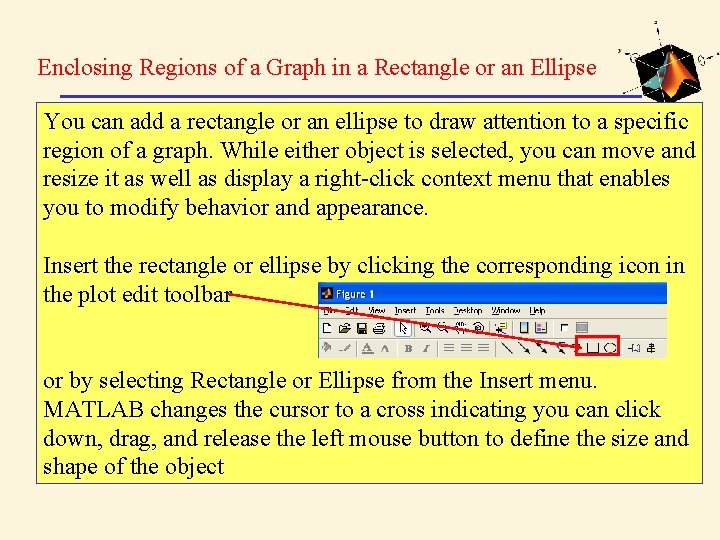
Enclosing Regions of a Graph in a Rectangle or an Ellipse You can add a rectangle or an ellipse to draw attention to a specific region of a graph. While either object is selected, you can move and resize it as well as display a right-click context menu that enables you to modify behavior and appearance. Insert the rectangle or ellipse by clicking the corresponding icon in the plot edit toolbar or by selecting Rectangle or Ellipse from the Insert menu. MATLAB changes the cursor to a cross indicating you can click down, drag, and release the left mouse button to define the size and shape of the object
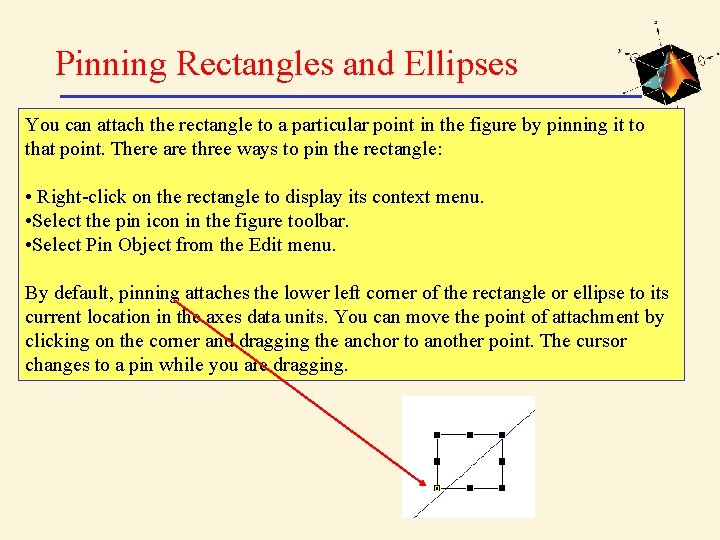
Pinning Rectangles and Ellipses You can attach the rectangle to a particular point in the figure by pinning it to that point. There are three ways to pin the rectangle: • Right-click on the rectangle to display its context menu. • Select the pin icon in the figure toolbar. • Select Pin Object from the Edit menu. By default, pinning attaches the lower left corner of the rectangle or ellipse to its current location in the axes data units. You can move the point of attachment by clicking on the corner and dragging the anchor to another point. The cursor changes to a pin while you are dragging.
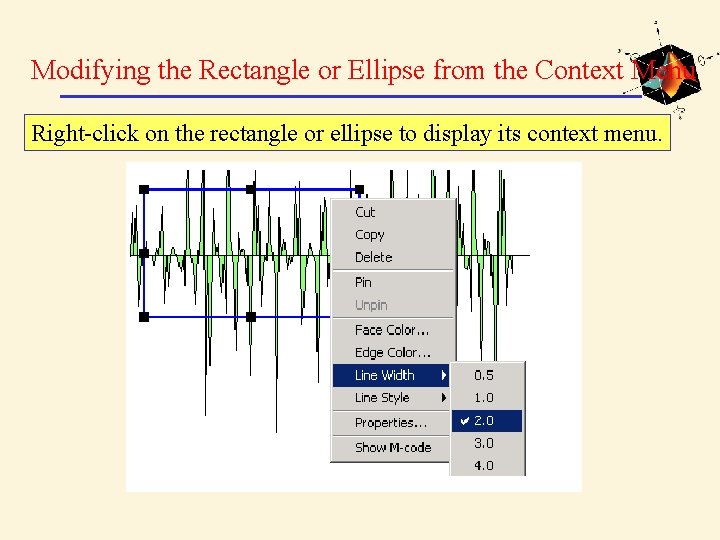
Modifying the Rectangle or Ellipse from the Context Menu Right-click on the rectangle or ellipse to display its context menu.
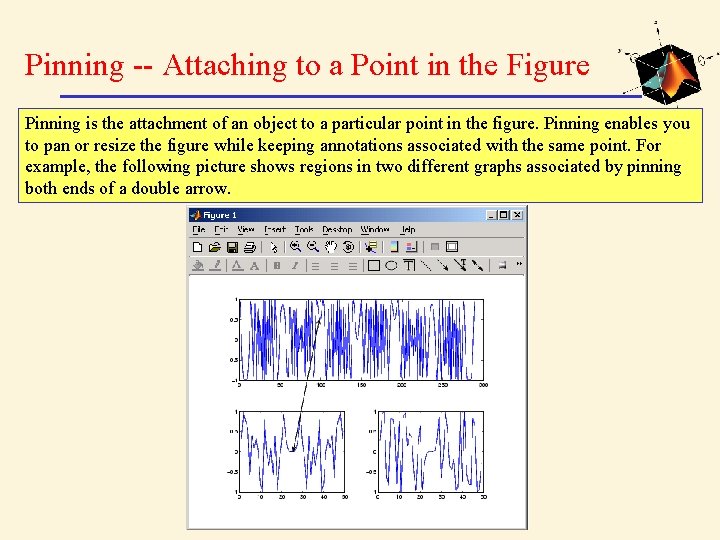
Pinning -- Attaching to a Point in the Figure Pinning is the attachment of an object to a particular point in the figure. Pinning enables you to pan or resize the figure while keeping annotations associated with the same point. For example, the following picture shows regions in two different graphs associated by pinning both ends of a double arrow.
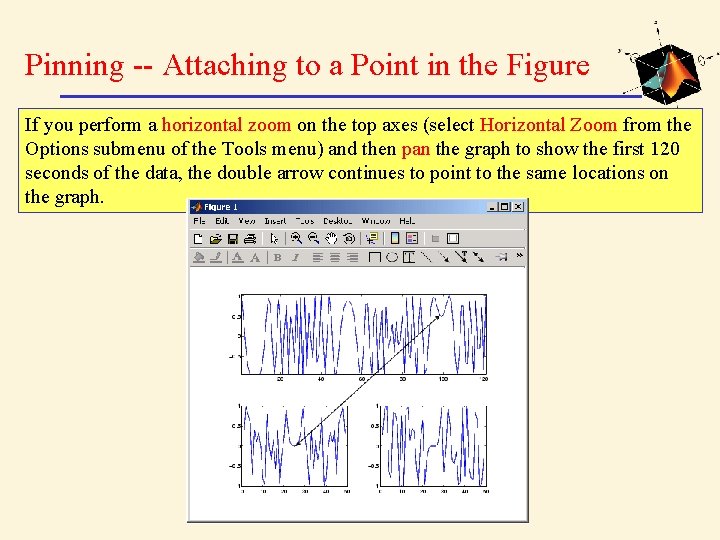
Pinning -- Attaching to a Point in the Figure If you perform a horizontal zoom on the top axes (select Horizontal Zoom from the Options submenu of the Tools menu) and then pan the graph to show the first 120 seconds of the data, the double arrow continues to point to the same locations on the graph.
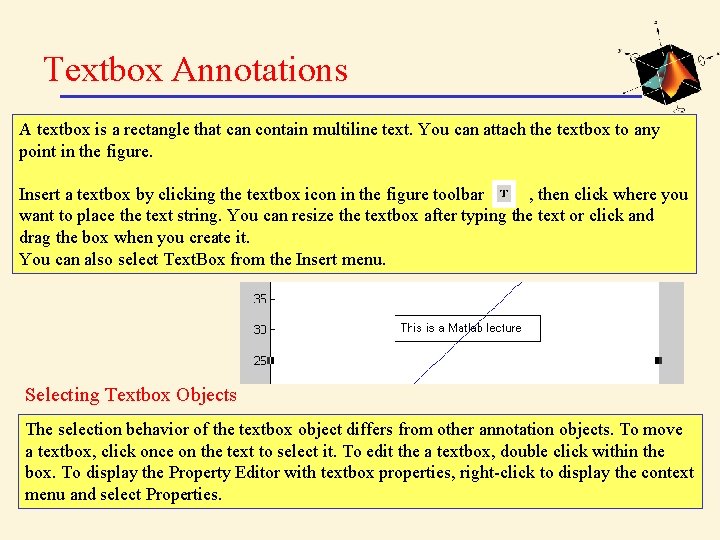
Textbox Annotations A textbox is a rectangle that can contain multiline text. You can attach the textbox to any point in the figure. Insert a textbox by clicking the textbox icon in the figure toolbar , then click where you want to place the text string. You can resize the textbox after typing the text or click and drag the box when you create it. You can also select Text. Box from the Insert menu. Selecting Textbox Objects The selection behavior of the textbox object differs from other annotation objects. To move a textbox, click once on the text to select it. To edit the a textbox, double click within the box. To display the Property Editor with textbox properties, right-click to display the context menu and select Properties.
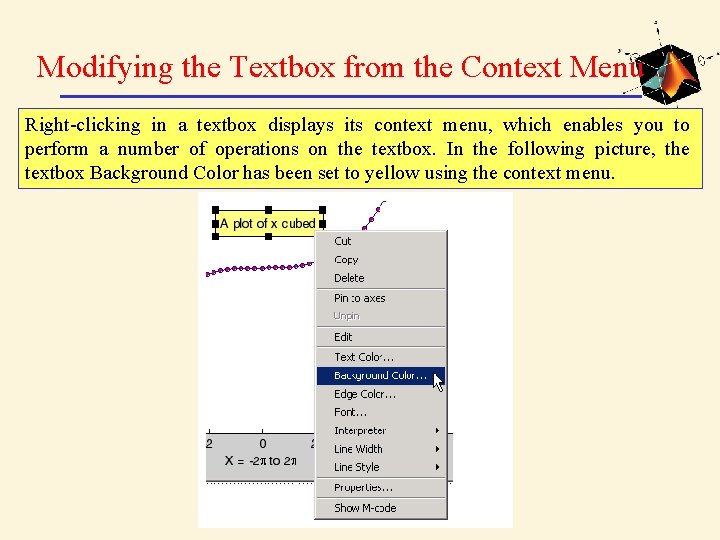
Modifying the Textbox from the Context Menu Right-clicking in a textbox displays its context menu, which enables you to perform a number of operations on the textbox. In the following picture, the textbox Background Color has been set to yellow using the context menu.
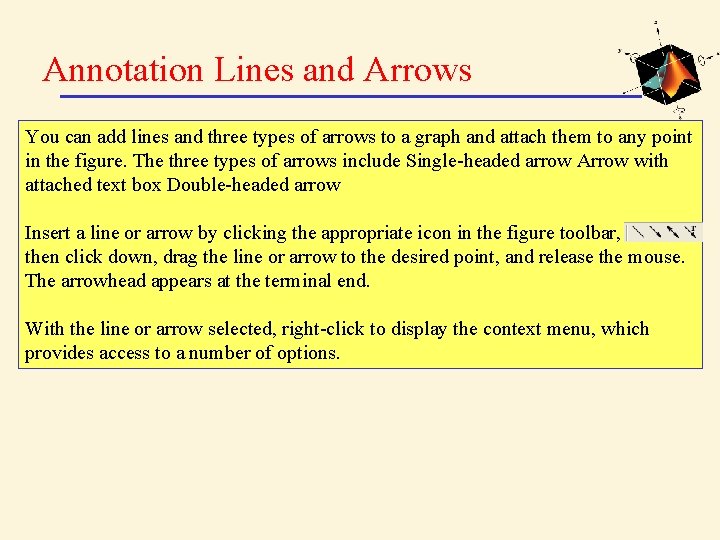
Annotation Lines and Arrows You can add lines and three types of arrows to a graph and attach them to any point in the figure. The three types of arrows include Single-headed arrow Arrow with attached text box Double-headed arrow Insert a line or arrow by clicking the appropriate icon in the figure toolbar, then click down, drag the line or arrow to the desired point, and release the mouse. The arrowhead appears at the terminal end. With the line or arrow selected, right-click to display the context menu, which provides access to a number of options.
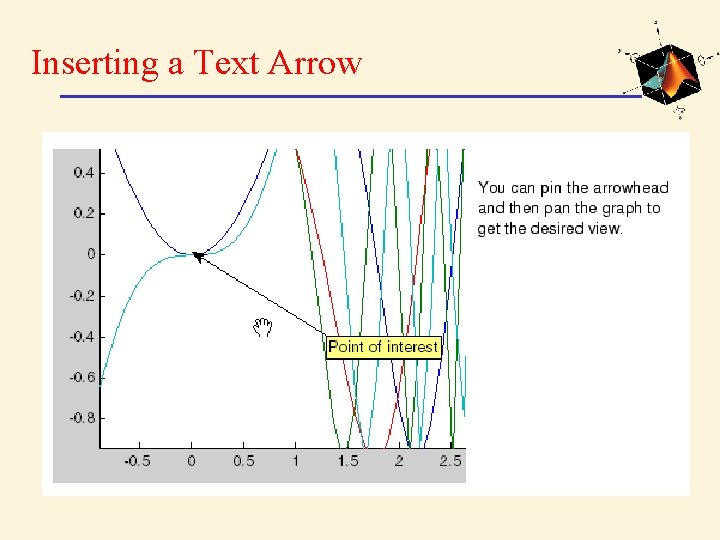
Inserting a Text Arrow
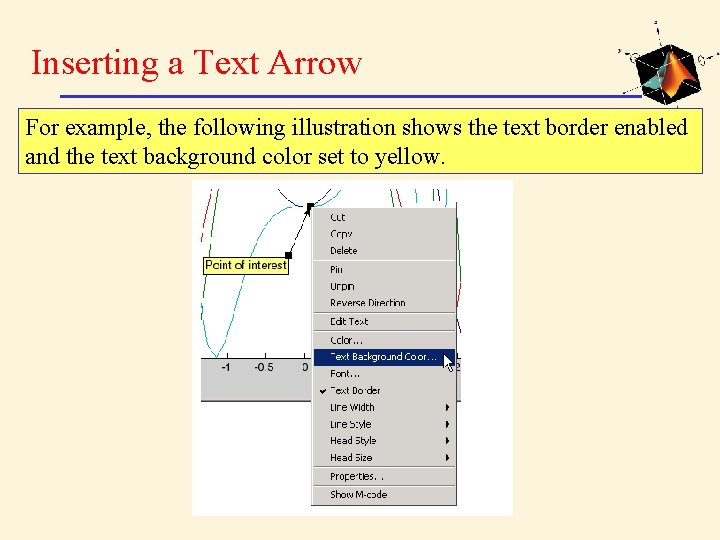
Inserting a Text Arrow For example, the following illustration shows the text border enabled and the text background color set to yellow.
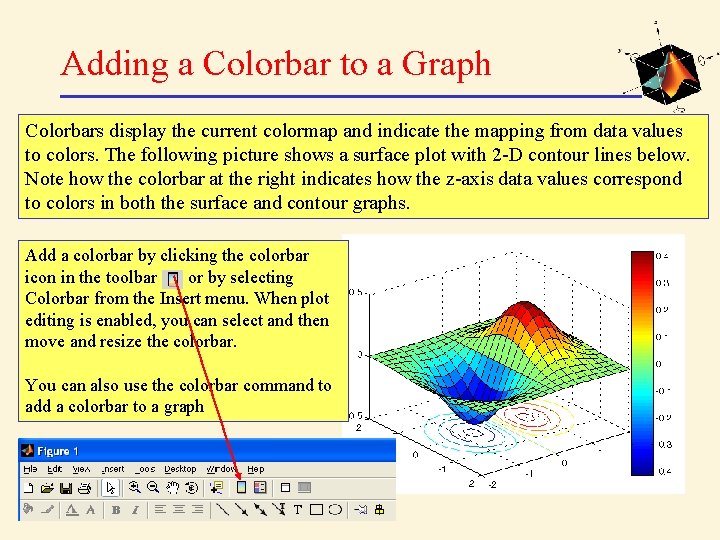
Adding a Colorbar to a Graph Colorbars display the current colormap and indicate the mapping from data values to colors. The following picture shows a surface plot with 2 -D contour lines below. Note how the colorbar at the right indicates how the z-axis data values correspond to colors in both the surface and contour graphs. Add a colorbar by clicking the colorbar icon in the toolbar or by selecting Colorbar from the Insert menu. When plot editing is enabled, you can select and then move and resize the colorbar. You can also use the colorbar command to add a colorbar to a graph
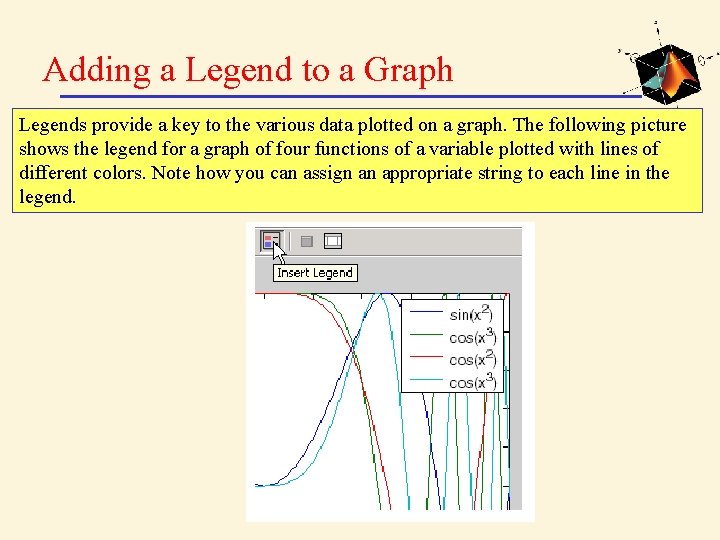
Adding a Legend to a Graph Legends provide a key to the various data plotted on a graph. The following picture shows the legend for a graph of four functions of a variable plotted with lines of different colors. Note how you can assign an appropriate string to each line in the legend.
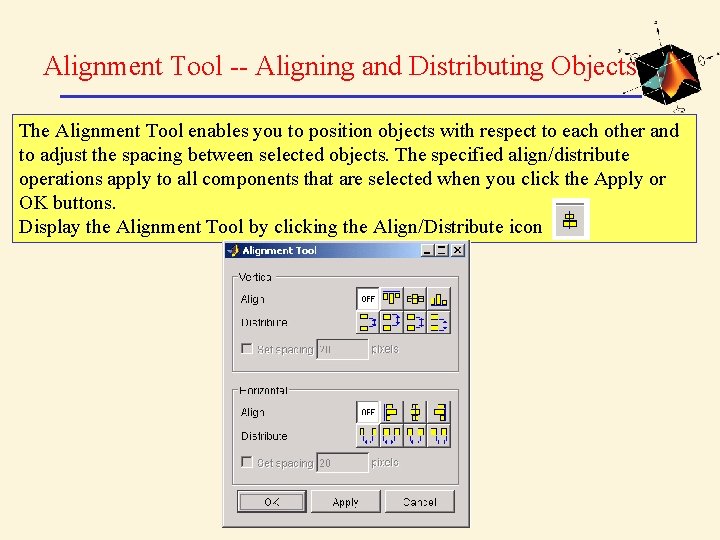
Alignment Tool -- Aligning and Distributing Objects The Alignment Tool enables you to position objects with respect to each other and to adjust the spacing between selected objects. The specified align/distribute operations apply to all components that are selected when you click the Apply or OK buttons. Display the Alignment Tool by clicking the Align/Distribute icon
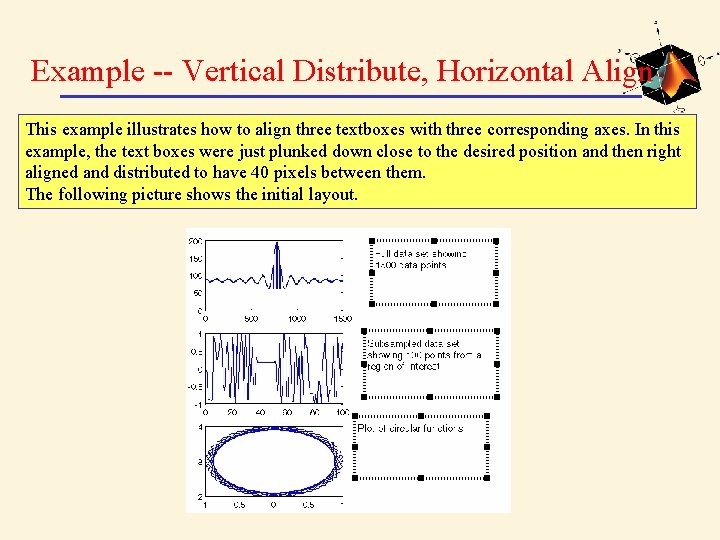
Example -- Vertical Distribute, Horizontal Align This example illustrates how to align three textboxes with three corresponding axes. In this example, the text boxes were just plunked down close to the desired position and then right aligned and distributed to have 40 pixels between them. The following picture shows the initial layout.
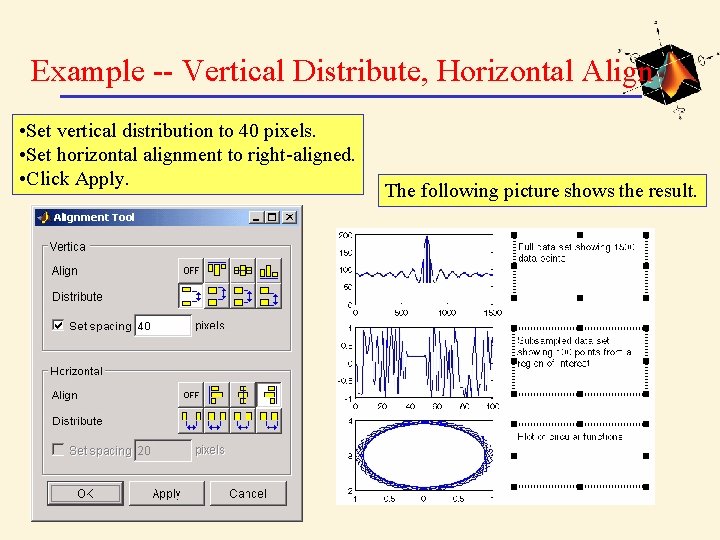
Example -- Vertical Distribute, Horizontal Align • Set vertical distribution to 40 pixels. • Set horizontal alignment to right-aligned. • Click Apply. The following picture shows the result.
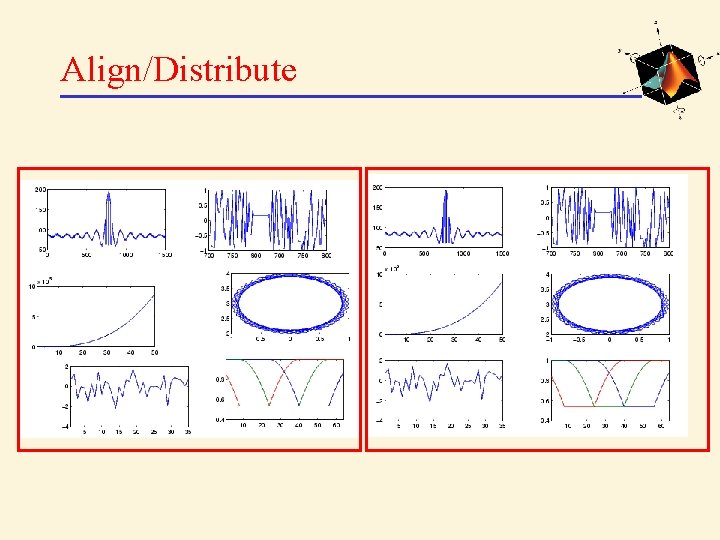
Align/Distribute
Snap to Grid -- Aligning Objects on a Grid Figures have a layout grid that can aid the hand layout of objects displayed in the figure. You can also enable a snap-to-grid feature that forces objects to align with the grid increments when moved. To display the grid on the figure background, select View Layout Grid from the Tools menu. To force objects to align with the grid, select Snap To Layout Grid from the Tools menu. To move objects in the figure, enable Plot Edit mode by selecting Edit Plot from the Tools menu. Click to select an object and then drag it to the desired location.
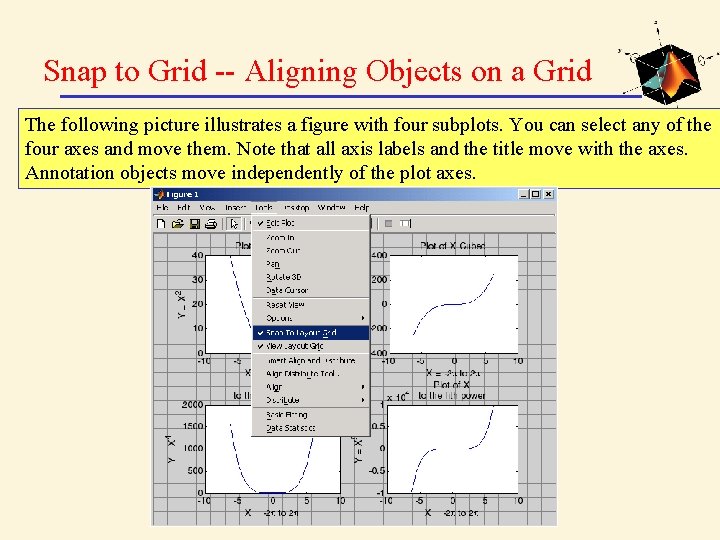
Snap to Grid -- Aligning Objects on a Grid The following picture illustrates a figure with four subplots. You can select any of the four axes and move them. Note that all axis labels and the title move with the axes. Annotation objects move independently of the plot axes.
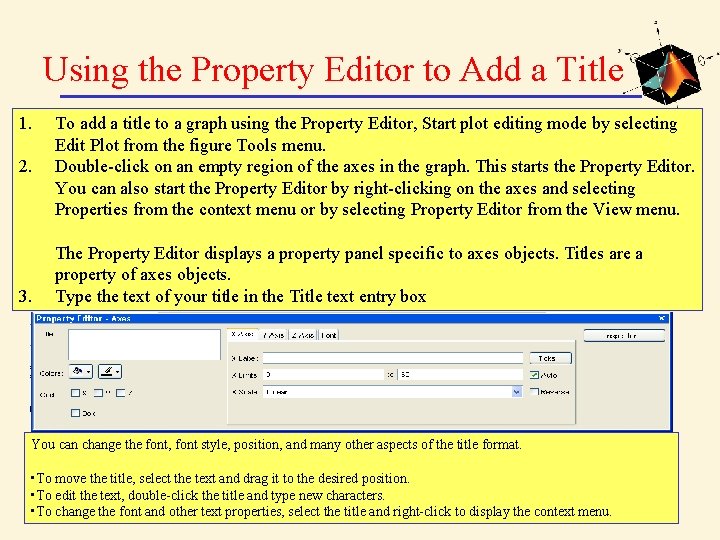
Using the Property Editor to Add a Title 1. 2. 3. To add a title to a graph using the Property Editor, Start plot editing mode by selecting Edit Plot from the figure Tools menu. Double-click on an empty region of the axes in the graph. This starts the Property Editor. You can also start the Property Editor by right-clicking on the axes and selecting Properties from the context menu or by selecting Property Editor from the View menu. The Property Editor displays a property panel specific to axes objects. Titles are a property of axes objects. Type the text of your title in the Title text entry box You can change the font, font style, position, and many other aspects of the title format. • To move the title, select the text and drag it to the desired position. • To edit the text, double-click the title and type new characters. • To change the font and other text properties, select the title and right-click to display the context menu.
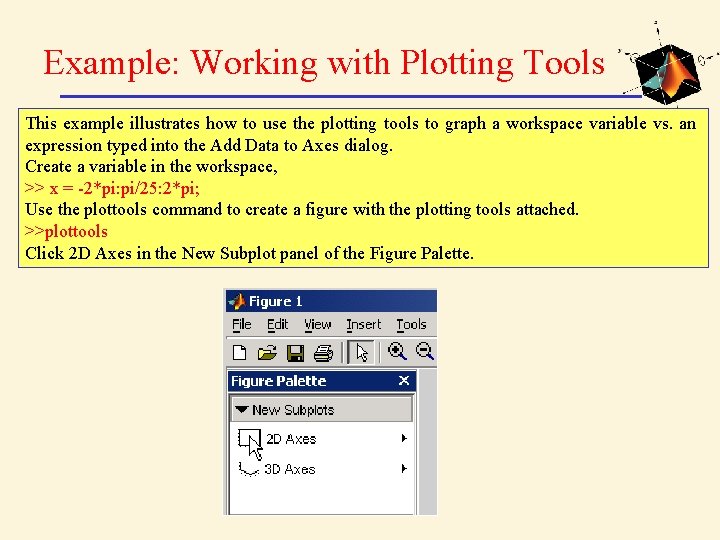
Example: Working with Plotting Tools This example illustrates how to use the plotting tools to graph a workspace variable vs. an expression typed into the Add Data to Axes dialog. Create a variable in the workspace, >> x = -2*pi: pi/25: 2*pi; Use the plottools command to create a figure with the plotting tools attached. >>plottools Click 2 D Axes in the New Subplot panel of the Figure Palette.
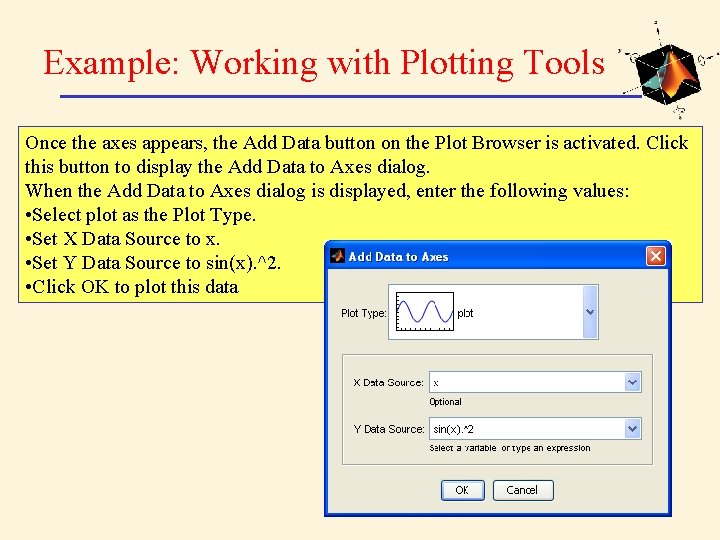
Example: Working with Plotting Tools Once the axes appears, the Add Data button on the Plot Browser is activated. Click this button to display the Add Data to Axes dialog. When the Add Data to Axes dialog is displayed, enter the following values: • Select plot as the Plot Type. • Set X Data Source to x. • Set Y Data Source to sin(x). ^2. • Click OK to plot this data
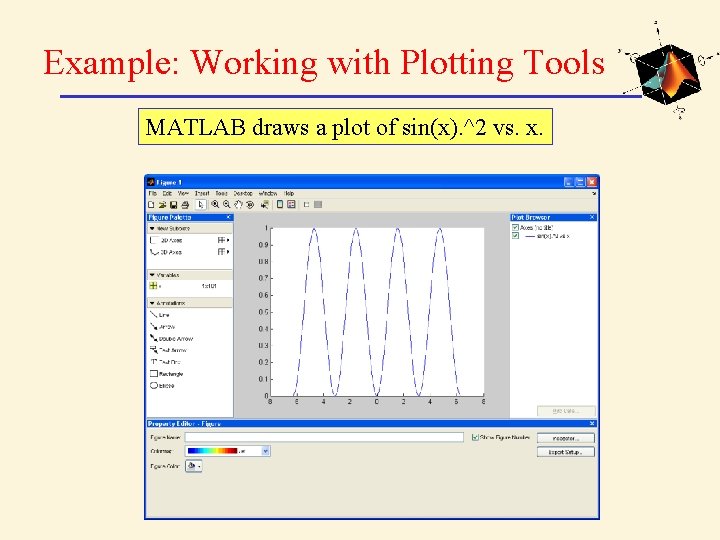
Example: Working with Plotting Tools MATLAB draws a plot of sin(x). ^2 vs. x.
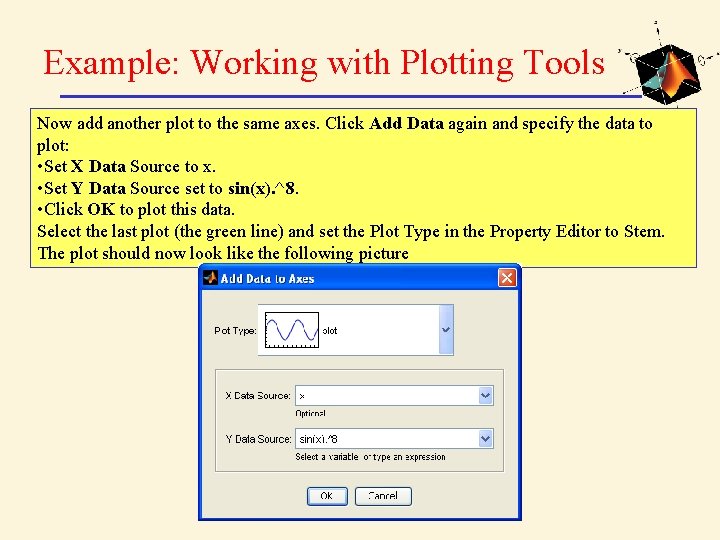
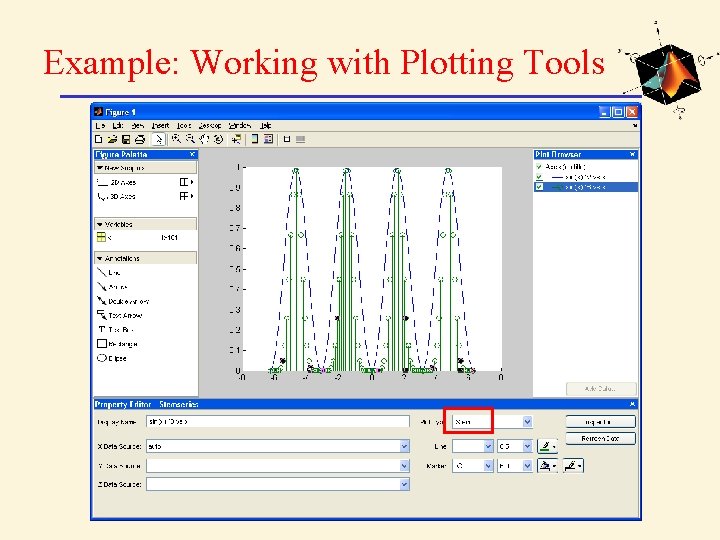
Example: Working with Plotting Tools Now add another plot to the same axes. Click Add Data again and specify the data to plot: • Set X Data Source to x. • Set Y Data Source set to sin(x). ^8. • Click OK to plot this data. Select the last plot (the green line) and set the Plot Type in the Property Editor to Stem. The plot should now look like the following picture
Example: Working with Plotting Tools
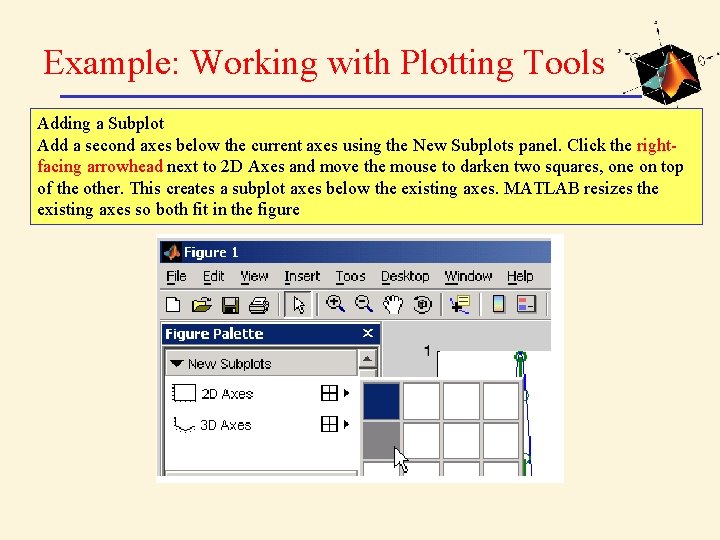
Example: Working with Plotting Tools Adding a Subplot Add a second axes below the current axes using the New Subplots panel. Click the rightfacing arrowhead next to 2 D Axes and move the mouse to darken two squares, one on top of the other. This creates a subplot axes below the existing axes. MATLAB resizes the existing axes so both fit in the figure
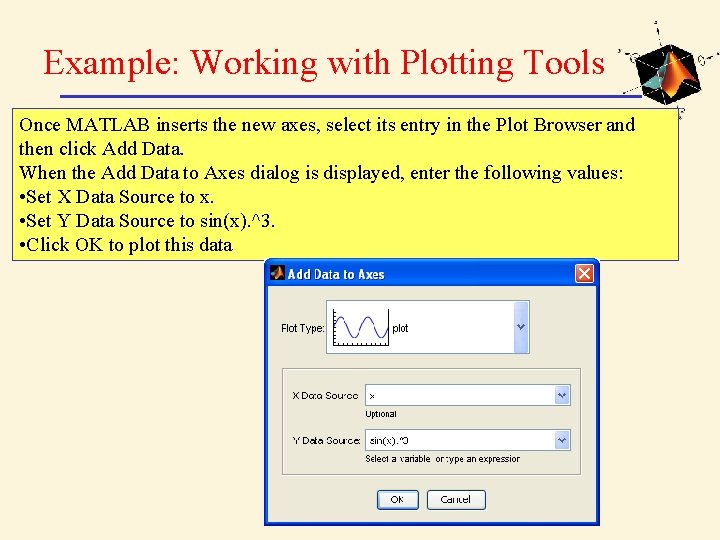
Example: Working with Plotting Tools Once MATLAB inserts the new axes, select its entry in the Plot Browser and then click Add Data. When the Add Data to Axes dialog is displayed, enter the following values: • Set X Data Source to x. • Set Y Data Source to sin(x). ^3. • Click OK to plot this data
Example: Working with Plotting Tools
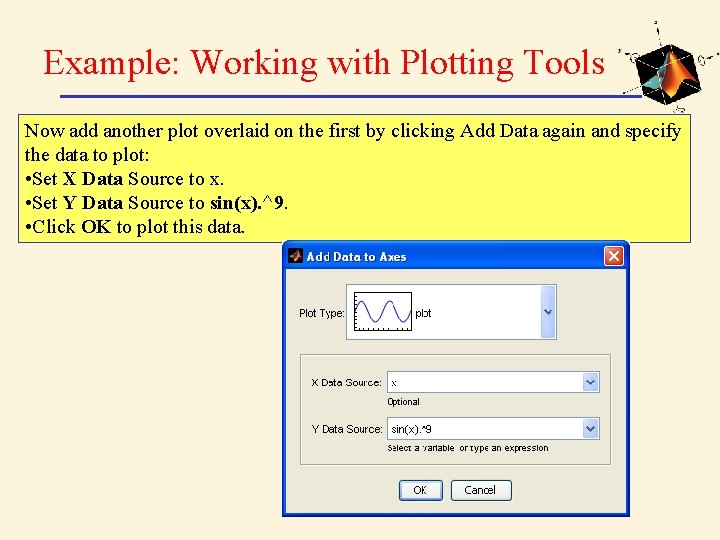
Example: Working with Plotting Tools Now add another plot overlaid on the first by clicking Add Data again and specify the data to plot: • Set X Data Source to x. • Set Y Data Source to sin(x). ^9. • Click OK to plot this data.
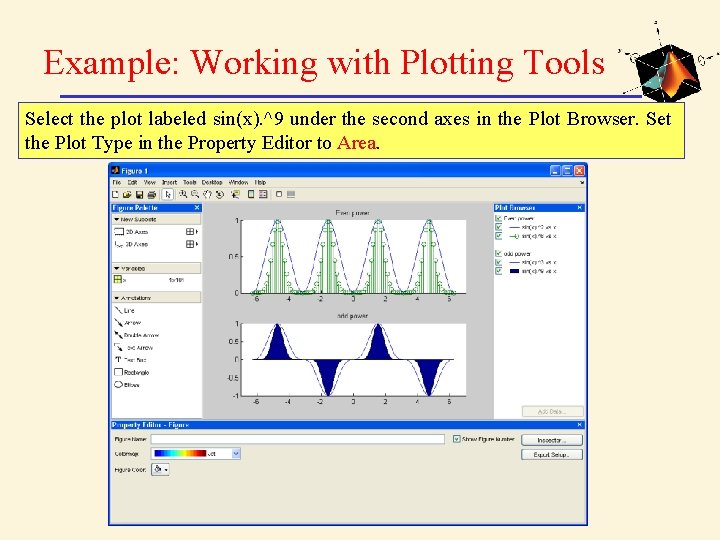
Example: Working with Plotting Tools Select the plot labeled sin(x). ^9 under the second axes in the Plot Browser. Set the Plot Type in the Property Editor to Area.
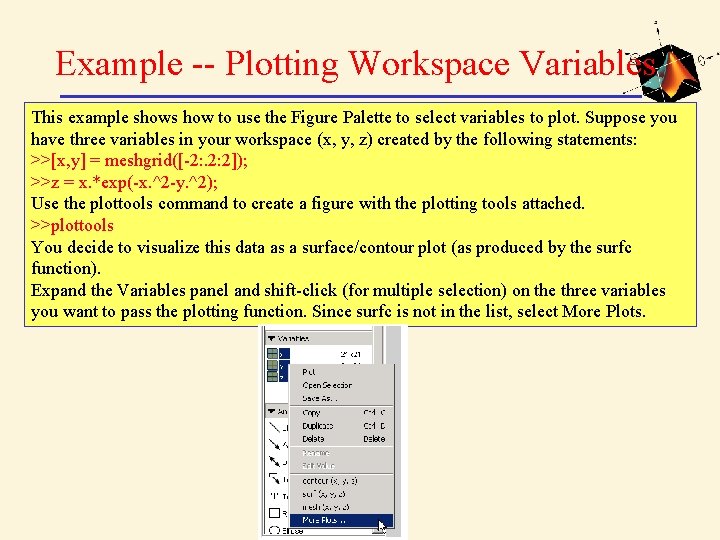
Example -- Plotting Workspace Variables This example shows how to use the Figure Palette to select variables to plot. Suppose you have three variables in your workspace (x, y, z) created by the following statements: >>[x, y] = meshgrid([-2: . 2: 2]); >>z = x. *exp(-x. ^2 -y. ^2); Use the plottools command to create a figure with the plotting tools attached. >>plottools You decide to visualize this data as a surface/contour plot (as produced by the surfc function). Expand the Variables panel and shift-click (for multiple selection) on the three variables you want to pass the plotting function. Since surfc is not in the list, select More Plots.
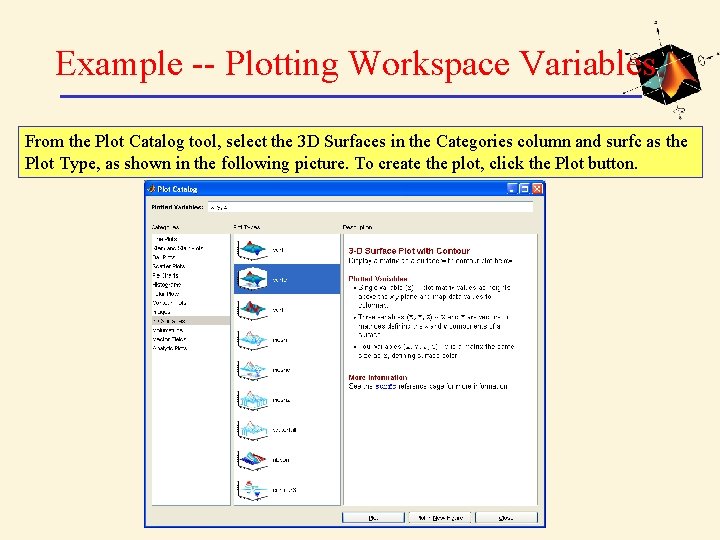
Example -- Plotting Workspace Variables From the Plot Catalog tool, select the 3 D Surfaces in the Categories column and surfc as the Plot Type, as shown in the following picture. To create the plot, click the Plot button.
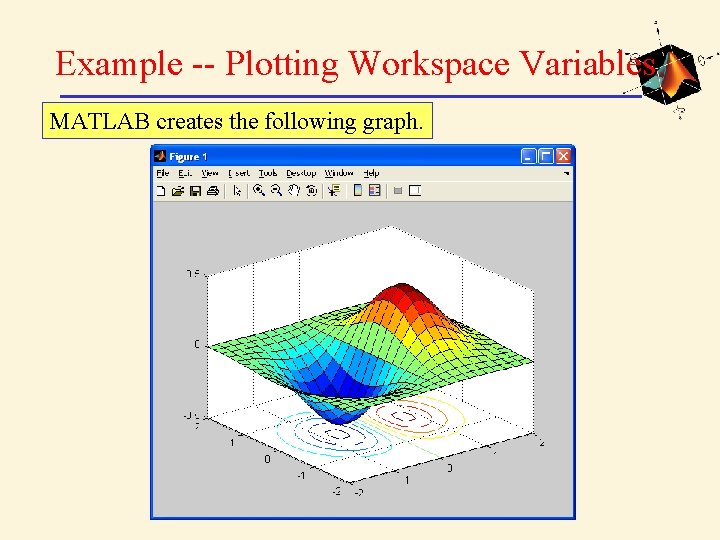
Example -- Plotting Workspace Variables MATLAB creates the following graph.
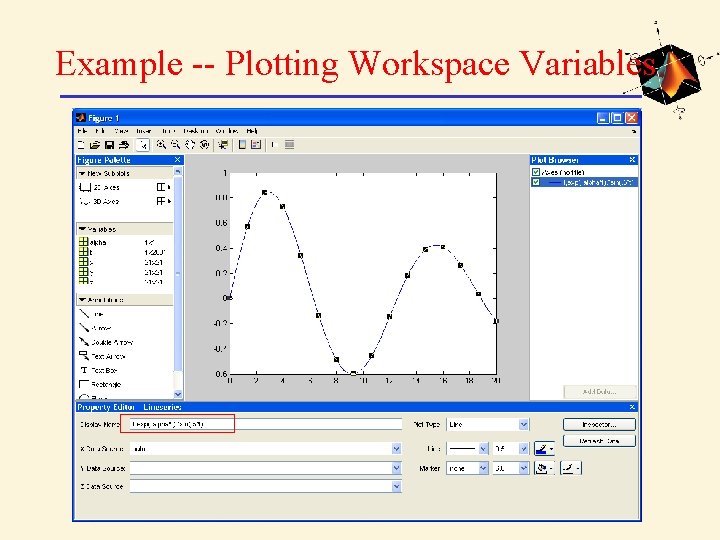
Example -- Plotting Workspace Variables Plotting Expressions You can enter MATLAB expressions in the Plot Catalog tool, as well as variables. For example, suppose you have created the following variables in the workspace. >>t = 0: . 01: 20; >>alpha =. 055; and you want to plot t vs. this expression: exp(-alpha*t). *sin(. 5*t)
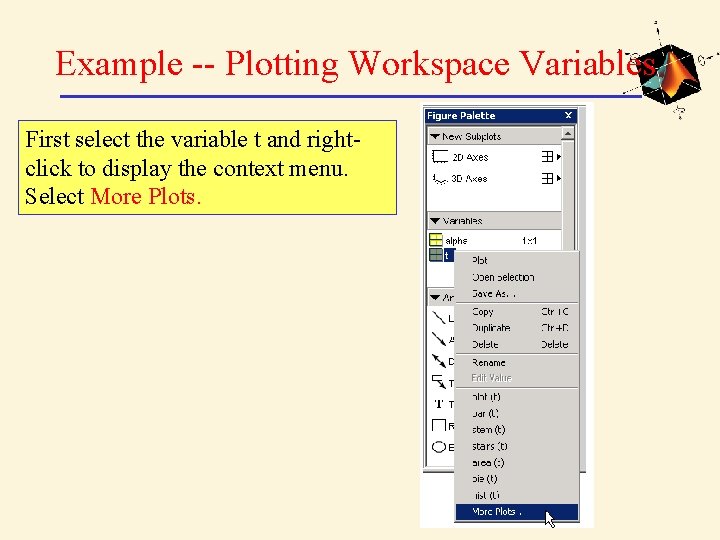
Example -- Plotting Workspace Variables First select the variable t and rightclick to display the context menu. Select More Plots.
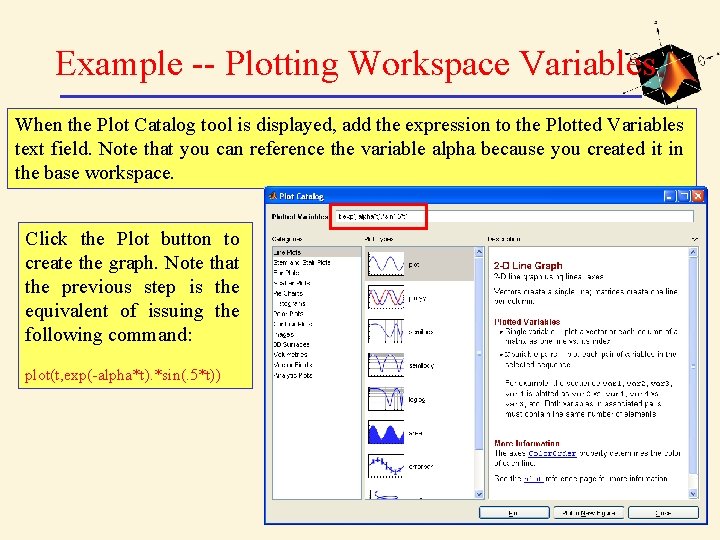
Example -- Plotting Workspace Variables When the Plot Catalog tool is displayed, add the expression to the Plotted Variables text field. Note that you can reference the variable alpha because you created it in the base workspace. Click the Plot button to create the graph. Note that the previous step is the equivalent of issuing the following command: plot(t, exp(-alpha*t). *sin(. 5*t))
Example -- Plotting Workspace Variables
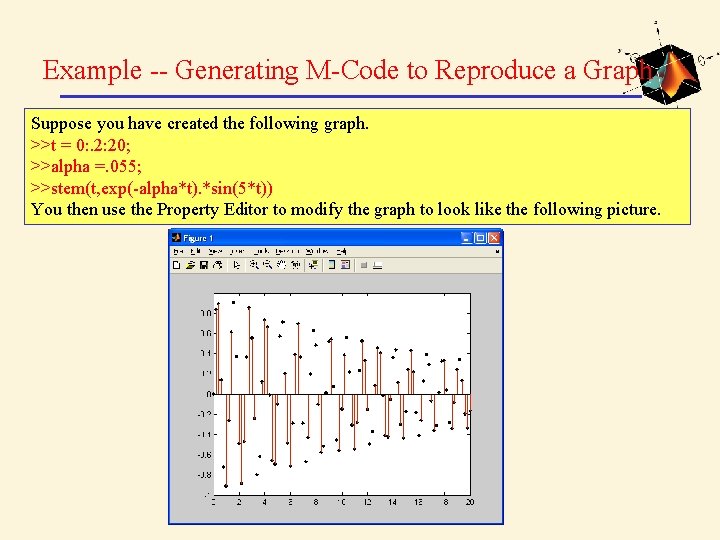
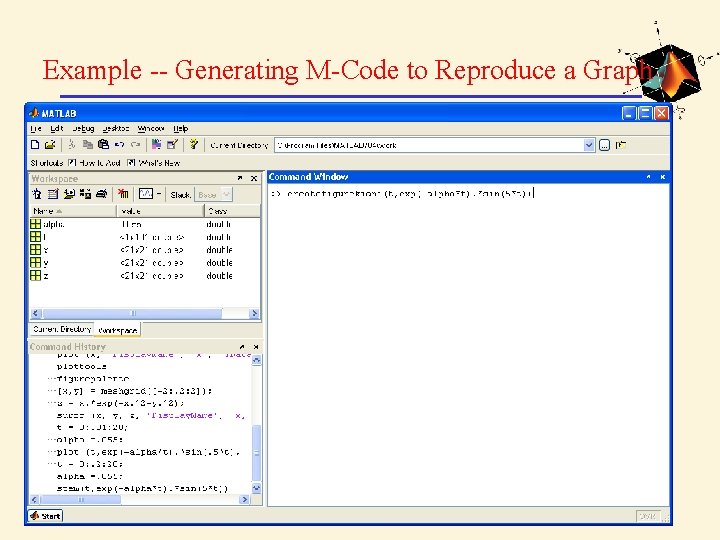
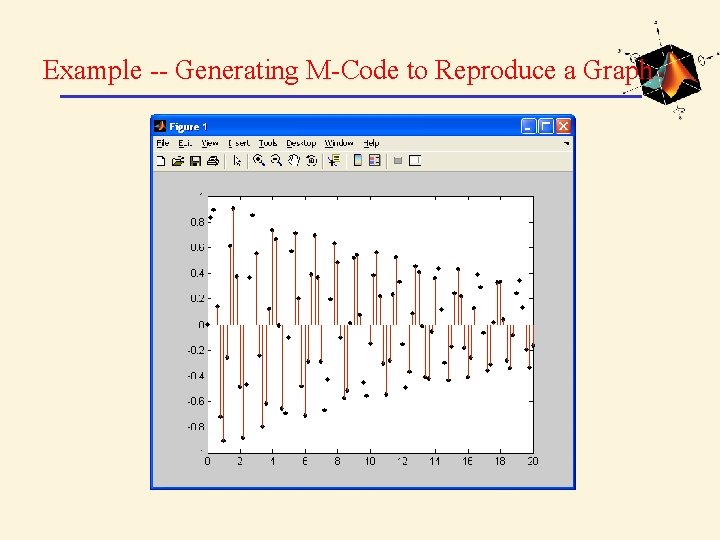
Example -- Generating M-Code to Reproduce a Graph Suppose you have created the following graph. >>t = 0: . 2: 20; >>alpha =. 055; >>stem(t, exp(-alpha*t). *sin(5*t)) You then use the Property Editor to modify the graph to look like the following picture.
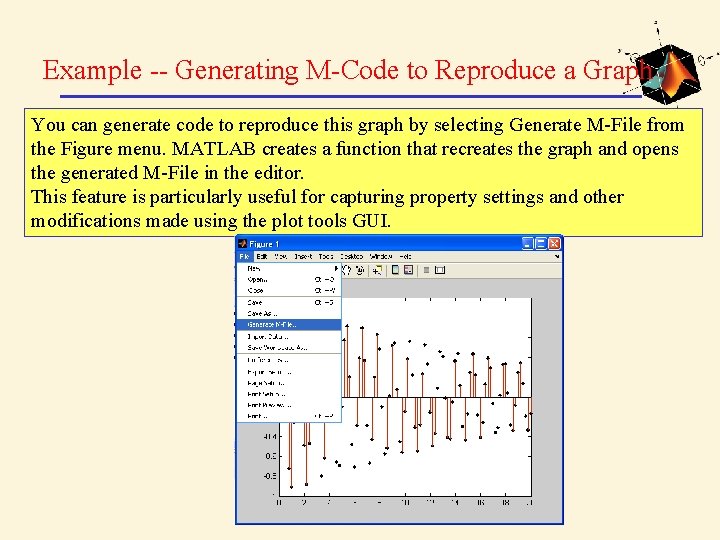
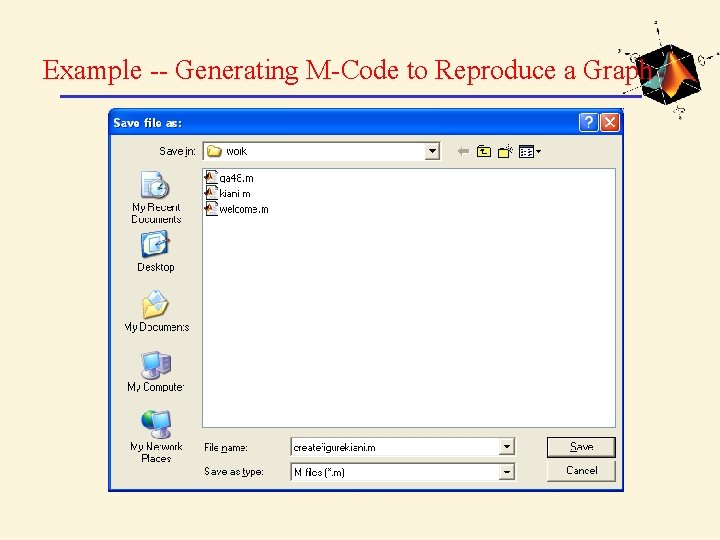
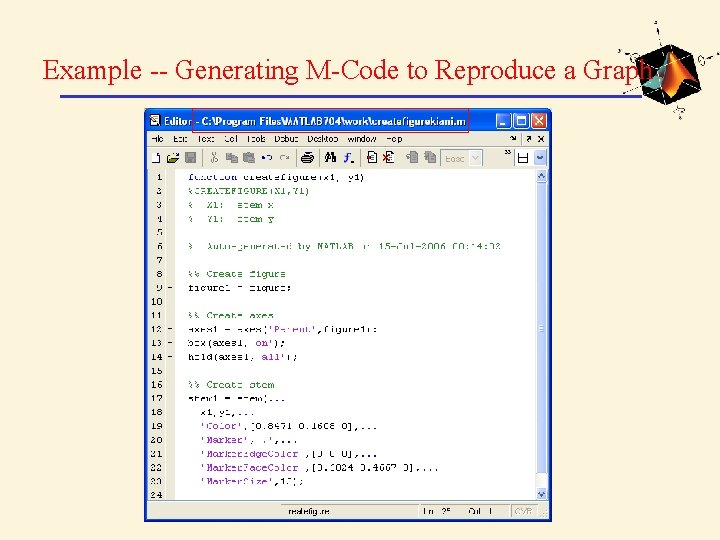
Example -- Generating M-Code to Reproduce a Graph You can generate code to reproduce this graph by selecting Generate M-File from the Figure menu. MATLAB creates a function that recreates the graph and opens the generated M-File in the editor. This feature is particularly useful for capturing property settings and other modifications made using the plot tools GUI.

Example -- Generating M-Code to Reproduce a Graph
Example -- Generating M-Code to Reproduce a Graph
Example -- Generating M-Code to Reproduce a Graph
Example -- Generating M-Code to Reproduce a Graph
Example -- Generating M-Code to Reproduce a Graph
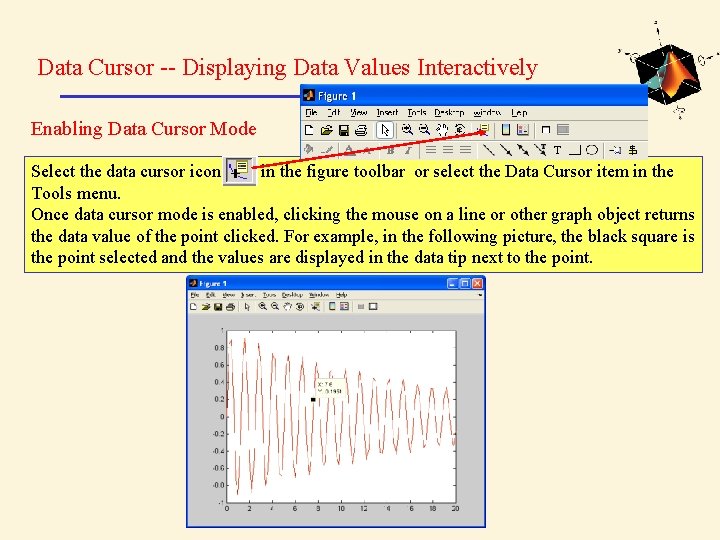
Data Cursor -- Displaying Data Values Interactively Enabling Data Cursor Mode Select the data cursor icon in the figure toolbar or select the Data Cursor item in the Tools menu. Once data cursor mode is enabled, clicking the mouse on a line or other graph object returns the data value of the point clicked. For example, in the following picture, the black square is the point selected and the values are displayed in the data tip next to the point.
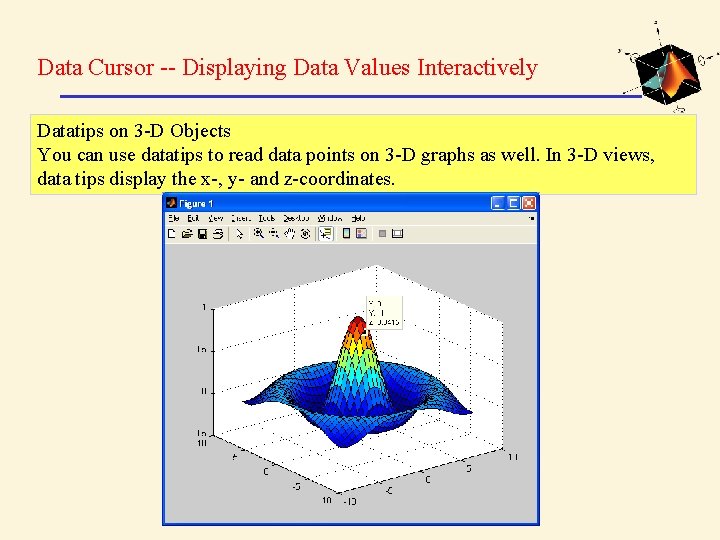
Data Cursor -- Displaying Data Values Interactively Datatips on 3 -D Objects You can use datatips to read data points on 3 -D graphs as well. In 3 -D views, data tips display the x-, y- and z-coordinates.
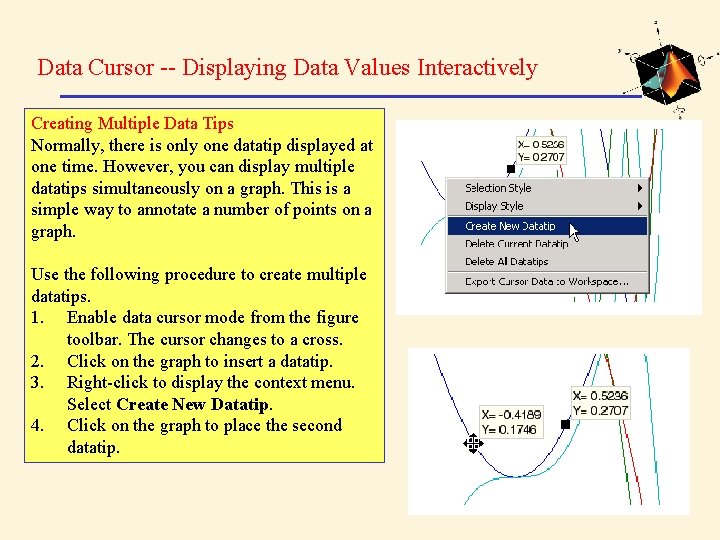
Data Cursor -- Displaying Data Values Interactively Creating Multiple Data Tips Normally, there is only one datatip displayed at one time. However, you can display multiple datatips simultaneously on a graph. This is a simple way to annotate a number of points on a graph. Use the following procedure to create multiple datatips. 1. Enable data cursor mode from the figure toolbar. The cursor changes to a cross. 2. Click on the graph to insert a datatip. 3. Right-click to display the context menu. Select Create New Datatip. 4. Click on the graph to place the second datatip.
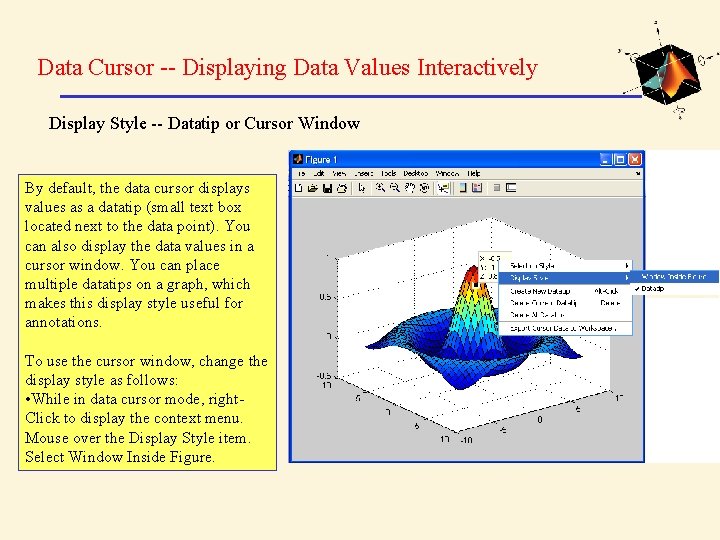
Data Cursor -- Displaying Data Values Interactively Display Style -- Datatip or Cursor Window By default, the data cursor displays values as a datatip (small text box located next to the data point). You can also display the data values in a cursor window. You can place multiple datatips on a graph, which makes this display style useful for annotations. To use the cursor window, change the display style as follows: • While in data cursor mode, right. Click to display the context menu. Mouse over the Display Style item. Select Window Inside Figure.
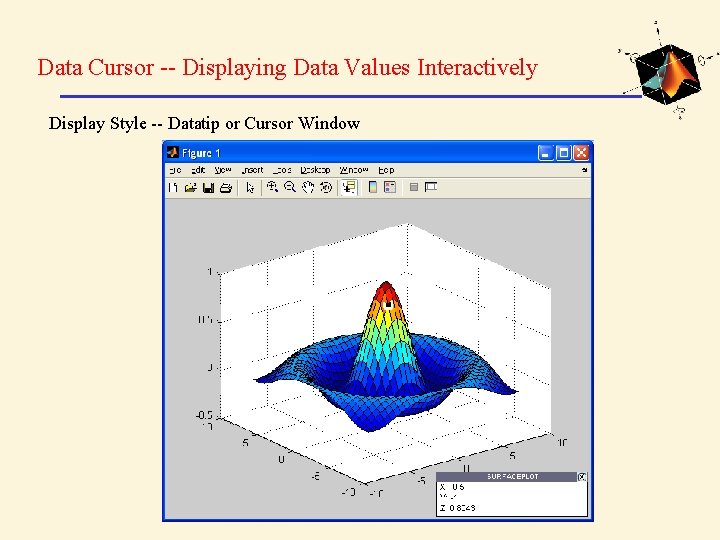
Data Cursor -- Displaying Data Values Interactively Display Style -- Datatip or Cursor Window
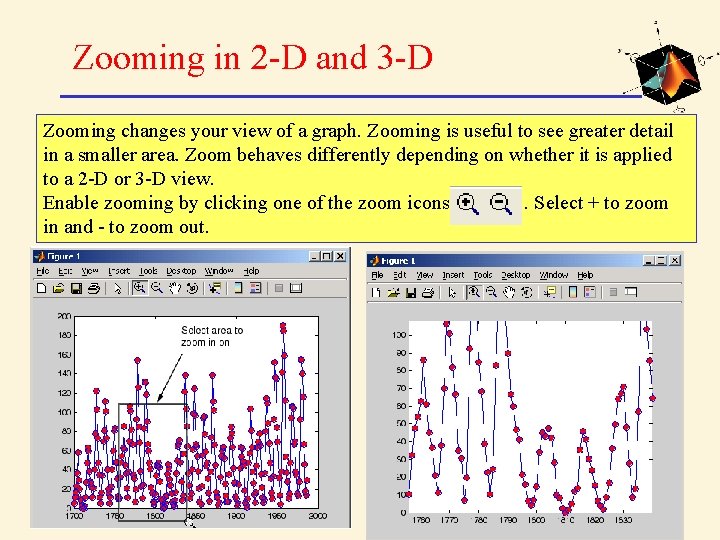
Zooming in 2 -D and 3 -D Zooming changes your view of a graph. Zooming is useful to see greater detail in a smaller area. Zoom behaves differently depending on whether it is applied to a 2 -D or 3 -D view. Enable zooming by clicking one of the zoom icons. Select + to zoom in and - to zoom out.
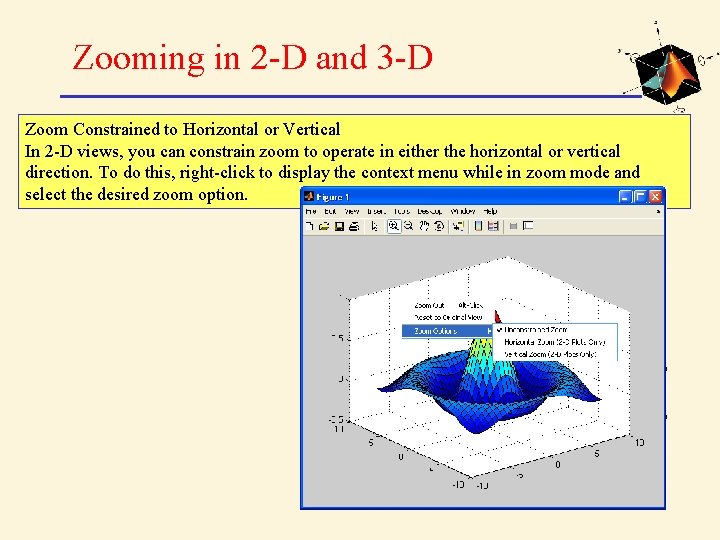
Zooming in 2 -D and 3 -D Zoom Constrained to Horizontal or Vertical In 2 -D views, you can constrain zoom to operate in either the horizontal or vertical direction. To do this, right-click to display the context menu while in zoom mode and select the desired zoom option.
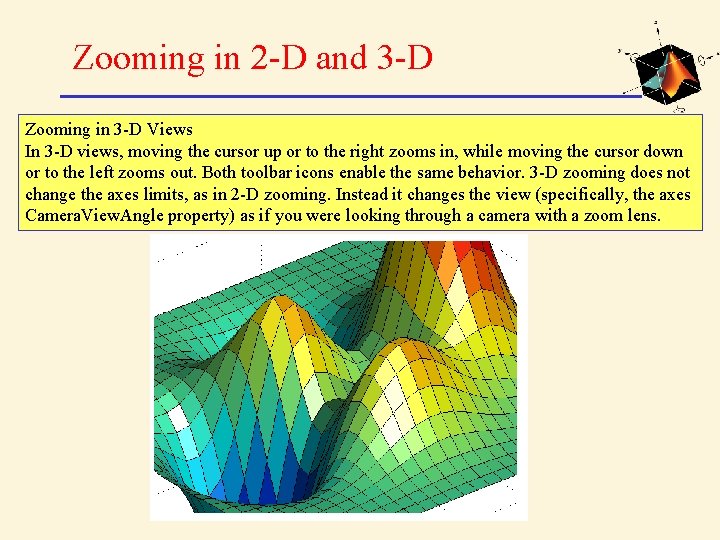
Zooming in 2 -D and 3 -D Zooming in 3 -D Views In 3 -D views, moving the cursor up or to the right zooms in, while moving the cursor down or to the left zooms out. Both toolbar icons enable the same behavior. 3 -D zooming does not change the axes limits, as in 2 -D zooming. Instead it changes the view (specifically, the axes Camera. View. Angle property) as if you were looking through a camera with a zoom lens.
Panning -- Moving Your View of the Graph You can move your view of a graph up and down as well as left and right with the pan tool. Panning is useful when you have zoomed in on a graph and want to translate the plot to view different portions. Click this icon on the figure toolbar to enable panning 2 -D vs. 3 -D Panning 2 -D panning has the effect of changing the axis limits that you are viewing, but it does not change the actual limits of the plot. For example, suppose you have a time-series waveform that you want to zoom in on to view detail, but you also want to be able to scan the entire plot.
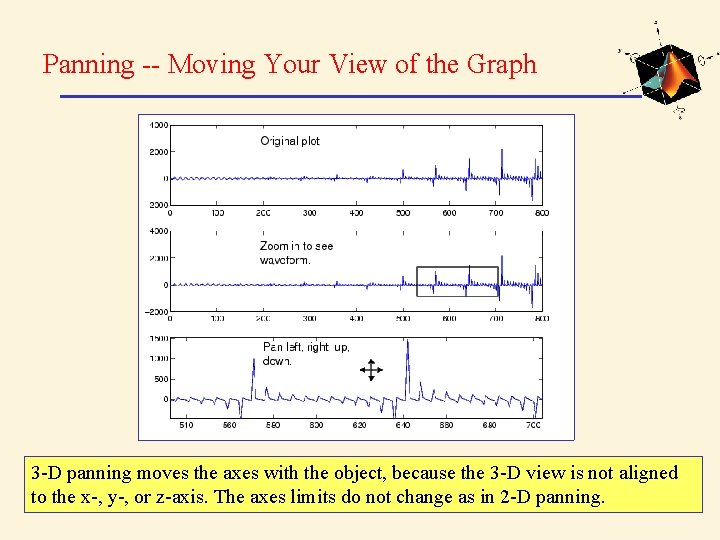
Panning -- Moving Your View of the Graph 3 -D panning moves the axes with the object, because the 3 -D view is not aligned to the x-, y-, or z-axis. The axes limits do not change as in 2 -D panning.
Rotate 3 D -- Interactive Rotation of 3 -D Views MATLAB enables you to rotate graphs to any orientation with the mouse. Rotation involves the reorientation of the axes and all the graphics objects it contains. Therefore none of the data defining the graphics objects is affected by rotation; instead the orientation of the x-, y-, and z-axes changes with respect to the viewer. Enabling Rotate 3 D There are three ways to enable Rotate 3 D mode: 1. Select Rotate 3 D from the Tools menu. 2. Click the Rotate 3 D icon in the figure toolbar. 3. Once the mode is enabled, you press and hold the mouse button while moving the cursor to rotate the graph.

Rotate 3 D -- Interactive Rotation of 3 -D Views Selecting Predefined Views When Rotate 3 D mode is enabled, you can control various rotation options from the rightclick context menu. You can rotate to predefined views on the right-click context menu: Reset to Original View -- Reset to the default MATLAB view (azimuth -37. 5°, elevation 30°). Go to X-Y View -- View graph along the z-axis (azimuth 0°, elevation 90°). Go to X-Z View -- View graph along the y-axis (azimuth 0°, elevation 0°). Go to Y-Z View -- View graph along the x-axis (azimuth 90°, elevation 0°).
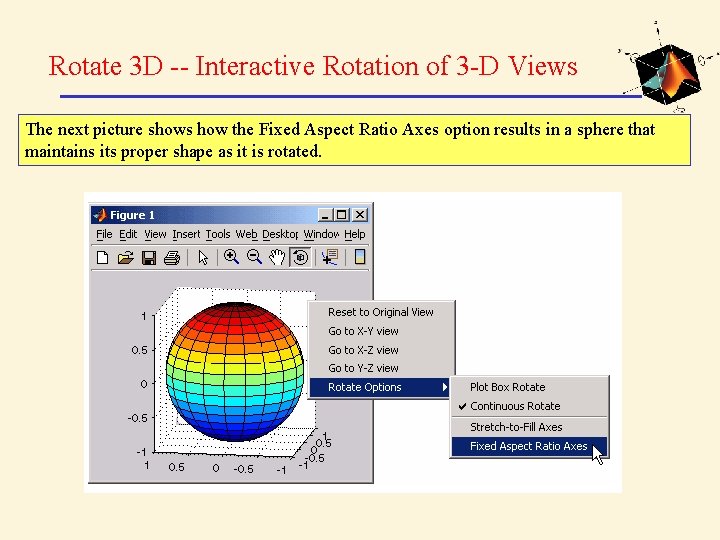
Rotate 3 D -- Interactive Rotation of 3 -D Views The next picture shows how the Fixed Aspect Ratio Axes option results in a sphere that maintains its proper shape as it is rotated.

Questions? Discussion? Suggestions ?

- Slides: 75