
Drawing 3 D Scenes in Open GL We
- Slides: 55
Drawing 3 D Scenes in Open. GL • We want to transform objects in order to orient and position them as desired in a 3 D scene. • Open. GL provides the necessary functions to build and use the required matrices. • The matrix stacks maintained by Open. GL make it easy to set up a transformation for one object, and then return to a previous transformation, in preparation for transforming another object.
The Camera in Open. GL • The camera is created with a matrix. – We will study the details of how this is done in Chapter 7. • For now, we just use an Open. GL tool to set up a reasonable camera so that we may pay attention primarily to transforming objects.
Interactive Programs • In addition, we show to make these programs interactive so that at run time the user can alter key properties of the scene and its objects. • The camera can be altered using the mouse and keyboard so that the display can be made to change dramatically in real time. (Case Study 5. 3. )
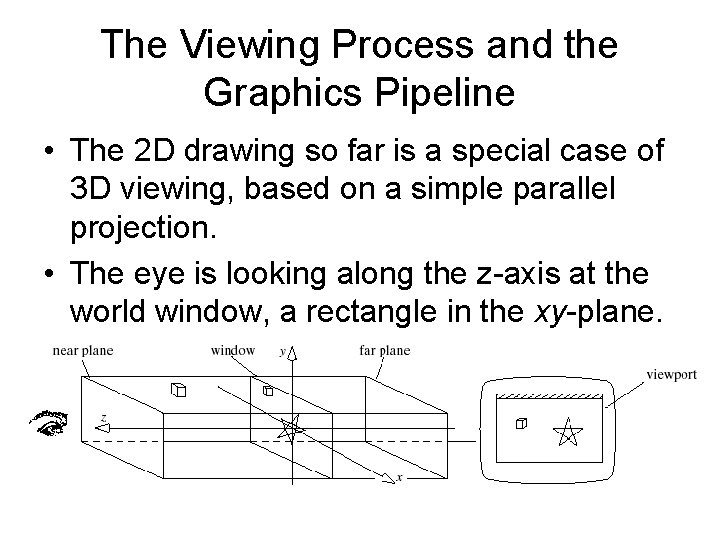
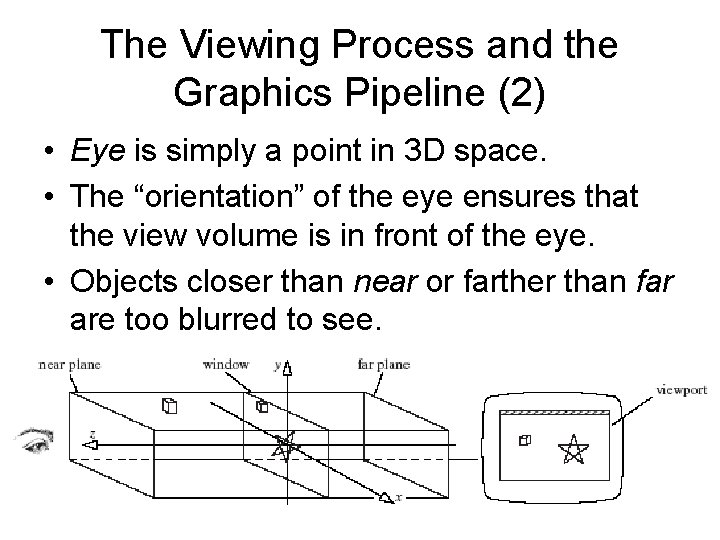
The Viewing Process and the Graphics Pipeline • The 2 D drawing so far is a special case of 3 D viewing, based on a simple parallel projection. • The eye is looking along the z-axis at the world window, a rectangle in the xy-plane.
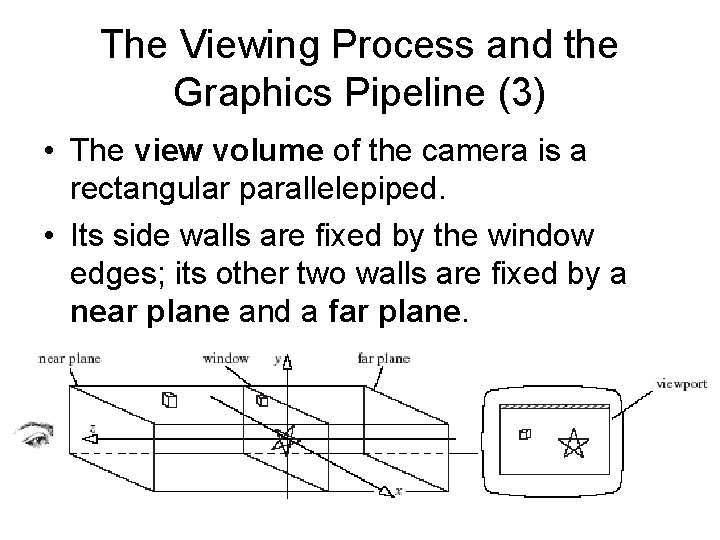
The Viewing Process and the Graphics Pipeline (2) • Eye is simply a point in 3 D space. • The “orientation” of the eye ensures that the view volume is in front of the eye. • Objects closer than near or farther than far are too blurred to see.
The Viewing Process and the Graphics Pipeline (3) • The view volume of the camera is a rectangular parallelepiped. • Its side walls are fixed by the window edges; its other two walls are fixed by a near plane and a far plane.
The Viewing Process and the Graphics Pipeline (4) • Points inside the view volume are projected onto the window along lines parallel to the z-axis. • We ignore their z-component, so that the 3 D point (x 1 y 1, z 1) projects to (x 1, y 1, 0). • Points lying outside the view volume are clipped off. • A separate viewport transformation maps the projected points from the window to the viewport on the display device.
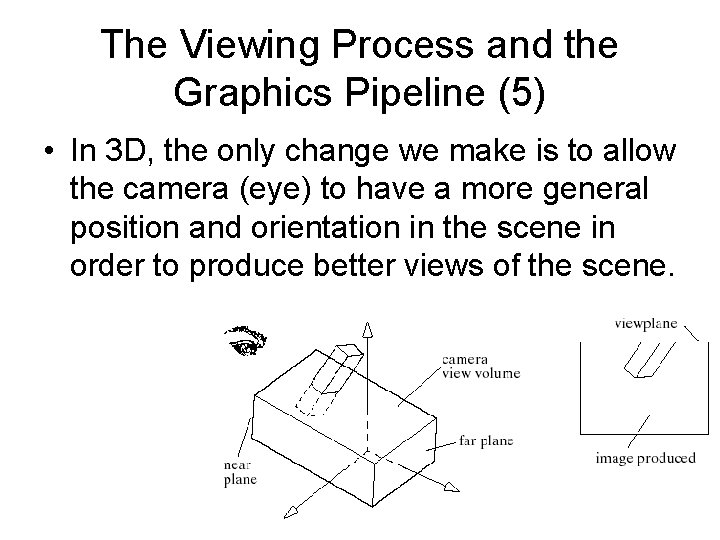
The Viewing Process and the Graphics Pipeline (5) • In 3 D, the only change we make is to allow the camera (eye) to have a more general position and orientation in the scene in order to produce better views of the scene.
The Viewing Process and the Graphics Pipeline (6) • The z axis points toward the eye. X and y point to the viewer’s right and up, respectively. • Everything outside the view volume is clipped. • Everything inside it is projected along lines parallel to the axes onto the window plane (parallel projection).
The Viewing Process and the Graphics Pipeline (7) • Open. GL provides functions for defining the view volume and its position in the scene, using matrices in the graphics pipeline.
The Viewing Process and the Graphics Pipeline (8) • Each vertex of an object is passed through this pipeline using gl. Vertex 3 d(x, y, z). • The vertex is multiplied by the various matrices, clipped if necessary, and if it survives, it is mapped onto the viewport. • Each vertex encounters three matrices: – The modelview matrix; – The projection matrix; – The viewport matrix;
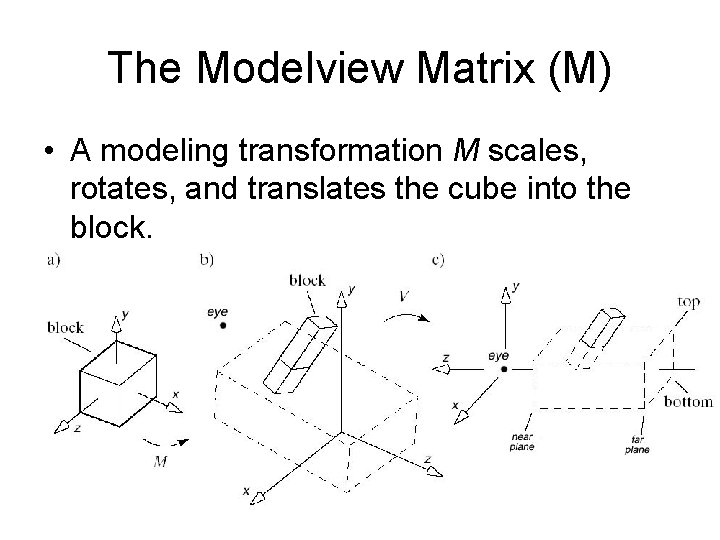
The Modelview Matrix • The modelview matrix is the CT (current transformation). • It combines modeling transformations on objects and the transformation that orients and positions the camera in space (hence modelview). • It is a single matrix in the actual pipeline. – For ease of use, we will think of it as the product of two matrices: a modeling matrix M, and a viewing matrix V. The modeling matrix is applied first, and then the viewing matrix, so the modelview matrix is in fact the product VM.
The Modelview Matrix (M) • A modeling transformation M scales, rotates, and translates the cube into the block.
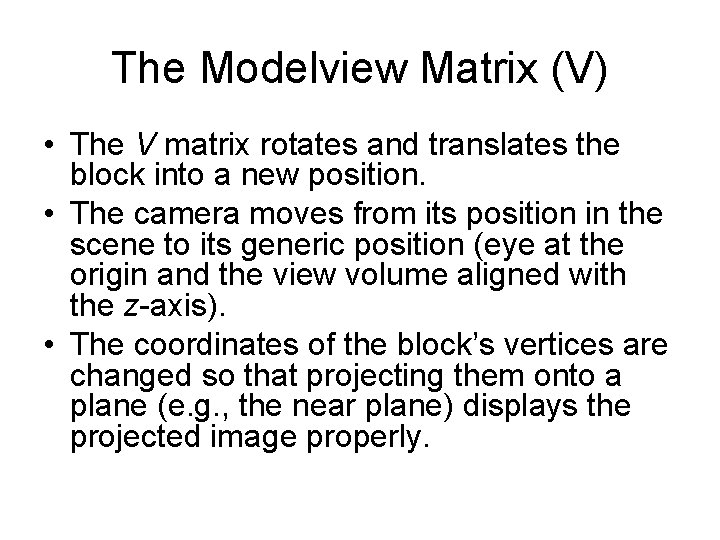
The Modelview Matrix (V) • The V matrix rotates and translates the block into a new position. • The camera moves from its position in the scene to its generic position (eye at the origin and the view volume aligned with the z-axis). • The coordinates of the block’s vertices are changed so that projecting them onto a plane (e. g. , the near plane) displays the projected image properly.
The Modelview Matrix (V) • The matrix V changes the coordinates of the scene vertices into the camera’s coordinate system, or into eye coordinates. • To inform Open. GL that we wish it to operate on the modelview matrix we call gl. Matrix. Mode(GL_MODELVIEW);
The Projection Matrix • The projection matrix scales and translates each vertex so that those inside the view volume will be inside a standard cube that extends from -1 to 1 in each dimension (Normalized Device Coordinates). • This cube is a particularly efficient boundary against which to clip objects. • The image is distorted, but the viewport transformation will remove the distortion. • The projection matrix also reverses the sense of the z-axis; increasing values of z now represent increasing values of depth from the eye.
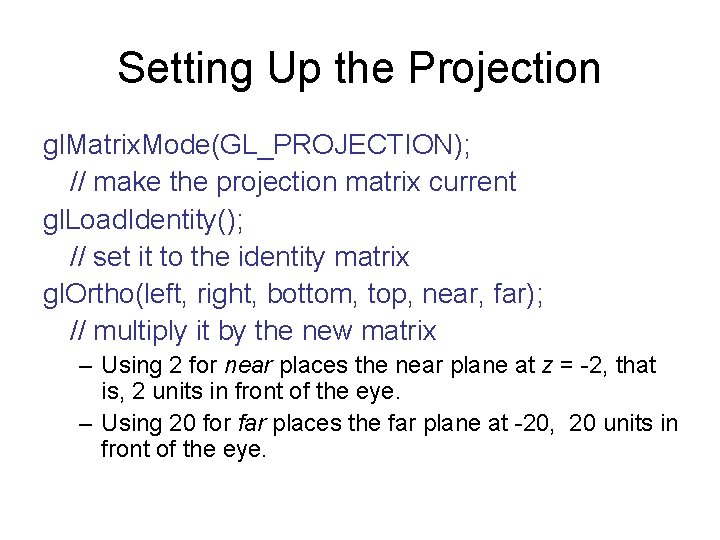
The Projection Matrix (2) • Setting the Projection Matrix: – gl. Matrix. Mode(GL_PROJECTION); – gl. Load. Identity (); // initialize projection matrix – gl. Ortho (left, right, bottom, top, near, far); // sets the view volume parellelpiped. (All arguments are gl. Double ≥ 0. 0. ) • left ≤ vv. x ≤ right, bottom ≤ vv. y ≤ top, and -near ≤ vv. z ≤ -far (camera at the origin looking along -z).
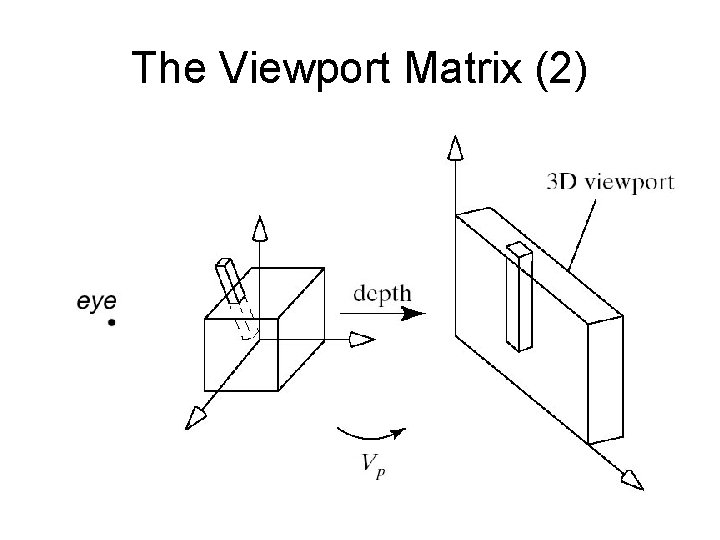
The Viewport Matrix • The viewport matrix maps the standard cube into a 3 D viewport whose x and y values extend across the viewport (in screen coordinates), and whose zcomponent extends from 0 to 1 (a measure of the depth of each point). • This measure of depth makes hidden surface removal (do not draw surfaces hidden by objects closer to the eye) particularly efficient.
The Viewport Matrix (2)
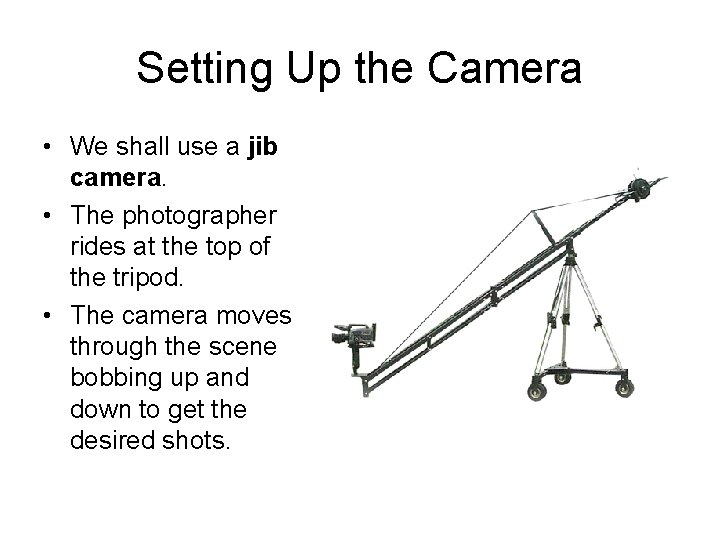
Setting Up the Camera • We shall use a jib camera. • The photographer rides at the top of the tripod. • The camera moves through the scene bobbing up and down to get the desired shots.
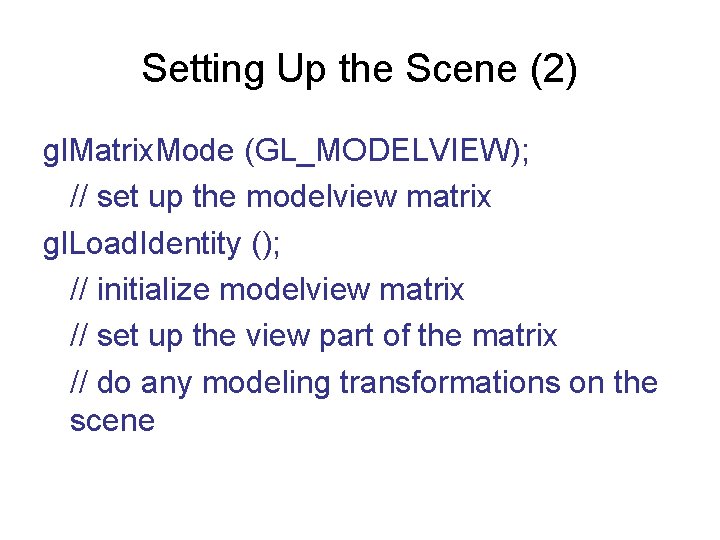
Setting Up the Scene (2) gl. Matrix. Mode (GL_MODELVIEW); // set up the modelview matrix gl. Load. Identity (); // initialize modelview matrix // set up the view part of the matrix // do any modeling transformations on the scene
Setting Up the Projection gl. Matrix. Mode(GL_PROJECTION); // make the projection matrix current gl. Load. Identity(); // set it to the identity matrix gl. Ortho(left, right, bottom, top, near, far); // multiply it by the new matrix – Using 2 for near places the near plane at z = -2, that is, 2 units in front of the eye. – Using 20 for far places the far plane at -20, 20 units in front of the eye.
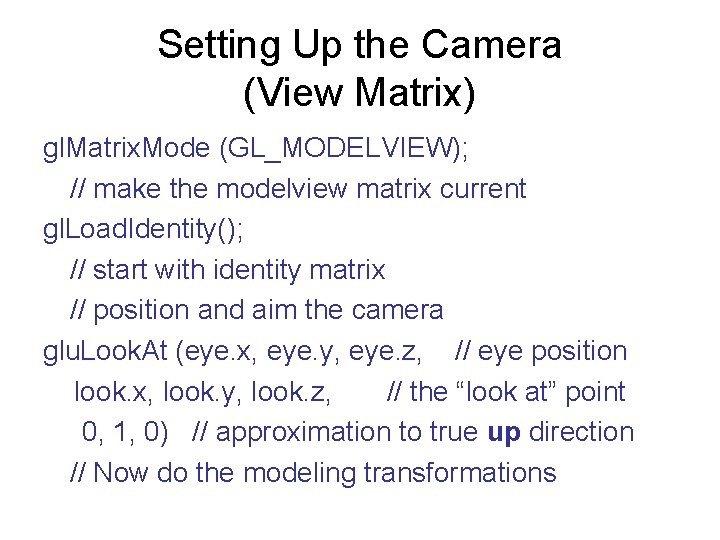
Setting Up the Camera (View Matrix) gl. Matrix. Mode (GL_MODELVIEW); // make the modelview matrix current gl. Load. Identity(); // start with identity matrix // position and aim the camera glu. Look. At (eye. x, eye. y, eye. z, // eye position look. x, look. y, look. z, // the “look at” point 0, 1, 0) // approximation to true up direction // Now do the modeling transformations
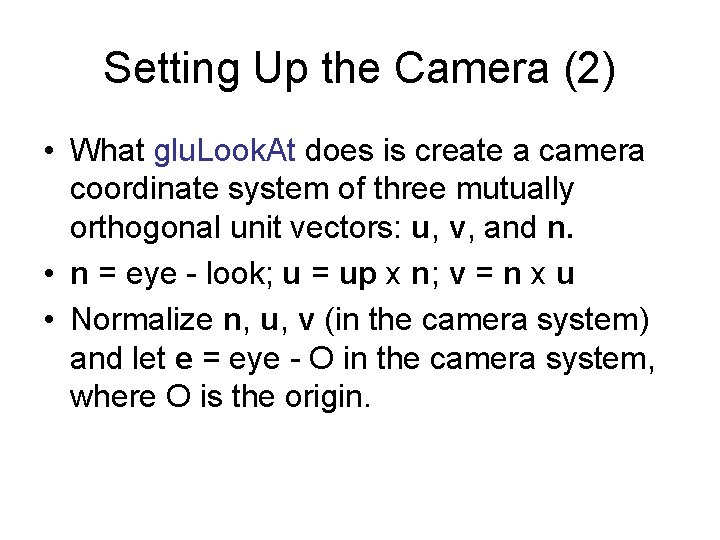
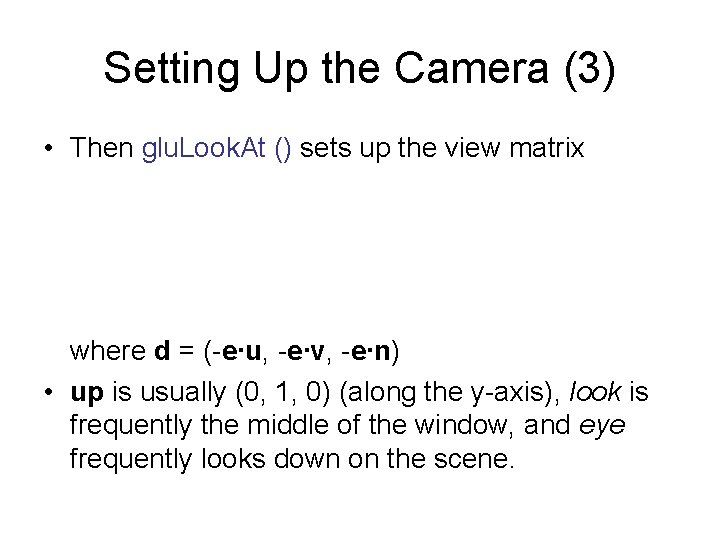
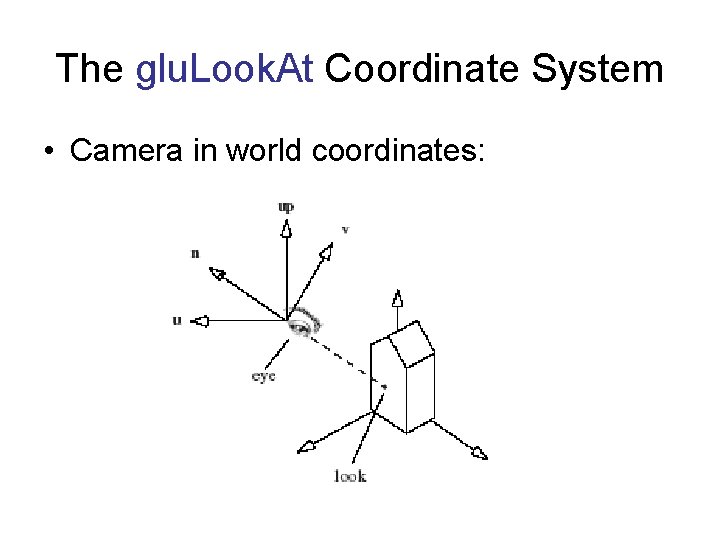
Setting Up the Camera (2) • What glu. Look. At does is create a camera coordinate system of three mutually orthogonal unit vectors: u, v, and n. • n = eye - look; u = up x n; v = n x u • Normalize n, u, v (in the camera system) and let e = eye - O in the camera system, where O is the origin.
Setting Up the Camera (3) • Then glu. Look. At () sets up the view matrix where d = (-e∙u, -e∙v, -e∙n) • up is usually (0, 1, 0) (along the y-axis), look is frequently the middle of the window, and eye frequently looks down on the scene.
The glu. Look. At Coordinate System • Camera in world coordinates:
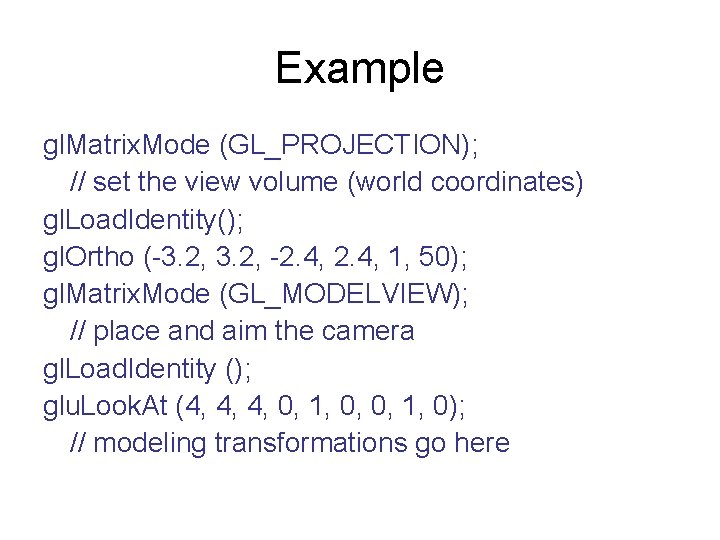
Example gl. Matrix. Mode (GL_PROJECTION); // set the view volume (world coordinates) gl. Load. Identity(); gl. Ortho (-3. 2, -2. 4, 1, 50); gl. Matrix. Mode (GL_MODELVIEW); // place and aim the camera gl. Load. Identity (); glu. Look. At (4, 4, 4, 0, 1, 0); // modeling transformations go here
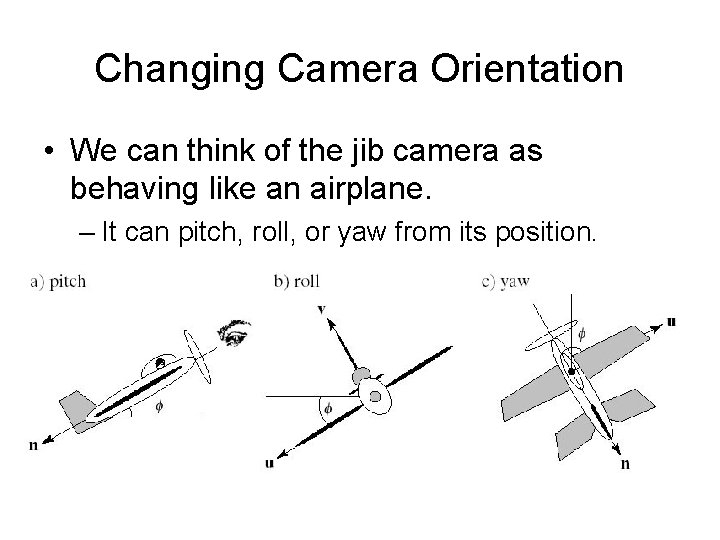
Changing Camera Orientation • We can think of the jib camera as behaving like an airplane. – It can pitch, roll, or yaw from its position.
Changing Camera Orientation (2) • Pitch – the angle between the longitudinal axis and world horizontal. • Roll – the angle between the transverse axis and the world. • Yaw – motion of the longitudinal axis causing a change in the direction of the plane’s flight.
Drawing 3 D Shapes in Open. GL • GLUT provides several 3 D objects: a sphere, a cone, a torus, the five Platonic solids, and the teapot. • Each is available as a wireframe model (one appearing as a collection of wires connected end to end) and as a solid model with faces that can be shaded. • All are drawn by default centered at the origin. • To use the solid version, replace Wire by Solid in the functions.
Drawing 3 D Shapes in Open. GL (2) • cube: glut. Wire. Cube (GLdouble size); – Each side is of length size. • sphere: glut. Wire. Sphere (GLdouble radius, GLint n. Slices, GLint n. Stacks); – n. Slices is the number of “orange sections” and n. Stacks is the number of disks. – Alternately, n. Slices boundaries are longitude lines and n. Stacks boundaries are latitude lines.
Drawing 3 D Shapes in Open. GL (3) • torus: glut. Wire. Torus (GLdouble in. Rad, GLdouble out. Rad, GLint n. Slices, GLint n. Stacks); • teapot: glut. Wire. Teapot (GLdouble size); – Why teapots? A standard graphics challenge for a long time was both making a teapot look realistic and drawing it quickly.
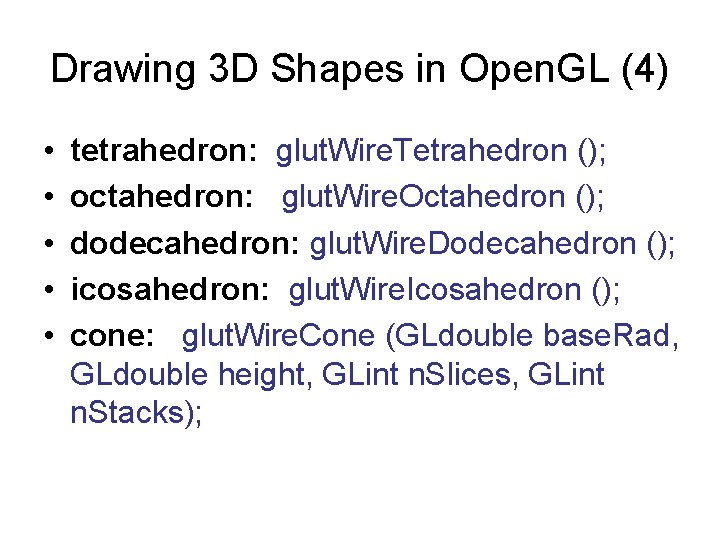
Drawing 3 D Shapes in Open. GL (4) • • • tetrahedron: glut. Wire. Tetrahedron (); octahedron: glut. Wire. Octahedron (); dodecahedron: glut. Wire. Dodecahedron (); icosahedron: glut. Wire. Icosahedron (); cone: glut. Wire. Cone (GLdouble base. Rad, GLdouble height, GLint n. Slices, GLint n. Stacks);
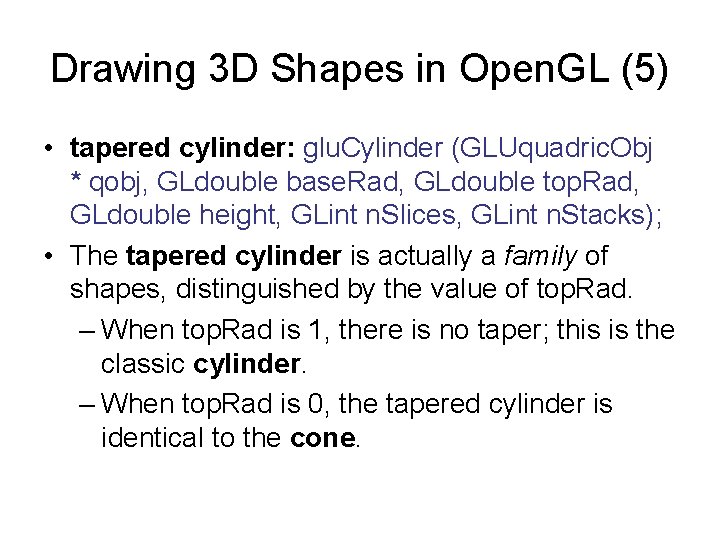
Drawing 3 D Shapes in Open. GL (5) • tapered cylinder: glu. Cylinder (GLUquadric. Obj * qobj, GLdouble base. Rad, GLdouble top. Rad, GLdouble height, GLint n. Slices, GLint n. Stacks); • The tapered cylinder is actually a family of shapes, distinguished by the value of top. Rad. – When top. Rad is 1, there is no taper; this is the classic cylinder. – When top. Rad is 0, the tapered cylinder is identical to the cone.
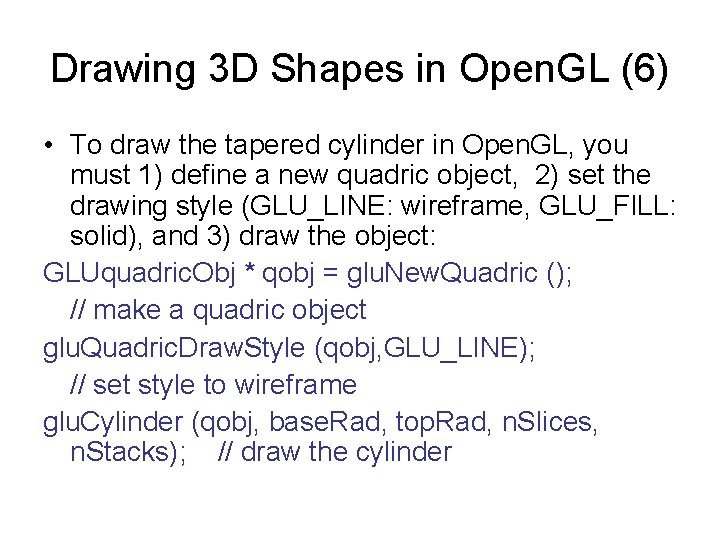
Drawing 3 D Shapes in Open. GL (6) • To draw the tapered cylinder in Open. GL, you must 1) define a new quadric object, 2) set the drawing style (GLU_LINE: wireframe, GLU_FILL: solid), and 3) draw the object: GLUquadric. Obj * qobj = glu. New. Quadric (); // make a quadric object glu. Quadric. Draw. Style (qobj, GLU_LINE); // set style to wireframe glu. Cylinder (qobj, base. Rad, top. Rad, n. Slices, n. Stacks); // draw the cylinder
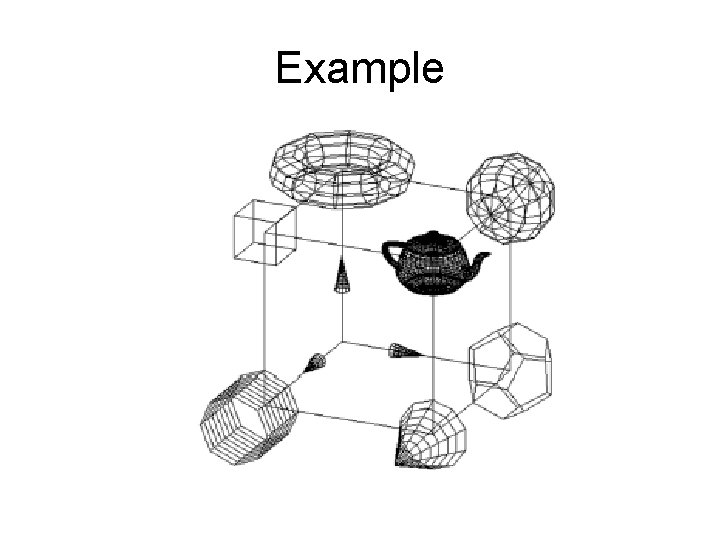
Example
Code for Example (Fig. 5. 57) • The main() routine initializes a 640 by 480 pixel screen window, sets the viewport and background color, and specifies the drawing function as display. Wire(). • In display. Wire() the camera shape and position are established and each object is drawn using its own modeling matrix. • Before each modeling transformation, a gl. Push. Matrix() is used to remember the current transformation, and after the object has been drawn, this prior current transformation is restored with a gl. Pop. Matrix().
Code for Example (2) • Thus the code to draw each object is imbedded in a gl. Push. Matrix(), gl. Pop. Matrix() pair. • To draw the x-axis, the z-axis is rotated 90 o about the y-axis to form a rotated system, and the axis is redrawn in its new orientation. • This axis is drawn without immersing it in a gl. Push. Matrix(), gl. Pop. Matrix() pair, so the rotation to produce the y-axis takes place in the already rotated coordinate system.
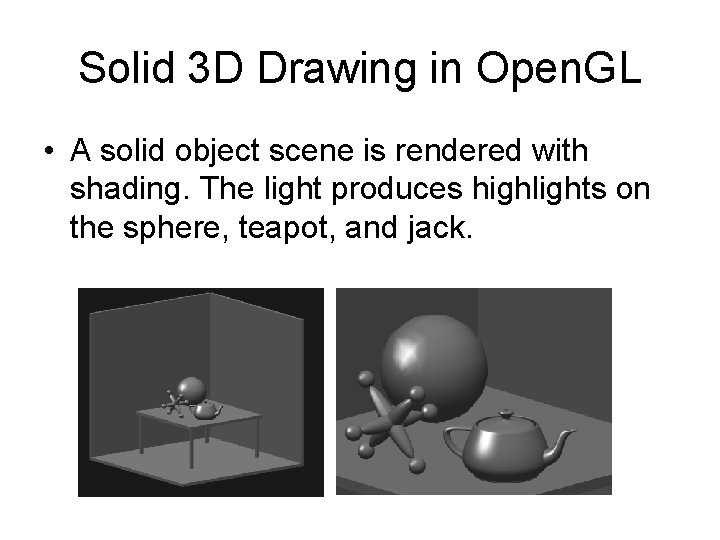
Solid 3 D Drawing in Open. GL • A solid object scene is rendered with shading. The light produces highlights on the sphere, teapot, and jack.
Solid 3 D Drawing in Open. GL (2) • The scene contains three objects resting on a table in the corner of a room. • The three walls are made by flattening a cube into a thin sheet and moving it into position. • The jack is composed of three stretched spheres oriented at right angles plus six small spheres at their ends.
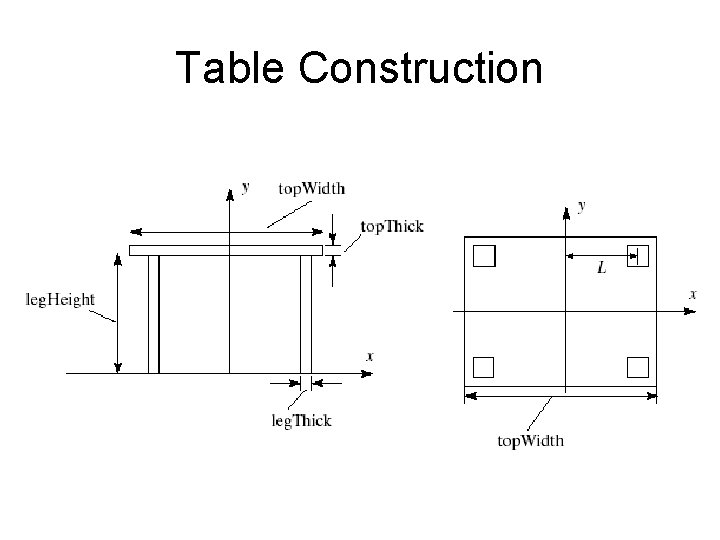
Solid 3 D Drawing in Open. GL (3) • The table consists of a table top and four legs. • Each of the table’s five pieces is a cube that has been scaled to the desired size and shape (next slide). • The table is based on four parameters that characterize the size of its parts: top. Width, top. Thick, leg. Len, and leg. Thick.
Table Construction
Solid 3 D Drawing in Open. GL (4) • A routine table. Leg() draws each leg and is called four times within the routine table() to draw the legs in the four different locations. • The different parameters used produce different modeling transformations within table. Leg(). As always, a gl. Push. Matrix(), gl. Pop. Matrix() pair surrounds the modeling functions to isolate their effect.
Code for the Solid Example (Fig. 5. 60) • The solid version of each shape, such as glut. Solid. Sphere(), is used. • To create shaded images, the position and properties of a light source and certain properties of the objects’ surfaces must be specified, in order to describe how they reflect light (Ch. 8). • We just present the various function calls here; using them as shown will generate shading.
Scene Description Language (SDL) • Previous scenes were described through specific Open. GL calls that transform and draw each object, as in the following code: gl. Translated (0. 25, 0. 42, 0. 35); glut. Solid. Sphere (0. 1, 15); // draw a sphere • The objects were “hard-wired” into the program. This method is cumbersome and error-prone.
SDL (2) • We want the designer to be able to specify the objects in a scene using a simple language and place the description in a file. • The drawing program becomes a generalpurpose program: – It reads a scene file at run-time and draws whatever objects are encountered in the file.
SDL (3) • The Scene Description Language (SDL), described in Appendix 3, provides a Scene class, also described in Appendix 3 and on the book’s web site, that supports the reading of an SDL file and the drawing of the objects described in the file.
Using SDL • A global Scene object is created: Scene scn; // create a scene object • Read in a scene file using the read method of the class: scn. read("example. dat"); // read the scene file & build an object list
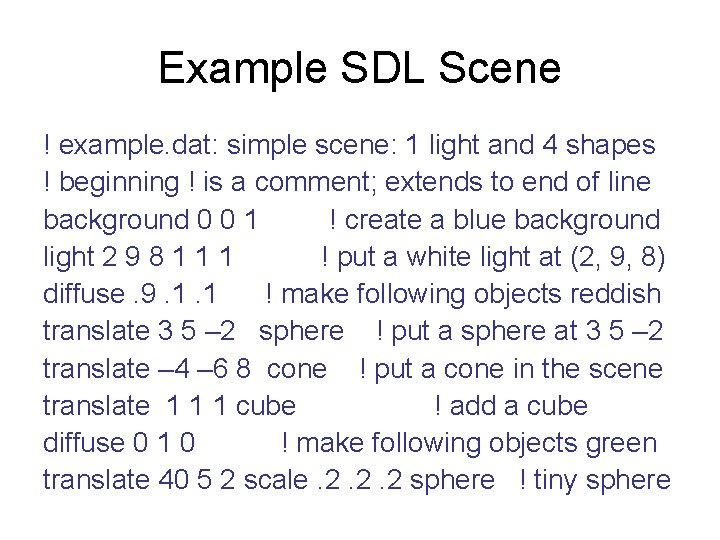
Example SDL Scene ! example. dat: simple scene: 1 light and 4 shapes ! beginning ! is a comment; extends to end of line background 0 0 1 ! create a blue background light 2 9 8 1 1 1 ! put a white light at (2, 9, 8) diffuse. 9. 1. 1 ! make following objects reddish translate 3 5 – 2 sphere ! put a sphere at 3 5 – 2 translate – 4 – 6 8 cone ! put a cone in the scene translate 1 1 1 cube ! add a cube diffuse 0 1 0 ! make following objects green translate 40 5 2 scale. 2. 2. 2 sphere ! tiny sphere
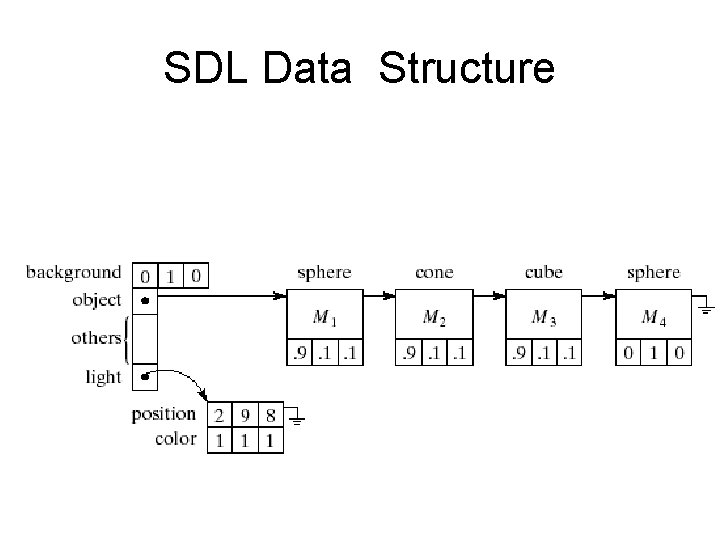
The SDL Scene • The scene has a bright blue background color (red, green, blue) = (0, 0, 1), a bright white (1, 1, 1) light situated at (2, 9, 8), and four objects: two spheres, a cone and a cube. • The light field points to the list of light sources, and the obj field points to the object list. • Each shape object has its own affine transformation M that describes how it is scaled, rotated, and positioned in the scene. It also contains various data fields that specify its material properties. Only the diffuse field is shown in the example.
SDL Data Structure
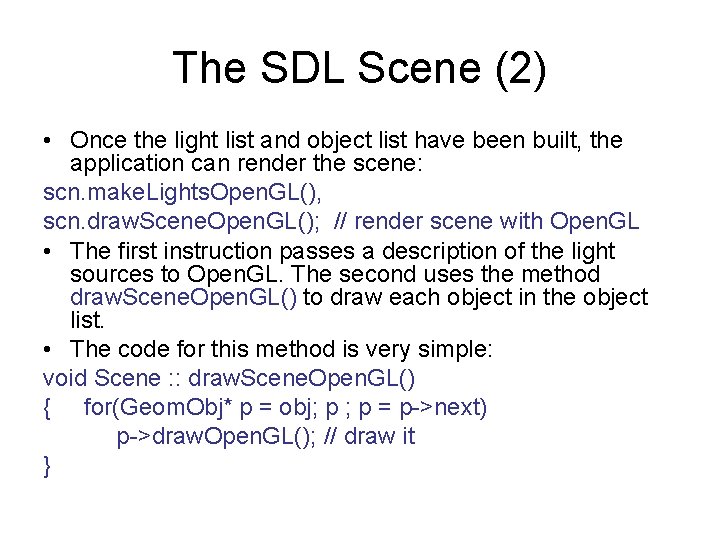
The SDL Scene (2) • Once the light list and object list have been built, the application can render the scene: scn. make. Lights. Open. GL(), scn. draw. Scene. Open. GL(); // render scene with Open. GL • The first instruction passes a description of the light sources to Open. GL. The second uses the method draw. Scene. Open. GL() to draw each object in the object list. • The code for this method is very simple: void Scene : : draw. Scene. Open. GL() { for(Geom. Obj* p = obj; p = p->next) p->draw. Open. GL(); // draw it }
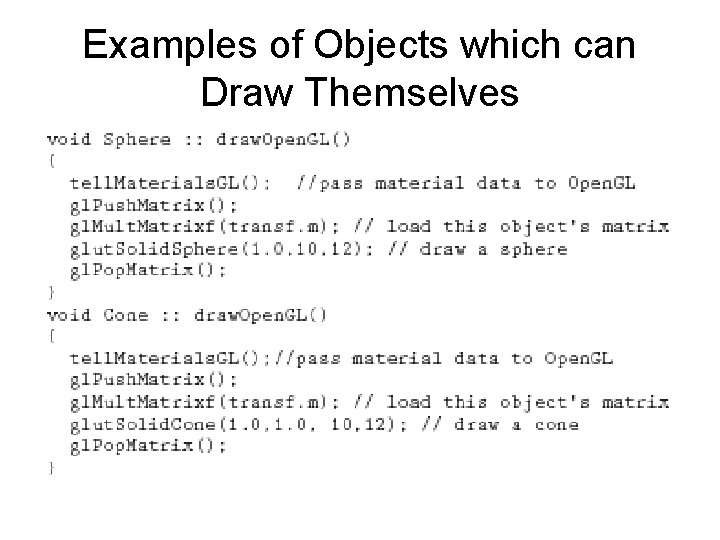
The SDL Scene (3) • The function moves a pointer through the object list, calling draw. Open. GL() for each object in turn. • Each different shape can draw itself; it has a method draw. Open. GL() that calls the appropriate routine for that shape (next slide). • Each first passes the object’s material properties to Open. GL, then updates the modelview matrix with the object’s specific affine transformation. • The original modelview matrix is pushed and later restored to protect it from being affected after this object has been drawn.
Examples of Objects which can Draw Themselves
Using the SDL • Fig. 5. 63 shows the code to read in an SDL file and draw it. • Fig. 5. 64 shows the SDL file necessary to draw the solid objects picture. • It is substantially more compact than the corresponding Open. GL code file. – Note also that some functions in the SDL may have to be implemented by you!