
Downloading Arduino FOR WINDOWS 1 Go to the
- Slides: 18
Downloading Arduino FOR WINDOWS
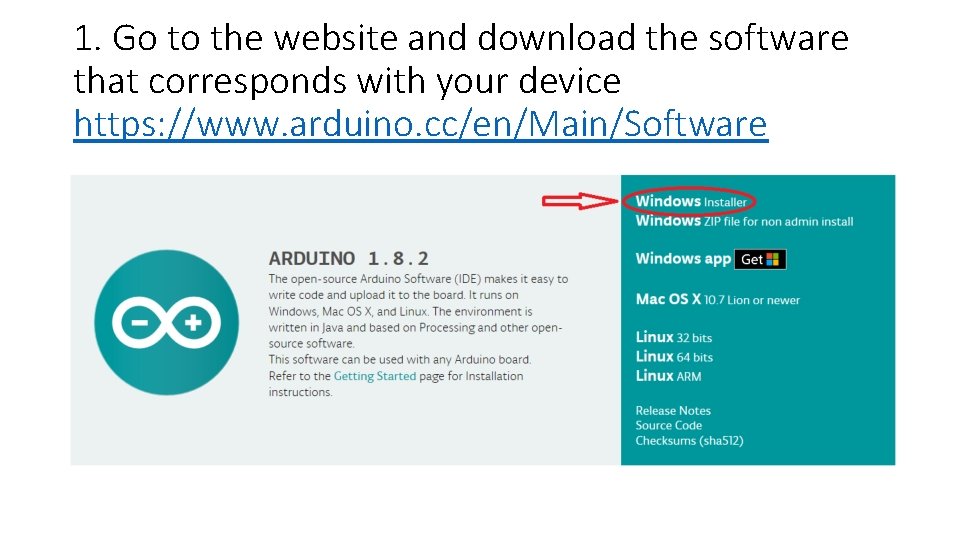
1. Go to the website and download the software that corresponds with your device https: //www. arduino. cc/en/Main/Software
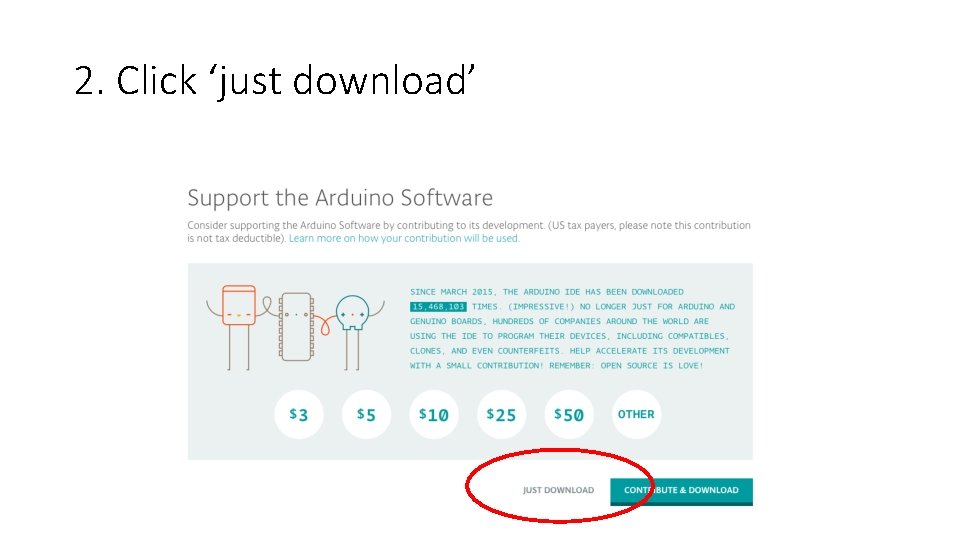
2. Click ‘just download’
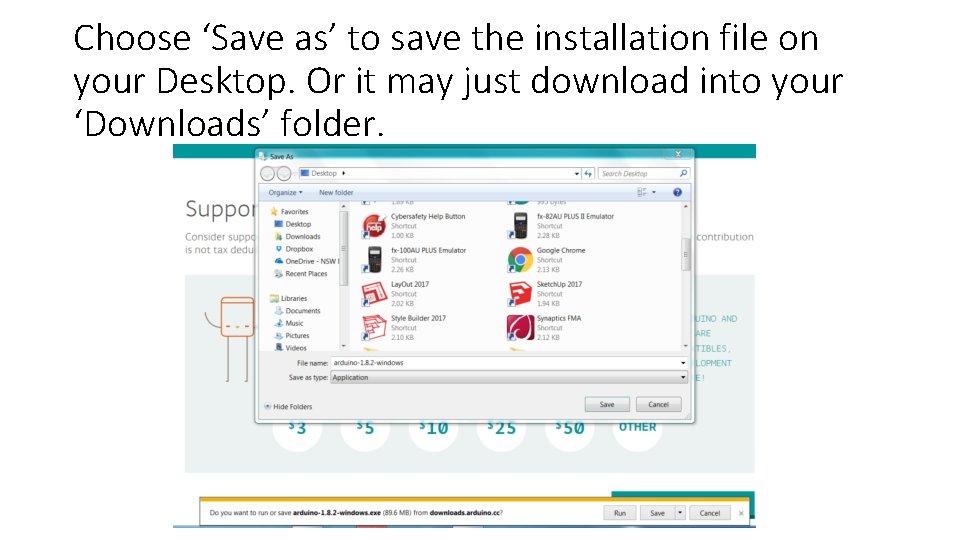
Choose ‘Save as’ to save the installation file on your Desktop. Or it may just download into your ‘Downloads’ folder.
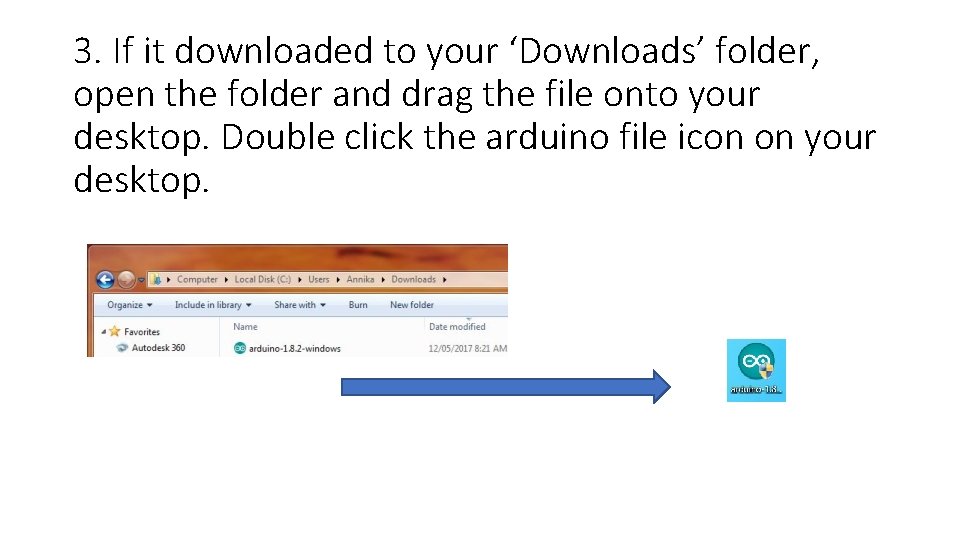
3. If it downloaded to your ‘Downloads’ folder, open the folder and drag the file onto your desktop. Double click the arduino file icon on your desktop.
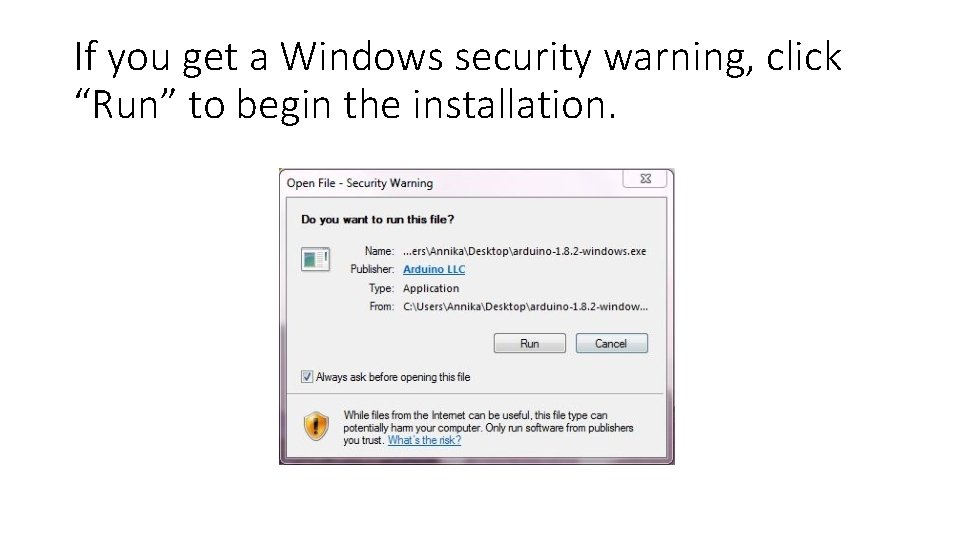
If you get a Windows security warning, click “Run” to begin the installation.
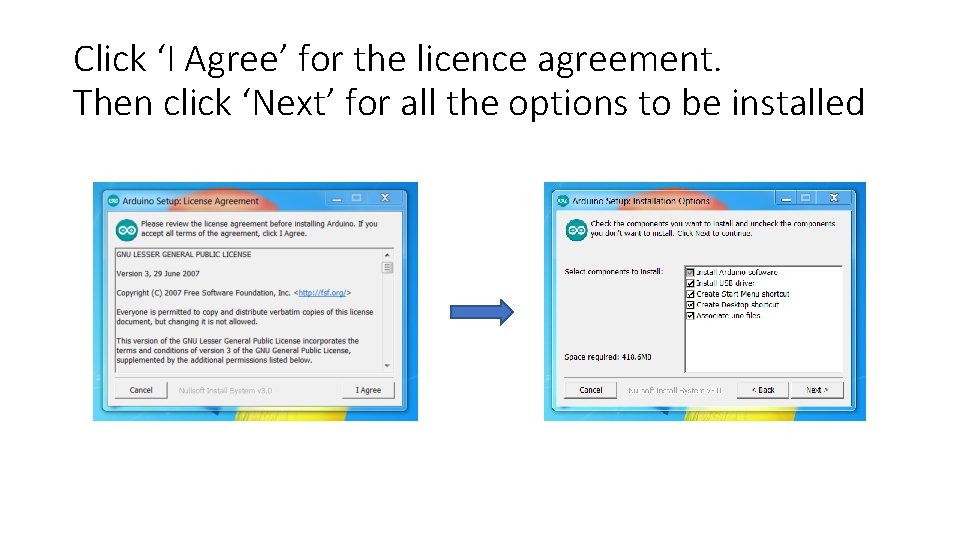
Click ‘I Agree’ for the licence agreement. Then click ‘Next’ for all the options to be installed
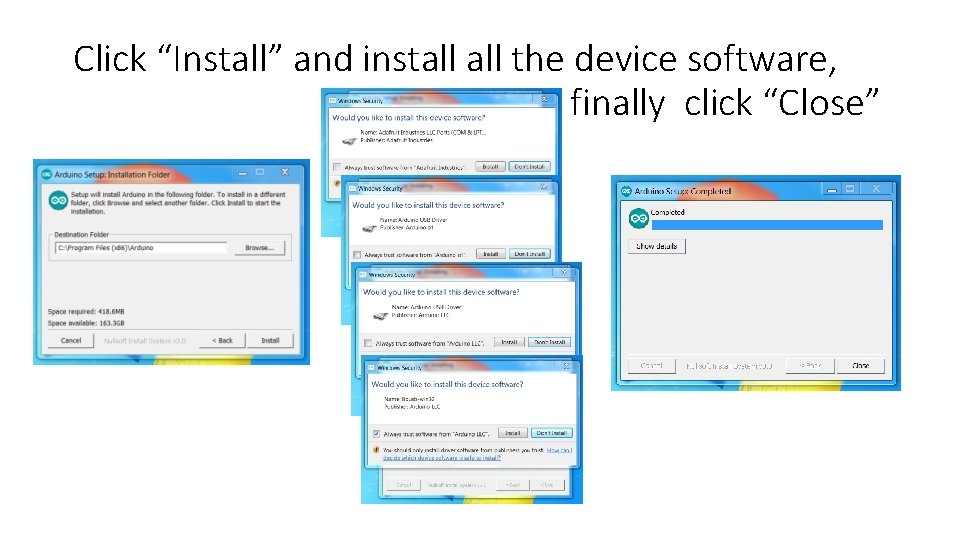
Click “Install” and install the device software, finally click “Close”
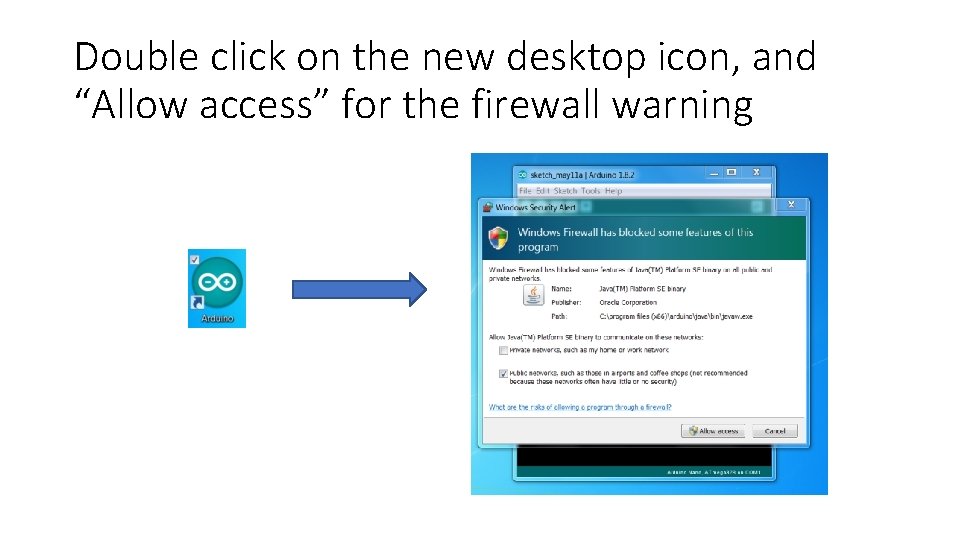
Double click on the new desktop icon, and “Allow access” for the firewall warning
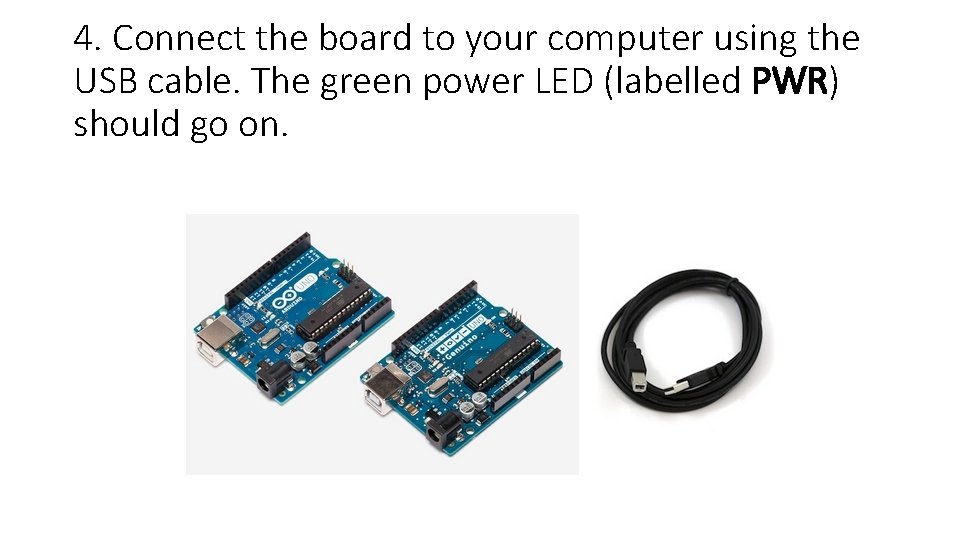
4. Connect the board to your computer using the USB cable. The green power LED (labelled PWR) should go on.
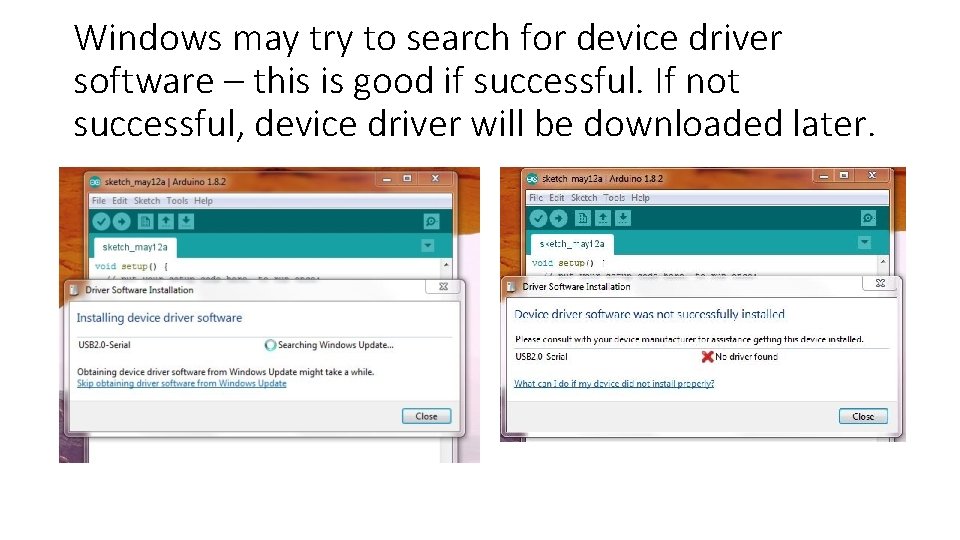
Windows may try to search for device driver software – this is good if successful. If not successful, device driver will be downloaded later.
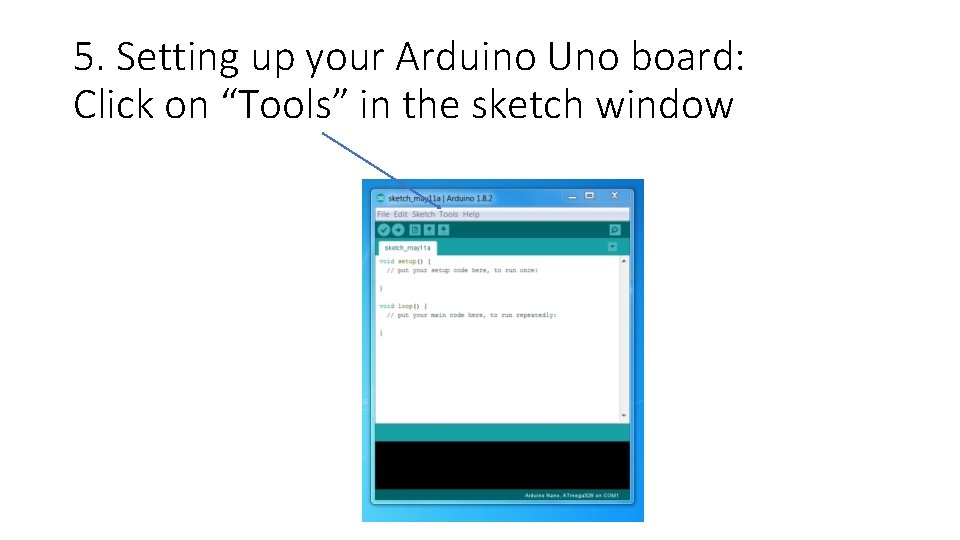
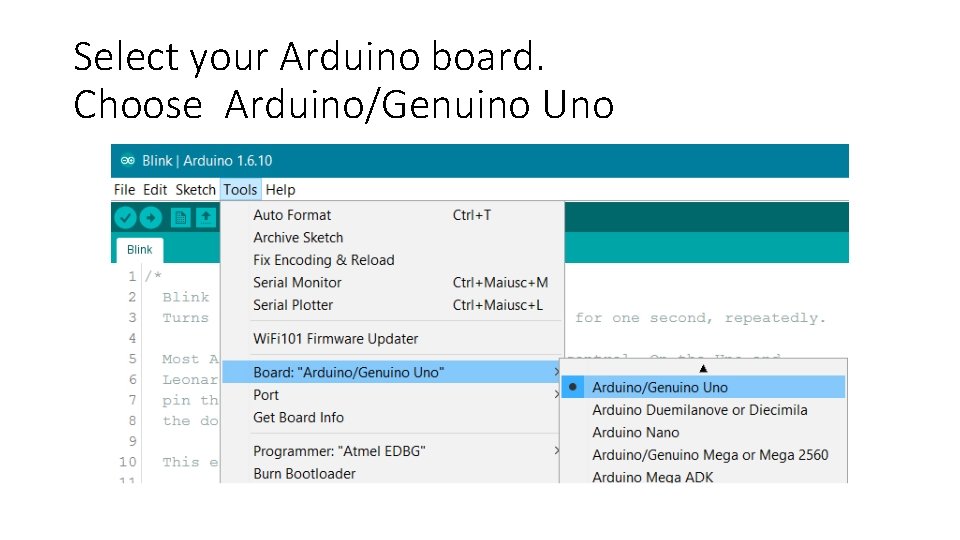
5. Setting up your Arduino Uno board: Click on “Tools” in the sketch window
Select your Arduino board. Choose Arduino/Genuino Uno
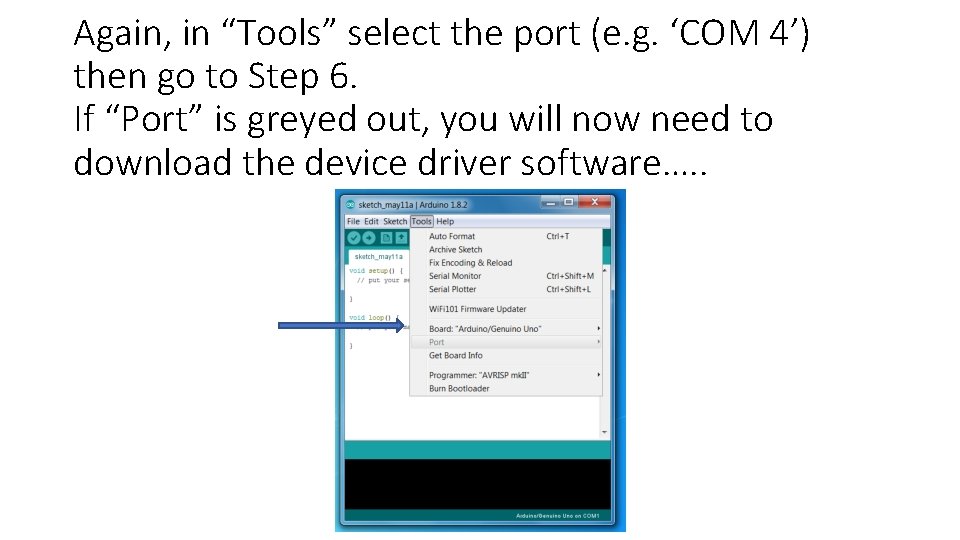
Again, in “Tools” select the port (e. g. ‘COM 4’) then go to Step 6. If “Port” is greyed out, you will now need to download the device driver software…. .
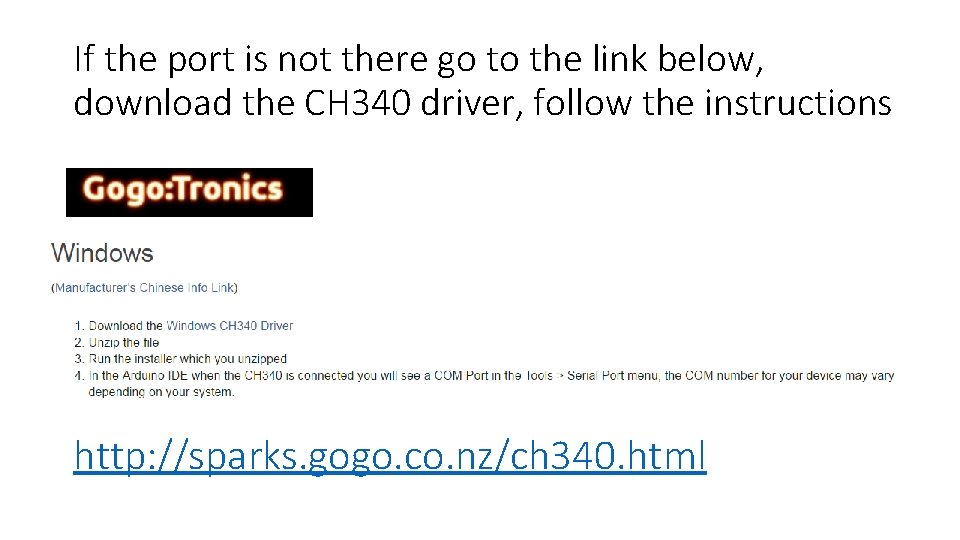
If the port is not there go to the link below, download the CH 340 driver, follow the instructions http: //sparks. gogo. co. nz/ch 340. html
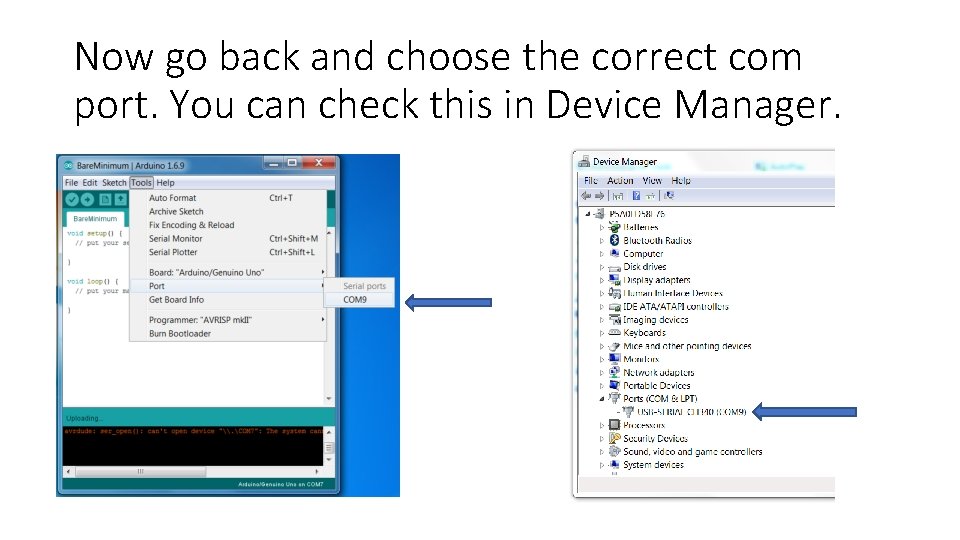
Now go back and choose the correct com port. You can check this in Device Manager.
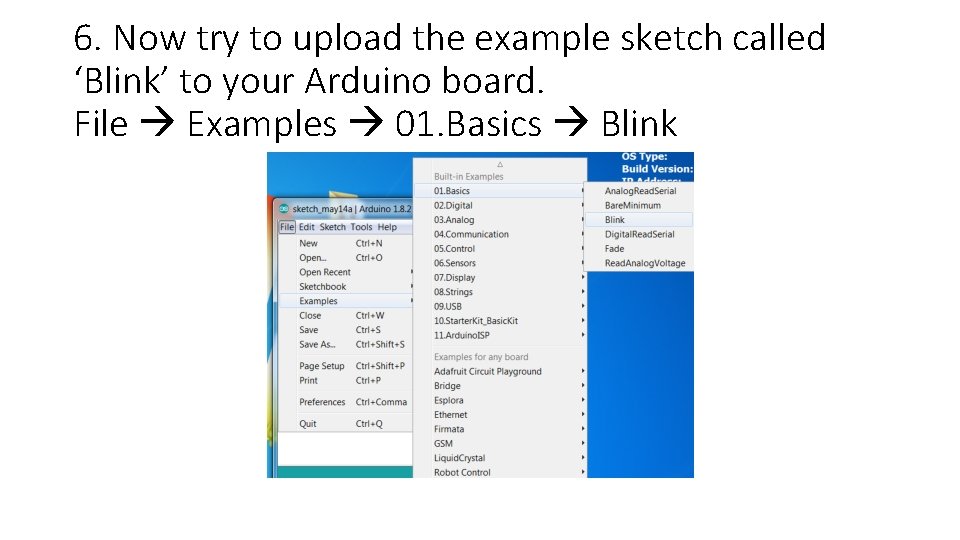
6. Now try to upload the example sketch called ‘Blink’ to your Arduino board. File Examples 01. Basics Blink
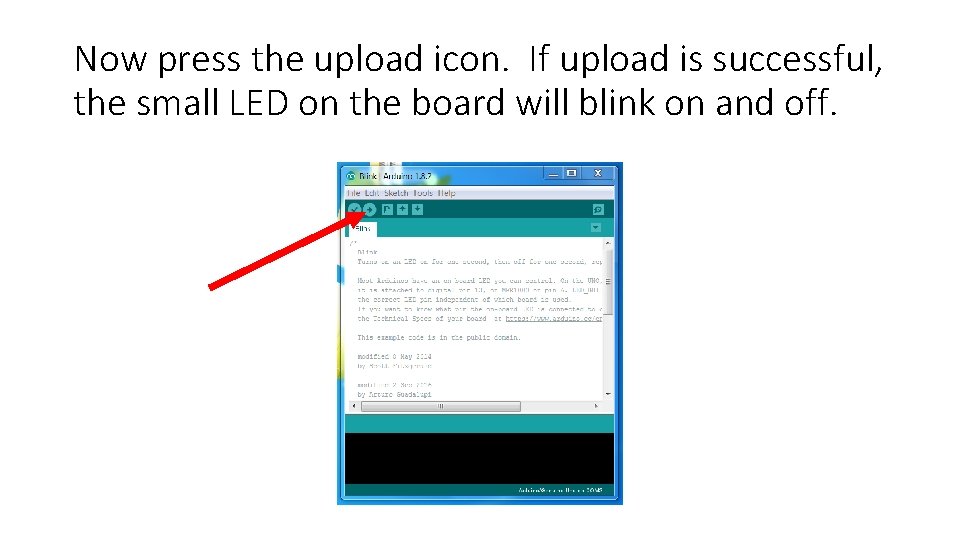
Now press the upload icon. If upload is successful, the small LED on the board will blink on and off.