
Downloading and Accessing work from your email Go
- Slides: 12
Downloading and Accessing work from your email.
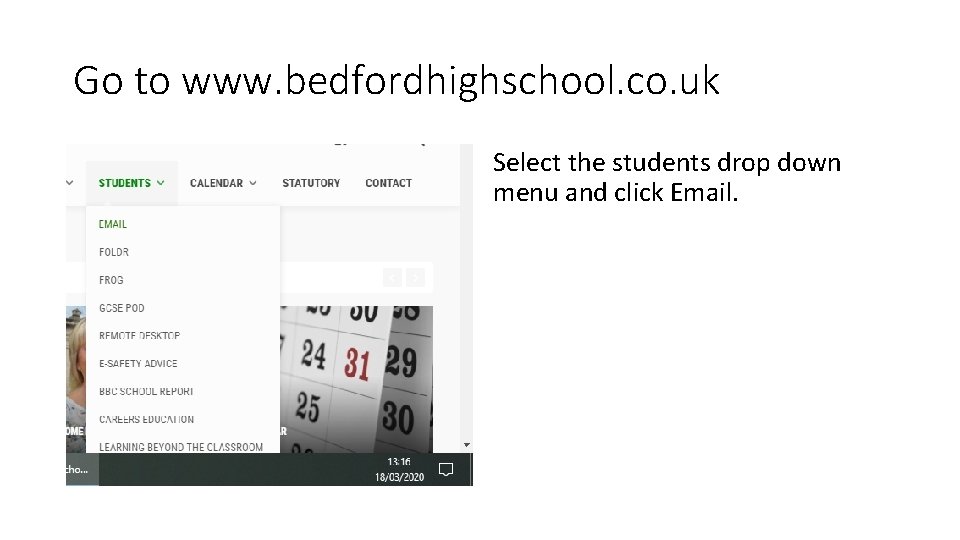
Go to www. bedfordhighschool. co. uk Select the students drop down menu and click Email.
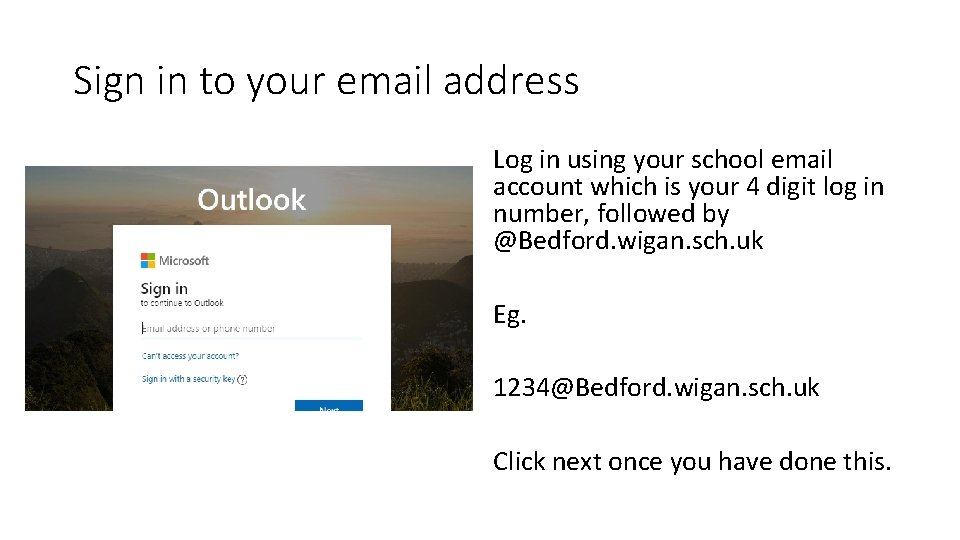
Sign in to your email address Log in using your school email account which is your 4 digit log in number, followed by @Bedford. wigan. sch. uk Eg. 1234@Bedford. wigan. sch. uk Click next once you have done this.
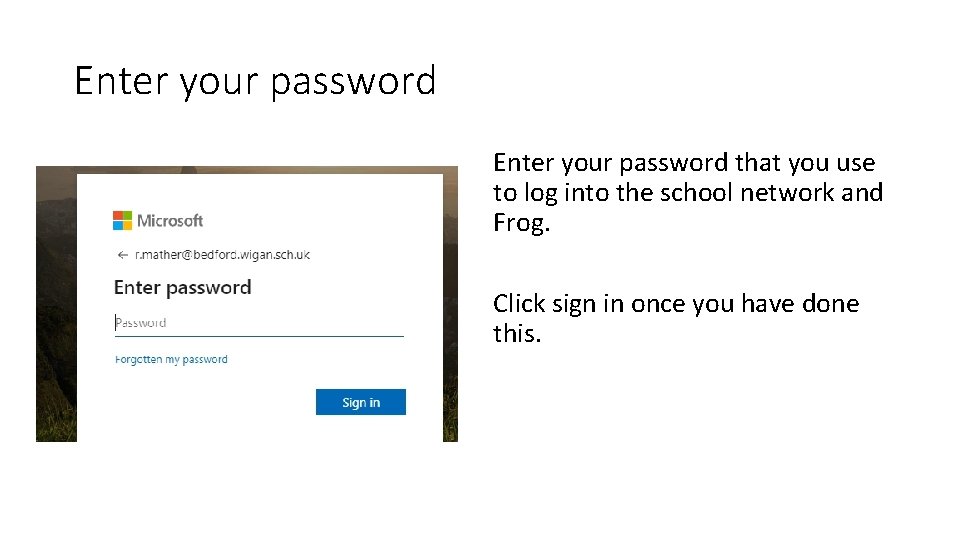
Enter your password that you use to log into the school network and Frog. Click sign in once you have done this.
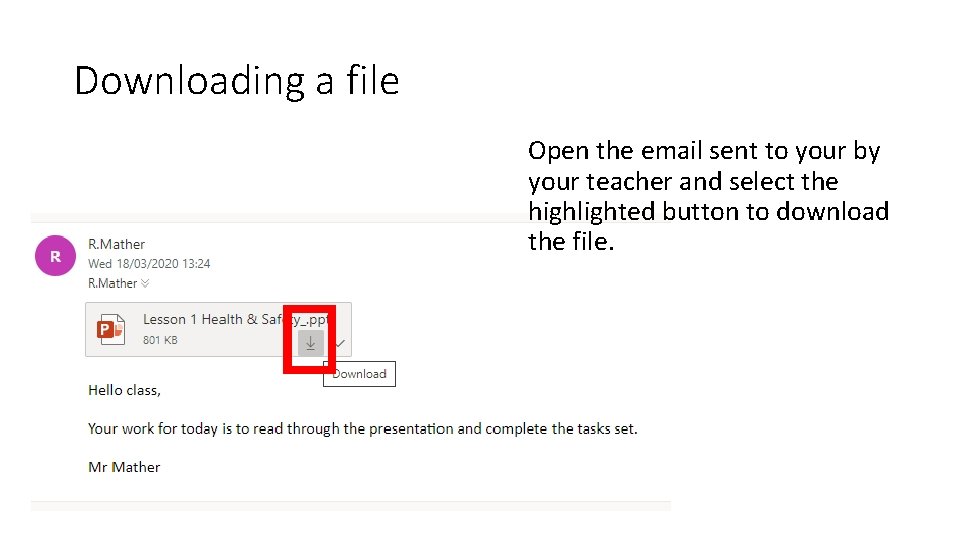
Downloading a file Open the email sent to your by your teacher and select the highlighted button to download the file.
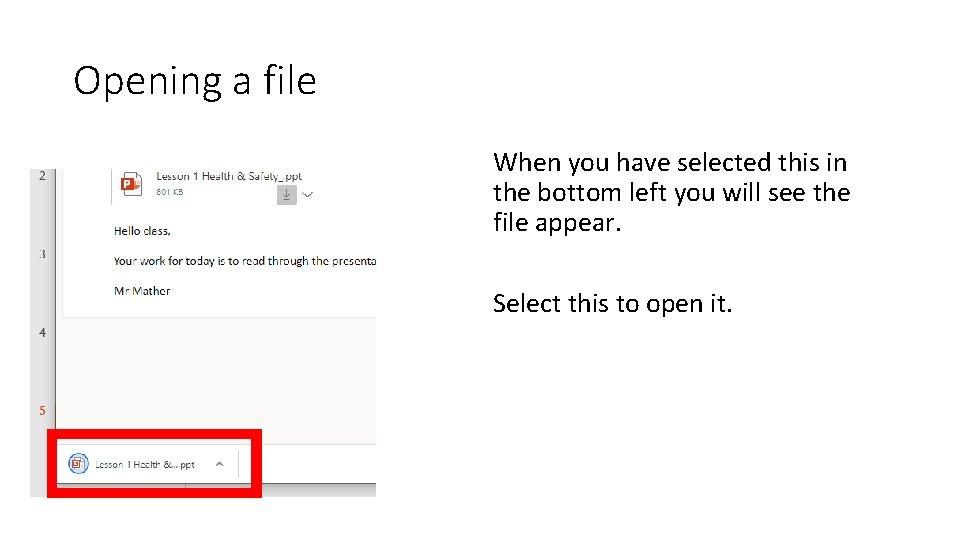
Opening a file When you have selected this in the bottom left you will see the file appear. Select this to open it.
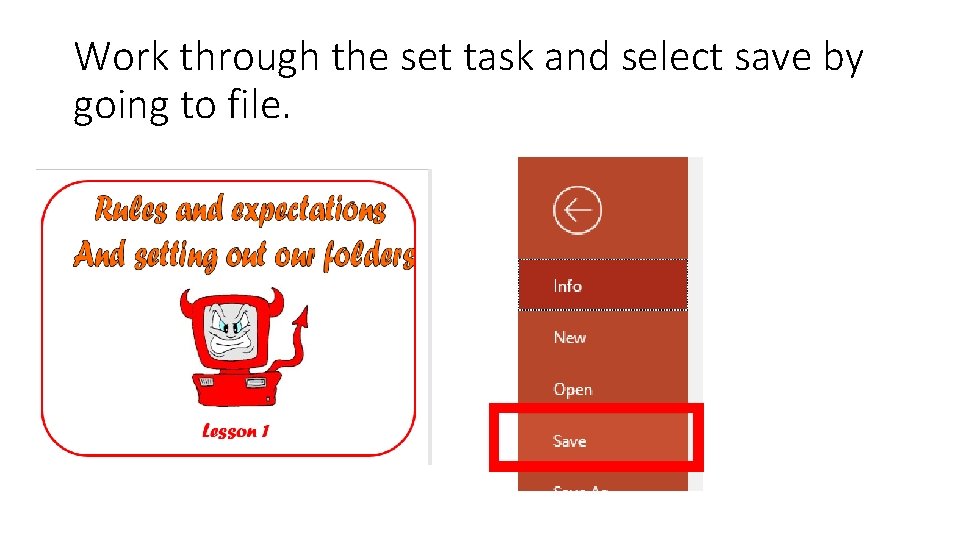
Work through the set task and select save by going to file.
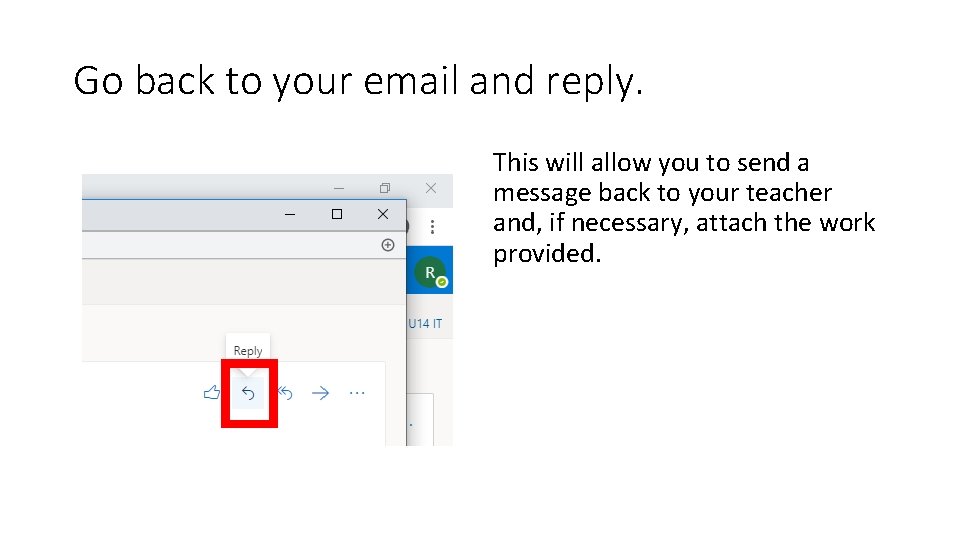
Go back to your email and reply. This will allow you to send a message back to your teacher and, if necessary, attach the work provided.
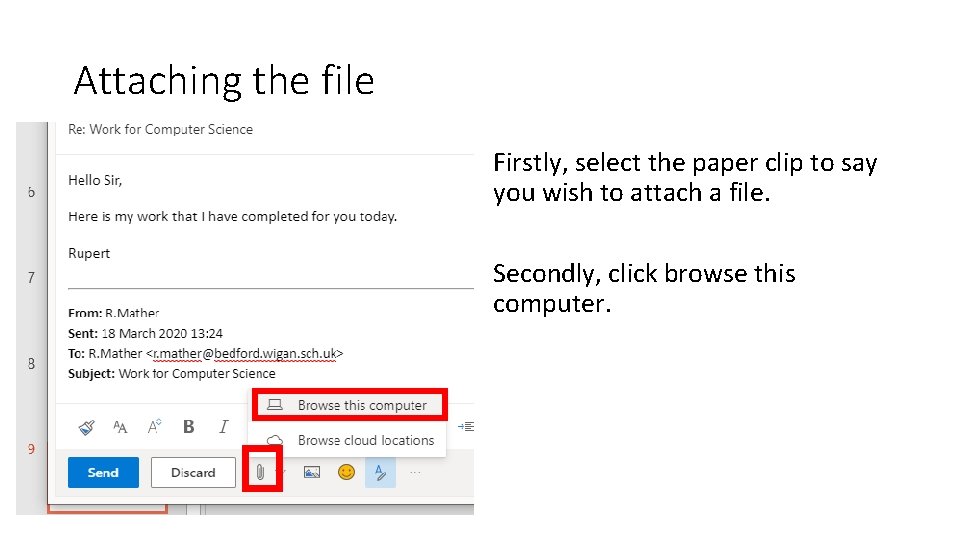
Attaching the file Firstly, select the paper clip to say you wish to attach a file. Secondly, click browse this computer.
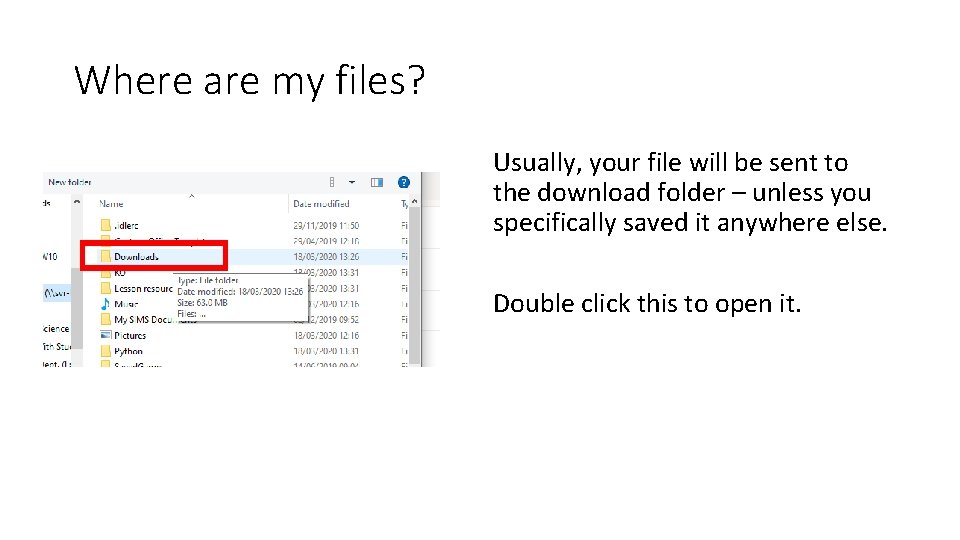
Where are my files? Usually, your file will be sent to the download folder – unless you specifically saved it anywhere else. Double click this to open it.
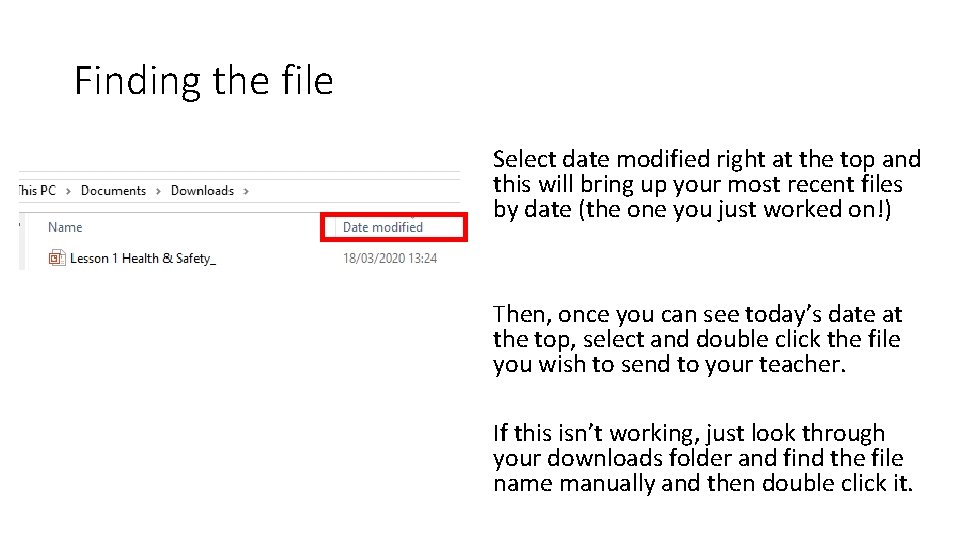
Finding the file Select date modified right at the top and this will bring up your most recent files by date (the one you just worked on!) Then, once you can see today’s date at the top, select and double click the file you wish to send to your teacher. If this isn’t working, just look through your downloads folder and find the file name manually and then double click it.
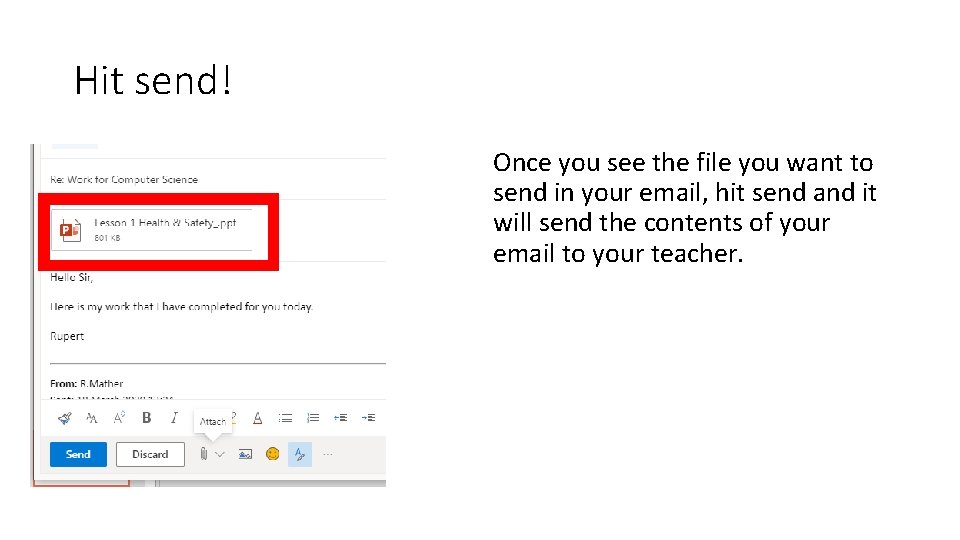
Hit send! Once you see the file you want to send in your email, hit send and it will send the contents of your email to your teacher.