
Download this presentation Ex Libris Knowledge Center CrossProduct
Download this presentation: Ex Libris Knowledge Center > Cross-Product > Conferences and Seminars > 2018 Technical Seminar Primo New UI in 90 minutes Alon Botvinik – Tier 2 Support Manager © 2018 Ex Libris | Confidential & Proprietary
Welcome and Introductions Alon Botvinik • Tier 2 Support Manager • Graduated with B. Sc from Hadassah College Jerusalem • Started at Ex Libris January 2010 © 2018 Ex Libris | Confidential & Proprietary 2
Session Objectives Session Description • Understanding the steps implementing the Primo New UI. • New UI Customization Manager utility, including customizing images, modifying CSS, and other examples of popular customizations. • Go Live procedures, back office configuration and making sure that your Primo is ready to use HTTPS. Session Objective(s) • By the end of this sessions you will know, understand and/or be able to: • Activate the New UI • Use the Customization Manager Utility • Perform common customizations • Prepare your Primo to use HTTPS © 2018 Ex Libris | Confidential & Proprietary 3
Target Audience for the Session: • Primo Multi-Tenant Direct, Dedicated, and Total Care customers • Systems, Technical or Public Services Librarians • IT and Web staff of the libraries © 2018 Ex Libris | Confidential & Proprietary 4
Agenda 1 New UI activation 2 Using the Customization Manager 3 Customizing the New UI 4 Primo New UI go live action items 5 Next Steps, Support Resources and Feedback © 2018 Ex Libris | Confidential & Proprietary 5
New UI activation • New UI URL Structure • Activation In the Back Office • • • © 2018 Ex Libris | Confidential & Proprietary 6 What happens after NEW UI is enabled? Disabling Classic UI (new in February 2018) Linking to the New UI from the Classic UI (new in February 2018)
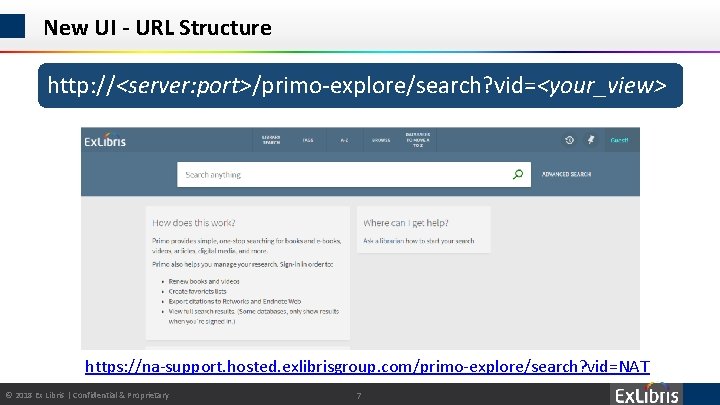
New UI - URL Structure http: //<server: port>/primo-explore/search? vid=<your_view> https: //na-support. hosted. exlibrisgroup. com/primo-explore/search? vid=NAT © 2018 Ex Libris | Confidential & Proprietary 7
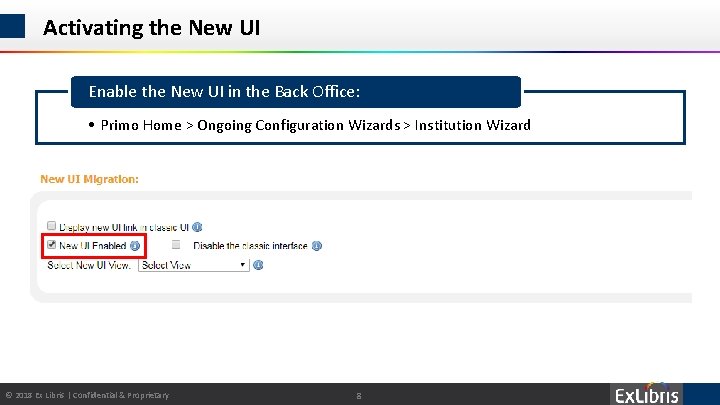
Activating the New UI Enable the New UI in the Back Office: • Primo Home > Ongoing Configuration Wizards > Institution Wizard © 2018 Ex Libris | Confidential & Proprietary 8
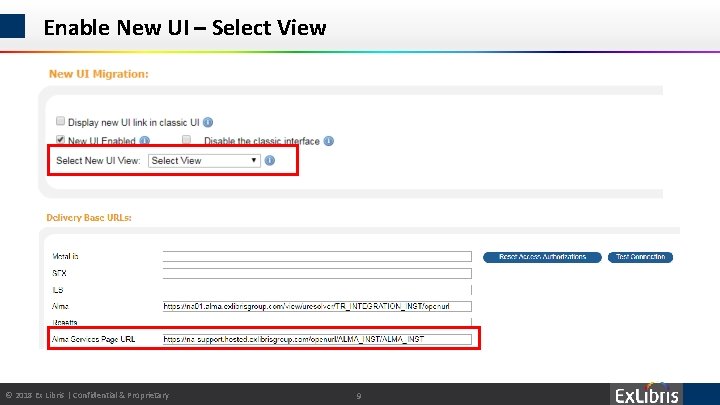
Enable New UI – Select View © 2018 Ex Libris | Confidential & Proprietary 9
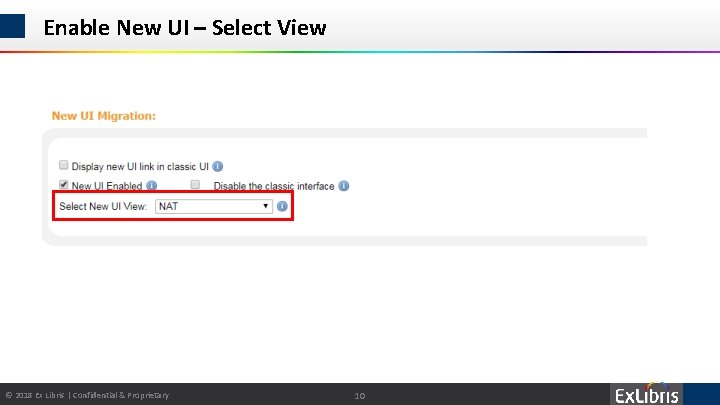
Enable New UI – Select View © 2018 Ex Libris | Confidential & Proprietary 10
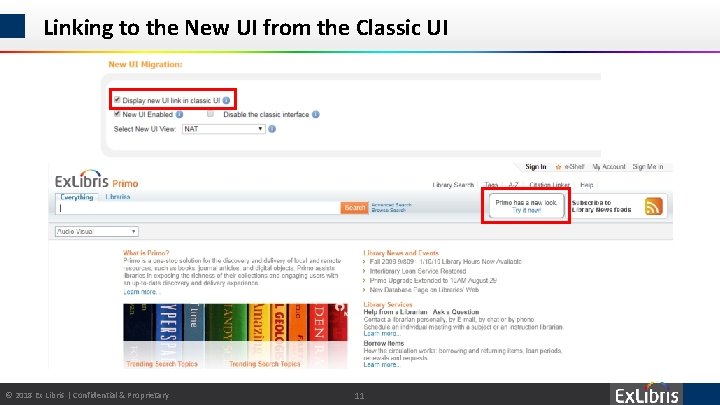
Linking to the New UI from the Classic UI © 2018 Ex Libris | Confidential & Proprietary 11
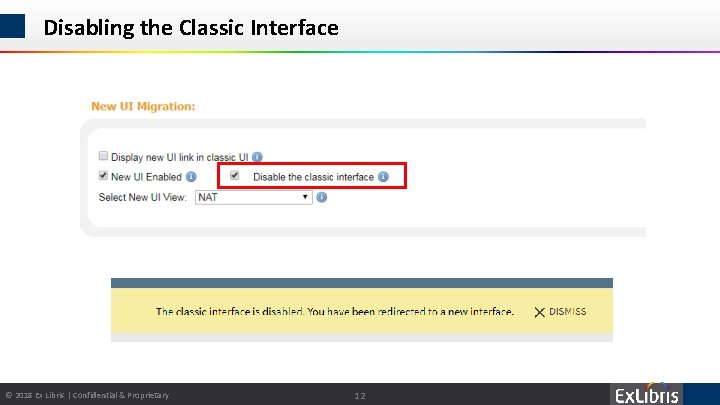
Disabling the Classic Interface © 2018 Ex Libris | Confidential & Proprietary 12
Customization manager Utility • • © 2018 Ex Libris | Confidential & Proprietary Overview of the Utility Sections Customization Package Template Customization Package Components Uploading the Customized Package 13
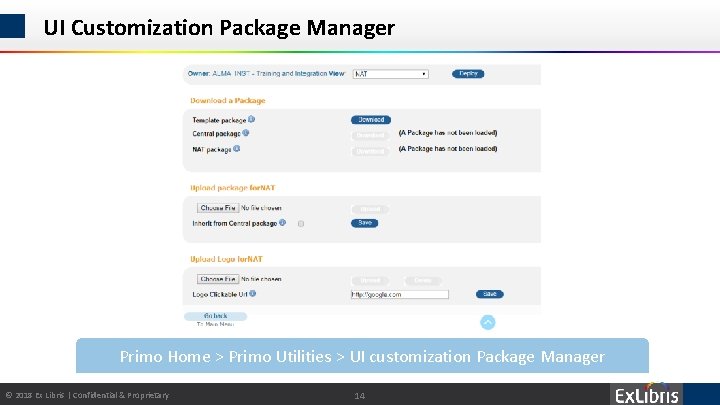
UI Customization Package Manager Primo Home > Primo Utilities > UI customization Package Manager © 2018 Ex Libris | Confidential & Proprietary 14
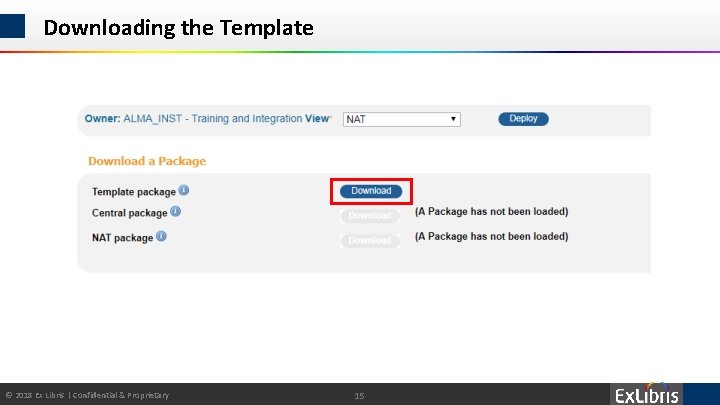
Downloading the Template © 2018 Ex Libris | Confidential & Proprietary 15
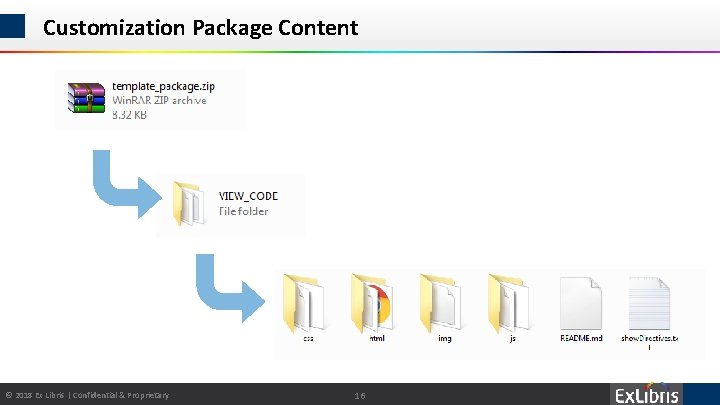
Customization Package Content © 2018 Ex Libris | Confidential & Proprietary 16
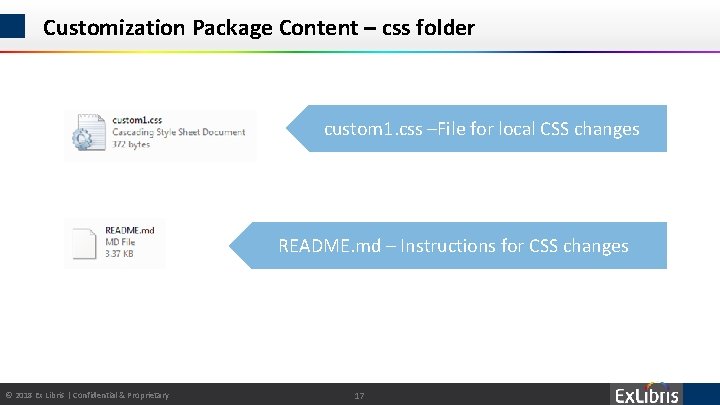
Customization Package Content – css folder custom 1. css –File for local CSS changes README. md – Instructions for CSS changes © 2018 Ex Libris | Confidential & Proprietary 17
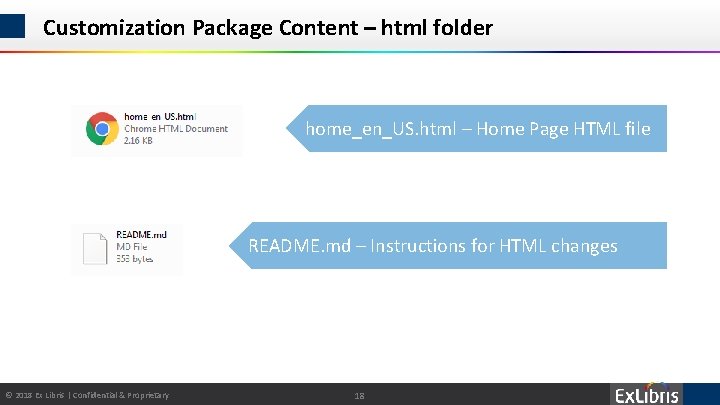
Customization Package Content – html folder home_en_US. html – Home Page HTML file README. md – Instructions for HTML changes © 2018 Ex Libris | Confidential & Proprietary 18
Customization Package Content – img folder README. md – Instructions for image uploads The img folder is used for uploading custom images to Primo Following images can be customized: • Library Logo • Library favicon • Resource Type Icons © 2018 Ex Libris | Confidential & Proprietary 19
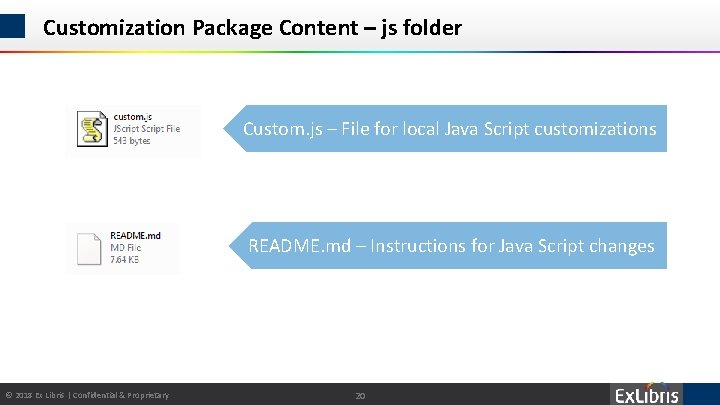
Customization Package Content – js folder Custom. js – File for local Java Script customizations README. md – Instructions for Java Script changes © 2018 Ex Libris | Confidential & Proprietary 20
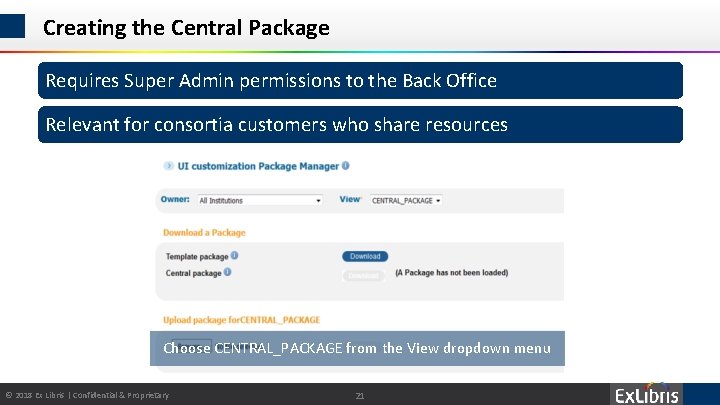
Creating the Central Package Requires Super Admin permissions to the Back Office Relevant for consortia customers who share resources Choose CENTRAL_PACKAGE from the View dropdown menu © 2018 Ex Libris | Confidential & Proprietary 21
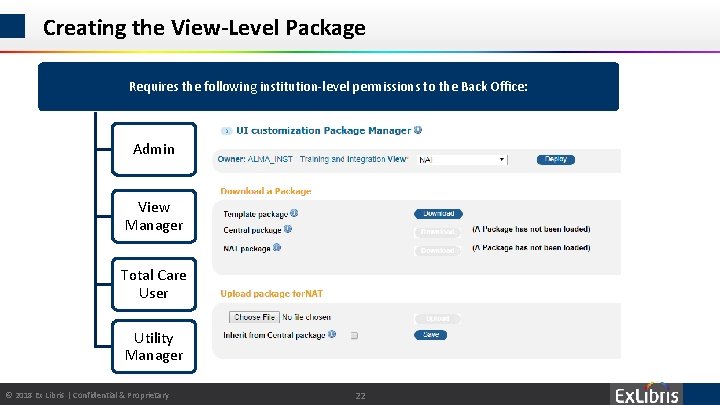
Creating the View-Level Package Requires the following institution-level permissions to the Back Office: Admin View Manager Total Care User Utility Manager © 2018 Ex Libris | Confidential & Proprietary 22
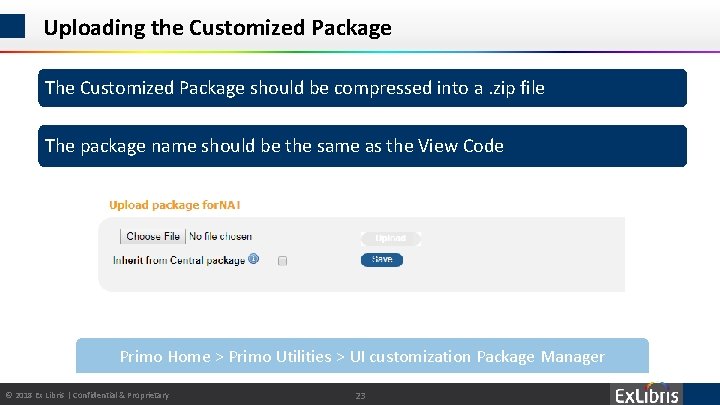
Uploading the Customized Package The Customized Package should be compressed into a. zip file The package name should be the same as the View Code Primo Home > Primo Utilities > UI customization Package Manager © 2018 Ex Libris | Confidential & Proprietary 23
Common New UI customizations • • • © 2018 Ex Libris | Confidential & Proprietary Home Page Brief Results Images Full Display Primo-Alma Mashup CSS 24
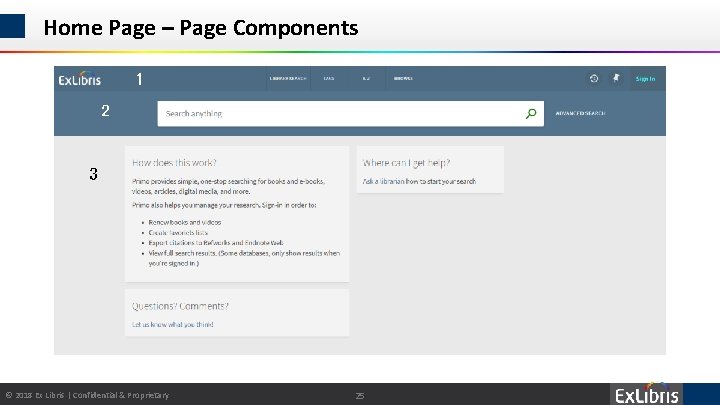
Home Page – Page Components 1 2 3 © 2018 Ex Libris | Confidential & Proprietary 25
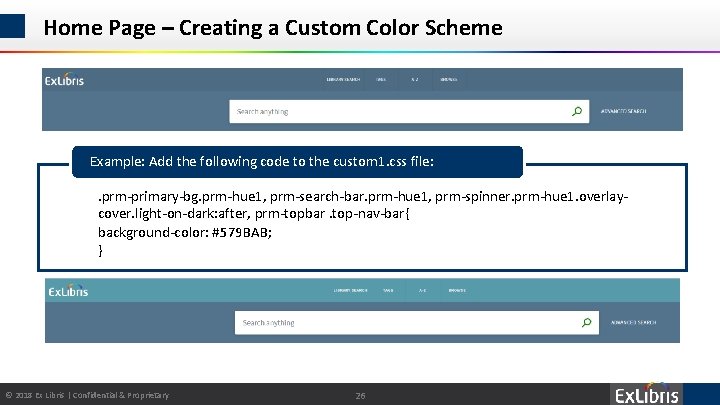
Home Page – Creating a Custom Color Scheme Example: Add the following code to the custom 1. css file: • . prm-primary-bg. prm-hue 1, prm-search-bar. prm-hue 1, prm-spinner. prm-hue 1. overlaycover. light-on-dark: after, prm-topbar. top-nav-bar{ • background-color: #579 BAB; • } © 2018 Ex Libris | Confidential & Proprietary 26
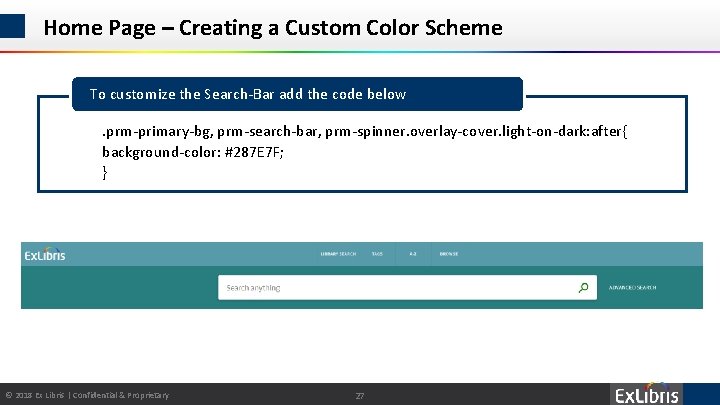
Home Page – Creating a Custom Color Scheme To customize the Search-Bar add the code below • . prm-primary-bg, prm-search-bar, prm-spinner. overlay-cover. light-on-dark: after{ • background-color: #287 E 7 F; • } © 2018 Ex Libris | Confidential & Proprietary 27
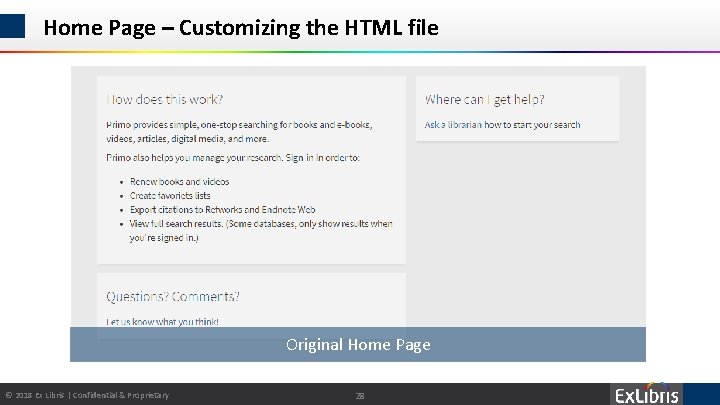
Home Page – Customizing the HTML file Original Home Page © 2018 Ex Libris | Confidential & Proprietary 28
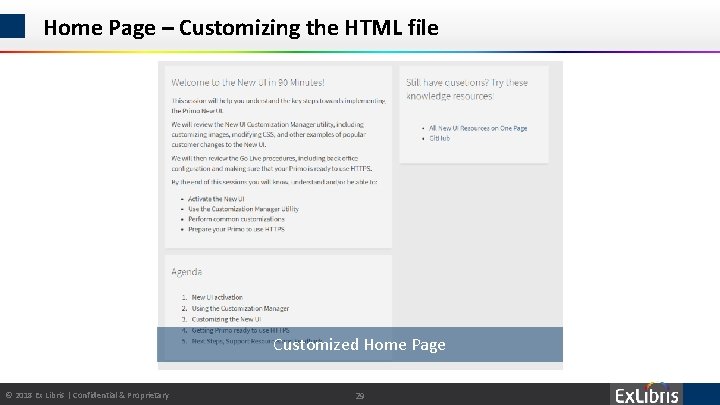
Home Page – Customizing the HTML file Customized Home Page © 2018 Ex Libris | Confidential & Proprietary 29
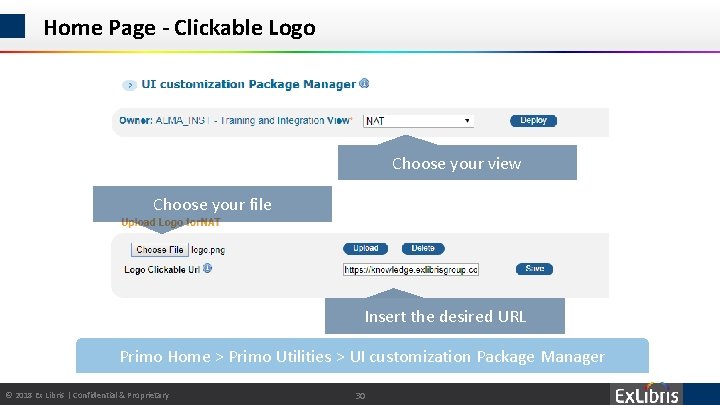
Home Page - Clickable Logo Choose your view Choose your file Insert the desired URL Primo Home > Primo Utilities > UI customization Package Manager © 2018 Ex Libris | Confidential & Proprietary 30
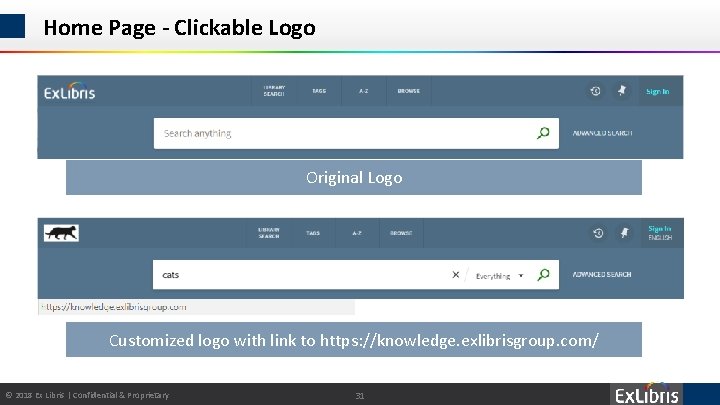
Home Page - Clickable Logo Original Logo Customized logo with link to https: //knowledge. exlibrisgroup. com/ © 2018 Ex Libris | Confidential & Proprietary 31
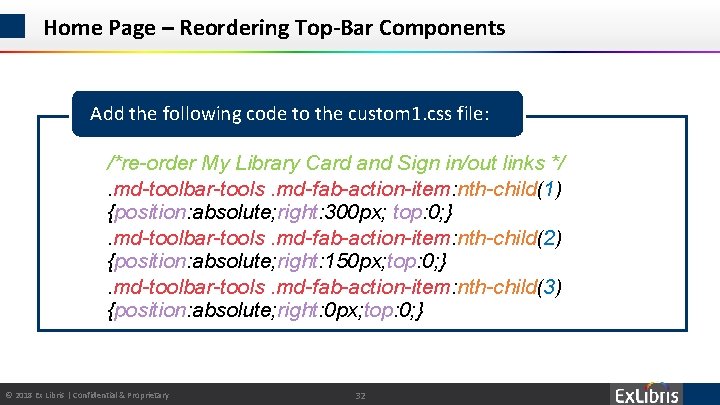
Home Page – Reordering Top-Bar Components Add the following code to the custom 1. css file: • /*re-order My Library Card and Sign in/out links */ • . md-toolbar-tools. md-fab-action-item: nth-child(1) {position: absolute; right: 300 px; top: 0; } • . md-toolbar-tools. md-fab-action-item: nth-child(2) {position: absolute; right: 150 px; top: 0; } • . md-toolbar-tools. md-fab-action-item: nth-child(3) {position: absolute; right: 0 px; top: 0; } © 2018 Ex Libris | Confidential & Proprietary 32
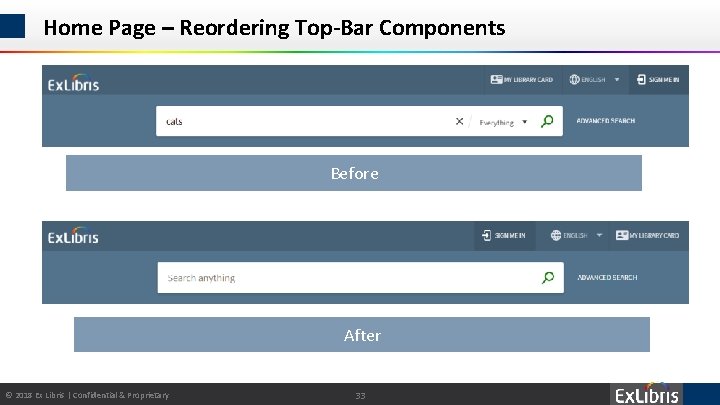
Home Page – Reordering Top-Bar Components Before After © 2018 Ex Libris | Confidential & Proprietary 33
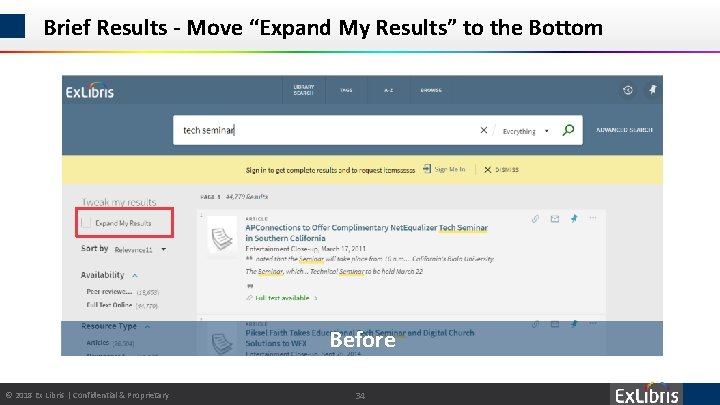
Brief Results - Move “Expand My Results” to the Bottom Before © 2018 Ex Libris | Confidential & Proprietary 34
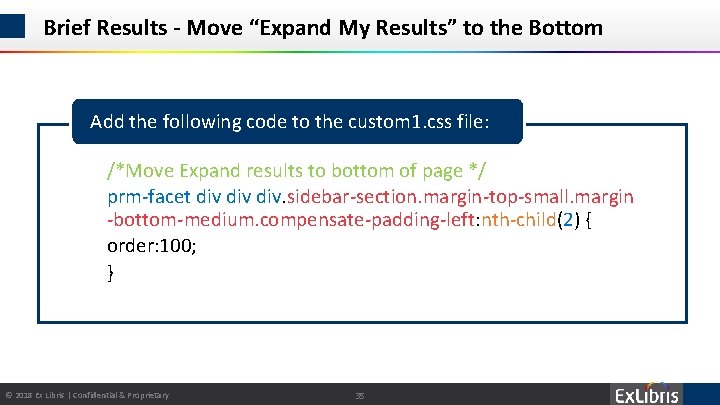
Brief Results - Move “Expand My Results” to the Bottom Add the following code to the custom 1. css file: • /*Move Expand results to bottom of page */ • prm-facet div div. sidebar-section. margin-top-small. margin -bottom-medium. compensate-padding-left: nth-child(2) { • order: 100; • } © 2018 Ex Libris | Confidential & Proprietary 35
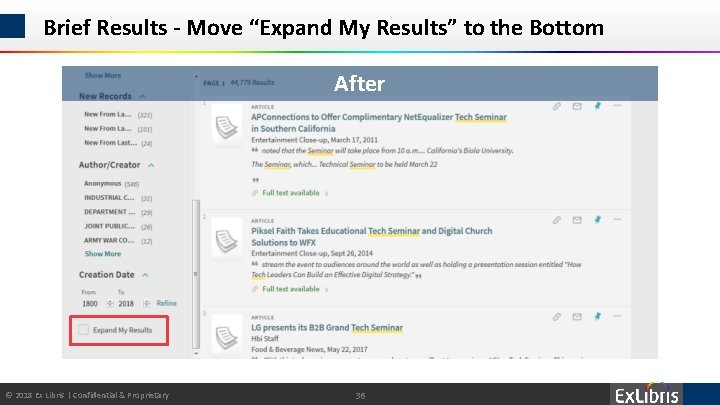
Brief Results - Move “Expand My Results” to the Bottom After © 2018 Ex Libris | Confidential & Proprietary 36
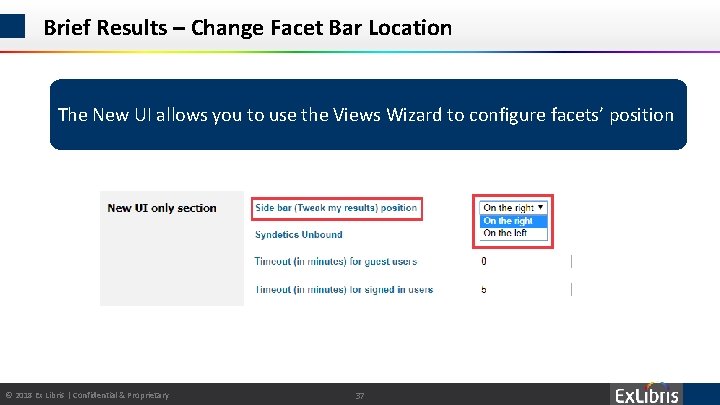
Brief Results – Change Facet Bar Location The New UI allows you to use the Views Wizard to configure facets’ position © 2018 Ex Libris | Confidential & Proprietary 37
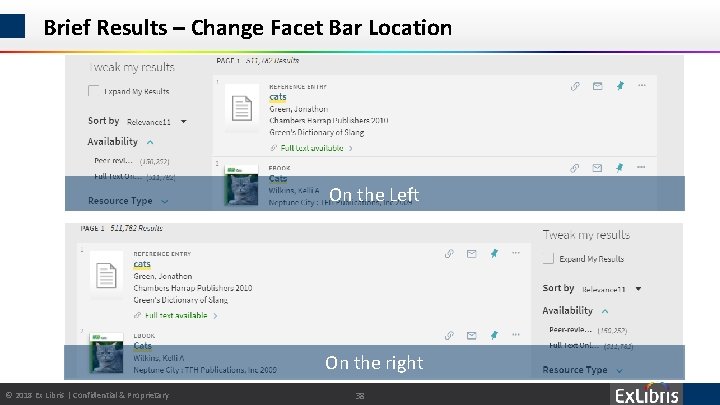
Brief Results – Change Facet Bar Location On the Left On the right © 2018 Ex Libris | Confidential & Proprietary 38
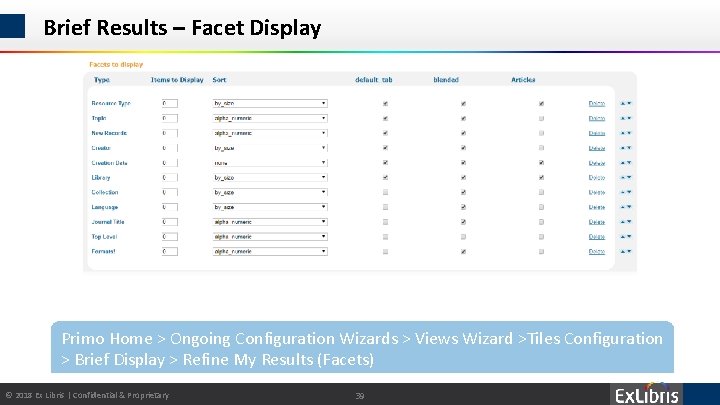
Brief Results – Facet Display Primo Home > Ongoing Configuration Wizards > Views Wizard >Tiles Configuration > Brief Display > Refine My Results (Facets) © 2018 Ex Libris | Confidential & Proprietary 39
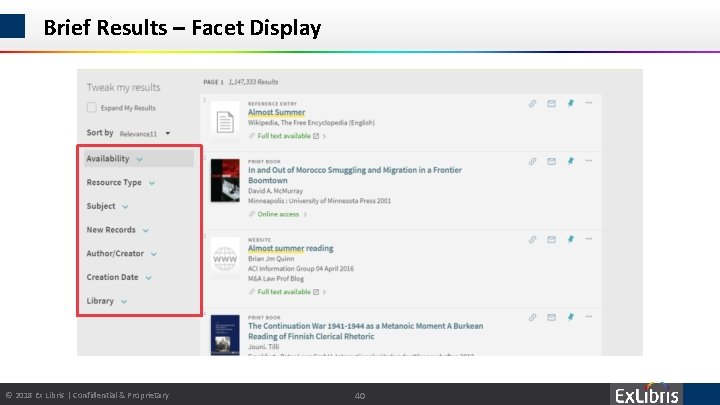
Brief Results – Facet Display © 2018 Ex Libris | Confidential & Proprietary 40
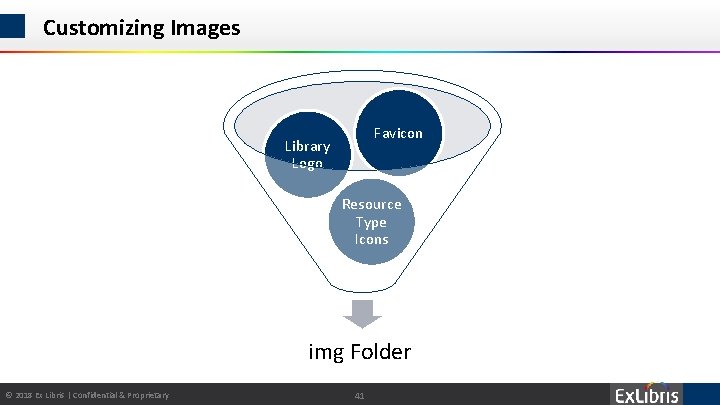
Customizing Images Favicon Library Logo Resource Type Icons img Folder © 2018 Ex Libris | Confidential & Proprietary 41
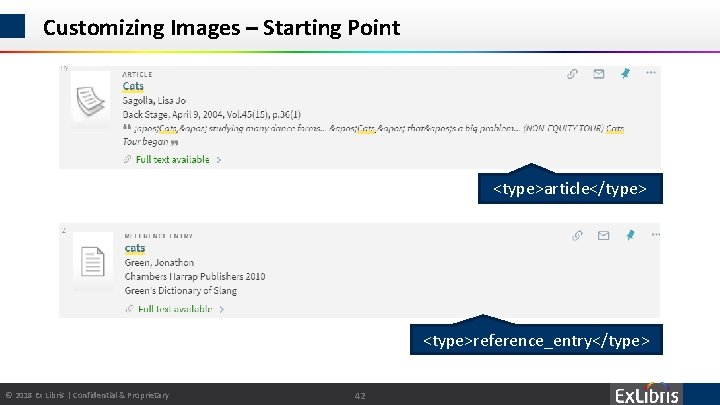
Customizing Images – Starting Point <type>article</type> <type>reference_entry</type> © 2018 Ex Libris | Confidential & Proprietary 42
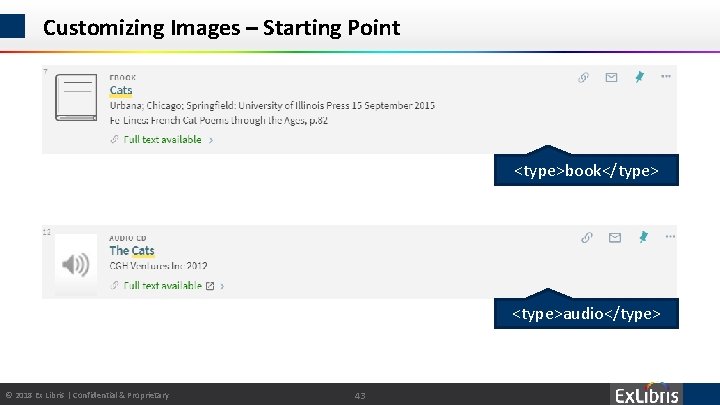
Customizing Images – Starting Point <type>book</type> <type>audio</type> © 2018 Ex Libris | Confidential & Proprietary 43
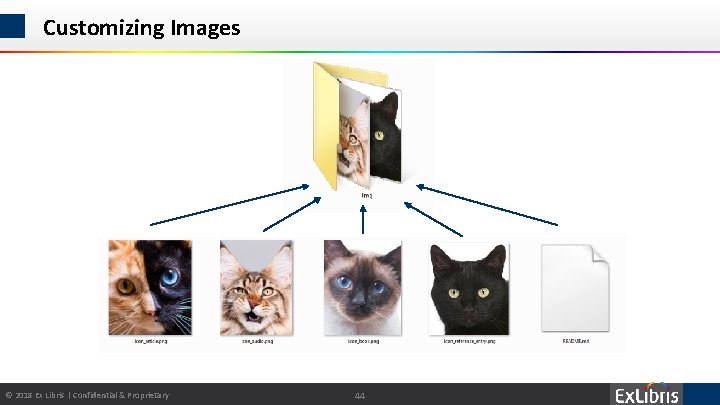
Customizing Images © 2018 Ex Libris | Confidential & Proprietary 44
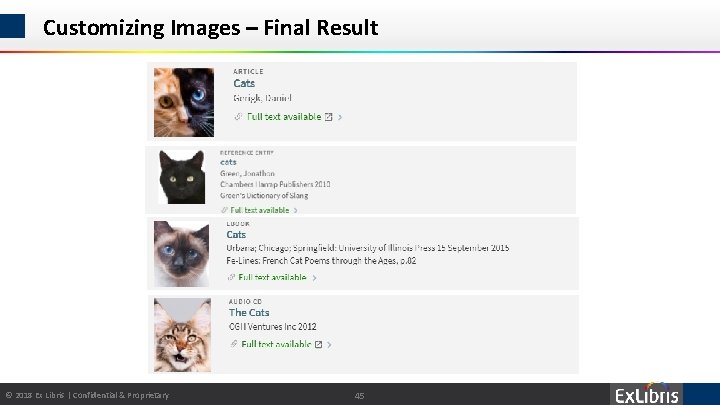
Customizing Images – Final Result © 2018 Ex Libris | Confidential & Proprietary 45
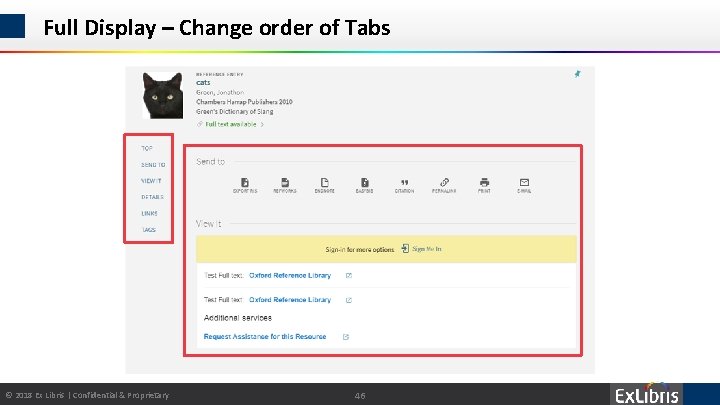
Full Display – Change order of Tabs © 2018 Ex Libris | Confidential & Proprietary 46
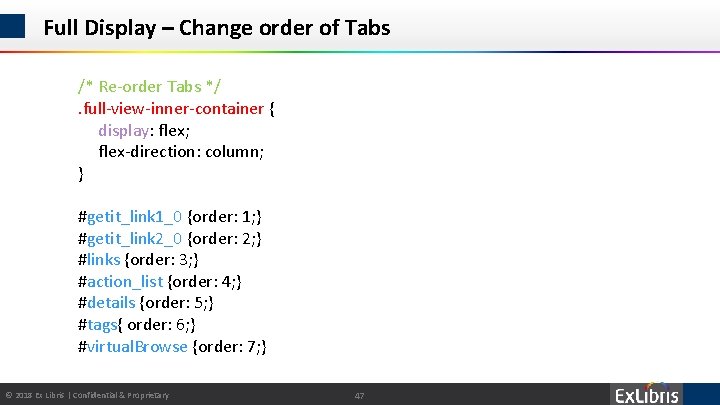
Full Display – Change order of Tabs /* Re-order Tabs */. full-view-inner-container { display: flex; flex-direction: column; } #getit_link 1_0 {order: 1; } #getit_link 2_0 {order: 2; } #links {order: 3; } #action_list {order: 4; } #details {order: 5; } #tags{ order: 6; } #virtual. Browse {order: 7; } © 2018 Ex Libris | Confidential & Proprietary 47
![Full Display – Change order of Tabs /*Re-order the left side navigation*/ [aria-label="Top"] {](http://slidetodoc.com/presentation_image_h/909b7df45d6c50c731680bba271af162/image-48.jpg "Full Display – Change order of Tabs /*Re-order the left side navigation*/ [aria-label=\"Top\"] {")
Full Display – Change order of Tabs /*Re-order the left side navigation*/ [aria-label="Top"] { order: 0 !important; } [aria-label="View Online"] { order: 1 !important; } [aria-label="Online Access"] { order: 2 !important; } [aria-label="View It"] { order: 3 !important; } [aria-label="Get It"] { order: 4 !important; } [aria-label="In the library"] { order: 5 !important; } [aria-label="Locations / request item"] { order: 6 !important; } [aria-label="Additional Services"] { order: 7 !important; } [aria-label="Links"] { order: 8 !important; } [aria-label="Send to"] { order: 9 !important; } [aria-label="Details"] { order: 10 !important; } [aria-label="Virtual Browse"] { order: 11 !important; } [aria-label="Tags"] { order: 12 !important; } [aria-label="Citations"] { order: 13 !important; } © 2018 Ex Libris | Confidential & Proprietary 48
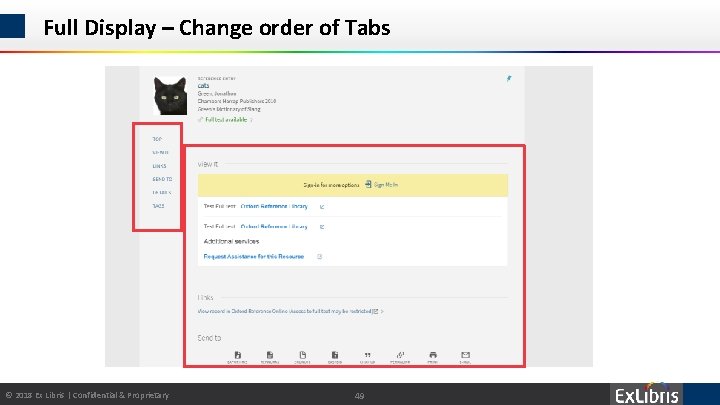
Full Display – Change order of Tabs © 2018 Ex Libris | Confidential & Proprietary 49
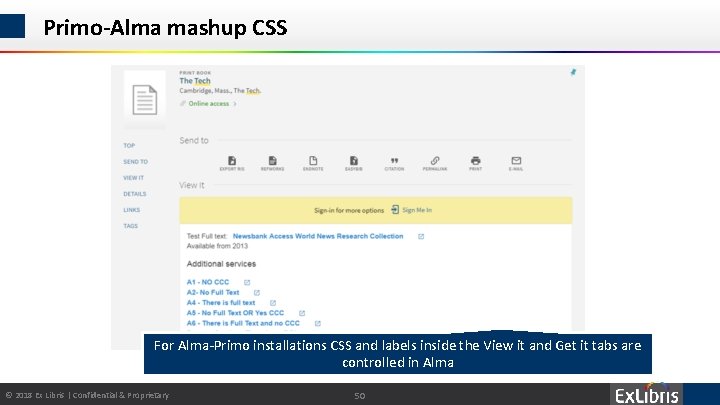
Primo-Alma mashup CSS For Alma-Primo installations CSS and labels inside the View it and Get it tabs are controlled in Alma © 2018 Ex Libris | Confidential & Proprietary 50
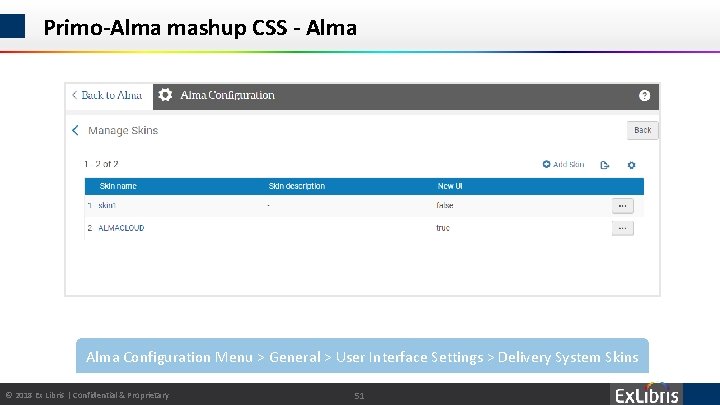
Primo-Alma mashup CSS - Alma Configuration Menu > General > User Interface Settings > Delivery System Skins © 2018 Ex Libris | Confidential & Proprietary 51
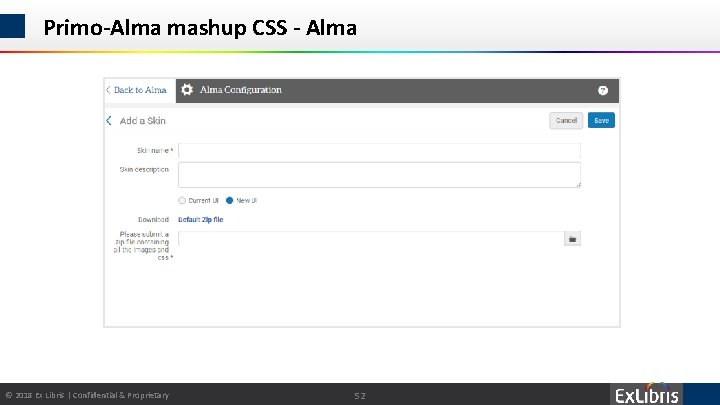
Primo-Alma mashup CSS - Alma © 2018 Ex Libris | Confidential & Proprietary 52
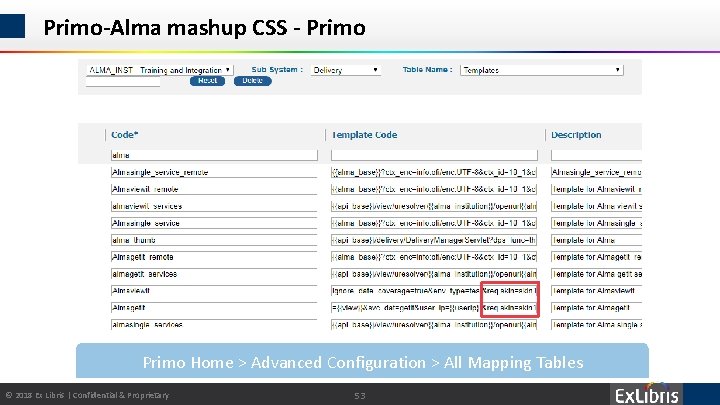
Primo-Alma mashup CSS - Primo Home > Advanced Configuration > All Mapping Tables © 2018 Ex Libris | Confidential & Proprietary 53
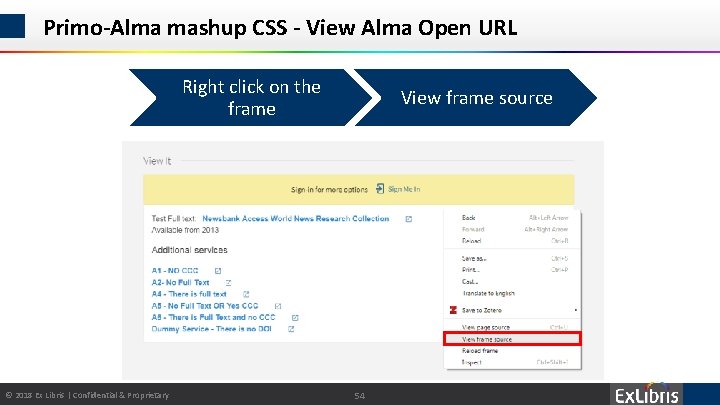
Primo-Alma mashup CSS - View Alma Open URL Right click on the frame © 2018 Ex Libris | Confidential & Proprietary View frame source 54
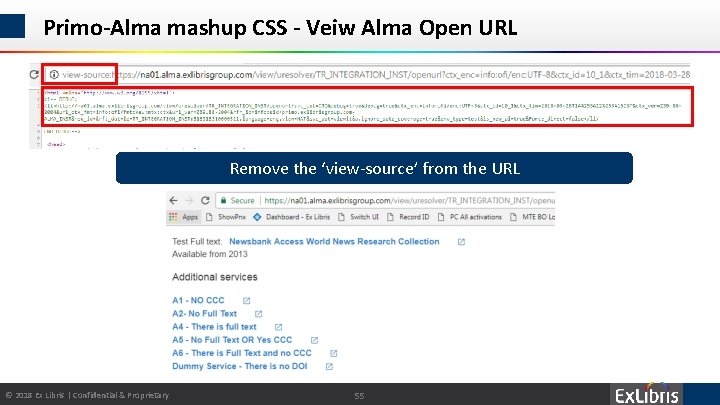
Primo-Alma mashup CSS - Veiw Alma Open URL Remove the ‘view-source’ from the URL © 2018 Ex Libris | Confidential & Proprietary 55
Primo New UI go live action items • HTTPS Checklist - Getting ready to switch to HTTPS • PDS Configuration Check (Alma Customers) © 2018 Ex Libris | Confidential & Proprietary 56
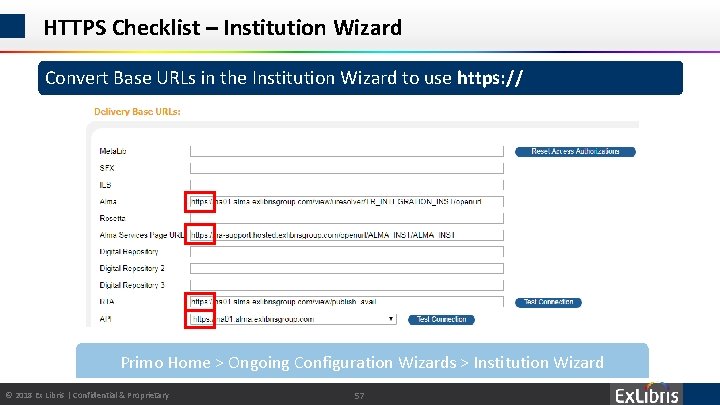
HTTPS Checklist – Institution Wizard Convert Base URLs in the Institution Wizard to use https: // Primo Home > Ongoing Configuration Wizards > Institution Wizard © 2018 Ex Libris | Confidential & Proprietary 57
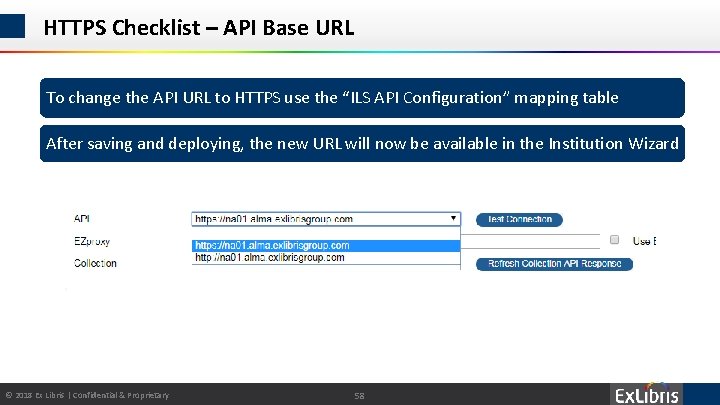
HTTPS Checklist – API Base URL To change the API URL to HTTPS use the “ILS API Configuration” mapping table After saving and deploying, the new URL will now be available in the Institution Wizard © 2018 Ex Libris | Confidential & Proprietary 58
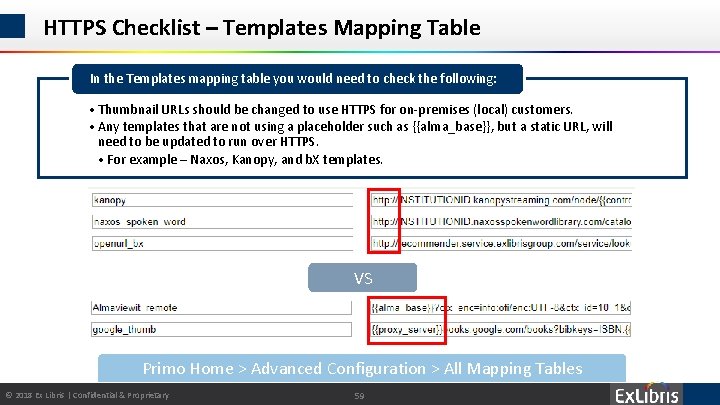
HTTPS Checklist – Templates Mapping Table In the Templates mapping table you would need to check the following: • Thumbnail URLs should be changed to use HTTPS for on-premises (local) customers. • Any templates that are not using a placeholder such as {{alma_base}}, but a static URL, will need to be updated to run over HTTPS. • For example – Naxos, Kanopy, and b. X templates. VS Primo Home > Advanced Configuration > All Mapping Tables © 2018 Ex Libris | Confidential & Proprietary 59
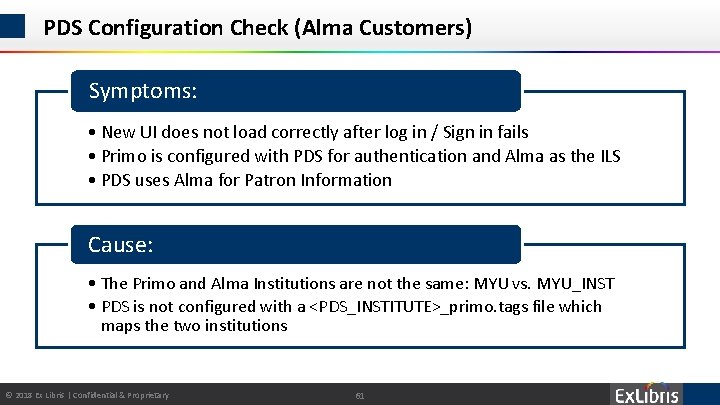
PDS Configuration Check (Alma Customers) Symptoms: • New UI does not load correctly after log in / Sign in fails • Primo is configured with PDS for authentication and Alma as the ILS • PDS uses Alma for Patron Information Cause: • The Primo and Alma Institutions are not the same: MYU vs. MYU_INST • PDS is not configured with a <PDS_INSTITUTE>_primo. tags file which maps the two institutions © 2018 Ex Libris | Confidential & Proprietary 61
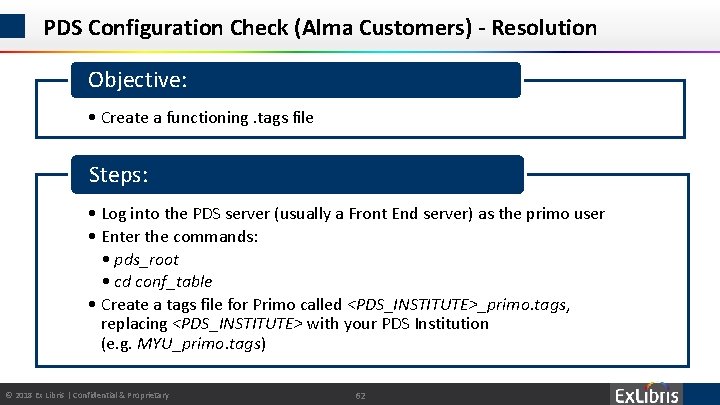
PDS Configuration Check (Alma Customers) - Resolution Objective: • Create a functioning. tags file Steps: • Log into the PDS server (usually a Front End server) as the primo user • Enter the commands: • pds_root • cd conf_table • Create a tags file for Primo called <PDS_INSTITUTE>_primo. tags, replacing <PDS_INSTITUTE> with your PDS Institution (e. g. MYU_primo. tags) © 2018 Ex Libris | Confidential & Proprietary 62
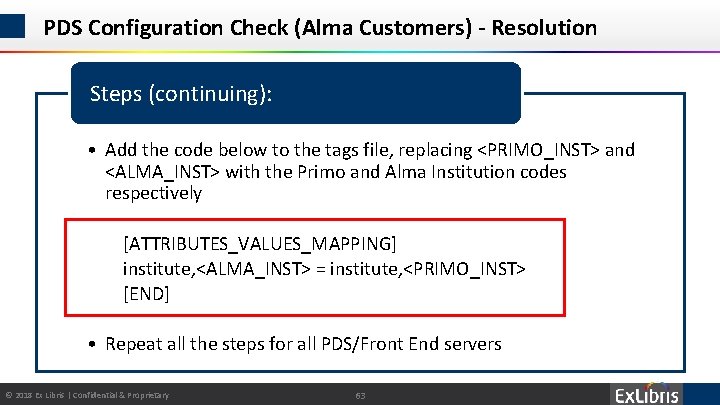
PDS Configuration Check (Alma Customers) - Resolution Steps (continuing): • Add the code below to the tags file, replacing <PRIMO_INST> and <ALMA_INST> with the Primo and Alma Institution codes respectively • [ATTRIBUTES_VALUES_MAPPING] • institute, <ALMA_INST> = institute, <PRIMO_INST> • [END] • Repeat all the steps for all PDS/Front End servers © 2018 Ex Libris | Confidential & Proprietary 63
Next Steps, Support Resources and Feedback © 2018 Ex Libris | Confidential & Proprietary 64
Next Steps and Resources • Include documentation links in the CKC relative to your topic: • • Primo New UI - All the resources in one page https: //knowledge. exlibrisgroup. com/Primo/Product_Documentation/050 New_Primo_ User_Interface/New_UI_Customization_-_Best_Practices © 2018 Ex Libris | Confidential & Proprietary 65
Next Steps and Resources Additional support resources within the Ex. Libris Ecosystem: Idea Exchange Developer Network https: //github. com/Ex. Libris. Group 2018 Technical Seminar Presentations (Cross. Product section of CKC) © 2018 Ex Libris | Confidential & Proprietary 66
Questions? Any Final Questions? © 2018 Ex Libris | Confidential & Proprietary 67
Session Feedback We Value Your Feedback! Please complete the brief Session Comment Card: © 2018 Ex Libris | Confidential & Proprietary 68

Thank You! © 2018 Ex Libris | Confidential & Proprietary
- Slides: 68