
DOS Commands n What is a command n
- Slides: 38
DOS Commands n What is a command n Types of DOS Commands – Internal – External n Basic Terms – File (File Types) n n – – – Executable File Non Executable File Directory Root Directory Parent Directory
What is a Command A command is a set of instructions used to perform a specific work n Interpreted by the OS interpreter to a machine language n – E. g. <md Ram>, <cd Ram>, etc.
Types of Command n Internal Command – Those commands which are already loaded in the Command. COM file while switching to the MS DOS – E. g. CLS, VER, DEL, etc. n External Command – Those commands which are not loaded when loading the Program but are available in the Disk and can be invoked whenever necessary – E. g. FORMAT, TREE, XCOPY, etc.
What is a File A group of organized data (records) which are assembled for one particular purpose and considered as one unit n Stored in permanent storage like hard disk, diskettes, etc. n
Types of Files n Files can broadly be categorized into two types: – Executable Files – Non-Executable Files (Data Files)
What are EXE Files n Exe Files: – Program files that run or execute themselves – Have either COM or EXE or BAT as extension
What are Data Files Non- executable files that contain only the data that we produce n Cannot execute themselves n Need application program to run n
What is a Directory A directory is a list of file which is itself a file stored in the computer’s memory so that users can reference it as it is required n Also called a catalog of files n
Root Directory The Root directory is that directory that is automatically created when the disk is formatted n It is the current drive that we have been working n – E. g. A: , B: (for Floppy Disk Drive) – C: , D: etc. (for Hard Disk Drive)
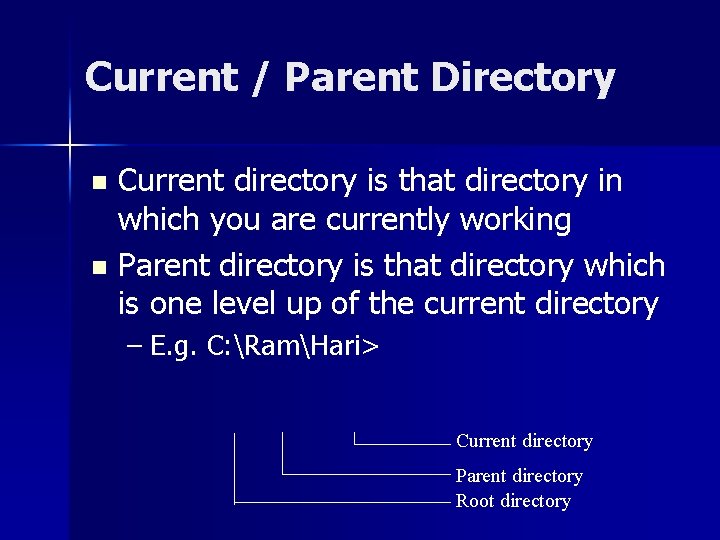
Current / Parent Directory Current directory is that directory in which you are currently working n Parent directory is that directory which is one level up of the current directory n – E. g. C: RamHari> Current directory Parent directory Root directory
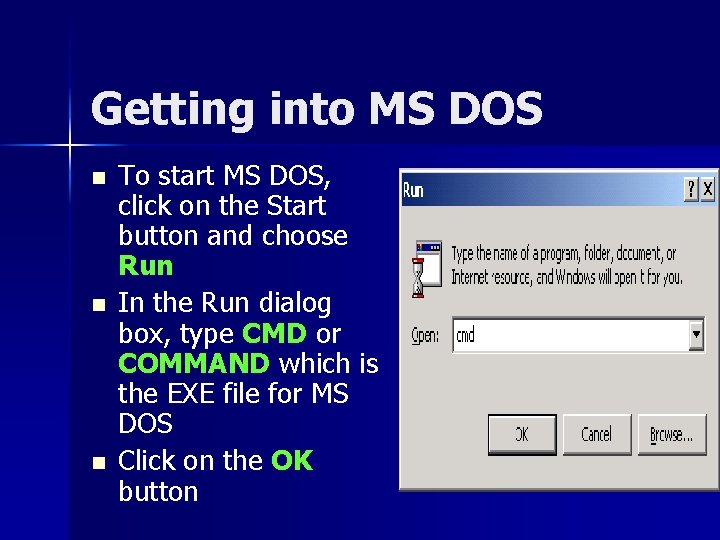
Getting into MS DOS n n n To start MS DOS, click on the Start button and choose Run In the Run dialog box, type CMD or COMMAND which is the EXE file for MS DOS Click on the OK button
Listing the Directories and Files in MS DOS n For listing the Sub-directories and Files within a directory, we use the DIR command n Syntax : – DIR [Directory_name] – E. g. C: >DIR NCIT n Displays all the directories/files within the directory NCIT
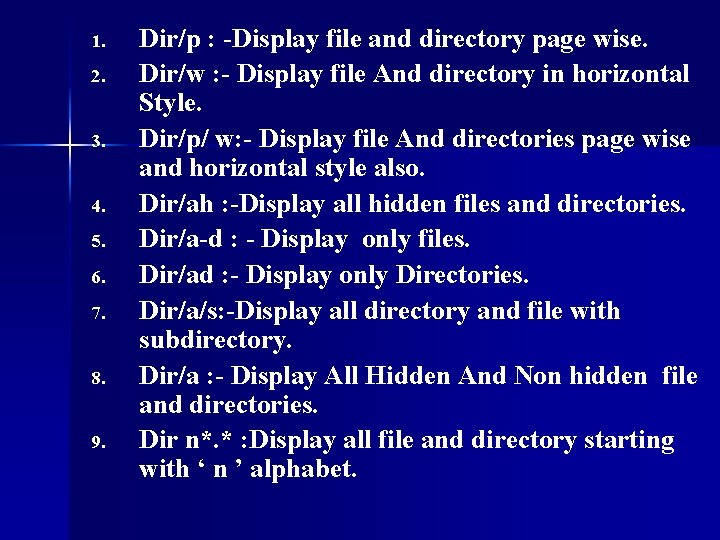
1. 2. 3. 4. 5. 6. 7. 8. 9. Dir/p : -Display file and directory page wise. Dir/w : - Display file And directory in horizontal Style. Dir/p/ w: - Display file And directories page wise and horizontal style also. Dir/ah : -Display all hidden files and directories. Dir/a-d : - Display only files. Dir/ad : - Display only Directories. Dir/a/s: -Display all directory and file with subdirectory. Dir/a : - Display All Hidden And Non hidden file and directories. Dir n*. * : Display all file and directory starting with ‘ n ’ alphabet.
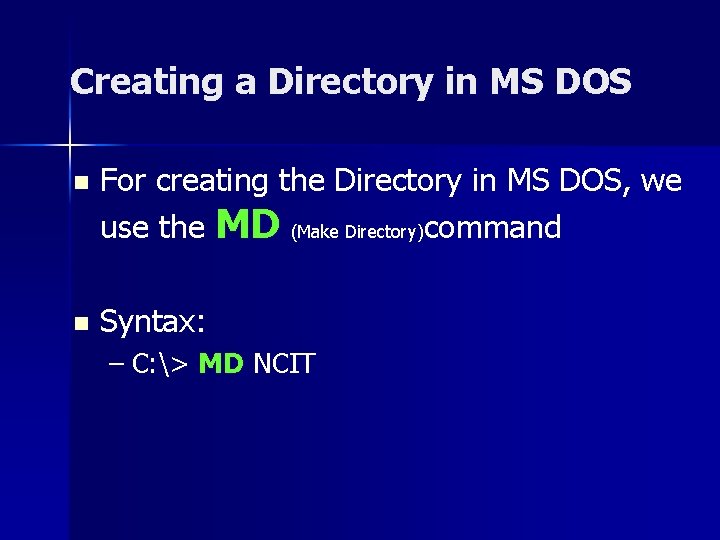
Creating a Directory in MS DOS n For creating the Directory in MS DOS, we use the MD (Make Directory)command n Syntax: – C: > MD NCIT
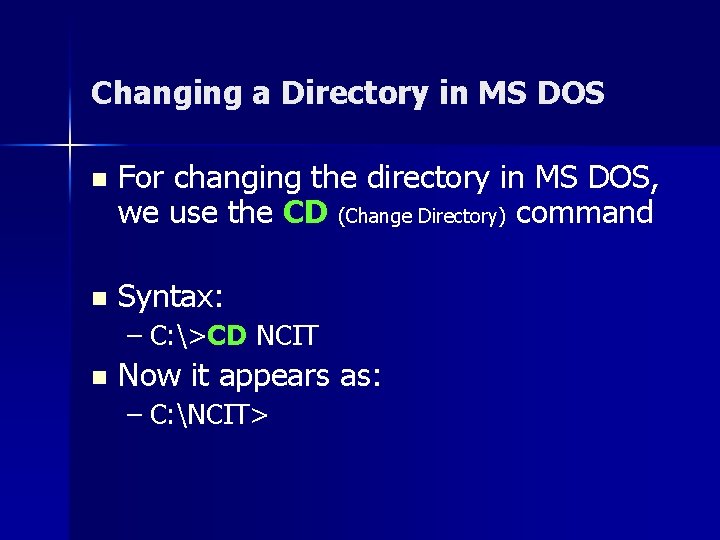
Changing a Directory in MS DOS n For changing the directory in MS DOS, we use the CD (Change Directory) command n Syntax: – C: >CD NCIT n Now it appears as: – C: NCIT>
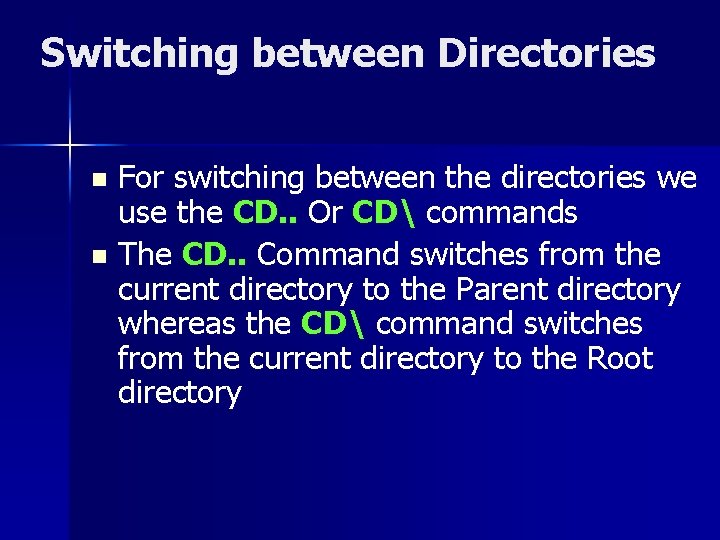
Switching between Directories For switching between the directories we use the CD. . Or CD commands n The CD. . Command switches from the current directory to the Parent directory whereas the CD command switches from the current directory to the Root directory n
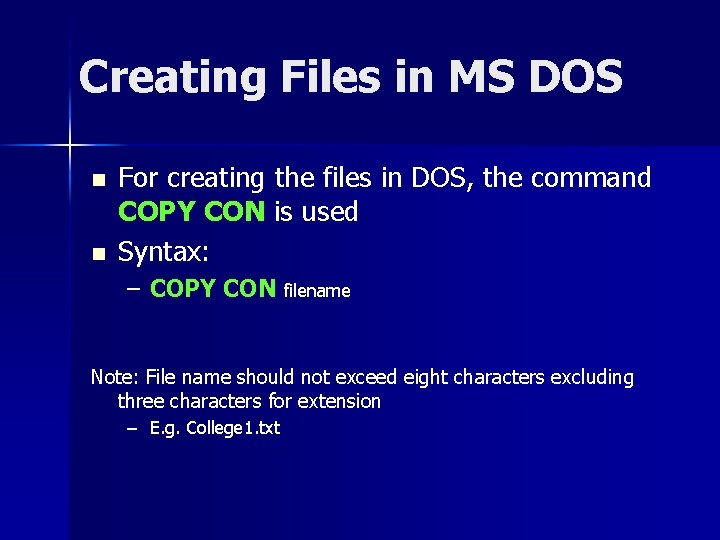
Creating Files in MS DOS n n For creating the files in DOS, the command COPY CON is used Syntax: – COPY CON filename Note: File name should not exceed eight characters excluding three characters for extension – E. g. College 1. txt
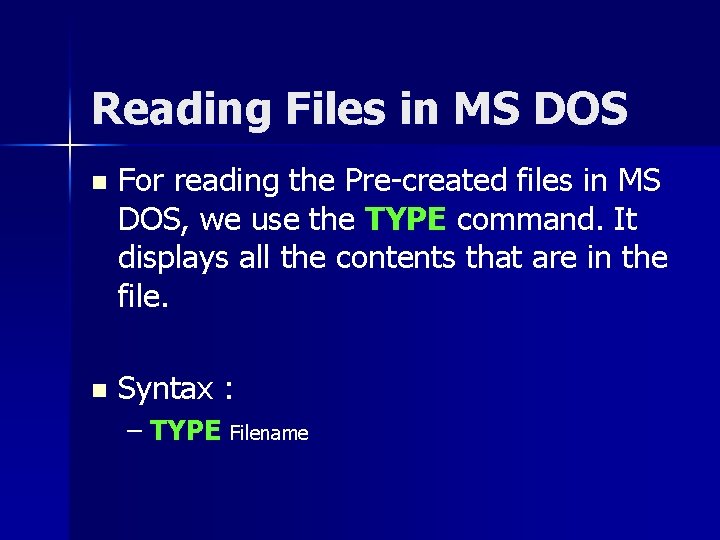
Reading Files in MS DOS n For reading the Pre-created files in MS DOS, we use the TYPE command. It displays all the contents that are in the file. n Syntax : – TYPE Filename
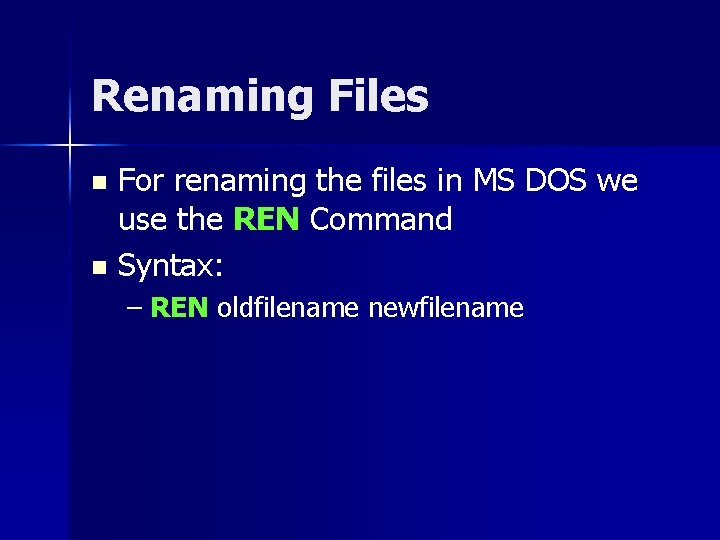
Renaming Files For renaming the files in MS DOS we use the REN Command n Syntax: n – REN oldfilename newfilename
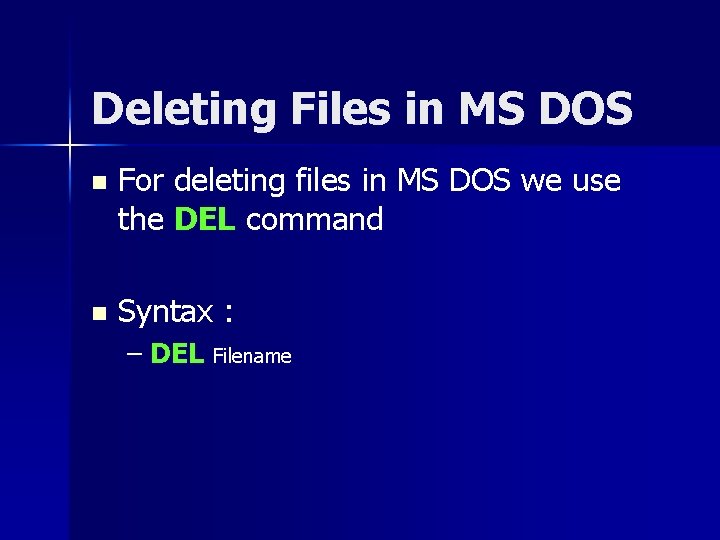
Deleting Files in MS DOS n For deleting files in MS DOS we use the DEL command n Syntax : – DEL Filename
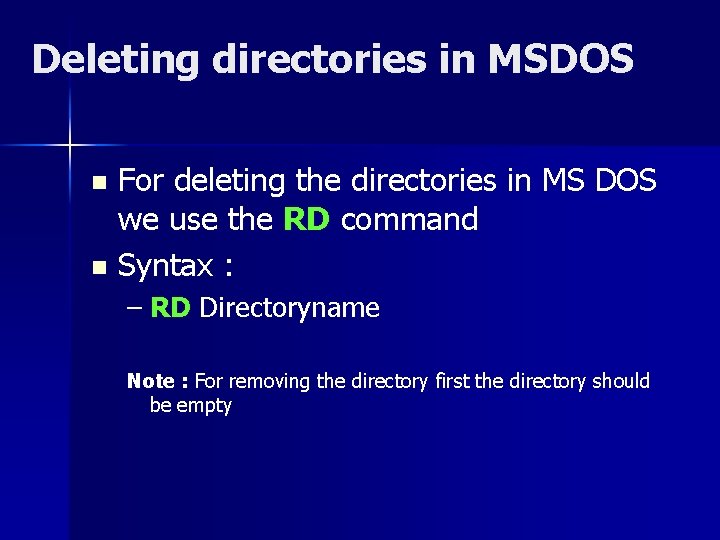
Deleting directories in MSDOS For deleting the directories in MS DOS we use the RD command n Syntax : n – RD Directoryname Note : For removing the directory first the directory should be empty
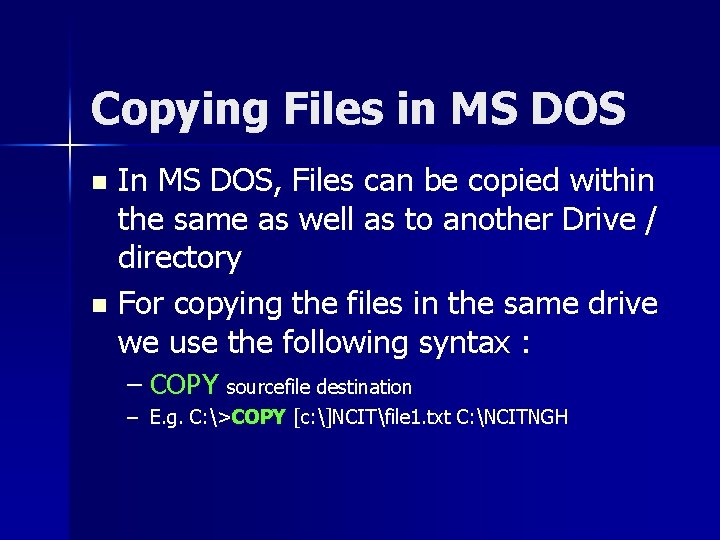
Copying Files in MS DOS In MS DOS, Files can be copied within the same as well as to another Drive / directory n For copying the files in the same drive we use the following syntax : n – COPY sourcefile destination – E. g. C: >COPY [c: ]NCITfile 1. txt C: NCITNGH
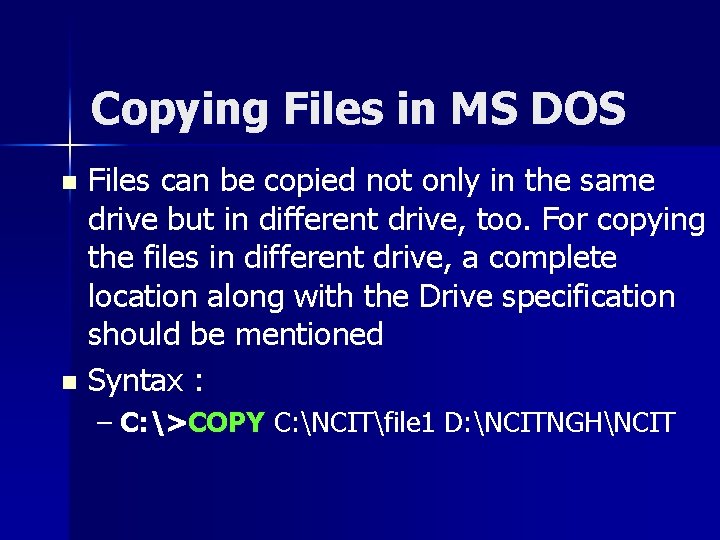
Copying Files in MS DOS Files can be copied not only in the same drive but in different drive, too. For copying the files in different drive, a complete location along with the Drive specification should be mentioned n Syntax : n – C: >COPY C: NCITfile 1 D: NCITNGHNCIT
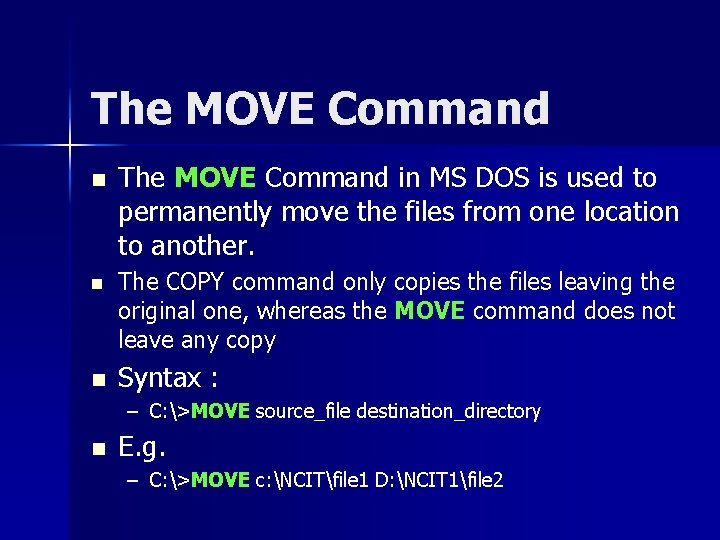
The MOVE Command n n n The MOVE Command in MS DOS is used to permanently move the files from one location to another. The COPY command only copies the files leaving the original one, whereas the MOVE command does not leave any copy Syntax : – C: >MOVE source_file destination_directory n E. g. – C: >MOVE c: NCITfile 1 D: NCIT 1file 2
The VOL Command n The VOL command is used to check the Volume of the Disk-drive. It displays the volume of the current disk-drive n Syntax : – VOL Drivename n E. g. – C: > VOL
Checking the Version of OS n The VER command is used to check the version of the Operating System that is used in the Computer n Syntax : – C: >VER n E. g. C: >VER Returns the version of OS as Microsoft Windows 2000 [version 5. 00. 21951]
Checking the Date/Time n n n For checking the date from the system in MS DOS, we use the DATE command. It returns the current system date. Similarly, the TIME command returns the current time from the system. Syntax : – C: >DATE n E. g. C: >DATE
External Commands Those commands which are not loaded when loading the Program but are available in the Disk and can be invoked whenever necessary E. g. FORMAT, TREE, XCOPY, etc.
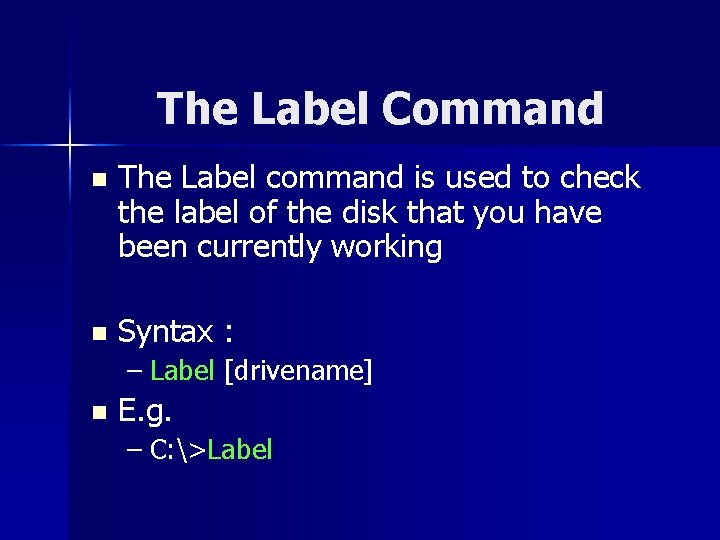
The Label Command n The Label command is used to check the label of the disk that you have been currently working n Syntax : – Label [drivename] n E. g. – C: >Label
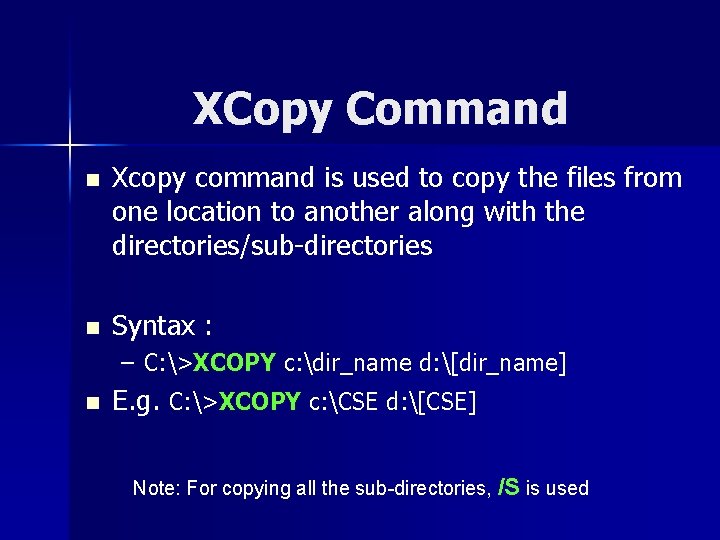
XCopy Command n Xcopy command is used to copy the files from one location to another along with the directories/sub-directories n Syntax : – C: >XCOPY c: dir_name d: [dir_name] n E. g. C: >XCOPY c: CSE d: [CSE] Note: For copying all the sub-directories, /S is used
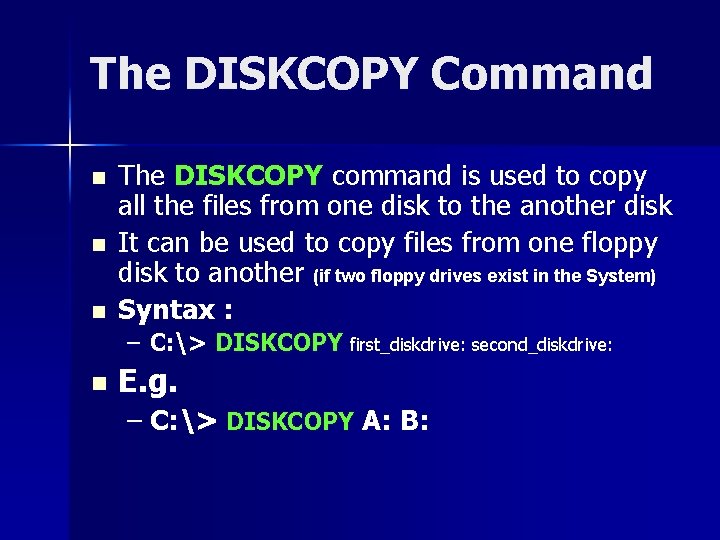
The DISKCOPY Command n n n The DISKCOPY command is used to copy all the files from one disk to the another disk It can be used to copy files from one floppy disk to another (if two floppy drives exist in the System) Syntax : – C: > DISKCOPY first_diskdrive: second_diskdrive: n E. g. – C: > DISKCOPY A: B:
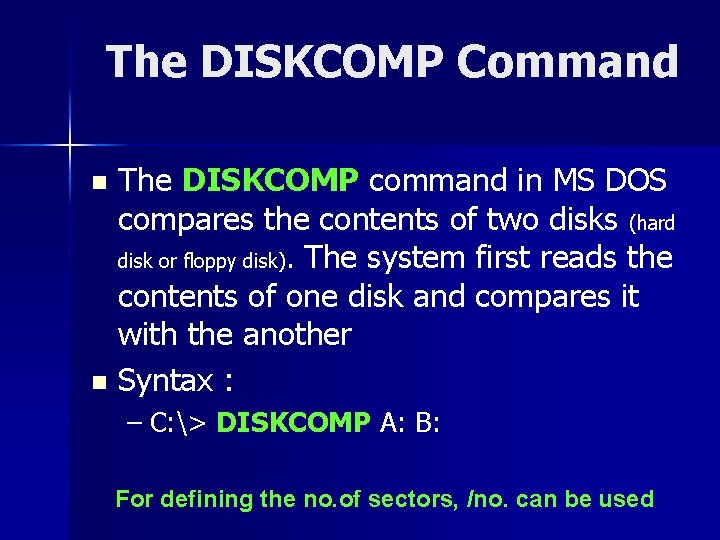
The DISKCOMP Command The DISKCOMP command in MS DOS compares the contents of two disks (hard disk or floppy disk). The system first reads the contents of one disk and compares it with the another n Syntax : n – C: > DISKCOMP A: B: For defining the no. of sectors, /no. can be used
The FORMAT Command n The FORMAT command prepares a new disk for use by organizing the disk into magnetic tracks and sectors n Syntax : – A: >FORMAT [Drive_name] n E. g. – C: >FORMAT A:
The TREE Command n The TREE command is used to display all directory pathnames on the specified disk n Syntax : – C: >TREE [disk_name] n E. g. – C: >TREE A:
The EDIT Command n n The EDIT command in MS DOS is used to edit the files. It provides a different full screen Editor window with a few menu options. Syntax : – C: >EDIT [filename] n E. g. – C: >EDIT file 1
The MORE Command n n The MORE Command in MS DOS is used to view the contents of directories or files one line after the another, I. e. it displays one line at one press of return (Enter) key Syntax : – DIR |MORE n E. g. – DIR C: NCIT |MORE A pipeline is used along with the MORE command
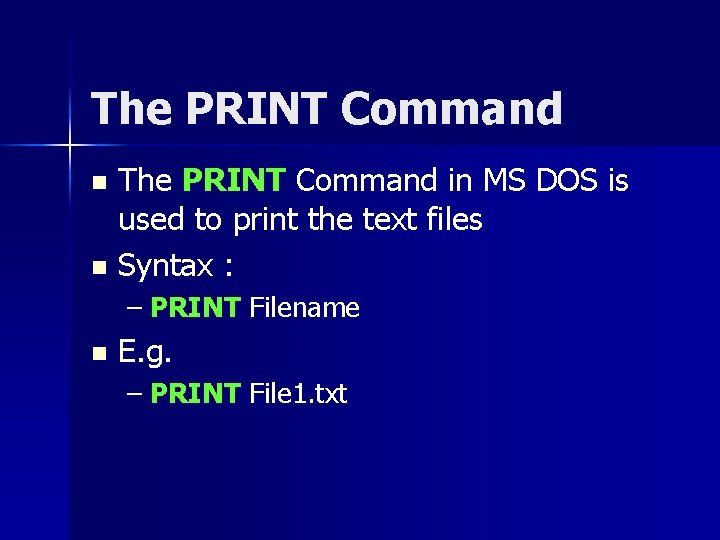
The PRINT Command in MS DOS is used to print the text files n Syntax : n – PRINT Filename n E. g. – PRINT File 1. txt
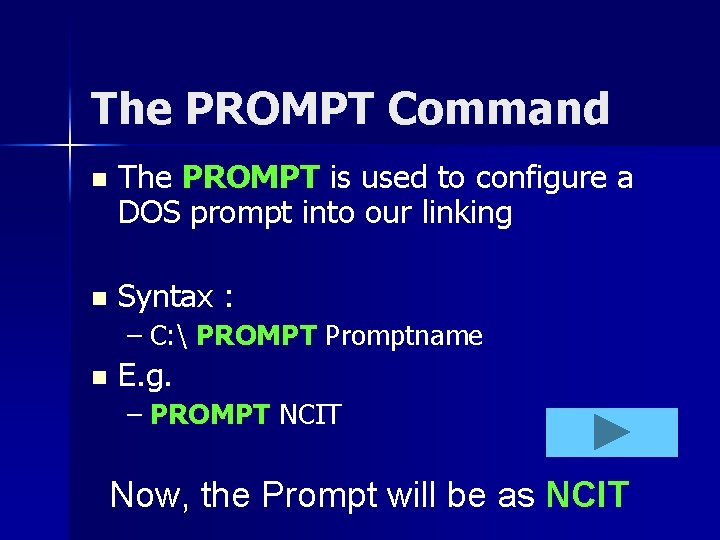
The PROMPT Command n The PROMPT is used to configure a DOS prompt into our linking n Syntax : – C: PROMPT Promptname n E. g. – PROMPT NCIT Now, the Prompt will be as NCIT