
DNS and Inbound Load Balancing 2012 Peplink Understanding
DNS and Inbound Load Balancing © 2012 Peplink
Understanding DNS • The Domain Name System (DNS) is a hierarchical distributed naming system • Mainly for querying a human readable domain name into IP addresses © 2012 Peplink
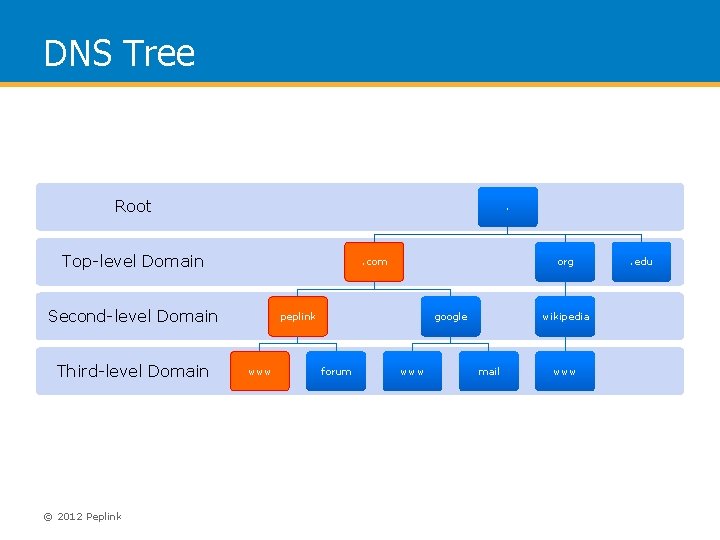
DNS Tree Root . Top-level Domain . com Second-level Domain Third-level Domain © 2012 Peplink org peplink www google forum www wikipedia mail www . edu
Type of DNS server • Authoritative DNS will only answer the DNS queries of domain name which configured in this DNS. • Bind (a UNIX based DNS Server), Microsoft DNS Server, Peplink DNS Server • DNS Forwarder • Find any DNS caching locally (optional) • Forward the DNS queries to another DNS servers • PC/MAC/Linux, Peplink LAN DNS, ISP’s DNS server © 2012 Peplink
When will DNS query happen? • Open the URL via a web browser, it needs to resolve the domain name to IP address before connecting to web server • Email agent connects to mail server • Type “nslookup” a domain name in command line of Windows/Mac/Linux © 2012 Peplink
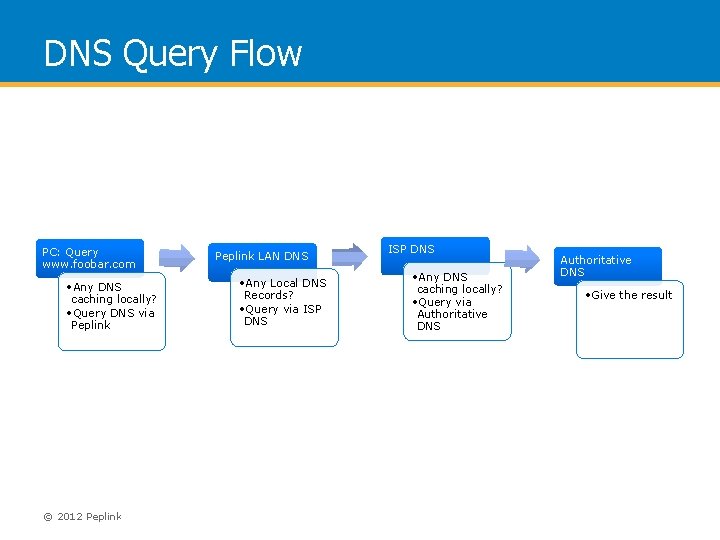
DNS Query Flow PC: Query www. foobar. com • Any DNS caching locally? • Query DNS via Peplink © 2012 Peplink LAN DNS • Any Local DNS Records? • Query via ISP DNS • Any DNS caching locally? • Query via Authoritative DNS • Give the result
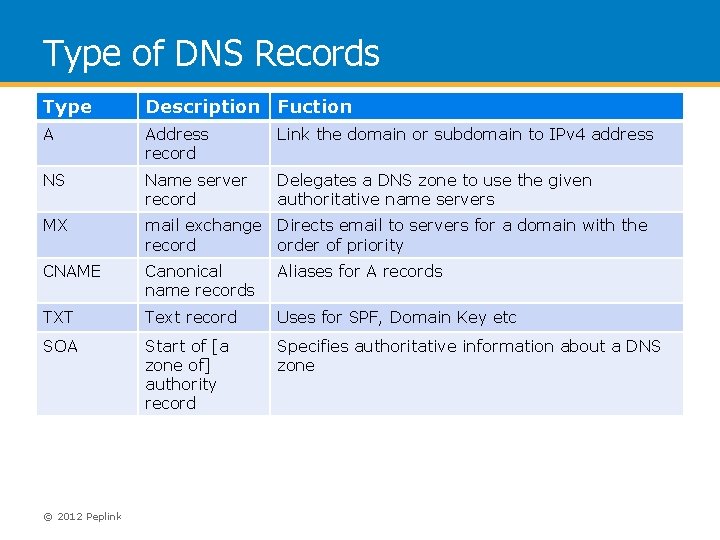
Type of DNS Records Type Description Fuction A Address record Link the domain or subdomain to IPv 4 address NS Name server record Delegates a DNS zone to use the given authoritative name servers MX mail exchange record Directs email to servers for a domain with the order of priority CNAME Canonical name records Aliases for A records TXT Text record Uses for SPF, Domain Key etc SOA Start of [a zone of] authority record Specifies authoritative information about a DNS zone © 2012 Peplink
Domain Registrar • The companies who sell the second-level / third -level domain name (eg: yourdomain. com / yourdomain. co. uk) • It requires to setup at least two name servers (NS) which is used to pointing the zone to the authoritative DNS servers • Update the NS records in Domain Registrar will take up to 72 hours due to most other DNS in internet choose to periodically check for updates and not realtime © 2012 Peplink
Requirement of Authoritative DNS • At least Two Authoritative DNS servers with fixed IP • At least two NS records and two A records in the settings of DNS servers © 2012 Peplink
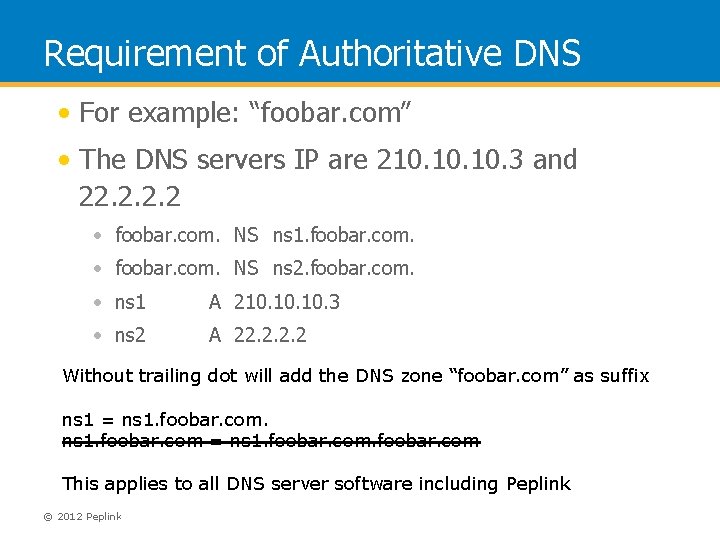
Requirement of Authoritative DNS • For example: “foobar. com” • The DNS servers IP are 210. 10. 3 and 22. 2 • foobar. com. NS ns 1. foobar. com. • foobar. com. NS ns 2. foobar. com. • ns 1 A 210. 10. 3 • ns 2 A 22. 2 Without trailing dot will add the DNS zone “foobar. com” as suffix ns 1 = ns 1. foobar. com This applies to all DNS server software including Peplink © 2012 Peplink
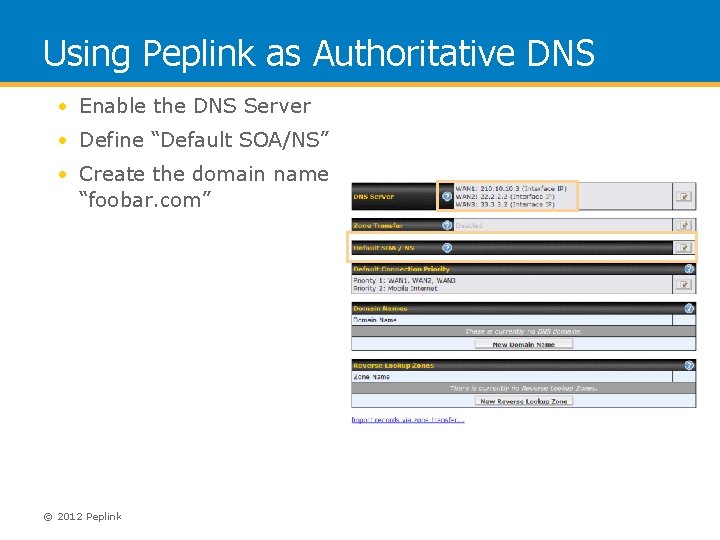
Using Peplink as Authoritative DNS • Enable the DNS Server • Define “Default SOA/NS” • Create the domain name “foobar. com” © 2012 Peplink
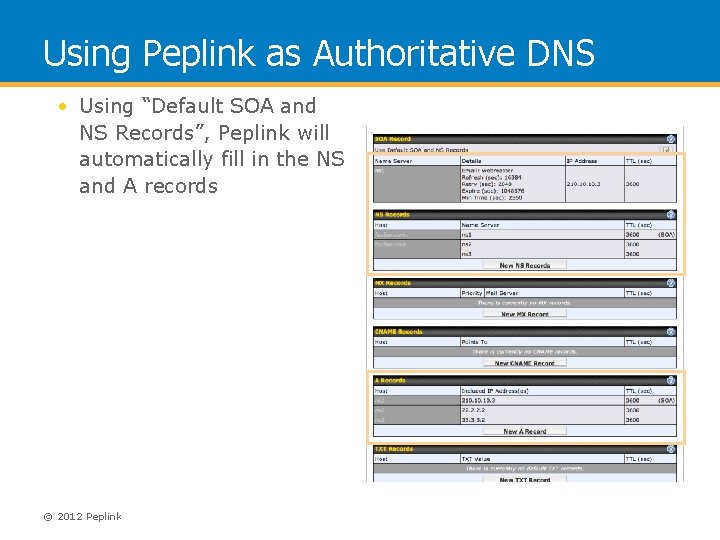
Using Peplink as Authoritative DNS • Using “Default SOA and NS Records”, Peplink will automatically fill in the NS and A records © 2012 Peplink
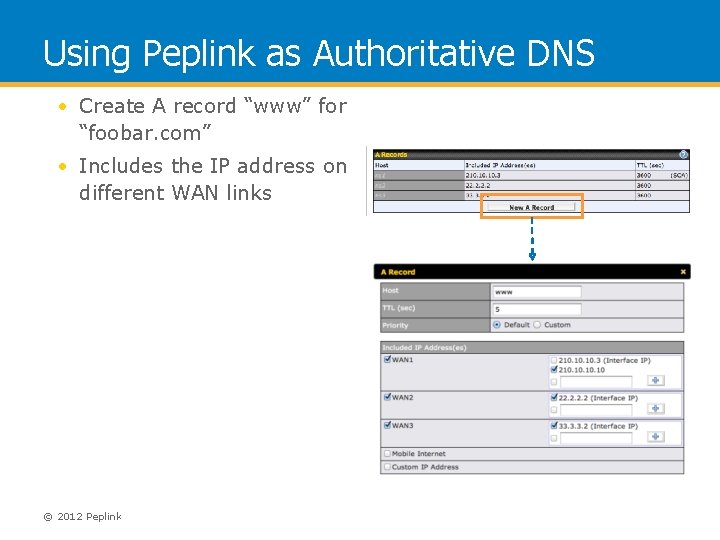
Using Peplink as Authoritative DNS • Create A record “www” for “foobar. com” • Includes the IP address on different WAN links © 2012 Peplink
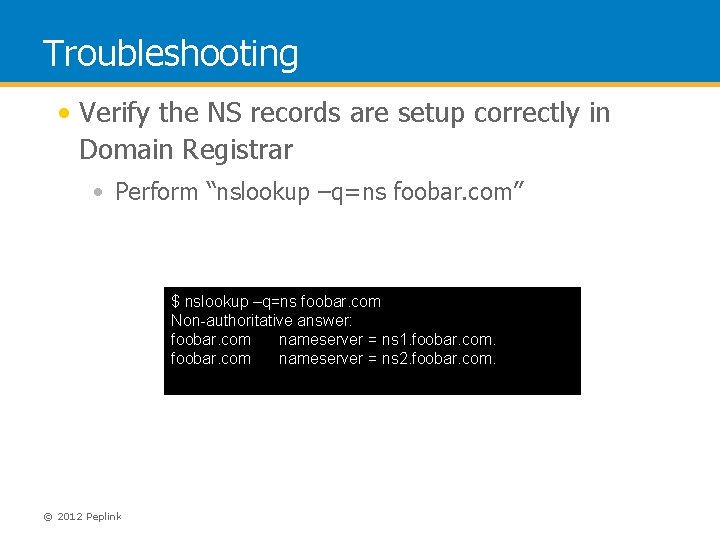
Troubleshooting • Verify the NS records are setup correctly in Domain Registrar • Perform “nslookup –q=ns foobar. com” $ nslookup –q=ns foobar. com Non-authoritative answer: foobar. com nameserver = ns 1. foobar. com nameserver = ns 2. foobar. com. © 2012 Peplink
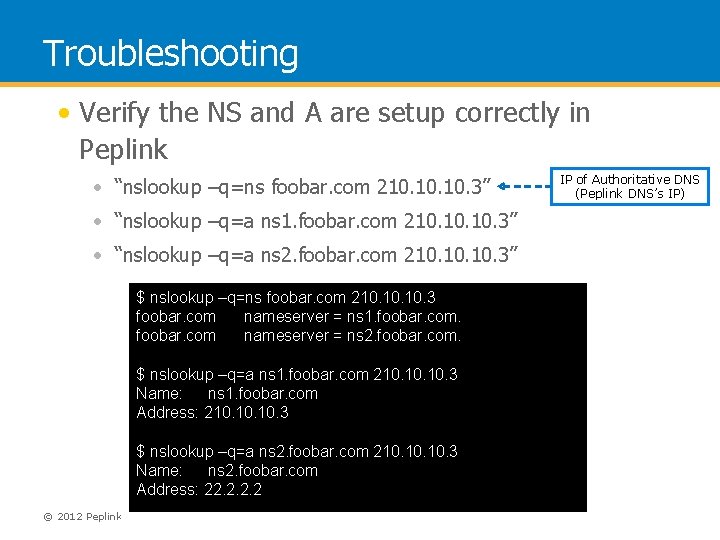
Troubleshooting • Verify the NS and A are setup correctly in Peplink • “nslookup –q=ns foobar. com 210. 10. 3” • “nslookup –q=a ns 1. foobar. com 210. 10. 3” • “nslookup –q=a ns 2. foobar. com 210. 10. 3” $ nslookup –q=ns foobar. com 210. 10. 3 foobar. com nameserver = ns 1. foobar. com nameserver = ns 2. foobar. com. $ nslookup –q=a ns 1. foobar. com 210. 10. 3 Name: ns 1. foobar. com Address: 210. 10. 3 $ nslookup –q=a ns 2. foobar. com 210. 10. 3 Name: ns 2. foobar. com Address: 22. 2 © 2012 Peplink IP of Authoritative DNS (Peplink DNS’s IP)
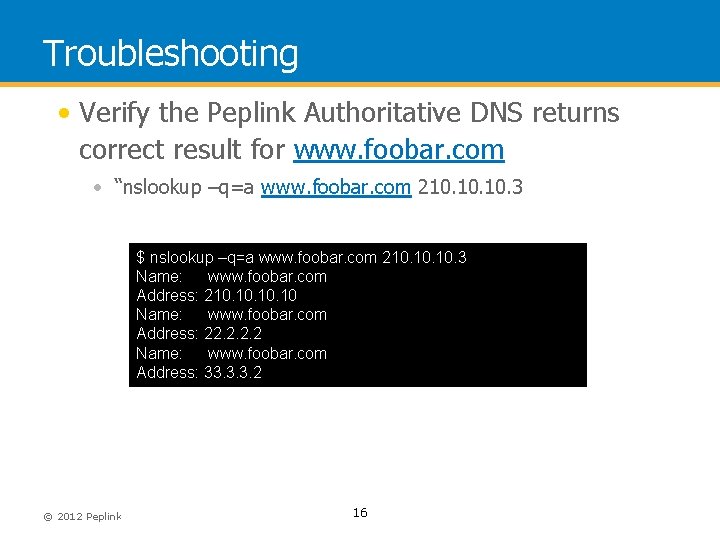
Troubleshooting • Verify the Peplink Authoritative DNS returns correct result for www. foobar. com • “nslookup –q=a www. foobar. com 210. 10. 3 $ nslookup –q=a www. foobar. com 210. 10. 3 Name: www. foobar. com Address: 210. 10. 10 Name: www. foobar. com Address: 22. 2 Name: www. foobar. com Address: 33. 3. 3. 2 © 2012 Peplink 16
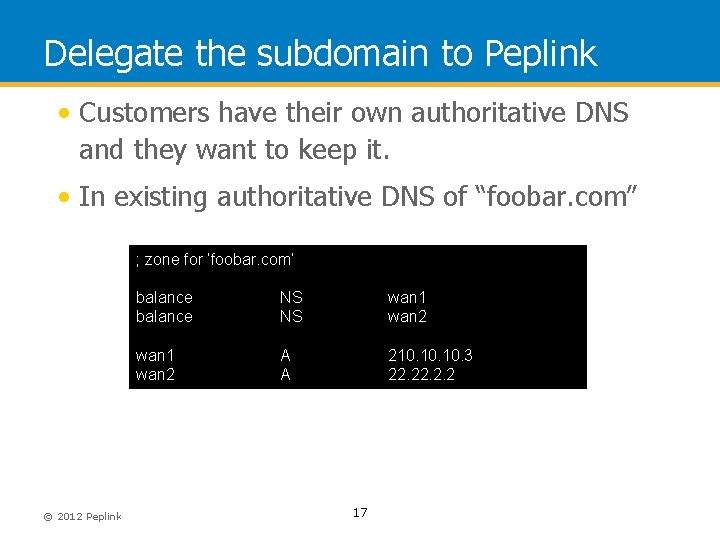
Delegate the subdomain to Peplink • Customers have their own authoritative DNS and they want to keep it. • In existing authoritative DNS of “foobar. com” ; zone for ‘foobar. com’ © 2012 Peplink balance NS NS wan 1 wan 2 A A 210. 10. 3 22. 2. 2 17
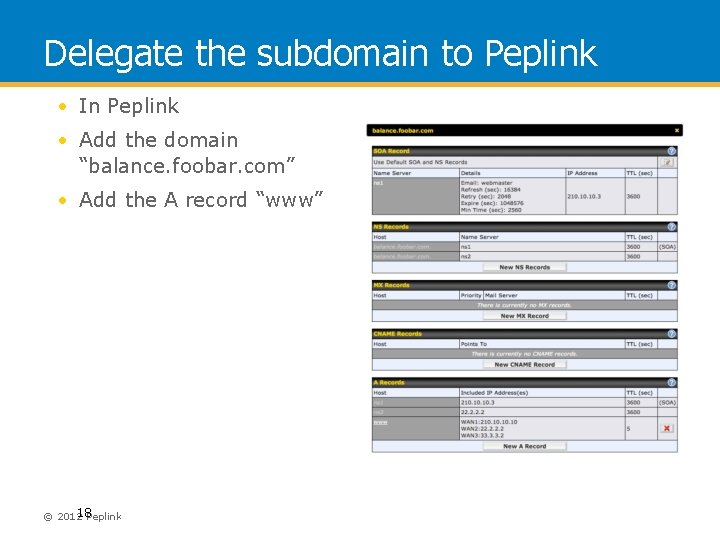
Delegate the subdomain to Peplink • In Peplink • Add the domain “balance. foobar. com” • Add the A record “www” 18 Peplink © 2012
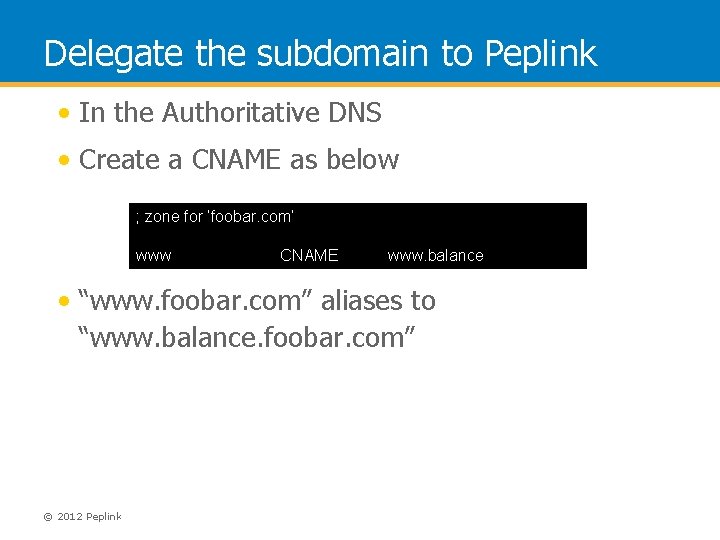
Delegate the subdomain to Peplink • In the Authoritative DNS • Create a CNAME as below ; zone for ‘foobar. com’ www CNAME www. balance • “www. foobar. com” aliases to “www. balance. foobar. com” © 2012 Peplink
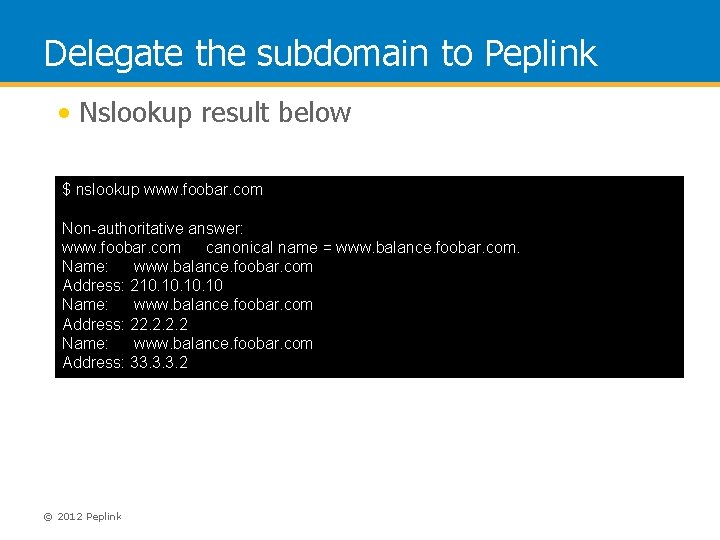
Delegate the subdomain to Peplink • Nslookup result below $ nslookup www. foobar. com Non-authoritative answer: www. foobar. com canonical name = www. balance. foobar. com. Name: www. balance. foobar. com Address: 210. 10. 10 Name: www. balance. foobar. com Address: 22. 2 Name: www. balance. foobar. com Address: 33. 3. 3. 2 © 2012 Peplink
Reverse DNS Lookup • Resolve the IP address to a domain name • Using PTR DNS record to perform reverse lookup • Reverse DNS lookup will be performed within a special domain “in-addr. arpa” • 210. 10. 3 > 3. 10. 210. in-addr. arpa • “arpa” is another top-level domain • In most cases, your ISP will manage PTR record for you © 2012 Peplink 21
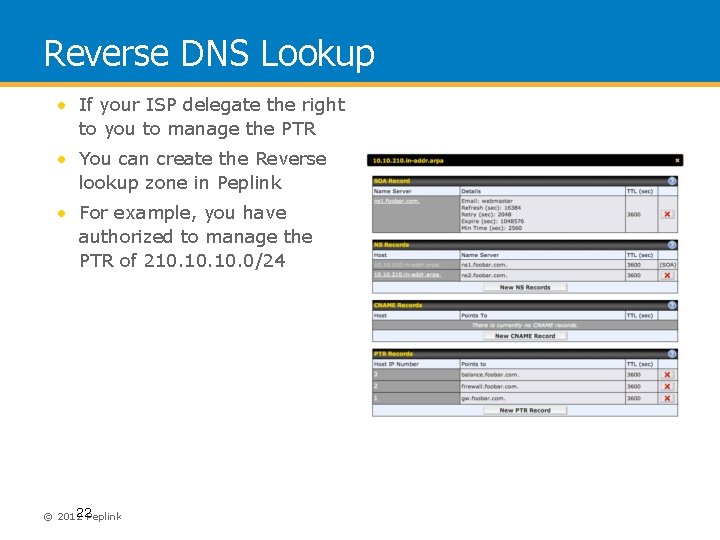
Reverse DNS Lookup • If your ISP delegate the right to you to manage the PTR • You can create the Reverse lookup zone in Peplink • For example, you have authorized to manage the PTR of 210. 10. 0/24 22 Peplink © 2012
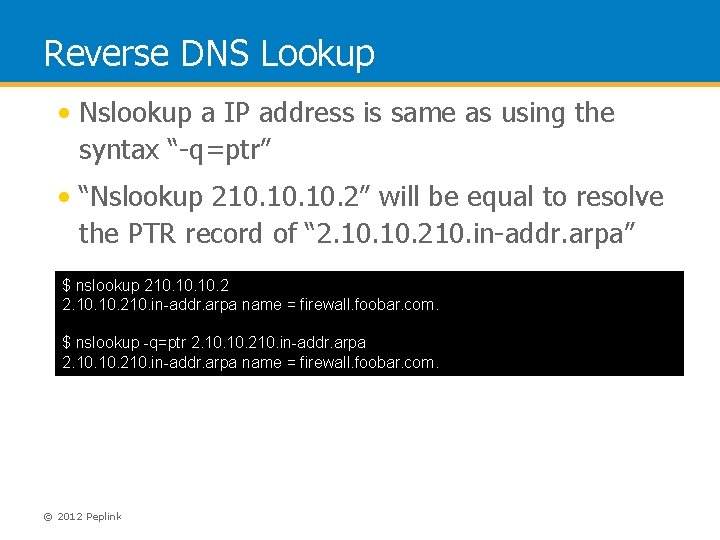
Reverse DNS Lookup • Nslookup a IP address is same as using the syntax “-q=ptr” • “Nslookup 210. 10. 2” will be equal to resolve the PTR record of “ 2. 10. 210. in-addr. arpa” $ nslookup 210. 10. 2 2. 10. 210. in-addr. arpa name = firewall. foobar. com. $ nslookup -q=ptr 2. 10. 10. 210. in-addr. arpa name = firewall. foobar. com. © 2012 Peplink
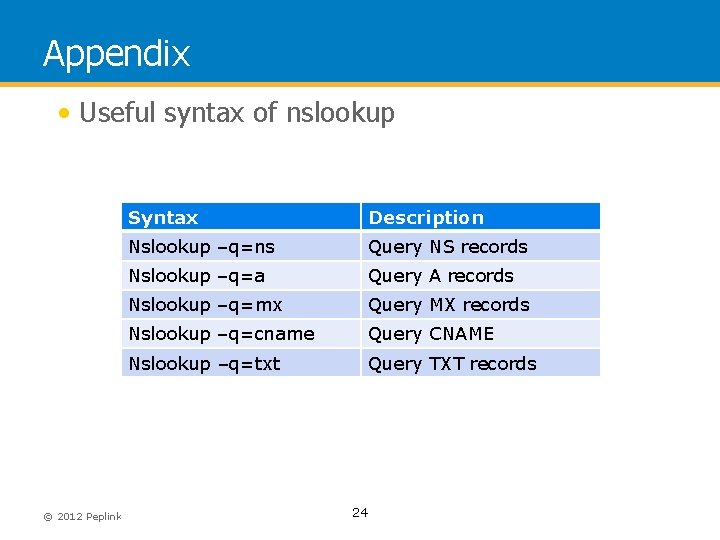
Appendix • Useful syntax of nslookup © 2012 Peplink Syntax Description Nslookup –q=ns Query NS records Nslookup –q=a Query A records Nslookup –q=mx Query MX records Nslookup –q=cname Query CNAME Nslookup –q=txt Query TXT records 24
- Slides: 24