
DLM Data Steward Training Using KITE Educator Portal


- Slides: 38
DLM Data Steward Training Using KITE Educator Portal Jasmine Carey carey_j@cde. state. co. us December, 2014
Overview § DLM Resources § Getting Started on KITE Educator Portal § Uploading data to KITE Educator Portal § Users § Enrollment § Rosters § Checklist § Timeline 2
Manuals and Templates § Manuals and data file templates are available on DLM’s Colorado webpage § http: //dynamiclearningmaps. org/colorado § Make sure to also download the Release Notes! § There are HUGE changes that are not incorporated into the actual manual § More updates coming in January § There is also a Data Steward FAQ and Webinar from DLM on their training page § http: //dynamiclearningmaps. org/sites/default/files/documents/Tra 3 ining/data_steward_faq. pdf
KITE Educator Portal § Setting up your account § Data Stewards must be added by CDE to give them the District Test Coordinator Role § DACs should let me or Mira know who to add § You’ll receive an email with a link to set up the account, it will expire in 20 days § The email will come from kite-support@ku. edu 4
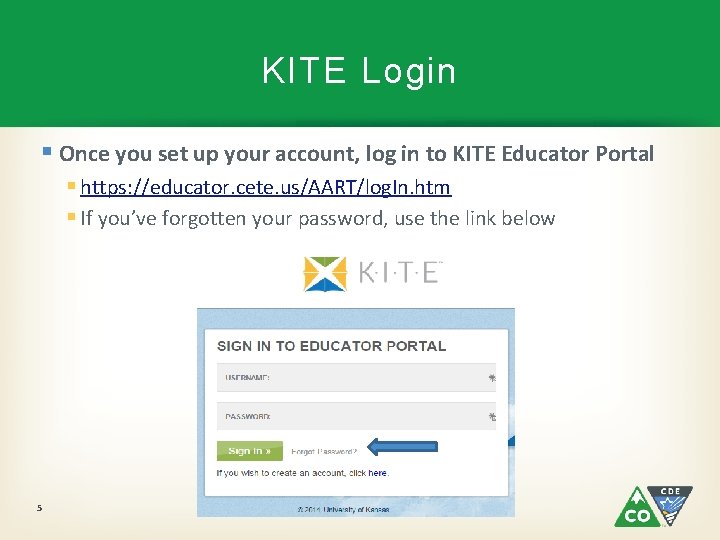
KITE Login § Once you set up your account, log in to KITE Educator Portal § https: //educator. cete. us/AART/log. In. htm § If you’ve forgotten your password, use the link below 5
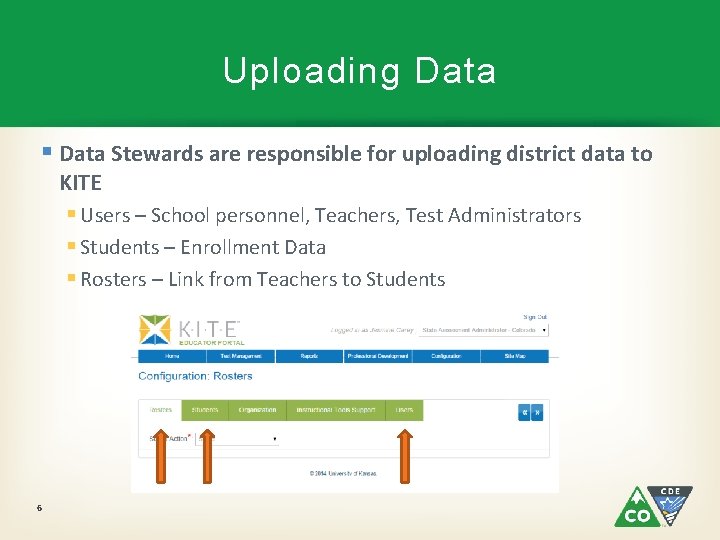
Uploading Data § Data Stewards are responsible for uploading district data to KITE § Users – School personnel, Teachers, Test Administrators § Students – Enrollment Data § Rosters – Link from Teachers to Students 6
Batch Uploading Users § User Upload Template § Fields: § Legal_First_Name § Legal_Last_Name § Educator_Identifier § State Assigned EDID, only required for Teachers (If you don’t know what this is check with your HR) § Email § Organization 7 § Combined district and school code (DDDDSSSS) § Organization_Level § SCH
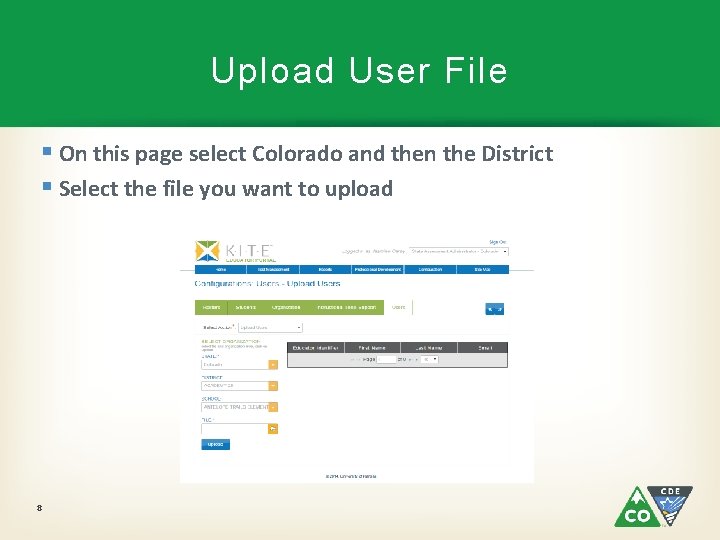
Upload User File § On this page select Colorado and then the District § Select the file you want to upload 8
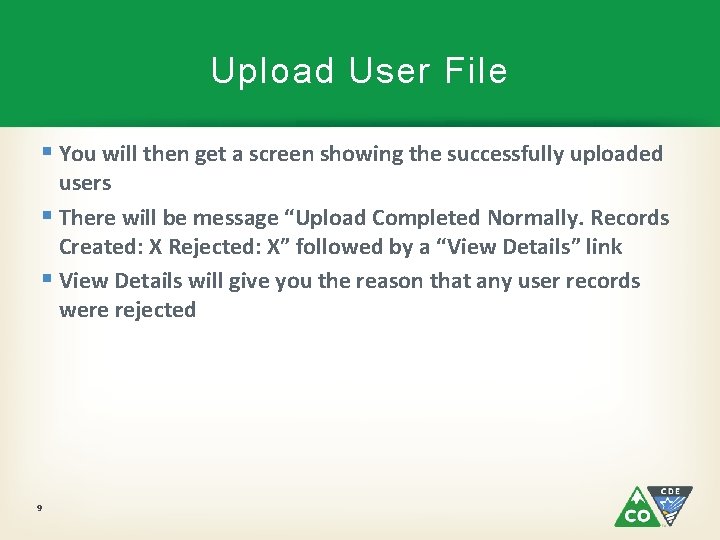
Upload User File § You will then get a screen showing the successfully uploaded users § There will be message “Upload Completed Normally. Records Created: X Rejected: X” followed by a “View Details” link § View Details will give you the reason that any user records were rejected 9
Troubleshooting User File § Verify that the file is in. csv format (not. xls/. xlsx) § Make sure all fields are Text format to preserve leading zeros § If a record is rejected § Email address invalid: User may already have an account § Check the organization code § List of valid codes can be found in the State Organizational Table CO in the DLM website § If the school you are trying to upload to is not listed please contact me or Mira 10
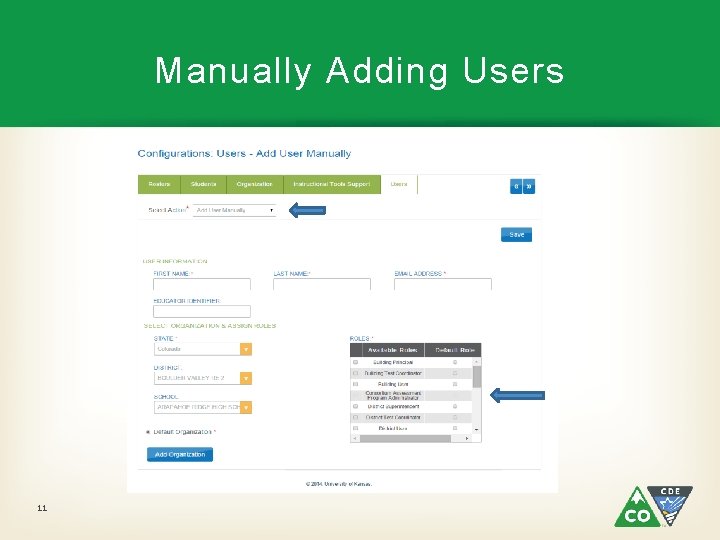
Manually Adding Users 11
Assigned User Roles § Available Roles that District Data Stewards can assign § Building Test Coordinator § Has permissions similar to the District Test Coordinator at the school level § Can add users and assign roles at the school § Can upload user, enrollment, TEC, and roster files and modify student demographics § Building User § Can access records for students in the building § Can edit some information § Building Principal § View-only access to users and students 12
User Roles - Teacher § Teacher – Default! You do not have to assign this role § Teachers, Test Administrators, Test Examiners § Can view students linked to the account by a roster § This means they will not see any PII until rosters are completed § Can only edit the PNP and First Contact Survey, not student demographics 13
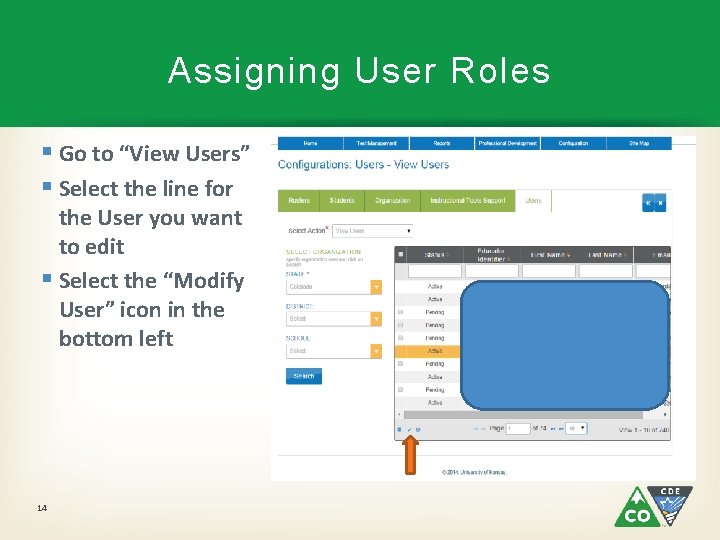
Assigning User Roles § Go to “View Users” § Select the line for the User you want to edit § Select the “Modify User” icon in the bottom left 14
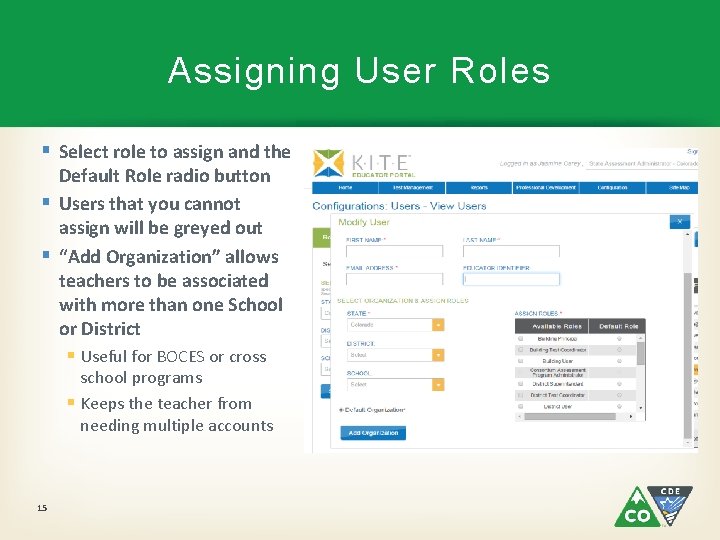
Assigning User Roles § Select role to assign and the Default Role radio button § Users that you cannot assign will be greyed out § “Add Organization” allows teachers to be associated with more than one School or District § Useful for BOCES or cross school programs § Keeps the teacher from needing multiple accounts 15
District Level Users § All district level users must be added by State Users (me or Mira) § If you are a large district it may be useful to have more than one Data Steward § Data Stewards have access to PII § We will use the “Educator Identifier” field to keep track of who is an approved District User § If you want someone removed we will change this field to “Removed” and set their access to a PD User role that cannot see student data 16
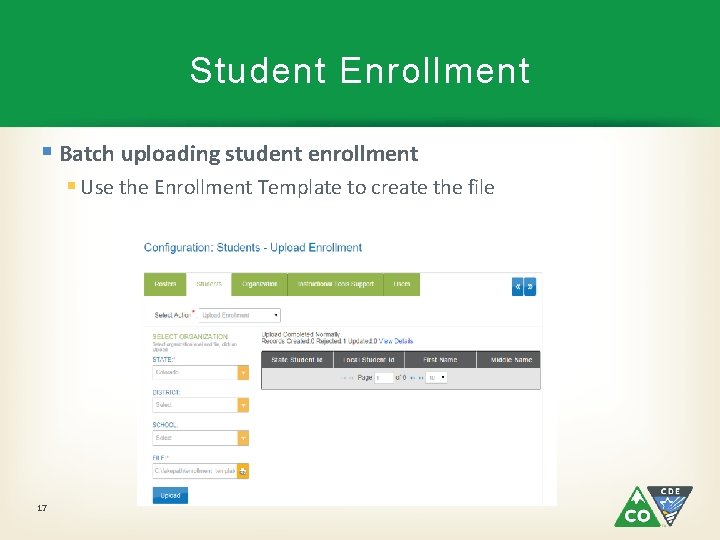
Student Enrollment § Batch uploading student enrollment § Use the Enrollment Template to create the file 17
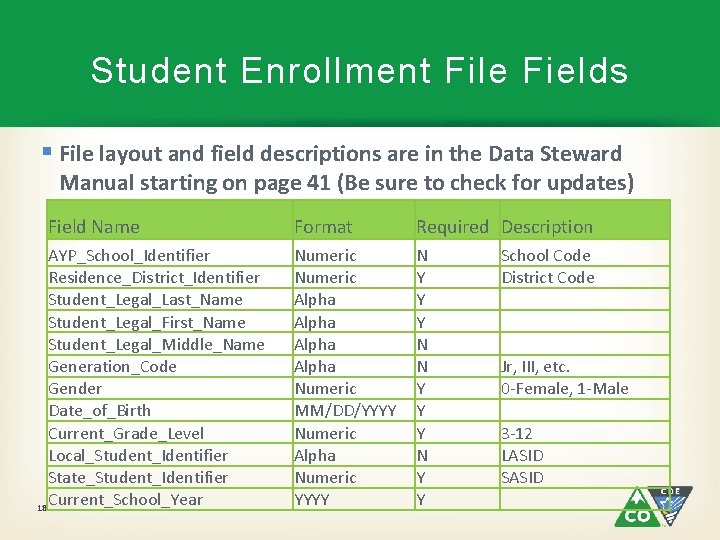
Student Enrollment File Fields § File layout and field descriptions are in the Data Steward Manual starting on page 41 (Be sure to check for updates) Field Name AYP_School_Identifier Residence_District_Identifier Student_Legal_Last_Name Student_Legal_First_Name Student_Legal_Middle_Name Generation_Code Gender Date_of_Birth Current_Grade_Level Local_Student_Identifier State_Student_Identifier Current_School_Year 18 Format Required Description Numeric Alpha Numeric MM/DD/YYYY Numeric Alpha Numeric YYYY N Y Y School Code District Code Jr, III, etc. 0 -Female, 1 -Male 3 -12 LASID SASID
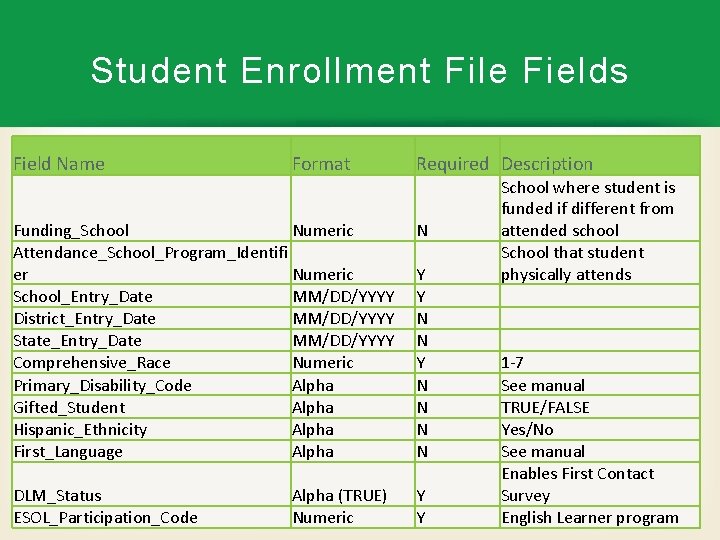
Student Enrollment File Fields Field Name Format Required Description Funding_School Numeric Attendance_School_Program_Identifi er Numeric School_Entry_Date MM/DD/YYYY District_Entry_Date MM/DD/YYYY State_Entry_Date MM/DD/YYYY Comprehensive_Race Numeric Primary_Disability_Code Alpha Gifted_Student Alpha Hispanic_Ethnicity Alpha First_Language Alpha N DLM_Status 19 ESOL_Participation_Code Y Y Alpha (TRUE) Numeric Y Y N N N N School where student is funded if different from attended school School that student physically attends 1 -7 See manual TRUE/FALSE Yes/No See manual Enables First Contact Survey English Learner program
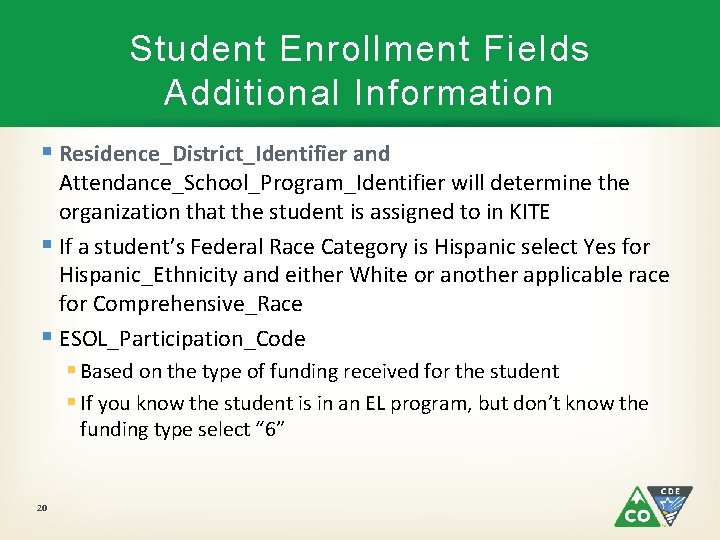
Student Enrollment Fields Additional Information § Residence_District_Identifier and Attendance_School_Program_Identifier will determine the organization that the student is assigned to in KITE § If a student’s Federal Race Category is Hispanic select Yes for Hispanic_Ethnicity and either White or another applicable race for Comprehensive_Race § ESOL_Participation_Code § Based on the type of funding received for the student § If you know the student is in an EL program, but don’t know the funding type select “ 6” 20
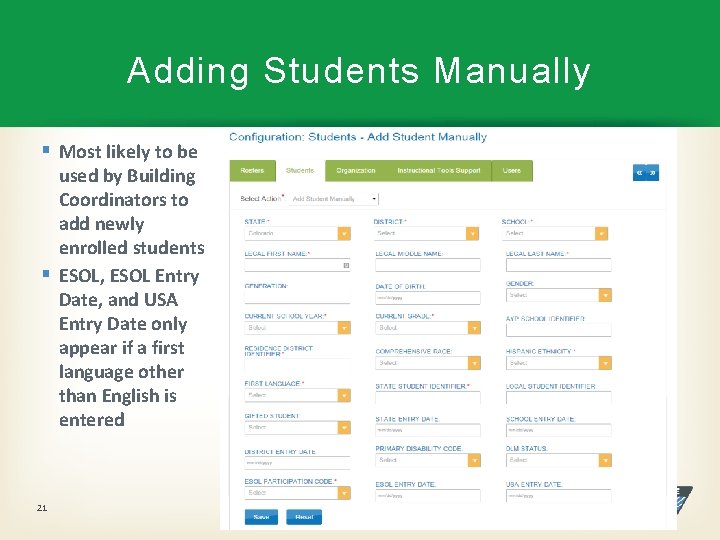
Adding Students Manually § Most likely to be used by Building Coordinators to add newly enrolled students § ESOL, ESOL Entry Date, and USA Entry Date only appear if a first language other than English is entered 21
Options for Districts § We can upload data for students from the Student Interchange § Student records would have to be re-uploaded as untagged records to be pulled from the interchange § Or you can upload the student enrollment file yourself at the district level § Could be easier than dealing with the Interchange for some districts § This can offered on a by district basis § We would have to set a deadline for uploading untagged students to the interchange § After that date all untagged Co. Alt students will be pulled and uploaded to KITE 22
Removing Students from KITE § Test, Exit, Clear (TEC) file § Must be submitted as a. csv file § Removes the student from the indicated Organization § This is not necessary to move the student to a new district § It is necessary to remove a student from your district’s data file § Required Fields: § Record Type – “Exit” § SASID § Attendance School Program Identifier § Exit Reason – See page 54 § School Year 23
Moving Students § Within the district § Anyone with the District Test Coordinator role can change the students school manually or by batch upload § Across districts § If a student already has an enrollment record when the district attempts to add them that organization will be added to the student’s record as long as the SASID matches § The student does not have to be unenrolled by the originating district 24
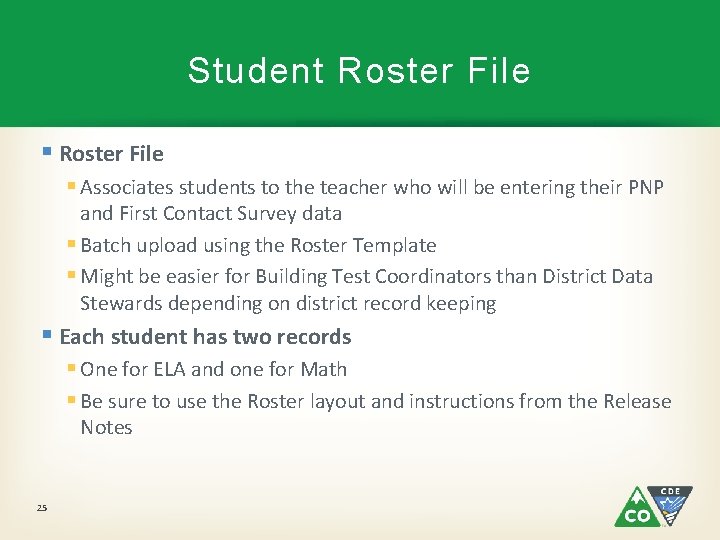
Student Roster File § Associates students to the teacher who will be entering their PNP and First Contact Survey data § Batch upload using the Roster Template § Might be easier for Building Test Coordinators than District Data Stewards depending on district record keeping § Each student has two records § One for ELA and one for Math § Be sure to use the Roster layout and instructions from the Release Notes 25
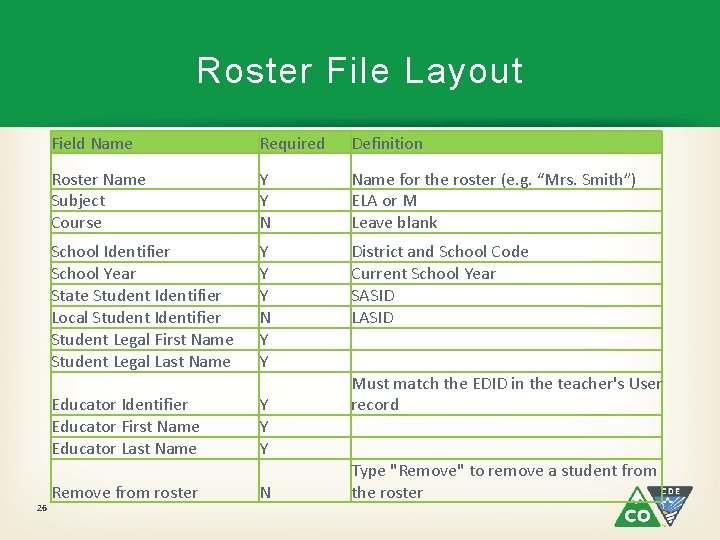
Roster File Layout 26 Field Name Required Definition Roster Name Subject Course Y Y N Name for the roster (e. g. “Mrs. Smith”) ELA or M Leave blank School Identifier School Year State Student Identifier Local Student Identifier Student Legal First Name Student Legal Last Name Y Y Y N Y Y District and School Code Current School Year SASID LASID Educator Identifier Educator First Name Educator Last Name Y Y Y Remove from roster N Must match the EDID in the teacher's User record Type "Remove" to remove a student from the roster
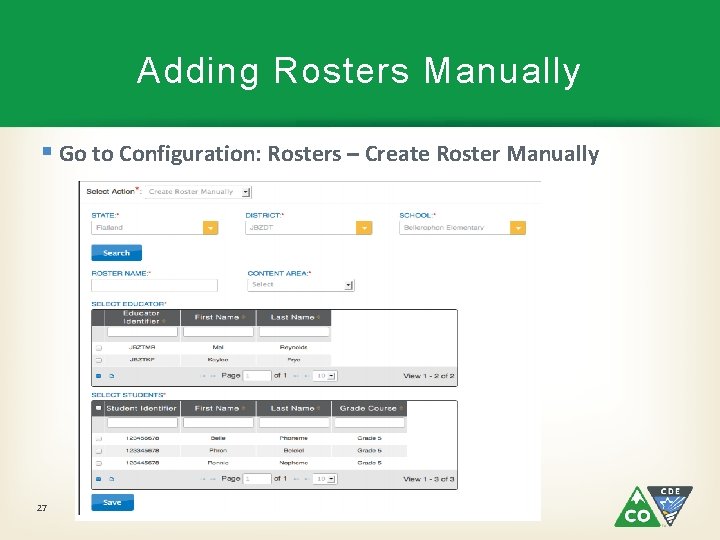
Adding Rosters Manually § Go to Configuration: Rosters – Create Roster Manually 27
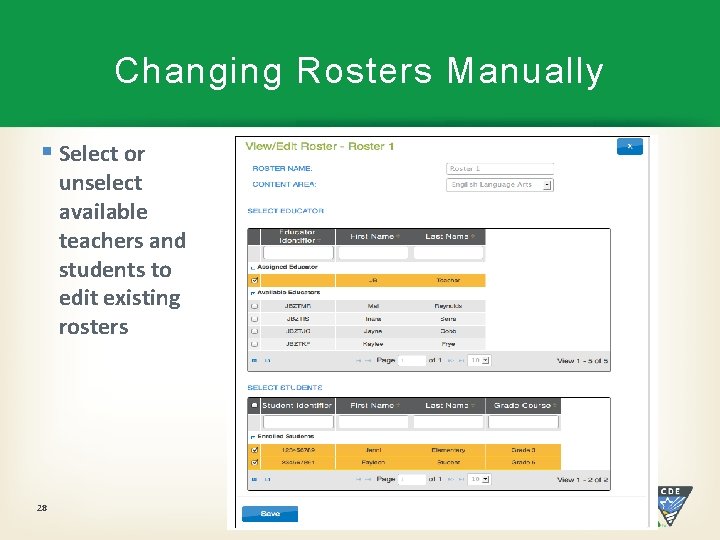
Changing Rosters Manually § Select or unselect available teachers and students to edit existing rosters 28
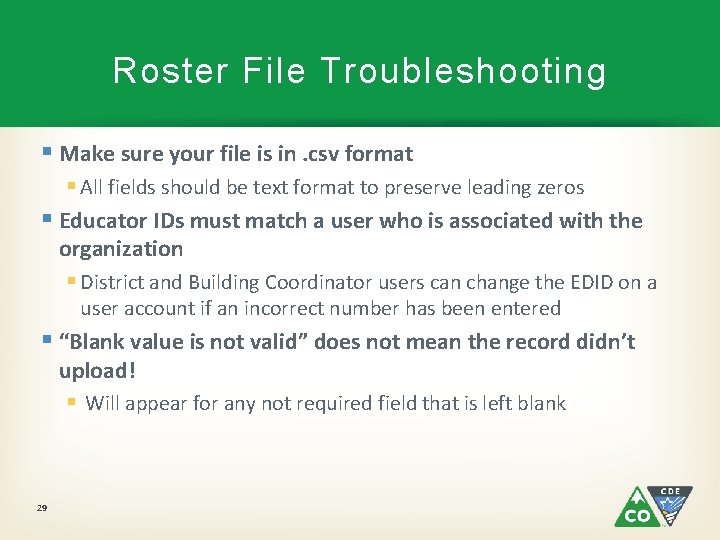
Roster File Troubleshooting § Make sure your file is in. csv format § All fields should be text format to preserve leading zeros § Educator IDs must match a user who is associated with the organization § District and Building Coordinator users can change the EDID on a user account if an incorrect number has been entered § “Blank value is not valid” does not mean the record didn’t upload! § Will appear for any not required field that is left blank 29
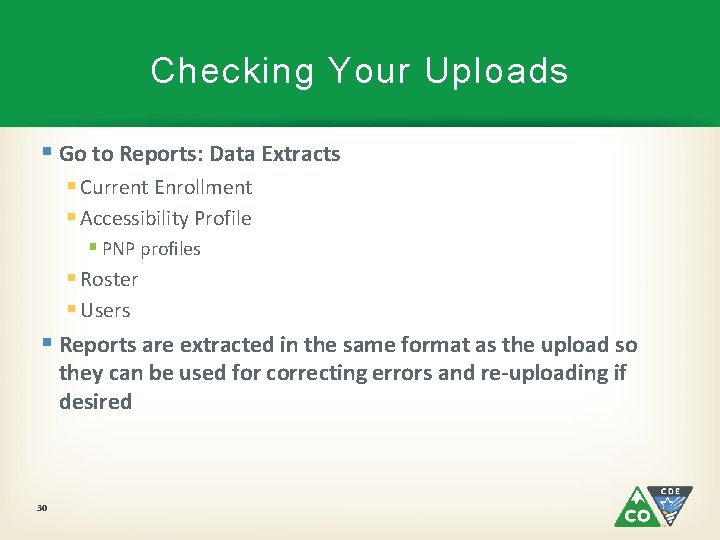
Checking Your Uploads § Go to Reports: Data Extracts § Current Enrollment § Accessibility Profile § PNP profiles § Roster § Users § Reports are extracted in the same format as the upload so they can be used for correcting errors and re-uploading if desired 30
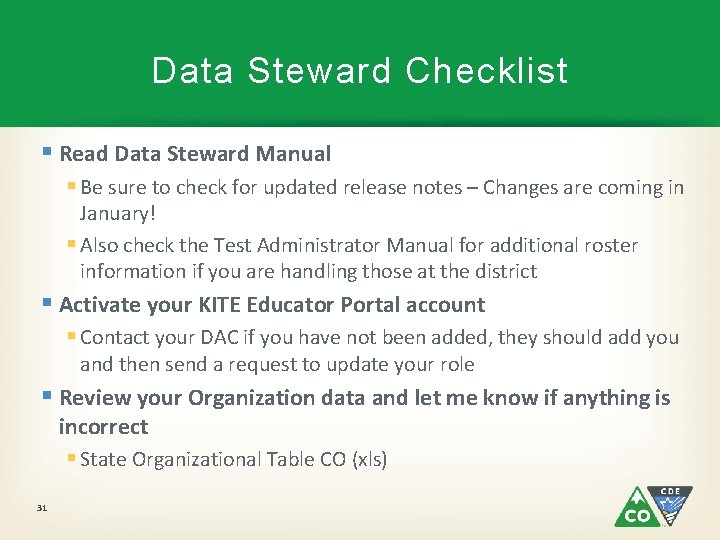
Data Steward Checklist § Read Data Steward Manual § Be sure to check for updated release notes – Changes are coming in January! § Also check the Test Administrator Manual for additional roster information if you are handling those at the district § Activate your KITE Educator Portal account § Contact your DAC if you have not been added, they should add you and then send a request to update your role § Review your Organization data and let me know if anything is incorrect § State Organizational Table CO (xls) 31
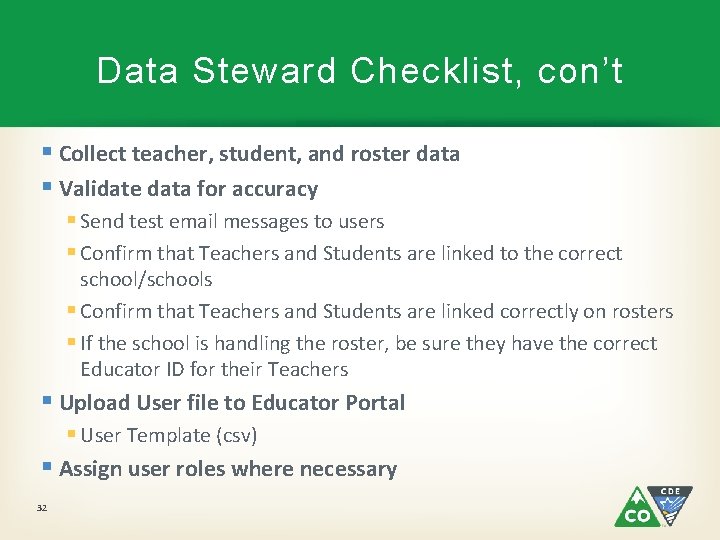
Data Steward Checklist, con’t § Collect teacher, student, and roster data § Validate data for accuracy § Send test email messages to users § Confirm that Teachers and Students are linked to the correct school/schools § Confirm that Teachers and Students are linked correctly on rosters § If the school is handling the roster, be sure they have the correct Educator ID for their Teachers § Upload User file to Educator Portal § User Template (csv) § Assign user roles where necessary 32
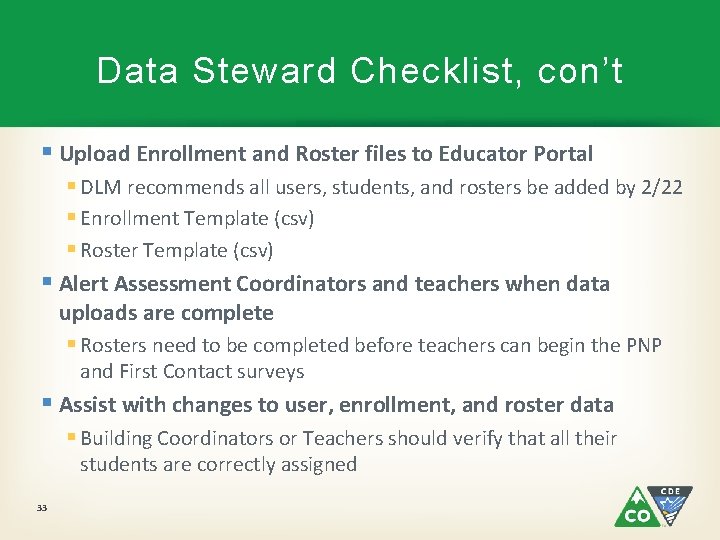
Data Steward Checklist, con’t § Upload Enrollment and Roster files to Educator Portal § DLM recommends all users, students, and rosters be added by 2/22 § Enrollment Template (csv) § Roster Template (csv) § Alert Assessment Coordinators and teachers when data uploads are complete § Rosters need to be completed before teachers can begin the PNP and First Contact surveys § Assist with changes to user, enrollment, and roster data § Building Coordinators or Teachers should verify that all their students are correctly assigned 33
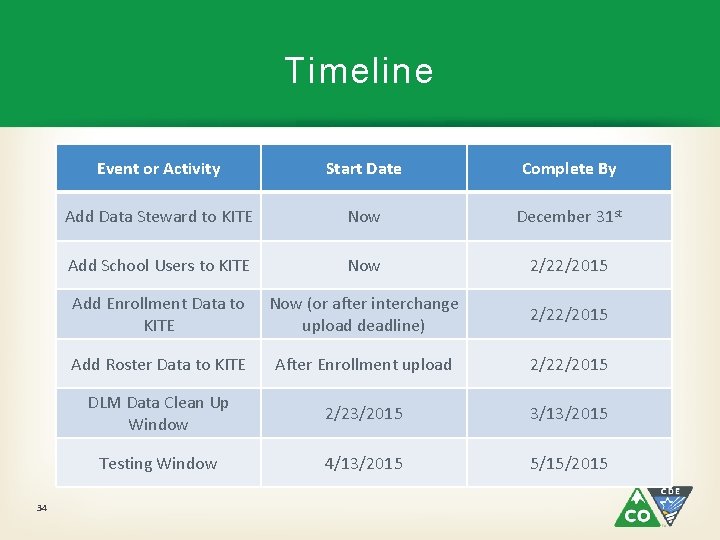
Timeline 34 Event or Activity Start Date Complete By Add Data Steward to KITE Now December 31 st Add School Users to KITE Now 2/22/2015 Add Enrollment Data to KITE Now (or after interchange upload deadline) 2/22/2015 Add Roster Data to KITE After Enrollment upload 2/22/2015 DLM Data Clean Up Window 2/23/2015 3/13/2015 Testing Window 4/13/2015 5/15/2015
DLM Helpdesk § The DLM Helpdesk contact information is in every manual § Phone: 1 -855 -277 -9751 § Email: DLM-Support@ku. edu § They can help with: § Testing environment issues § Test administration and user account issues § Student information issues § Anything in KITE that doesn’t make sense! 35
Contacting CDE § State Data Steward § Jasmine Carey – 303 -866 -6634; carey_j@cde. state. co. us § I will be available for help with: § District User Accounts (also be sure to cc Mira: monroe_m@cde. state. co. us) § Organization data updates § Requesting student enrollment data § Student data issues if we uploaded your data § General timeline or procedure questions § You DO NOT need to contact us to: 36 § Add or remove students from an organization § Add or remove school level users
Questions? 37
Thank you!