
DISTRICT TECHNOLOGY COORDINATOR WEBINAR Spring 2020 SCAlt Topics

DISTRICT TECHNOLOGY COORDINATOR WEBINAR Spring 2020 SC-Alt
Topics 2 Site Readiness Network Requirements Hardware and Software Requirements Secure Browser Installation Network Diagnostics and Configuration SC-Alt Portal
Objectives 3 By the end of this presentation, you should be able to: Locate information on the Portal Understand your role and responsibilities Prepare for online tests in your school district Install the Secure Browser Troubleshoot technical problems during the tests.
Technology Coordinator Tasks 4 Logins and passwords Minimum system requirements Secure Browser Determining system readiness and network capacity Troubleshooting technical issues
Network Configuration 5 Session timeouts on proxy servers and other devices should be set to values greater than scheduled testing time. If test sessions are scheduled for 60 minutes, consider session timeouts of 65– 70 minutes. Web proxy servers must be configured to NOT cache data received from servers. For any device that performs traffic shaping, packet prioritization, or quality of service, the URLs to be used for testing should be given a high priority.
Whitelisting 6 Content filters, firewalls, and proxy servers should be configured to allow the URLs for testing sites and applicable non-testing sites.
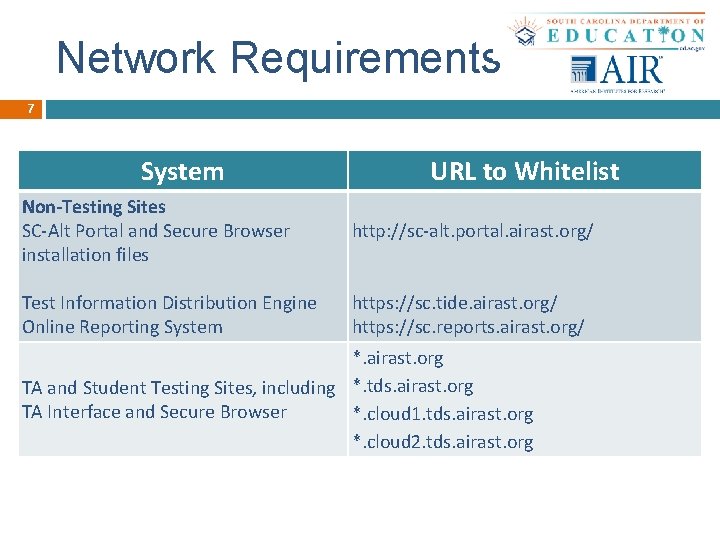
Network Requirements 7 System URL to Whitelist Non-Testing Sites SC-Alt Portal and Secure Browser installation files http: //sc-alt. portal. airast. org/ Test Information Distribution Engine Online Reporting System https: //sc. tide. airast. org/ https: //sc. reports. airast. org/ *. airast. org TA and Student Testing Sites, including *. tds. airast. org TA Interface and Secure Browser *. cloud 1. tds. airast. org *. cloud 2. tds. airast. org
Pop-ups 8 Configure Internet browsers on the Test Administrator Interface device to allow pop-ups from the testing websites.
Performance Factors 9 q q Network bandwidth Number of students simultaneously testing Wireless networking configuration Secure Browser
10 Questions?
Bandwidth 11 At least 20 Kbps bandwidth per student being tested Affected by both Local Area Network (LAN) traffic and Internet traffic from the router LAN should always be analyzed to determine potential traffic bottlenecks
12 Number of Students Simultaneously Testing q q q Network performance may slow when large numbers of students are testing at one time. Multiply the number of students being tested by 20 Kbps to get an estimate of bandwidth needed, and compare that estimate with the network speed test. Perform network analyses at different times to ensure adequate capacity.
Wireless Network Configuration 13 Wireless traffic must use encryption. q q Wi-Fi Protected Access II (WPA 2) Advanced Encryption Standard (AES) Wireless access points have limits on total bandwidth and number of simultaneous devices in use.
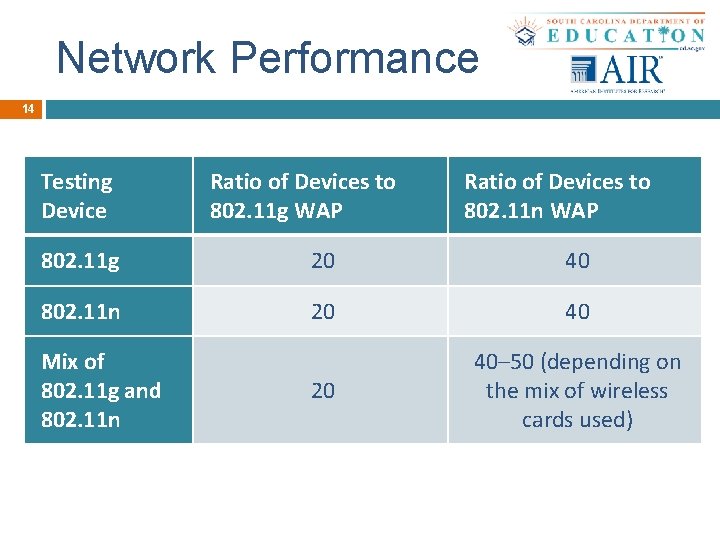
Network Performance 14 Testing Device Ratio of Devices to 802. 11 g WAP Ratio of Devices to 802. 11 n WAP 802. 11 g 20 40 802. 11 n 20 40– 50 (depending on the mix of wireless cards used) Mix of 802. 11 g and 802. 11 n
15 Questions?
System Requirements 16 Desktops and Laptops Monitor Display Mobile Devices Secure Browser
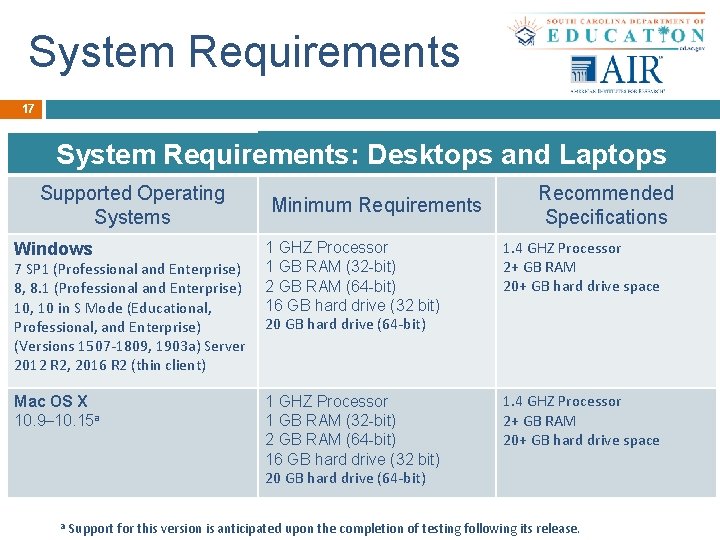
System Requirements 17 System Requirements: Desktops and Laptops Supported Operating Systems Windows 7 SP 1 (Professional and Enterprise) 8, 8. 1 (Professional and Enterprise) 10, 10 in S Mode (Educational, Professional, and Enterprise) (Versions 1507 -1809, 1903 a) Server 2012 R 2, 2016 R 2 (thin client) Mac OS X 10. 9– 10. 15 a a Minimum Requirements Recommended Specifications 1 GHZ Processor 1 GB RAM (32 -bit) 2 GB RAM (64 -bit) 16 GB hard drive (32 bit) 20 GB hard drive (64 -bit) 1. 4 GHZ Processor 2+ GB RAM 20+ GB hard drive space Support for this version is anticipated upon the completion of testing following its release.
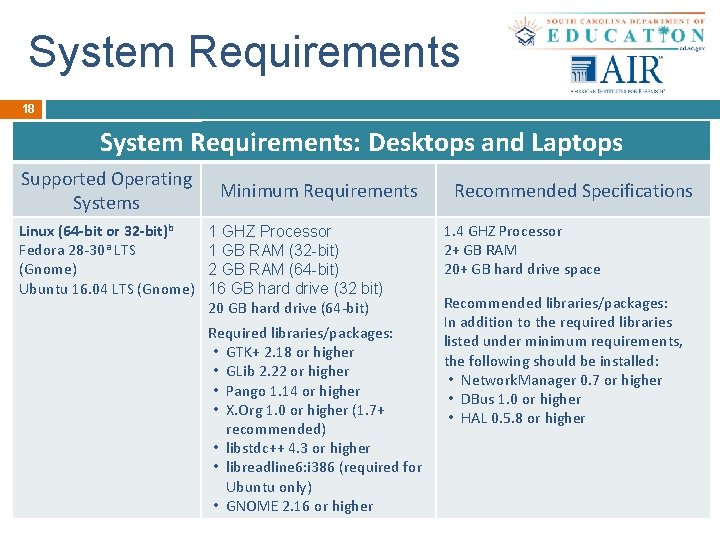
System. Requirements: Linux 18 System Requirements: Desktops and Laptops Supported Operating Systems Linux (64 -bit or 32 -bit)b Fedora 28 -30 a LTS (Gnome) Ubuntu 16. 04 LTS (Gnome) Minimum Requirements 1 GHZ Processor 1 GB RAM (32 -bit) 2 GB RAM (64 -bit) 16 GB hard drive (32 bit) 20 GB hard drive (64 -bit) Required libraries/packages: • GTK+ 2. 18 or higher • GLib 2. 22 or higher • Pango 1. 14 or higher • X. Org 1. 0 or higher (1. 7+ recommended) • libstdc++ 4. 3 or higher • libreadline 6: i 386 (required for Ubuntu only) • GNOME 2. 16 or higher Recommended Specifications 1. 4 GHZ Processor 2+ GB RAM 20+ GB hard drive space Recommended libraries/packages: In addition to the required libraries listed under minimum requirements, the following should be installed: • Network. Manager 0. 7 or higher • DBus 1. 0 or higher • HAL 0. 5. 8 or higher
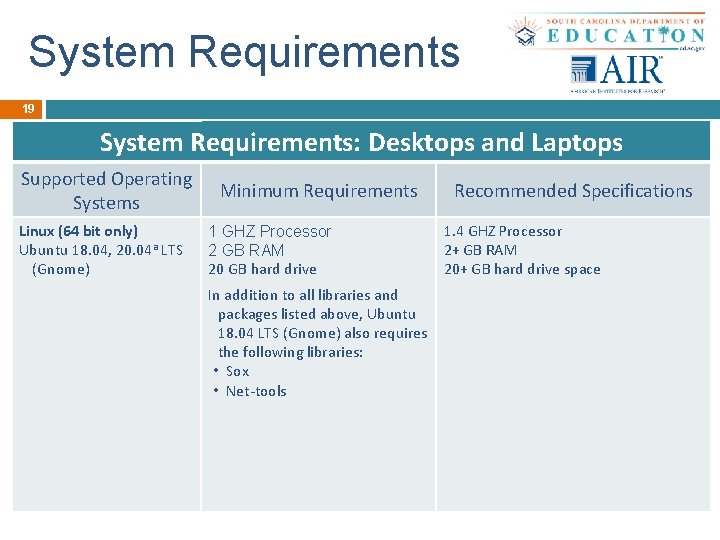
System. Requirements: Linux 19 System Requirements: Desktops and Laptops Supported Operating Systems Linux (64 bit only) Ubuntu 18. 04, 20. 04 a LTS (Gnome) Minimum Requirements 1 GHZ Processor 2 GB RAM 20 GB hard drive In addition to all libraries and packages listed above, Ubuntu 18. 04 LTS (Gnome) also requires the following libraries: • Sox • Net-tools Recommended Specifications 1. 4 GHZ Processor 2+ GB RAM 20+ GB hard drive space
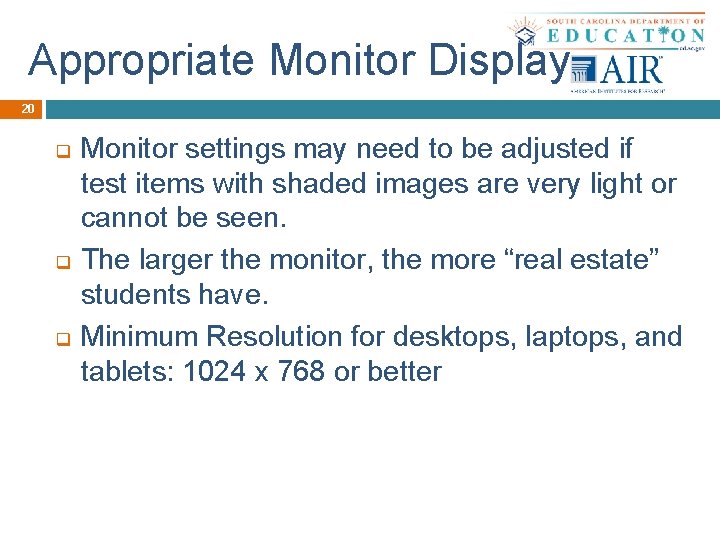
Appropriate Monitor Display 20 q q q Monitor settings may need to be adjusted if test items with shaded images are very light or cannot be seen. The larger the monitor, the more “real estate” students have. Minimum Resolution for desktops, laptops, and tablets: 1024 x 768 or better
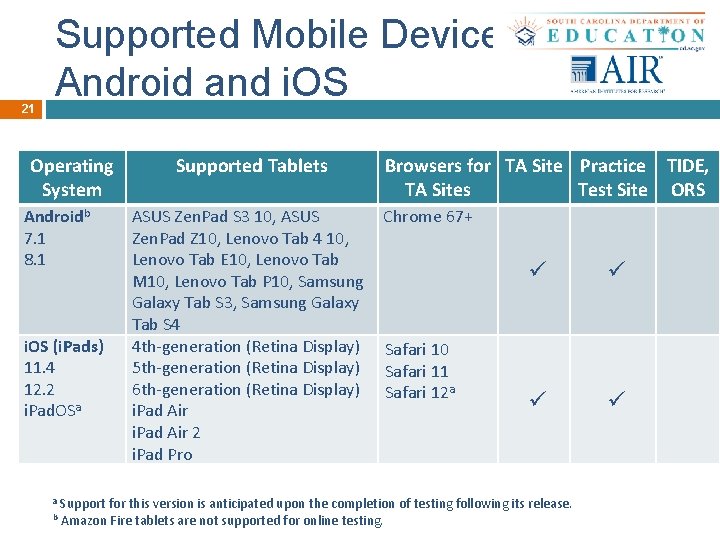
21 Supported Mobile Devices: Android and i. OS Operating System Androidb 7. 1 8. 1 i. OS (i. Pads) 11. 4 12. 2 i. Pad. OSa Supported Tablets ASUS Zen. Pad S 3 10, ASUS Zen. Pad Z 10, Lenovo Tab 4 10, Lenovo Tab E 10, Lenovo Tab M 10, Lenovo Tab P 10, Samsung Galaxy Tab S 3, Samsung Galaxy Tab S 4 4 th-generation (Retina Display) 5 th-generation (Retina Display) 6 th-generation (Retina Display) i. Pad Air 2 i. Pad Pro Browsers for TA Site Practice TIDE, TA Sites Test Site ORS Chrome 67+ Safari 10 Safari 11 Safari 12 a ü ü Support for this version is anticipated upon the completion of testing following its release. b Amazon Fire tablets are not supported for online testing. a a
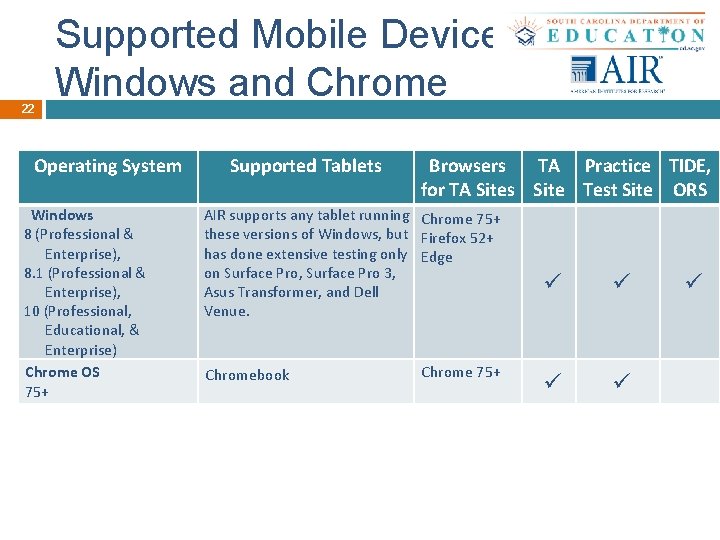
22 Supported Mobile Devices: Windows and Chrome Operating System Windows 8 (Professional & Enterprise), 8. 1 (Professional & Enterprise), 10 (Professional, Educational, & Enterprise) Chrome OS 75+ Supported Tablets Browsers TA Practice TIDE, for TA Sites Site Test Site ORS AIR supports any tablet running Chrome 75+ these versions of Windows, but Firefox 52+ has done extensive testing only Edge on Surface Pro, Surface Pro 3, Asus Transformer, and Dell Venue. Chromebook a Chrome 75+ ü ü Support for this version is anticipated upon the completion of testing following its release. ü
23 Questions?
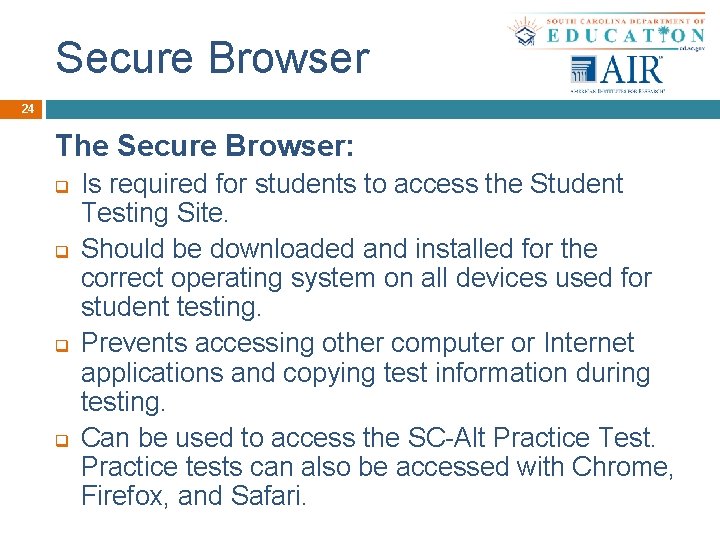
Secure Browser 24 The Secure Browser: q q Is required for students to access the Student Testing Site. Should be downloaded and installed for the correct operating system on all devices used for student testing. Prevents accessing other computer or Internet applications and copying test information during testing. Can be used to access the SC-Alt Practice Test. Practice tests can also be accessed with Chrome, Firefox, and Safari.
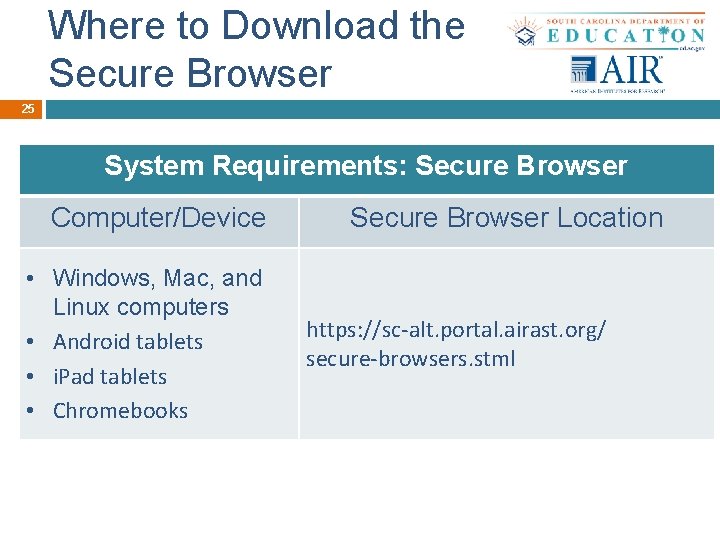
Where to Download the Secure Browser 25 System Requirements: Secure Browser Computer/Device • Windows, Mac, and Linux computers • Android tablets • i. Pad tablets • Chromebooks Secure Browser Location https: //sc-alt. portal. airast. org/ secure-browsers. stml
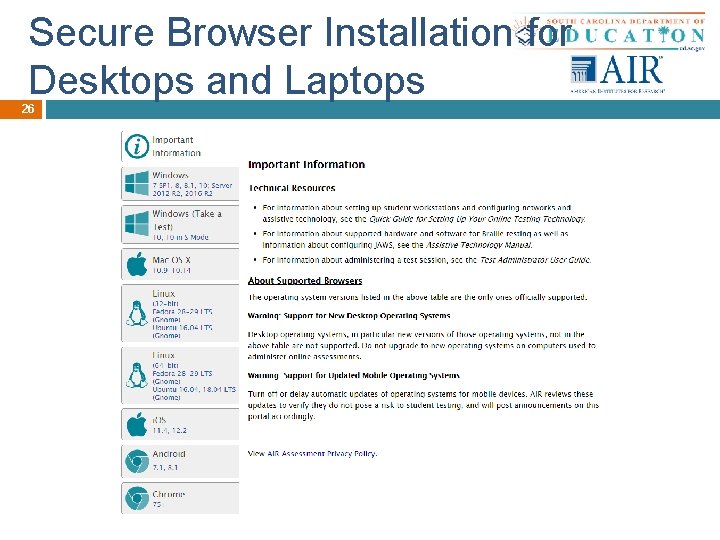
Secure Browser Installation for Desktops and Laptops 26
Secure Browser Installation 27 q q q Download the Secure Browser from the Portal and install it. Download and save the Secure Browser onto a media device (such as a flash drive), and copy and install the files on each computer. Running the Secure Browser application from a shared network location is strongly discouraged.
Secure Browser Installation: Windows 28 MSI file type enables deployment using a number of tools: q q q Active Directory Group Policy Microsoft SMS Microsoft SCCM Microsoft WSUS Microsoft MDM Windows Batch Script
Secure Browser Installation: Mac and Linux 29 Mac DMG file type enables deployment using Apple Remote Desktop. § Munki § Filewave § JAMF § Casper Linux TAR file type enables deployment using a number of tools including the following: § Shell scripts § Puppet
Disabling OS X Features 30 q q q q q Disable Application Launches from Function/Custom Keys Disable Updates to Third-Party Apps Disable Notification Center Disable Updates to i. Tunes Disable Look-Up Gesture Disable Mission Control Disable Dictation Disable Siri Disable Touchbar
Scheduling Automated Tasks 31 Ensure all scheduled tasks take place outside of testing hours: q q q Virus Scans Third Party Software Updates Operating System Updates
32 Questions?
40 Questions?
Audio - Mobile Devices 41 q q i. Pad users can adjust volume, pitch, and speaking rate. Chromebook users can adjust volume and speaking rate. These settings are also adjustable in the test. Currently, these features are not available on Android devices.
Thank You! 42 Further Information SC-Alt Portal � sc-alt. portal. airast. org SC-Alt Help Desk � � Toll-Free Phone Support: 1 -877 -231 -7789 Email Support: schelpdesk@air. org
- Slides: 35