
Display Material Master 1 Use this procedure to
- Slides: 1
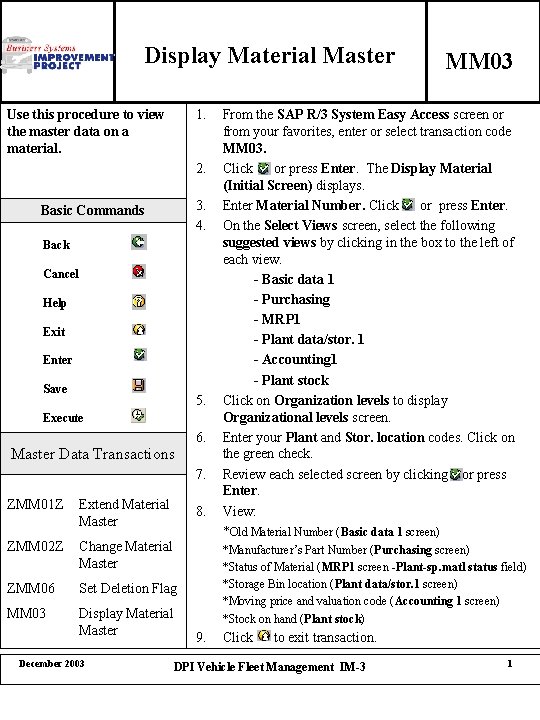
Display Material Master 1. Use this procedure to view the master data on a material. 2. 3. 4. Basic Commands Back Cancel Help Exit Enter Save 5. Execute Master Data Transactions 6. 7. ZMM 01 Z Extend Material Master ZMM 02 Z Change Material Master ZMM 06 Set Deletion Flag MM 03 Display Material Master December 2003 8. MM 03 From the SAP R/3 System Easy Access screen or from your favorites, enter or select transaction code MM 03. Click or press Enter. The Display Material (Initial Screen) displays. Enter Material Number. Click or press Enter. On the Select Views screen, select the following suggested views by clicking in the box to the left of each view. - Basic data 1 - Purchasing - MRP 1 - Plant data/stor. 1 - Accounting 1 - Plant stock Click on Organization levels to display Organizational levels screen. Enter your Plant and Stor. location codes. Click on the green check. Review each selected screen by clicking or press Enter. View: *Old Material Number (Basic data 1 screen) *Manufacturer’s Part Number (Purchasing screen) *Status of Material (MRP 1 screen -Plant-sp. matl status field) *Storage Bin location (Plant data/stor. 1 screen) *Moving price and valuation code (Accounting 1 screen) *Stock on hand (Plant stock) 9. Click to exit transaction. DPI Vehicle Fleet Management IM-3 1