
Dispatch for Hawkesbury Communications Brigade by Peter C
Dispatch for Hawkesbury Communications Brigade by Peter. C
Is it SAFE? • Some members are fearful that their actions could result in an incident being inadvertently created in ICON • Fear NOT – there is absolutely NO chance of this • Dispatch is a one way trip • It extracts the data from ICON at the time you start the program • Nothing goes back to ICON
• Brigades are NOT paged or responded through this program – remember it is ONE way and nothing goes out • It is used to process information to assist us choose the appropriate brigade or gather relevant information on which to base a decision of consequence
• What can it be used for? Identify the ‘local brigade’ to respond to an incident per SOPs Identify brigade boundaries Identify NSWFB areas of responsibility Establish brigade PIO for new residents Establish in which brigade area an incident is Plot a GR and determine brigade area Derive a GR and pass to brigades …. and more, lots more.
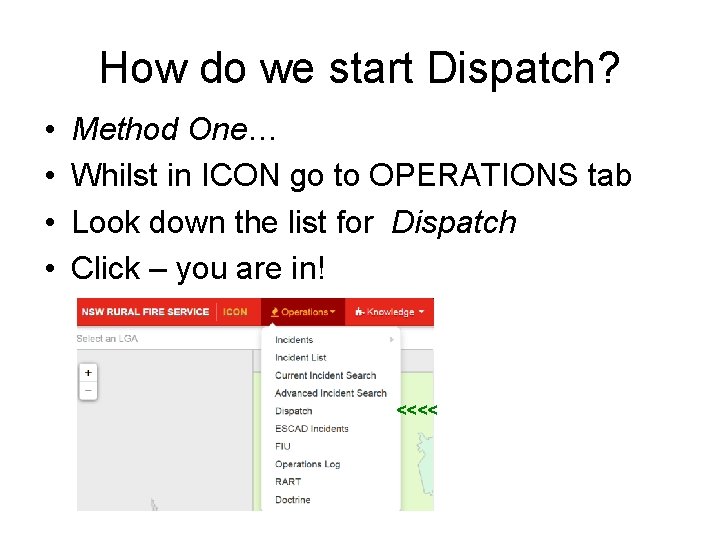
How do we start Dispatch? • • Method One… Whilst in ICON go to OPERATIONS tab Look down the list for Dispatch Click – you are in! <<<<
How do we start Dispatch? • Method Two • Enter dispatch. rfs. nsw. gov. au in a browser • Enter username and password – you are in! • Your myrfs login also works
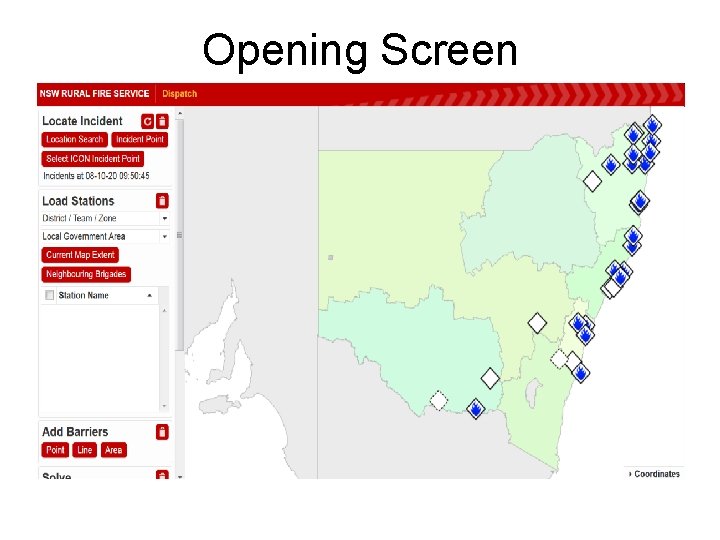
Opening Screen
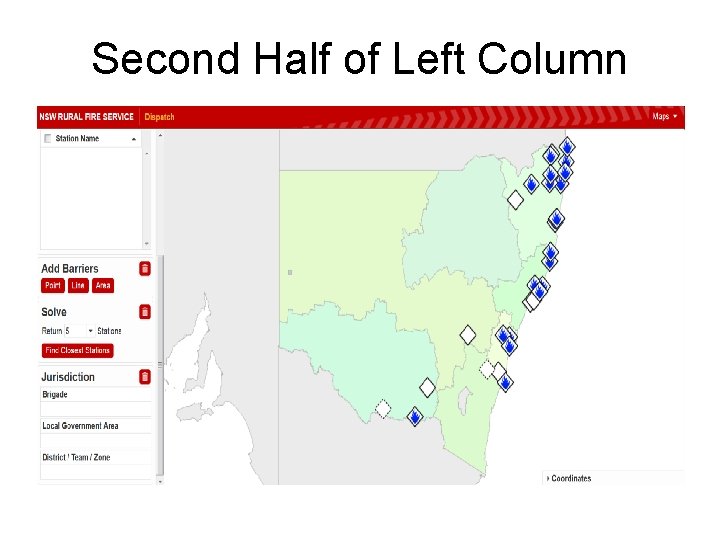
Second Half of Left Column
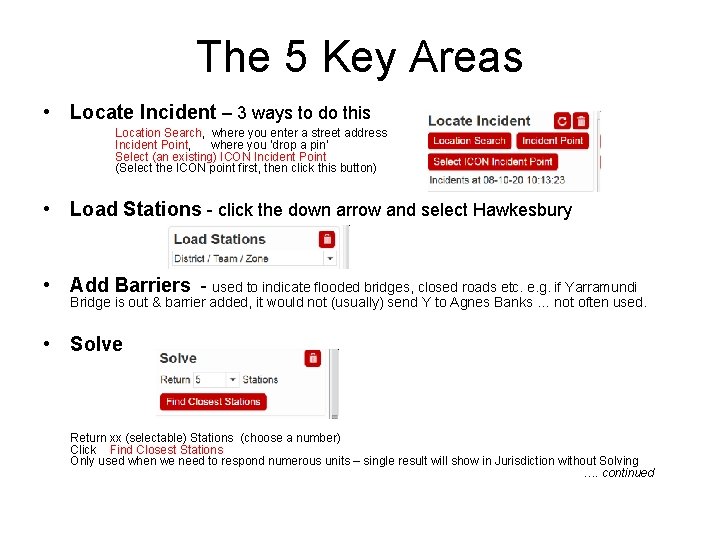
The 5 Key Areas • Locate Incident – 3 ways to do this Location Search, where you enter a street address Incident Point, where you ‘drop a pin’ Select (an existing) ICON Incident Point (Select the ICON point first, then click this button) • Load Stations - click the down arrow and select Hawkesbury • Add Barriers - used to indicate flooded bridges, closed roads etc. e. g. if Yarramundi Bridge is out & barrier added, it would not (usually) send Y to Agnes Banks … not often used. • Solve Return xx (selectable) Stations (choose a number) Click Find Closest Stations Only used when we need to respond numerous units – single result will show in Jurisdiction without Solving …. continued
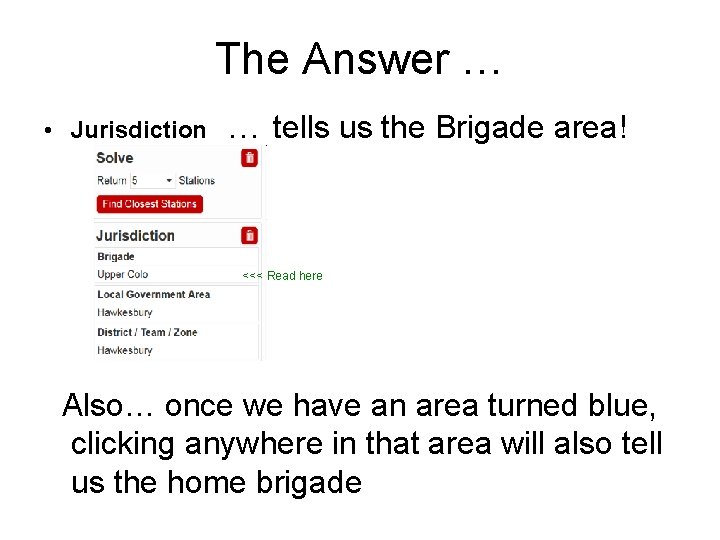
The Answer … • Jurisdiction … tells us the Brigade area! <<< Read here Also… once we have an area turned blue, clicking anywhere in that area will also tell us the home brigade
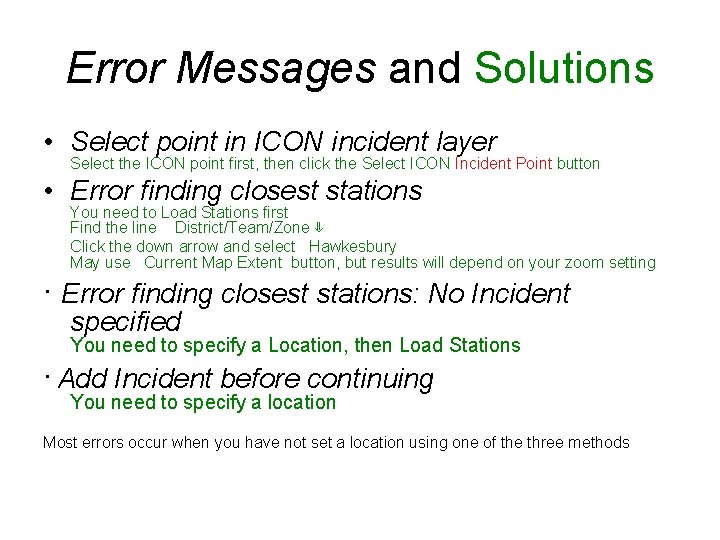
Error Messages and Solutions • Select point in ICON incident layer Select the ICON point first, then click the Select ICON Incident Point button • Error finding closest stations You need to Load Stations first Find the line District/Team/Zone ⇓ Click the down arrow and select Hawkesbury May use Current Map Extent button, but results will depend on your zoom setting ∙ Error finding closest stations: No Incident specified You need to specify a Location, then Load Stations ∙ Add Incident before continuing You need to specify a location Most errors occur when you have not set a location using one of the three methods
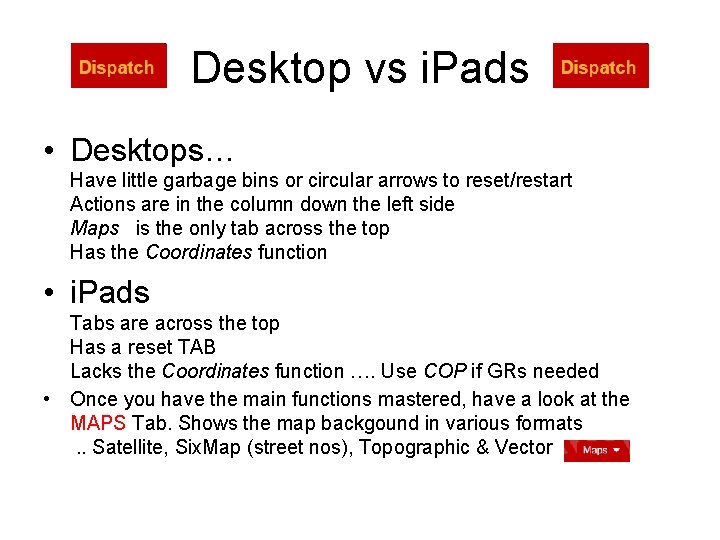
Desktop vs i. Pads • Desktops… Have little garbage bins or circular arrows to reset/restart Actions are in the column down the left side Maps is the only tab across the top Has the Coordinates function • i. Pads Tabs are across the top Has a reset TAB Lacks the Coordinates function …. Use COP if GRs needed • Once you have the main functions mastered, have a look at the MAPS Tab. Shows the map backgound in various formats. . Satellite, Six. Map (street nos), Topographic & Vector
Grid & Lat/Lon References? • Note the ‘Coordinates’ word down lower right! • Click on it and voila! (Desktops only, not i. Pads) • You have the standard format Grid (UTM) and the 3 Lat Lon formats • Fuss not about the letters MGA or the 56 S • Moving your mouse over the map will display its coordinates as you move • Click on the map and it will also show the LGA and Map Title
How quick is it? • Generally takes 30 seconds to input data and have an answer! • Click Location Search Enter address Click Add Incident Point Click in the blue area and you have the local brigade, listed down in Jurisdiction… • Soooo easy
Permission…. • This presentation is intended for members of Hawkesbury Rural Fire Service Communications Brigade • It is a live document and may not be saved, distributed, copied or stored on any device without the writer’s express permission • Access will always be via an online connection
- Slides: 15