
DISH SMRT HUB BOX LAUNCH We have created
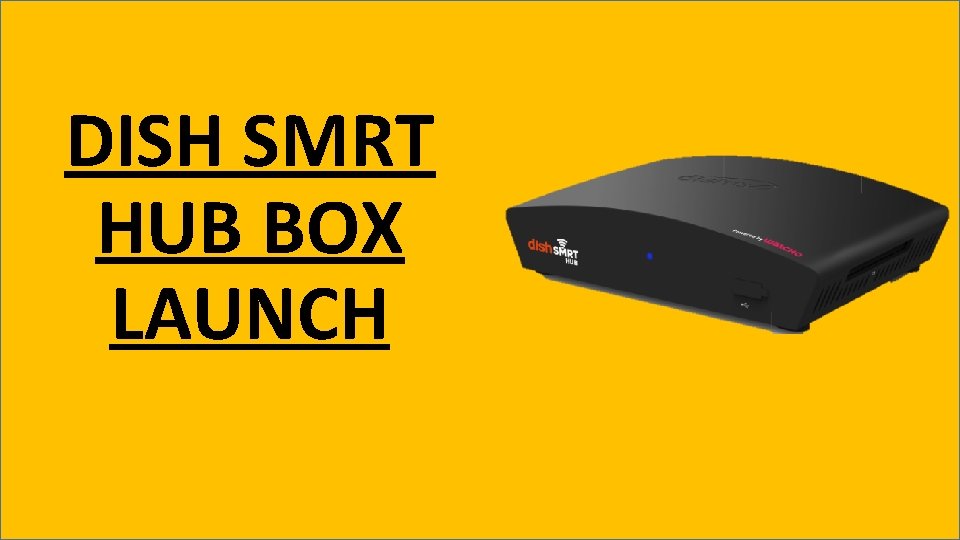
DISH SMRT HUB BOX LAUNCH
We have created a Dish. SMRT HUB box video tutorial (Hindi) to guide subscriber/User about the box and feature. {Click on the image to watch the video} https: //www. youtube. com/watch? v=ST 9 IRZ 4 x 6 tg&feature=youtu. be
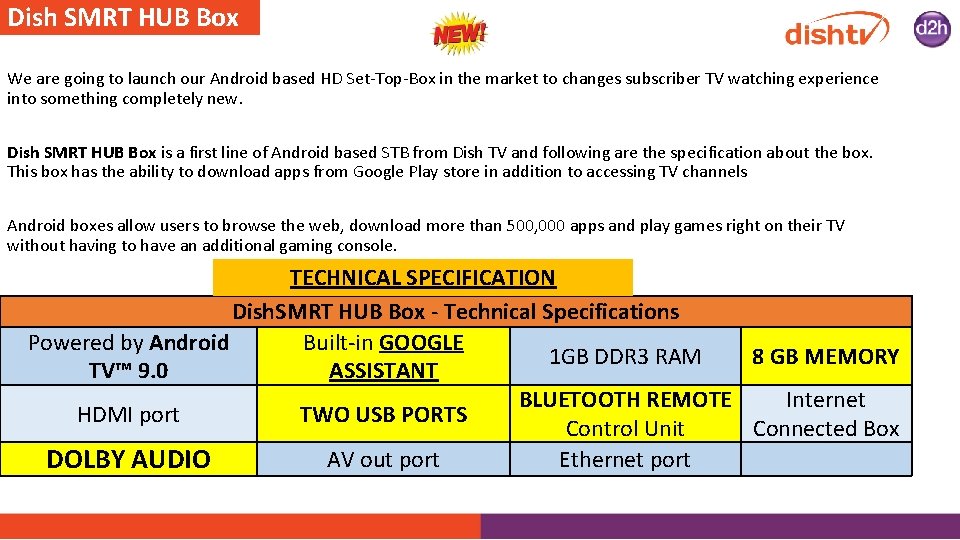
Dish SMRT HUB Box We are going to launch our Android based HD Set-Top-Box in the market to changes subscriber TV watching experience into something completely new. Dish SMRT HUB Box is a first line of Android based STB from Dish TV and following are the specification about the box. This box has the ability to download apps from Google Play store in addition to accessing TV channels Android boxes allow users to browse the web, download more than 500, 000 apps and play games right on their TV without having to have an additional gaming console. TECHNICAL SPECIFICATION Dish. SMRT HUB Box - Technical Specifications Powered by Android Built-in GOOGLE 1 GB DDR 3 RAM 8 GB MEMORY TV™ 9. 0 ASSISTANT BLUETOOTH REMOTE Internet HDMI port TWO USB PORTS Control Unit Connected Box AV out port Ethernet port DOLBY AUDIO
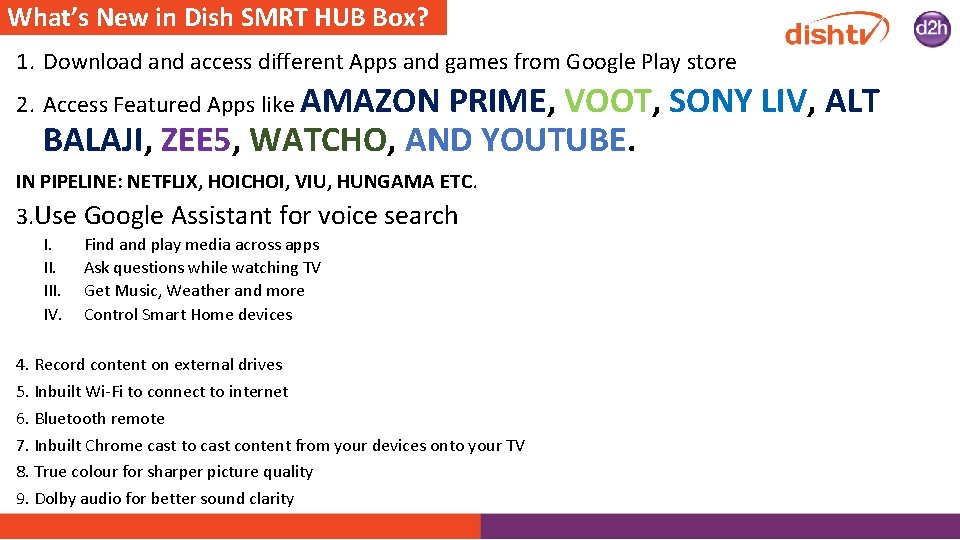
What’s New in Dish SMRT HUB Box? 1. Download and access different Apps and games from Google Play store 2. Access Featured Apps like AMAZON PRIME, VOOT, SONY LIV, ALT BALAJI, ZEE 5, WATCHO, AND YOUTUBE. IN PIPELINE: NETFLIX, HOICHOI, VIU, HUNGAMA ETC. 3. Use Google Assistant for voice search I. III. IV. Find and play media across apps Ask questions while watching TV Get Music, Weather and more Control Smart Home devices 4. Record content on external drives 5. Inbuilt Wi-Fi to connect to internet 6. Bluetooth remote 7. Inbuilt Chrome cast to cast content from your devices onto your TV 8. True colour for sharper picture quality 9. Dolby audio for better sound clarity
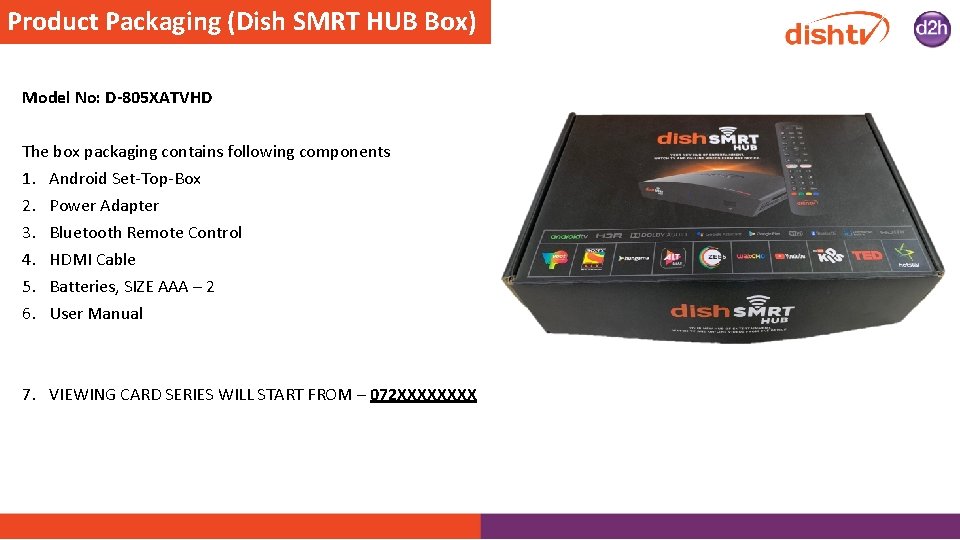
Product Packaging (Dish SMRT HUB Box) Model No: D-805 XATVHD The box packaging contains following components 1. Android Set-Top-Box 2. Power Adapter 3. Bluetooth Remote Control 4. HDMI Cable 5. Batteries, SIZE AAA – 2 6. User Manual 7. VIEWING CARD SERIES WILL START FROM – 072 XXXX
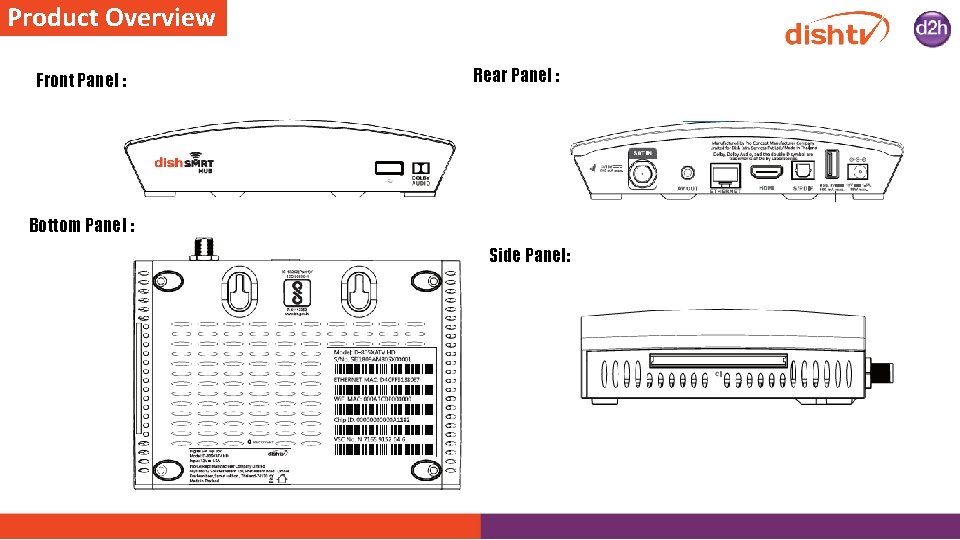
Product Overview Front Panel : Rear Panel : Bottom Panel : Side Panel:
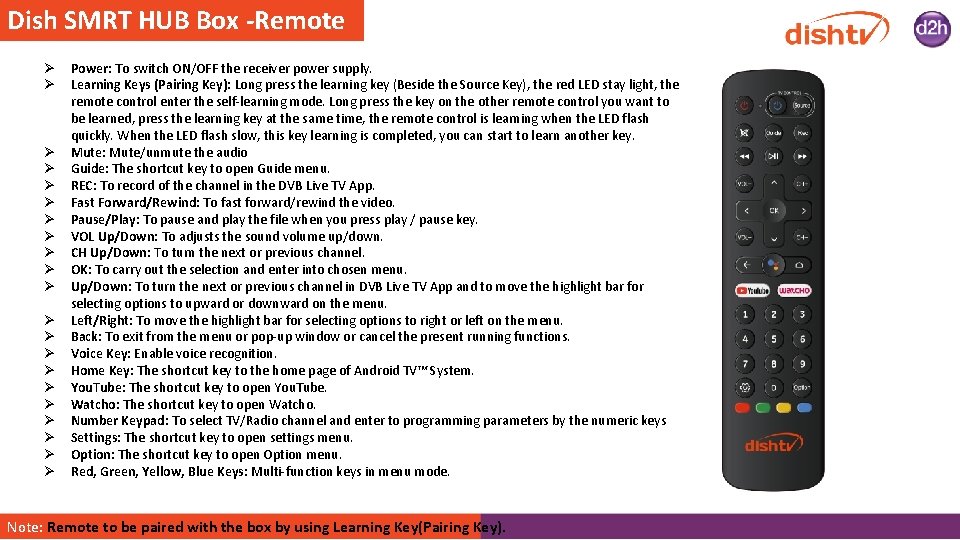
Dish SMRT HUB Box -Remote Power: To switch ON/OFF the receiver power supply. Learning Keys (Pairing Key): Long press the learning key (Beside the Source Key), the red LED stay light, the remote control enter the self-learning mode. Long press the key on the other remote control you want to be learned, press the learning key at the same time, the remote control is learning when the LED flash quickly. When the LED flash slow, this key learning is completed, you can start to learn another key. Mute: Mute/unmute the audio Guide: The shortcut key to open Guide menu. REC: To record of the channel in the DVB Live TV App. Fast Forward/Rewind: To fast forward/rewind the video. Pause/Play: To pause and play the file when you press play / pause key. VOL Up/Down: To adjusts the sound volume up/down. CH Up/Down: To turn the next or previous channel. OK: To carry out the selection and enter into chosen menu. Up/Down: To turn the next or previous channel in DVB Live TV App and to move the highlight bar for selecting options to upward or downward on the menu. Left/Right: To move the highlight bar for selecting options to right or left on the menu. Back: To exit from the menu or pop-up window or cancel the present running functions. Voice Key: Enable voice recognition. Home Key: The shortcut key to the home page of Android TV™ System. You. Tube: The shortcut key to open You. Tube. Watcho: The shortcut key to open Watcho. Number Keypad: To select TV/Radio channel and enter to programming parameters by the numeric keys Settings: The shortcut key to open settings menu. Option: The shortcut key to open Option menu. Red, Green, Yellow, Blue Keys: Multi-function keys in menu mode. Note: Remote to be paired with the box by using Learning Key(Pairing Key).
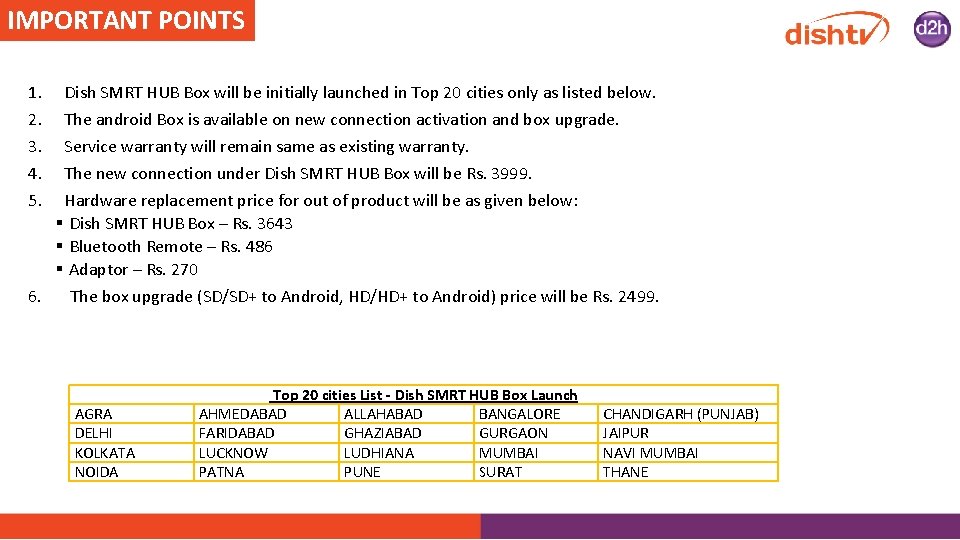
IMPORTANT POINTS 1. 2. 3. 4. 5. Dish SMRT HUB Box will be initially launched in Top 20 cities only as listed below. The android Box is available on new connection activation and box upgrade. Service warranty will remain same as existing warranty. The new connection under Dish SMRT HUB Box will be Rs. 3999. Hardware replacement price for out of product will be as given below: § Dish SMRT HUB Box – Rs. 3643 § Bluetooth Remote – Rs. 486 § Adaptor – Rs. 270 6. The box upgrade (SD/SD+ to Android, HD/HD+ to Android) price will be Rs. 2499. AGRA DELHI KOLKATA NOIDA Top 20 cities List - Dish SMRT HUB Box Launch AHMEDABAD ALLAHABAD BANGALORE FARIDABAD GHAZIABAD GURGAON LUCKNOW LUDHIANA MUMBAI PATNA PUNE SURAT CHANDIGARH (PUNJAB) JAIPUR NAVI MUMBAI THANE
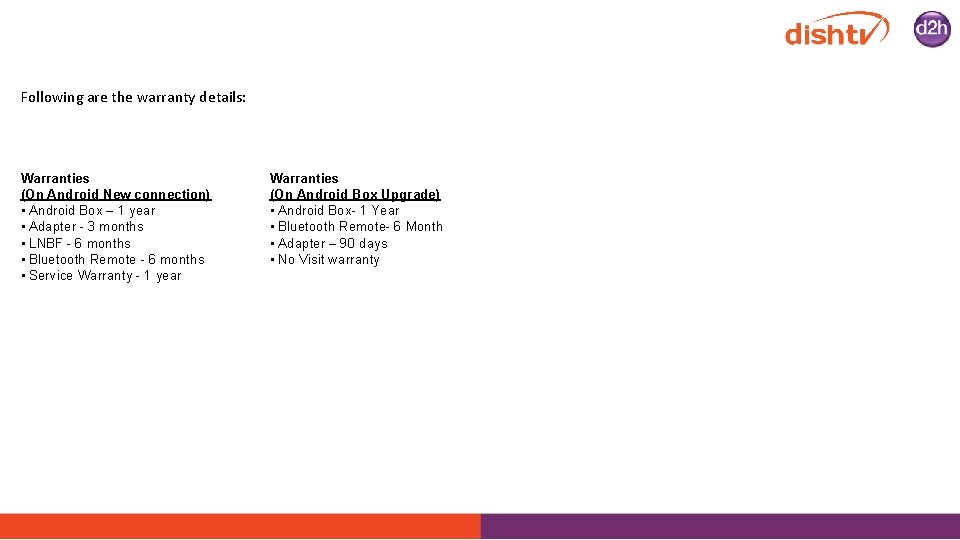
Following are the warranty details: Warranties (On Android New connection) • Android Box – 1 year • Adapter - 3 months • LNBF - 6 months • Bluetooth Remote - 6 months • Service Warranty - 1 year Warranties (On Android Box Upgrade) • Android Box- 1 Year • Bluetooth Remote- 6 Month • Adapter – 90 days • No Visit warranty
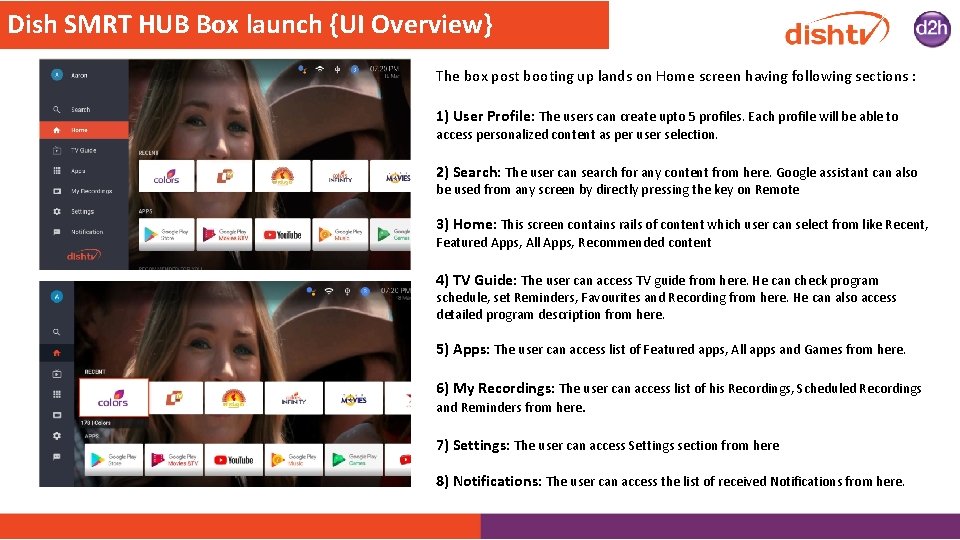
Dish SMRT HUB Box launch {UI Overview} The box post booting up lands on Home screen having following sections : 1) User Profile: The users can create upto 5 profiles. Each profile will be able to access personalized content as per user selection. 2) Search: The user can search for any content from here. Google assistant can also be used from any screen by directly pressing the key on Remote 3) Home: This screen contains rails of content which user can select from like Recent, Featured Apps, All Apps, Recommended content 4) TV Guide: The user can access TV guide from here. He can check program schedule, set Reminders, Favourites and Recording from here. He can also access detailed program description from here. 5) Apps: The user can access list of Featured apps, All apps and Games from here. 6) My Recordings: The user can access list of his Recordings, Scheduled Recordings and Reminders from here. 7) Settings: The user can access Settings section from here 8) Notifications: The user can access the list of received Notifications from here.
Extra Features There are few extra features available in Dish SMRT HUB Box, which will make the android box distinctive and not available in other dishtv boxes. Following are some new features on Dish SMRT HUB Box: q q q GOOGLE ASSISTANT SEARCH BUILT-IN CHROMECAST MIRACAST REMOTE APP SMART HOME
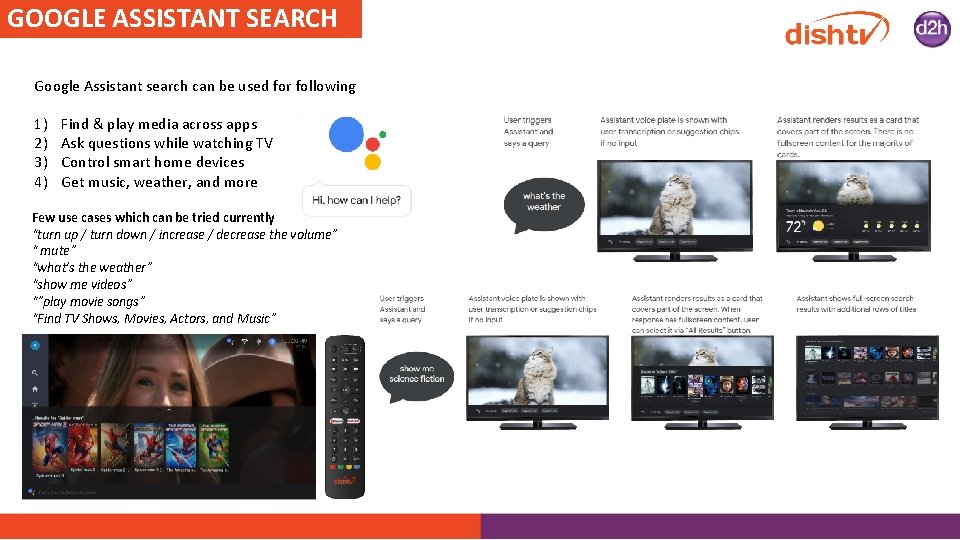
GOOGLE ASSISTANT SEARCH Google Assistant search can be used for following 1) 2) 3) 4) Find & play media across apps Ask questions while watching TV Control smart home devices Get music, weather, and more Few use cases which can be tried currently “turn up / turn down / increase / decrease the volume” “ mute” “what’s the weather” “show me videos” “”play movie songs” “Find TV Shows, Movies, Actors, and Music”
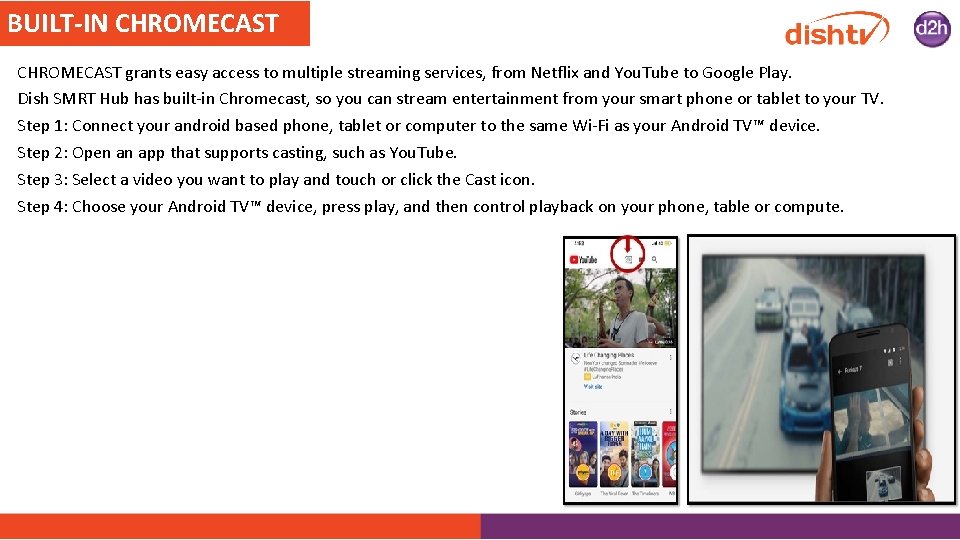
BUILT-IN CHROMECAST grants easy access to multiple streaming services, from Netflix and You. Tube to Google Play. Dish SMRT Hub has built-in Chromecast, so you can stream entertainment from your smart phone or tablet to your TV. Step 1: Connect your android based phone, tablet or computer to the same Wi-Fi as your Android TV™ device. Step 2: Open an app that supports casting, such as You. Tube. Step 3: Select a video you want to play and touch or click the Cast icon. Step 4: Choose your Android TV™ device, press play, and then control playback on your phone, table or compute.
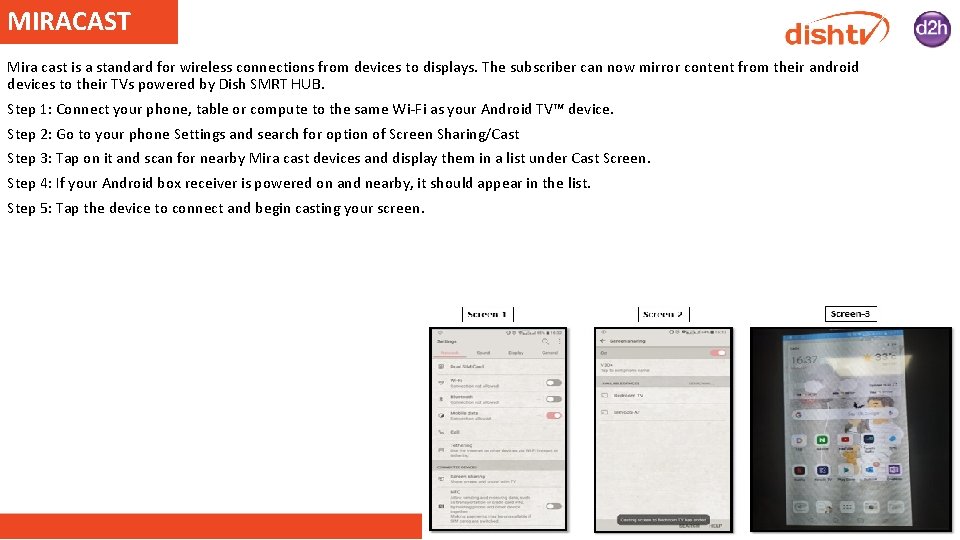
MIRACAST Mira cast is a standard for wireless connections from devices to displays. The subscriber can now mirror content from their android devices to their TVs powered by Dish SMRT HUB. Step 1: Connect your phone, table or compute to the same Wi-Fi as your Android TV™ device. Step 2: Go to your phone Settings and search for option of Screen Sharing/Cast Step 3: Tap on it and scan for nearby Mira cast devices and display them in a list under Cast Screen. Step 4: If your Android box receiver is powered on and nearby, it should appear in the list. Step 5: Tap the device to connect and begin casting your screen.
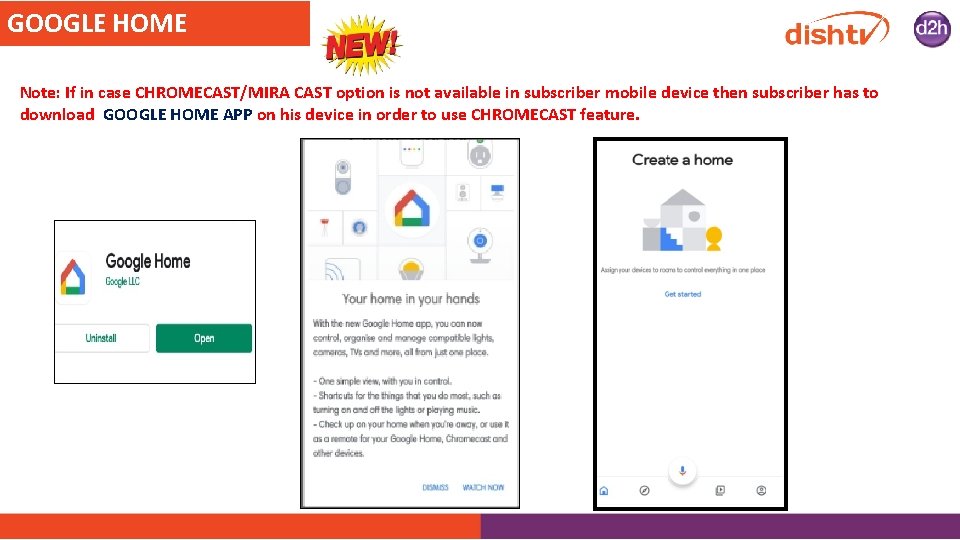
GOOGLE HOME Note: If in case CHROMECAST/MIRA CAST option is not available in subscriber mobile device then subscriber has to download GOOGLE HOME APP on his device in order to use CHROMECAST feature.

REMOTE APP Now subscriber can use his Android phone or tablet as a remote for his Android box. Download the default ATV remote app available on Play store. Easily switch between d-pad and touchpad modes to navigate content and play games on your Android TV device. Tap the mic to start a voice search, or use the keyboard to input text on Android TV. To set up follow below steps: Step 1 Make sure your device is connected to the same Wi-Fi as your Android box. Step 2 on your device, open the Android TV Remote Control app. Step 3 on your device, tap the name of your Android TV. Step 4 on your TV screen, you'll see a PIN. Enter this PIN on your device. Step 5 on your device, tap Pair.
SMART HOME Subscriber can control smart home devices including lights, switches, outlets, and thermostats using your Google Assistant. For example, you can say: • "Ok Google, change lights to red" • "Ok Google, turn on lights" • List of devices supported: https: //assistant. google. com/explore/c/19/
Technical Troubleshooting Following are the technical troubleshooting steps available on Dish SMRT HUB Boxes and all the troubleshooting are under automation for advisors easiness. S. NO 1 2 3 4 5 Error 101. Channel not subscribed 103. HD channel not subscribed 102. No Account Balance Error Message not confirm 301. Signal not found 6 Blank screen on channels 7 8 Audio Problem On Channels Channel not in list 9 STB is not working - Loading Please Wait/EPG not updating/Light Blinking/No light on STB/Rebooting 10 11 12 13 Picture not clear No Internet connection/connection error 303 - Channel Scan Error 103 - Upgrade to HD pack
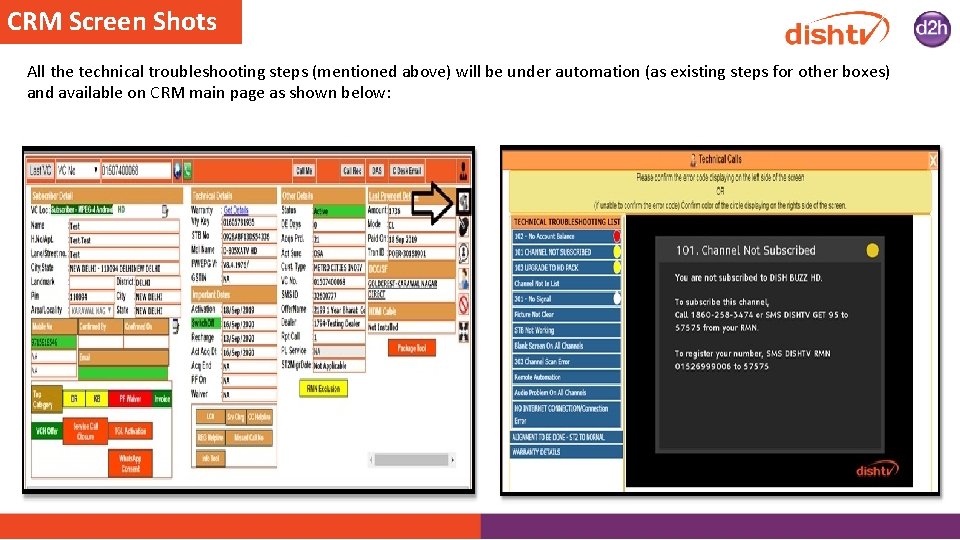
CRM Screen Shots All the technical troubleshooting steps (mentioned above) will be under automation (as existing steps for other boxes) and available on CRM main page as shown below:
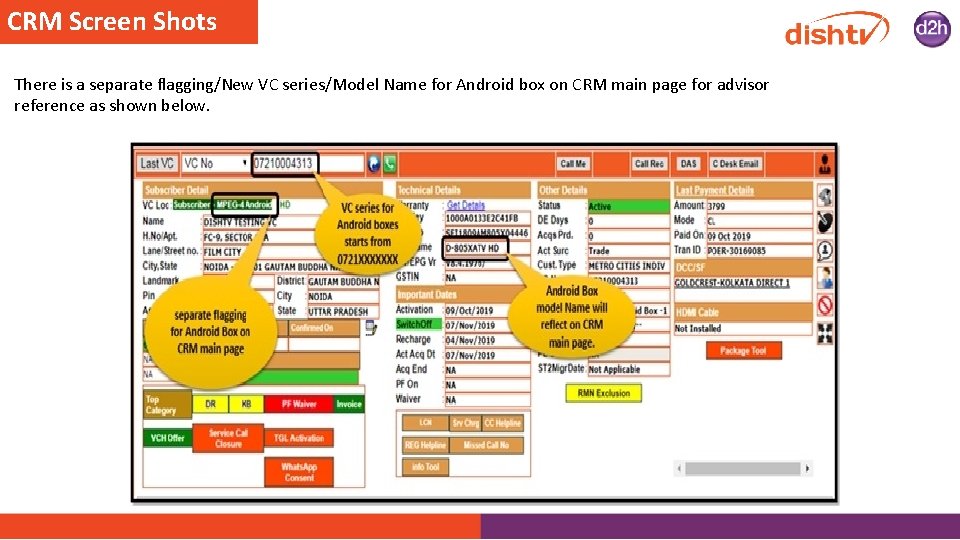
CRM Screen Shots There is a separate flagging/New VC series/Model Name for Android box on CRM main page for advisor reference as shown below.
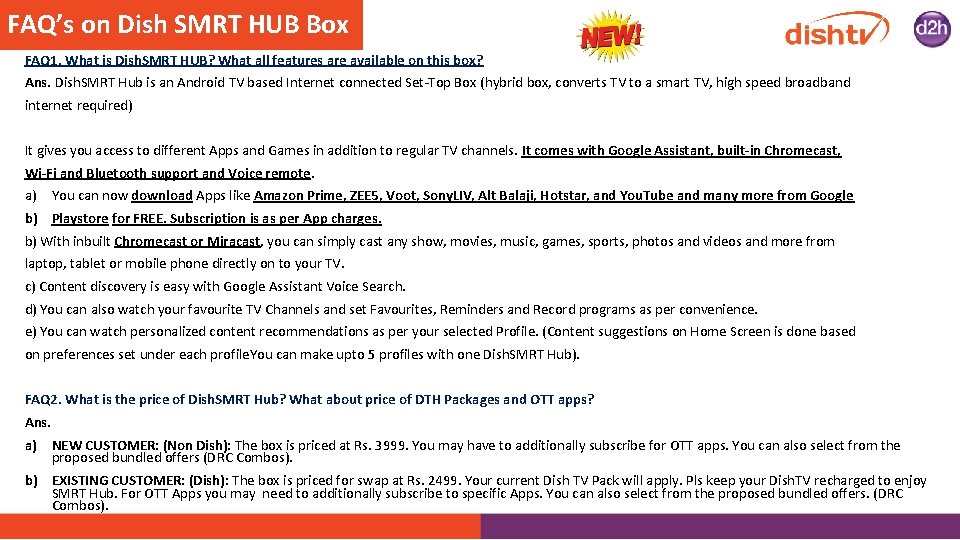
FAQ’s on Dish SMRT HUB Box FAQ 1. What is Dish. SMRT HUB? What all features are available on this box? Ans. Dish. SMRT Hub is an Android TV based Internet connected Set-Top Box (hybrid box, converts TV to a smart TV, high speed broadband internet required) It gives you access to different Apps and Games in addition to regular TV channels. It comes with Google Assistant, built-in Chromecast, Wi-Fi and Bluetooth support and Voice remote. a) You can now download Apps like Amazon Prime, ZEE 5, Voot, Sony. LIV, Alt Balaji, Hotstar, and You. Tube and many more from Google b) Playstore for FREE. Subscription is as per App charges. b) With inbuilt Chromecast or Miracast, you can simply cast any show, movies, music, games, sports, photos and videos and more from laptop, tablet or mobile phone directly on to your TV. c) Content discovery is easy with Google Assistant Voice Search. d) You can also watch your favourite TV Channels and set Favourites, Reminders and Record programs as per convenience. e) You can watch personalized content recommendations as per your selected Profile. (Content suggestions on Home Screen is done based on preferences set under each profile. You can make upto 5 profiles with one Dish. SMRT Hub). FAQ 2. What is the price of Dish. SMRT Hub? What about price of DTH Packages and OTT apps? Ans. a) NEW CUSTOMER: (Non Dish): The box is priced at Rs. 3999. You may have to additionally subscribe for OTT apps. You can also select from the proposed bundled offers (DRC Combos). b) EXISTING CUSTOMER: (Dish): The box is priced for swap at Rs. 2499. Your current Dish TV Pack will apply. Pls keep your Dish. TV recharged to enjoy SMRT Hub. For OTT Apps you may need to additionally subscribe to specific Apps. You can also select from the proposed bundled offers. (DRC Combos).
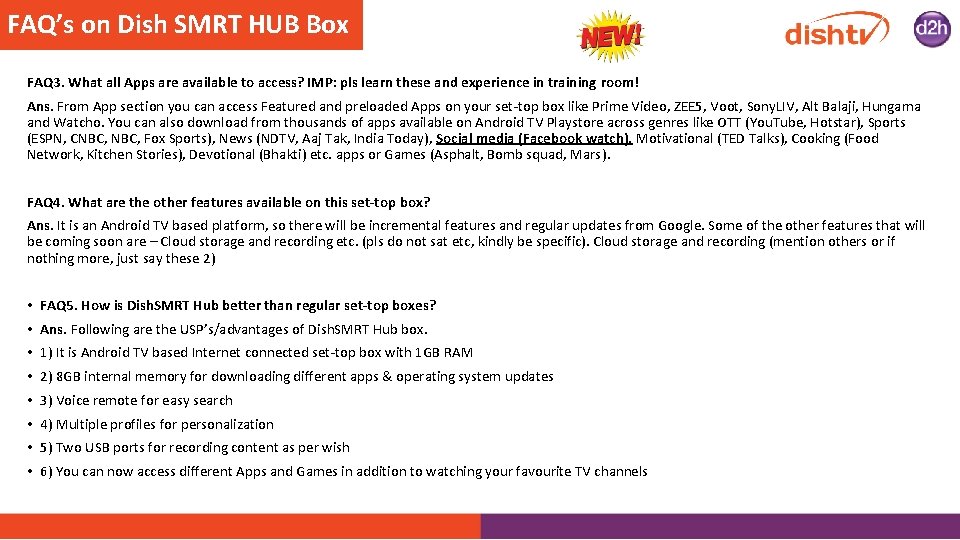
FAQ’s on Dish SMRT HUB Box FAQ 3. What all Apps are available to access? IMP: pls learn these and experience in training room! Ans. From App section you can access Featured and preloaded Apps on your set-top box like Prime Video, ZEE 5, Voot, Sony. LIV, Alt Balaji, Hungama and Watcho. You can also download from thousands of apps available on Android TV Playstore across genres like OTT (You. Tube, Hotstar), Sports (ESPN, CNBC, Fox Sports), News (NDTV, Aaj Tak, India Today), Social media (Facebook watch), Motivational (TED Talks), Cooking (Food Network, Kitchen Stories), Devotional (Bhakti) etc. apps or Games (Asphalt, Bomb squad, Mars). FAQ 4. What are the other features available on this set-top box? Ans. It is an Android TV based platform, so there will be incremental features and regular updates from Google. Some of the other features that will be coming soon are – Cloud storage and recording etc. (pls do not sat etc, kindly be specific). Cloud storage and recording (mention others or if nothing more, just say these 2) • FAQ 5. How is Dish. SMRT Hub better than regular set-top boxes? • Ans. Following are the USP’s/advantages of Dish. SMRT Hub box. • 1) It is Android TV based Internet connected set-top box with 1 GB RAM • 2) 8 GB internal memory for downloading different apps & operating system updates • 3) Voice remote for easy search • 4) Multiple profiles for personalization • 5) Two USB ports for recording content as per wish • 6) You can now access different Apps and Games in addition to watching your favourite TV channels
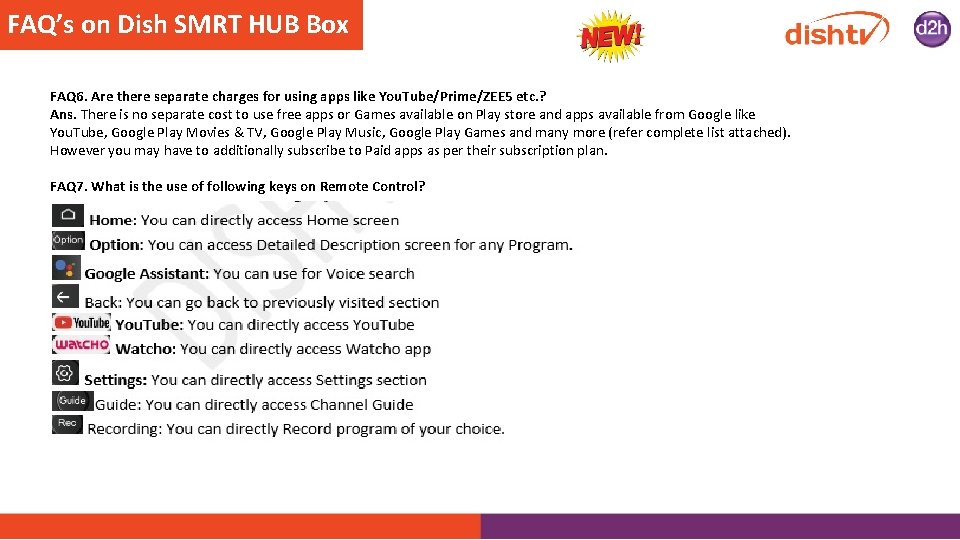
FAQ’s on Dish SMRT HUB Box FAQ 6. Are there separate charges for using apps like You. Tube/Prime/ZEE 5 etc. ? Ans. There is no separate cost to use free apps or Games available on Play store and apps available from Google like You. Tube, Google Play Movies & TV, Google Play Music, Google Play Games and many more (refer complete list attached). However you may have to additionally subscribe to Paid apps as per their subscription plan. FAQ 7. What is the use of following keys on Remote Control?

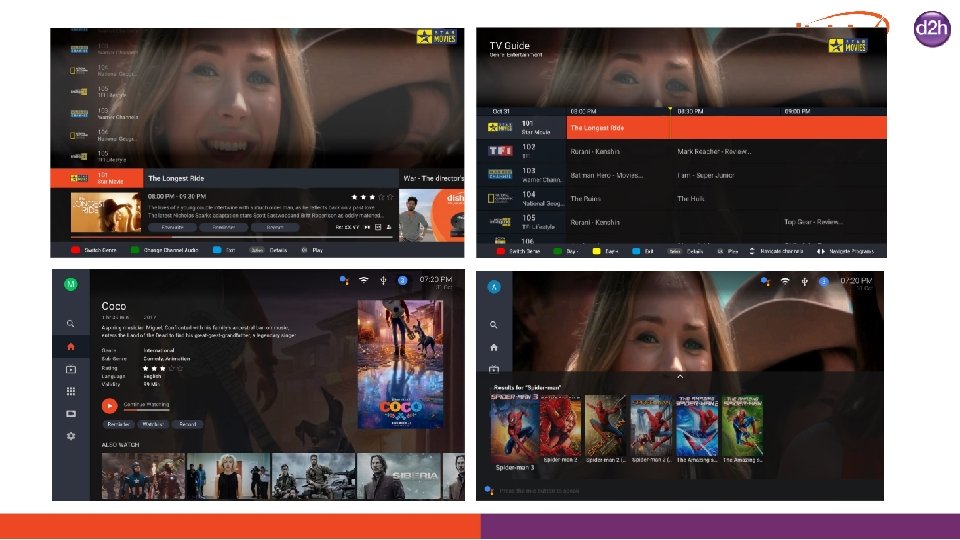
FAQ’s on Dish SMRT HUB Box FAQ 8. How can I create multiple user Profiles? How can I edit already created Profile? Ans. You can access the Profile section from the top left of your screen and create upto 5 user profiles as per your choice. The same profiles can also be edited by using Option key of the remote. FAQ 9. What is the advantage of creating multiple user profiles? Ans. You will get relevant content recommendation as per your choice. You will be able to customize your Home screen rails as per your convenience from “Customize your Tiles” options available at bottom of the screen. Also recommended for you rail will show you content as per Language and Genres selected under your Profile. FAQ 10. How can I access Channels or Apps? Ans. You can enter any channel number from remote to tune to respective channel or you can also access channel of your choice from Guide. You can also directly access recently watched Channel or App from Recent rail on the Home screen of the box. FAQ 11. How can I change language of Channel Audio? Ans. You can change language of your channel audio from Green button of your remote. FAQ 12. How can I access TV guide? Ans. You can directly access Guide from button on Remote or from side menu bar on Home screen. FAQ 13. How can I change or switch genres in Channel Guide? Ans. You can use Red button on the remote to switch genres and select as desired. The selected genre will also be indicated in red colour on top left of your guide screen.
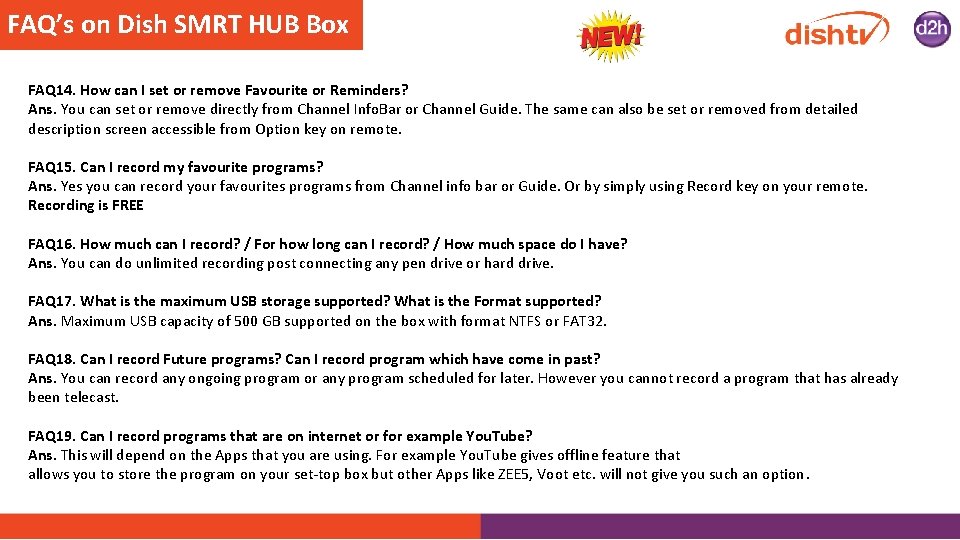
FAQ’s on Dish SMRT HUB Box FAQ 14. How can I set or remove Favourite or Reminders? Ans. You can set or remove directly from Channel Info. Bar or Channel Guide. The same can also be set or removed from detailed description screen accessible from Option key on remote. FAQ 15. Can I record my favourite programs? Ans. Yes you can record your favourites programs from Channel info bar or Guide. Or by simply using Record key on your remote. Recording is FREE FAQ 16. How much can I record? / For how long can I record? / How much space do I have? Ans. You can do unlimited recording post connecting any pen drive or hard drive. FAQ 17. What is the maximum USB storage supported? What is the Format supported? Ans. Maximum USB capacity of 500 GB supported on the box with format NTFS or FAT 32. FAQ 18. Can I record Future programs? Can I record program which have come in past? Ans. You can record any ongoing program or any program scheduled for later. However you cannot record a program that has already been telecast. FAQ 19. Can I record programs that are on internet or for example You. Tube? Ans. This will depend on the Apps that you are using. For example You. Tube gives offline feature that allows you to store the program on your set-top box but other Apps like ZEE 5, Voot etc. will not give you such an option.
FAQ’s on Dish SMRT HUB Box FAQ 20. How can I access Recorded content? How can I delete it? Ans. The recorded content can be accessed from My Recording section available under the side menu bar. It will have rails of My Recordings, Scheduled Recording and Reminders. You can click on My Recordings to watch them. The Scheduled Recordings and Reminders can also be seen and also deleted from Description page. FAQ 21. How can I format my Hard disk or Pen drive? Ans. You can go to Settings>Recorder>Hard disk format to select your drive. Then click on Option key to format selected drive. FAQ 22. How can I set Parental control? Ans. You can Lock channels from Settings>Parental Lock as per your choice. You will have to create and enter Password to access the section. The already locked channels can also be Unlocked from here. You will also get option to sort channels by Genre from here. FAQ 23. What all browsers are supported to be used on Dish. SMRT HUB? Ans. There are no inbuilt browsers available on the platform. However you can download the browser of your choice from Google Playstore which can be used for your basic browsing needs. For e. g. Puffin TV browser, TV Web browser, Web Browser for Android TV etc. FAQ 24. How can I access Apps or download new apps? Ans. You can access Apps from the All Apps or Featured Apps rail on Home screen. You can also access Apps section from side menu bar available on Home screen. You can access the Featured apps or your downloaded apps from All Apps section. You can also download new apps or games from Google Playstore. Pls note that the mobile device android Playstore and SMRT Hub android Playstore are not identical in apps featured.
FAQ’s on Dish SMRT HUB Box FAQ 25. How can I delete apps from my device? Ans. You can go to Settings>Android Settings>Apps. Select the app you want to delete and Uninstall it. FAQ 26. How do I update the Apps that are installed on my Set-top box? Ans. Default settings on Google Playstore are to update the apps automatically whenever STB is connected with internet. These updates will happen in the background and might slow down the performance for the update duration. You can disable the auto app updates if you face such a problem. This is NOT recommended as you will miss on the latest updates and fixes from different apps FAQ 27. Where will the downloaded apps on the device be stored? Ans. The downloaded apps will be stored in the internal memory of the set-top-box. So once your device memory is full you will have to delete some of the apps to free up the space. Like it is done for any Android mobile device. FAQ 28. Can you use or download any App or internet services if the box is in Deactive status? Ans. You need to have an active and working Dish TV connection to get access to different apps available on the platform or any internet based service like Voice search, posters etc. FAQ 29. How can I use Search functionality? Ans. You can access Search from side menu bar on Home screen. You can directly type in what you are looking for from on screen keyword using your remote. You can also use voice search to find relevant content. The voice search can be accessed directly from the button on remote or it is also available on LHS next to the search tab during keyboard searching.
FAQ’s on Dish SMRT HUB Box FAQ 30. How can I use Voice search? Ans. You can press Google Assistant button on your remote and speak the keyword you want to search in remote. The Google Assistant will answer or help you with your query. You can ask plenty of questions from Assistant like 1) Find & play media across apps 2) Get answers while watching TV 3) Control your smart home devices 4) Play music, weather updates and much more You can also set interesting routines on your Google Home app. To know more about this please visit https: //support. google. com/googlenest/answer/7029585? co=GENIE. Platform%3 DAndroid&hl=en FAQ 31. Sometime the voice search is not getting proper results. What should I do? Ans. You can change language from Settings > Android Settings > Language for better results. Although we recommend you to use English (IN). FAQ 32. How to ensure that the Adult content is not listed in search results? Ans. To avoid any explicit content on screen, please follow below mentioned steps. Under Settings -> Android Settings -> Search: enable Safe. Search. Filter The You. Tube recommendations also work based on your viewing pattern. You can disable explicit content from here also by enabling restricted mode from You. Tube settings. Also, clear your browsing history. Under You. Tube -> Settings: Enable Restricted Mode
FAQ’s on Dish SMRT HUB Box FAQ 33. Is this box compatible with any specific type of TV? Ans. Dish. SMRT HUB is compatible with all types of TVs including 4 K, HD on LED, LCD, or Plasma technology. The box is supported with HDMI and CVBS output. So it is compatible with all types of TVs supported with HDMI and CVBS input. FAQ 34. What is the change in technology with this box? Ans. The box is Android TV based Internet connected set-top-box. The earlier boxes were SD/HD and some having recorder facility. FAQ 35. How can I pair my Bluetooth remote in case of any issues post initial setup? Ans. To pair your Bluetooth remote again please Press & Hold “OK” key until RED LED on RCU starts to blinks. Post this your remote will be paired again. Follow the same steps whenever this particular issue is observed. FAQ 36. How can I use learning keys for TV power on and what about Source keys on remote? Ans. Refer the setup on User Manual page no. 6 to use. TV Power and Source key available on RCU can be used to control TV. FAQ 37. How can I connect this set-top box to Internet? Ans. Dish. SMRT HUB has an inbuilt Wi-Fi receiver, so you can easily connect to your Home Wi-Fi network or mobile hotspot. In case you don’t have any Wi-Fi network then you can connect your box using Ethernet cable. FAQ 38. What is the minimum Internet speed required for this? Ans. Recommended Internet speed is 4 Mbps and above. Please note that to watch 4 K content higher speeds may be required. FAQ 39. If I don’t use Internet, then can I use this as a simple STB if need be? Ans. Yes you can use it as a simple set-top box, but for better experience it is recommended to use it with internet connection.
FAQ’s on Dish SMRT HUB Box FAQ 40. How much internal memory does this box have and how can I use it? Ans. The box has 8 GB internal memory. User can download Apps and Games from Google Playstore as per his requirement. The Apps can also be managed and deleted from Settings>Android Settings>Apps>Select respective App>Uninstall. FAQ 41. Do I get recording / downloading space from your side for this? Ans. For Recording user will have to connect his own pen-drive, or USB disk. FAQ 42. What should I do if all internal memory is utilized? Can I expand the internal storage? Ans. The internal storage cannot be expanded. You will have to delete few apps to free up the box memory. FAQ 43. How to watch my photos, movies that are on my personal USB drive. Ans. You need to connect your pen-drive and access the downloaded app “File Browser” in All Apps rails to find the data available in external storage. You will need to download any App from Google Playstore that supports local content browsing. Few examples are FX File explorer, VLC, X-plore File Manager, File Manager Pro Android TV etc. FAQ 44. How to watch my photos, movies that are on my smartphones? How to use cast? Ans. You can cast or screen mirror you phone directly onto the big screen. To use the casting feature, Dish. SMRT HUB and your smartphone has to be on same Wi-Fi network. Next, open any cast enabled App on your smartphone. Press the CAST icon to watch content on the TV screen and cast applications on your TV. You can also use Google Home Application on your smartphone to mirror the screen onto the TV. To know more about casting please visit https: //support. google. com/chromecastbuiltin/answer/6059461? hl=en
FAQ’s on Dish SMRT HUB Box FAQ 45. What all applications are supported on Chromecast? Ans. List of Chromecast enabled apps can be found at – https: //www. google. com/chromecast/built-in/apps/ FAQ 46. I am not able to view Internet but DTH connection is working fine. What is to be done? Ans. Please ensure that your internet Connection is working fine. Minimum required speed is 4 Mbps. In case you are unable to watch or play any online content on your Android box, please check following: 1) Please check if you are able to access internet on your smartphone or laptop that is on the same network. If yes, then you need to check Wi-Fi or IP settings on your box. 2) Are there any App updates in progress? If yes, please re check after the updates are over. FAQ 47. Is there any app to check Network speed on TV? Ans. You can use Speed test app that is available on SMRT Hub Playstore. FAQ 48. Will Weather conditions impact my TV viewing experience? Ans. DTH signal may be impacted during the bad weather due to interrupted or blocked signals. However you can experience uninterrupted Internet based services provided your connectivity is stable. FAQ 49. How much money will I incur for my internet if I view TV for longer duration? Ans. For watching any TV channel you do not incur any internet charges. Internet connectivity will be required for Recommendations on Home screen and Voice search feature but the data usage will be very minimal. If you will watch any online video or content, then you will incur data charges, which will be dependent on the selected video quality and will vary from App to App.
FAQ’s on Dish SMRT HUB Box FAQ 50. What features will be unavailable if I don’t have Internet connection? Ans. Features like Voice/Text based search, Recommendations on home page, Android TV services like You. Tube, Playstore, Featured apps that require internet connectivity will be unavailable in absence of Internet connectivity. FAQ 51. Is it possible to watch different program while recording? Ans. Your Dish. SMRT HUB has single tuner. This means, you can tune to only one DTH channel at any point of time. You can, at a point of time 1) Record and watch same channel 2) Record 1 channel and watch something on other Apps 3) Record 1 channel and watch a recording 4) Pause Live TV FAQ 52. Will my existing TV remote work with Dish. SMRT HUB? Ans. No. Dish. SMRT HUB uses new Bluetooth remote control which has special keys like Google Assistant, Home, Option, You. Tube and Watcho for direct access to respective sections. FAQ 53. Any new features available with this Bluetooth remote? Ans. Pairing is required with set-top box as a part of Set-up. 1) Voice search 2) No need to point and shoot towards TV 3) You can access keyboard to type and search for content of your choice FAQ 54. Can I connect my Bluetooth speakers also? Ans. Yes, Bluetooth speakers can be connected.
FAQ’s on Dish SMRT HUB Box FAQ 55. Can I use my mobile to control Android box? Ans. You can download Android TV Remote Control app from Play store and use it to control your Android box. To get started, connect your Android phone or tablet to the same network as your Android TV device and then find your Android TV via Bluetooth. Then use your Android phone or tablet as a remote for your Android TV. Easily switch between d-pad and touchpad modes to navigate content and play games on your Android TV device. Tap the mic to start a voice search, or use the keyboard to input text on Android TV. FAQ 56. How can I check for latest Android software updates? Ans. You can visit Android Settings and go to about section to check for any System or Remote control software update available. FAQ 57. How can I check for Set-Top-Box Software updates? Ans. You can visit Settings > Tools > Software Upgrade section to check for latest software availability. FAQ 58. Sometimes my set-top box responds very slowly. How to fix this problem? Ans. You will have to do Power Recycle to recover from such condition. If issue still persists then go to Settings > Android Settings > Storage & reset and do Factory data reset. FAQ 59: When Netflix services will be available on DISHSMRT HUB BOX. Ans: Dish. SMRT Hub is an Android. TV based set-top box. It would keep adding Apps that are not available today. Hotstar & Amazon Prime are there and currently top programs are : (pls add top 3 programs of both Hotstar & Amazon Prime)

FAQ’s on Dish SMRT HUB Box FAQ 60: Xtreme from airtel is available for Upgrade at Rs. 2249 and Rs. 1985 if paid with Airtel Bank v/s Rs. 2499 of our upgrade price. Why we should buy DISHTV? Ans: Sir/Ma’am, We are offering you, better value-for-money option as the monthly pack pricing is more lucrative on Dish. TV comparing any other DTH Provider Their UG price is for their existing customer. IF EITHER CUSTOMER WANTS THE COMPETITON BOX , THE PRICE IS SAME : Rs 3999/FAQ 61: Airtel Xtreme app is available on the airtel box – Live TV Ans: Sir/Ma’am, Live TV is available through satellite on Dish. TV SMRT Hub. It does not consume any internet bandwidth for the same. Watching Live TV through internet would consume very high amount of internet but in dish, to watch the live channels, no data is required. FAQ 62: Airtel remote has direct buttons from Netflix/Amazon and You. Tube. Ans: Sir/Ma’am, We have direct access keys for Watcho and You. Tube. Our UI has been designed in a way that accessing OTT apps is very easy. Most of the OTT apps are present on the home screen under Featured Apps, and easily discoverable. FAQ 63: 4 K promotion in Xtreme boxes. Do we have 4 K support in DISH SMRT HUB. Ans: Sir/Ma’am, To watch 4 K content, you would need to have 4 K support on your TV and set-top box both along with a steady highspeed broadband connection. Dish. TV also plans to launch a 4 K variant soon.
- Slides: 36