
Discover the Touchbase Real Estate communication and showing
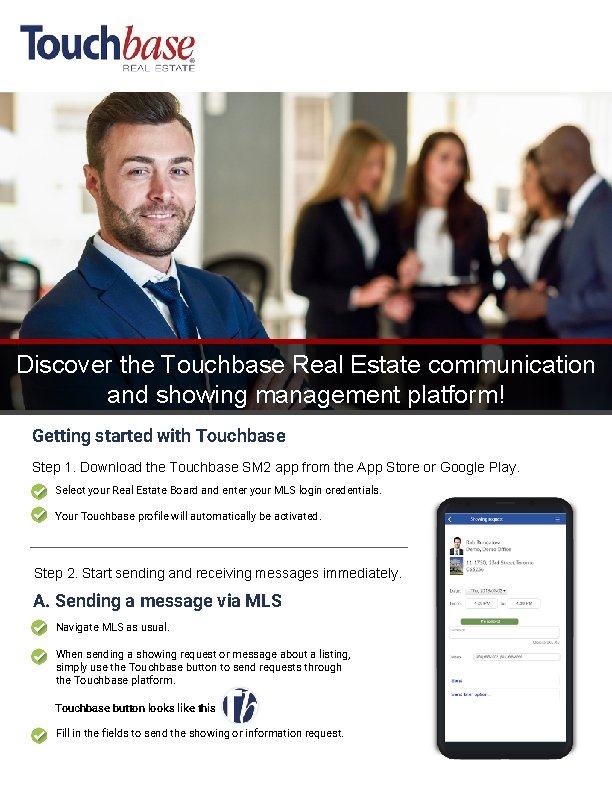
Discover the Touchbase Real Estate communication and showing management platform! Getting started with Touchbase Step 1. Download the Touchbase SM 2 app from the App Store or Google Play. Select your Real Estate Board and enter your MLS login credentials. Your Touchbase profile will automatically be activated. Step 2. Start sending and receiving messages immediately. A. Sending a message via MLS Navigate MLS as usual. When sending a showing request or message about a listing, simply use the Touchbase button to send requests through the Touchbase platform. Touchbase button looks like this Fill in the fields to send the showing or information request.
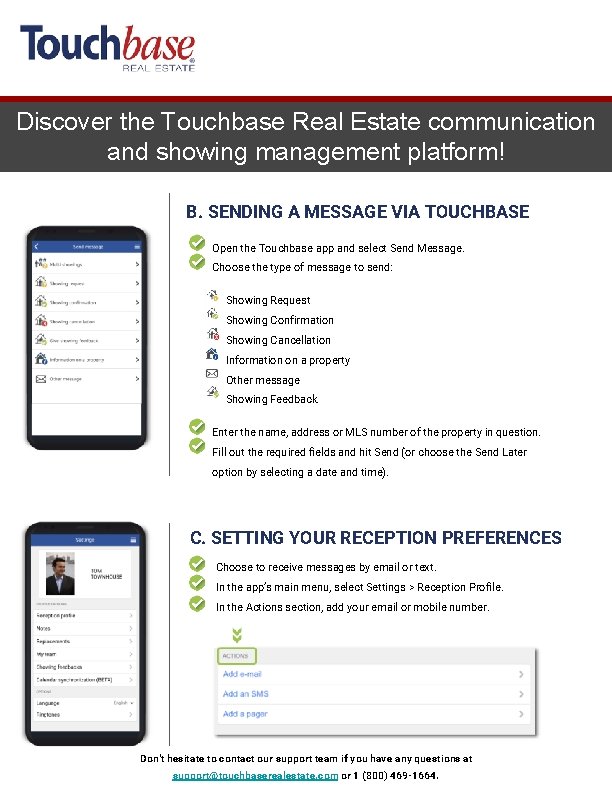
Discover the Touchbase Real Estate communication and showing management platform! B. SENDING A MESSAGE VIA TOUCHBASE Open the Touchbase app and select Send Message. Choose the type of message to send: Showing Request Showing Confirmation Showing Cancellation Information on a property Other message Showing Feedback Enter the name, address or MLS number of the property in question. Fill out the required fields and hit Send (or choose the Send Later option by selecting a date and time). C. SETTING YOUR RECEPTION PREFERENCES Choose to receive messages by email or text. In the app’s main menu, select Settings > Reception Profile. In the Actions section, add your email or mobile number. Don't hesitate to contact our support team if you have any questions at support@touchbaserealestate. com or 1 (800) 469 -1664.
- Slides: 2