
Digital Signage and Getting Your Message to the


- Slides: 21
Digital Signage and Getting Your Message to the Masses Andrew Roewe Oklahoma State University DASNR IT
Digital Signage
What I am going to cover… What digital signage is What Oklahoma State was doing What we are doing now How to use Xibo
What I won’t be covering… Content creation
Digital Signage What is it? Why is it important? Scalable Easier to “refresh” content
Digital Signage with OSU DASNR 2007 a joint venture between the CASNR Student Tech and Career Services 5 x TVs and Wall Mounts 5 x Surplus Computers
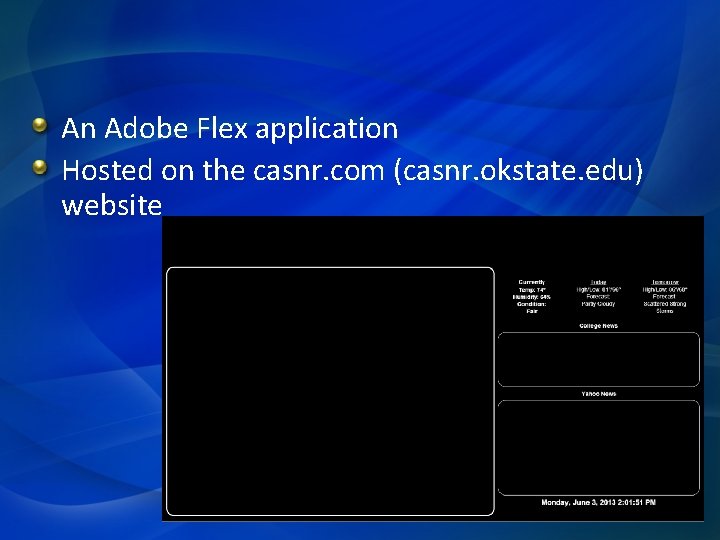
An Adobe Flex application Hosted on the casnr. com (casnr. okstate. edu) website
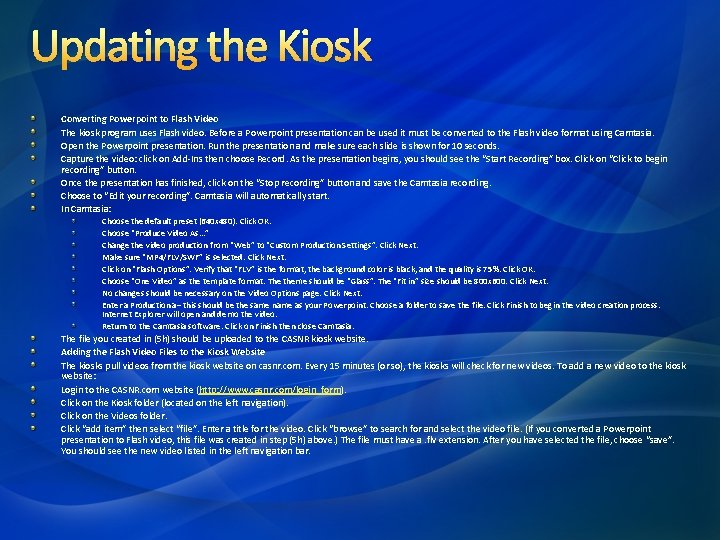
Updating the Kiosk Converting Powerpoint to Flash Video The kiosk program uses Flash video. Before a Powerpoint presentation can be used it must be converted to the Flash video format using Camtasia. Open the Powerpoint presentation. Run the presentation and make sure each slide is shown for 10 seconds. Capture the video: click on Add-Ins then choose Record. As the presentation begins, you should see the “Start Recording” box. Click on “Click to begin recording” button. Once the presentation has finished, click on the “Stop recording” button and save the Camtasia recording. Choose to “Edit your recording”. Camtasia will automatically start. In Camtasia: Choose the default preset (640 x 480). Click OK. Choose “Produce Video As…” Change the video production from “Web” to “Custom Production Settings”. Click Next. Make sure “MP 4/FLV/SWF” is selected. Click Next. Click on “Flash Options”. Verify that “FLV” is the format, the background color is black, and the quality is 75%. Click OK. Choose “One Video” as the template format. The theme should be “Glass”. The “Fit in” size should be 800 x 600. Click Next. No changes should be necessary on the Video Options page. Click Next. Enter a Production a– this should be the same name as your Powerpoint. Choose a folder to save the file. Click Finish to begin the video creation process. Internet Explorer will open and demo the video. Return to the Camtasia software. Click on Finish then close Camtasia. The file you created in (5 h) should be uploaded to the CASNR kiosk website. Adding the Flash Video Files to the Kiosk Website The kiosks pull videos from the kiosk website on casnr. com. Every 15 minutes (or so), the kiosks will check for new videos. To add a new video to the kiosk website: Login to the CASNR. com website (http: //www. casnr. com/login_form). Click on the Kiosk folder (located on the left navigation). Click on the Videos folder. Click “add item” then select “file”. Enter a title for the video. Click “browse” to search for and select the video file. (If you converted a Powerpoint presentation to Flash video, this file was created in step (5 h) above. ) The file must have a. flv extension. After you have selected the file, choose “save”. You should see the new video listed in the left navigation bar.
Post 2008 STF purchased 5 x iogear DVI over network. Eliminate four of the computers Summer 09 OSU IT Subnets were redone 3 x computers Fall 2009 started to investigate alternatives.
Digital Signage Companies x 2 o media Four winds Interactive Smarter. Sign SCALA Powerpoint Concerto
Xibo http: //xibo. org. uk/ Server-Client Setup Web page interface FREE!!!* Some minor cost.
What is Xibo High Quality Digital Signage system Flexible Server-Client application Developed by James Packer as a university project Released into the wild in 2006
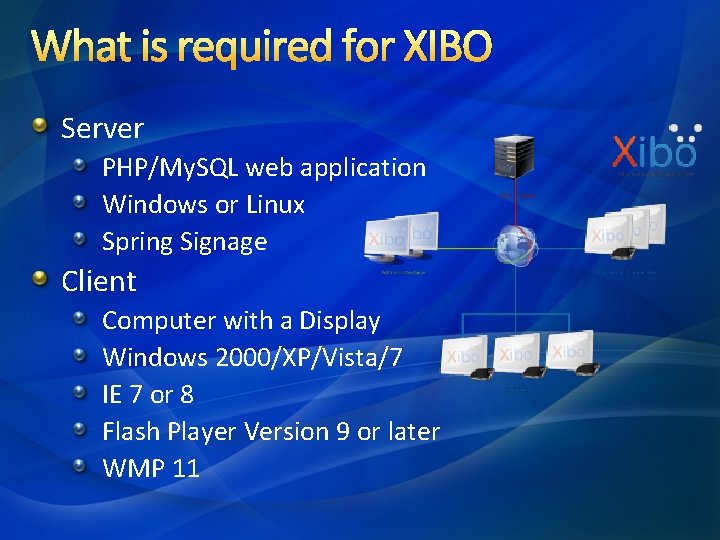
What is required for XIBO Server PHP/My. SQL web application Windows or Linux Spring Signage Client Computer with a Display Windows 2000/XP/Vista/7 IE 7 or 8 Flash Player Version 9 or later WMP 11
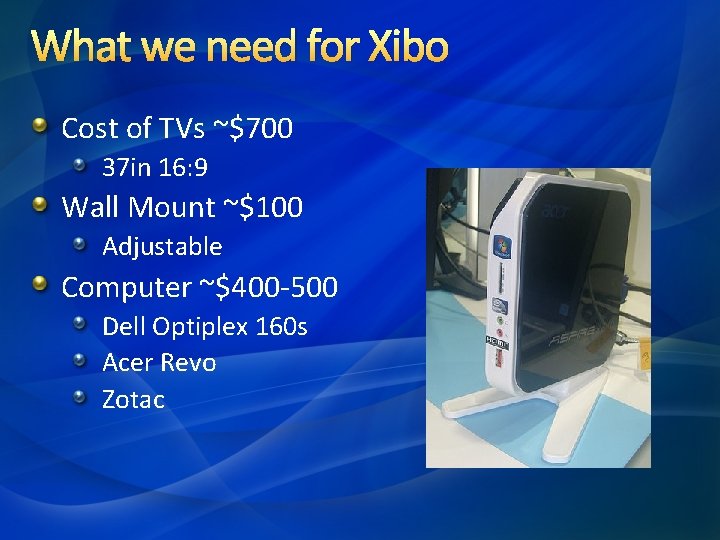
What we need for Xibo Cost of TVs ~$700 37 in 16: 9 Wall Mount ~$100 Adjustable Computer ~$400 -500 Dell Optiplex 160 s Acer Revo Zotac
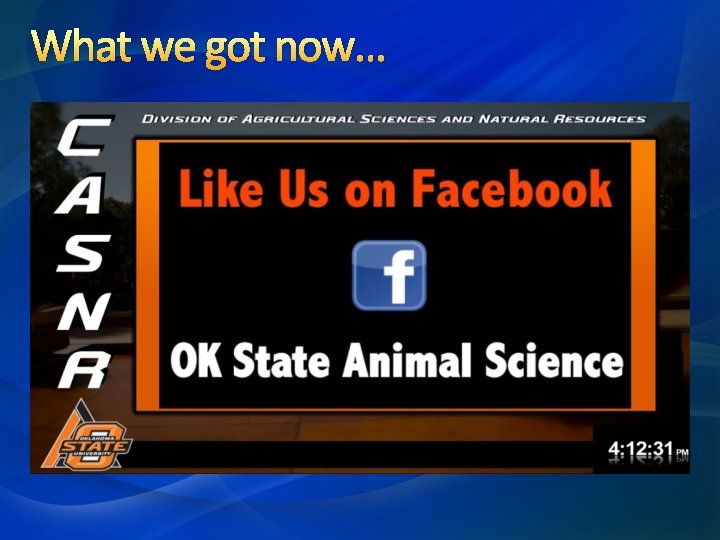
What we got now…
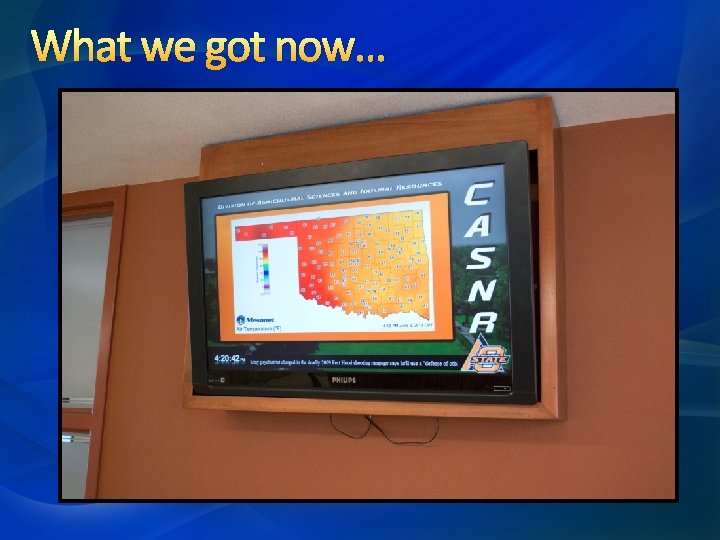
What we got now…
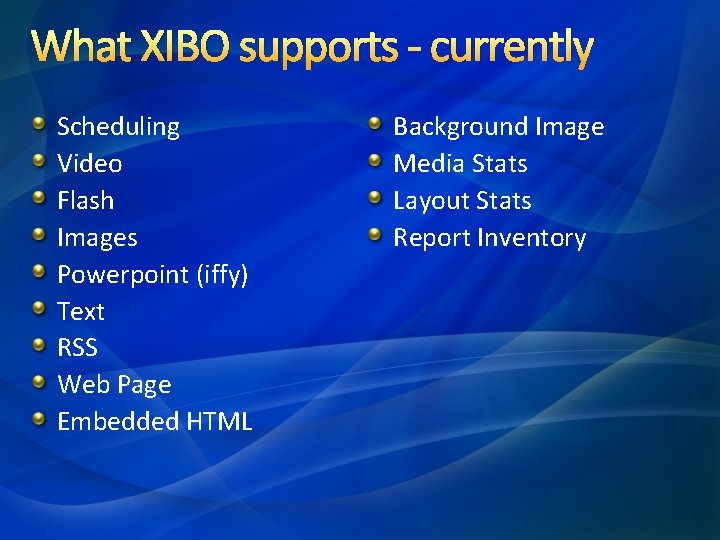
What XIBO supports - currently Scheduling Video Flash Images Powerpoint (iffy) Text RSS Web Page Embedded HTML Background Image Media Stats Layout Stats Report Inventory
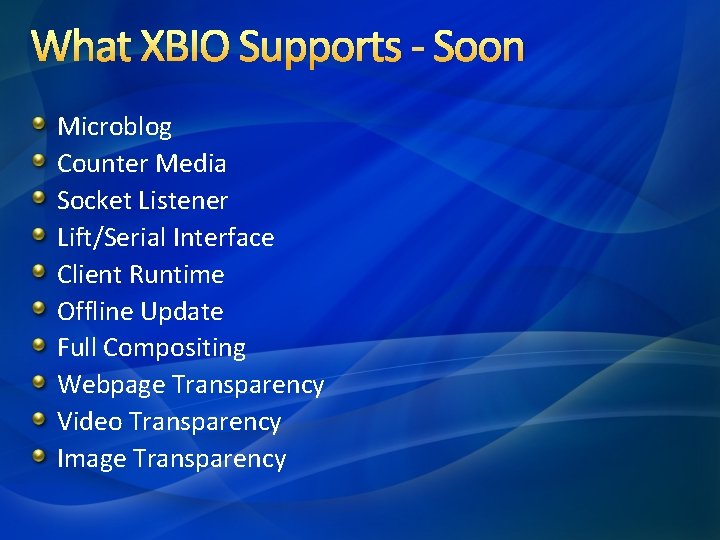
What XBIO Supports - Soon Microblog Counter Media Socket Listener Lift/Serial Interface Client Runtime Offline Update Full Compositing Webpage Transparency Video Transparency Image Transparency
Contact Email: Andrew. roewe@okstate. edu support. dasnr. okstate. edu/referencematerials/netc/ace-netc-2013
Demo Time…
Questions? ?