
Digital Planet Tomorrows Technology and You George Beekman
Digital Planet: Tomorrow’s Technology and You George Beekman • Ben Beekman Tenth Edition Copyright © 2012 Pearson Education, Inc. publishing as Prentice Hall
Digital Planet: Tomorrow’s Technology and You Chapter 6 Graphics, Digital Media, and Multimedia Copyright © 2012 Pearson Education, Inc. publishing as Prentice Hall
Chapter 6 Objectives ü Explain the difference between painting software, image-processing software, drawing software, and 3 -D modeling software ü Explain effective techniques for improving the quality of slides prepared with presentation-graphics software ü Describe how digital technology is used in video and audio production today Copyright © 2012 Pearson Education, Inc. publishing as Prentice Hall 3
Chapter 6 Objectives (cont. ) üDescribe how data compression works üDescribe several present and future applications for multimedia technology Copyright © 2012 Pearson Education, Inc. publishing as Prentice Hall 4
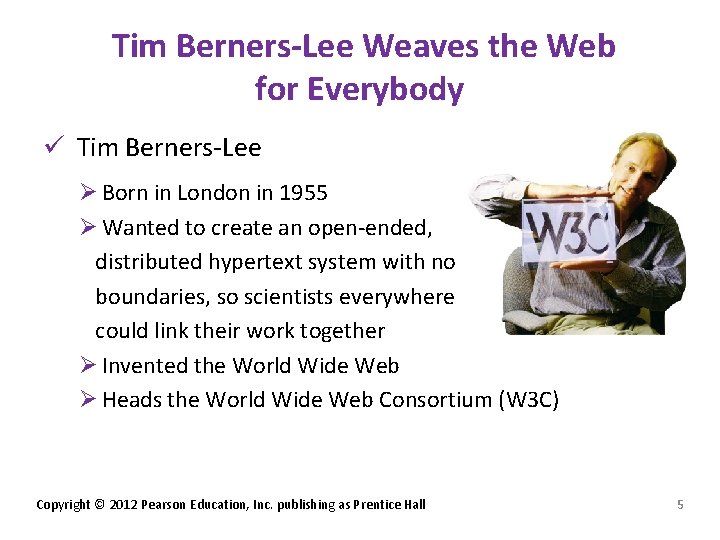
Tim Berners-Lee Weaves the Web for Everybody ü Tim Berners-Lee Ø Born in London in 1955 Ø Wanted to create an open-ended, distributed hypertext system with no boundaries, so scientists everywhere could link their work together Ø Invented the World Wide Web Ø Heads the World Wide Web Consortium (W 3 C) Copyright © 2012 Pearson Education, Inc. publishing as Prentice Hall 5
Painting: Bitmapped Graphics ü Pixels: tiny dots of white, black, or color that make up images on the screen ü Painting software: • Paints pixels on the screen with a pointing device • Pointer movements are translated into lines and patterns on the screen • Palette of tools mimics real-world painting tools Copyright © 2012 Pearson Education, Inc. publishing as Prentice Hall 6
Painting: Bitmapped Graphics ü Bitmapped graphics (or raster graphics): pictures show the pixels are mapped on the screen • Gray-scale graphics: uses 8 bits per pixel; allows up to 256 shades of gray • Color depth: number of bits devoted to each pixel • Resolution: density of the pixels; described as DPI (dots per inch) • Anti-aliasing: smoothes out less-than-ideal resolutions Copyright © 2012 Pearson Education, Inc. publishing as Prentice Hall 7
Image Processing: Photographic Editing by Computer ü Image processing: users manipulate photographs with tools such as Adobe Photoshop ü More powerful than traditional photo-retouching techniques ü Can distort and combine photos ü Can create fabricated images that show no evidence of tampering Copyright © 2012 Pearson Education, Inc. publishing as Prentice Hall 8
Image Processing: Photographic Editing by Computer (cont. ) ü Digital photo management software programs simplify and automate common tasks associated with capturing, organizing, editing, and sharing digital images. • Apple i. Photo • Google Picasa • Adobe Lightroom Copyright © 2012 Pearson Education, Inc. publishing as Prentice Hall 9
Drawing: Object-Oriented Graphics ü Drawing software stores a picture as a collection of lines and shapes (called object-oriented or vector graphics). ü Many drawing tools—line, shape, and text tools—are similar to painting tools in bitmapped programs. Copyright © 2012 Pearson Education, Inc. publishing as Prentice Hall 10
Drawing: Object-Oriented Graphics (cont. ) ü PDF (portable document format): file format developed by Adobe; enables digital documents to be exchanged between programs independent of application software, hardware, or operating system • Can contain text, fonts, images, and vector graphics • Can be displayed by Web browsers using Adobe’s Acrobat Reader Copyright © 2012 Pearson Education, Inc. publishing as Prentice Hall 11
Drawing: Object-Oriented Graphics (cont. ) ü Bitmapped painting (pixels) gives you these advantages: • More control over textures, shading, and fine detail • Appropriate for screen displays, simulating natural paint media, and embellishing photographs • Object-oriented drawing gives you advantages, such as cleaner lines and smoother shapes Copyright © 2012 Pearson Education, Inc. publishing as Prentice Hall 12

Drawing: Object-Oriented Graphics (cont. ) ü Some integrated programs contain both drawing and painting modules. • Allows you to choose the right tool for each job ü Some programs merge features of both in a single application. • Blurs the distinction between types • New possibilities for amateur and professional illustrators Copyright © 2012 Pearson Education, Inc. publishing as Prentice Hall 13
Creating Smart Art • Choose the right tool for • Don’t borrow without the job permission • Always keep a native • Understand your rights: copy www. copyright. gov • Know your graphics file • Consider letting others formats build on your work: www. creativecommons. • Borrow from the best org Copyright © 2012 Pearson Education, Inc. publishing as Prentice Hall 14
3 -D Modeling Software ü 3 -D modeling software: used to create threedimensional objects with tools similar to those in drawing software ü Goal for some applications: to create an animated presentation rather than a printout ü Flexible: can create a 3 -D model, rotate it, view it from different angles ü Can “walk-through” a 3 -D environment that exists only in the computer’s memory Copyright © 2012 Pearson Education, Inc. publishing as Prentice Hall 15
CAD/CAM: Turning Pictures into Products ü (CAD) computer-aided design: allows engineers, designers, and architects create designs on screen products ranging from computer chips to public buildings ü Can create 3 D, solid models with physical characteristics like weight, volume, center of gravity ü Cheaper, faster, and more accurate than traditional design-by-hand techniques ü Can do stress tests to evaluate the structural performance of any part of the model Copyright © 2012 Pearson Education, Inc. publishing as Prentice Hall 16
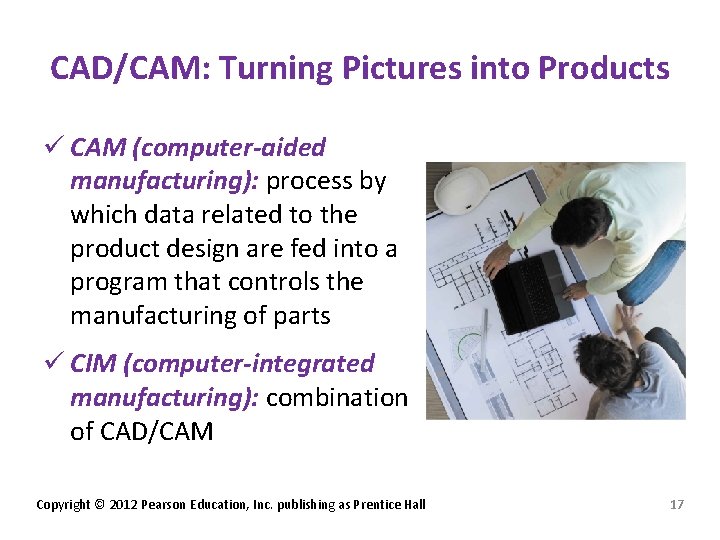
CAD/CAM: Turning Pictures into Products ü CAM (computer-aided manufacturing): process by which data related to the product design are fed into a program that controls the manufacturing of parts ü CIM (computer-integrated manufacturing): combination of CAD/CAM Copyright © 2012 Pearson Education, Inc. publishing as Prentice Hall 17
Making Powerful Presentations • Make plan before create slides • Determine slide count • Outline ideas • Keep each slide focused • Use large letters • Be smart with art • Keep it simple • Do test run before making presentation • Don’t read slides • Pause when revealing new slide or bullet Copyright © 2012 Pearson Education, Inc. publishing as Prentice Hall 18
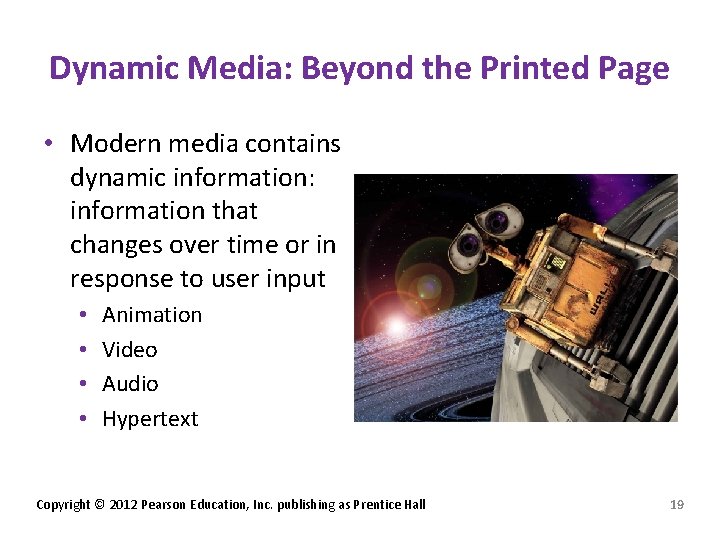
Dynamic Media: Beyond the Printed Page • Modern media contains dynamic information: information that changes over time or in response to user input • • Animation Video Audio Hypertext Copyright © 2012 Pearson Education, Inc. publishing as Prentice Hall 19
Presentation Graphics: Bringing Lectures to Life ü Presentation graphics: automates creation of visual aids for lectures, training sessions, sales demonstrations, and other presentations ü Creates slideshows directly on computer monitors or LCD projectors, including still images, animation, and video clips Copyright © 2012 Pearson Education, Inc. publishing as Prentice Hall 20
Animation: Graphics in Time ü Each frame a computer-drawn picture; frames are displayed in rapid succession ü Tweening: instead of drawing each frame by hand, the animator can create key frames and objects and use software to help fill in the gaps ü Vector graphics formats • Shockwave Flash Format (SWF) • Scalable Vector Graphics (SVG) Copyright © 2012 Pearson Education, Inc. publishing as Prentice Hall 21
Desktop Video: Computers, Film, and TV ü Analog and digital video • A video digitizer can convert analog video signals from a television broadcast or videotape into digital data. • Many video digitizers can import signals from televisions, videotapes, video cameras, and other sources. • Digital video cameras capture footage in digital form. • Digital video can be copied, edited, stored, and played back without any loss of quality. Copyright © 2012 Pearson Education, Inc. publishing as Prentice Hall 22
Video Production Goes Digital ü Storyboard describes the action, dialogue, and music in each scene. ü Nonlinear editing of clips stored on the hard disk can be done in any sequence. ü Video-editing software, such as Adobe Premiere, makes it easy to eliminate extraneous footage, combine clips from multiple takes, insert visual transitions, superimpose titles, synchronize a soundtrack, and create special effects. Copyright © 2012 Pearson Education, Inc. publishing as Prentice Hall 23
Video Production Goes Digital (cont. ) ü After editing, videos can be made into DVDs or Bluray movies. ü Video podcasts and posting to You. Tube. com are also ways of distributing your videos. ü Many videos are distributed for free. Copyright © 2012 Pearson Education, Inc. publishing as Prentice Hall 24
Data Compression ü Saves storage space ü Allows the processor to keep up with the quickly changing frames ü Image-compression software: compresses graphics and video files • Quick. Time • Windows Media Player Copyright © 2012 Pearson Education, Inc. publishing as Prentice Hall 25
The Synthetic Musician: Computers and Audio ü Synthesized: digital recording of computer sounds ü Sound data is sometimes called waveform audio. • Recorded sound can consume massive amounts of space on disk and in memory. • Higher quality results from higher sampling rates. • Number of sound “snapshots” the recording equipment takes each second Copyright © 2012 Pearson Education, Inc. publishing as Prentice Hall 26
Samplers, Synthesizers, and Sequencers: Digital Audio and MIDI ü Synthesizer: electronic instrument synthesizes sounds using mathematical formulas ü MIDI (musical instrument digital interface): standard interface allows electronic instruments and computers to communicate with each other ü Sequencing software: used to interpret the sequence of MIDI commands Copyright © 2012 Pearson Education, Inc. publishing as Prentice Hall 27
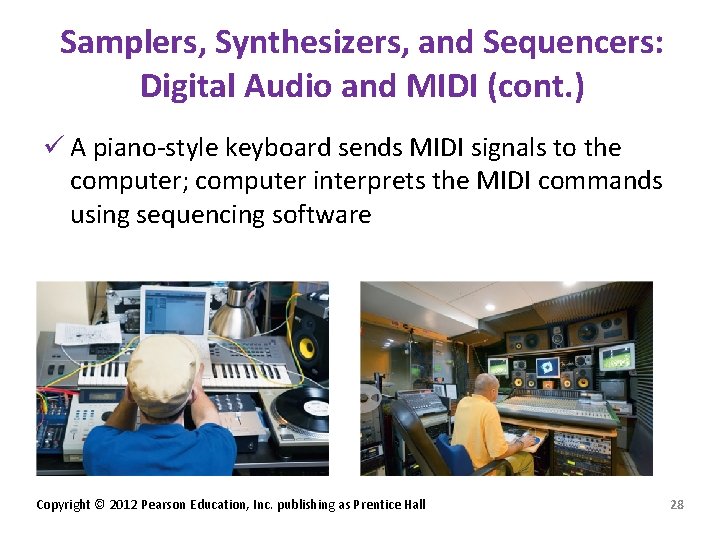
Samplers, Synthesizers, and Sequencers: Digital Audio and MIDI (cont. ) ü A piano-style keyboard sends MIDI signals to the computer; computer interprets the MIDI commands using sequencing software Copyright © 2012 Pearson Education, Inc. publishing as Prentice Hall 28
Samplers, Synthesizers, and Sequencers: Digital Audio and MIDI (cont. ) ü Sequencing software: turns computer into musical composing, recording, and editing machine ü Virtual instruments: instruments that exist only in software ü Electronica: music designed from the ground up with digital technology Copyright © 2012 Pearson Education, Inc. publishing as Prentice Hall 29
Digital Audio Dos and Don’ts • • • Don’t steal Understand downloading and streaming Know your file formats Don’t overcompress Protect your ears Copyright © 2012 Pearson Education, Inc. publishing as Prentice Hall 30
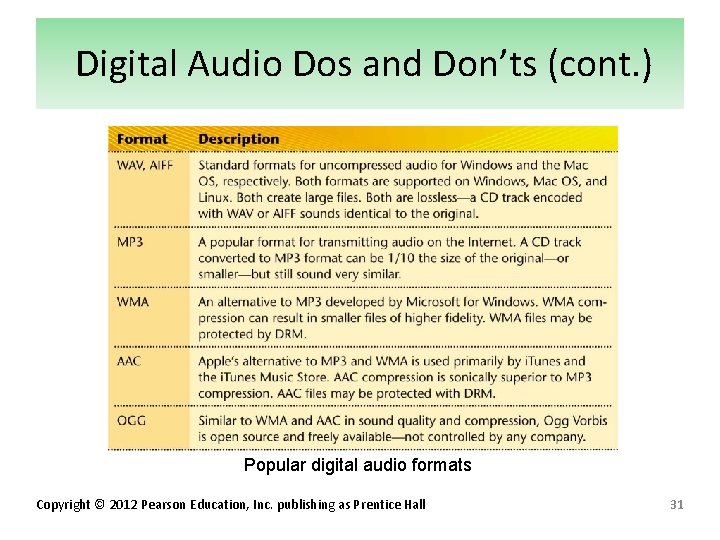
Digital Audio Dos and Don’ts (cont. ) Popular digital audio formats Copyright © 2012 Pearson Education, Inc. publishing as Prentice Hall 31
Hypertext and Hypermedia ü Hypertext: information linked in nonsequential ways ü Hypermedia: combines text, numbers, graphics, animation, sound effects, music, and other media in hyperlinked documents • Useful for online Help files • Enables the user to jump between documents all over the Internet Copyright © 2012 Pearson Education, Inc. publishing as Prentice Hall 32
Hypertext and Hypermedia (cont. ) ü Hypermedia documents can be disorienting and leave you wondering what you’ve missed ü Documents don’t always have the links wanted • Authors can’t build every possible connection into documents • Some readers get frustrated because they can’t easily get “there” from “here” Copyright © 2012 Pearson Education, Inc. publishing as Prentice Hall 33
Hypertext and Hypermedia (cont. ) ü Documents sometimes contain “lost” links, especially on the Web, where even a popular page can disappear. ü Documents don’t encourage scribbled margin notes, highlighting, or turned page corners for marking key passages. ü Hardware can be hard on humans. ü The art of hypermedia is still in its infancy. Copyright © 2012 Pearson Education, Inc. publishing as Prentice Hall 34
Interactive Multimedia: Eye, Ear, Hand, and Mind üMultimedia: combination of text, graphics, animation, video, music, voice, and sound effects allows the user to take an active part in the experience üRequirements: high-quality color monitors, fast processors, large memory, CD–ROM drives, speakers, and sound cards üMany of today’s Web pipelines can’t deliver large media files quickly enough Copyright © 2012 Pearson Education, Inc. publishing as Prentice Hall 35
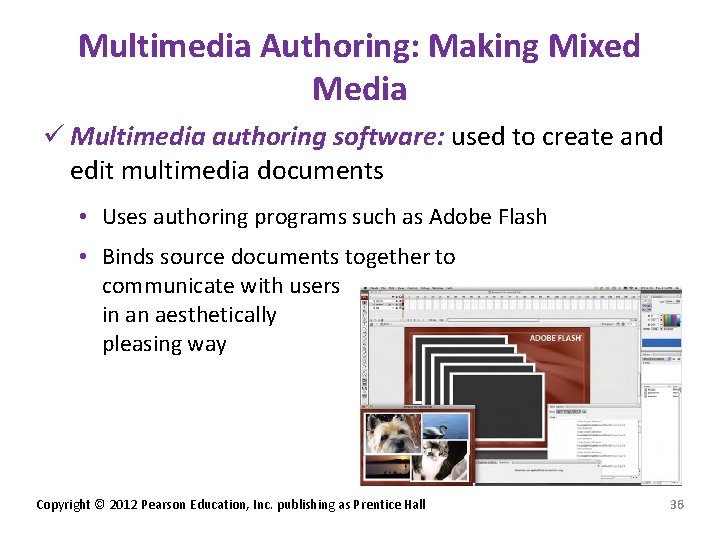
Multimedia Authoring: Making Mixed Media ü Multimedia authoring software: used to create and edit multimedia documents • Uses authoring programs such as Adobe Flash • Binds source documents together to communicate with users in an aesthetically pleasing way Copyright © 2012 Pearson Education, Inc. publishing as Prentice Hall 36
Creating an Effective Interactive Experience • Be consistent • Make it intuitive • Strive for simplicity • Keep it lively • Message more important than the media • Put the user in the driver’s seat • Let real people test your designs Copyright © 2012 Pearson Education, Inc. publishing as Prentice Hall 37
Interactive Media: Visions of the Future ü Offers hope communication may become participatory again. ü Some still fear interactive media will make it possible to be further removed from society. Copyright © 2012 Pearson Education, Inc. publishing as Prentice Hall 38
Inventing the Future: Shared Virtual Spaces ü Virtual reality: combines virtual worlds with networking • Places multiple participants in a virtual space • People see representations of each other, sometimes called avatars. • Most avatars today are cartoonish, but they convey a sense of presence and emotion. Copyright © 2012 Pearson Education, Inc. publishing as Prentice Hall 39
Inventing the Future: Shared Virtual Spaces ü Tele-immersion: allows multiple-remote users to interact with each other and with computergenerated objects • Participants move around in shared virtual spaces, while maintaining their unique points of view. ü AR (augmented reality): adds virtual information to your sensory perceptions Copyright © 2012 Pearson Education, Inc. publishing as Prentice Hall 40
Chapter 6 Summary ü Computer graphics today encompass more than quantitative charts and graphs generated by spreadsheets. ü Computers today aren’t limited to working with static images; they’re widely used to create and edit documents in media that change over time or in response to user interaction. ü The interactive nature of the personal computer makes it possible to create nonlinear documents that enable users to take individual paths through information. Copyright © 2012 Pearson Education, Inc. publishing as Prentice Hall 41
Chapter 6 Summary (cont. ) ü Hypermedia documents are interactive documents that mix text, graphics, sounds, and moving images with on-screen navigation. ü Multimedia computer systems make a new kind of software possible—software that uses text, graphics, animation, video, music, voice, and sound effects to communicate. Copyright © 2012 Pearson Education, Inc. publishing as Prentice Hall 42
Chapter 6 Summary (cont. ) ü Regardless of the hardware, interactive multimedia software enables the user to control the presentation rather than watch or listen passively. Copyright © 2012 Pearson Education, Inc. publishing as Prentice Hall 43
All rights reserved. No part of this publication may be reproduced, stored in a retrieval system, or transmitted, in any form or by any means, electronic, mechanical, photocopying, recording, or otherwise, without the prior written permission of the publisher. Printed in the United States of America. Copyright © 2012 Pearson Education, Inc. publishing as Prentice Hall 44
- Slides: 44