
Digi Cora III Software Version 3 64 Digi
- Slides: 38
Digi. Cora III Software Version 3. 64
Digi. CORA III : 1. STANDARD SOFTWARE. 2. METGRAPH
Digi. CORA III : STANDARD SOFTWARE
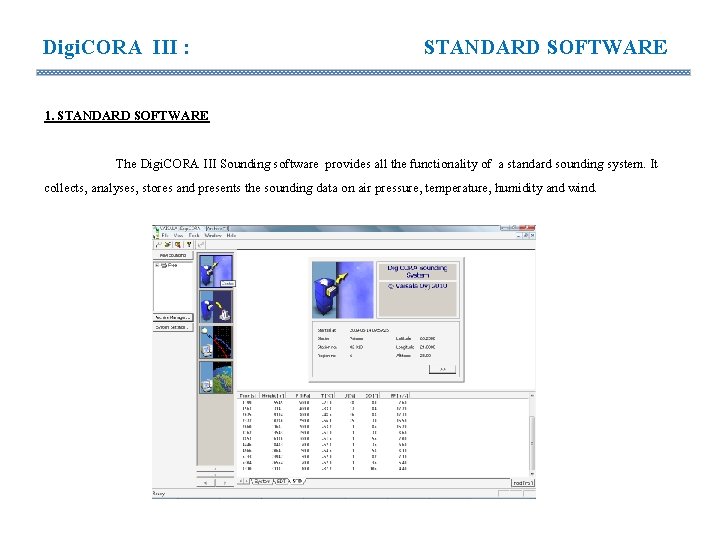
Digi. CORA III : STANDARD SOFTWARE 1. STANDARD SOFTWARE The Digi. CORA III Sounding software provides all the functionality of a standard sounding system. It collects, analyses, stores and presents the sounding data on air pressure, temperature, humidity and wind.
Digi. CORA III : METGRAPH
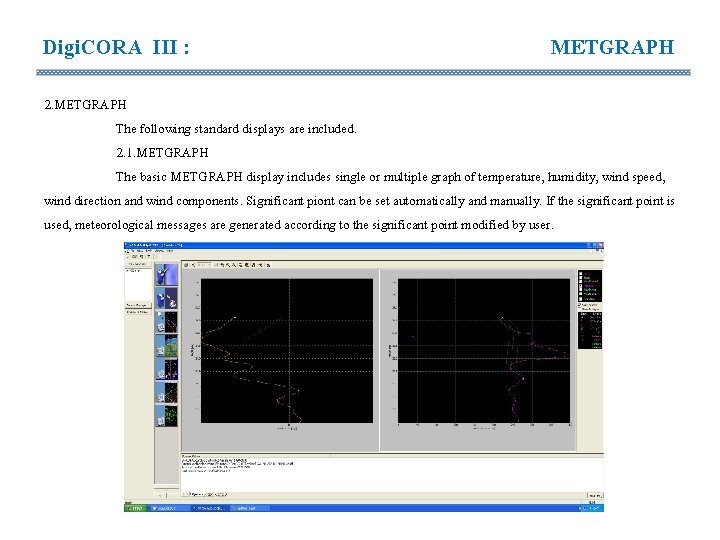
Digi. CORA III : METGRAPH 2. METGRAPH The following standard displays are included. 2. 1. METGRAPH The basic METGRAPH display includes single or multiple graph of temperature, humidity, wind speed, wind direction and wind components. Significant piont can be set automatically and manually. If the significant point is used, meteorological messages are generated according to the significant point modified by user.
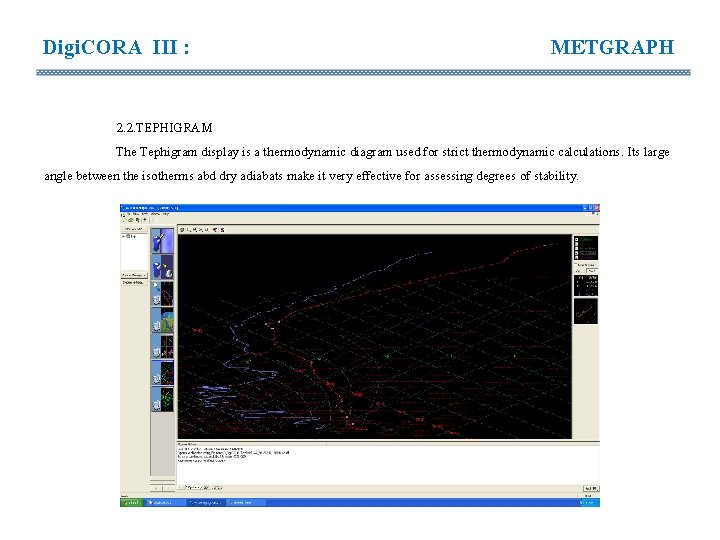
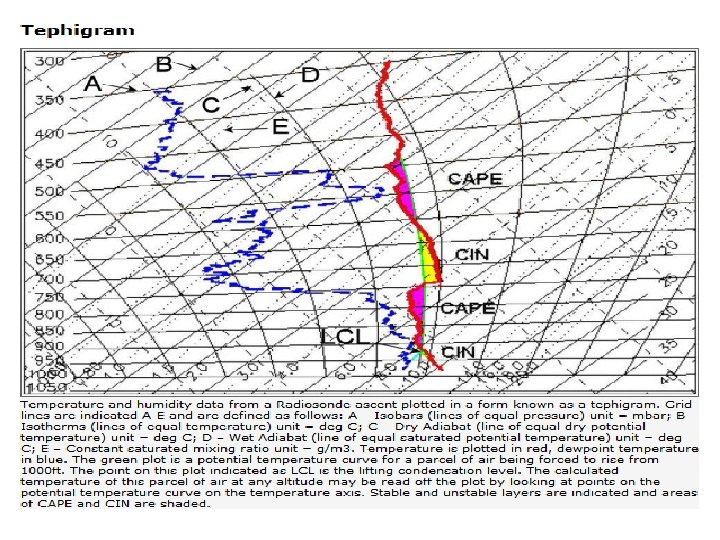
Digi. CORA III : METGRAPH 2. 2. TEPHIGRAM The Tephigram display is a thermodynamic diagram used for strict thermodynamic calculations. Its large angle between the isotherms abd dry adiabats make it very effective for assessing degrees of stability.
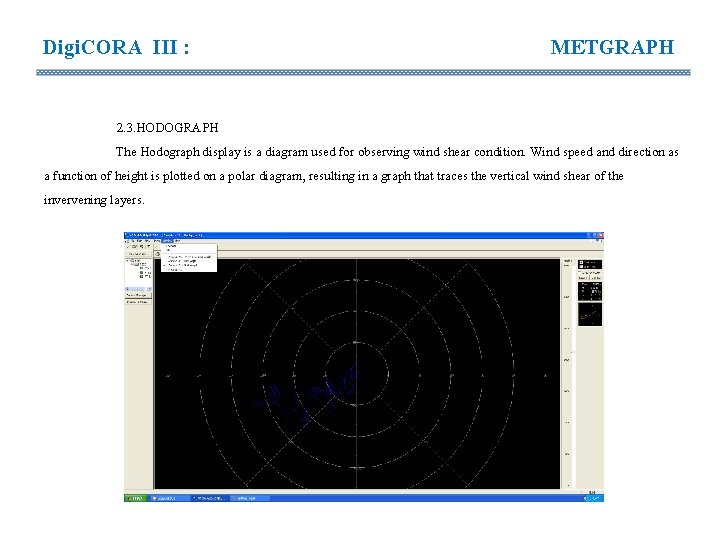
Digi. CORA III : METGRAPH 2. 3. HODOGRAPH The Hodograph display is a diagram used for observing wind shear condition. Wind speed and direction as a function of height is plotted on a polar diagram, resulting in a graph that traces the vertical wind shear of the invervening layers.
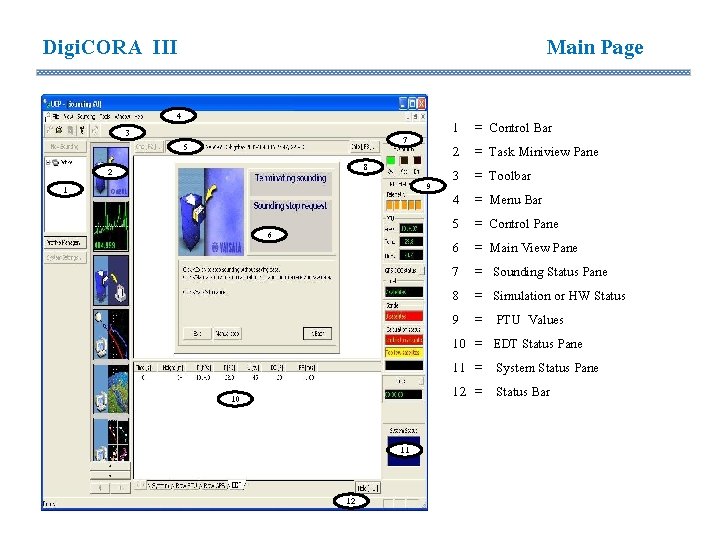
Digi. CORA III 3 1 Main Page 4 7 5 8 2 9 6 10 11 12 1 = Control Bar 2 = Task Miniview Pane 3 = Toolbar 4 = Menu Bar 5 = Control Pane 6 = Main View Pane 7 = Sounding Status Pane 8 = Simulation or HW Status 9 = PTU Values 10 = EDT Status Pane 11 = System Status Pane 12 = Status Bar
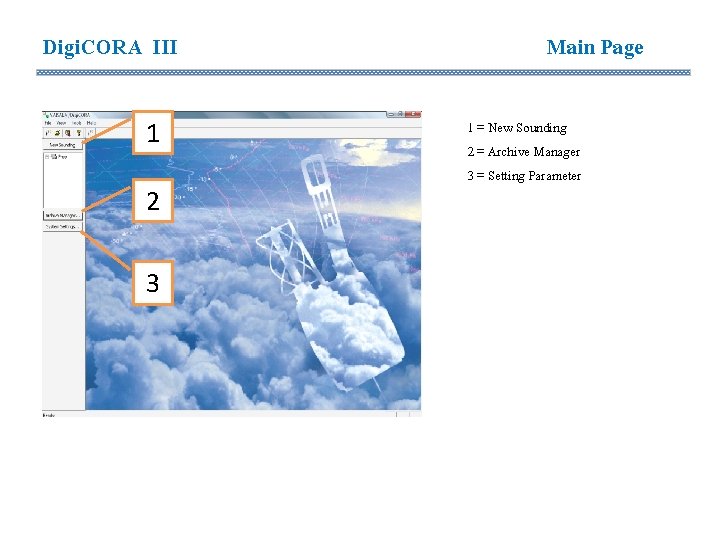
Digi. CORA III 1 2 3 Main Page 1 = New Sounding 2 = Archive Manager 3 = Setting Parameter
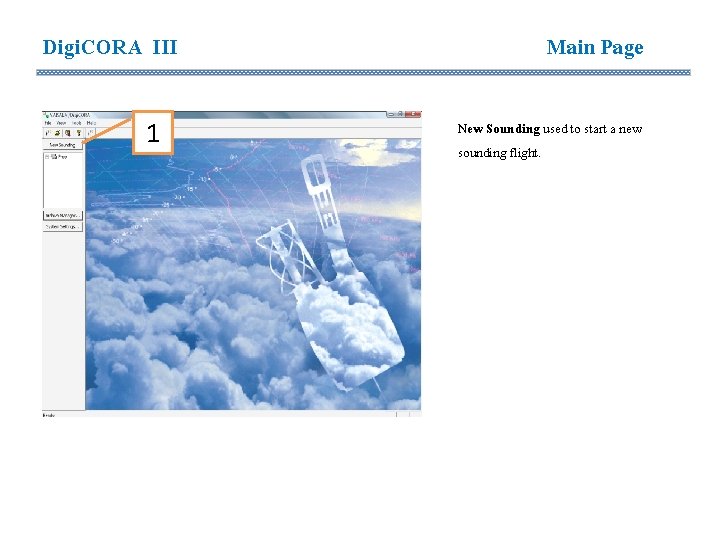
Digi. CORA III 1 Main Page New Sounding used to start a new sounding flight.
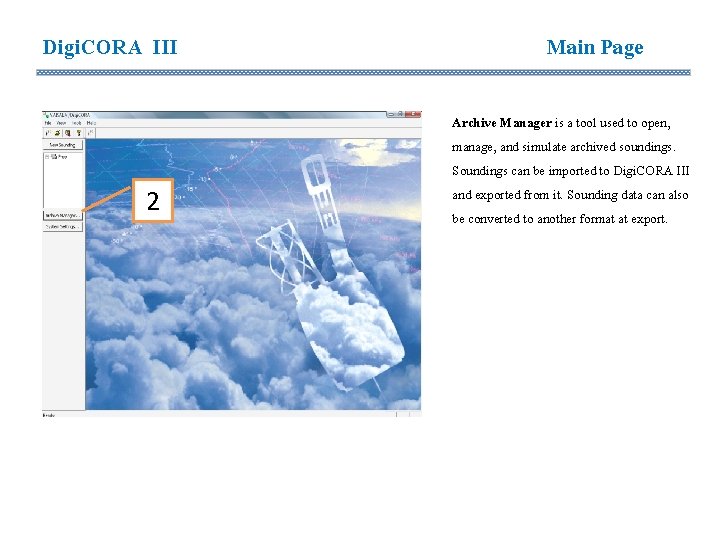
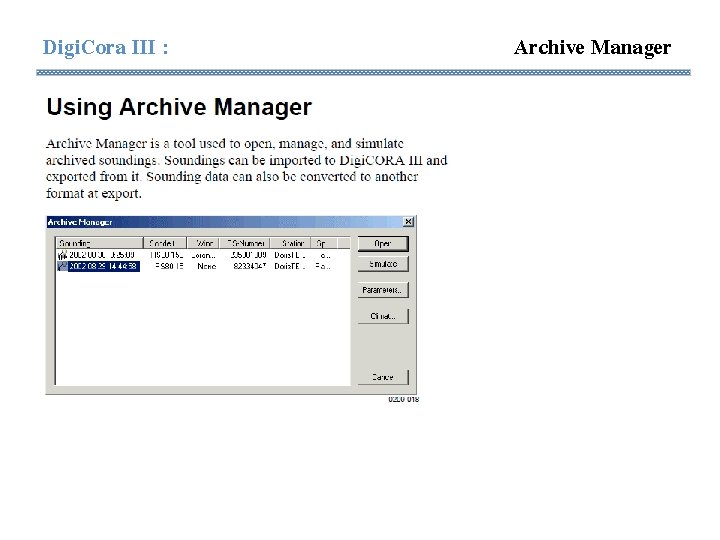
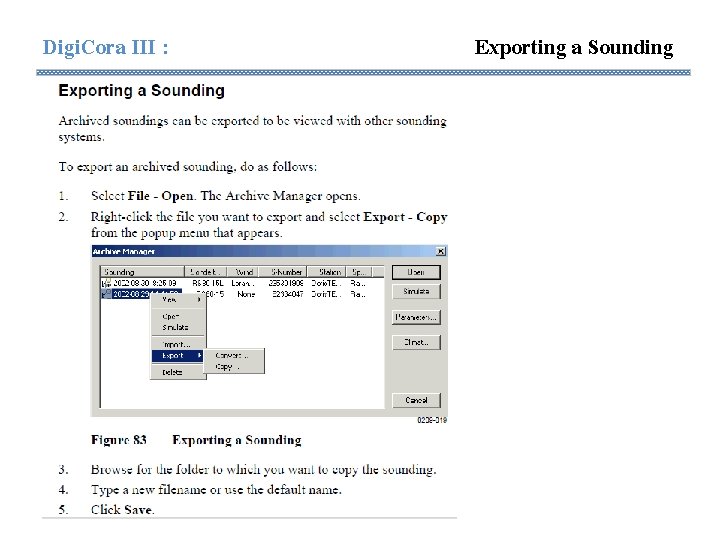
Digi. CORA III 2 Main Page Archive Manager is a tool used to open, manage, and simulate archived soundings. Soundings can be imported to Digi. CORA III and exported from it. Sounding data can also be converted to another format at export.
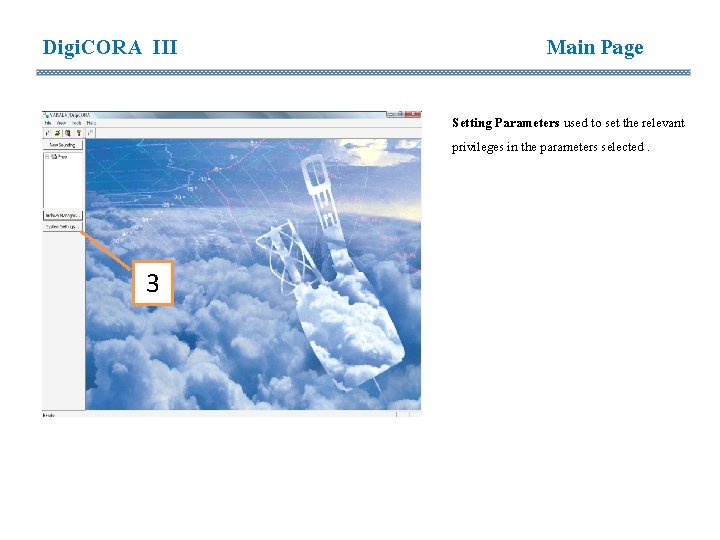
Digi. CORA III Main Page Setting Parameters used to set the relevant privileges in the parameters selected. 3
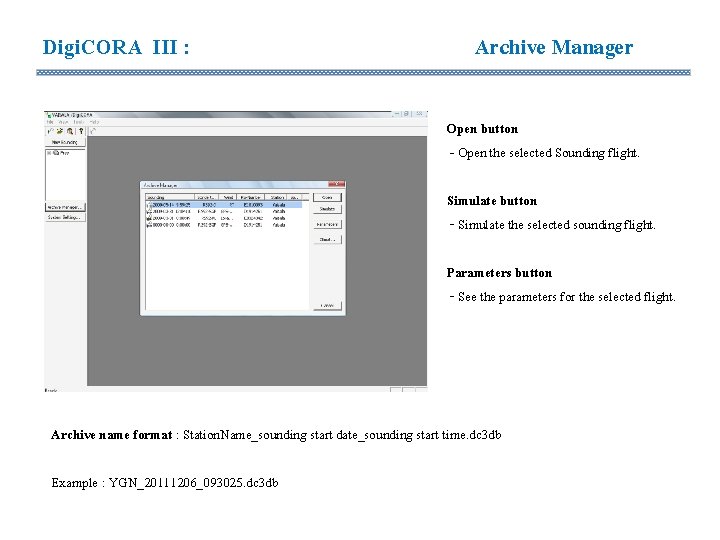
Digi. CORA III : Archive Manager Open button - Open the selected Sounding flight. Simulate button - Simulate the selected sounding flight. Parameters button - See the parameters for the selected flight. Archive name format : Station. Name_sounding start date_sounding start time. dc 3 db Example : YGN_20111206_093025. dc 3 db
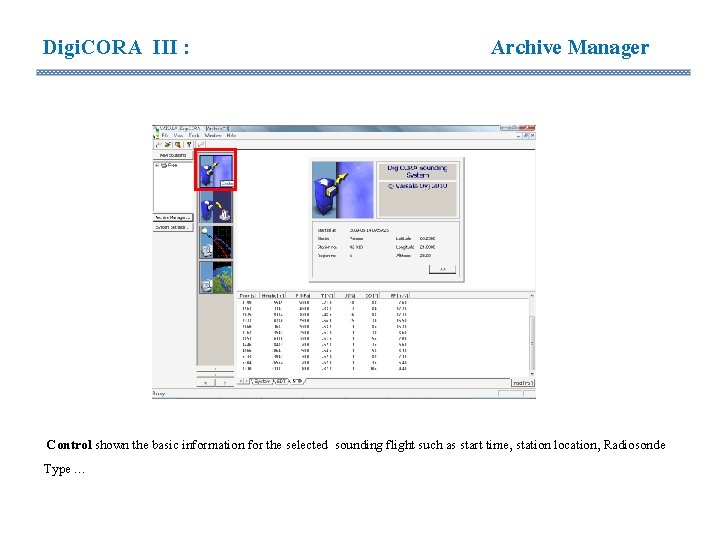
Digi. CORA III : Archive Manager Control shown the basic information for the selected sounding flight such as start time, station location, Radiosonde Type …
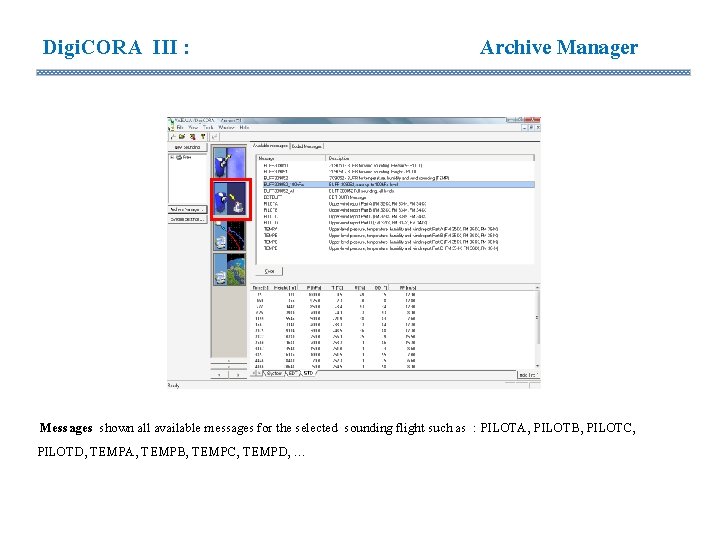
Digi. CORA III : Archive Manager Messages shown all available messages for the selected sounding flight such as : PILOTA, PILOTB, PILOTC, PILOTD, TEMPA, TEMPB, TEMPC, TEMPD, …
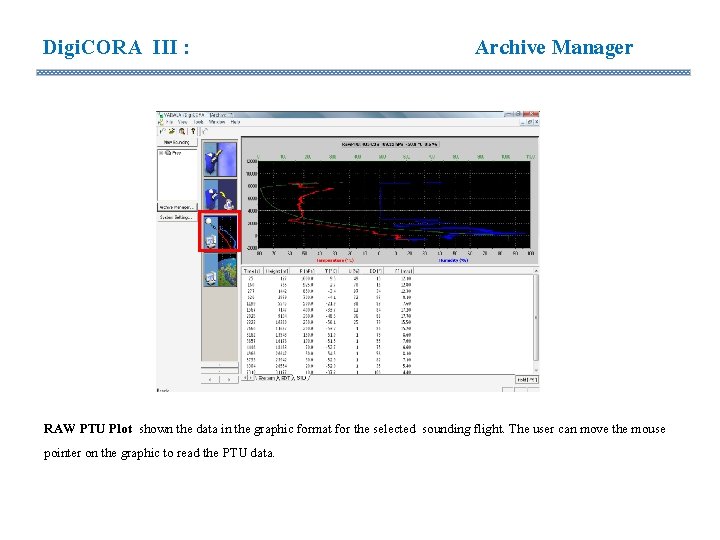
Digi. CORA III : Archive Manager RAW PTU Plot shown the data in the graphic format for the selected sounding flight. The user can move the mouse pointer on the graphic to read the PTU data.
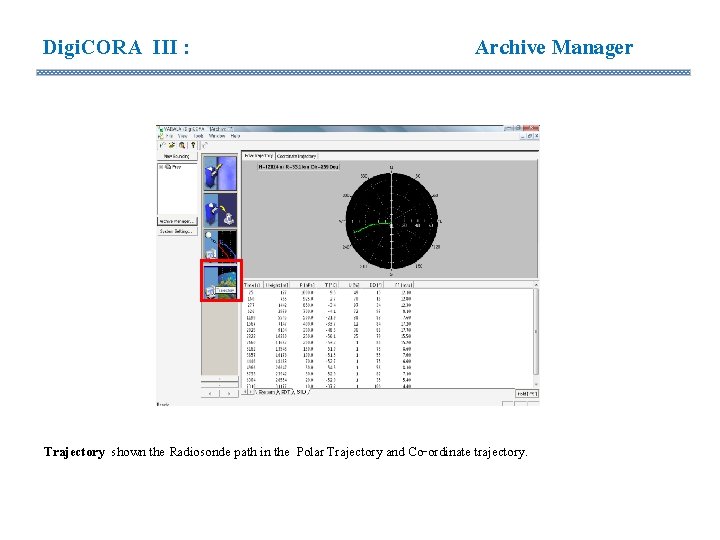
Digi. CORA III : Archive Manager Trajectory shown the Radiosonde path in the Polar Trajectory and Co-ordinate trajectory.
Digi. CORA III : RAW Data is in the C: Digi. CORAIIIArchive folder Flight Report is in the C: Digi. CORA IIIdata folder Temp and Pilot Report are in the C: Digi. CORAIIImessages folder Archive Location
Digi. Cora III : Archive Manager
Digi. Cora III : Archive Manager
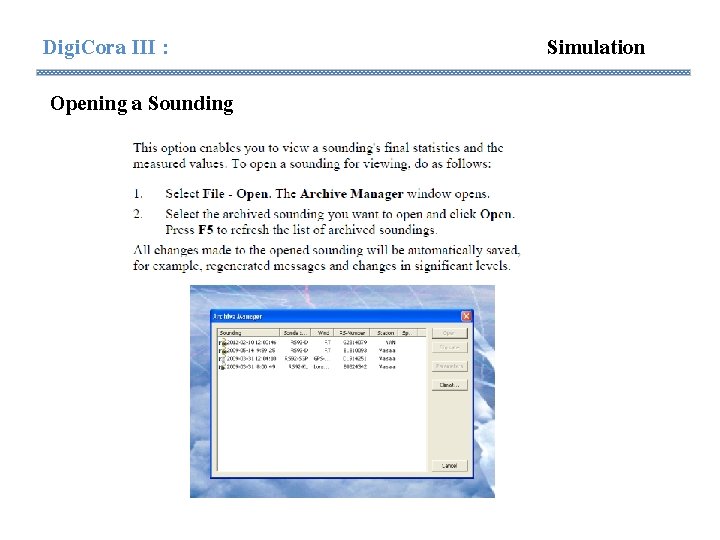
Digi. Cora III : Opening a Sounding Simulation
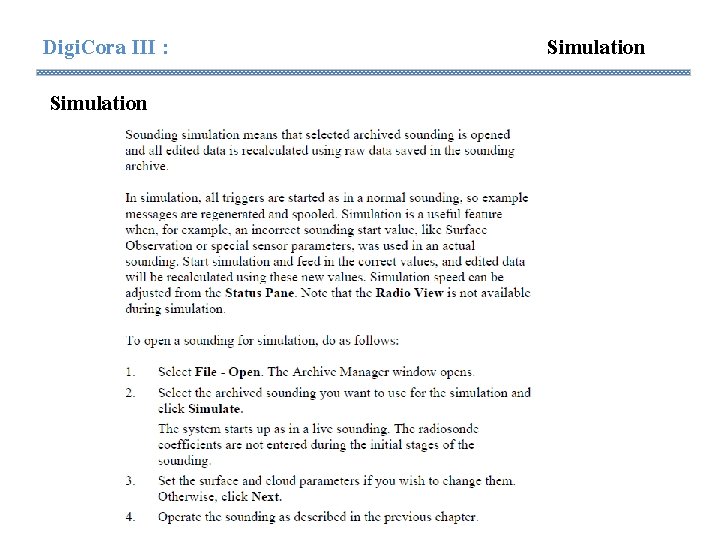
Digi. Cora III : Simulation
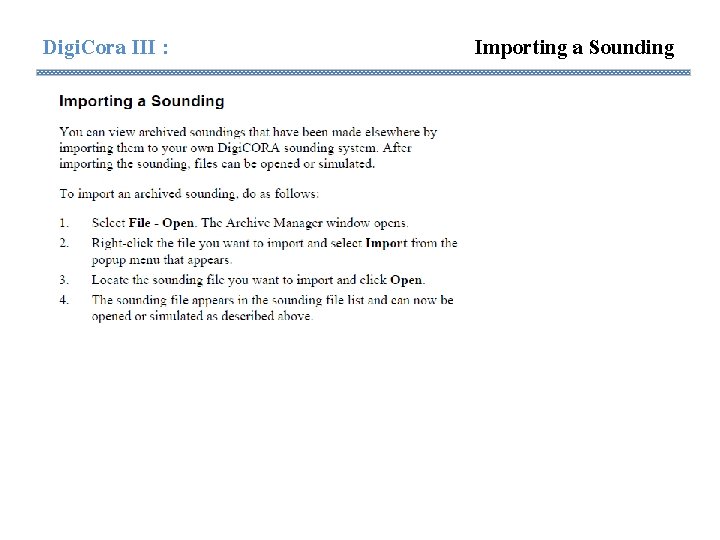
Digi. Cora III : Importing a Sounding
Digi. Cora III : Exporting a Sounding
Digi. CORA III : ADDITIONAL
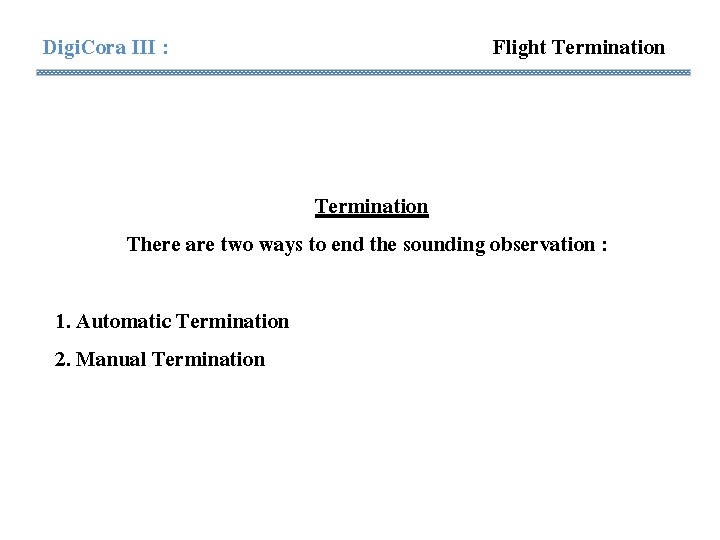
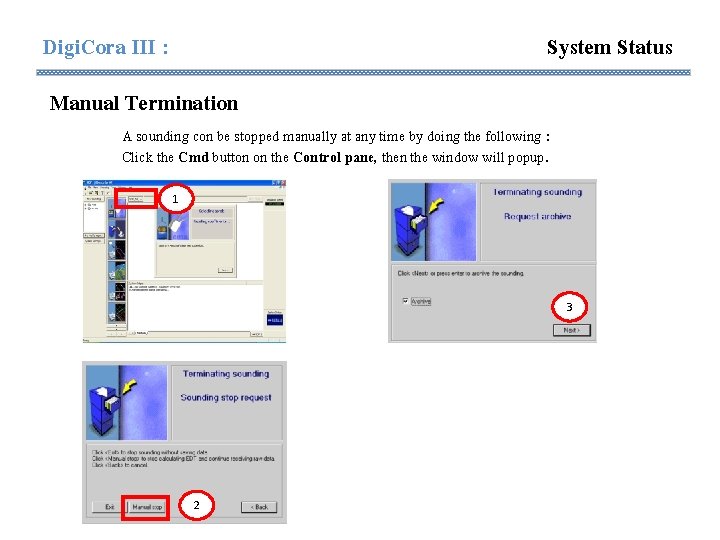
Digi. Cora III : Flight Termination There are two ways to end the sounding observation : 1. Automatic Termination 2. Manual Termination
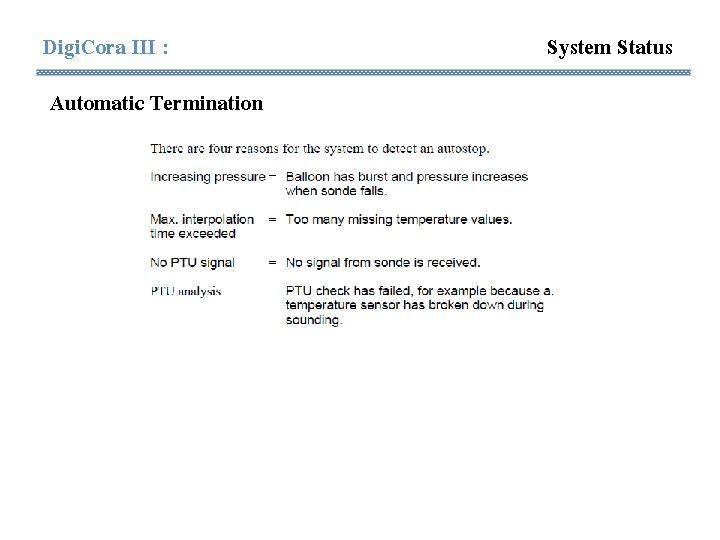
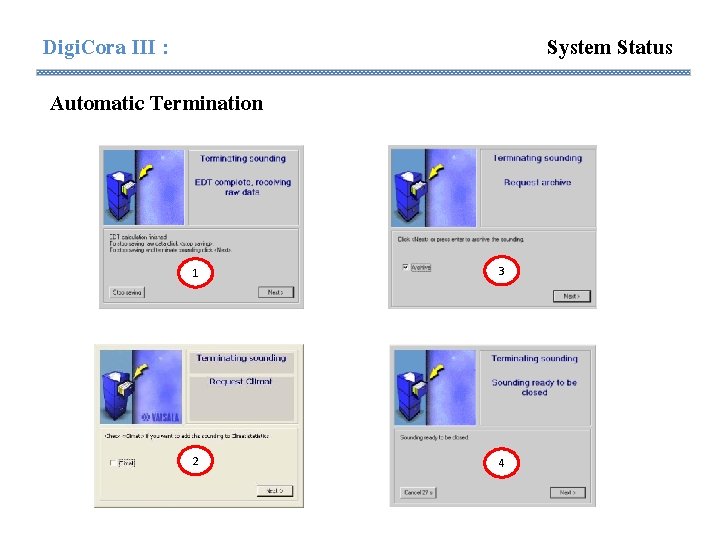
Digi. Cora III : Automatic Termination System Status
Digi. Cora III : System Status Automatic Termination 1 3 2 4
Digi. Cora III : System Status Manual Termination A sounding con be stopped manually at any time by doing the following : Click the Cmd button on the Control pane, then the window will popup. 1 3 2
Digi. Cora III : SYSTEM STATUS
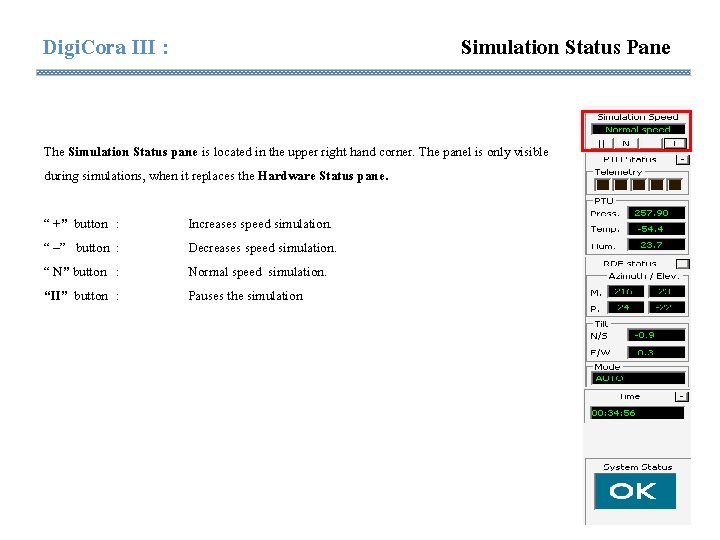
Digi. Cora III : Simulation Status Pane The Simulation Status pane is located in the upper right hand corner. The panel is only visible during simulations, when it replaces the Hardware Status pane. “ +” button : “ –” button : “ N” button : “II” button : Increases speed simulation. Decreases speed simulation. Normal speed simulation. Pauses the simulation
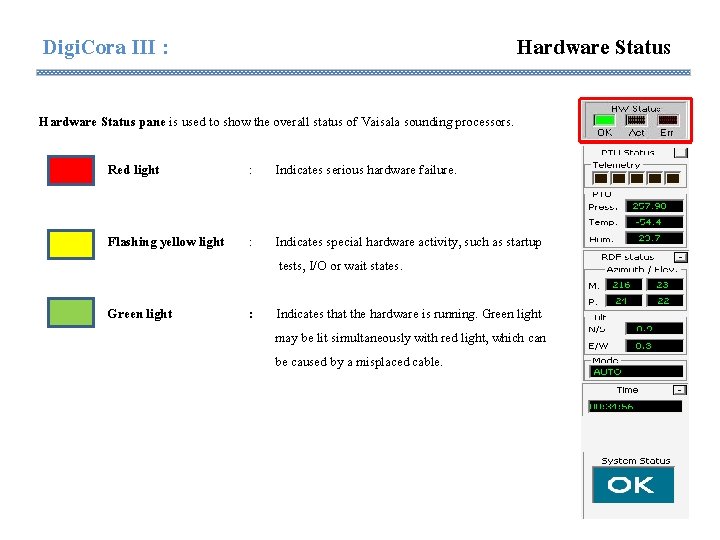
Digi. Cora III : Hardware Status pane is used to show the overall status of Vaisala sounding processors. Red light : Indicates serious hardware failure. Flashing yellow light : Indicates special hardware activity, such as startup tests, I/O or wait states. Green light : Indicates that the hardware is running. Green light may be lit simultaneously with red light, which can be caused by a misplaced cable.
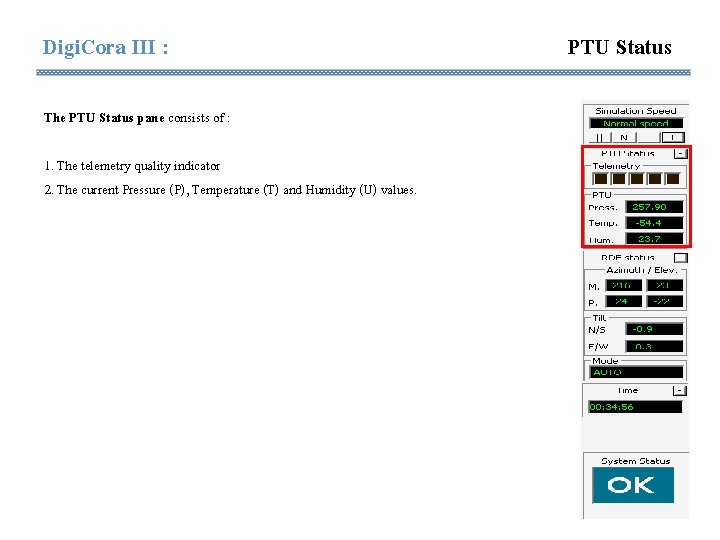
Digi. Cora III : The PTU Status pane consists of : 1. The telemetry quality indicator 2. The current Pressure (P), Temperature (T) and Humidity (U) values. PTU Status
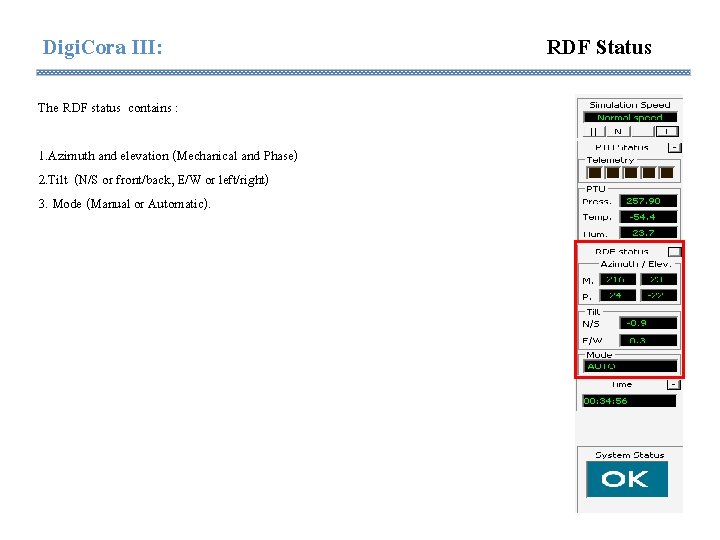
Digi. Cora III: The RDF status contains : 1. Azimuth and elevation (Mechanical and Phase) 2. Tilt (N/S or front/back, E/W or left/right) 3. Mode (Manual or Automatic). RDF Status
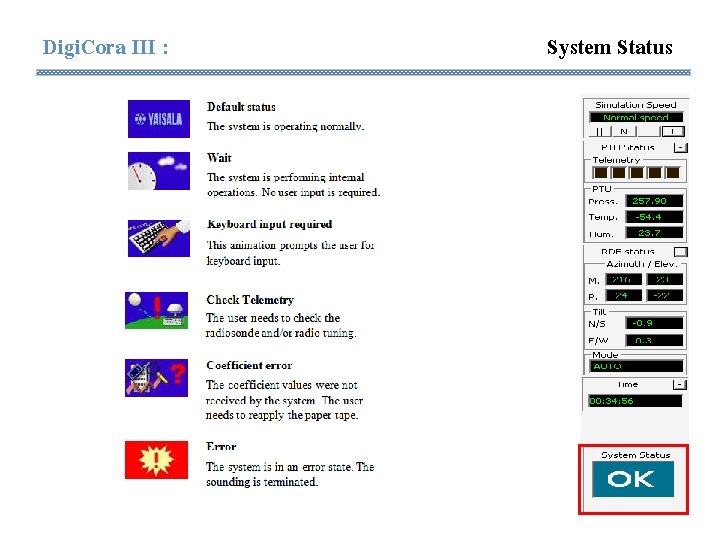
Digi. Cora III : System Status
Digi. Cora III : System Status Additional