
Developing a web site PYP 002 Intro to
Developing a web site PYP 002 Intro. to Computer Science Developing a Web site 1

Outline Introduction to Web page development n n Get started with Front. Page Start a new website o o n n n Adding pages to a web site Rearranging the site structure Insert navigation bars Build a web page content Post pages to the Web PYP 002 Intro. to Computer Science Developing a Web site 2
What is Web Site? o o o A Website is a collection of one or more webpages located somewhere on the Internet and has a unique domain name A webpage is a document made of Hypertext (images, voice and video clips, plain text, rich text, …etc. ) Any webpage has a unique URL A webpage is written in special language called Hypertext Markup Language (HTML) n See example: Open any webpage on Internet Explorer, from Menubar select View | Source Some webpages are written in different languages but are similar to HTML PYP 002 Intro. to Computer Science Developing a Web site 3
Web site design o o o You don’t have to know HTML to be able to create a web page. Some programs allow you to design a web page like designing a Word document or a graphic document. We call it WYSIWYG (we-zee-wig) meaning: What You See Is What You Get. Examples of these programs: MS Front. Page, Dreamweaver, Go. Live. PYP 002 Intro. to Computer Science Developing a Web site 4
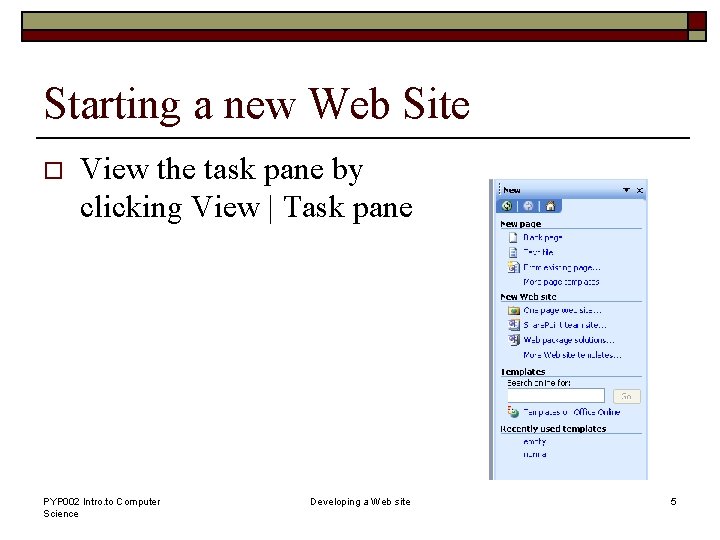
Starting a new Web Site o View the task pane by clicking View | Task pane PYP 002 Intro. to Computer Science Developing a Web site 5
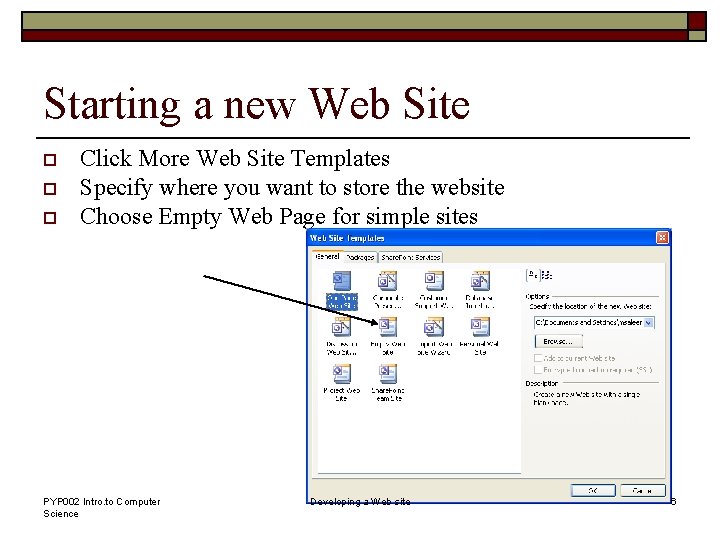
Starting a new Web Site o o o Click More Web Site Templates Specify where you want to store the website Choose Empty Web Page for simple sites PYP 002 Intro. to Computer Science Developing a Web site 6
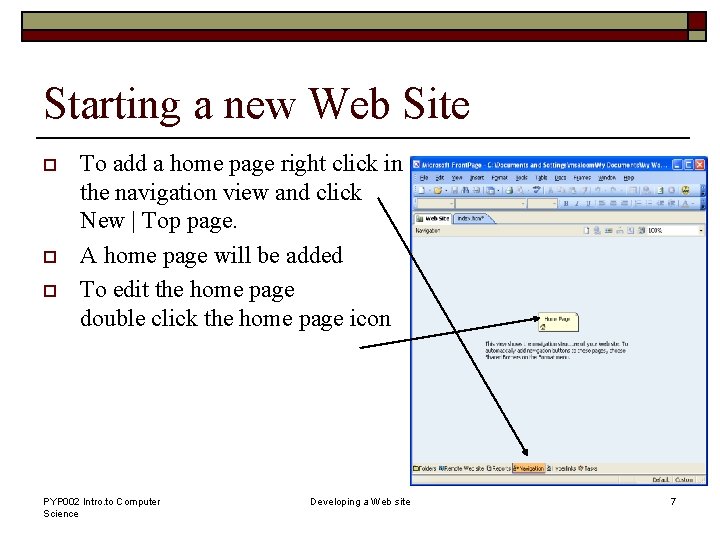
Starting a new Web Site o o o To add a home page right click in the navigation view and click New | Top page. A home page will be added To edit the home page double click the home page icon PYP 002 Intro. to Computer Science Developing a Web site 7
What is homepage? o A Homepage is the first page in your website. o When the user enters the URL of your website in IE, the first page that will open is the Homepage. n For this to happen, the page must be called “Default. htm” PYP 002 Intro. to Computer Science Developing a Web site 8
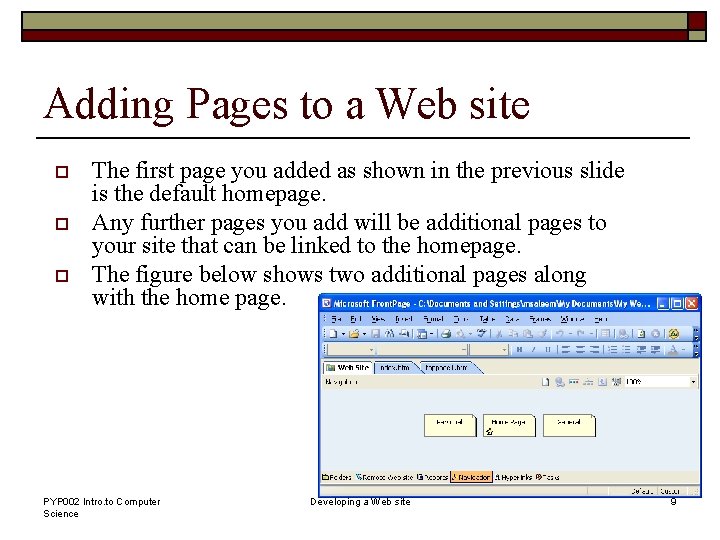
Adding Pages to a Web site o o o The first page you added as shown in the previous slide is the default homepage. Any further pages you add will be additional pages to your site that can be linked to the homepage. The figure below shows two additional pages along with the home page. PYP 002 Intro. to Computer Science Developing a Web site 9
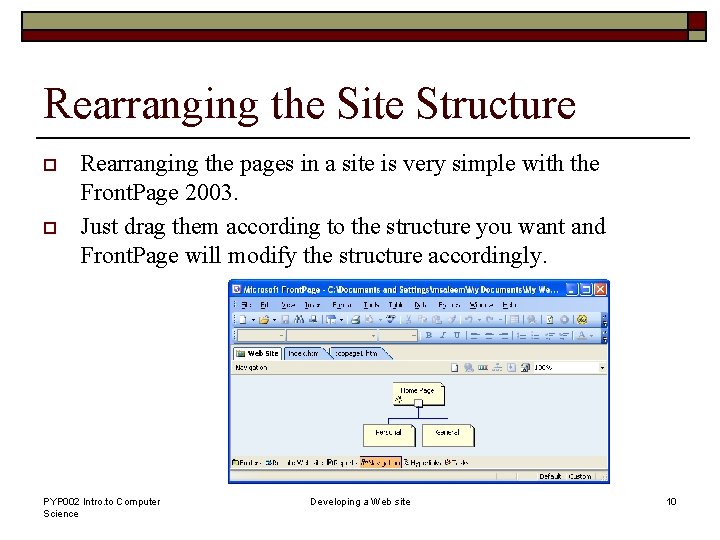
Rearranging the Site Structure o o Rearranging the pages in a site is very simple with the Front. Page 2003. Just drag them according to the structure you want and Front. Page will modify the structure accordingly. PYP 002 Intro. to Computer Science Developing a Web site 10
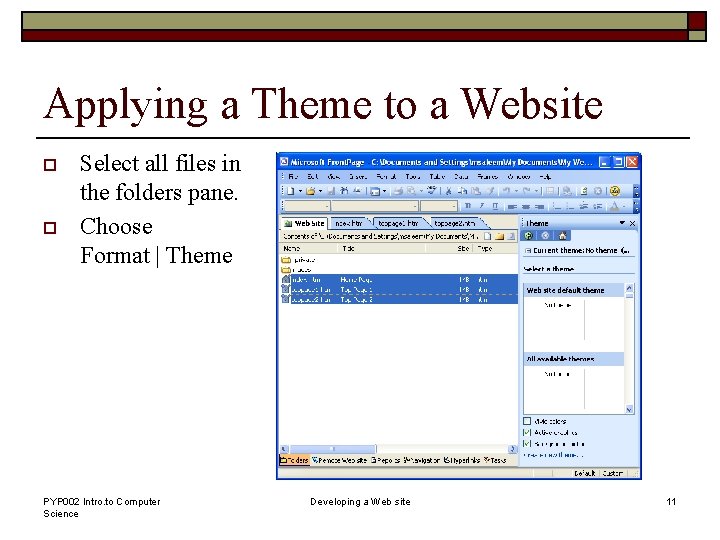
Applying a Theme to a Website o o Select all files in the folders pane. Choose Format | Theme PYP 002 Intro. to Computer Science Developing a Web site 11
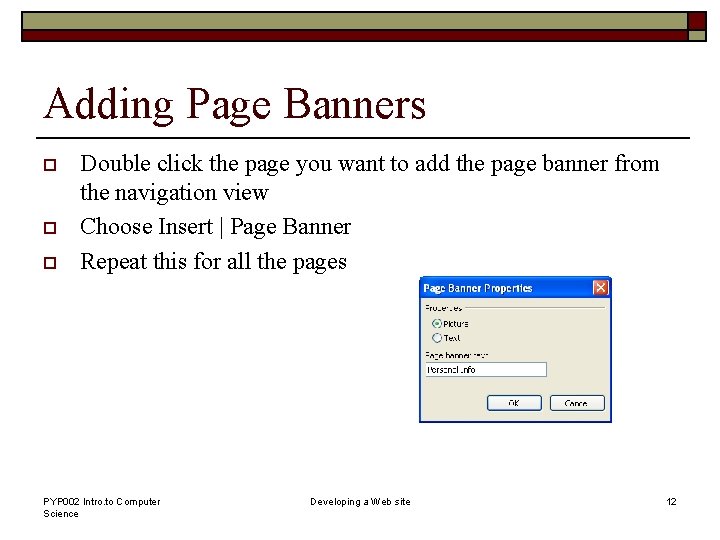
Adding Page Banners o o o Double click the page you want to add the page banner from the navigation view Choose Insert | Page Banner Repeat this for all the pages PYP 002 Intro. to Computer Science Developing a Web site 12
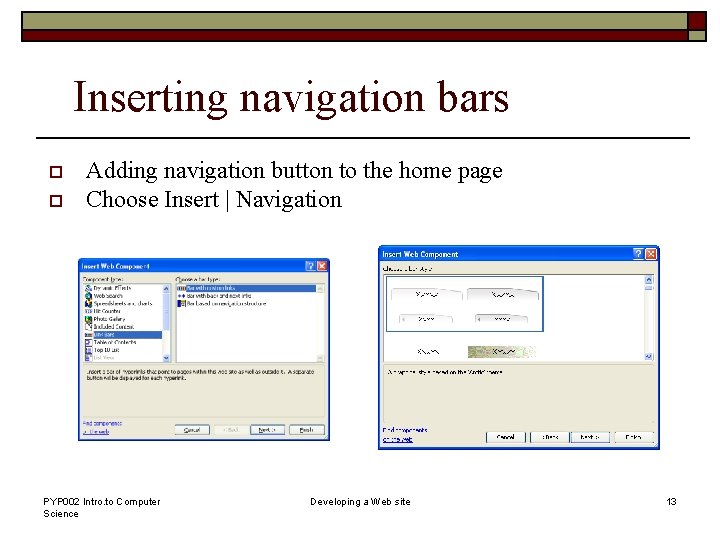
Inserting navigation bars o o Adding navigation button to the home page Choose Insert | Navigation PYP 002 Intro. to Computer Science Developing a Web site 13
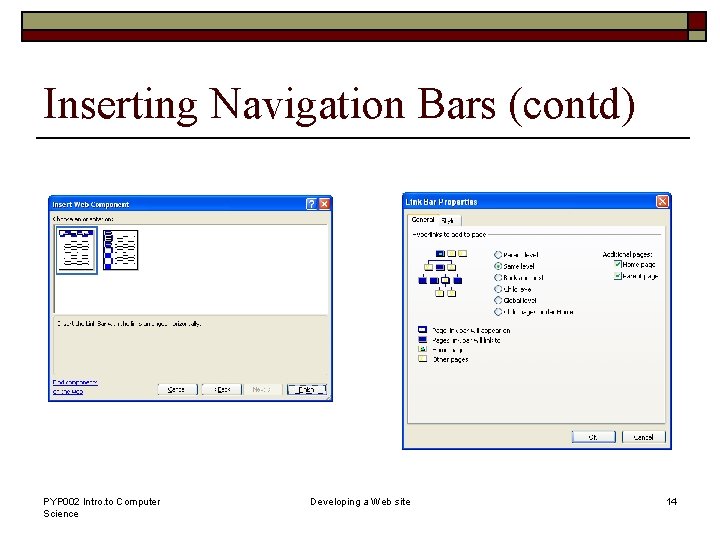
Inserting Navigation Bars (contd) PYP 002 Intro. to Computer Science Developing a Web site 14
Building Web Page Content Adding contents to the web page n Same as adding contents to word document o Making links to external web pages. n Apart from the automated hyperlinks that you made in the previous slide, you also can create your own links. To do so o Select the text you want to be linked o Choose Insert | Hyperlink o Adding images to a web page. n Choose Insert | Picture o Adding tables to a webpage n Use “Insert Table” from Toolbar n Or, from menubar Tables | Layout tables and cells PYP 002 Intro. to Computer Science Developing a Web site 15
Previewing Pages through a Browser o The web pages you have developed by the Front. Page can be previewed by n Just clicking the preview mode in the Front. Page, or n By opening the home page by a browser of your choice, or n Choose File | Preview in Browser | select any browser of your choice o The last option helps you preview in a browser of your choice. PYP 002 Intro. to Computer Science Developing a Web site 16
What now? o o After designing and building your website, your next step will be to publish the website Publishing the website means putting it to some web server on the Internet, so people can see your website from the Internet PYP 002 Intro. to Computer Science Developing a Web site 17
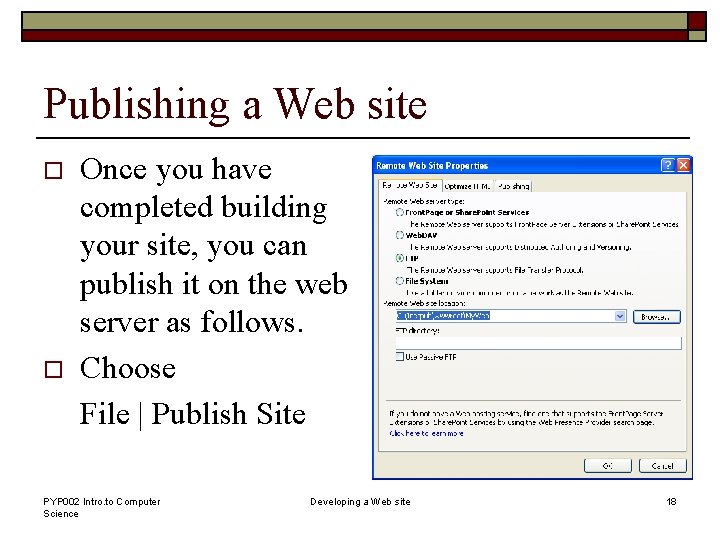
Publishing a Web site o o Once you have completed building your site, you can publish it on the web server as follows. Choose File | Publish Site PYP 002 Intro. to Computer Science Developing a Web site 18
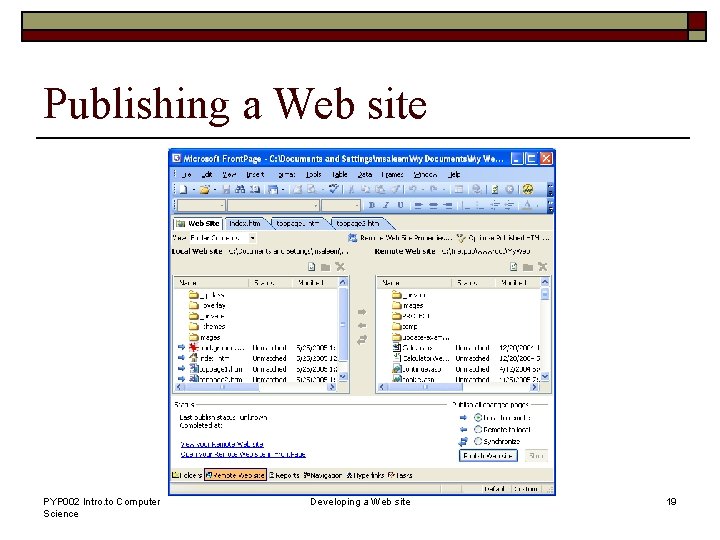
Publishing a Web site PYP 002 Intro. to Computer Science Developing a Web site 19
Summary o Introduction to Web page development n Get started with Front. Page n Start a new website o Adding pages to a web site o Rearranging the site structure n Insert navigation bars n Build a web page content n Post pages to the Web PYP 002 Intro. to Computer Science Developing a Web site 20
- Slides: 20