
DESIGNING YOUR SURVEY IN QUALTRICS CAPSTONE SEMINAR RESOURCE
- Slides: 13
DESIGNING YOUR SURVEY IN QUALTRICS CAPSTONE SEMINAR RESOURCE SLIDES
OVERVIEW • How to Access Qualtrics • Basic Operations • • • Writing and editing questions Survey Logic Distributing the survey Downloading results Creating Reports • Getting Help/ More Information
HOW TO ACCESS QUALTRICS • Who is eligible? • All UNCG faculty, staff, and students are eligible to use Qualtrics at UNCG. • How can I get the software? • You may access Qualtrics by logging in to uncg. qualtrics. com with your UNCG user name and password.
GET STARTED • Login • “Create Survey” • Basic Survey Builder • Start writing question • • • Note: You should develop and edit your survey using MS Word. This allows for easier editing. You can cut and paste questions from a MS Word file Question Library Types of questions/ examples
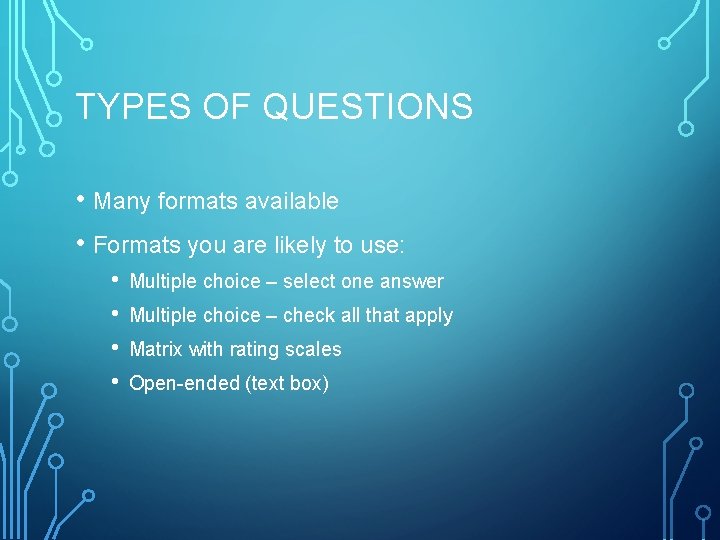
TYPES OF QUESTIONS • Many formats available • Formats you are likely to use: • • Multiple choice – select one answer Multiple choice – check all that apply Matrix with rating scales Open-ended (text box)
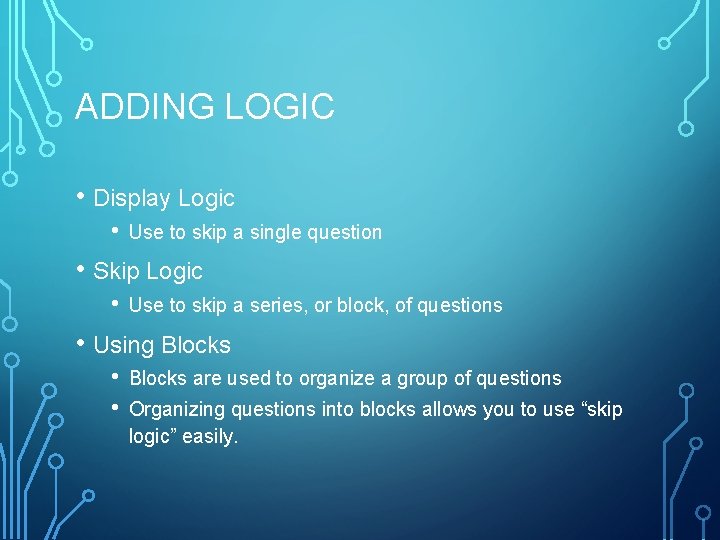
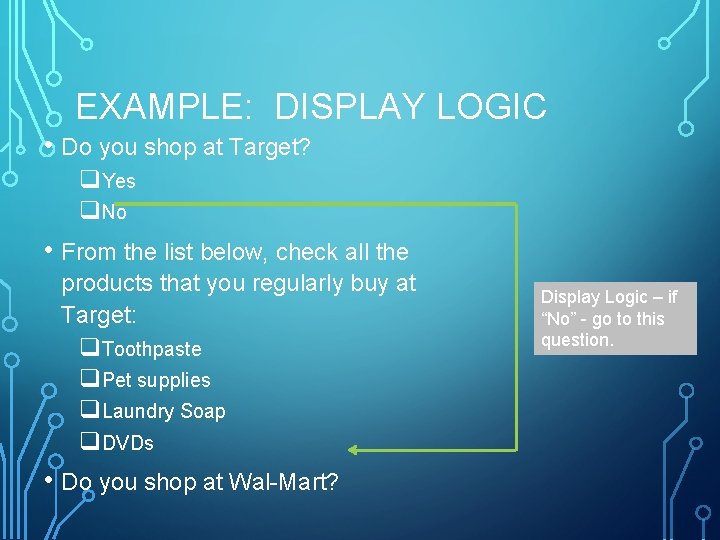
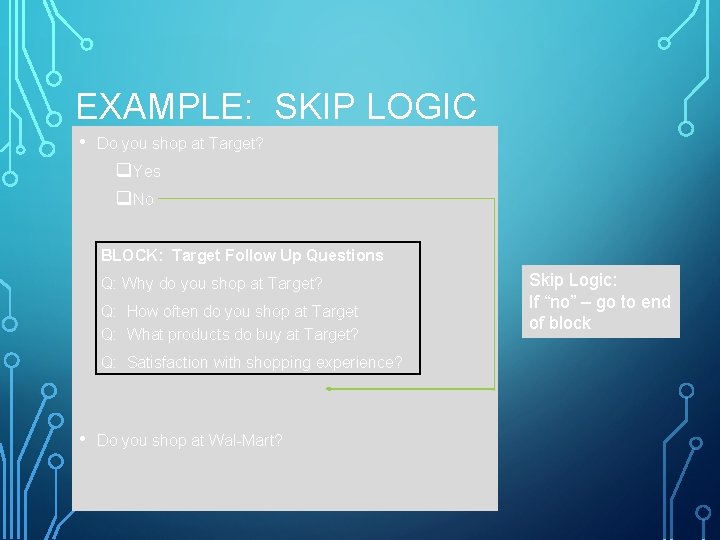
ADDING LOGIC • Display Logic • Use to skip a single question • Skip Logic • Use to skip a series, or block, of questions • Using Blocks • • Blocks are used to organize a group of questions Organizing questions into blocks allows you to use “skip logic” easily.
EXAMPLE: DISPLAY LOGIC • Do you shop at Target? q. Yes q. No • From the list below, check all the products that you regularly buy at Target: q. Toothpaste q. Pet supplies q. Laundry Soap q. DVDs • Do you shop at Wal-Mart? Display Logic – if “No” - go to this question.
EXAMPLE: SKIP LOGIC • Do you shop at Target? q. Yes q. No BLOCK: Target Follow Up Questions Q: Why do you shop at Target? Q: How often do you shop at Target Q: What products do buy at Target? Q: Satisfaction with shopping experience? • Do you shop at Wal-Mart? Skip Logic: If “no” – go to end of block
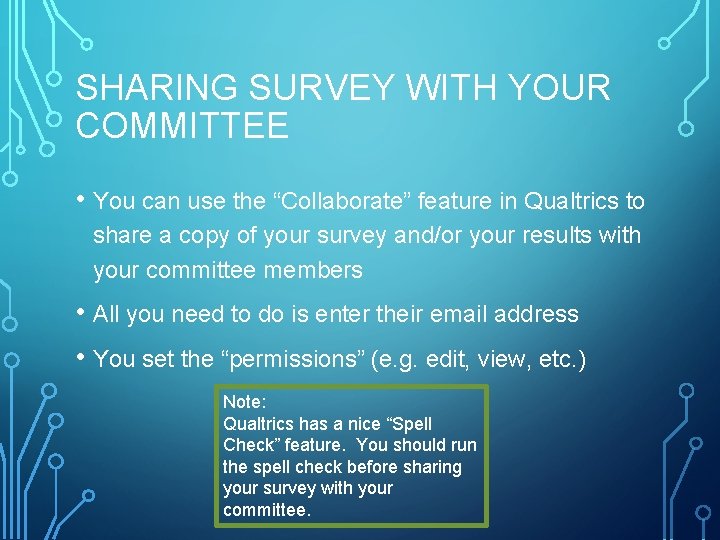
SHARING SURVEY WITH YOUR COMMITTEE • You can use the “Collaborate” feature in Qualtrics to share a copy of your survey and/or your results with your committee members • All you need to do is enter their email address • You set the “permissions” (e. g. edit, view, etc. ) Note: Qualtrics has a nice “Spell Check” feature. You should run the spell check before sharing your survey with your committee.
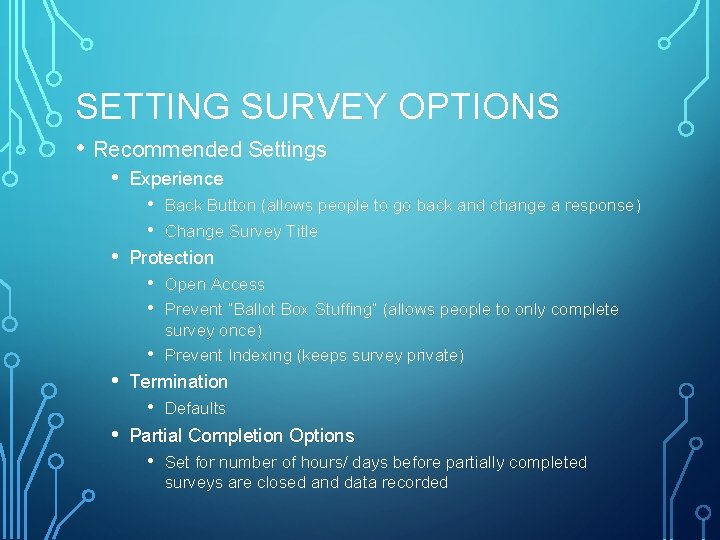
SETTING SURVEY OPTIONS • Recommended Settings • Experience • • • Protection • • Open Access Prevent “Ballot Box Stuffing” (allows people to only complete survey once) Prevent Indexing (keeps survey private) Termination • • Back Button (allows people to go back and change a response) Change Survey Title Defaults Partial Completion Options • Set for number of hours/ days before partially completed surveys are closed and data recorded
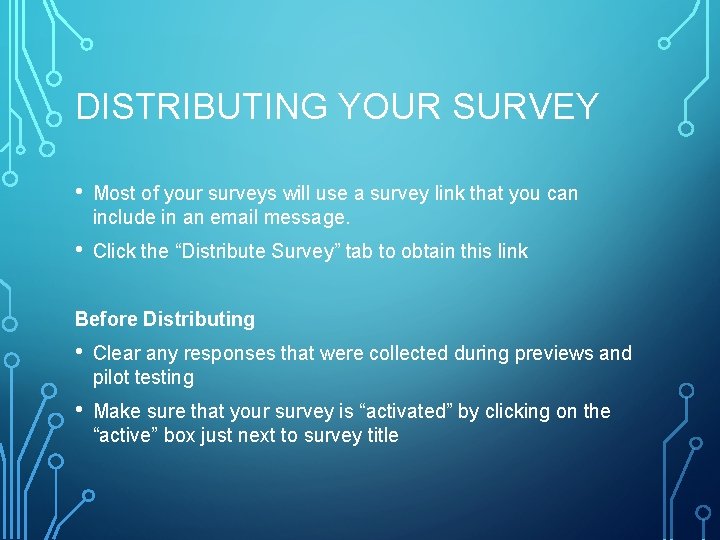
DISTRIBUTING YOUR SURVEY • Most of your surveys will use a survey link that you can include in an email message. • Click the “Distribute Survey” tab to obtain this link Before Distributing • Clear any responses that were collected during previews and pilot testing • Make sure that your survey is “activated” by clicking on the “active” box just next to survey title
DOWNLOADING RESULTS AND CREATING REPORTS • You should view the available tutorials about these topics
GETTING HELP • The Help button in Qualtrics (www. qualtrics. com/university) leads to good information through written documents, video tutorials, via e-mail, or by phone. • Check for free Qualtrics training through the UNCG Workshops & Event Calendar. • http: //workshops. uncg. edu