
Designing Efficient Workbooks Brian Montgomery Tableau Software What

Designing Efficient Workbooks Brian Montgomery Tableau Software
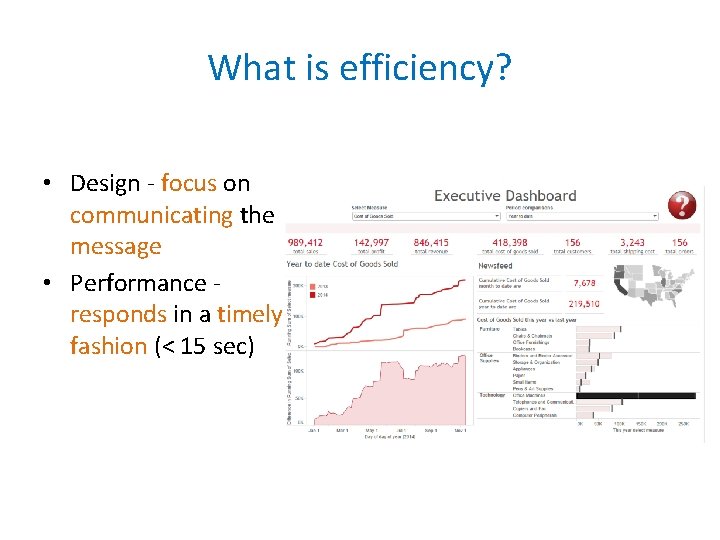
What is efficiency? • Design - focus on communicating the message • Performance responds in a timely fashion (< 15 sec)

Visual Analytics

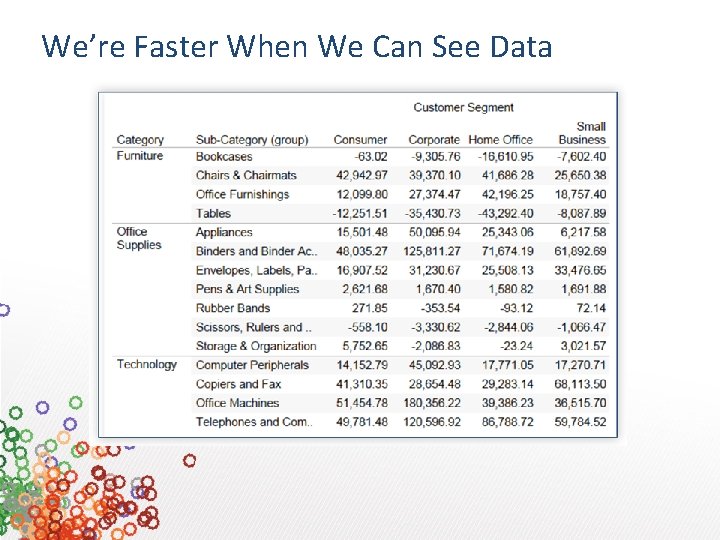
We’re Faster When We Can See Data
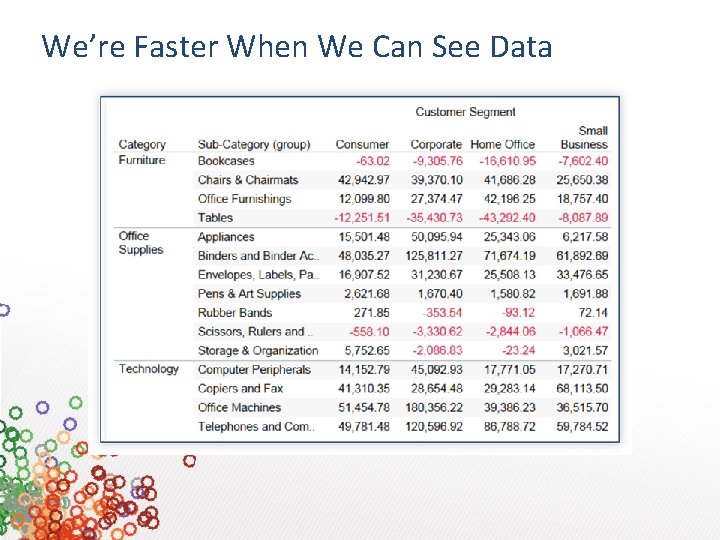
We’re Faster When We Can See Data
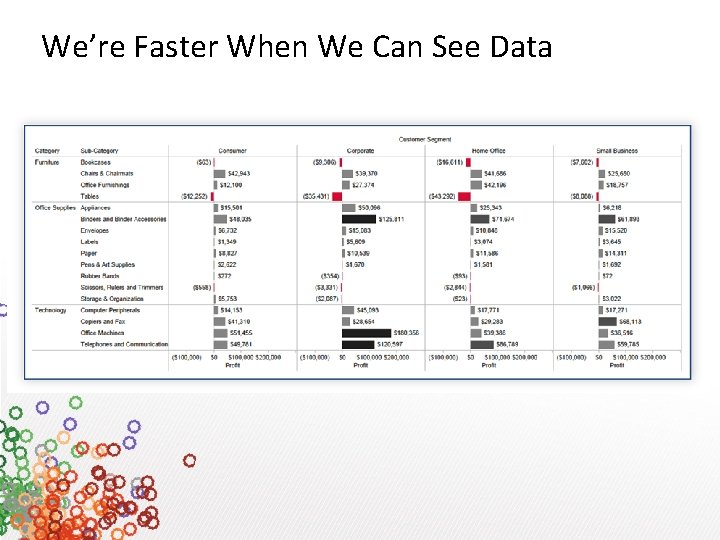
We’re Faster When We Can See Data
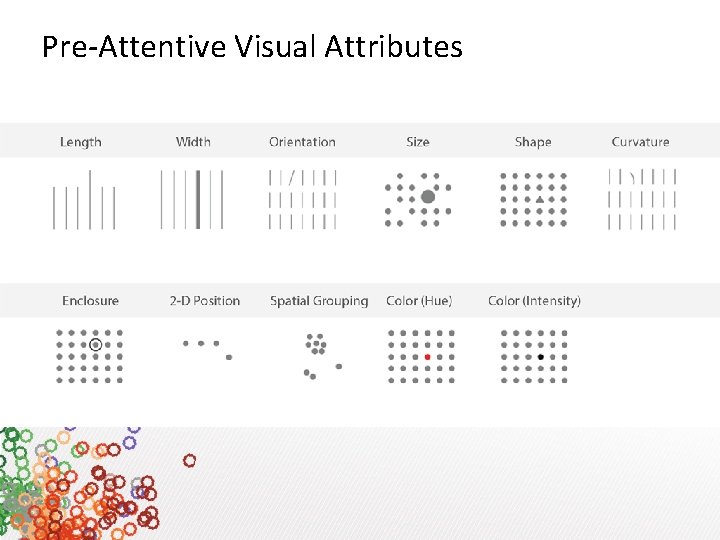
Pre-Attentive Visual Attributes
Best Practices Overview 1. 2. 3. 4. Representing data for humans Color Maps Creating dashboards
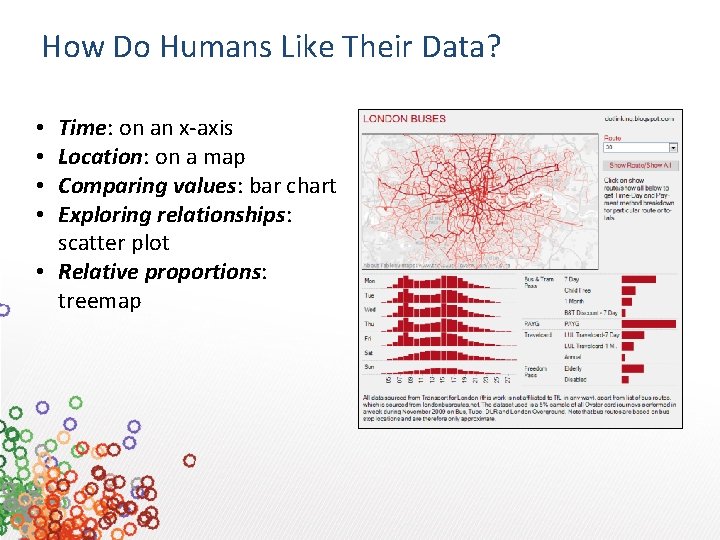
How Do Humans Like Their Data? Time: on an x-axis Location: on a map Comparing values: bar chart Exploring relationships: scatter plot • Relative proportions: treemap • •
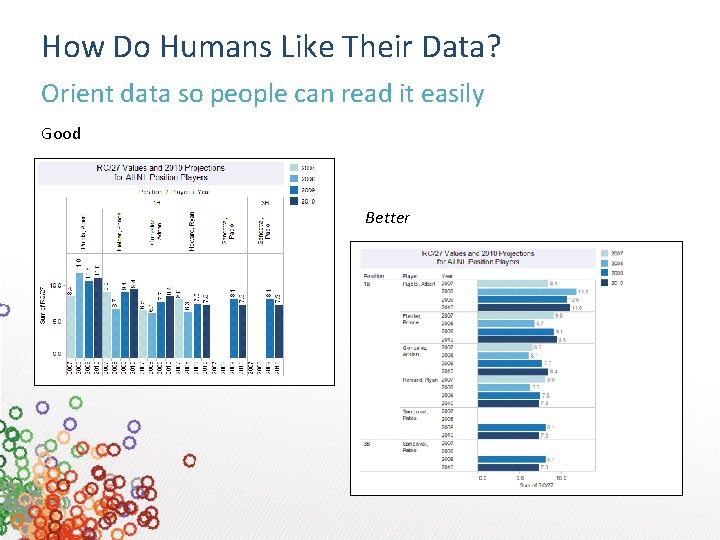
How Do Humans Like Their Data? Orient data so people can read it easily Good Better
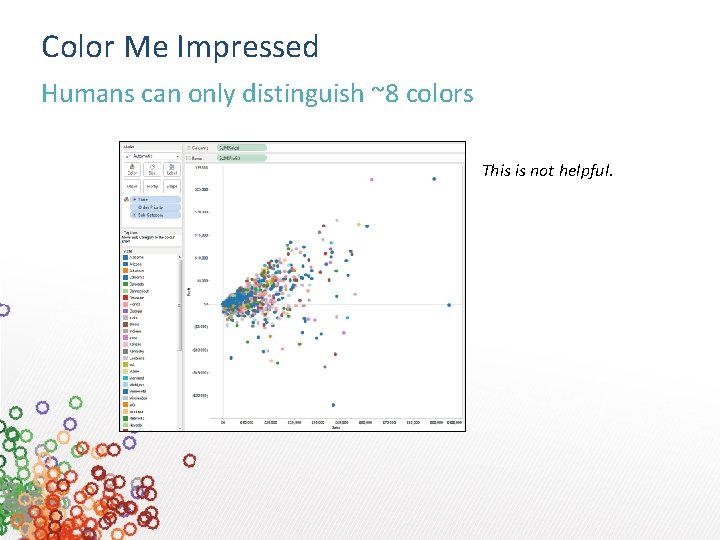
Color Me Impressed Humans can only distinguish ~8 colors This is not helpful.
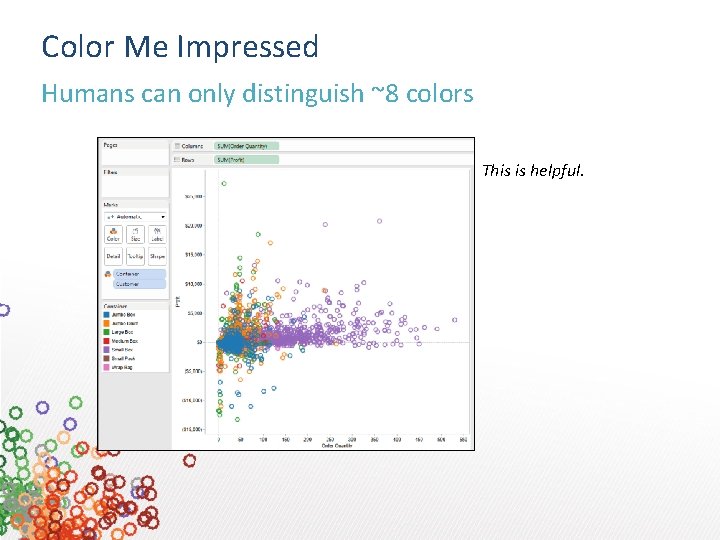
Color Me Impressed Humans can only distinguish ~8 colors This is helpful.
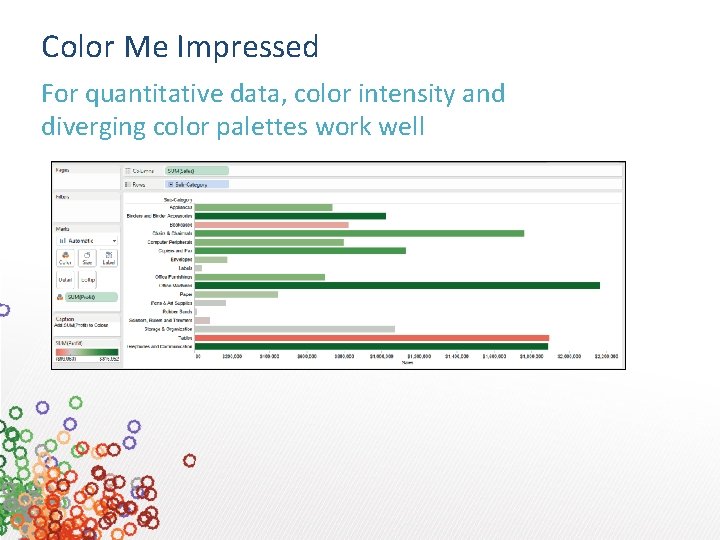
Color Me Impressed For quantitative data, color intensity and diverging color palettes work well
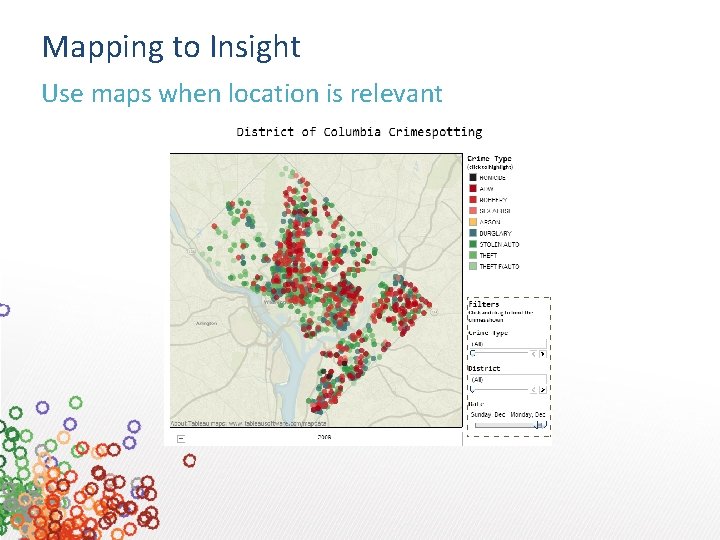
Mapping to Insight Use maps when location is relevant
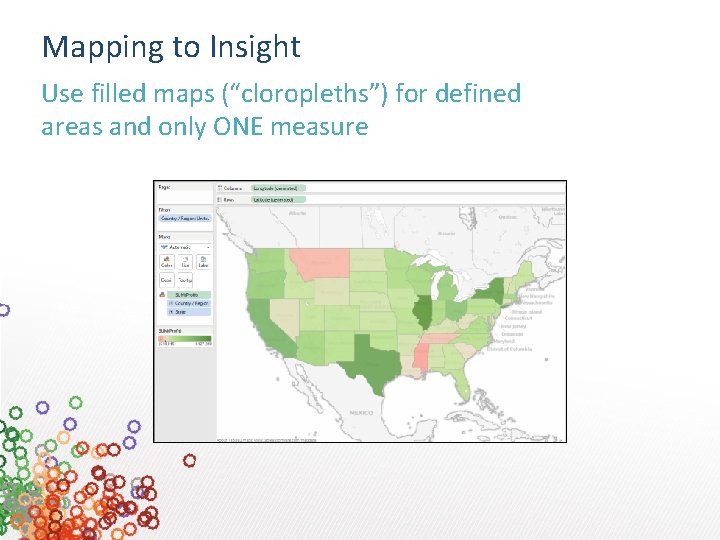
Mapping to Insight Use filled maps (“cloropleths”) for defined areas and only ONE measure
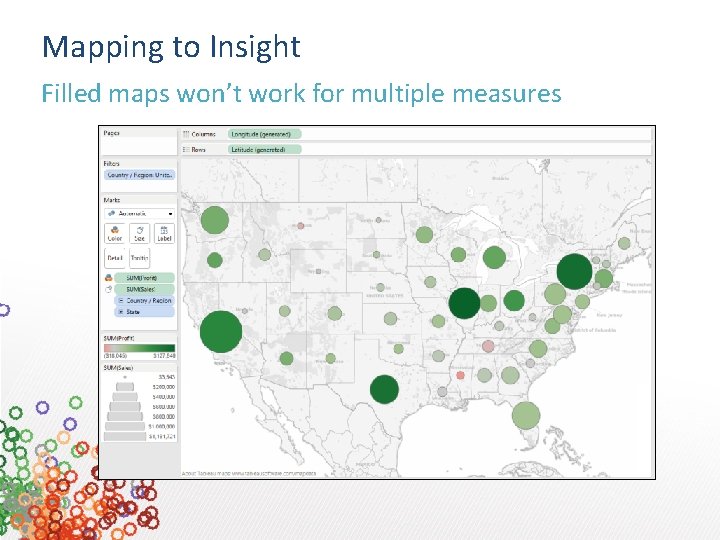
Mapping to Insight Filled maps won’t work for multiple measures
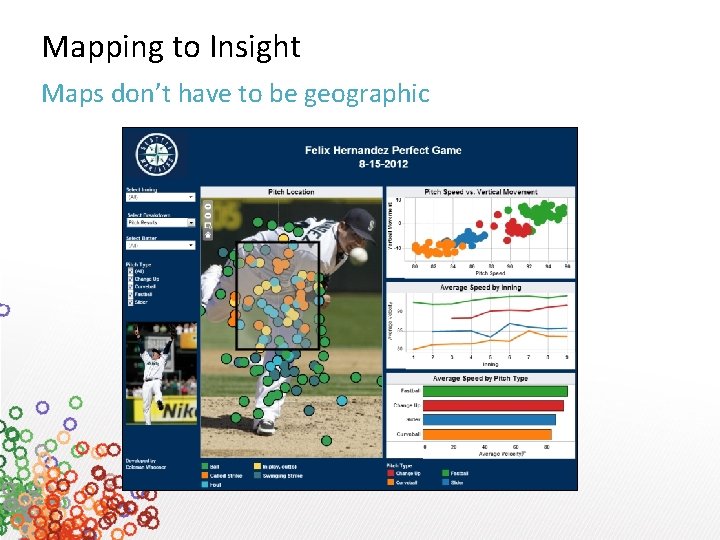
Mapping to Insight Maps don’t have to be geographic
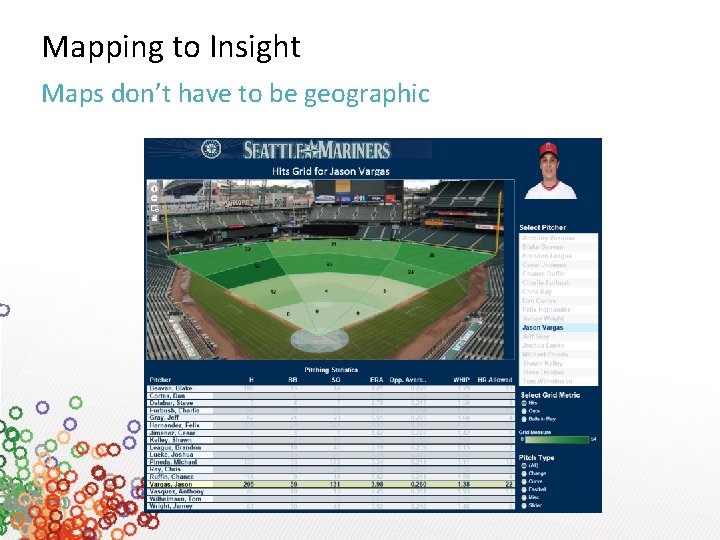
Mapping to Insight Maps don’t have to be geographic

1 Make a good first impression
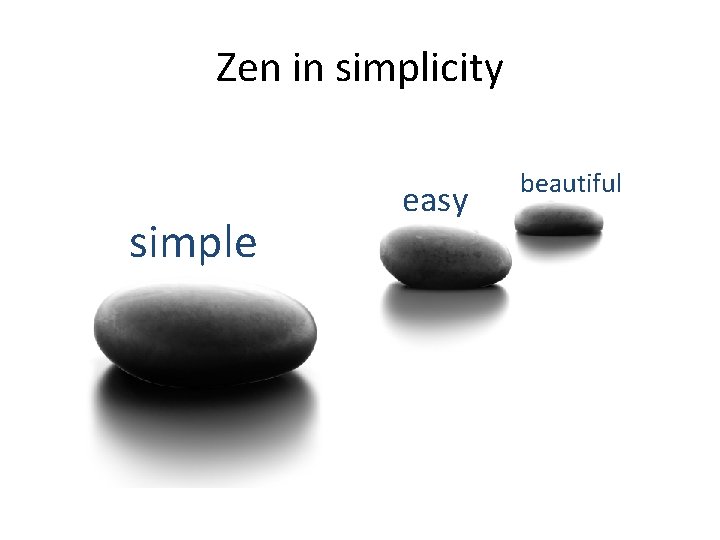
Zen in simplicity simple easy beautiful
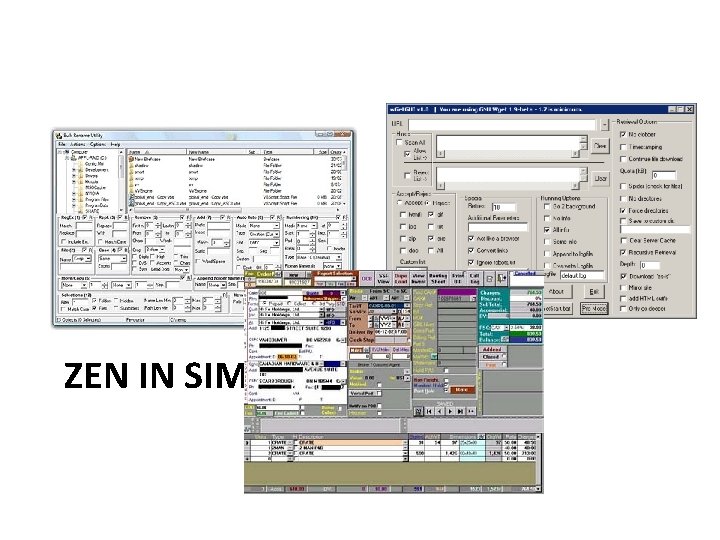
ZEN IN SIMPLICITY
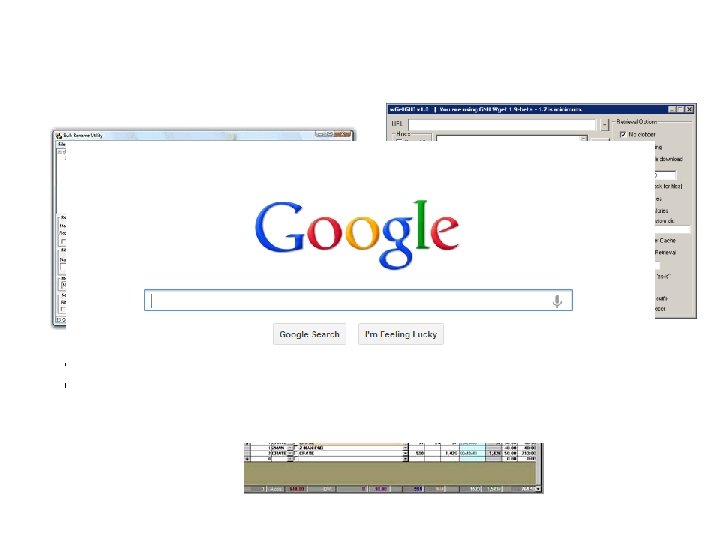
ZEN IN SIMPLICITY
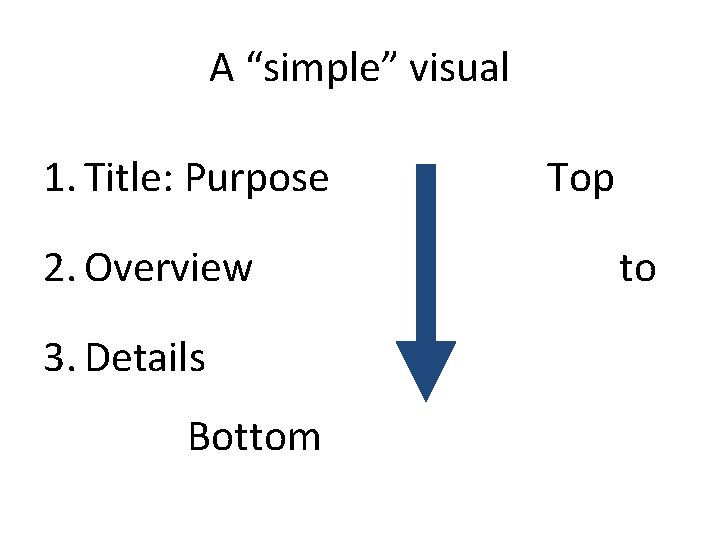
A “simple” visual 1. Title: Purpose 2. Overview 3. Details Bottom Top to
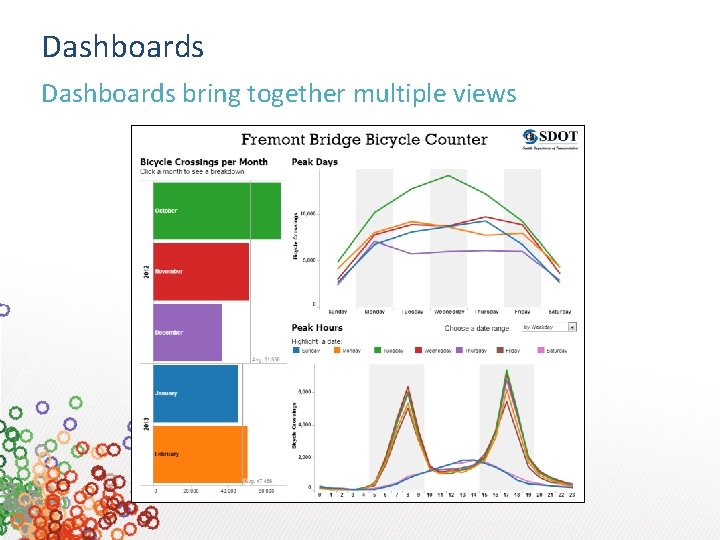
Dashboards bring together multiple views
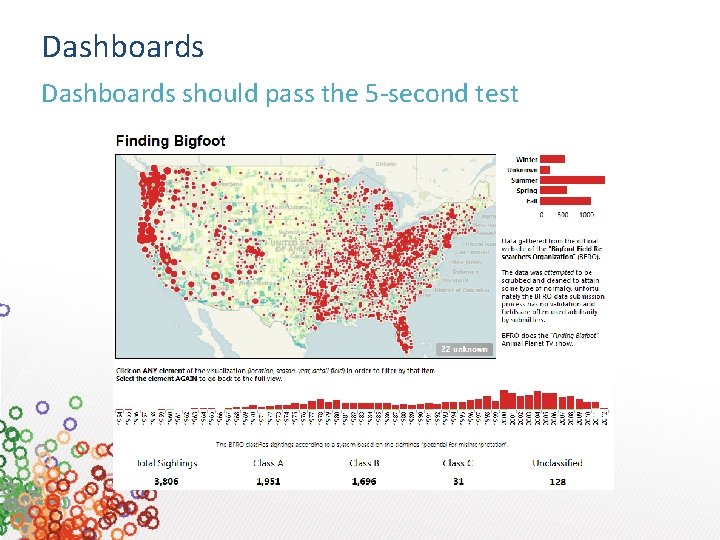
Dashboards should pass the 5 -second test
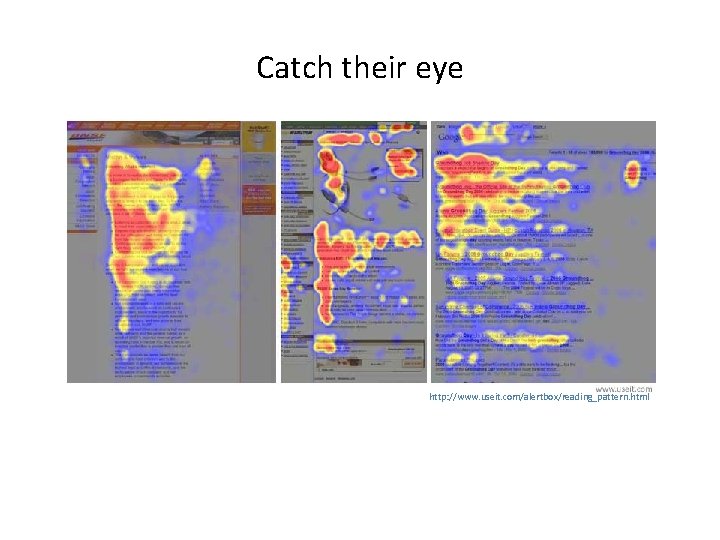
Catch their eye http: //www. useit. com/alertbox/reading_pattern. html
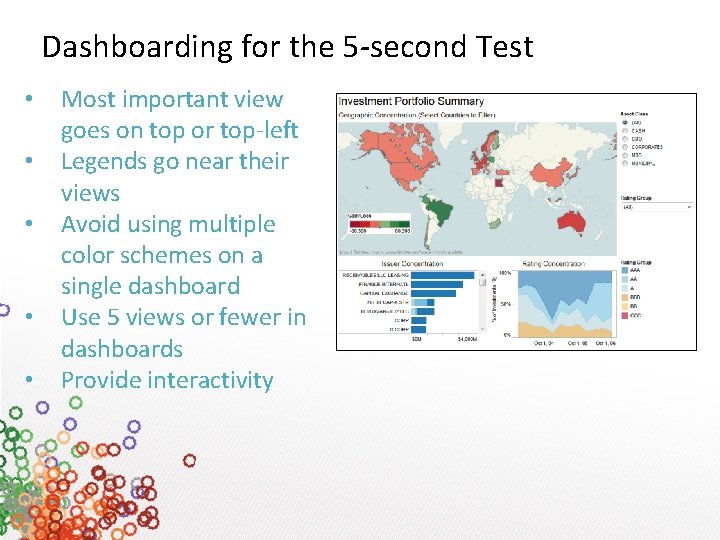
Dashboarding for the 5 -second Test • • • Most important view goes on top or top-left Legends go near their views Avoid using multiple color schemes on a single dashboard Use 5 views or fewer in dashboards Provide interactivity
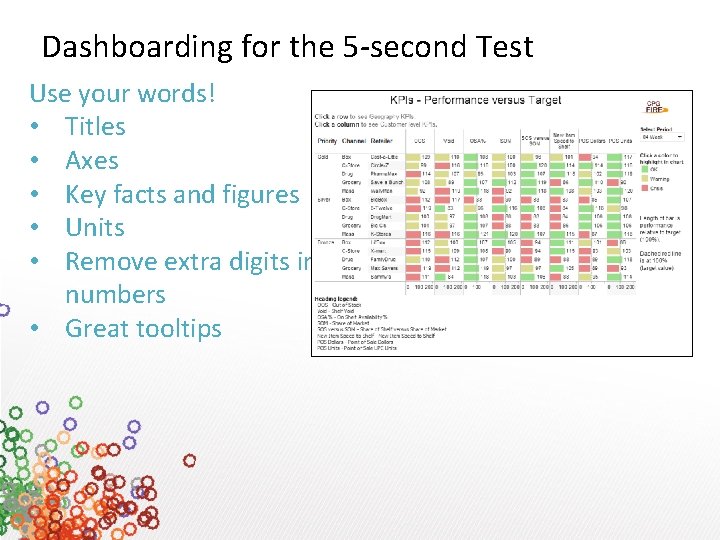
Dashboarding for the 5 -second Test Use your words! • Titles • Axes • Key facts and figures • Units • Remove extra digits in numbers • Great tooltips
Performance - Basic Principles Here are three broad principles that will help you author efficient dashboards and views: • Everything in moderation! • If it is not fast in the database, then it will not be fast in Tableau. • If it is not fast in Tableau Desktop, then it will not be fast in Tableau Server.
Data Connection: Extract An Extract is: • a persistent cache of data that is written to disk and reproducible • a columnar data store a format where the data has been optimized for analytic querying • completely disconnected from the database during querying. It can be used offline • refreshable (Complete or Incremental) • not constrained by the amount of physical RAM available • often much faster than the underlying live data connection.
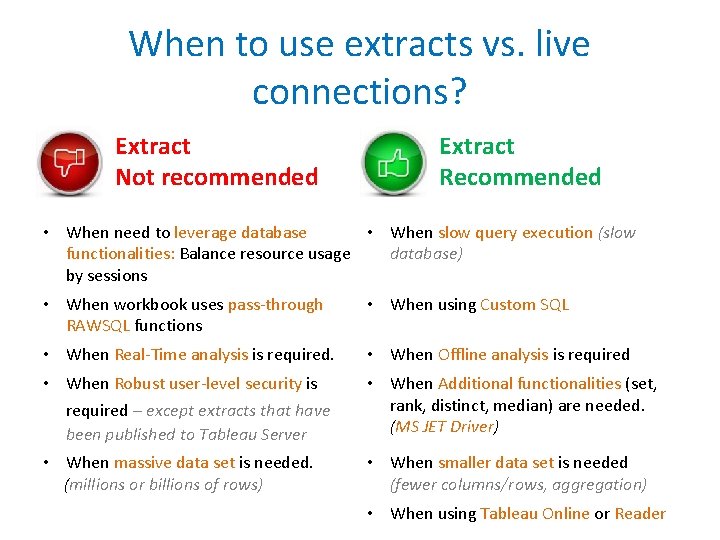
When to use extracts vs. live connections? Extract Not recommended Extract Recommended • When need to leverage database • When slow query execution (slow functionalities: Balance resource usage database) by sessions • When workbook uses pass-through RAWSQL functions • When using Custom SQL • When Real-Time analysis is required. • When Offline analysis is required • When Robust user-level security is required except extracts that have been published to Tableau Server • When Additional functionalities (set, rank, distinct, median) are needed. (MS JET Driver) • When massive data set is needed. (millions or billions of rows) • When smaller data set is needed (fewer columns/rows, aggregation) • When using Tableau Online or Reader
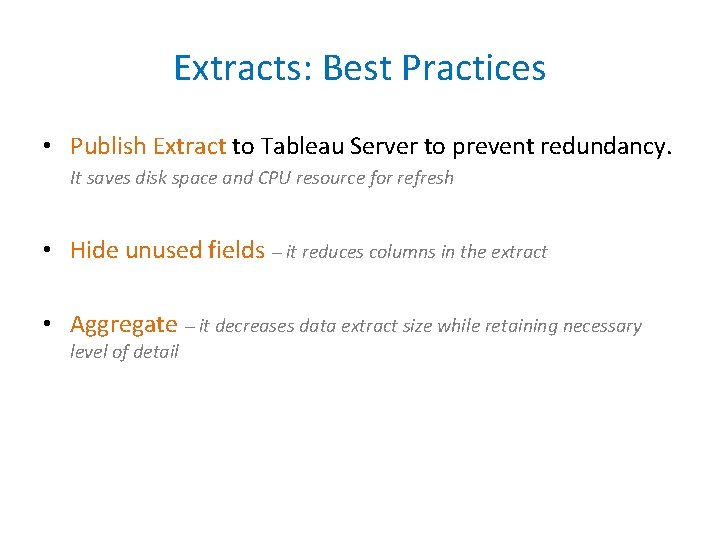
Extracts: Best Practices • Publish Extract to Tableau Server to prevent redundancy. It saves disk space and CPU resource for refresh • Hide unused fields • Aggregate level of detail it reduces columns in the extract it decreases data extract size while retaining necessary
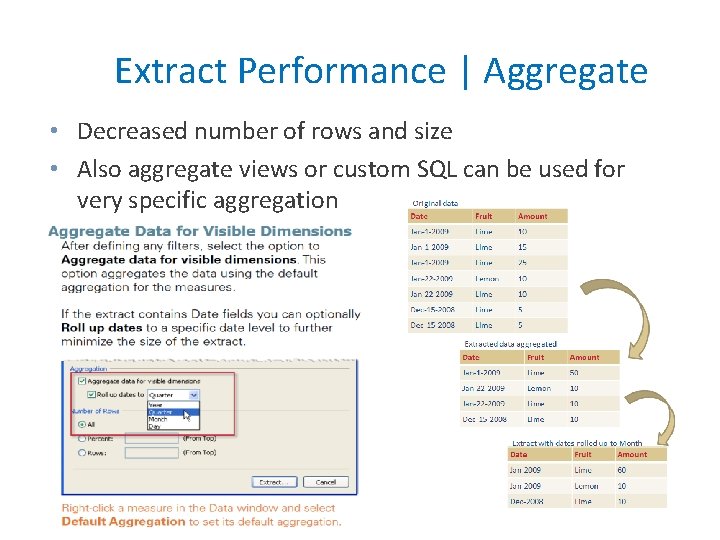
Extract Performance | Aggregate • Decreased number of rows and size • Also aggregate views or custom SQL can be used for very specific aggregation

Extract Performance | Aggregate • Simple Excel • ~8, 000 Records – 3, 211 kb to 942 kb • Performance virtually the same • Big Excel • 1, 000 records - 184 mb to 39 mb • 1 Minute to Seconds • Big SQL • ~5, 000 Records - 2+ gb to 193 mb • Many seconds to few seconds
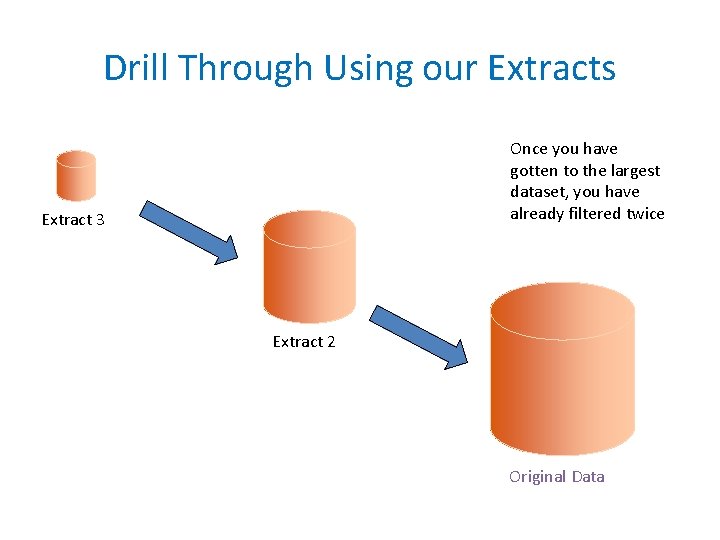
Drill Through Using our Extracts Once you have gotten to the largest dataset, you have already filtered twice Extract 3 Extract 2 Original Data
Things to know about queries • Queries logs can be found here: (between <QUERY> and </QUERY>) “C: Users<username>DocumentsMy Tableau RepositoryLogslog. txt” • Query performance can be recorded Help > Settings and Performance > Start Performance Recording • Join culling is used to improve query performance. Join culling allows Tableau to query only the relevant tables instead of all tables defined in the joins. Custom SQL cannot leverage join culling.
Things to know about Blending • Blend data when you have more than one data source • Join data when you use two data connections from the same data source – It improves performance and filtering control • Cardinality of the blending field(s) matter – Blending queries the data from both data sources at the level of the linking fields and then merges the results of both queries together in memory. • Avoid blending on dimensions with large numbers of unique values (e. g. Order ID, Customer ID, exact date/time, etc)
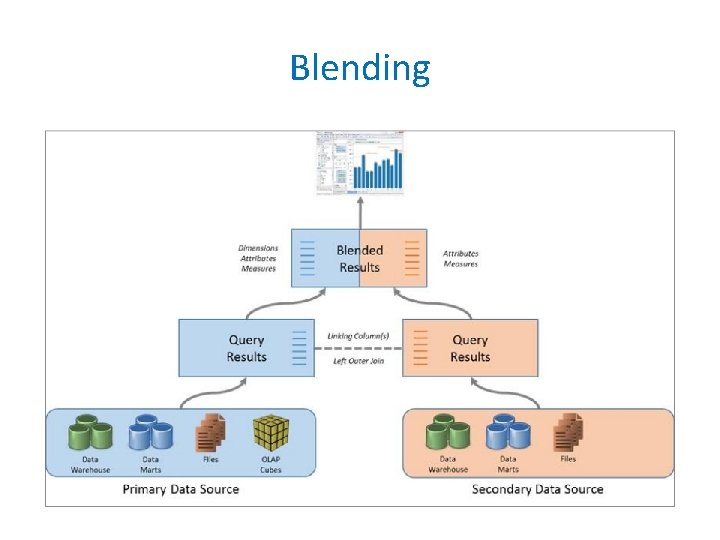
Blending
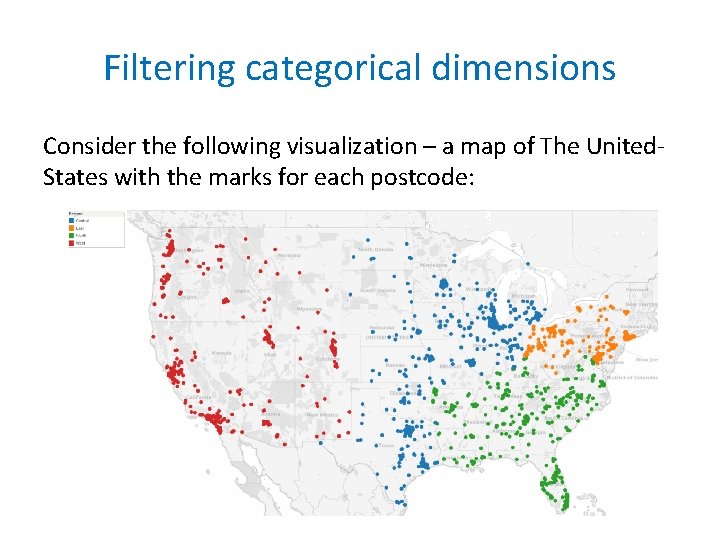
Filtering categorical dimensions Consider the following visualization – a map of The United. States with the marks for each postcode:
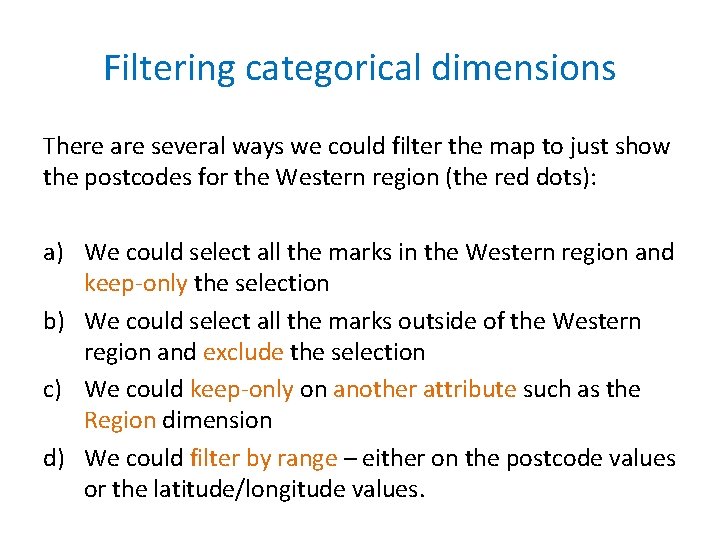
Filtering categorical dimensions There are several ways we could filter the map to just show the postcodes for the Western region (the red dots): a) We could select all the marks in the Western region and keep-only the selection b) We could select all the marks outside of the Western region and exclude the selection c) We could keep-only on another attribute such as the Region dimension d) We could filter by range – either on the postcode values or the latitude/longitude values.
Filtering categorical dimensions Options (a) and (b) will perform poorly. They can even be slower than the unfiltered data set. Because they are expressed as a discrete list of postcode values that are filtered IN or OUT by the database either through a complex WHERE clause or by joining with a temp table that has been populated with the selection.
Filtering categorical dimensions Options (c) is fast. Because the resulting filter (WHERE Region=”West”) is very simple and can be efficiently processed by the database. However this approach becomes less effective as the number of dimension members increase.
Filtering categorical dimensions Options (d) is fast too. Because using the ranged filter also allows the database to evaluate a simple filter clause resulting in fast execution. (WHERE POSTCODE >= 59000 AND POSTCODE < 60000 OR POSTCODE >= 80000 AND POSTCODE < 100000 ) However this approach, unlike a filter on a related dimension, doesn’t become more complex as the number of dimension members increase.
Filtering categorical dimensions Take-away: Ranged filters are often faster to evaluate than large itemized lists of discrete values and they should be used in preference to a keep-only or exclude for large mark sets if possible.
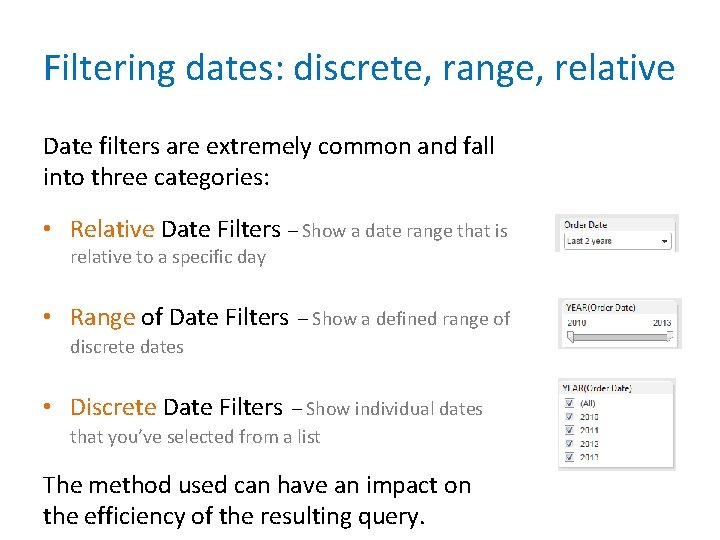
Filtering dates: discrete, range, relative Date filters are extremely common and fall into three categories: • Relative Date Filters – Show a date range that is relative to a specific day • Range of Date Filters – Show a defined range of discrete dates • Discrete Date Filters – Show individual dates that you’ve selected from a list The method used can have an impact on the efficiency of the resulting query.
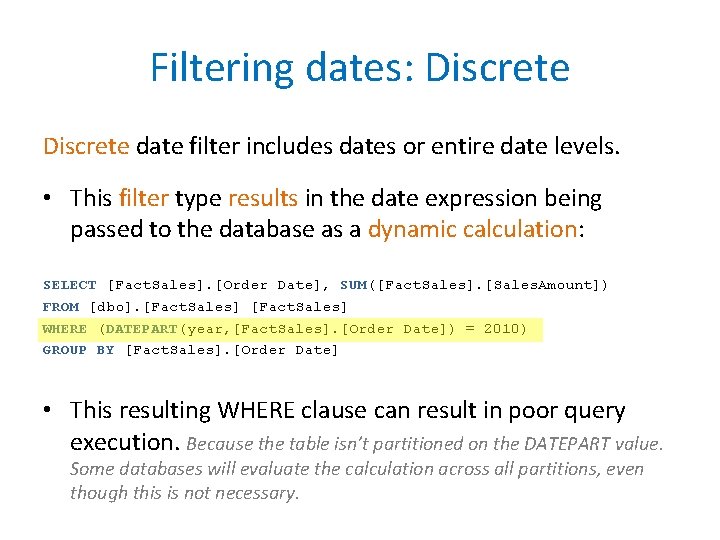
Filtering dates: Discrete date filter includes dates or entire date levels. • This filter type results in the date expression being passed to the database as a dynamic calculation: SELECT [Fact. Sales]. [Order Date], SUM([Fact. Sales]. [Sales. Amount]) FROM [dbo]. [Fact. Sales] WHERE (DATEPART(year, [Fact. Sales]. [Order Date]) = 2010) GROUP BY [Fact. Sales]. [Order Date] • This resulting WHERE clause can result in poor query execution. Because the table isn’t partitioned on the DATEPART value. Some databases will evaluate the calculation across all partitions, even though this is not necessary.
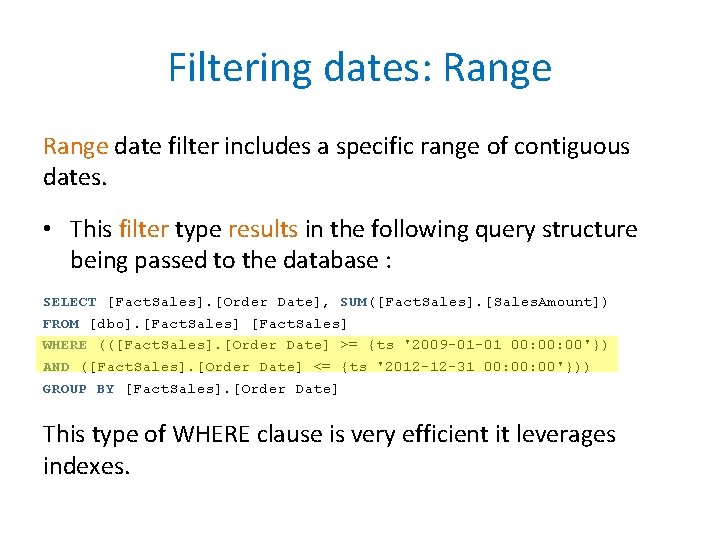
Filtering dates: Range date filter includes a specific range of contiguous dates. • This filter type results in the following query structure being passed to the database : SELECT [Fact. Sales]. [Order Date], SUM([Fact. Sales]. [Sales. Amount]) FROM [dbo]. [Fact. Sales] WHERE (([Fact. Sales]. [Order Date] >= {ts '2009 -01 -01 00: 00'}) AND ([Fact. Sales]. [Order Date] <= {ts '2012 -12 -31 00: 00'})) GROUP BY [Fact. Sales]. [Order Date] This type of WHERE clause is very efficient it leverages indexes.
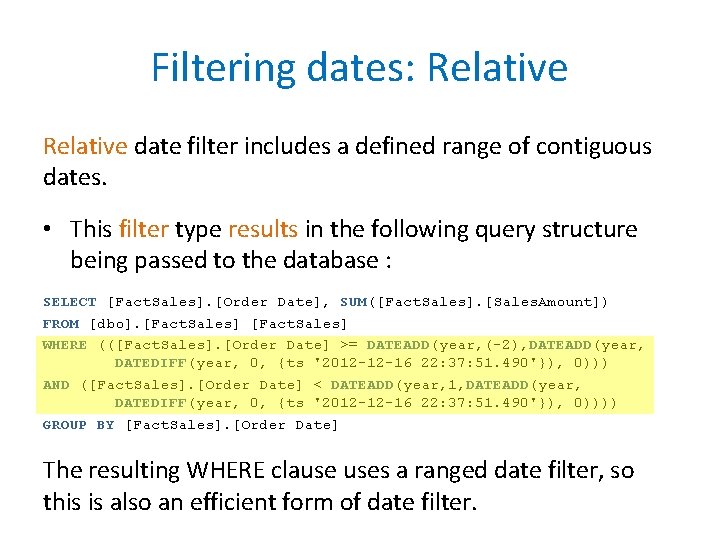
Filtering dates: Relative date filter includes a defined range of contiguous dates. • This filter type results in the following query structure being passed to the database : SELECT [Fact. Sales]. [Order Date], SUM([Fact. Sales]. [Sales. Amount]) FROM [dbo]. [Fact. Sales] WHERE (([Fact. Sales]. [Order Date] >= DATEADD(year, (-2), DATEADD(year, DATEDIFF(year, 0, {ts '2012 -12 -16 22: 37: 51. 490'}), 0))) AND ([Fact. Sales]. [Order Date] < DATEADD(year, 1, DATEADD(year, DATEDIFF(year, 0, {ts '2012 -12 -16 22: 37: 51. 490'}), 0)))) GROUP BY [Fact. Sales]. [Order Date] The resulting WHERE clause uses a ranged date filter, so this is also an efficient form of date filter.
Quick Filters • Despite the name, too many quick filters will actually slow you down. • Try a more guided analytics approach using action filters instead.

Filter: Enumerated quick filters require Tableau to query the data source for all potential field values before the quick filter object can be rendered. These include: • • • Multiple value list Single value list Compact List Slider Measure filters Ranged date filters
Filter: Non-Enumerated Non-enumerated quick filters on the other hand, do not require knowledge of the potential field values. These include: • • Custom value list Wildcard match Relative date filters Browse period date filters Non-enumerated quick filters reduce the number of quick filter related queries that need to be executed by the data source.
Context Filters • By default, all filters that you set in Tableau are computed independently. Each filter accesses all rows in your data source without regard to other filters • Context filters are implemented by writing the filter result set to a temporary table. Any other filters are now dependent of the context filter. Only process the data stored in the temporary table • Context filters are used to improve performance. However the process of creating the temporary table can be expensive on the database
Context Filters Context filter is recommended when: • It reduces the size of the data set significantly – filtering 90% of the data • It is used against slow changing dimensions – if the filter is updated the database must re-compute and re-write the temporary table.

Filters: Best Practices • Avoid “Exclude” it prevents Tableau from leveraging indexes, forces a scan of all of the selected data • Avoid discrete filter use range filter whenever it is possible • Use relative date filter it is an easy way to show current week or month without republishing workbook • Avoid too many quick filters Use guided analytics using action
Calculations Follow those techniques to ensure your calculations are as efficient as possible • Date functions – Today() is better than NOW() Use NOW() only if you need the time stamp level of detail otherwise use TODAY() for date level calculations. • Use Boolean whenever is possible Slower: IF [Date] = TODAY() THEN “Today” ELSE “Not Today” END Faster: [Date] = TODAY()
Calculations • Logic statements – ELSEIF better than ELSE IF A nested IF computes a second IF statement rather than being computed as part of the first. Slower: IF [Region] = "East" and [Customer Segment] = "consumer" THEN "East-Consumer" ELSE IF [Region] = "East" and [Customer Segment] <> "consumer" THEN "East-All Others" END Faster: IF [Region] = "East" and [Customer Segment] = "consumer" THEN "East-Consumer" ELSEIF [Region] = "East" and [Customer Segment] <> "consumer" THEN "East-All Others" END
![Calculations • Avoid Redundant logic checks Slower: IF THEN ELSEIF THEN END [Sales] <](http://slidetodoc.com/presentation_image/1bbc74553fa15c73ca0de063c29caa96/image-59.jpg "Calculations • Avoid Redundant logic checks Slower: IF THEN ELSEIF THEN END [Sales] <")
Calculations • Avoid Redundant logic checks Slower: IF THEN ELSEIF THEN END [Sales] < 10 "Bad" [Sales] >= 10 AND [Sales] < 30 "OK" [Sales] >= 30 "Great" Faster: IF [Sales] < 10 THEN "Bad" ELSEIF [Sales] >= 30 THEN "Great" ELSE "OK" END
![Calculations • Parameters for conditional calculations to change dynamically a calculation. Slow: IF [Parameters].](http://slidetodoc.com/presentation_image/1bbc74553fa15c73ca0de063c29caa96/image-60.jpg "Calculations • Parameters for conditional calculations to change dynamically a calculation. Slow: IF [Parameters].")
Calculations • Parameters for conditional calculations to change dynamically a calculation. Slow: IF [Parameters]. [Date Part Picker] = "Year" THEN DATEPART('year', [Order Date]) ELSEIF [Parameters]. [Date Part Picker] = "Quarter" THEN DATEPART('quarter', [Date]) … ELSE NULL END It helps the end user
![Calculations Faster: IF [Parameters]. [Date Part Picker] = 1 THEN DATEPART('year', [Order Date]) ELSEIF](http://slidetodoc.com/presentation_image/1bbc74553fa15c73ca0de063c29caa96/image-61.jpg "Calculations Faster: IF [Parameters]. [Date Part Picker] = 1 THEN DATEPART('year', [Order Date]) ELSEIF")
Calculations Faster: IF [Parameters]. [Date Part Picker] = 1 THEN DATEPART('year', [Order Date]) ELSEIF [Parameters]. [Date Part Picker] = 2 THEN DATEPART('quarter', [Date]) … ELSE NULL END
![Calculations Fastest: DATEPART([Parameters]. [Date Part Picker], [Order Date])](http://slidetodoc.com/presentation_image/1bbc74553fa15c73ca0de063c29caa96/image-62.jpg "Calculations Fastest: DATEPART([Parameters]. [Date Part Picker], [Order Date])")
Calculations Fastest: DATEPART([Parameters]. [Date Part Picker], [Order Date])
- Slides: 62