
Designing an Effective Power Point Quick Guide Purdue

- Slides: 19
Designing an Effective Power. Point: Quick Guide Purdue OWL staff Brought to you in cooperation with the Purdue Online Writing Lab
The Rhetorical Situation When designing a Power. Point, consider the project’s § Topic § Purpose § Audience § Presentation length
Drafting A to-do list before you get started: ü Decide what you are going to include in the Power. Point ü In a Word file, draft the titles of each section/slide ü Pick images / tables / charts you are going to use and save them in a separate folder or file. ü Consider the time it would take to present each slide; pick only the most important information.
Arrangement Decide how you want to organize your Power. Point Possible organization strategies: § Overview, Body, Conclusion § Anecdote, Content, Conclusion § Plan, Benefits, Anecdote
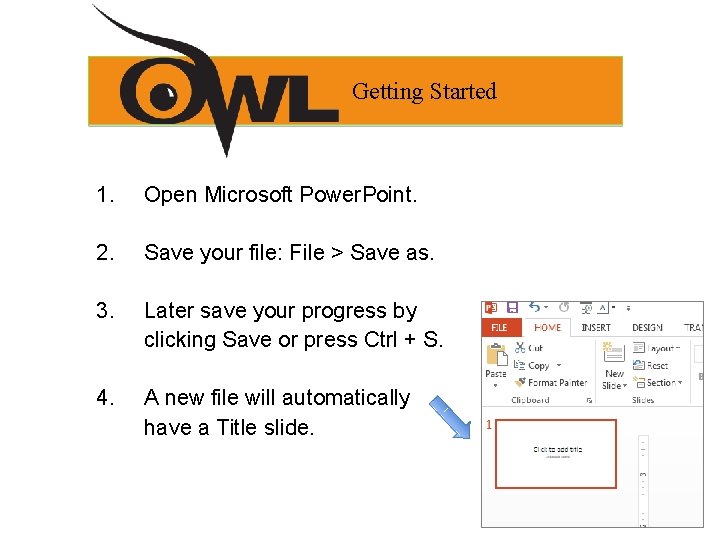
Getting Started 1. Open Microsoft Power. Point. 2. Save your file: File > Save as. 3. Later save your progress by clicking Save or press Ctrl + S. 4. A new file will automatically have a Title slide.
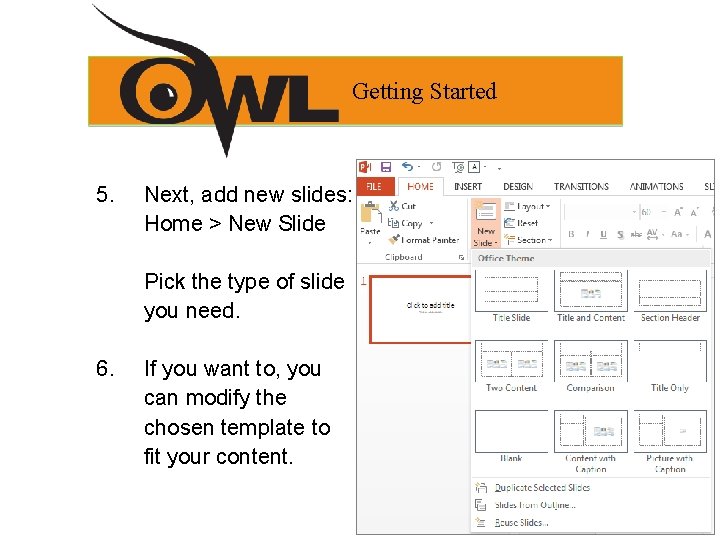
Getting Started 5. Next, add new slides: Home > New Slide Pick the type of slide you need. 6. If you want to, you can modify the chosen template to fit your content.
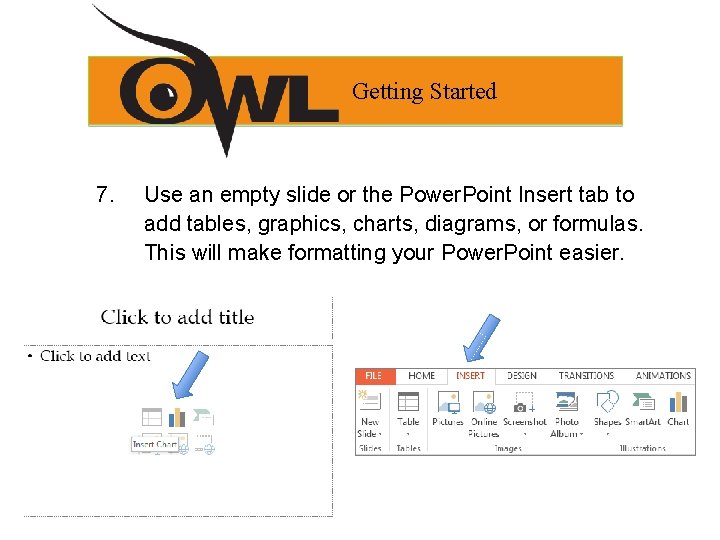
Getting Started 7. Use an empty slide or the Power. Point Insert tab to add tables, graphics, charts, diagrams, or formulas. This will make formatting your Power. Point easier.
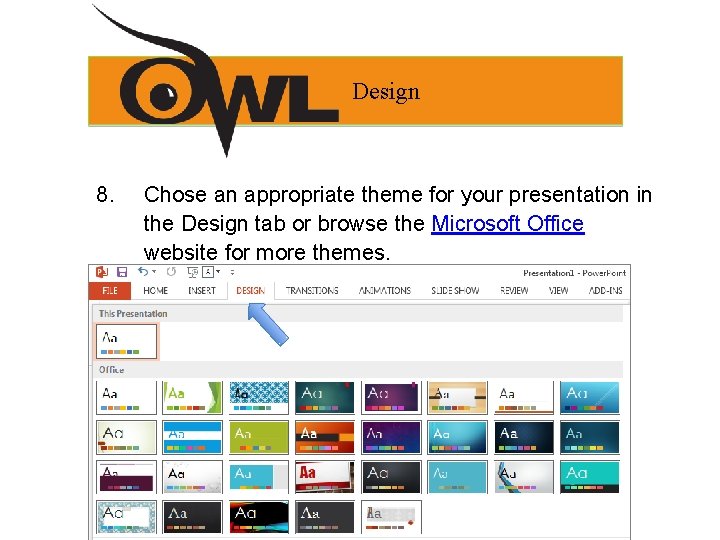
Design 8. Chose an appropriate theme for your presentation in the Design tab or browse the Microsoft Office website for more themes.
Transitions and Animations Transition - an effect that determines how slides progressively show up on the screen, e. g. Cut, Fade, Push, Wipe, etc. Animation - an effect that determines in which order and how elements of a slide appear on the screen, e. g. Appear, Fade, Fly In, Float In, etc.
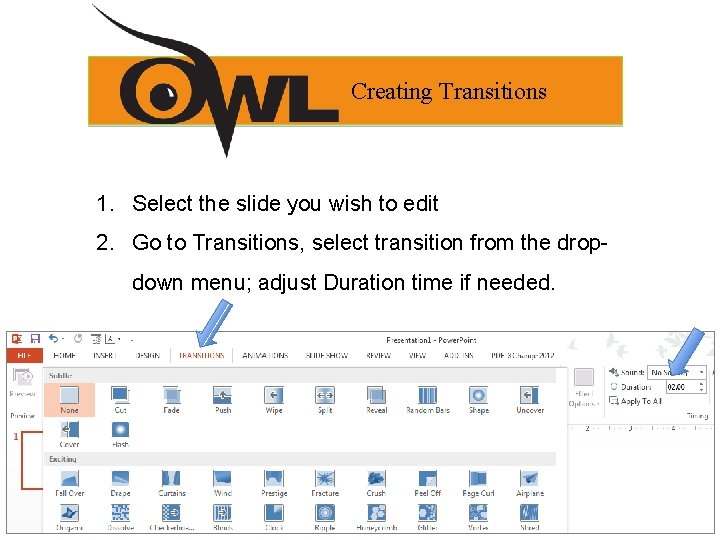
Creating Transitions 1. Select the slide you wish to edit 2. Go to Transitions, select transition from the dropdown menu; adjust Duration time if needed.
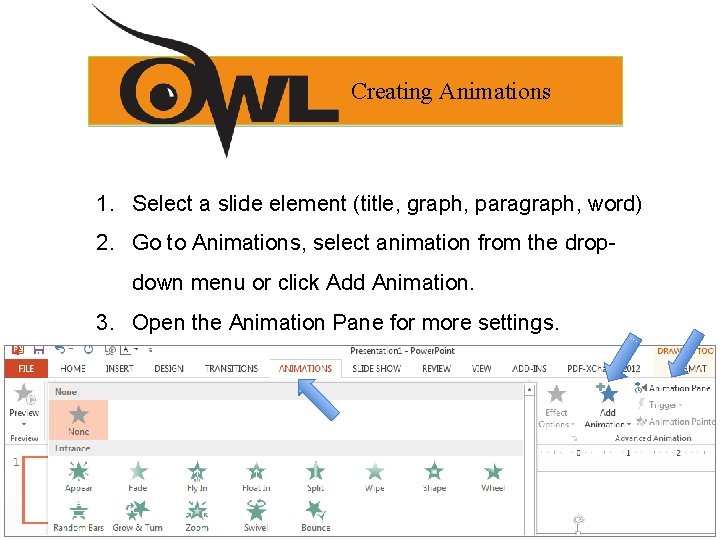
Creating Animations 1. Select a slide element (title, graph, paragraph, word) 2. Go to Animations, select animation from the dropdown menu or click Add Animation. 3. Open the Animation Pane for more settings.
Presentation Preview When previewing your presentation, pay attention to: § Text on each slide (the less text the better) § Clarity of ideas and logical organization § How fast the text or slides appear § Font and format consistency § Grammar, spelling, and punctuation
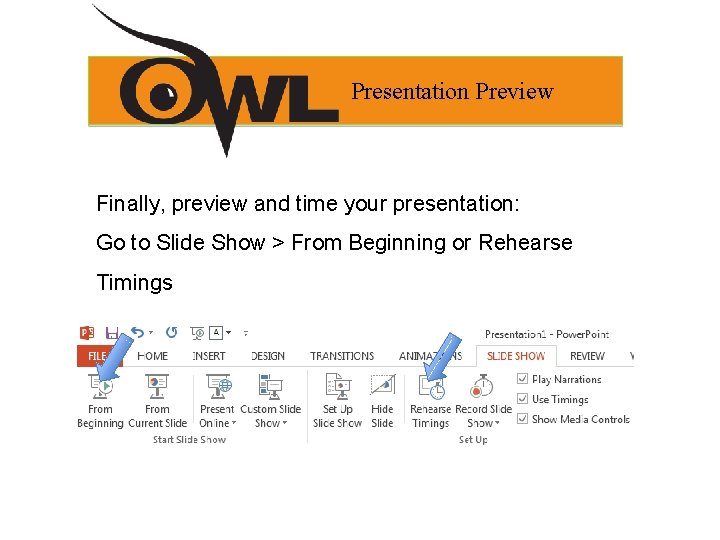
Presentation Preview Finally, preview and time your presentation: Go to Slide Show > From Beginning or Rehearse Timings
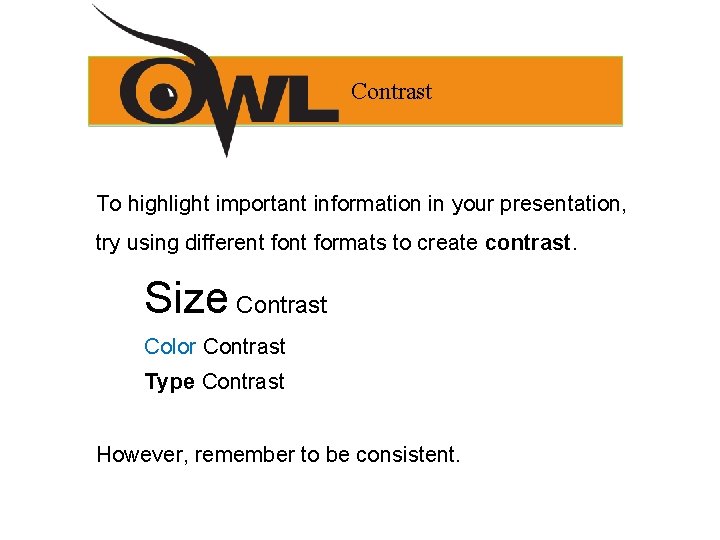
Contrast To highlight important information in your presentation, try using different formats to create contrast. Size Contrast Color Contrast Type Contrast However, remember to be consistent.
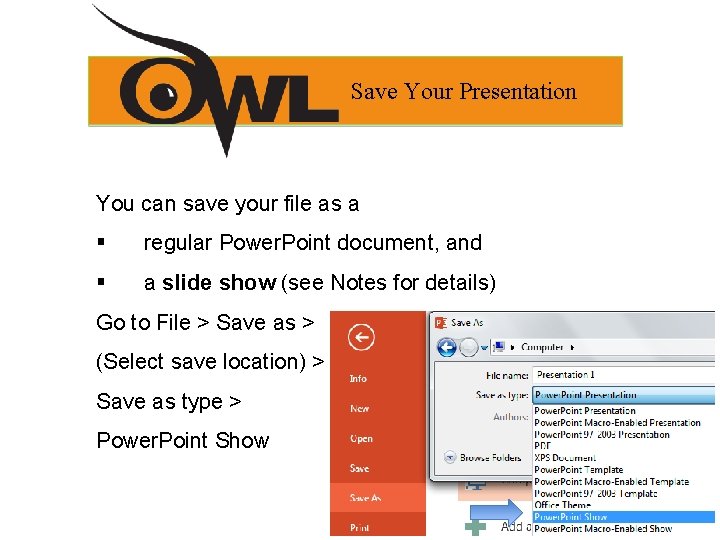
Save Your Presentation You can save your file as a § regular Power. Point document, and § a slide show (see Notes for details) Go to File > Save as > (Select save location) > Save as type > Power. Point Show
Exterior Content - Everything in your presentation other than your Power. Point. The best presentations include practiced hand gestures, polished verbal delivery, and some form of crowd interaction.
Exterior Content Help TIPS: § § § Use your Power. Point as an aid to your presentation, not as your presentation Be sure that your Exterior Content and your Interior Content are different Know your presentation space and execute your gestures and volume accordingly
Where to Go for More Help Purdue University Writing Lab, Heavilon 226 Check our web site: http: //owl. english. purdue. edu Email brief questions to OWL Mail: http: //owl. english. purdue. edu/writinglab/topic/owlmail/
The End DESIGNING AN EFFECTIVE POWERPOINT: QUICK GUIDE Purdue OWL staff Brought to you in cooperation with the Purdue Online Writing Lab