
Design Process Implement Low Fidelity Prototyping Christine Robson
Design Process: Implement Low Fidelity Prototyping Christine Robson & Bryan Tsao September 27, 2007
Sit with your groups! We’ll be doing an in-class exercise
Today n Lo-Fidelity Prototypes – Paper Prototypes – Wizard of Oz – Screenshotting – Web-based n Card sorting
Why do we prototype? Get feedback faster, cheaper n Experiment with alternative designs n Fix problems before code is written n Easier to change or throw away n
Fidelity in Prototyping Fidelity refers to the level of detail n High fidelity n – Prototypes look like the final product n Low fidelity – Artists renditions with many details missing
Low-Fi Storyboards n Where do storyboards come from? – Film & Animation n Give you a “script” of important events – Leave out the details – Concentrate on the important interactions n In UI design, the storyboard is nonlinear to support user action choices
Why Use Low-Fi Prototypes n Traditional methods take too long – Sketches prototype evaluate iterate n Can simulate the proptotype – Sketches act as prototype n n Designer “plays computer” Other design team members observe & record Might sound silly, but is surprisingly effective Kindergarten implementation skills – Allows non-programmers to participate n Widely used in industry
Hi-Fi Disadvantages n Distort perceptions of the tester – Formal representation indicates “finished” nature – People comment on color, fonts, and alignment n Discourages major changes – Testers don’t want to change a “finished” design – Designers don’t want to lose effort put into creating the hi-fi design
Constructing the Prototype n Set a deadline – Don’t think too long- just build it! n Draw a window frame on large paper – Draw at a large size, but use correct aspect ratio n Put different screen regions on cards – Anything that moves, changes, appears/disappears – Scribble to indicate text if necessary n Ready response for any user action – ie, have those pull-down menus already made n Use photocopier to make many versions
Tips for Good Paper Prototypes Make it larger then life n Replace tricky visual feedback with audible descriptions n – “Drag & drop, animation, progress bar” n Keep pieces organized – Use folders & open envelopes
Wizard of Oz n Research experiment – – – Subjects interact with a “computer system” Illusion that the system is autonomous It’s is actually being operated or partially operated by a human n Depending on your level of illusion, this can be a person in another room manipulating the computer Or a person in front of you physically moving the paper prototype The name of the experiment comes from the “man behind the curtain” in The Wonderful Wizard of Oz
Preparing for a Test n Select your participants – Understand the background of intended users – Use a questionnaire to get the people you need – Don’t use friends or family n Prepare scenarios that are – Typical of the product during actual use – Make prototype support these (small, yet broad) n Practice running the computer to avoid “bugs” – You will need every menu and dialog for the tasks – All widgets the user might press n Don’t forget the help and cancel buttons!
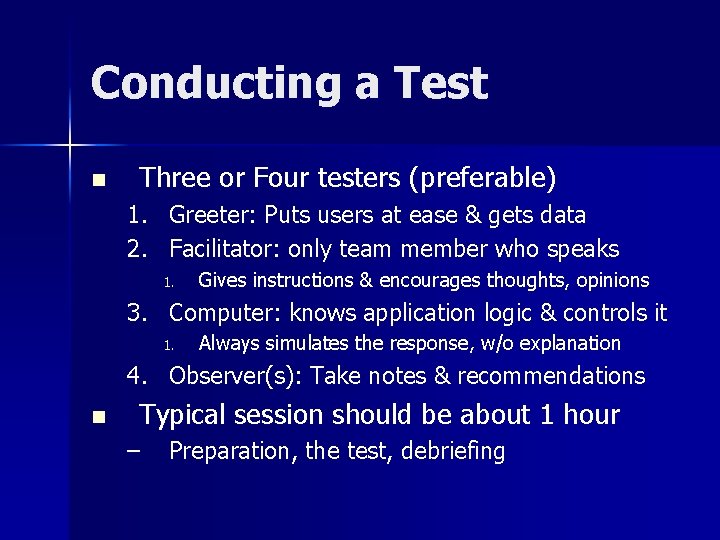
Conducting a Test n Three or Four testers (preferable) 1. Greeter: Puts users at ease & gets data 2. Facilitator: only team member who speaks 1. Gives instructions & encourages thoughts, opinions 3. Computer: knows application logic & controls it 1. Always simulates the response, w/o explanation 4. Observer(s): Take notes & recommendations n Typical session should be about 1 hour – Preparation, the test, debriefing
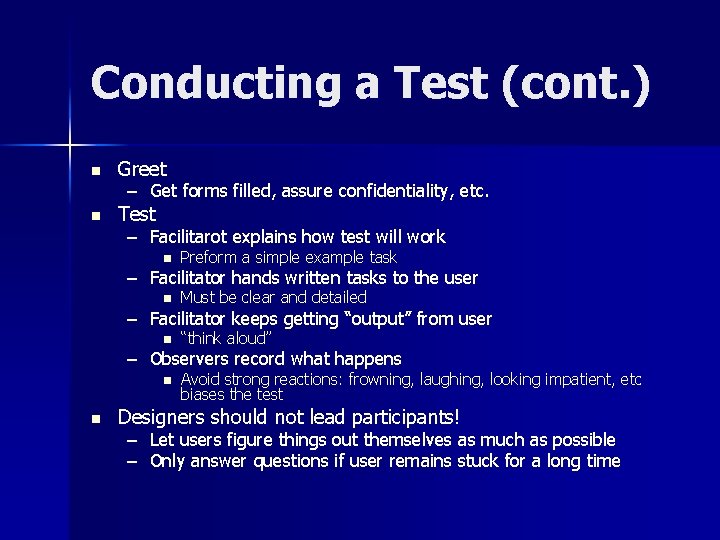
Conducting a Test (cont. ) n Greet n Test – Get forms filled, assure confidentiality, etc. – Facilitarot explains how test will work n Preform a simple example task n Must be clear and detailed n “think aloud” n Avoid strong reactions: frowning, laughing, looking impatient, etc biases the test – Facilitator hands written tasks to the user – Facilitator keeps getting “output” from user – Observers record what happens n Designers should not lead participants! – Let users figure things out themselves as much as possible – Only answer questions if user remains stuck for a long time
Conducting a Test (cont. ) n Debrief – Fill out post-evaluation questionnaire – Ask questions about parts you saw problems on – Gather impressions – Give thanks!
Test Tips n Rehearse your actions – For a complicated UI, make a flowchart which is hidden from the user – Make a list of legal words for a speech interface n Stay “in role” – You are a computer, and have no common sense or ability to understand spoken English n Facilitator can remind user of the rules if the user gets stuck
Evaluating Results n Sort & Prioritize observations – What was important? – Lots of problems in the same area? n Create a written report on findings – Gives agenda for meeting on design changes n Make changes & iterate !
Exercise
Goal Pick one user task that you are planning to enable with your final project n Something simple like n – Find friends of mine who are using the application – Create a new profile – Change your preferences
Exercise n Brainstorm about the user’s goals – What do they want to do? – What information will they need – What kind of interface supports these tasks? n Create an initial low fidelity prototype – Debug the interface with users from another group n n n Does the interface meet your needs? Is the interface hassle-free? Is the interface confusing or difficult?
Drawbacks of Lo-Fi Prototyping n Evolving the prototype requires redrawing – Can be slow – Reprogramming can be slower n n n Lack support for “design memory” Force manual translation to electronic format Do not allow real-time end-user interaction
Down-sides to informal design n Paying Clients – Often see the fidelity of the interface as an indication of development effort – Often hard to involve them as subjects – Talk to them early and often! – Talk to the same people – Explain the process and set expectations up front!
Screenshotting
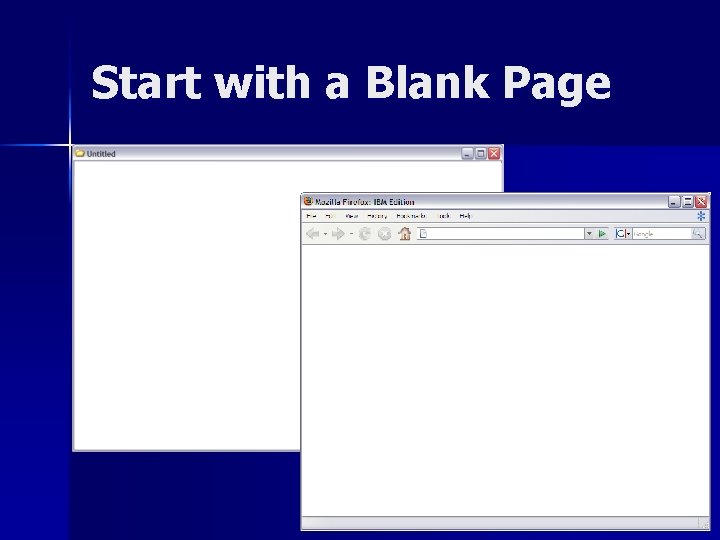
Start with a Blank Page
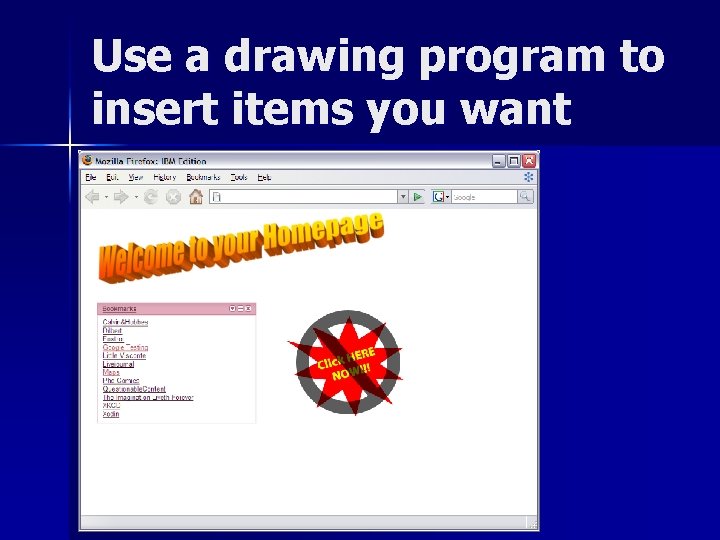
Use a drawing program to insert items you want
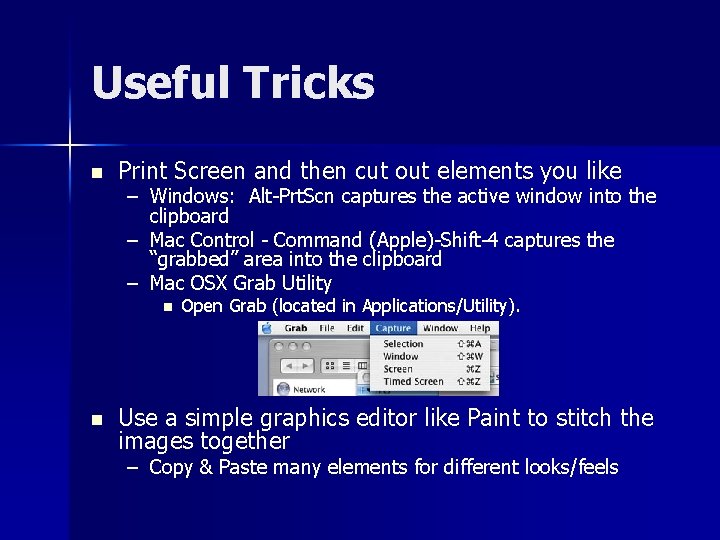
Useful Tricks n Print Screen and then cut out elements you like – Windows: Alt-Prt. Scn captures the active window into the clipboard – Mac Control - Command (Apple)-Shift-4 captures the “grabbed” area into the clipboard – Mac OSX Grab Utility n n Open Grab (located in Applications/Utility). Use a simple graphics editor like Paint to stitch the images together – Copy & Paste many elements for different looks/feels
Web-Based Provides the illusion of interactivity n Can employ screenshots to show parts of your webpage n Can be used as just a “click-through” of screenshots n Good if you are considering adding features to an existing website n
Card sorting Bryan Tsao
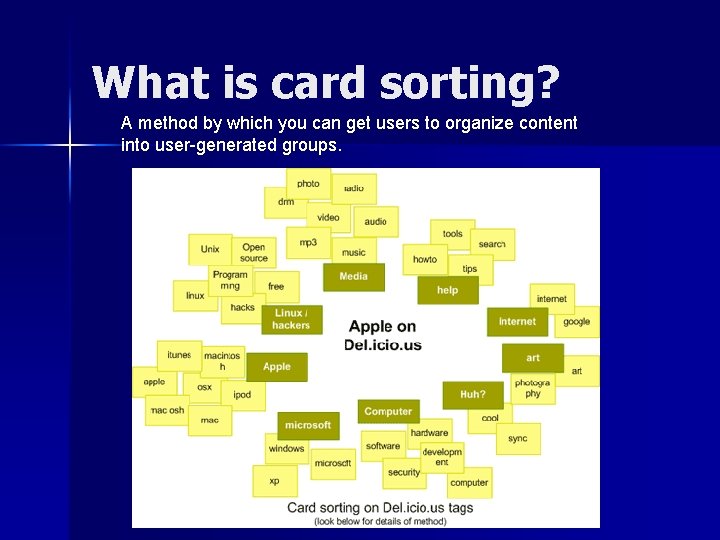
What is card sorting? A method by which you can get users to organize content into user-generated groups.
Idiot’s guide to card sorting n Card sort when you have: – Lots of content – Content that could potentially be organized in multiple ways – Problems with navigation/users finding the correct content n n Create cards that break down content to its constituent, generic parts Allow users to organize and name their own categories
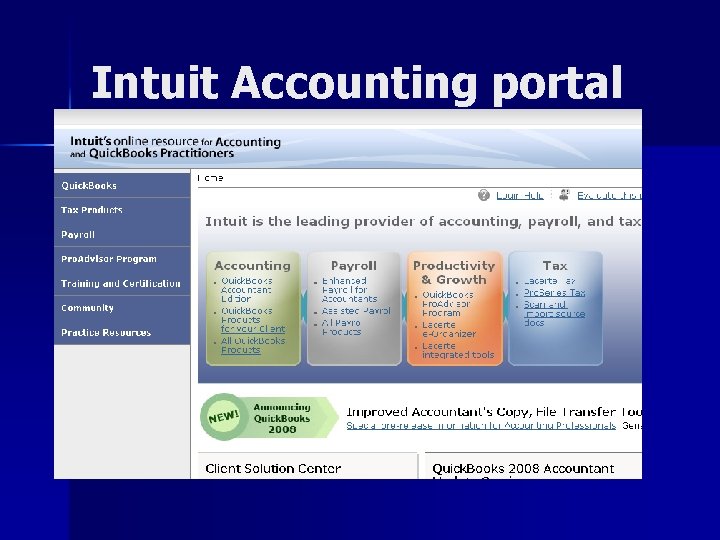
Intuit Accounting portal
Demo n http: //www. themindcanvas. com/dem os/

Nuts & Bolts
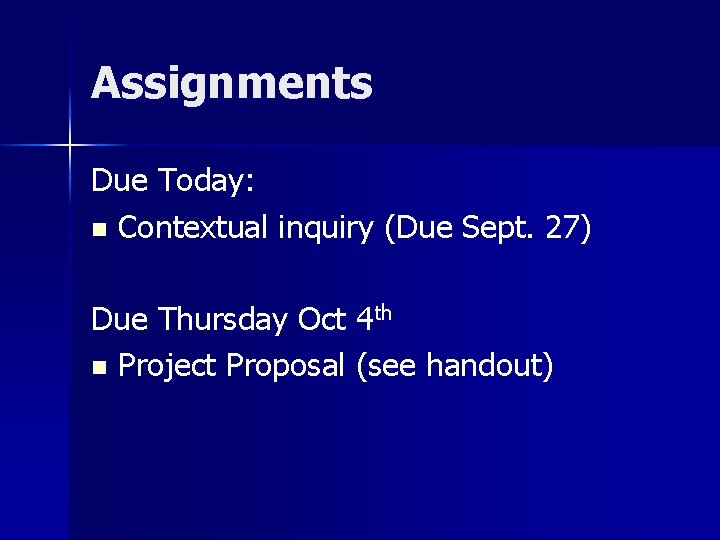
Assignments Due Today: n Contextual inquiry (Due Sept. 27) Due Thursday Oct 4 th n Project Proposal (see handout)
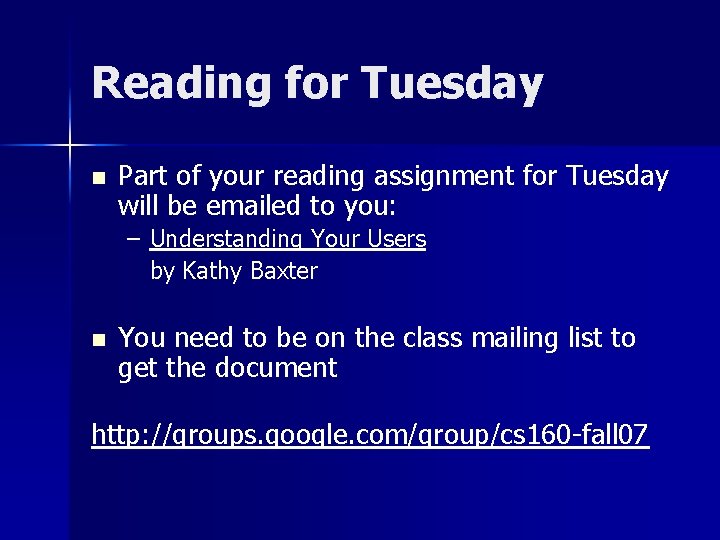
Reading for Tuesday n Part of your reading assignment for Tuesday will be emailed to you: – Understanding Your Users by Kathy Baxter n You need to be on the class mailing list to get the document http: //groups. google. com/group/cs 160 -fall 07
- Slides: 35