
DEPARTMENT OF INFORMATIONTECHNOLOGY Advanced internet programing Chapter II

- Slides: 25
DEPARTMENT OF INFORMATIONTECHNOLOGY Advanced internet programing Chapter II HTML Forms and Server Side Scripting 9/14/2021 1
Contents of the chapter üHtml form üForm element üMethod in form üGrouping form data üForm attributes üForm Validation
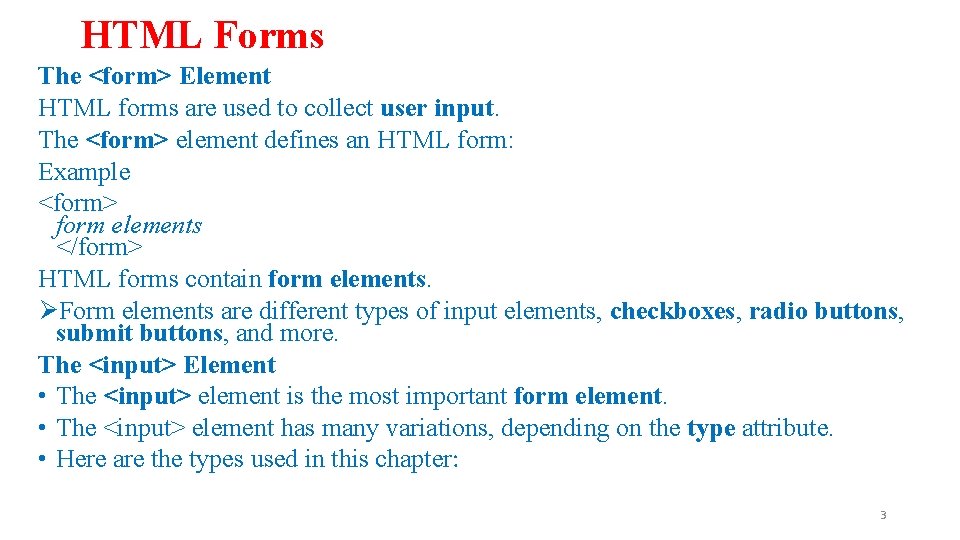
HTML Forms The <form> Element HTML forms are used to collect user input. The <form> element defines an HTML form: Example <form> form elements </form> HTML forms contain form elements. ØForm elements are different types of input elements, checkboxes, radio buttons, submit buttons, and more. The <input> Element • The <input> element is the most important form element. • The <input> element has many variations, depending on the type attribute. • Here are the types used in this chapter: 3
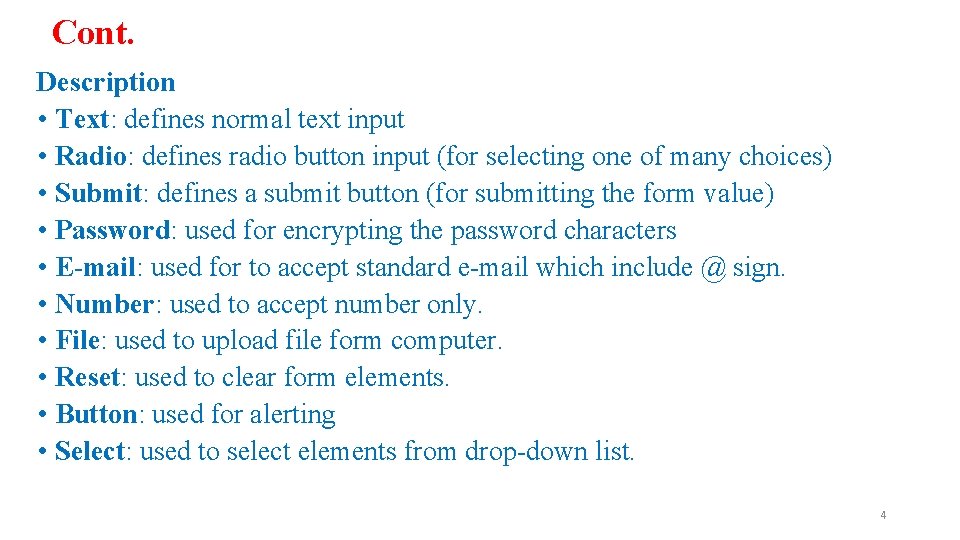
Cont. Description • Text: defines normal text input • Radio: defines radio button input (for selecting one of many choices) • Submit: defines a submit button (for submitting the form value) • Password: used for encrypting the password characters • E-mail: used for to accept standard e-mail which include @ sign. • Number: used to accept number only. • File: used to upload file form computer. • Reset: used to clear form elements. • Button: used for alerting • Select: used to select elements from drop-down list. 4
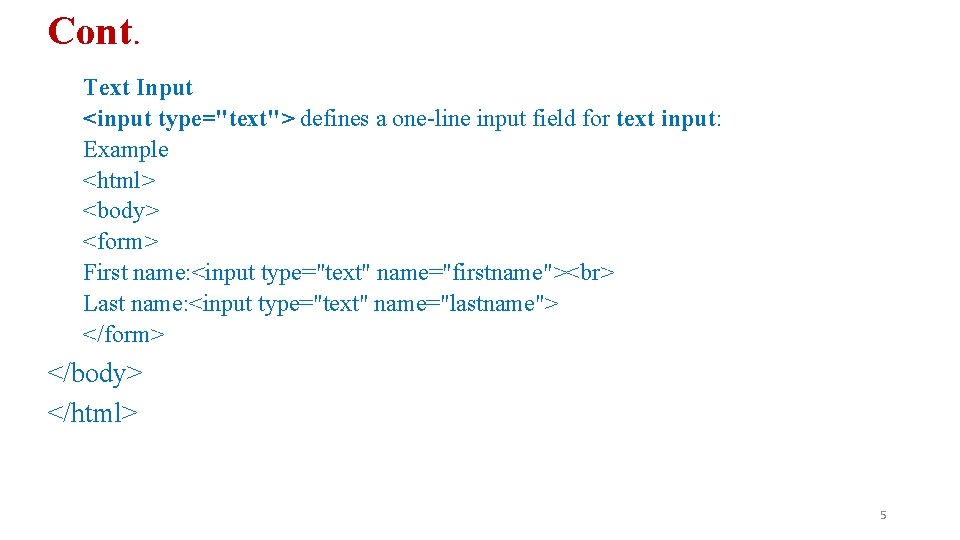
Cont. Text Input <input type="text"> defines a one-line input field for text input: Example <html> <body> <form> First name: <input type="text" name="firstname"> Last name: <input type="text" name="lastname"> </form> </body> </html> 5
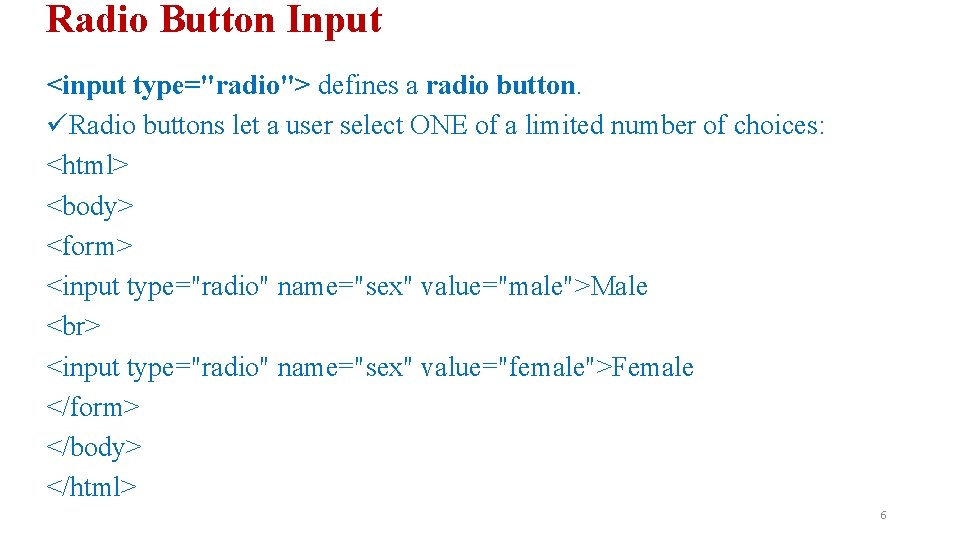
Radio Button Input <input type="radio"> defines a radio button. üRadio buttons let a user select ONE of a limited number of choices: <html> <body> <form> <input type="radio" name="sex" value="male">Male <input type="radio" name="sex" value="female">Female </form> </body> </html> 6
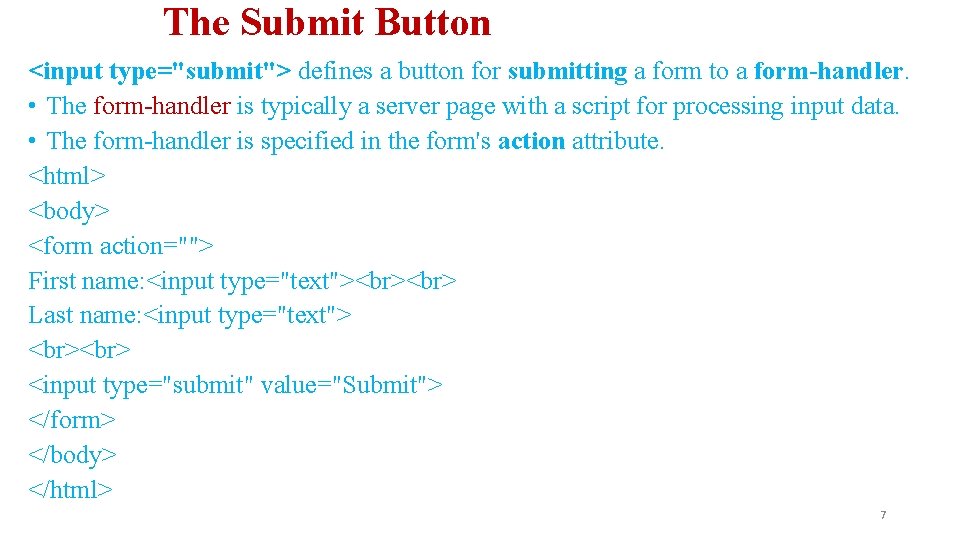
The Submit Button <input type="submit"> defines a button for submitting a form to a form-handler. • The form-handler is typically a server page with a script for processing input data. • The form-handler is specified in the form's action attribute. <html> <body> <form action=""> First name: <input type="text"> Last name: <input type="text"> <input type="submit" value="Submit"> </form> </body> </html> 7
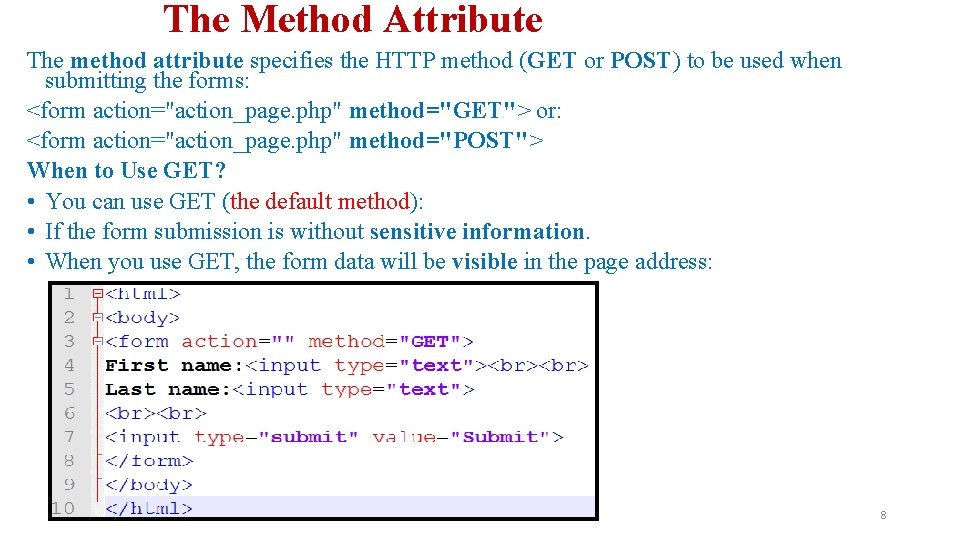
The Method Attribute The method attribute specifies the HTTP method (GET or POST) to be used when submitting the forms: <form action="action_page. php" method="GET"> or: <form action="action_page. php" method="POST"> When to Use GET? • You can use GET (the default method): • If the form submission is without sensitive information. • When you use GET, the form data will be visible in the page address: 8
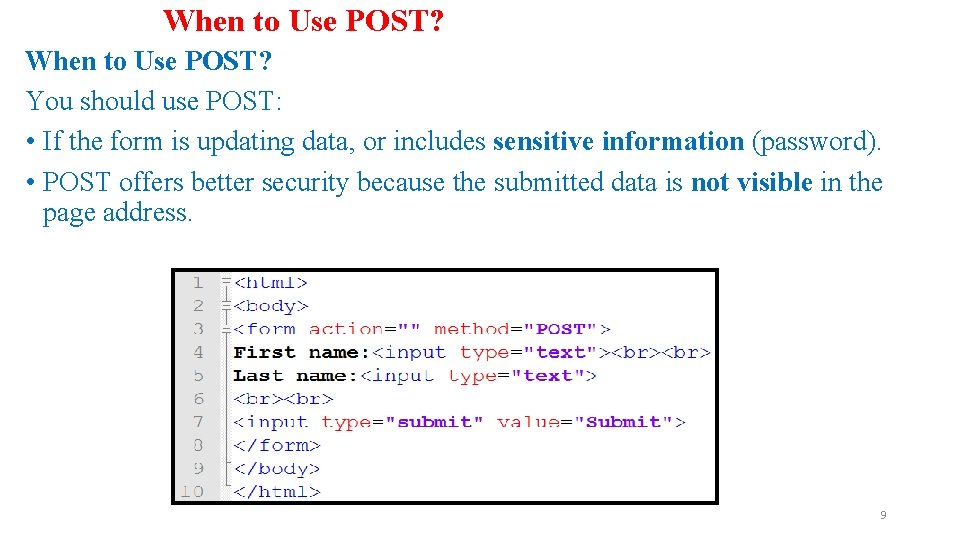
When to Use POST? You should use POST: • If the form is updating data, or includes sensitive information (password). • POST offers better security because the submitted data is not visible in the page address. 9
The Name Attribute • To be submitted correctly, each input field must have a name attribute. • This example will only submit the “First name" input field: <html> <body> <form action="" method="GET"> First name: <input type="text" name="First name"> Last name: <input type="text"> <input type="submit" value="Submit"> </form> </body> </html> 10
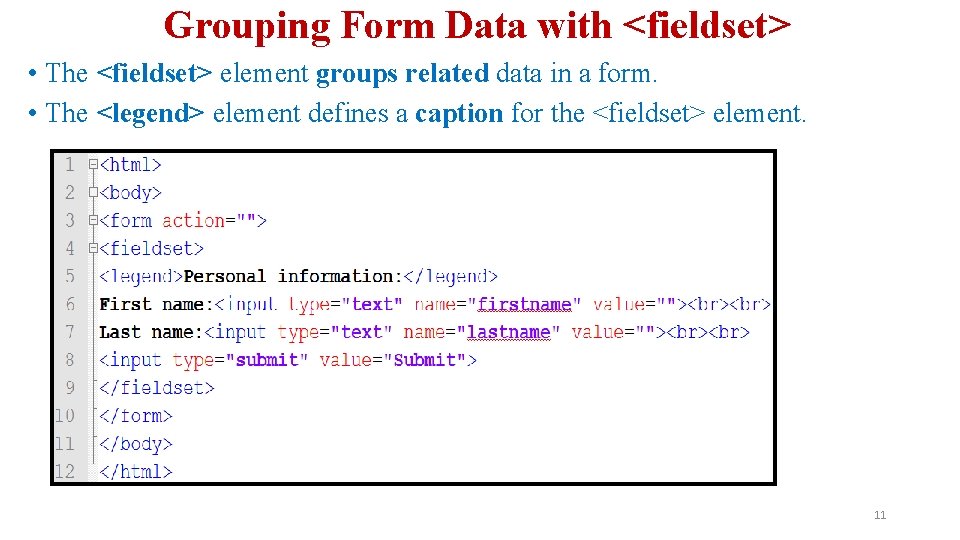
Grouping Form Data with <fieldset> • The <fieldset> element groups related data in a form. • The <legend> element defines a caption for the <fieldset> element. 11
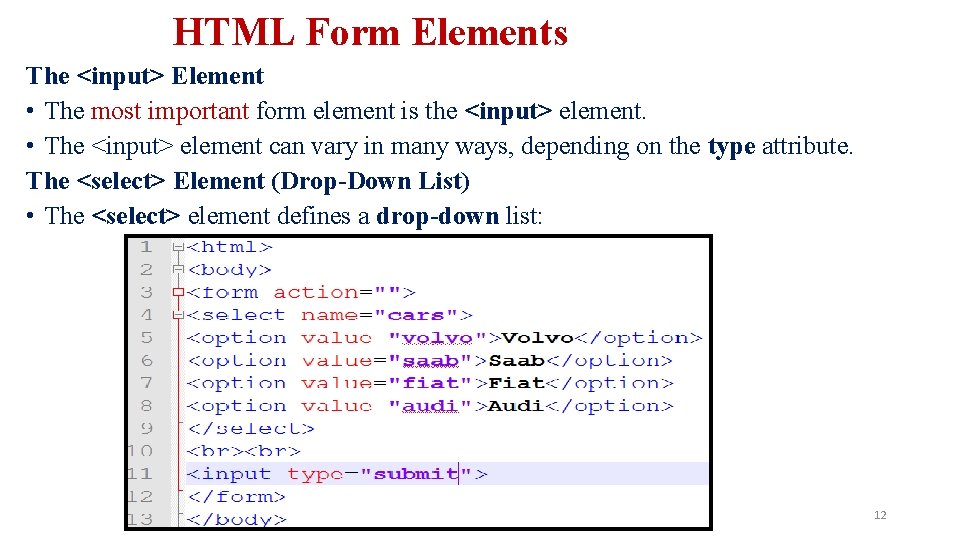
HTML Form Elements The <input> Element • The most important form element is the <input> element. • The <input> element can vary in many ways, depending on the type attribute. The <select> Element (Drop-Down List) • The <select> element defines a drop-down list: 12
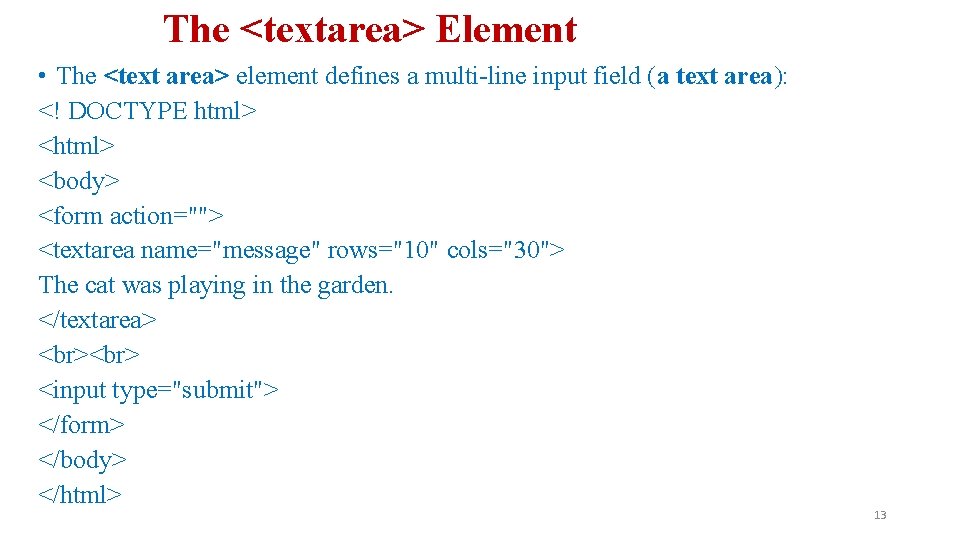
The <textarea> Element • The <text area> element defines a multi-line input field (a text area): <! DOCTYPE html> <body> <form action=""> <textarea name="message" rows="10" cols="30"> The cat was playing in the garden. </textarea> <input type="submit"> </form> </body> </html> 13
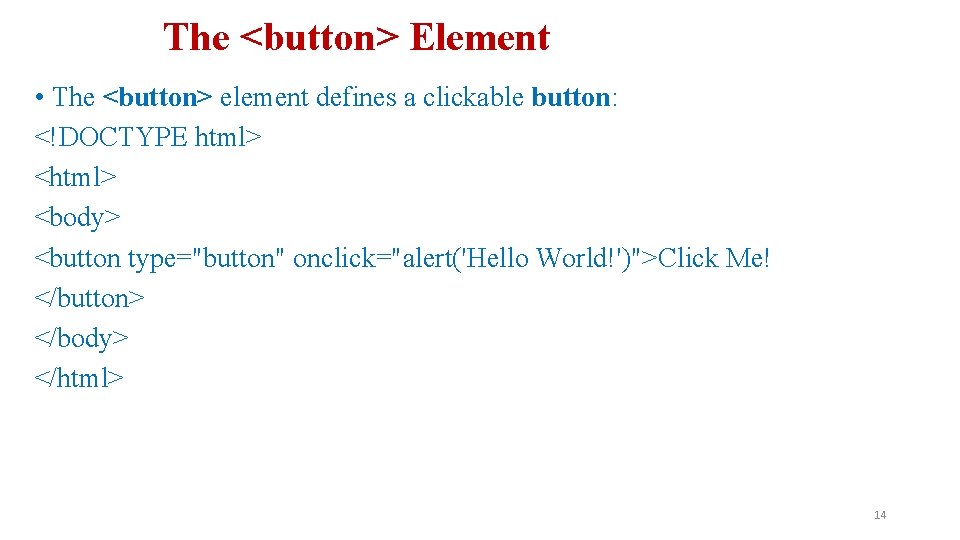
The <button> Element • The <button> element defines a clickable button: <!DOCTYPE html> <body> <button type="button" onclick="alert('Hello World!')">Click Me! </button> </body> </html> 14
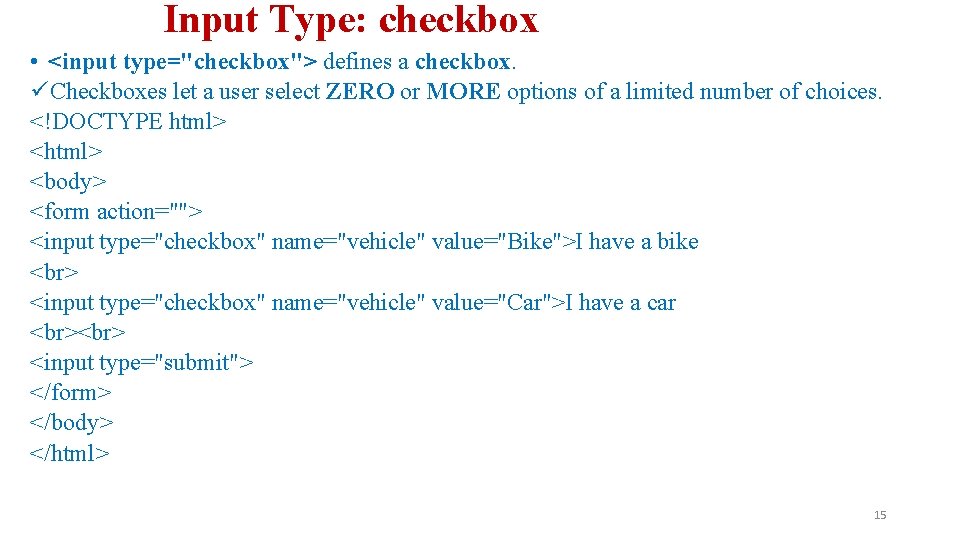
Input Type: checkbox • <input type="checkbox"> defines a checkbox. üCheckboxes let a user select ZERO or MORE options of a limited number of choices. <!DOCTYPE html> <body> <form action=""> <input type="checkbox" name="vehicle" value="Bike">I have a bike <input type="checkbox" name="vehicle" value="Car">I have a car <input type="submit"> </form> </body> </html> 15
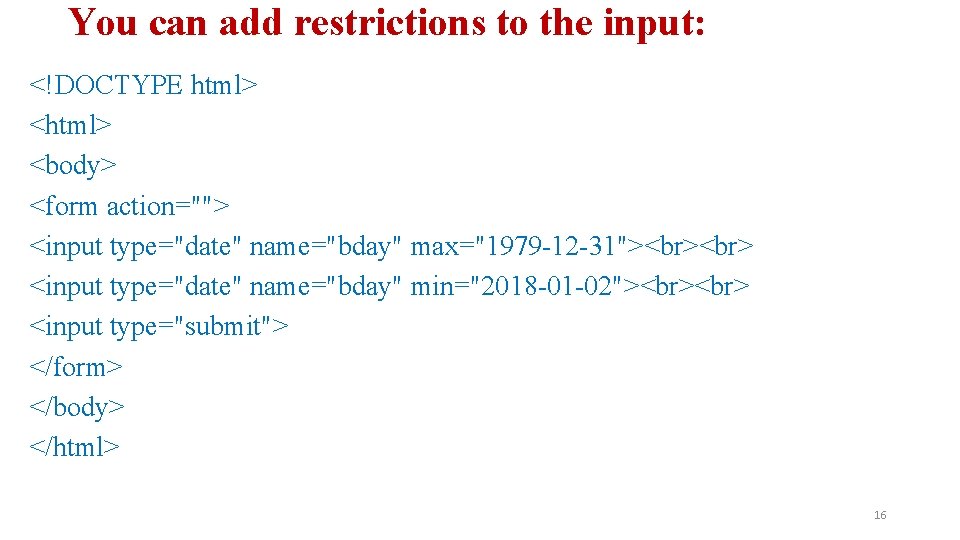
You can add restrictions to the input: <!DOCTYPE html> <body> <form action=""> <input type="date" name="bday" max="1979 -12 -31"> <input type="date" name="bday" min="2018 -01 -02"> <input type="submit"> </form> </body> </html> 16
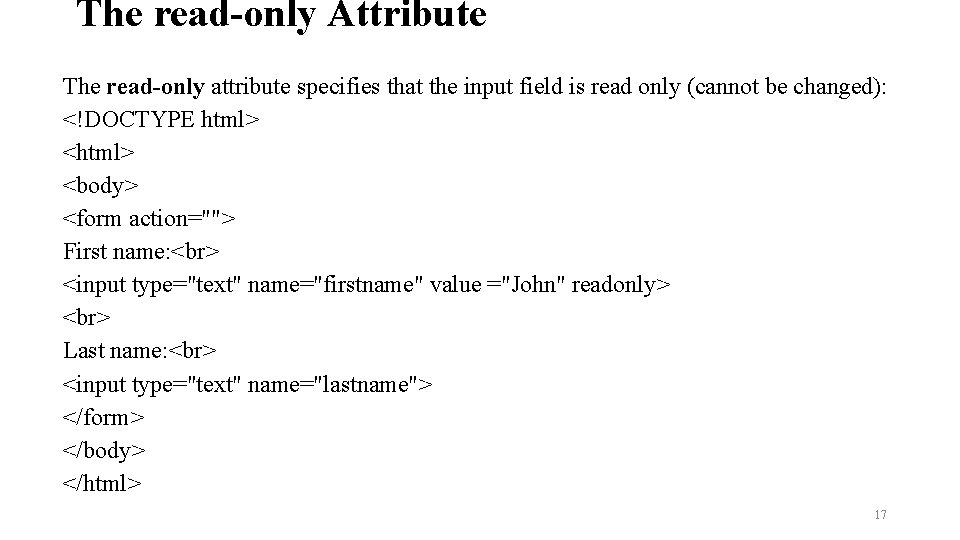
The read-only Attribute The read-only attribute specifies that the input field is read only (cannot be changed): <!DOCTYPE html> <body> <form action=""> First name: <input type="text" name="firstname" value ="John" readonly> Last name: <input type="text" name="lastname"> </form> </body> </html> 17
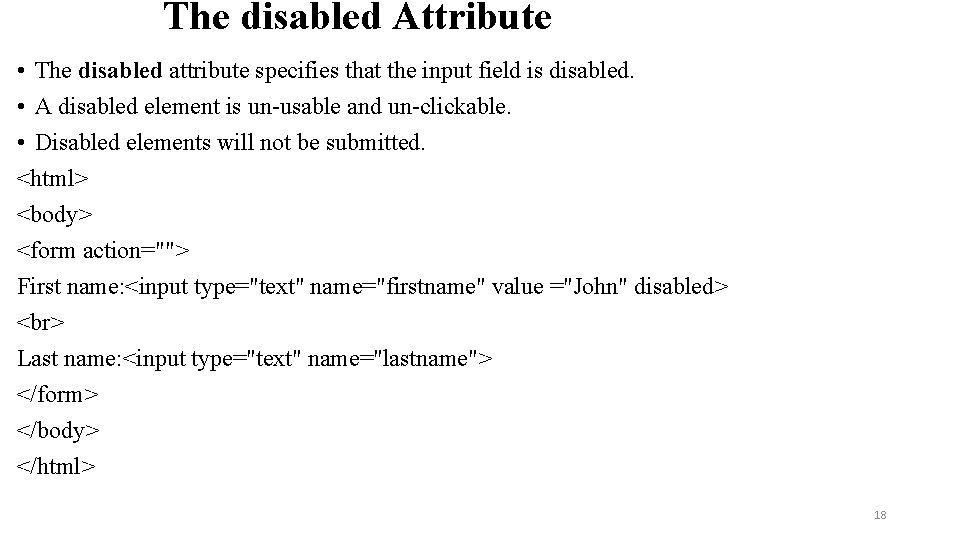
The disabled Attribute • The disabled attribute specifies that the input field is disabled. • A disabled element is un-usable and un-clickable. • Disabled elements will not be submitted. <html> <body> <form action=""> First name: <input type="text" name="firstname" value ="John" disabled> Last name: <input type="text" name="lastname"> </form> </body> </html> 18
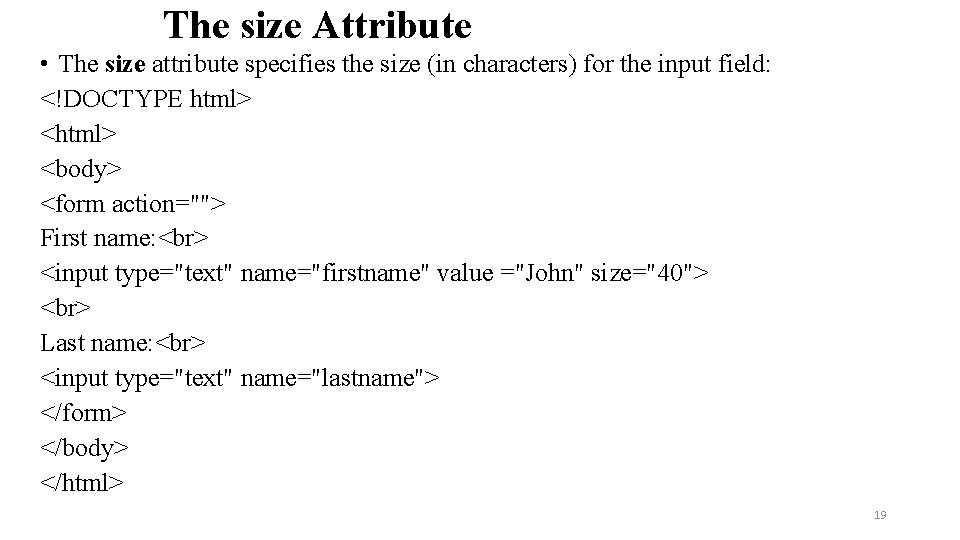
The size Attribute • The size attribute specifies the size (in characters) for the input field: <!DOCTYPE html> <body> <form action=""> First name: <input type="text" name="firstname" value ="John" size="40"> Last name: <input type="text" name="lastname"> </form> </body> </html> 19
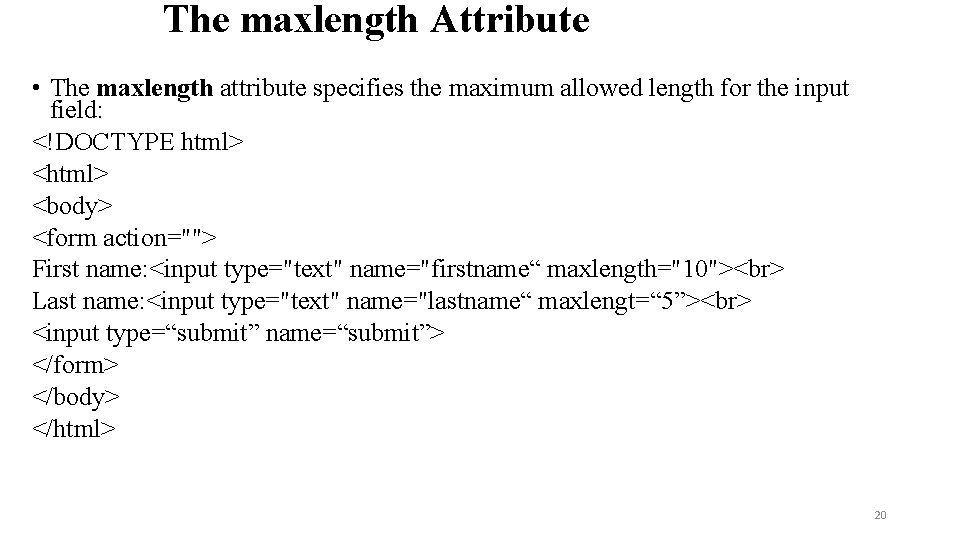
The maxlength Attribute • The maxlength attribute specifies the maximum allowed length for the input field: <!DOCTYPE html> <body> <form action=""> First name: <input type="text" name="firstname“ maxlength="10"> Last name: <input type="text" name="lastname“ maxlengt=“ 5”> <input type=“submit” name=“submit”> </form> </body> </html> 20
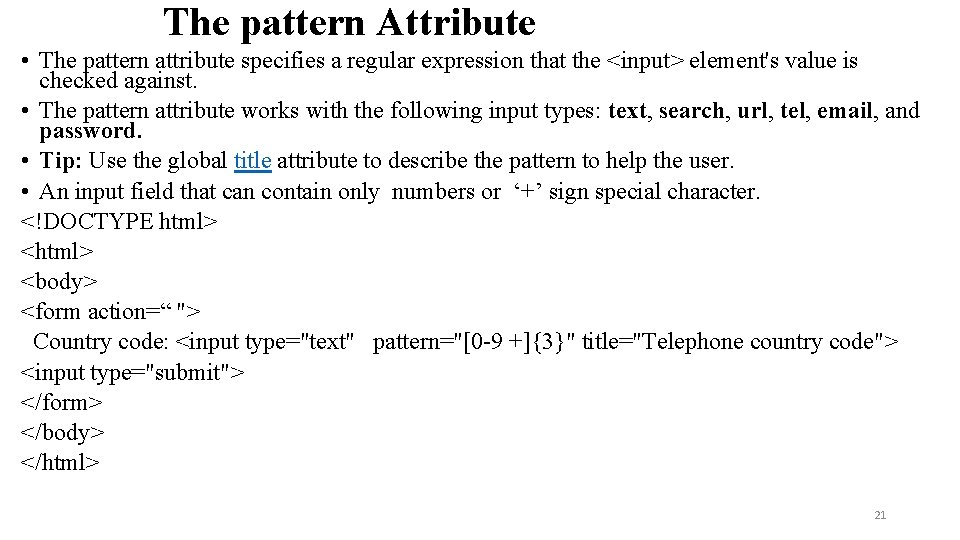
The pattern Attribute • The pattern attribute specifies a regular expression that the <input> element's value is checked against. • The pattern attribute works with the following input types: text, search, url, tel, email, and password. • Tip: Use the global title attribute to describe the pattern to help the user. • An input field that can contain only numbers or ‘+’ sign special character. <!DOCTYPE html> <body> <form action=“ "> Country code: <input type="text" pattern="[0 -9 +]{3}" title="Telephone country code"> <input type="submit"> </form> </body> </html> 21
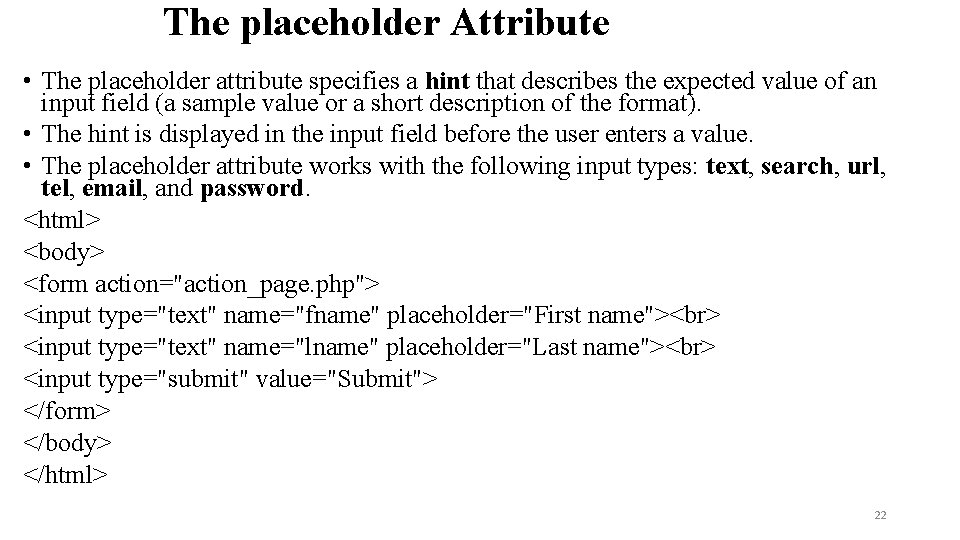
The placeholder Attribute • The placeholder attribute specifies a hint that describes the expected value of an input field (a sample value or a short description of the format). • The hint is displayed in the input field before the user enters a value. • The placeholder attribute works with the following input types: text, search, url, tel, email, and password. <html> <body> <form action="action_page. php"> <input type="text" name="fname" placeholder="First name"> <input type="text" name="lname" placeholder="Last name"> <input type="submit" value="Submit"> </form> </body> </html> 22
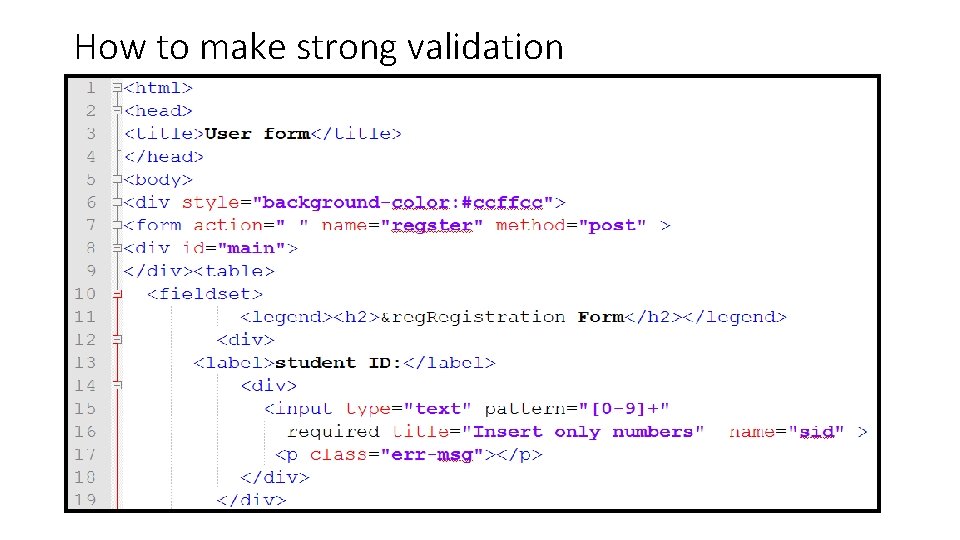
How to make strong validation
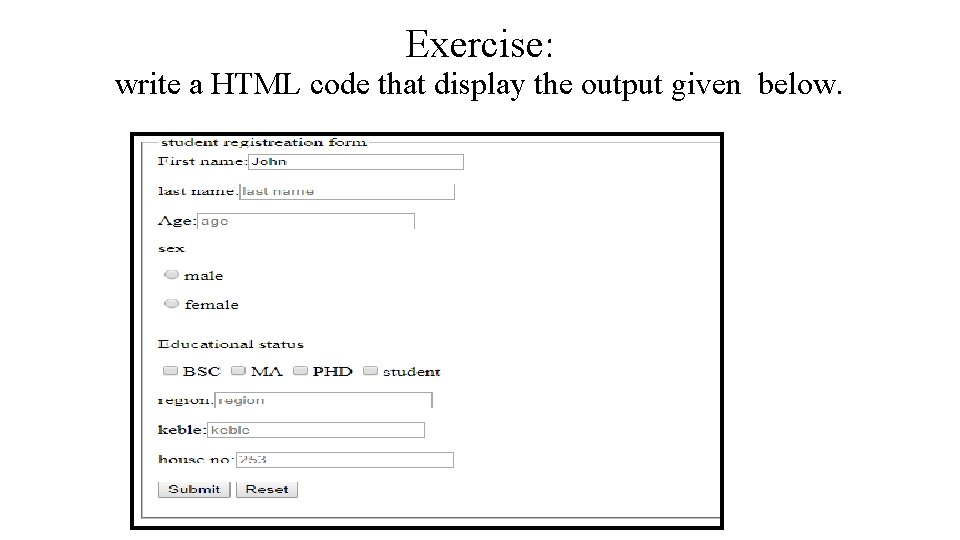
Exercise: write a HTML code that display the output given below.
End of chapter two!!!!