
Department of Defense EHR ORYX Health Check PEO
- Slides: 56
Department of Defense EHR ORYX Health Check PEO DHMS
Agenda Time 0815 - 0830 - 1000 - 1200 - 1300 - 1500 - 1600 - 1630 - 1700 Day 2 Topic Introduction and Overview Review of Quality Measures Tools Reporting Portal Navigation Lunch Data Validation Value Check 2019 ORYX Updates Discussion Wrap-Up Spill-Over Day PEO DHMS
Review of Quality Measures Tools PEO DHMS 3
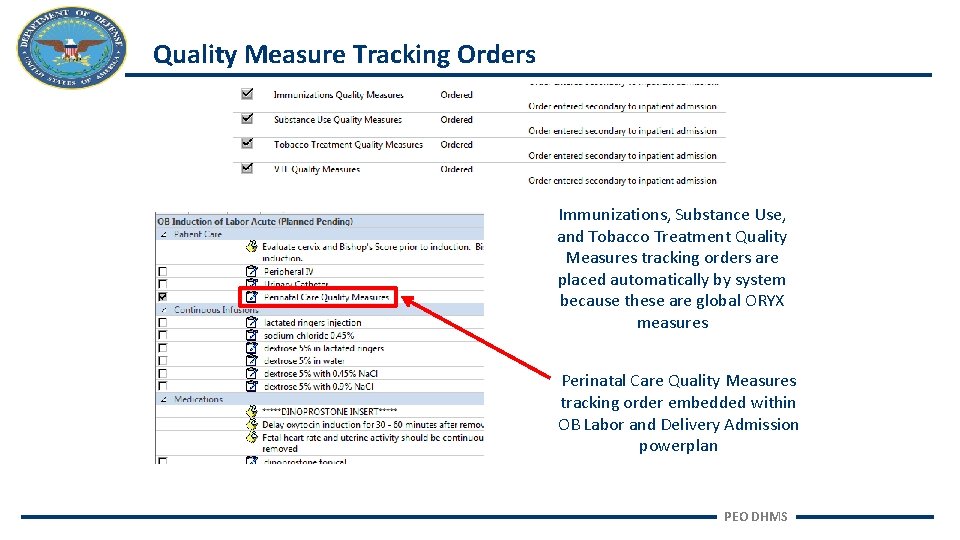
Quality Measure Tracking Orders Immunizations, Substance Use, and Tobacco Treatment Quality Measures tracking orders are placed automatically by system because these are global ORYX measures Perinatal Care Quality Measures tracking order embedded within OB Labor and Delivery Admission powerplan PEO DHMS
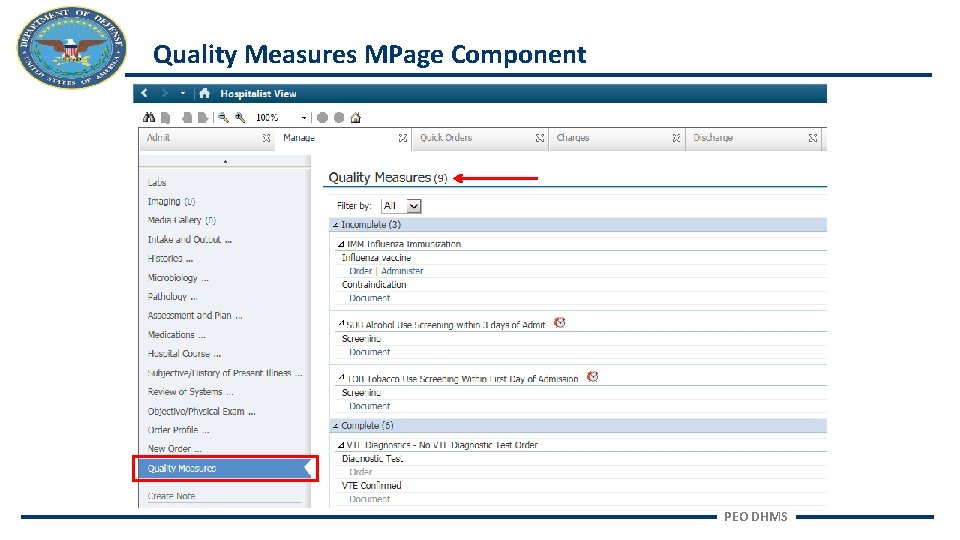
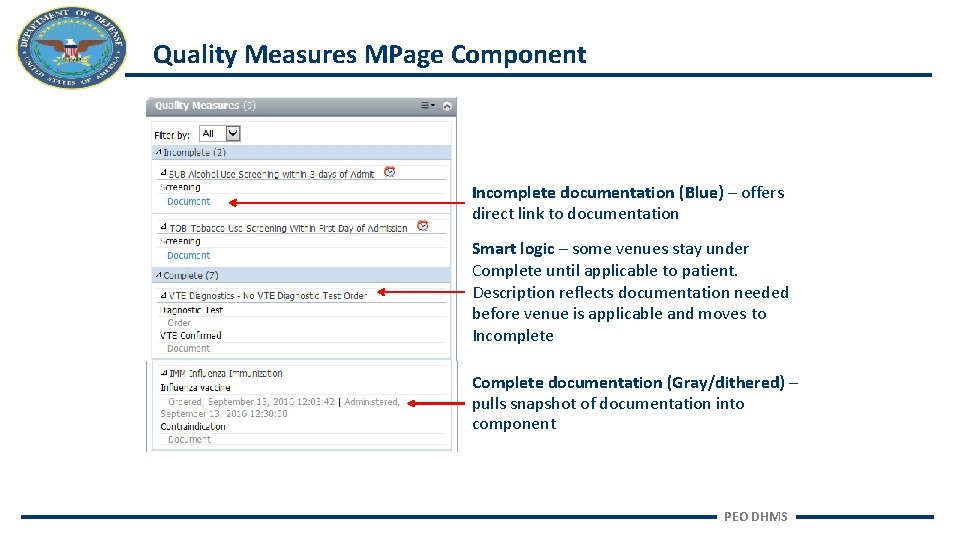
Quality Measures MPage Component PEO DHMS
Quality Measures MPage Component Incomplete documentation (Blue) – offers direct link to documentation Smart logic – some venues stay under Complete until applicable to patient. Description reflects documentation needed before venue is applicable and moves to Incomplete Complete documentation (Gray/dithered) – pulls snapshot of documentation into component PEO DHMS
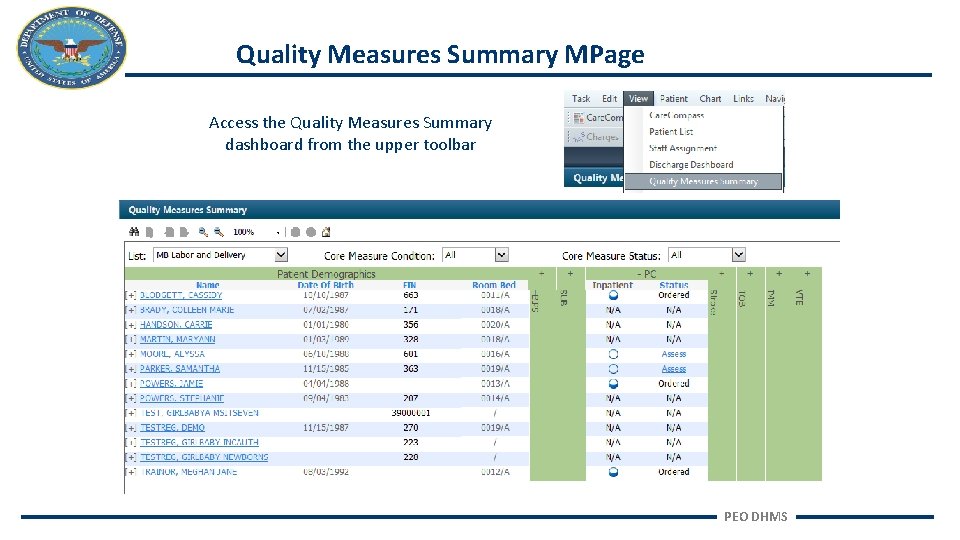
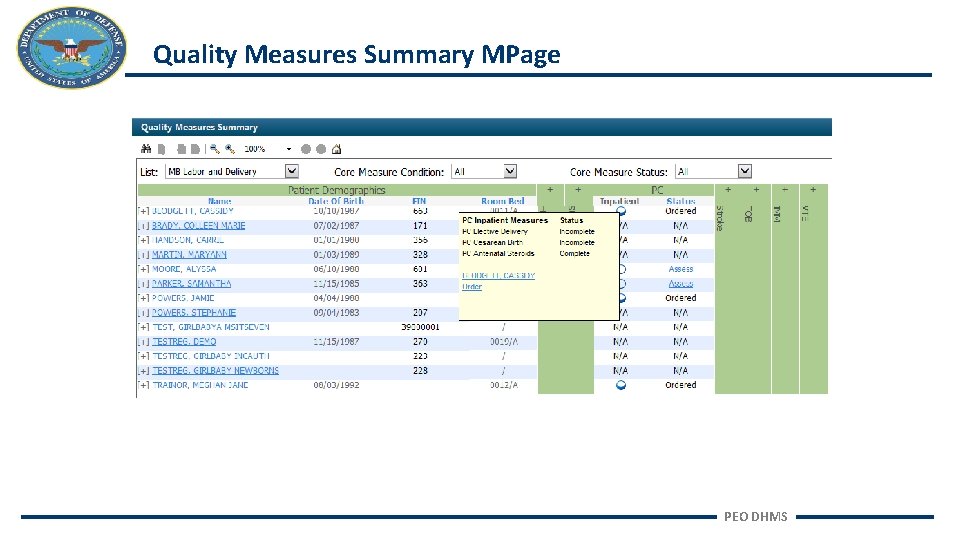
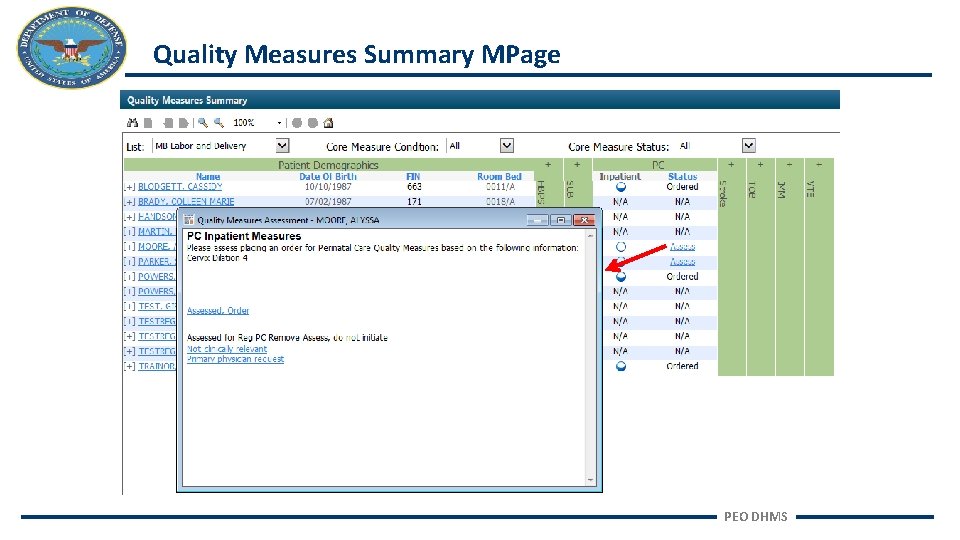
Quality Measures Summary MPage Access the Quality Measures Summary dashboard from the upper toolbar PEO DHMS
Quality Measures Summary MPage PEO DHMS
Quality Measures Summary MPage PEO DHMS
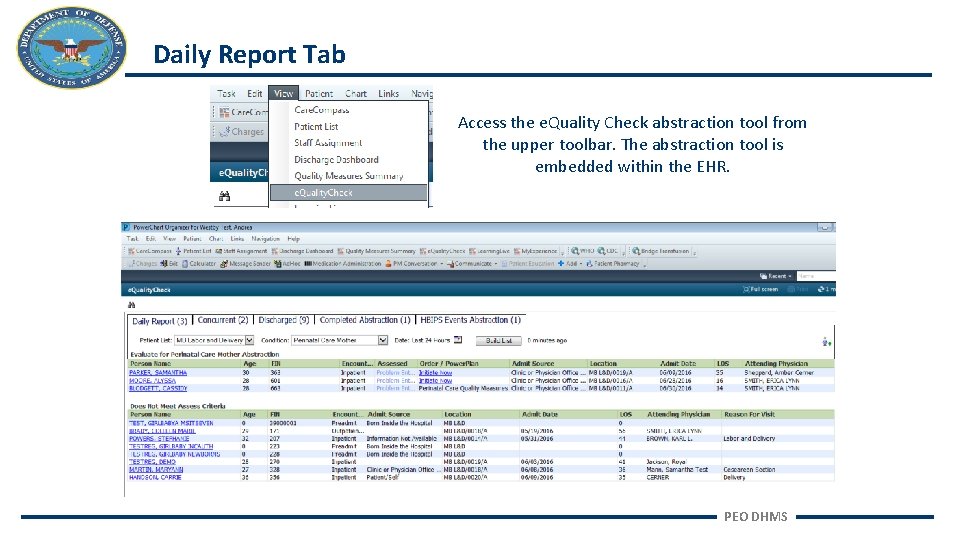
Daily Report Tab Access the e. Quality Check abstraction tool from the upper toolbar. The abstraction tool is embedded within the EHR. PEO DHMS
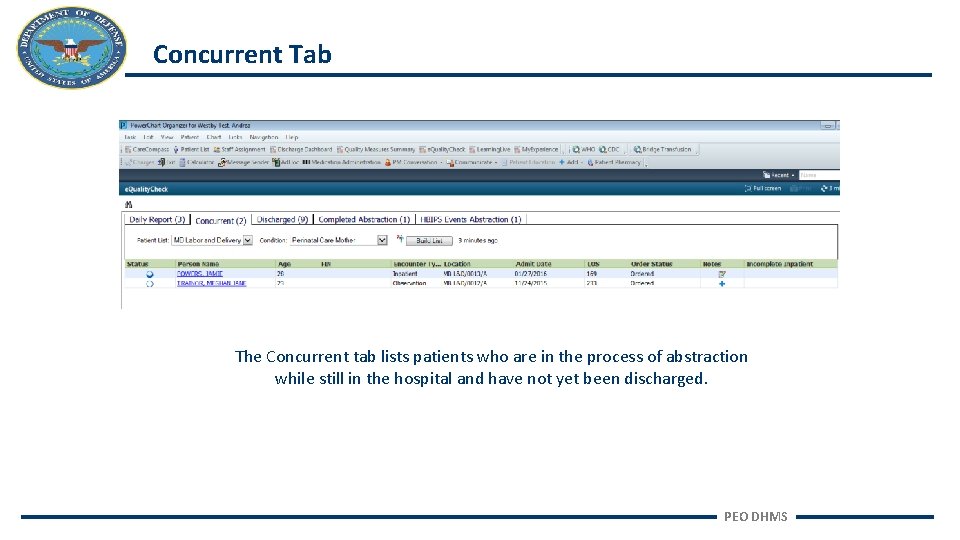
Concurrent Tab The Concurrent tab lists patients who are in the process of abstraction while still in the hospital and have not yet been discharged. PEO DHMS
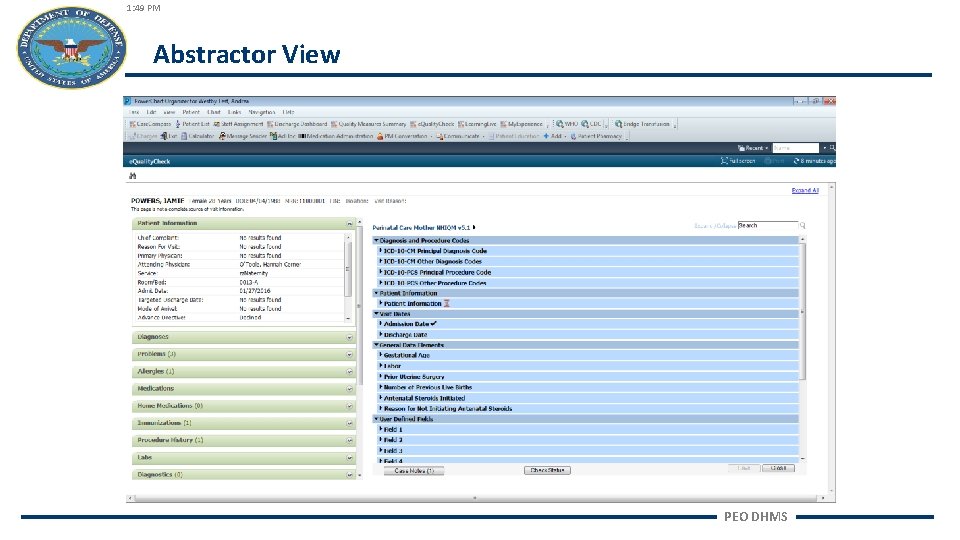
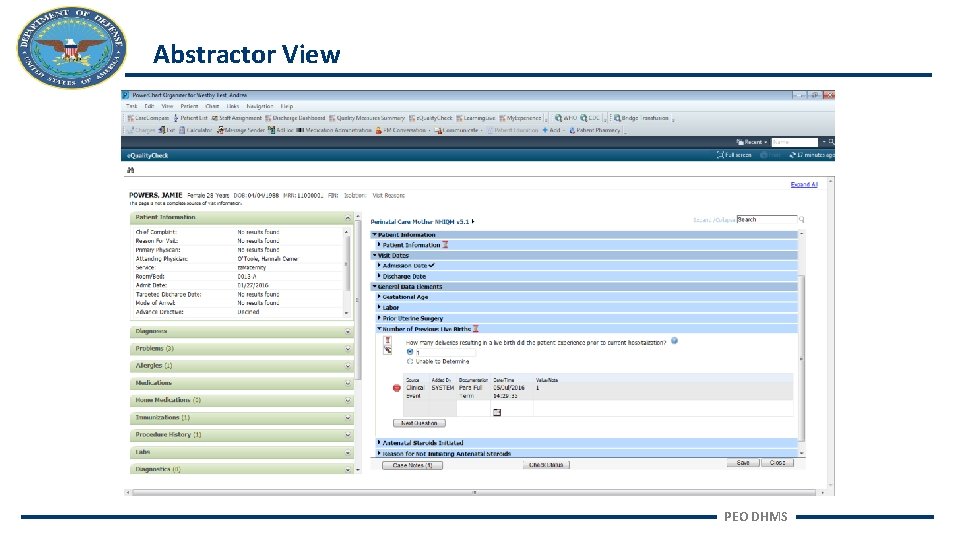
1: 49 PM Abstractor View PEO DHMS
Abstractor View PEO DHMS
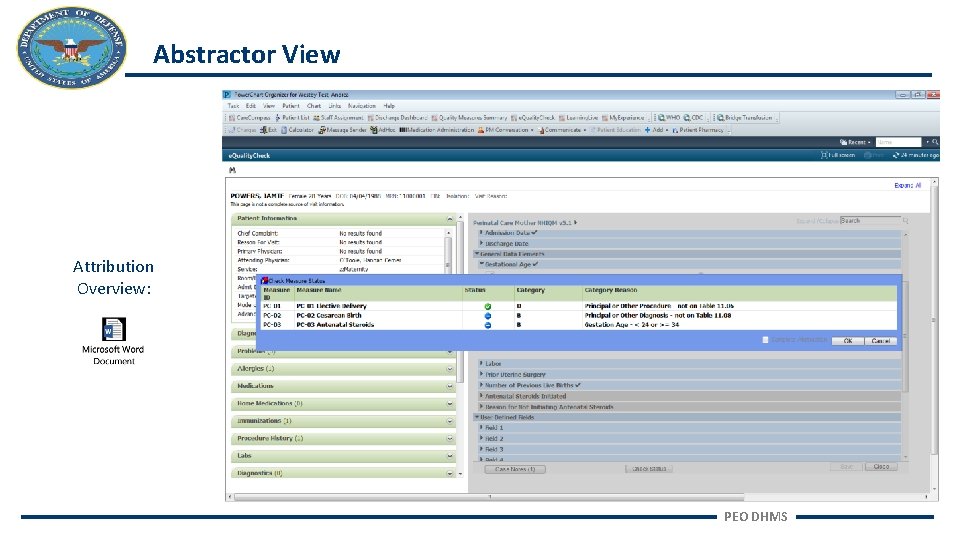
Abstractor View Attribution Overview: PEO DHMS
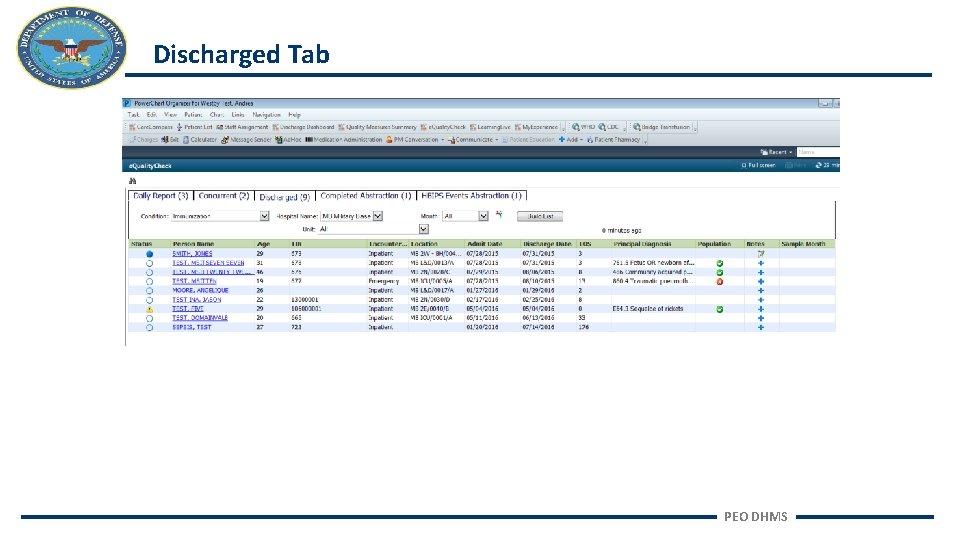
Discharged Tab PEO DHMS
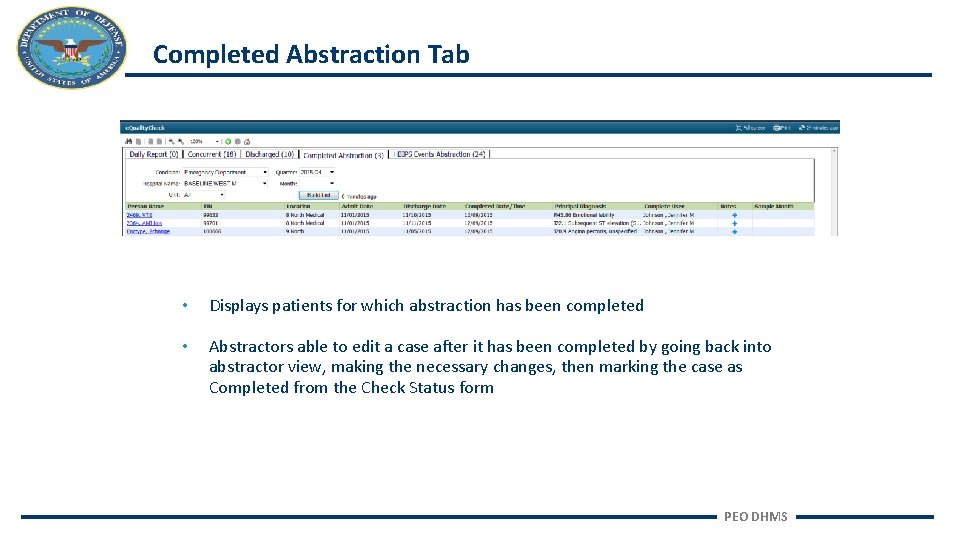
Completed Abstraction Tab • Displays patients for which abstraction has been completed • Abstractors able to edit a case after it has been completed by going back into abstractor view, making the necessary changes, then marking the case as Completed from the Check Status form PEO DHMS
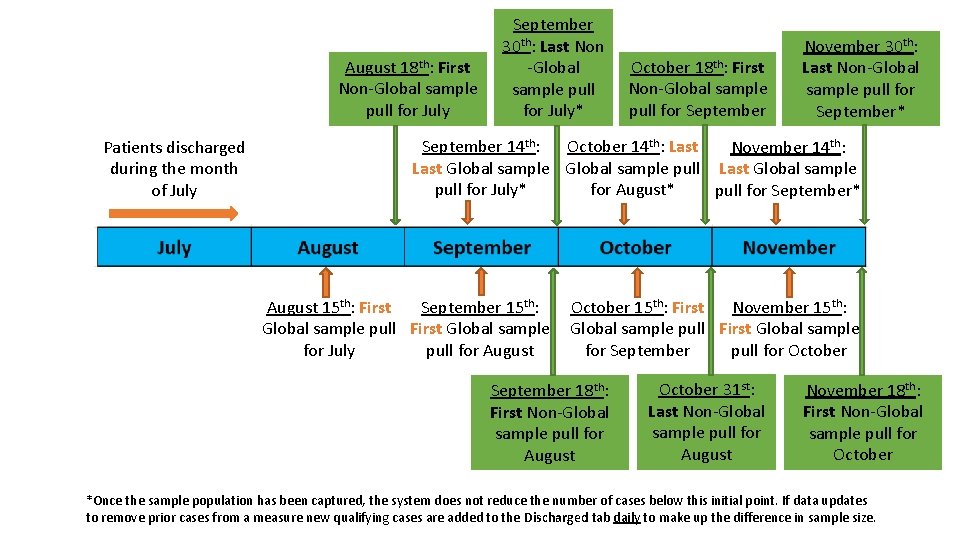
August 18 th: First Non-Global sample pull for July Patients discharged during the month of July September 30 th: Last Non -Global sample pull for July* October 18 th: First Non-Global sample pull for September November 30 th: Last Non-Global sample pull for September* September 14 th: October 14 th: Last November 14 th: Last Global sample pull for July* for August* pull for September* August 15 th: First September 15 th: October 15 th: First November 15 th: Global sample pull First Global sample for July pull for August for September pull for October September 18 th: First Non-Global sample pull for August October 31 st: Last Non-Global sample pull for August November 18 th: First Non-Global sample pull for October *Once the sample population has been captured, the system does not reduce the number of cases below this initial point. If data updates to remove prior cases from a measure new qualifying cases are added to the Discharged tab daily to make up the difference in sample size.
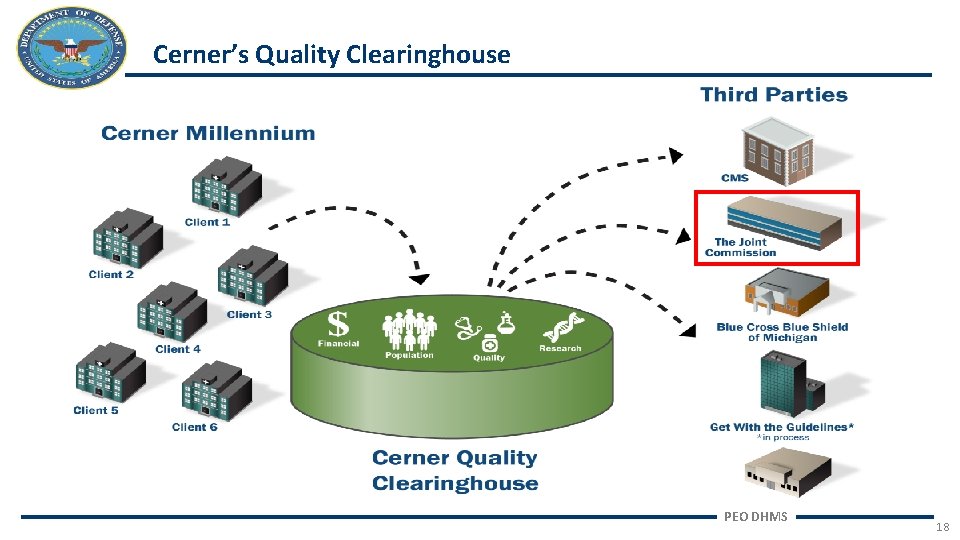
Cerner’s Quality Clearinghouse PEO DHMS 18
Reporting Portal Navigation PEO DHMS 19
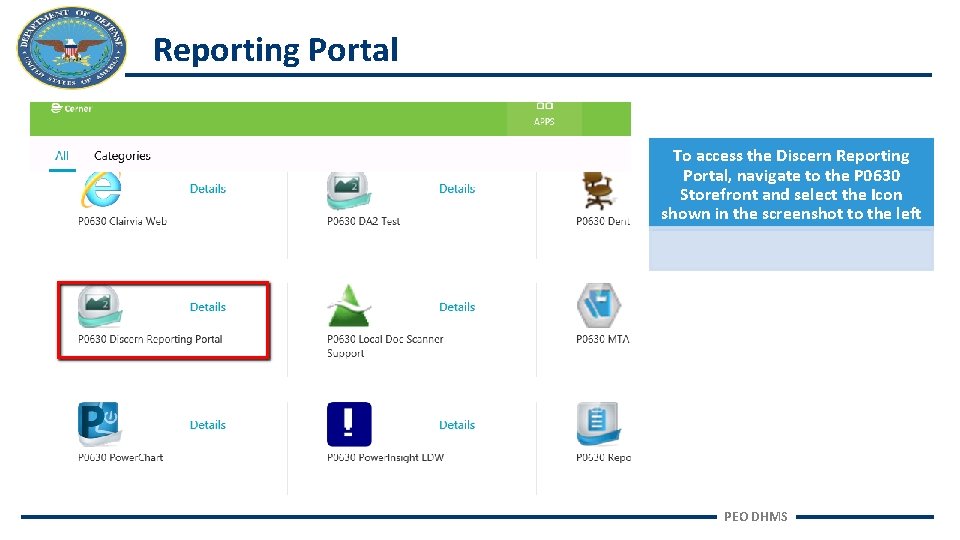
Reporting Portal To access the Discern Reporting Portal, navigate to the P 0630 Storefront and select the Icon shown in the screenshot to the left PEO DHMS
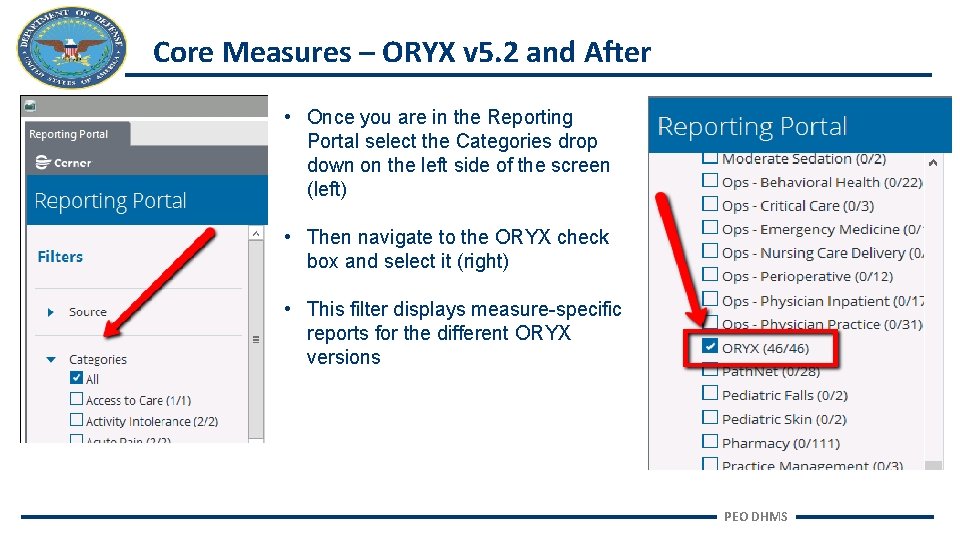
Core Measures – ORYX v 5. 2 and After • Once you are in the Reporting Portal select the Categories drop down on the left side of the screen (left) • Then navigate to the ORYX check box and select it (right) • This filter displays measure-specific reports for the different ORYX versions PEO DHMS
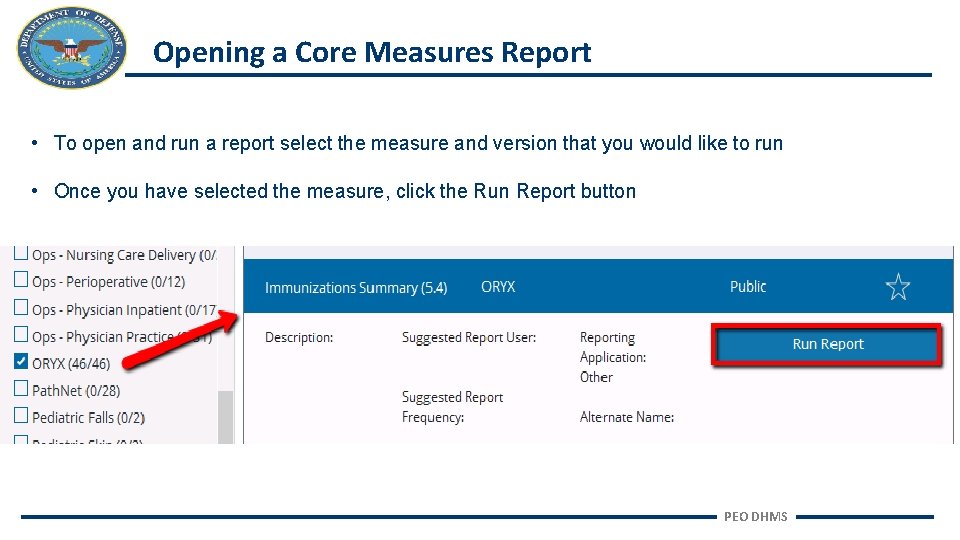
Opening a Core Measures Report • To open and run a report select the measure and version that you would like to run • Once you have selected the measure, click the Run Report button PEO DHMS
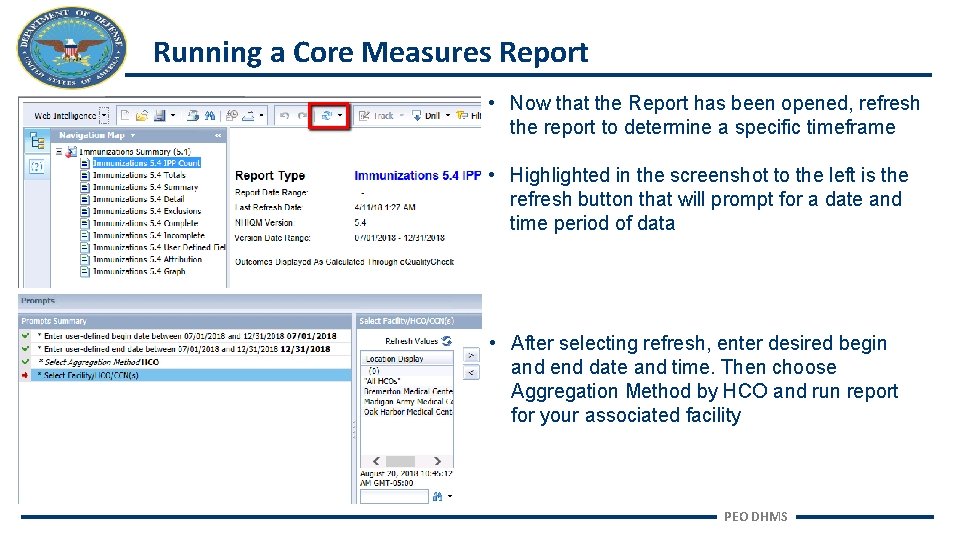
Running a Core Measures Report • Now that the Report has been opened, refresh the report to determine a specific timeframe • Highlighted in the screenshot to the left is the refresh button that will prompt for a date and time period of data • After selecting refresh, enter desired begin and end date and time. Then choose Aggregation Method by HCO and run report for your associated facility PEO DHMS
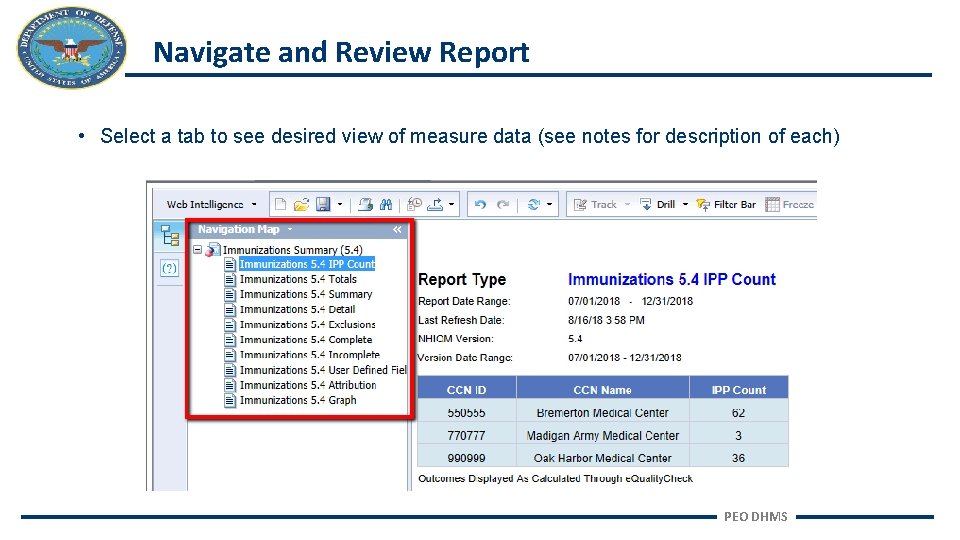
Navigate and Review Report • Select a tab to see desired view of measure data (see notes for description of each) PEO DHMS
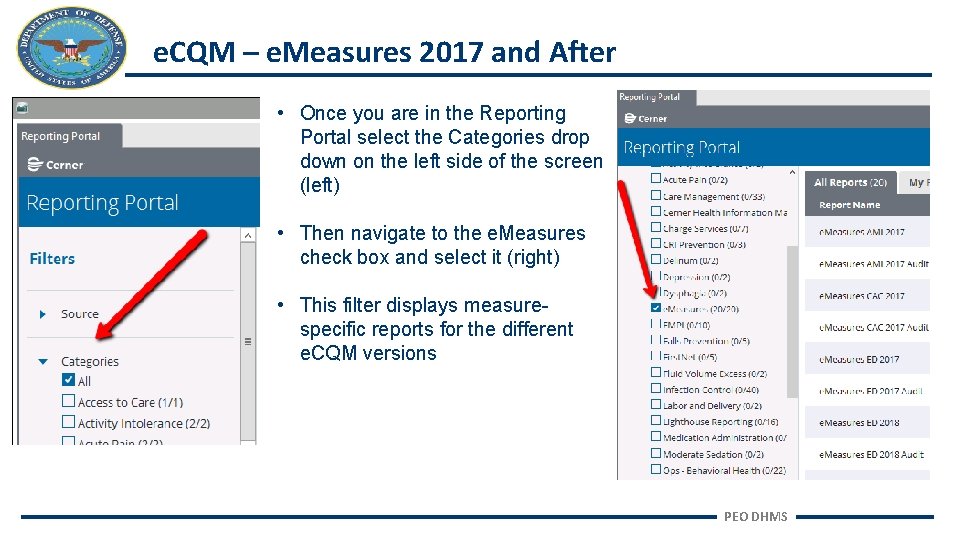
e. CQM – e. Measures 2017 and After • Once you are in the Reporting Portal select the Categories drop down on the left side of the screen (left) • Then navigate to the e. Measures check box and select it (right) • This filter displays measurespecific reports for the different e. CQM versions PEO DHMS
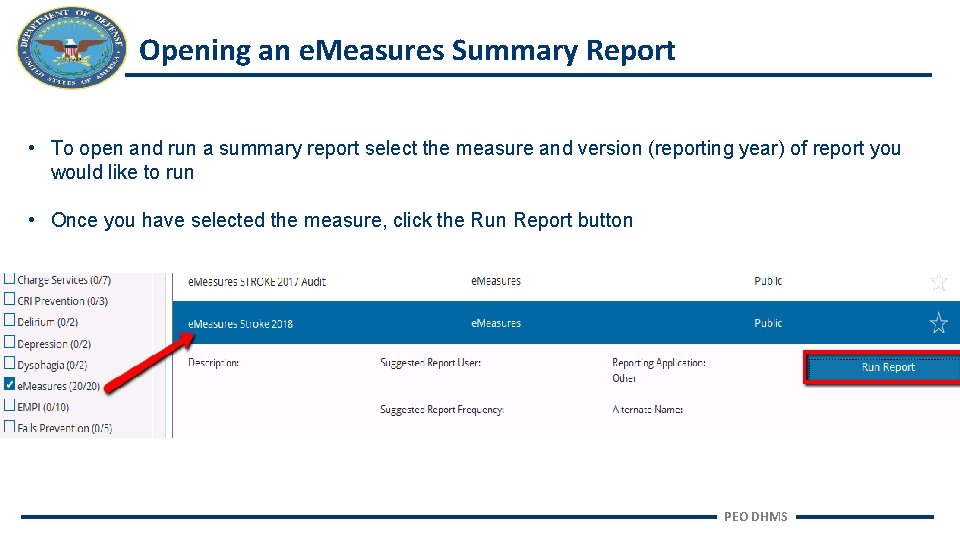
Opening an e. Measures Summary Report • To open and run a summary report select the measure and version (reporting year) of report you would like to run • Once you have selected the measure, click the Run Report button PEO DHMS
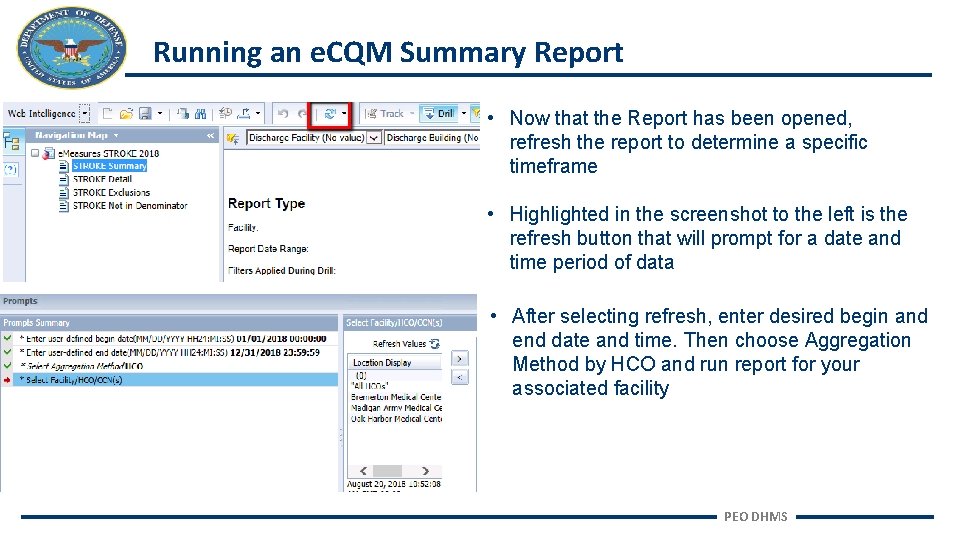
Running an e. CQM Summary Report • Now that the Report has been opened, refresh the report to determine a specific timeframe • Highlighted in the screenshot to the left is the refresh button that will prompt for a date and time period of data • After selecting refresh, enter desired begin and end date and time. Then choose Aggregation Method by HCO and run report for your associated facility PEO DHMS
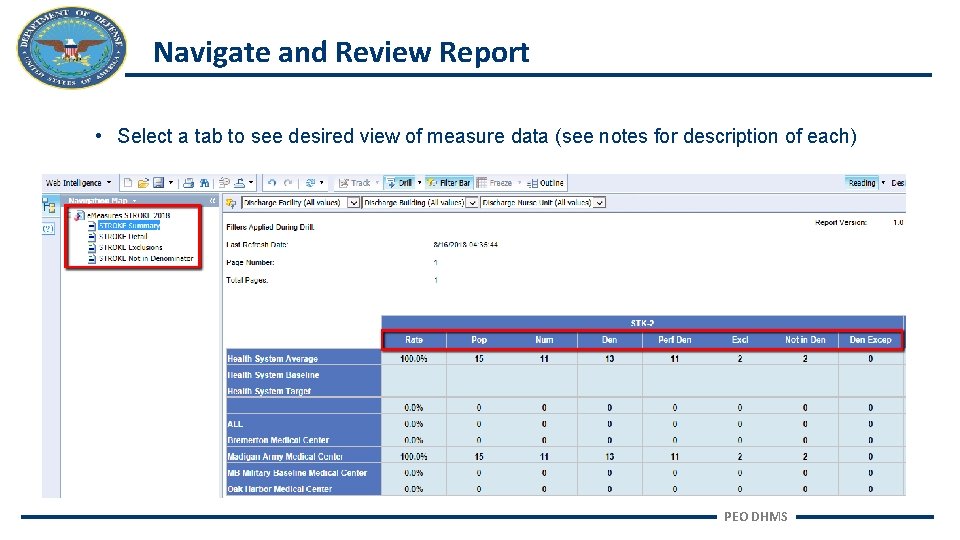
Navigate and Review Report • Select a tab to see desired view of measure data (see notes for description of each) PEO DHMS
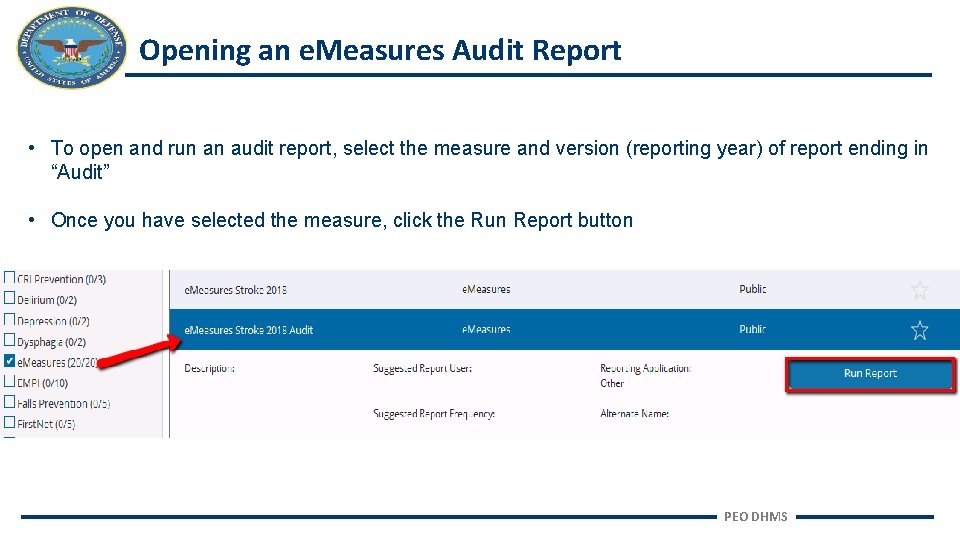
Opening an e. Measures Audit Report • To open and run an audit report, select the measure and version (reporting year) of report ending in “Audit” • Once you have selected the measure, click the Run Report button PEO DHMS
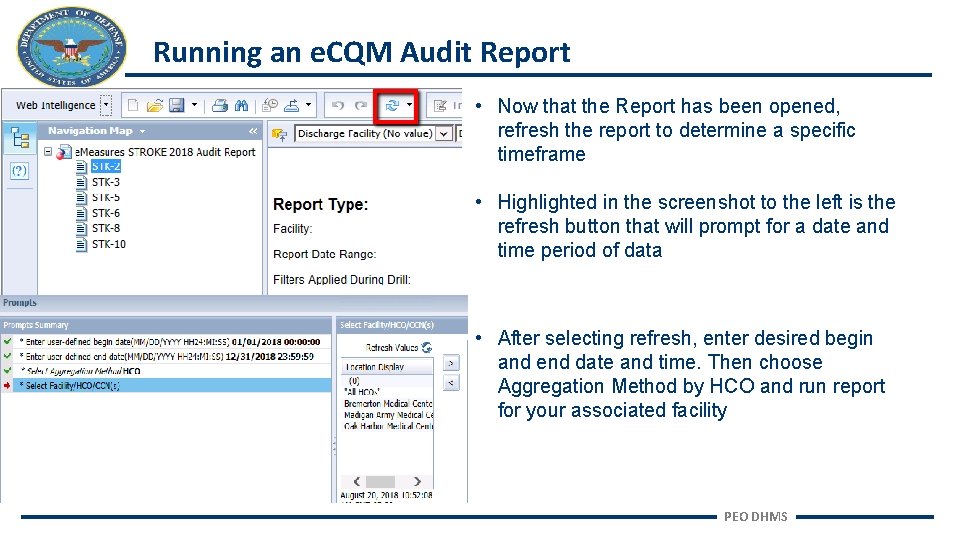
Running an e. CQM Audit Report • Now that the Report has been opened, refresh the report to determine a specific timeframe • Highlighted in the screenshot to the left is the refresh button that will prompt for a date and time period of data • After selecting refresh, enter desired begin and end date and time. Then choose Aggregation Method by HCO and run report for your associated facility PEO DHMS
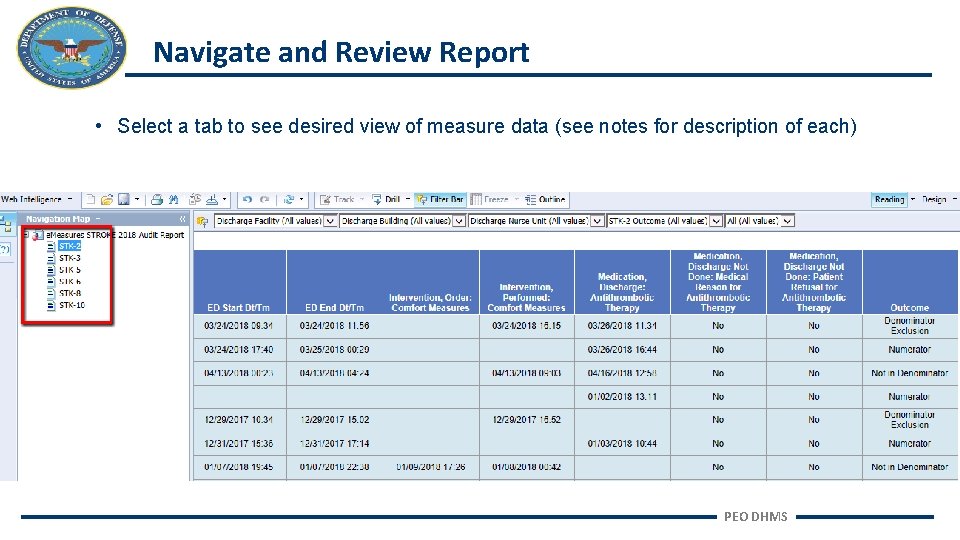
Navigate and Review Report • Select a tab to see desired view of measure data (see notes for description of each) PEO DHMS
Reporting Education References Chart-Abstracted ORYX Measures e. Measures PEO DHMS
Data Validation PEO DHMS 33
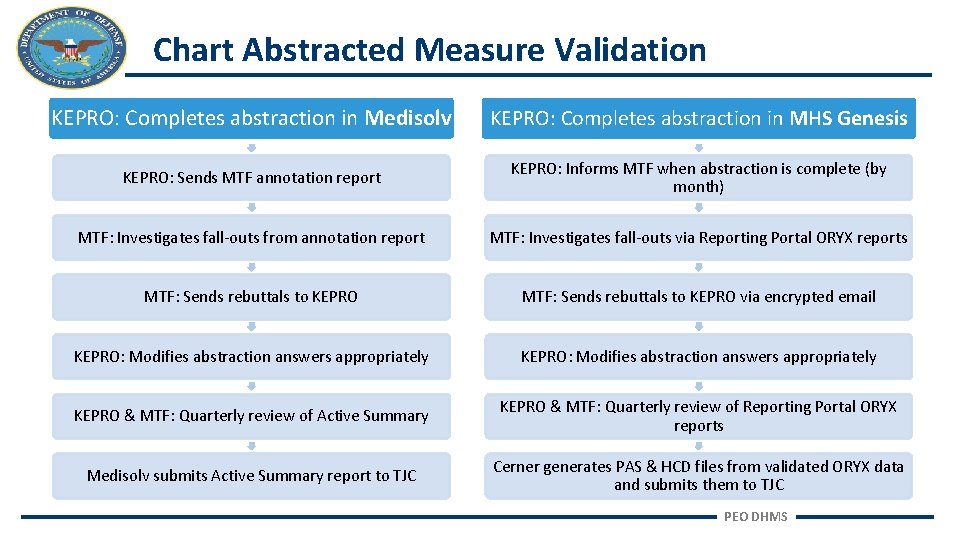
Chart Abstracted Measure Validation KEPRO: Completes abstraction in Medisolv KEPRO: Completes abstraction in MHS Genesis KEPRO: Sends MTF annotation report KEPRO: Informs MTF when abstraction is complete (by month) MTF: Investigates fall-outs from annotation report MTF: Investigates fall-outs via Reporting Portal ORYX reports MTF: Sends rebuttals to KEPRO via encrypted email KEPRO: Modifies abstraction answers appropriately KEPRO & MTF: Quarterly review of Active Summary KEPRO & MTF: Quarterly review of Reporting Portal ORYX reports Medisolv submits Active Summary report to TJC Cerner generates PAS & HCD files from validated ORYX data and submits them to TJC PEO DHMS
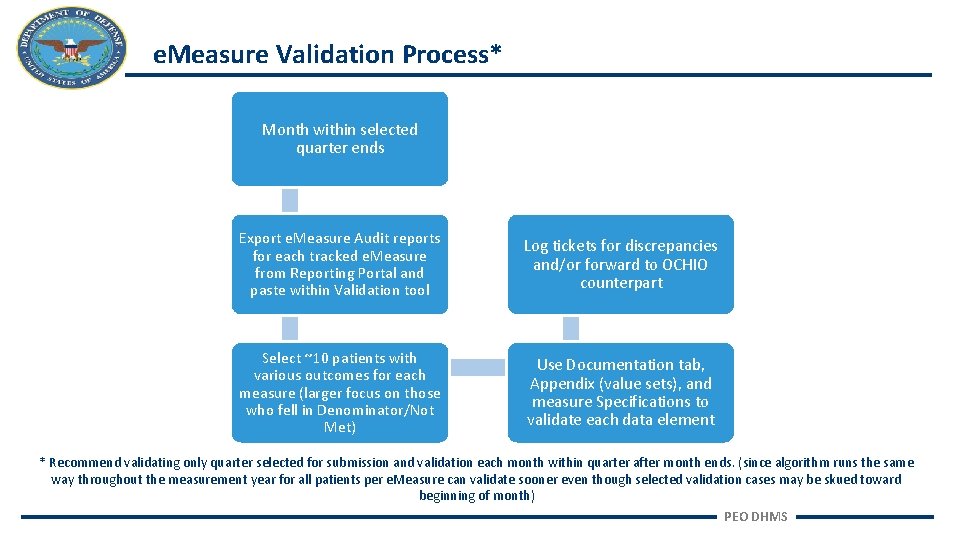
e. Measure Validation Process* Month within selected quarter ends Export e. Measure Audit reports for each tracked e. Measure from Reporting Portal and paste within Validation tool Log tickets for discrepancies and/or forward to OCHIO counterpart Select ~10 patients with various outcomes for each measure (larger focus on those who fell in Denominator/Not Met) Use Documentation tab, Appendix (value sets), and measure Specifications to validate each data element * Recommend validating only quarter selected for submission and validation each month within quarter after month ends. (since algorithm runs the same way throughout the measurement year for all patients per e. Measure can validate sooner even though selected validation cases may be skued toward beginning of month) PEO DHMS
Value Check PEO DHMS 36
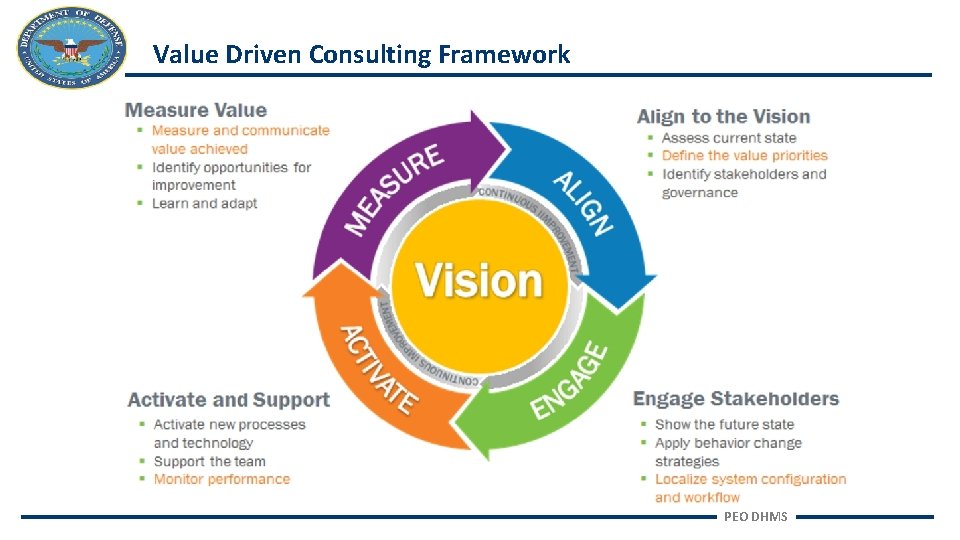
Value Driven Consulting Framework PEO DHMS
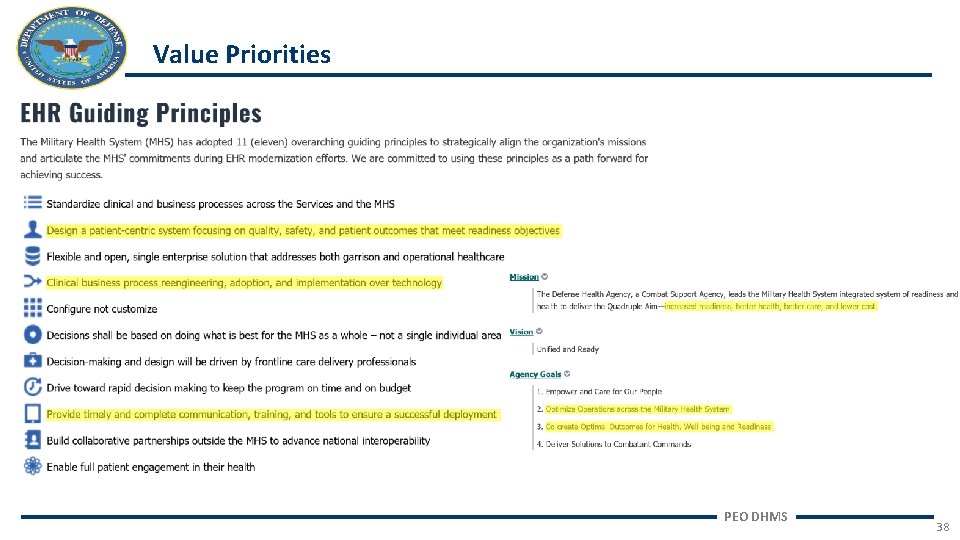
Value Priorities PEO DHMS 38
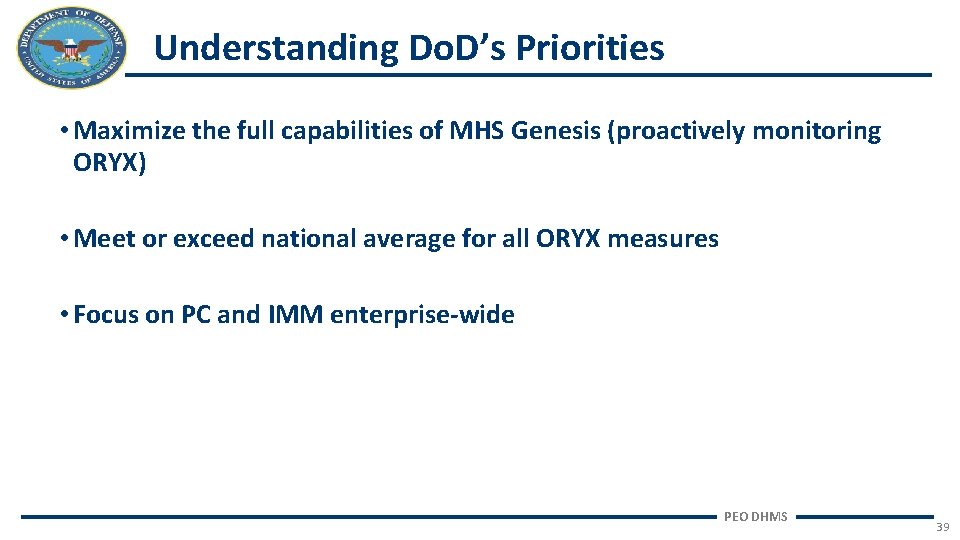
Understanding Do. D’s Priorities • Maximize the full capabilities of MHS Genesis (proactively monitoring ORYX) • Meet or exceed national average for all ORYX measures • Focus on PC and IMM enterprise-wide PEO DHMS 39
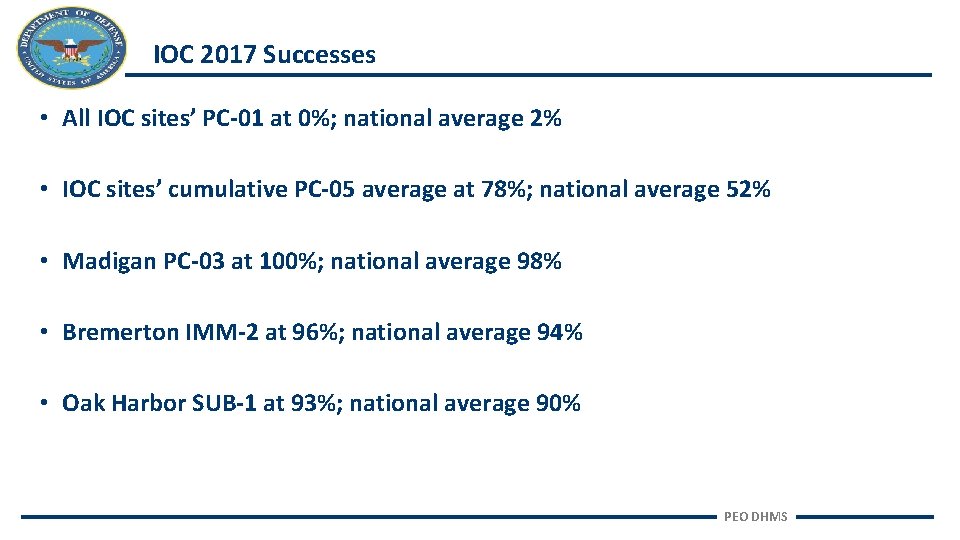
IOC 2017 Successes • All IOC sites’ PC-01 at 0%; national average 2% • IOC sites’ cumulative PC-05 average at 78%; national average 52% • Madigan PC-03 at 100%; national average 98% • Bremerton IMM-2 at 96%; national average 94% • Oak Harbor SUB-1 at 93%; national average 90% PEO DHMS
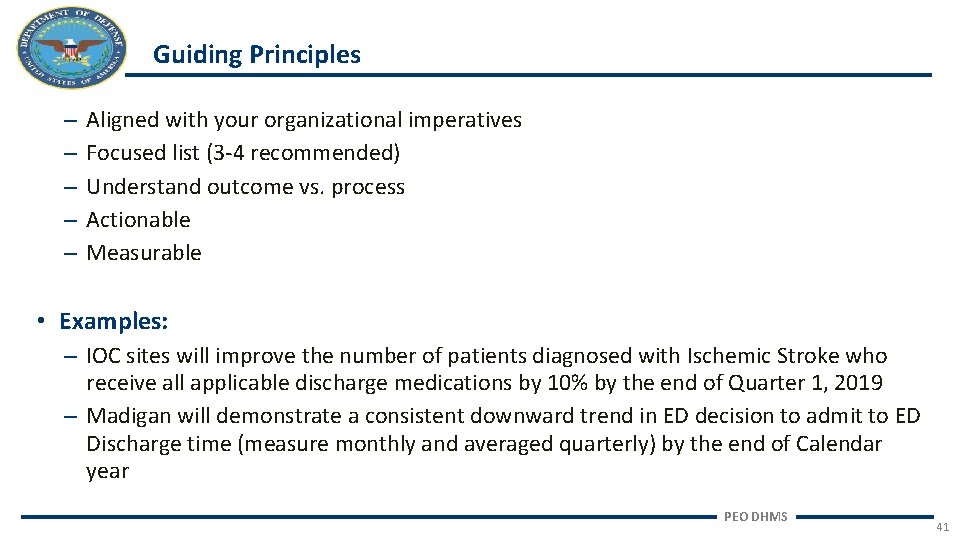
Guiding Principles – – – Aligned with your organizational imperatives Focused list (3 -4 recommended) Understand outcome vs. process Actionable Measurable • Examples: – IOC sites will improve the number of patients diagnosed with Ischemic Stroke who receive all applicable discharge medications by 10% by the end of Quarter 1, 2019 – Madigan will demonstrate a consistent downward trend in ED decision to admit to ED Discharge time (measure monthly and averaged quarterly) by the end of Calendar year PEO DHMS 41
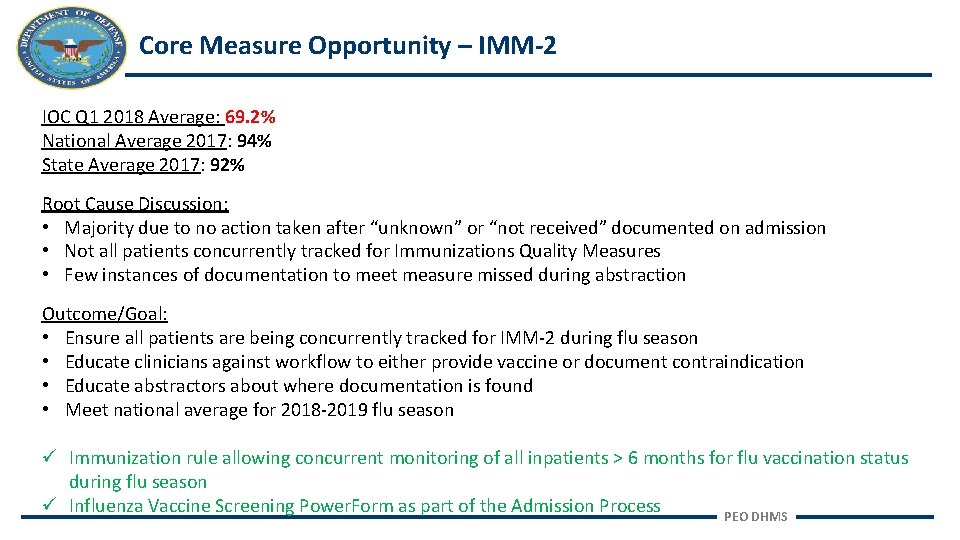
Core Measure Opportunity – IMM-2 IOC Q 1 2018 Average: 69. 2% National Average 2017: 94% State Average 2017: 92% Root Cause Discussion: • Majority due to no action taken after “unknown” or “not received” documented on admission • Not all patients concurrently tracked for Immunizations Quality Measures • Few instances of documentation to meet measure missed during abstraction Outcome/Goal: • Ensure all patients are being concurrently tracked for IMM-2 during flu season • Educate clinicians against workflow to either provide vaccine or document contraindication • Educate abstractors about where documentation is found • Meet national average for 2018 -2019 flu season ü Immunization rule allowing concurrent monitoring of all inpatients > 6 months for flu vaccination status during flu season ü Influenza Vaccine Screening Power. Form as part of the Admission Process PEO DHMS
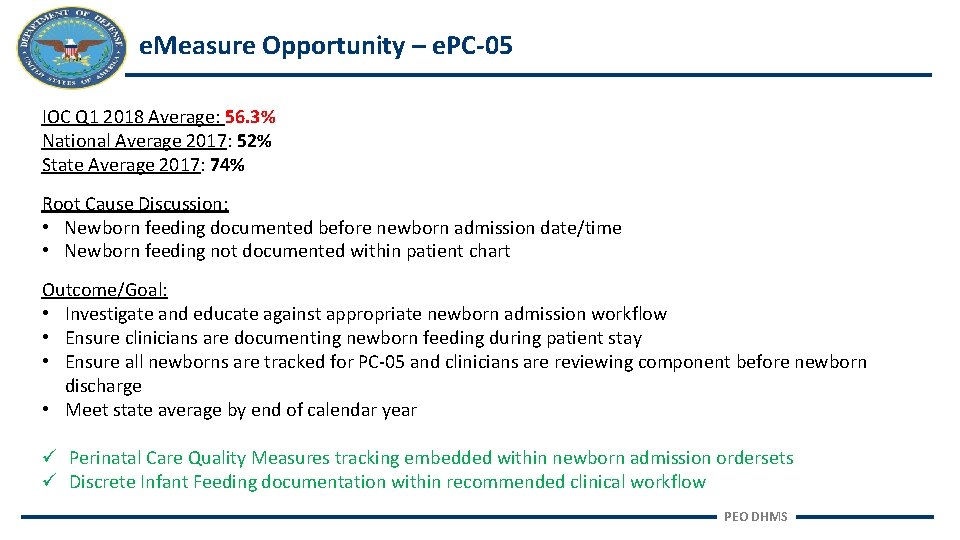
e. Measure Opportunity – e. PC-05 IOC Q 1 2018 Average: 56. 3% National Average 2017: 52% State Average 2017: 74% Root Cause Discussion: • Newborn feeding documented before newborn admission date/time • Newborn feeding not documented within patient chart Outcome/Goal: • Investigate and educate against appropriate newborn admission workflow • Ensure clinicians are documenting newborn feeding during patient stay • Ensure all newborns are tracked for PC-05 and clinicians are reviewing component before newborn discharge • Meet state average by end of calendar year ü Perinatal Care Quality Measures tracking embedded within newborn admission ordersets ü Discrete Infant Feeding documentation within recommended clinical workflow PEO DHMS
2019 ORYX Updates PEO DHMS 44
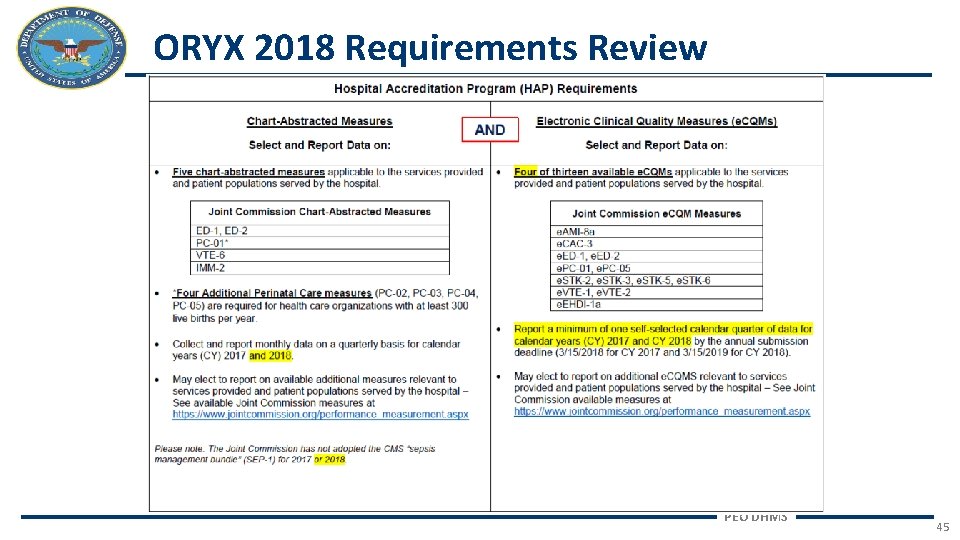
ORYX 2018 Requirements Review PEO DHMS 45
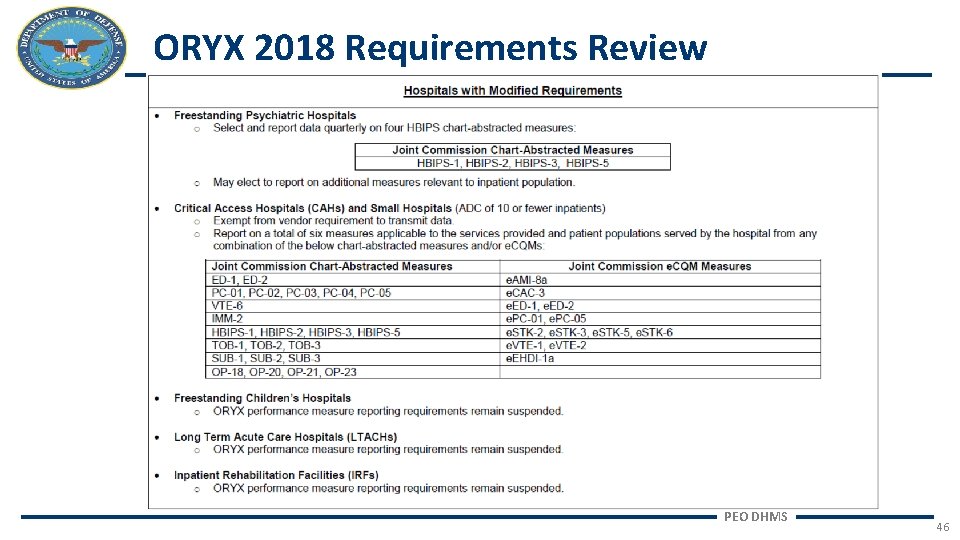
ORYX 2018 Requirements Review PEO DHMS 46
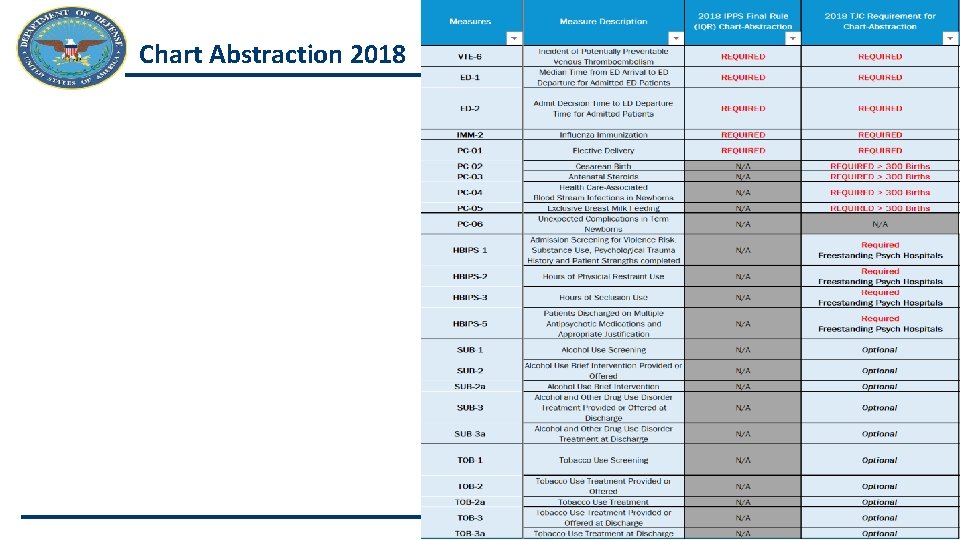
Chart Abstraction 2018 PEO DHMS 47
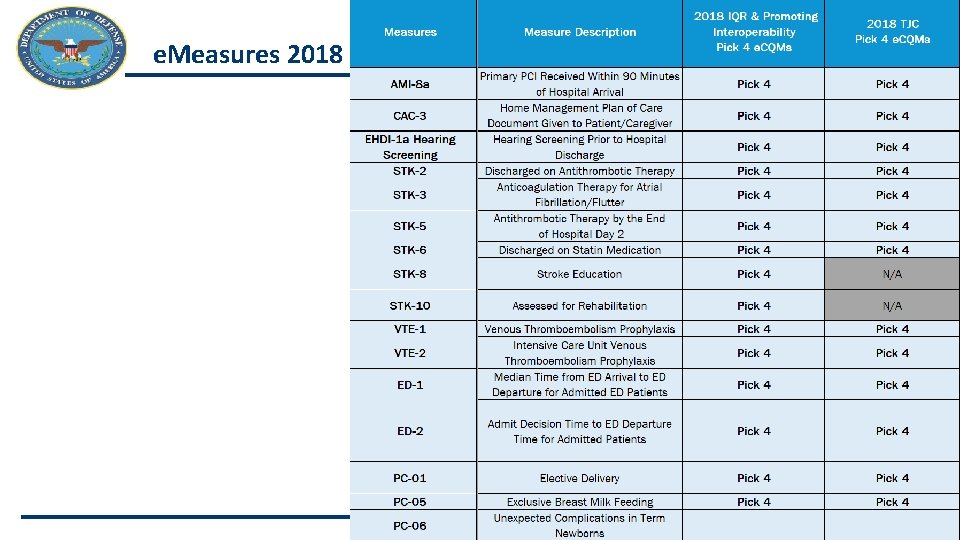
e. Measures 2018 PEO DHMS 48
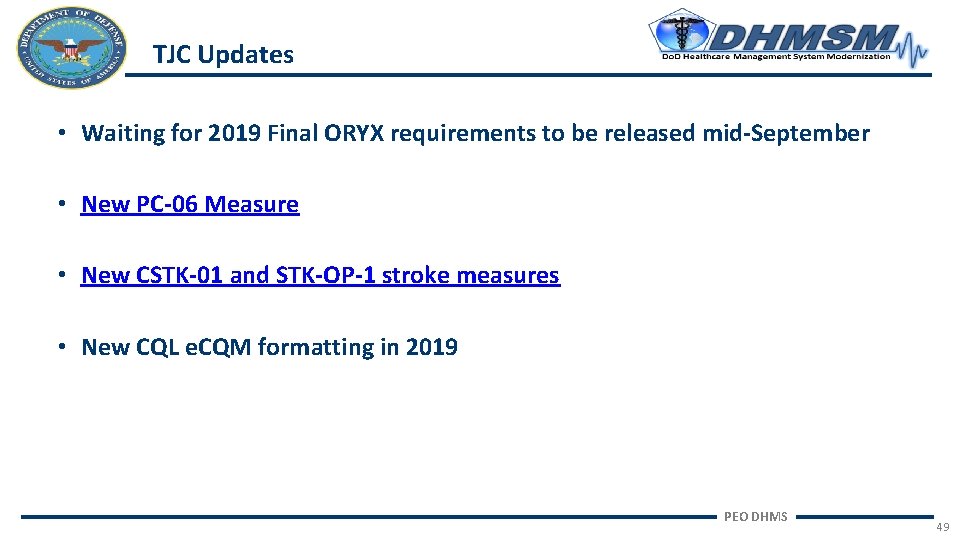
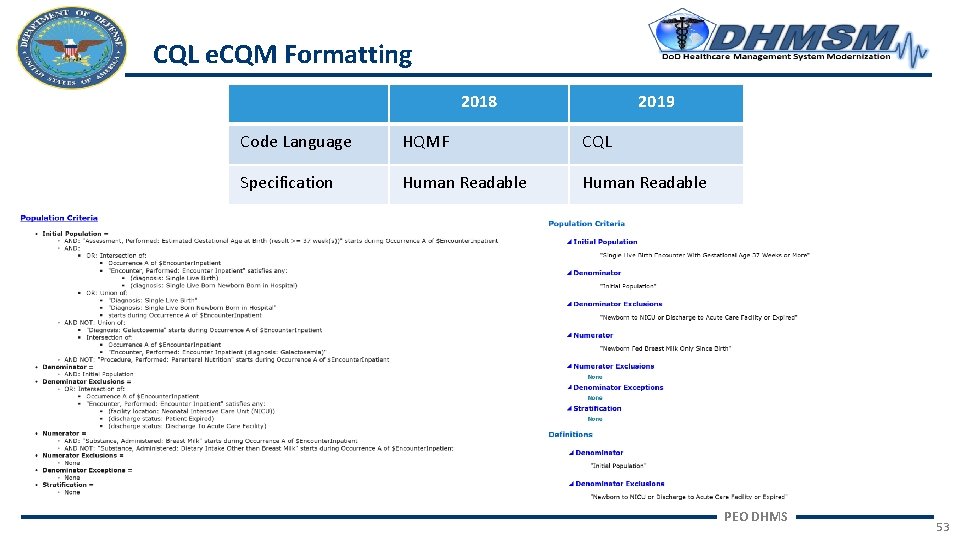
TJC Updates • Waiting for 2019 Final ORYX requirements to be released mid-September • New PC-06 Measure • New CSTK-01 and STK-OP-1 stroke measures • New CQL e. CQM formatting in 2019 PEO DHMS 49
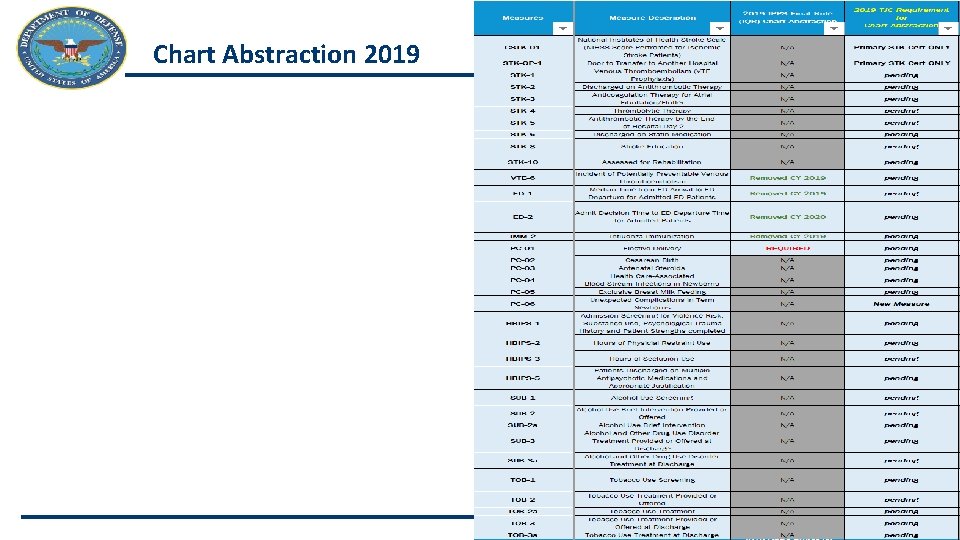
Chart Abstraction 2019 PEO DHMS 50
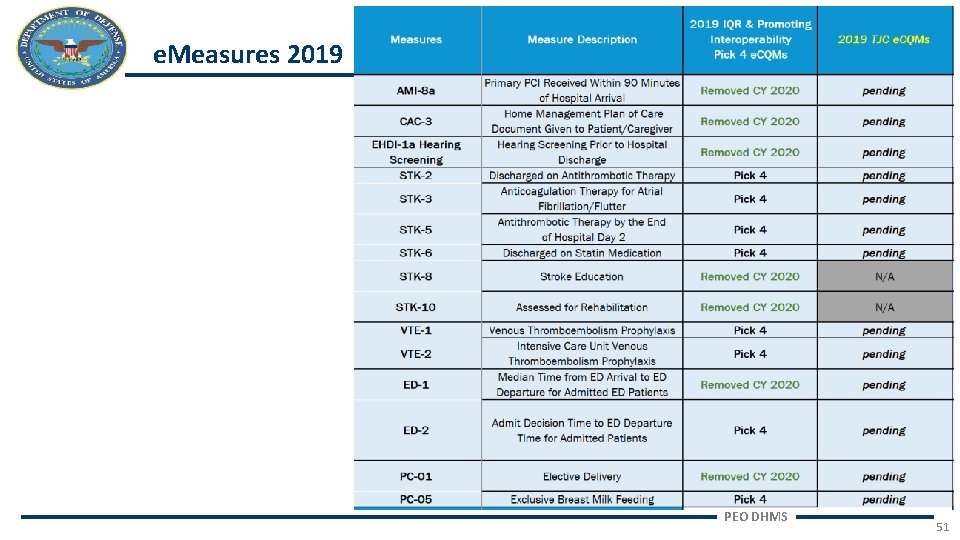
e. Measures 2019 PEO DHMS 51
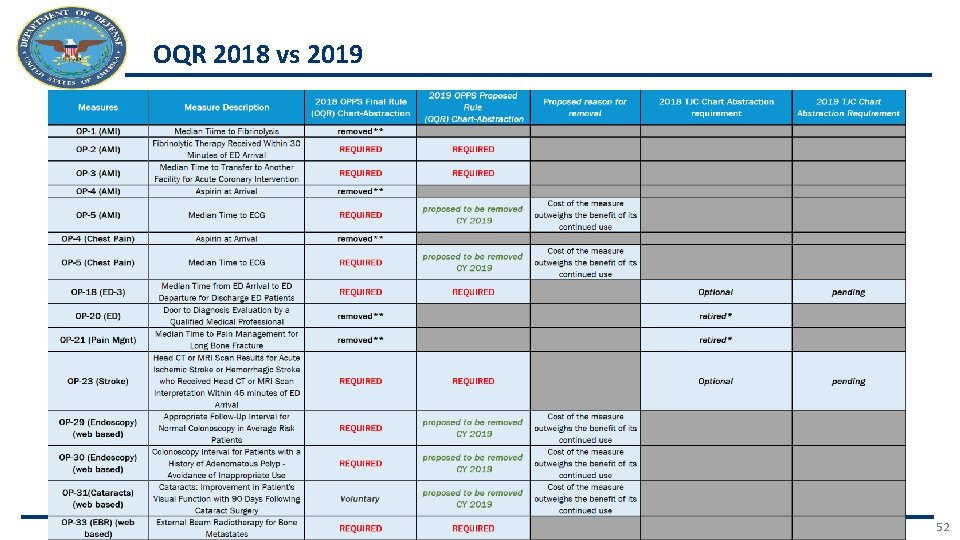
OQR 2018 vs 2019 PEO DHMS 52
CQL e. CQM Formatting 2018 2019 Code Language HQMF CQL Specification Human Readable PEO DHMS 53
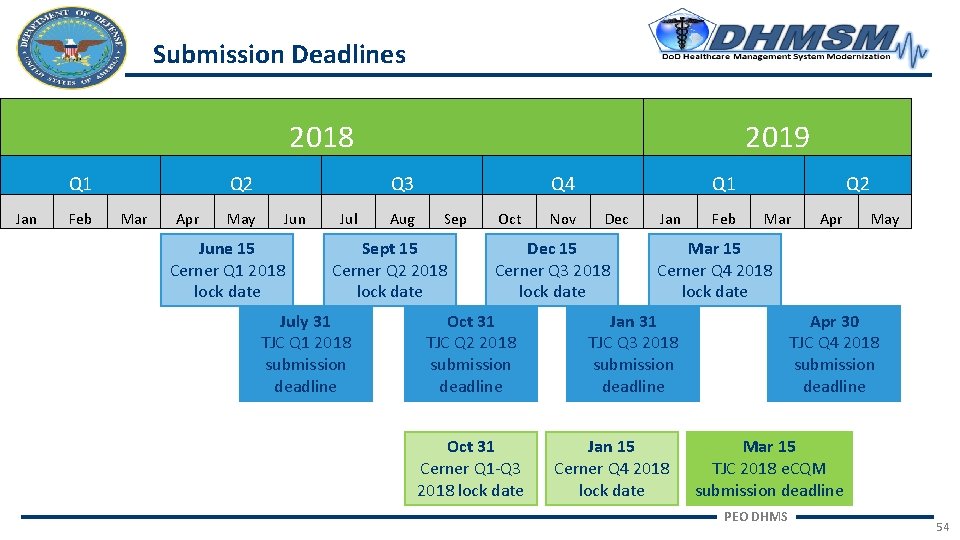
Submission Deadlines 2018 Q 1 Jan Feb Q 2 Mar Apr May 2019 Q 3 June 15 Cerner Q 1 2018 lock date Jul Aug Q 4 Sept 15 Cerner Q 2 2018 lock date July 31 TJC Q 1 2018 submission deadline Oct Nov Q 1 Dec 15 Cerner Q 3 2018 lock date Oct 31 TJC Q 2 2018 submission deadline Oct 31 Cerner Q 1 -Q 3 2018 lock date Jan Feb Q 2 Mar Apr May Mar 15 Cerner Q 4 2018 lock date Jan 31 TJC Q 3 2018 submission deadline Jan 15 Cerner Q 4 2018 lock date Apr 30 TJC Q 4 2018 submission deadline Mar 15 TJC 2018 e. CQM submission deadline PEO DHMS 54
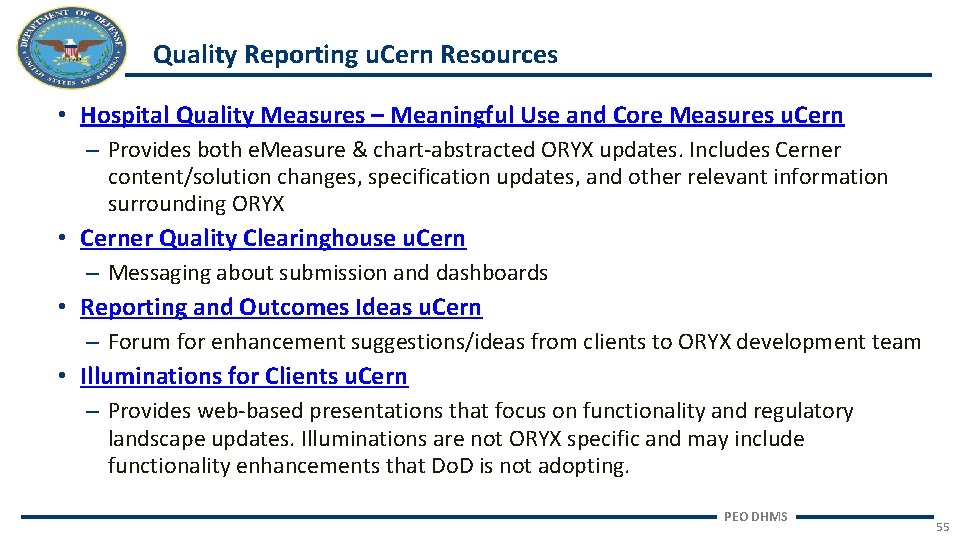
Quality Reporting u. Cern Resources • Hospital Quality Measures – Meaningful Use and Core Measures u. Cern – Provides both e. Measure & chart-abstracted ORYX updates. Includes Cerner content/solution changes, specification updates, and other relevant information surrounding ORYX • Cerner Quality Clearinghouse u. Cern – Messaging about submission and dashboards • Reporting and Outcomes Ideas u. Cern – Forum for enhancement suggestions/ideas from clients to ORYX development team • Illuminations for Clients u. Cern – Provides web-based presentations that focus on functionality and regulatory landscape updates. Illuminations are not ORYX specific and may include functionality enhancements that Do. D is not adopting. PEO DHMS 55
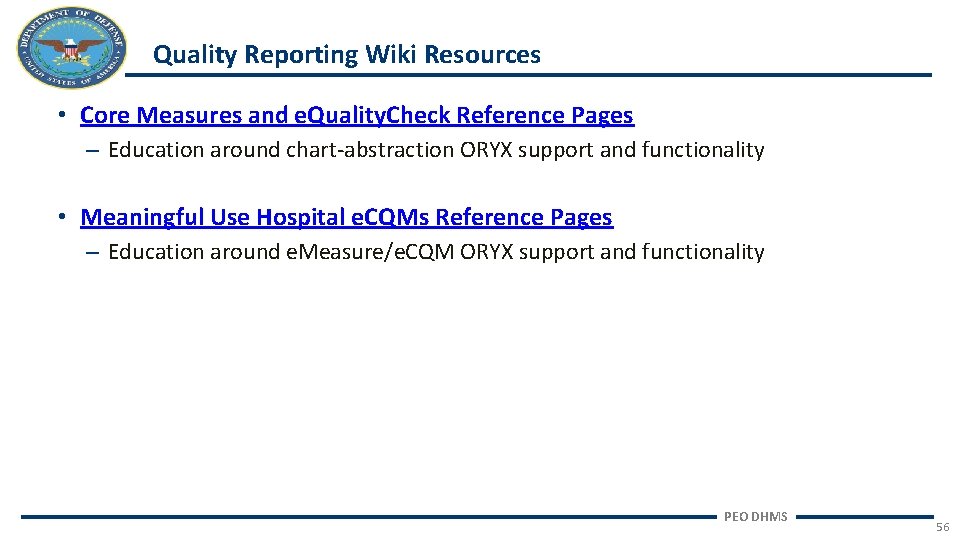
Quality Reporting Wiki Resources • Core Measures and e. Quality. Check Reference Pages – Education around chart-abstraction ORYX support and functionality • Meaningful Use Hospital e. CQMs Reference Pages – Education around e. Measure/e. CQM ORYX support and functionality PEO DHMS 56