
Deloitte guide to ACCA student registration ACCA PUBLIC
Deloitte guide to ACCA student registration © ACCA PUBLIC
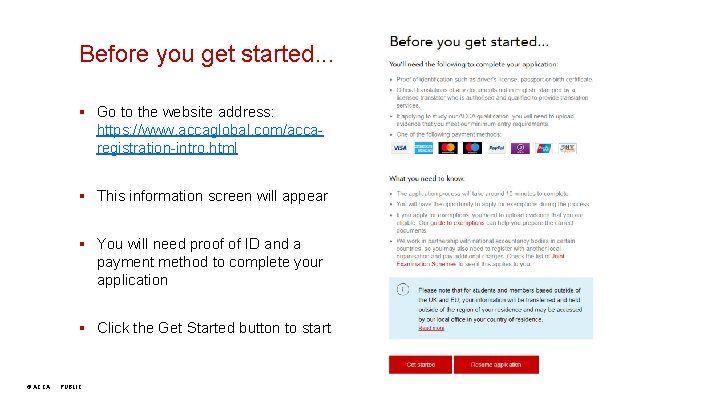
Before you get started. . . § Go to the website address: https: //www. accaglobal. com/accaregistration-intro. html § This information screen will appear § You will need proof of ID and a payment method to complete your application § Click the Get Started button to start © ACCA PUBLIC
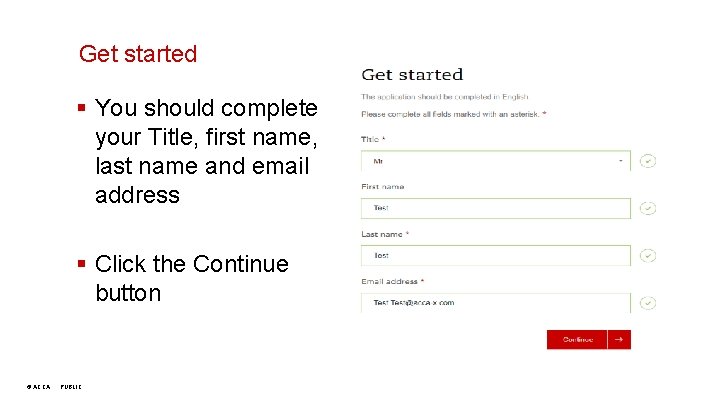
Get started § You should complete your Title, first name, last name and email address § Click the Continue button © ACCA PUBLIC
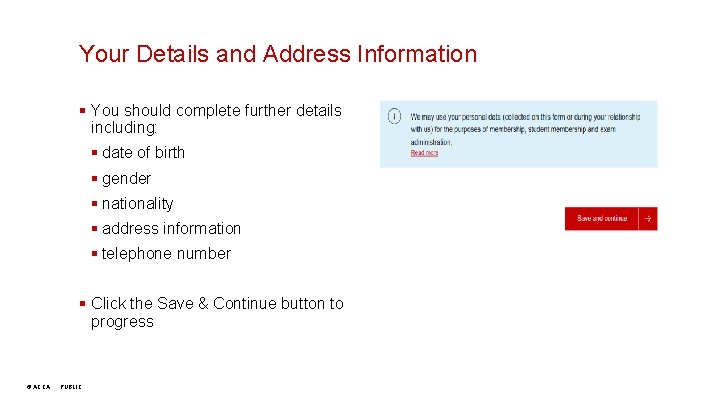
Your Details and Address Information § You should complete further details including: § date of birth § gender § nationality § address information § telephone number § Click the Save & Continue button to progress © ACCA PUBLIC
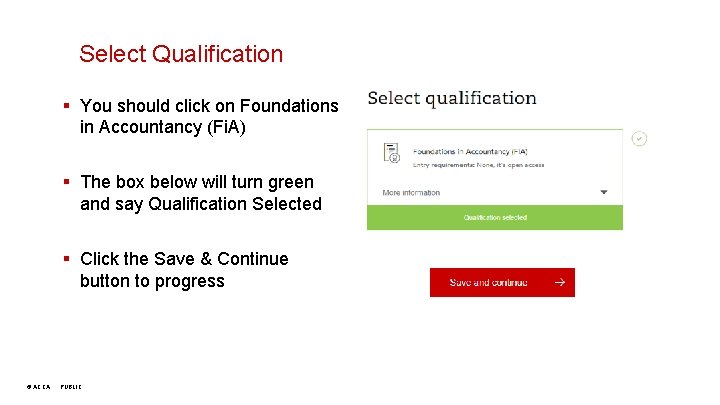
Select Qualification § You should click on Foundations in Accountancy (Fi. A) § The box below will turn green and say Qualification Selected § Click the Save & Continue button to progress © ACCA PUBLIC
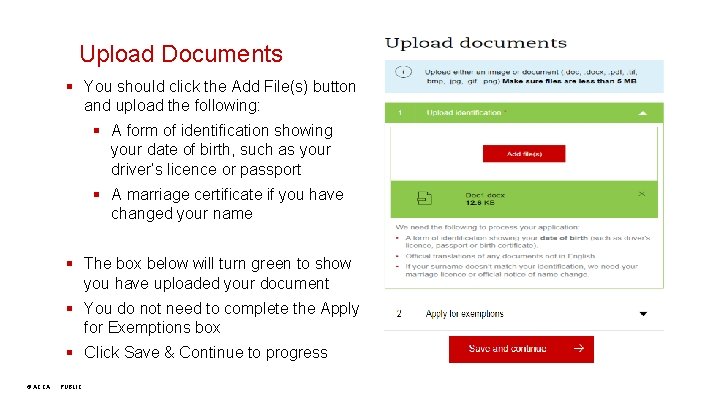
Upload Documents § You should click the Add File(s) button and upload the following: § A form of identification showing your date of birth, such as your driver’s licence or passport § A marriage certificate if you have changed your name § The box below will turn green to show you have uploaded your document § You do not need to complete the Apply for Exemptions box § Click Save & Continue to progress © ACCA PUBLIC
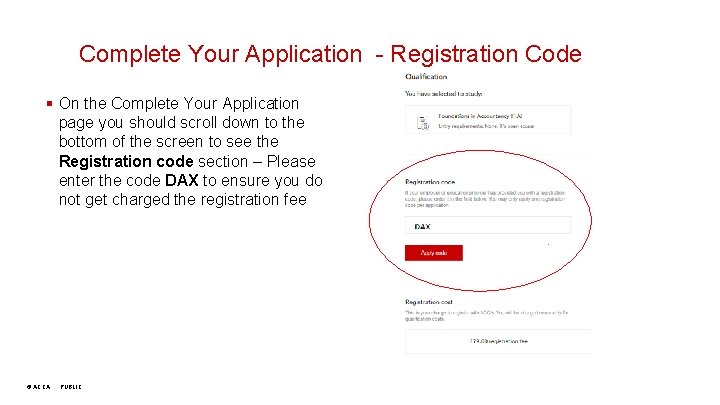
Complete Your Application - Registration Code § On the Complete Your Application page you should scroll down to the bottom of the screen to see the Registration code section – Please enter the code DAX to ensure you do not get charged the registration fee © ACCA PUBLIC
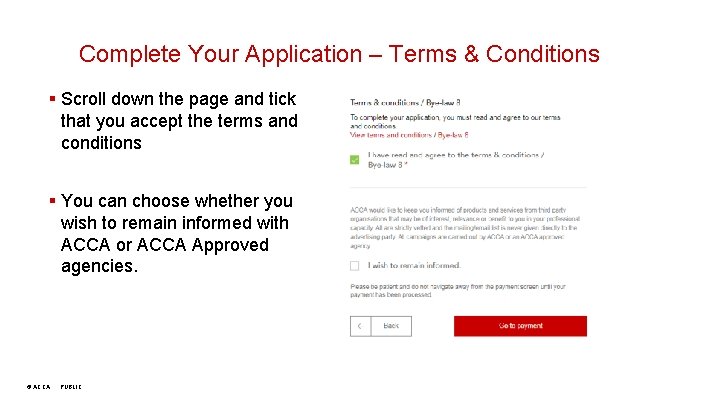
Complete Your Application – Terms & Conditions § Scroll down the page and tick that you accept the terms and conditions § You can choose whether you wish to remain informed with ACCA or ACCA Approved agencies. © ACCA PUBLIC
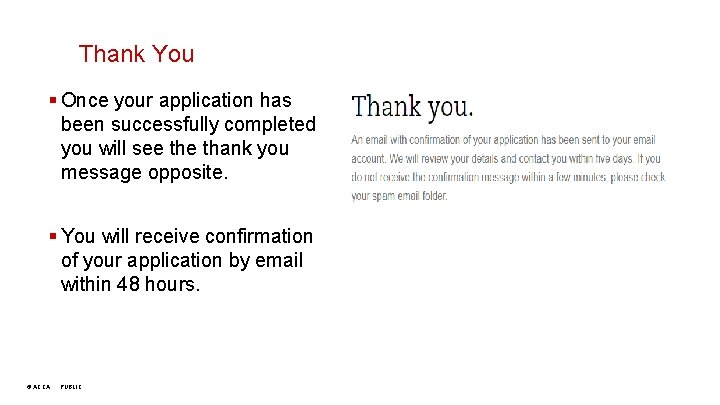
Thank You § Once your application has been successfully completed you will see thank you message opposite. § You will receive confirmation of your application by email within 48 hours. © ACCA PUBLIC

Additional Useful Information © ACCA PUBLIC
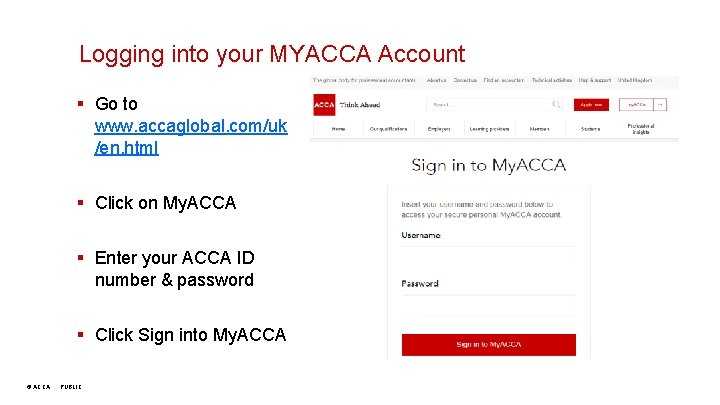
Logging into your MYACCA Account § Go to www. accaglobal. com/uk /en. html § Click on My. ACCA § Enter your ACCA ID number & password § Click Sign into My. ACCA © ACCA PUBLIC

Foundation in Professionalism module § Log into your MYACCA account (previous slide) § Go to the Navigation Menu & click on Ethics & Professionalism § Click on the Foundations in Professionalism module link to access the module § There are full instructions to help you before you start the module © ACCA PUBLIC
- Slides: 12