
Dell EMC Online Account Registration Dell EMC Customers


- Slides: 19
Dell EMC Online Account Registration Dell EMC Customers
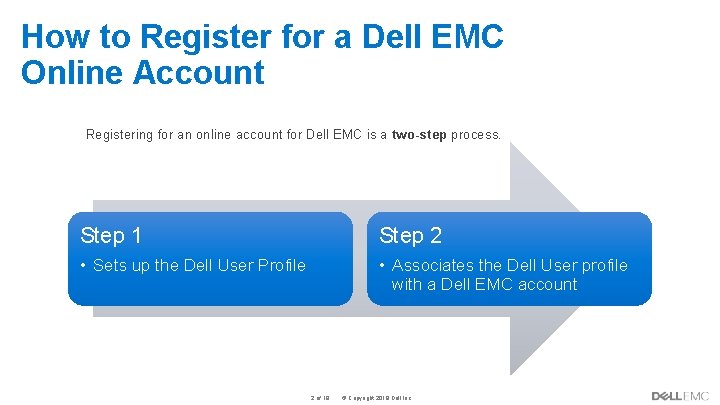
How to Register for a Dell EMC Online Account Registering for an online account for Dell EMC is a two-step process. Internal Use - Confidential Step 1 Step 2 • Sets up the Dell User Profile • Associates the Dell User profile with a Dell EMC account 2 of 19 © Copyright 2019 Dell Inc.
Dell EMC Registration Step 1
Registration Step 1: Creating an Account To begin the registration process Go to dell. com 11. Choose the Sign In option from the masthead 22. Choose the option to Create an Account 2 The Sign In/Create an Account page is displayed. Enter the required details on the right hand side in the Create an account section. Note: in order to progress to Step 2, the email entered must be a valid, business-specific email address. (For example, if you work for ABC and your company domain is abc. com, then the email used should be username@abc. com) Select the Create Account button. Internal Use - Confidential 4 of 19 © Copyright 2019 Dell Inc. 2
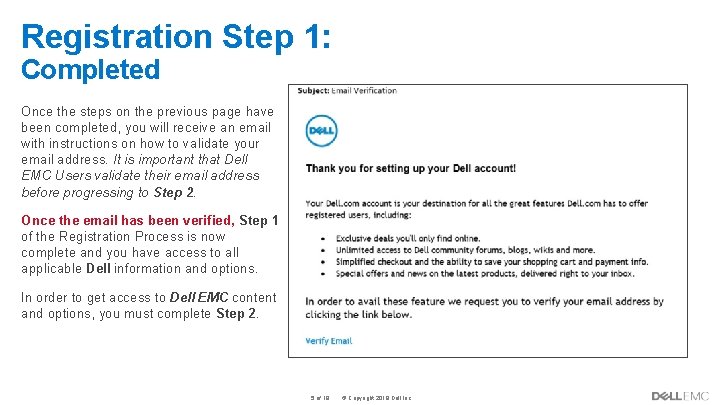
Registration Step 1: Completed Once the steps on the previous page have been completed, you will receive an email with instructions on how to validate your email address. It is important that Dell EMC Users validate their email address before progressing to Step 2. Once the email has been verified, Step 1 of the Registration Process is now complete and you have access to all applicable Dell information and options. In order to get access to Dell EMC content and options, you must complete Step 2. Internal Use - Confidential 5 of 19 © Copyright 2019 Dell Inc.
Dell EMC Registration Step 2
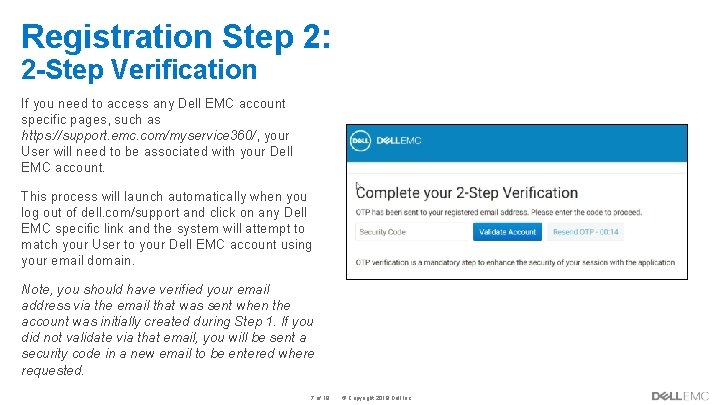
Registration Step 2: 2 -Step Verification If you need to access any Dell EMC account specific pages, such as https: //support. emc. com/myservice 360/, your User will need to be associated with your Dell EMC account. This process will launch automatically when you log out of dell. com/support and click on any Dell EMC specific link and the system will attempt to match your User to your Dell EMC account using your email domain. Note, you should have verified your email address via the email that was sent when the account was initially created during Step 1. If you did not validate via that email, you will be sent a security code in a new email to be entered where requested. Internal Use - Confidential 7 of 19 © Copyright 2019 Dell Inc.
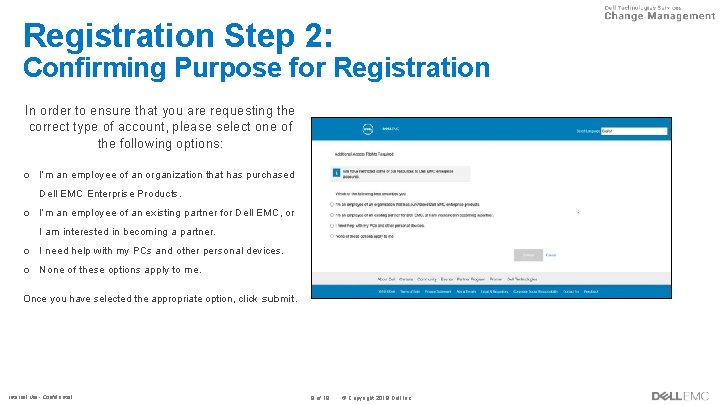
Registration Step 2: Confirming Purpose for Registration In order to ensure that you are requesting the correct type of account, please select one of the following options: o I’m an employee of an organization that has purchased Dell EMC Enterprise Products. o I’m an employee of an existing partner for Dell EMC, or I am interested in becoming a partner. o I need help with my PCs and other personal devices. o None of these options apply to me. Once you have selected the appropriate option, click submit. Internal Use - Confidential 8 of 19 © Copyright 2019 Dell Inc.
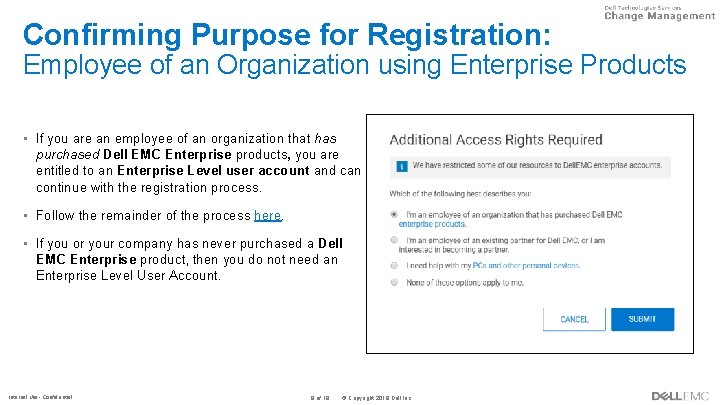
Confirming Purpose for Registration: Employee of an Organization using Enterprise Products • If you are an employee of an organization that has purchased Dell EMC Enterprise products, you are entitled to an Enterprise Level user account and can continue with the registration process. • Follow the remainder of the process here. • If you or your company has never purchased a Dell EMC Enterprise product, then you do not need an Enterprise Level User Account. Internal Use - Confidential 9 of 19 © Copyright 2019 Dell Inc.
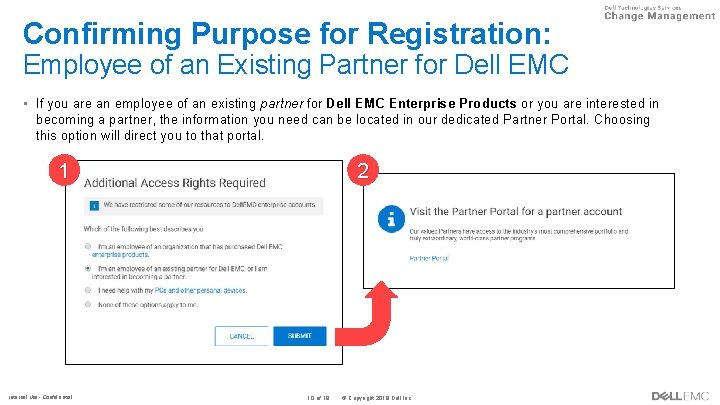
Confirming Purpose for Registration: Employee of an Existing Partner for Dell EMC • If you are an employee of an existing partner for Dell EMC Enterprise Products or you are interested in becoming a partner, the information you need can be located in our dedicated Partner Portal. Choosing this option will direct you to that portal. 1 Internal Use - Confidential 2 10 of 19 © Copyright 2019 Dell Inc.
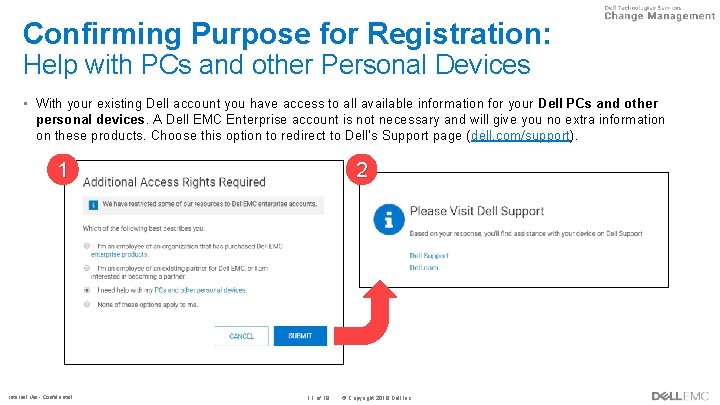
Confirming Purpose for Registration: Help with PCs and other Personal Devices • With your existing Dell account you have access to all available information for your Dell PCs and other personal devices. A Dell EMC Enterprise account is not necessary and will give you no extra information on these products. Choose this option to redirect to Dell’s Support page (dell. com/support). 1 Internal Use - Confidential 2 11 of 19 © Copyright 2019 Dell Inc.
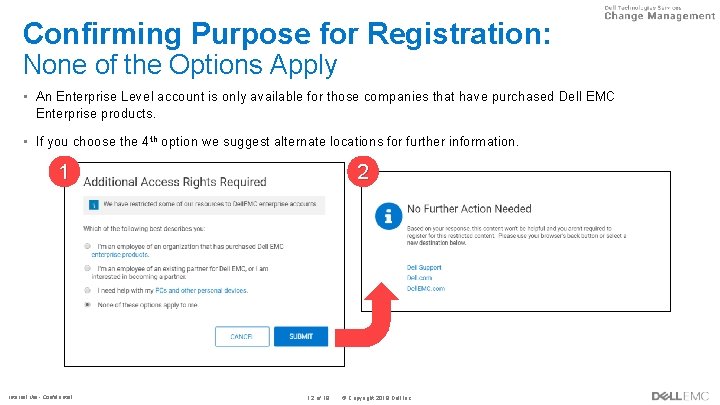
Confirming Purpose for Registration: None of the Options Apply • An Enterprise Level account is only available for those companies that have purchased Dell EMC Enterprise products. • If you choose the 4 th option we suggest alternate locations for further information. 1 Internal Use - Confidential 2 12 of 19 © Copyright 2019 Dell Inc.
Dell EMC Registration Step 3
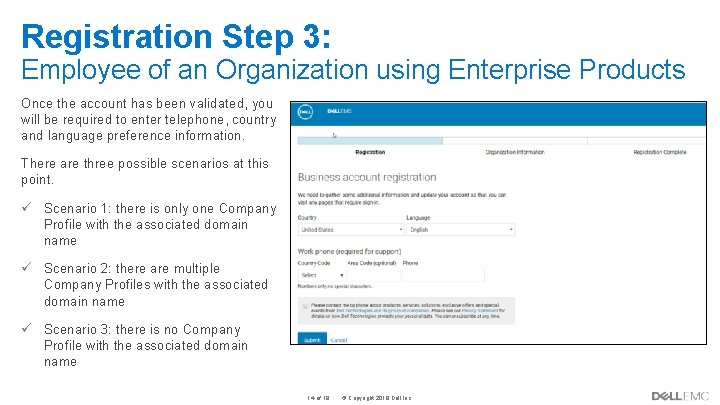
Registration Step 3: Employee of an Organization using Enterprise Products Once the account has been validated, you will be required to enter telephone, country and language preference information. There are three possible scenarios at this point. ü Scenario 1: there is only one Company Profile with the associated domain name ü Scenario 2: there are multiple Company Profiles with the associated domain name ü Scenario 3: there is no Company Profile with the associated domain name Internal Use - Confidential 14 of 19 © Copyright 2019 Dell Inc.
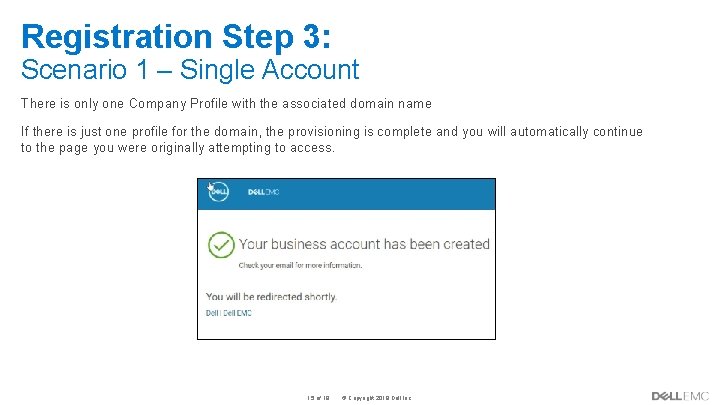
Registration Step 3: Scenario 1 – Single Account There is only one Company Profile with the associated domain name If there is just one profile for the domain, the provisioning is complete and you will automatically continue to the page you were originally attempting to access. Internal Use - Confidential 15 of 19 © Copyright 2019 Dell Inc.
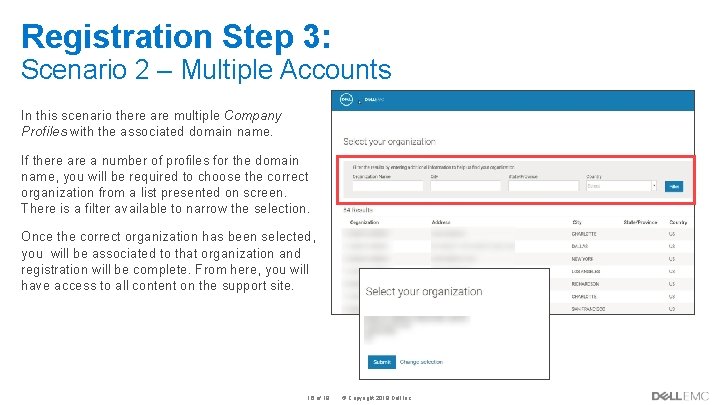
Registration Step 3: Scenario 2 – Multiple Accounts In this scenario there are multiple Company Profiles with the associated domain name. If there a number of profiles for the domain name, you will be required to choose the correct organization from a list presented on screen. There is a filter available to narrow the selection. Once the correct organization has been selected, you will be associated to that organization and registration will be complete. From here, you will have access to all content on the support site. Internal Use - Confidential 16 of 19 © Copyright 2019 Dell Inc.
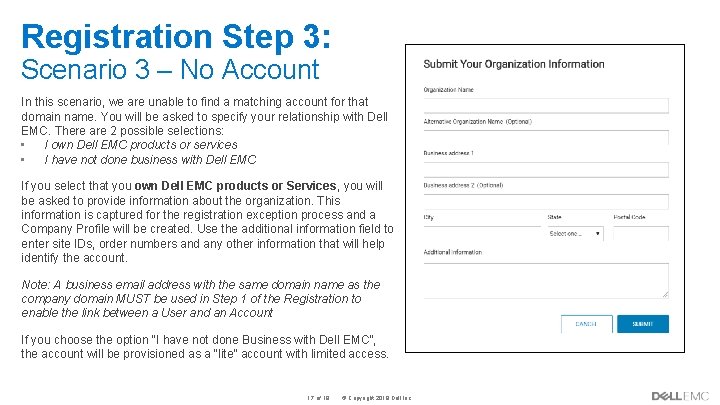
Registration Step 3: Scenario 3 – No Account In this scenario, we are unable to find a matching account for that domain name. You will be asked to specify your relationship with Dell EMC. There are 2 possible selections: • I own Dell EMC products or services • I have not done business with Dell EMC If you select that you own Dell EMC products or Services, you will be asked to provide information about the organization. This information is captured for the registration exception process and a Company Profile will be created. Use the additional information field to enter site IDs, order numbers and any other information that will help identify the account. Note: A business email address with the same domain name as the company domain MUST be used in Step 1 of the Registration to enable the link between a User and an Account If you choose the option “I have not done Business with Dell EMC”, the account will be provisioned as a “lite” account with limited access. Internal Use - Confidential 17 of 19 © Copyright 2019 Dell Inc.
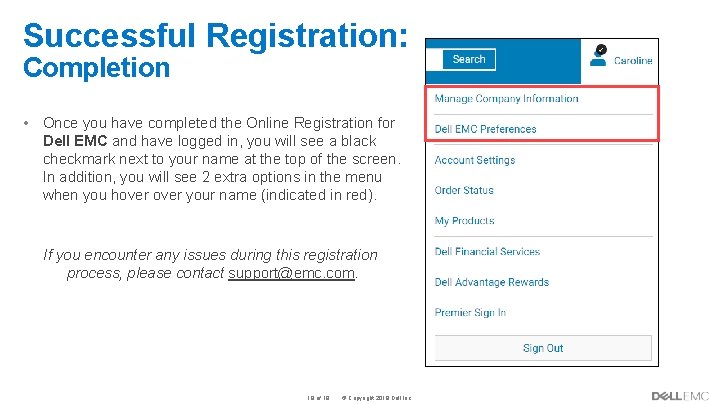
Successful Registration: Completion • Once you have completed the Online Registration for Dell EMC and have logged in, you will see a black checkmark next to your name at the top of the screen. In addition, you will see 2 extra options in the menu when you hover your name (indicated in red). If you encounter any issues during this registration process, please contact support@emc. com. Internal Use - Confidential 18 of 19 © Copyright 2019 Dell Inc.