
DelftFIAT IMPACT ASSESSMENT WITH FIAT Flood Impact Assessment
- Slides: 21
Delft-FIAT
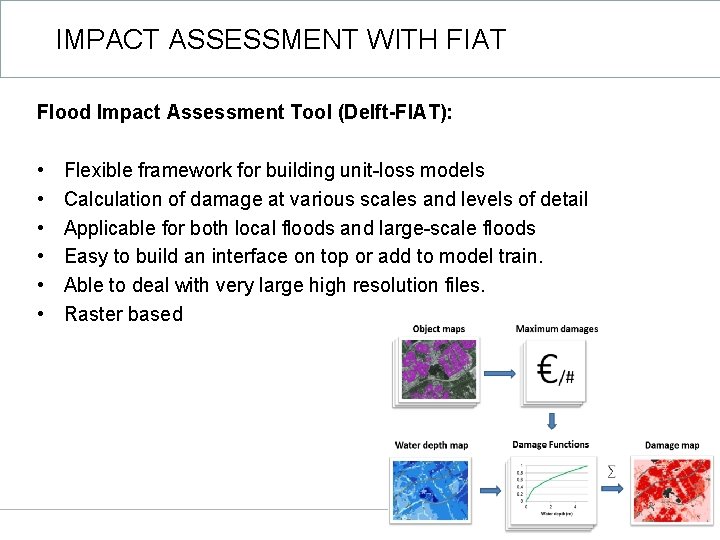
IMPACT ASSESSMENT WITH FIAT Flood Impact Assessment Tool (Delft-FIAT): • • • Flexible framework for building unit-loss models Calculation of damage at various scales and levels of detail Applicable for both local floods and large-scale floods Easy to build an interface on top or add to model train. Able to deal with very large high resolution files. Raster based
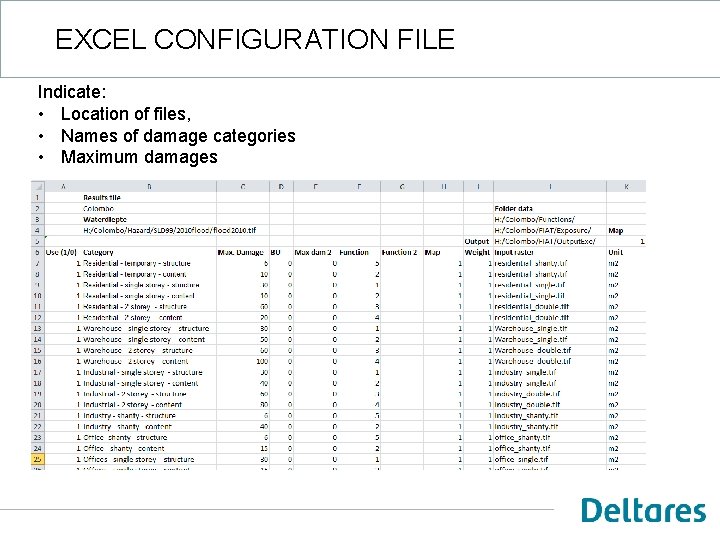
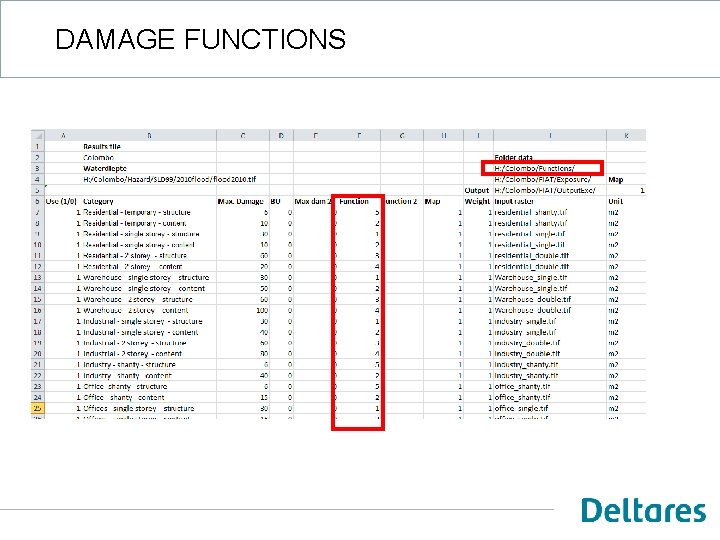
EXCEL CONFIGURATION FILE Indicate: • Location of files, • Names of damage categories • Maximum damages
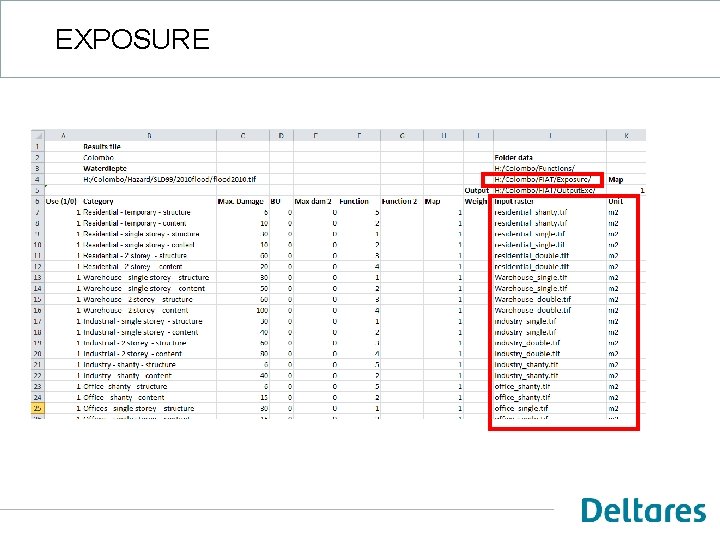
EXPOSURE
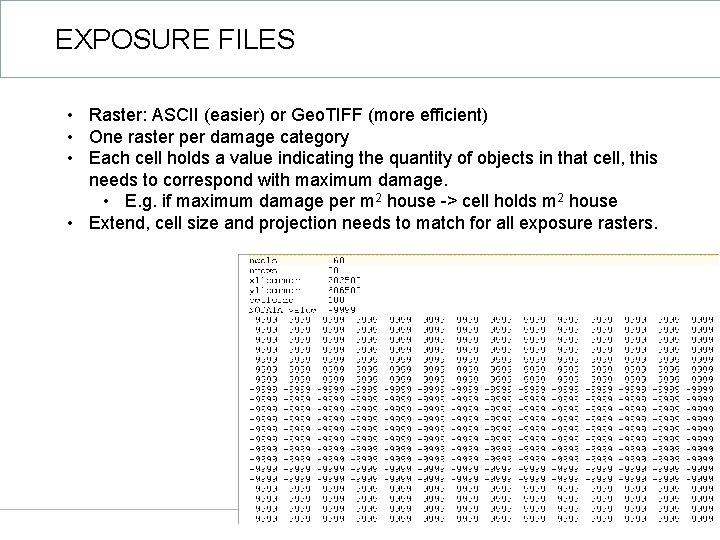
EXPOSURE FILES • Raster: ASCII (easier) or Geo. TIFF (more efficient) • One raster per damage category • Each cell holds a value indicating the quantity of objects in that cell, this needs to correspond with maximum damage. • E. g. if maximum damage per m 2 house -> cell holds m 2 house • Extend, cell size and projection needs to match for all exposure rasters.
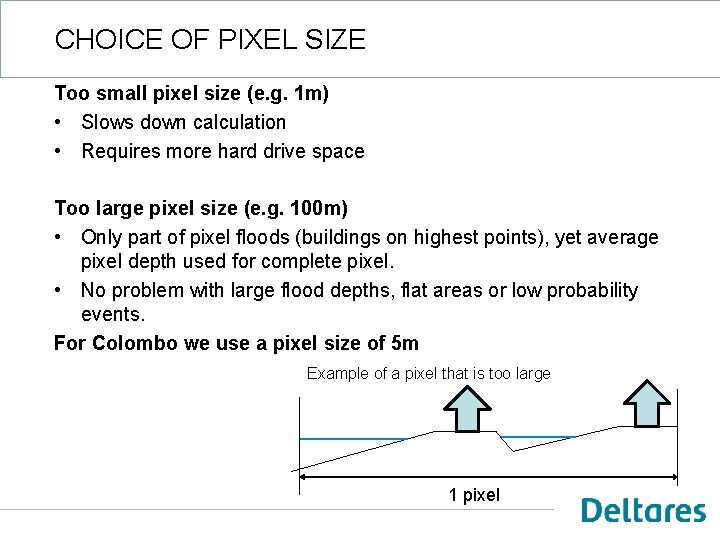
CHOICE OF PIXEL SIZE Too small pixel size (e. g. 1 m) • Slows down calculation • Requires more hard drive space Too large pixel size (e. g. 100 m) • Only part of pixel floods (buildings on highest points), yet average pixel depth used for complete pixel. • No problem with large flood depths, flat areas or low probability events. For Colombo we use a pixel size of 5 m Example of a pixel that is too large 1 pixel
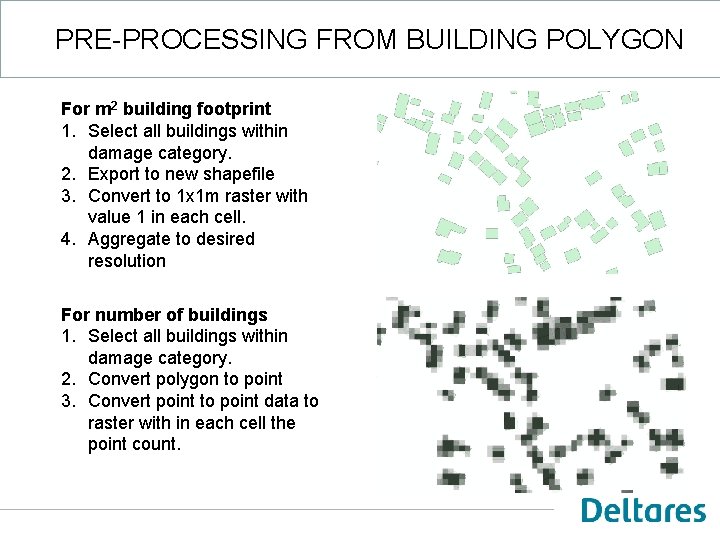
PRE-PROCESSING FROM BUILDING POLYGON For m 2 building footprint 1. Select all buildings within damage category. 2. Export to new shapefile 3. Convert to 1 x 1 m raster with value 1 in each cell. 4. Aggregate to desired resolution For number of buildings 1. Select all buildings within damage category. 2. Convert polygon to point 3. Convert point to point data to raster with in each cell the point count.
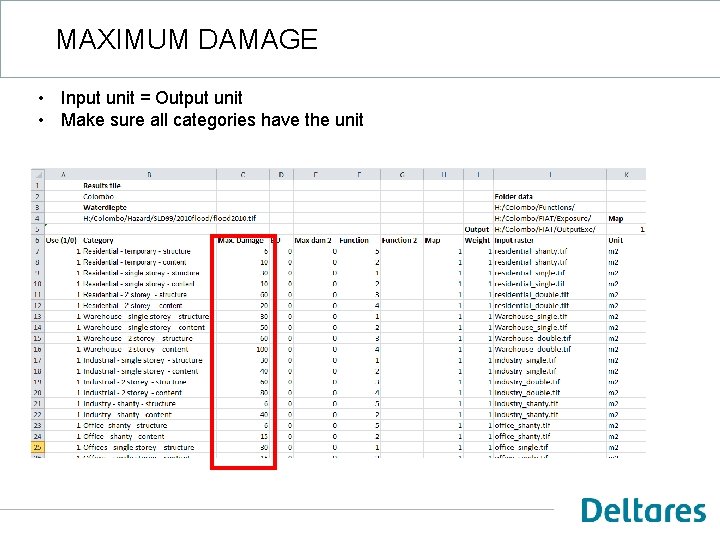
MAXIMUM DAMAGE • Input unit = Output unit • Make sure all categories have the unit
DAMAGE FUNCTIONS
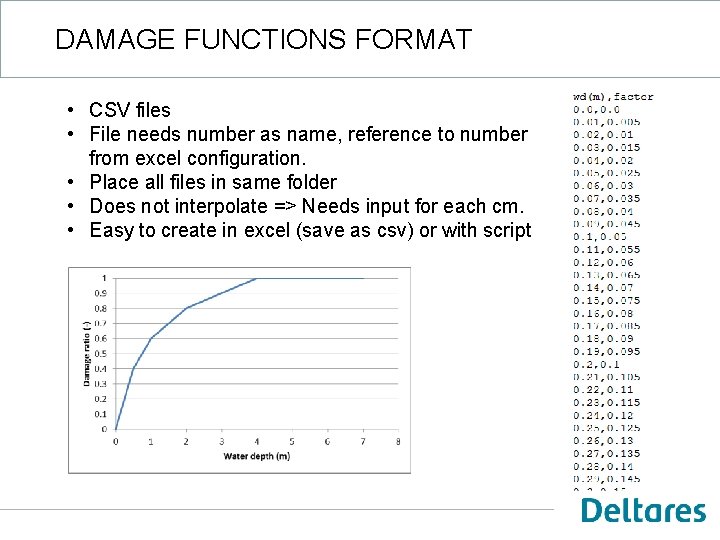
DAMAGE FUNCTIONS FORMAT • CSV files • File needs number as name, reference to number from excel configuration. • Place all files in same folder • Does not interpolate => Needs input for each cm. • Easy to create in excel (save as csv) or with script
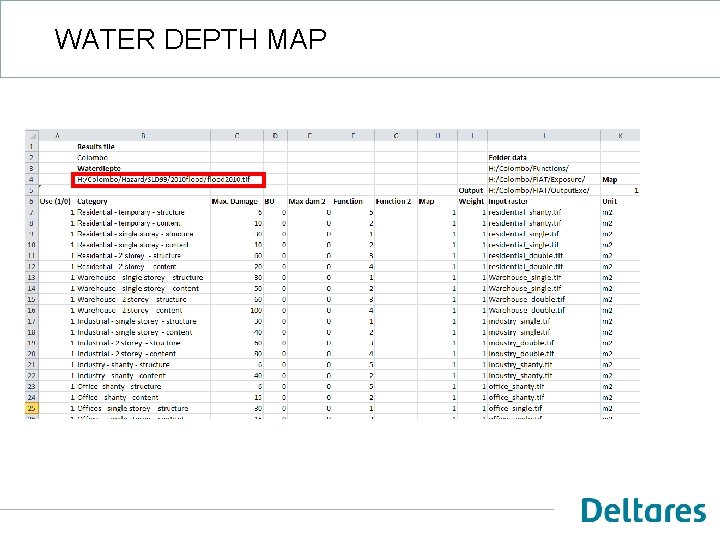
WATER DEPTH MAP
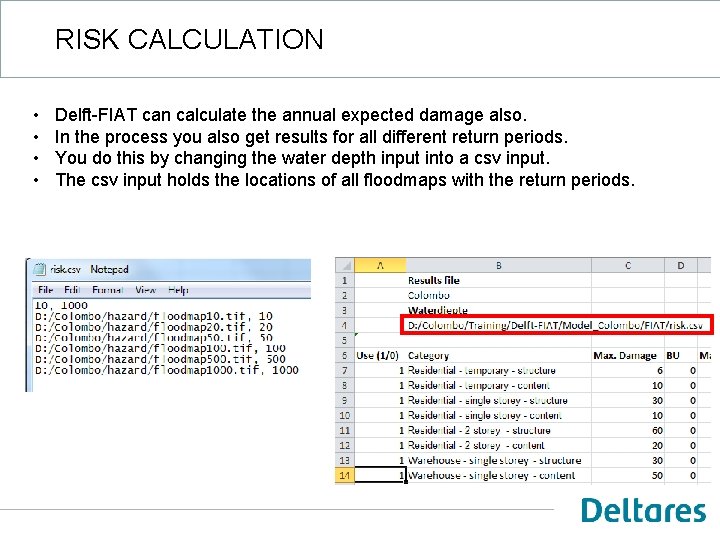
RISK CALCULATION • • Delft-FIAT can calculate the annual expected damage also. In the process you also get results for all different return periods. You do this by changing the water depth input into a csv input. The csv input holds the locations of all floodmaps with the return periods.
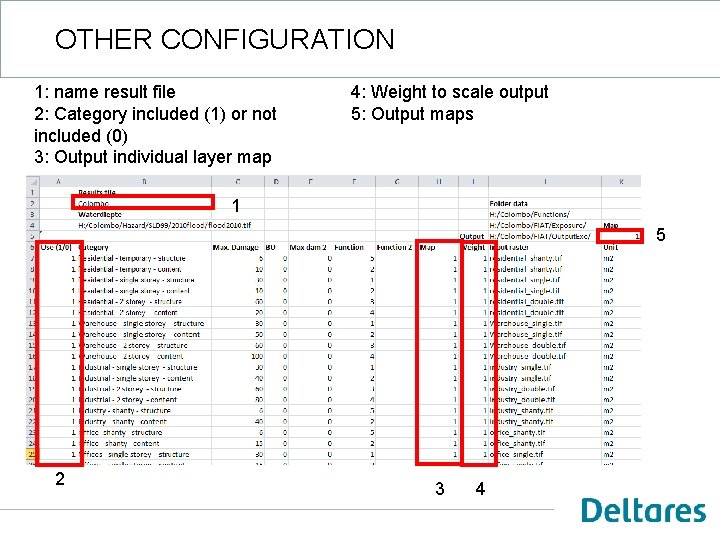
OTHER CONFIGURATION 1: name result file 2: Category included (1) or not included (0) 3: Output individual layer map 4: Weight to scale output 5: Output maps 1 5 2 3 4
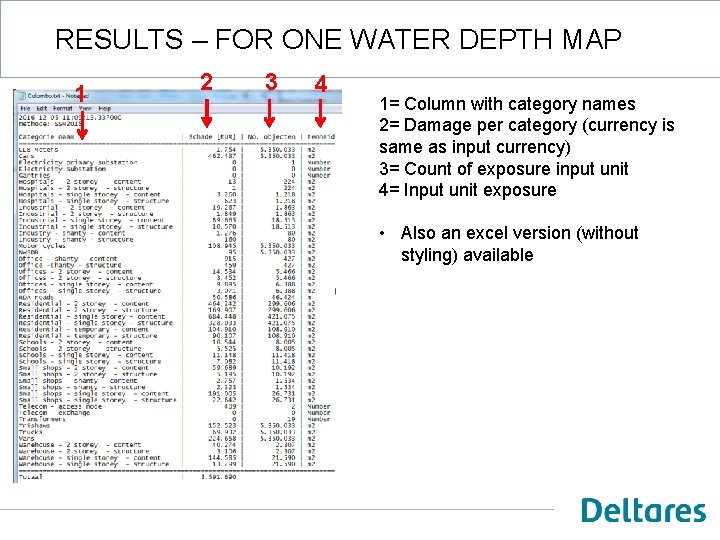
RESULTS – FOR ONE WATER DEPTH MAP 1 2 3 4 1= Column with category names 2= Damage per category (currency is same as input currency) 3= Count of exposure input unit 4= Input unit exposure • Also an excel version (without styling) available
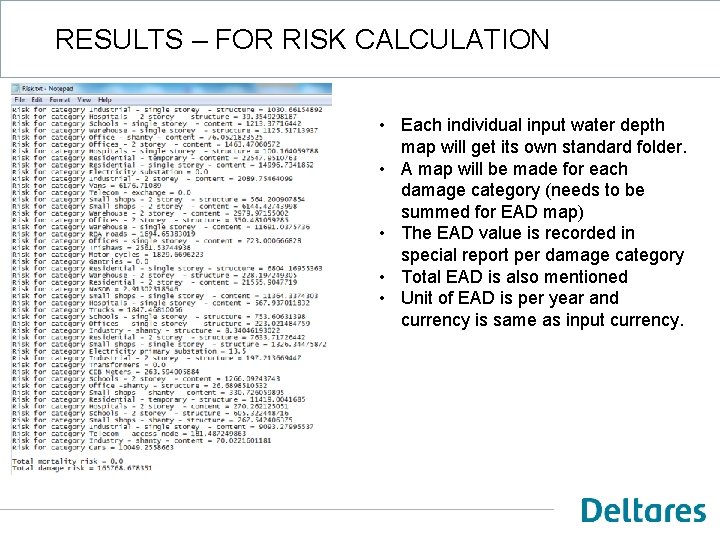
RESULTS – FOR RISK CALCULATION • Each individual input water depth map will get its own standard folder. • A map will be made for each damage category (needs to be summed for EAD map) • The EAD value is recorded in special report per damage category • Total EAD is also mentioned • Unit of EAD is per year and currency is same as input currency.
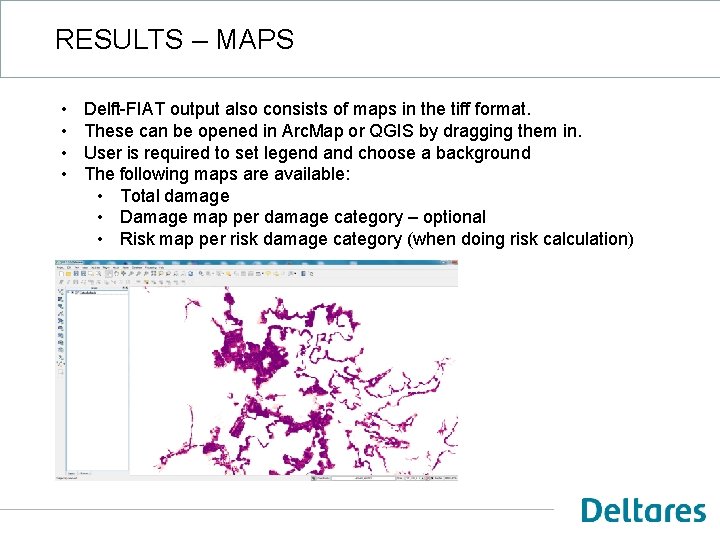
RESULTS – MAPS • • Delft-FIAT output also consists of maps in the tiff format. These can be opened in Arc. Map or QGIS by dragging them in. User is required to set legend and choose a background The following maps are available: • Total damage • Damage map per damage category – optional • Risk map per risk damage category (when doing risk calculation)
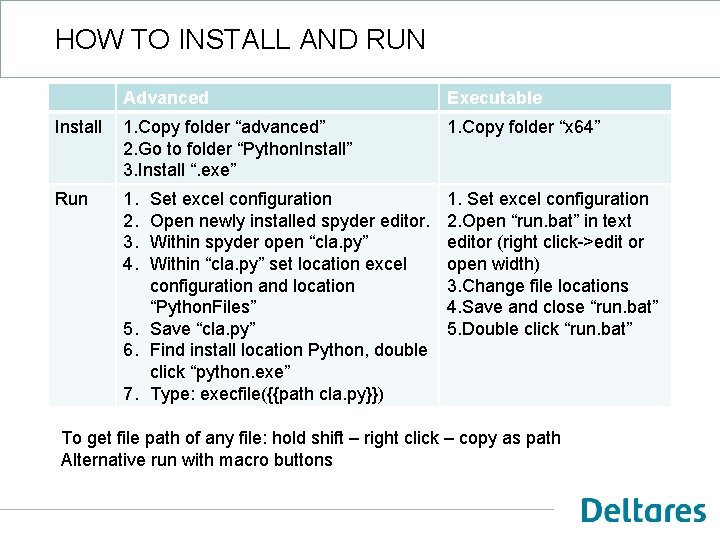
HOW TO INSTALL AND RUN Advanced Executable Install 1. Copy folder “advanced” 2. Go to folder “Python. Install” 3. Install “. exe” 1. Copy folder “x 64” Run 1. 2. 3. 4. 1. Set excel configuration 2. Open “run. bat” in text editor (right click->edit or open width) 3. Change file locations 4. Save and close “run. bat” 5. Double click “run. bat” Set excel configuration Open newly installed spyder editor. Within spyder open “cla. py” Within “cla. py” set location excel configuration and location “Python. Files” 5. Save “cla. py” 6. Find install location Python, double click “python. exe” 7. Type: execfile({{path cla. py}}) To get file path of any file: hold shift – right click – copy as path Alternative run with macro buttons
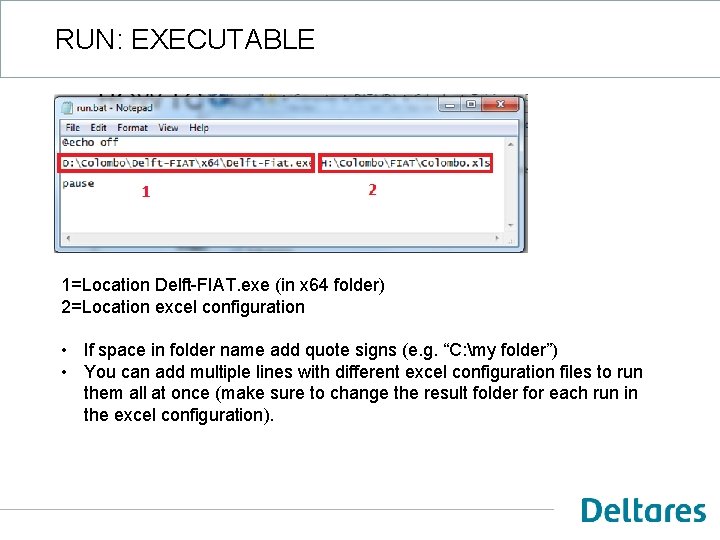
RUN: EXECUTABLE 1=Location Delft-FIAT. exe (in x 64 folder) 2=Location excel configuration • If space in folder name add quote signs (e. g. “C: my folder”) • You can add multiple lines with different excel configuration files to run them all at once (make sure to change the result folder for each run in the excel configuration).
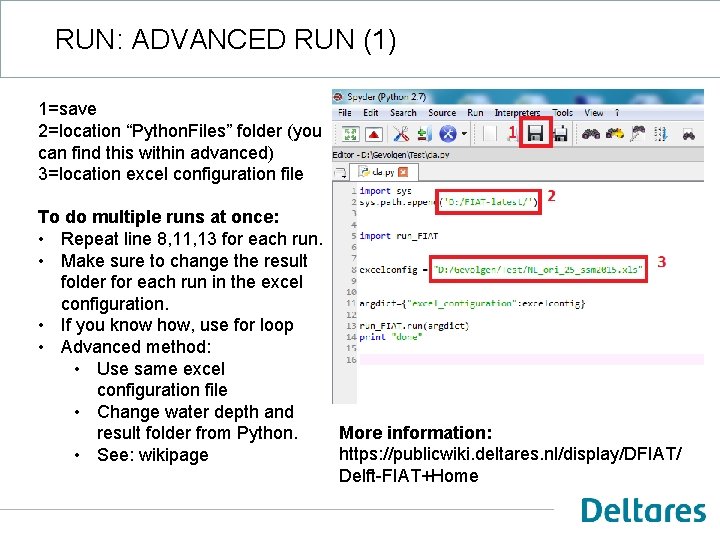
RUN: ADVANCED RUN (1) 1=save 2=location “Python. Files” folder (you can find this within advanced) 3=location excel configuration file To do multiple runs at once: • Repeat line 8, 11, 13 for each run. • Make sure to change the result folder for each run in the excel configuration. • If you know how, use for loop • Advanced method: • Use same excel configuration file • Change water depth and More information: result folder from Python. https: //publicwiki. deltares. nl/display/DFIAT/ • See: wikipage Delft-FIAT+Home
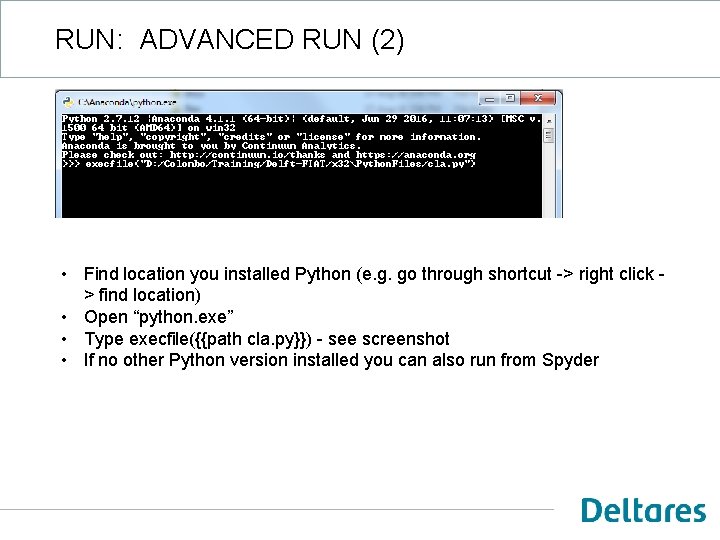
RUN: ADVANCED RUN (2) • Find location you installed Python (e. g. go through shortcut -> right click > find location) • Open “python. exe” • Type execfile({{path cla. py}}) - see screenshot • If no other Python version installed you can also run from Spyder
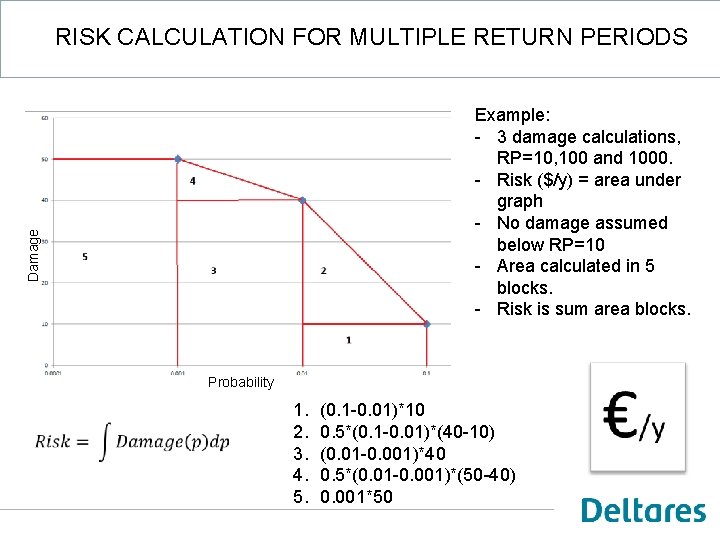
RISK CALCULATION FOR MULTIPLE RETURN PERIODS Damage Example: - 3 damage calculations, RP=10, 100 and 1000. - Risk ($/y) = area under graph - No damage assumed below RP=10 - Area calculated in 5 blocks. - Risk is sum area blocks. Probability 1. 2. 3. 4. 5. (0. 1 -0. 01)*10 0. 5*(0. 1 -0. 01)*(40 -10) (0. 01 -0. 001)*40 0. 5*(0. 01 -0. 001)*(50 -40) 0. 001*50