
Delete this info page Ki Cad Presentation Overview
- Slides: 41
Delete this info page: Ki. Cad Presentation Overview: Original author, Jamie Oliver, KF 2 B, Webster (Rochester), NY This presentation was made for the Rochester Amateur Radio Association (Rochester. Ham. org) September 2017 meeting. The general premise was that many people are not bread-boarding any more due to the difficulty of making decent PCBs and the difficulties of surface mount technology. So. . . This presentation was intended for moderately skilled people to allow them the confidence to give them a push to get back to electronics. The presentation was designed to be a fast 30 minute presentation and a 15 minute demo. The demo was to make a PCB with 3 -10 components to show the basics of placing a component on a schematic, annotating, netlisting, bringing in the new components to Pcbnew, placing a few tracks, flipping components to the other side, place a few vias, placing an edge. cut layer for showing the size of the PCB and showing how it looks in the 3 D viewer. It is best if you have a simple design with your libraries already configured as you will not have time to twiddle with all that in a demo from scratch. What this is. . . Yes, it is a hack. It can certainly be made better. I didn't find one on the web so I made this. In the spirit of Ki. Cad and all the developers that have made the awesome tool possible, I open this up for use by anyone. If you do a presentation, send me an email (KF 2 B@frontiernet. net) and maybe an attribution in your presentation and if you make the presentation better or translate it to your home language, post that to the forum as well for others in your country. Increment the revision number. This presentation was too long as it was (went for 40 minutes) so I blasted past the panel descriptions. Significantly missing is library management however, important as it is, that would just confuse my intended audience and have a negative effect so it was left out intentionally. This presentation is intended to whet one's appetite to learn more about the tool, NOT teach them how to use it. That is what the awesome documentation and videos on the web do so much better. This was built with Open Office : Impress as a. ppt file. It presented in MS PPT without a problem. No transitions are used. Comments welcomed. © Jamie Oliver, KF 2 B, 2017 Presentation to RARA, Rochester Amateur Radio Association, September 2017
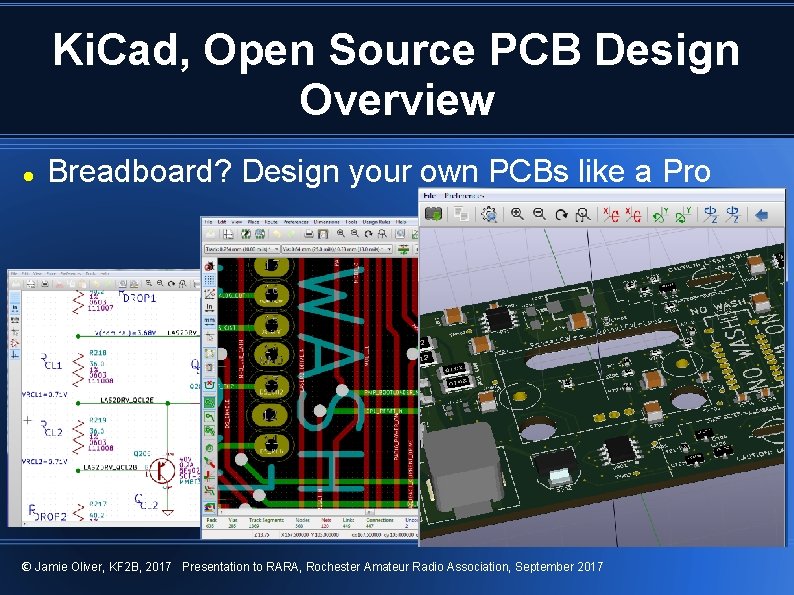
Ki. Cad, Open Source PCB Design Overview Breadboard? Design your own PCBs like a Pro © Jamie Oliver, KF 2 B, 2017 Presentation to RARA, Rochester Amateur Radio Association, September 2017
Assumptions: Intended Audience This presentation is a high level overview that assumes you have knowledge of: General knowledge of electronics PC Boards and general construction of PCBs Electronic Components Schematics © Jamie Oliver, KF 2 B, 2017 Presentation to RARA, Rochester Amateur Radio Association, September 2017
Assumptions: Intended Audience This presentation assumes you have limited to no knowledge of: The Ki. Cad schematic tool (EESchema) PC board design in general PC board design tools Making or knowing what component footprints are Using a footprint editor General PCB design flow and output files How to get a board made for you © Jamie Oliver, KF 2 B, 2017 Presentation to RARA, Rochester Amateur Radio Association, September 2017
Managing Expectations: There is a BIG learning curve to PCB layout It isn't rocket science but it takes time to learn the tool and PCB layout. Plan for it. Make the learning fun. Lost? There are tons of videos showing how to do just about everything Sources of Help are at the end of the presentation. Patience, Practice, and Persistence © Jamie Oliver, KF 2 B, 2017 Presentation to RARA, Rochester Amateur Radio Association, September 2017
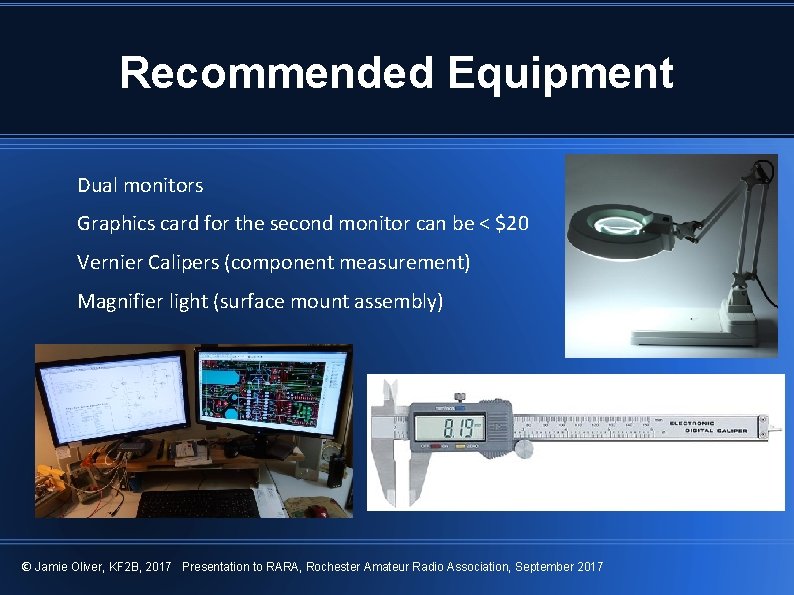
Recommended Equipment Dual monitors Graphics card for the second monitor can be < $20 Vernier Calipers (component measurement) Magnifier light (surface mount assembly) © Jamie Oliver, KF 2 B, 2017 Presentation to RARA, Rochester Amateur Radio Association, September 2017
Ki. Cad is a collection of several programs: Project Manager (Invoking Ki. Cad starts the project manager) Ki. Cad is designed around working on one project at a time, each PCB project is kept in it's own directory. EESchema is the Schematic program Schematic Library Editor PCBnew is the layout program Footprint Editor Gerb. View is the Gerber output file viewer PCB Calculator (Microstrip, Stripline, Coplanar Waveguide)
Components and basic PCB terminology copper layers in pairs primary side/secondary side (Front/Rear, Top/Bottom) solder mask (the green or colored stuff on the PCB) solder stencil (for surface mount solder pasting) Silkscreen (the white text on a PCB) nets or tracks (the “wires”) Symbol (schematic) and Footprint (PCB) Vias, Connection between tracks on different layers Plated holes, non-plated through holes “NPTH” and “SMD” pads Netlist BOM (Bill of Materials)
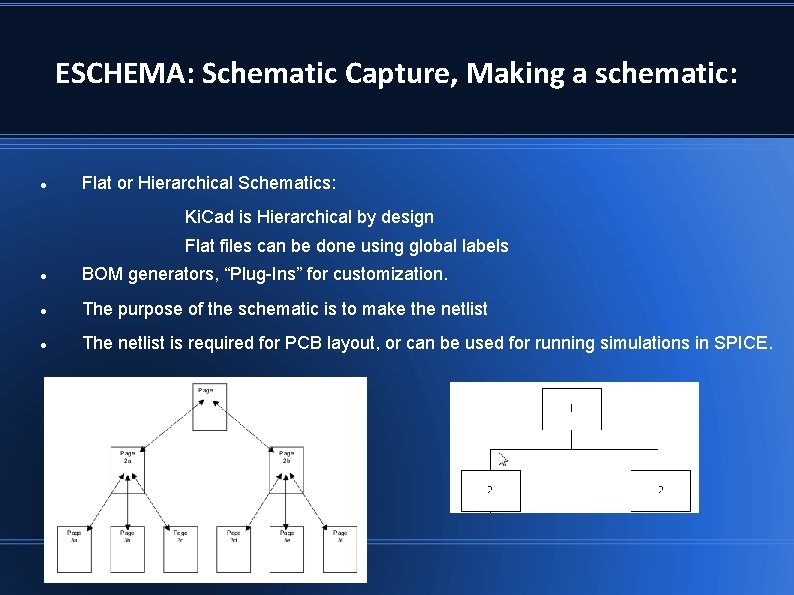
ESCHEMA: Schematic Capture, Making a schematic: Flat or Hierarchical Schematics: Ki. Cad is Hierarchical by design Flat files can be done using global labels BOM generators, “Plug-Ins” for customization. The purpose of the schematic is to make the netlist The netlist is required for PCB layout, or can be used for running simulations in SPICE.
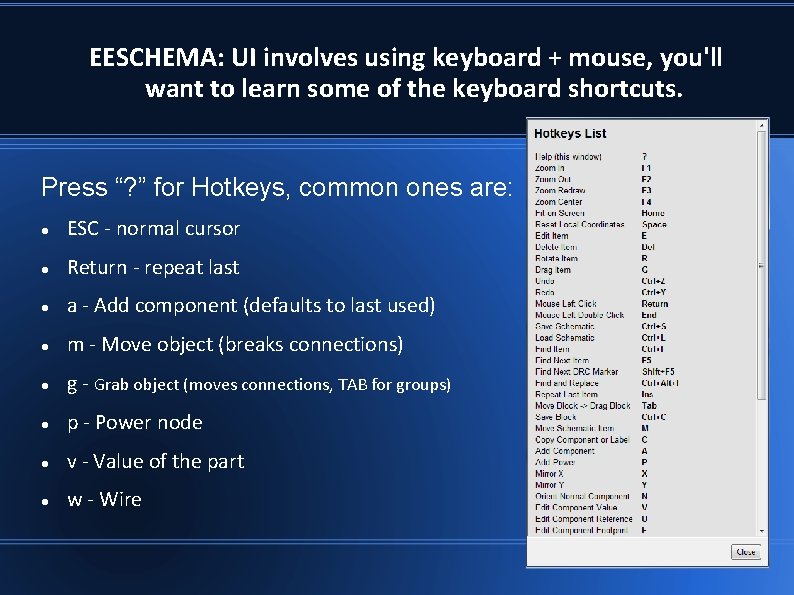
EESCHEMA: UI involves using keyboard + mouse, you'll want to learn some of the keyboard shortcuts. Press “? ” for Hotkeys, common ones are: ESC - normal cursor Return - repeat last a - Add component (defaults to last used) m - Move object (breaks connections) g - Grab object (moves connections, TAB for groups) p - Power node v - Value of the part w - Wire
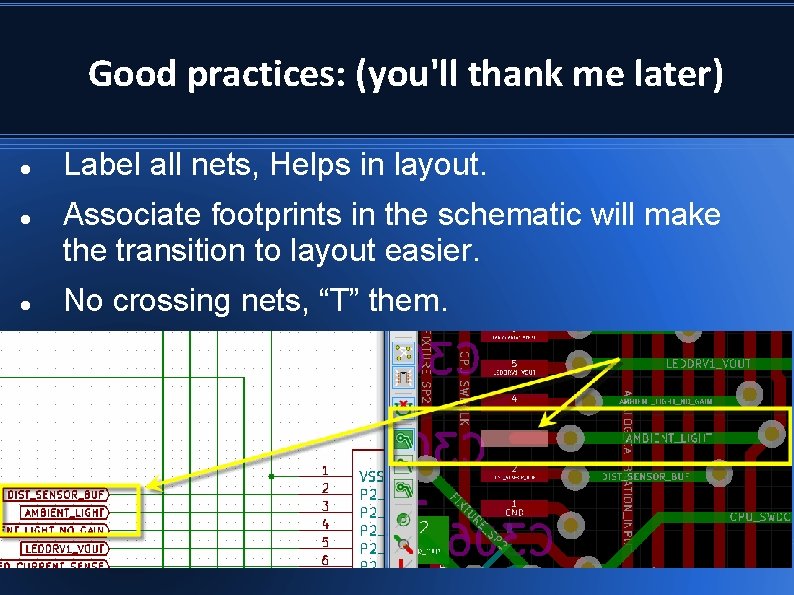
Good practices: (you'll thank me later) Label all nets, Helps in layout. Associate footprints in the schematic will make the transition to layout easier. No crossing nets, “T” them.
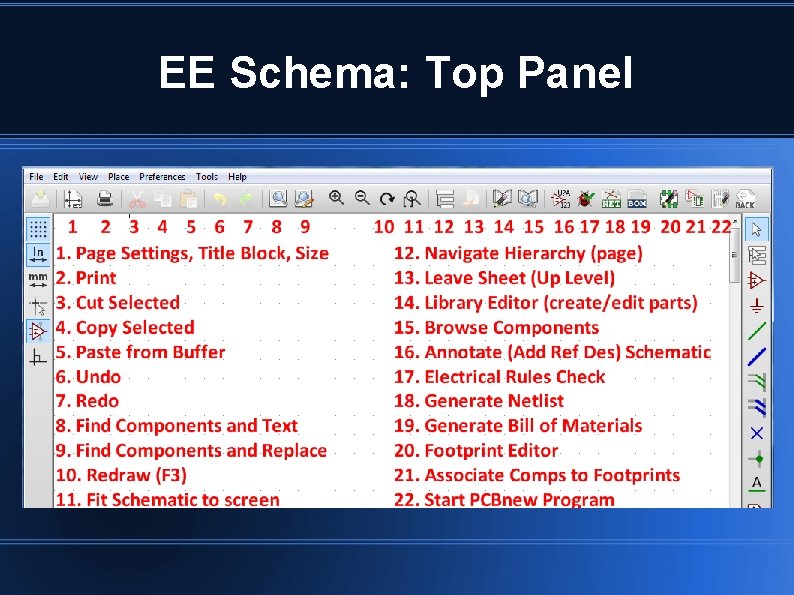
EE Schema: Top Panel
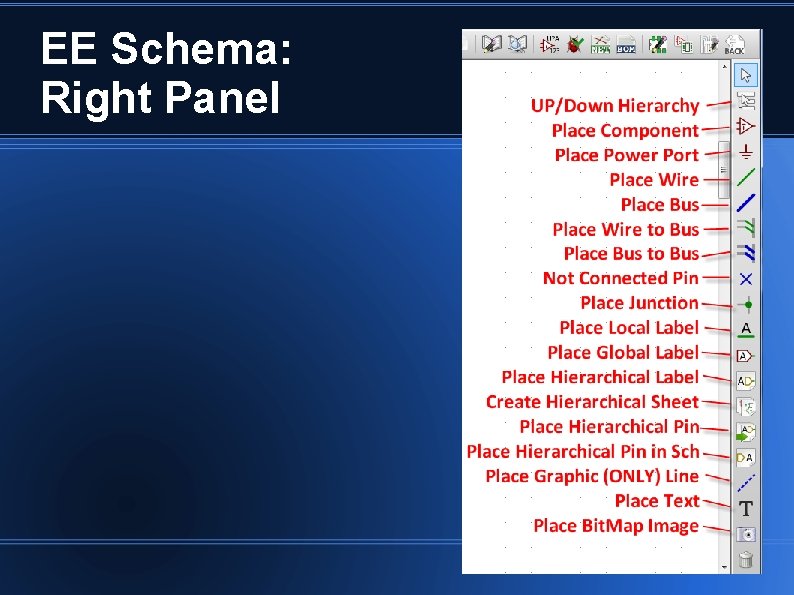
EE Schema: Right Panel
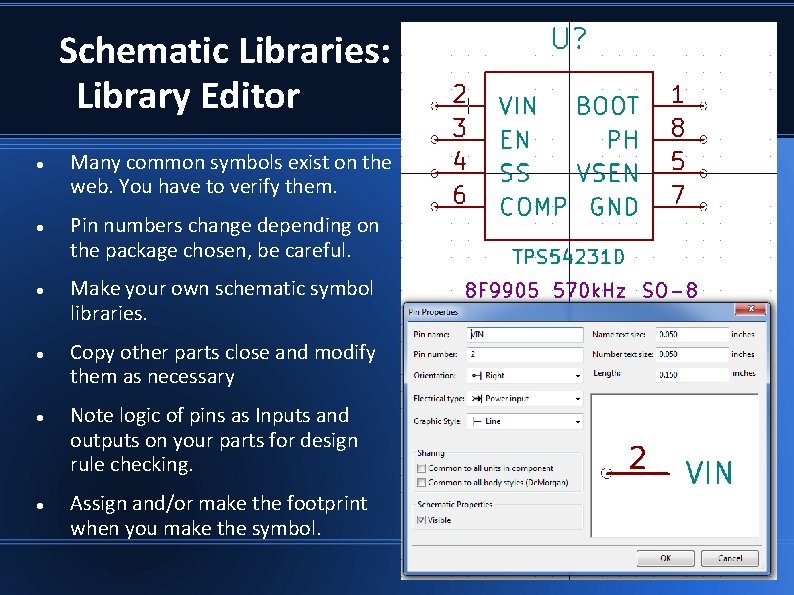
Schematic Libraries: Library Editor Many common symbols exist on the web. You have to verify them. Pin numbers change depending on the package chosen, be careful. Make your own schematic symbol libraries. Copy other parts close and modify them as necessary Note logic of pins as Inputs and outputs on your parts for design rule checking. Assign and/or make the footprint when you make the symbol.
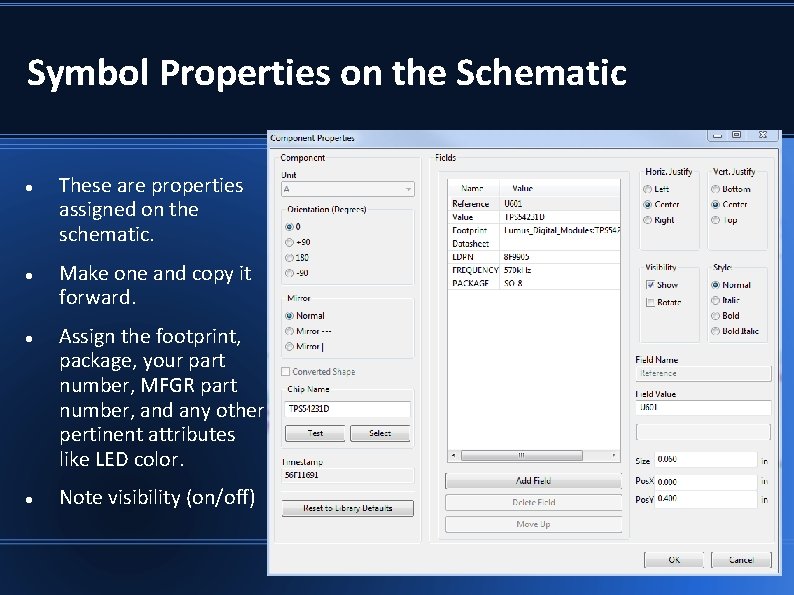
Symbol Properties on the Schematic These are properties assigned on the schematic. Make one and copy it forward. Assign the footprint, package, your part number, MFGR part number, and any other pertinent attributes like LED color. Note visibility (on/off)
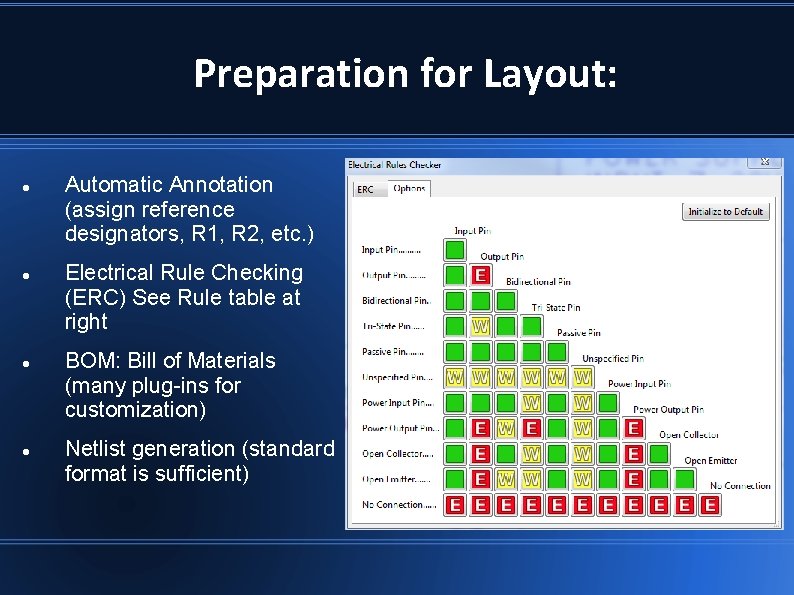
Preparation for Layout: Automatic Annotation (assign reference designators, R 1, R 2, etc. ) Electrical Rule Checking (ERC) See Rule table at right BOM: Bill of Materials (many plug-ins for customization) Netlist generation (standard format is sufficient)
Design your board with the PCB vendor limitations in mind Not really an issue for industrial or volume applications but hobby runs are different. Itead Studio and Osh Park are popular and I have had good results but you should know their limitations. Key differences can be limitations of: board size and thickness, slots, large holes, copper thickness, minimum trace thickness and clearance, minimum via size, etc.
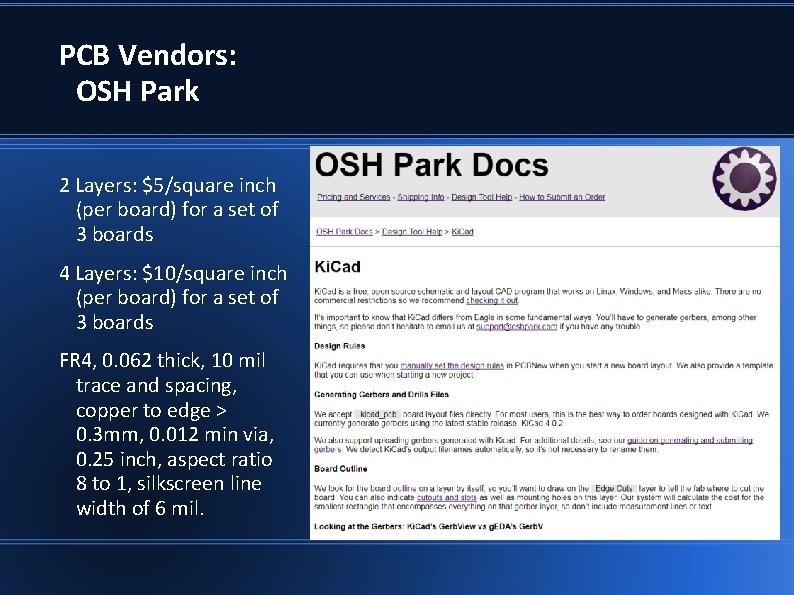
PCB Vendors: OSH Park 2 Layers: $5/square inch (per board) for a set of 3 boards 4 Layers: $10/square inch (per board) for a set of 3 boards FR 4, 0. 062 thick, 10 mil trace and spacing, copper to edge > 0. 3 mm, 0. 012 min via, 0. 25 inch, aspect ratio 8 to 1, silkscreen line width of 6 mil.
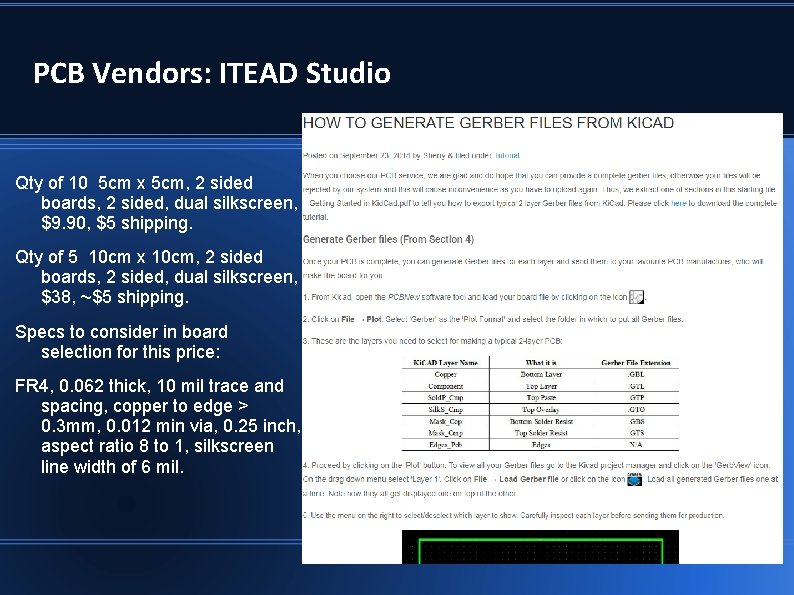
PCB Vendors: ITEAD Studio Qty of 10 5 cm x 5 cm, 2 sided boards, 2 sided, dual silkscreen, $9. 90, $5 shipping. Qty of 5 10 cm x 10 cm, 2 sided boards, 2 sided, dual silkscreen, $38, ~$5 shipping. Specs to consider in board selection for this price: FR 4, 0. 062 thick, 10 mil trace and spacing, copper to edge > 0. 3 mm, 0. 012 min via, 0. 25 inch, aspect ratio 8 to 1, silkscreen line width of 6 mil.
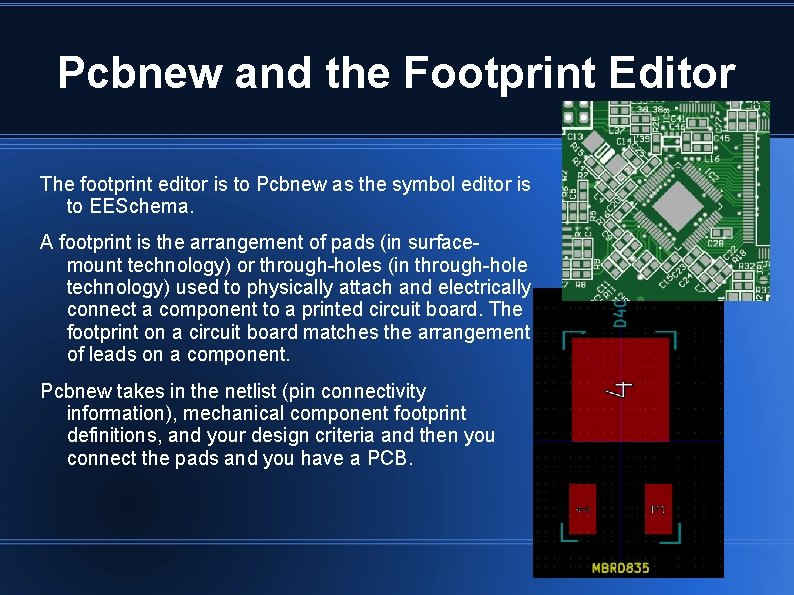
Pcbnew and the Footprint Editor The footprint editor is to Pcbnew as the symbol editor is to EESchema. A footprint is the arrangement of pads (in surfacemount technology) or through-holes (in through-hole technology) used to physically attach and electrically connect a component to a printed circuit board. The footprint on a circuit board matches the arrangement of leads on a component. Pcbnew takes in the netlist (pin connectivity information), mechanical component footprint definitions, and your design criteria and then you connect the pads and you have a PCB.
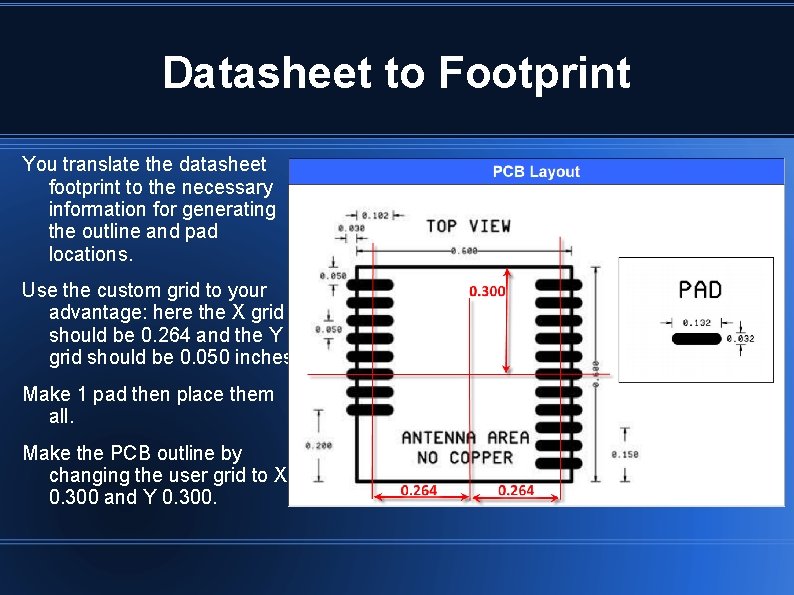
Datasheet to Footprint You translate the datasheet footprint to the necessary information for generating the outline and pad locations. Use the custom grid to your advantage: here the X grid should be 0. 264 and the Y grid should be 0. 050 inches. Make 1 pad then place them all. Make the PCB outline by changing the user grid to X 0. 300 and Y 0. 300.
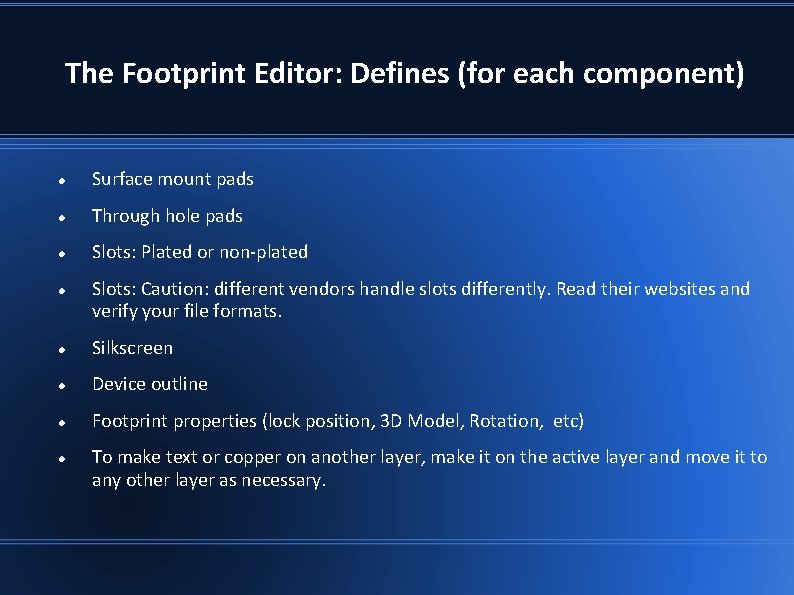
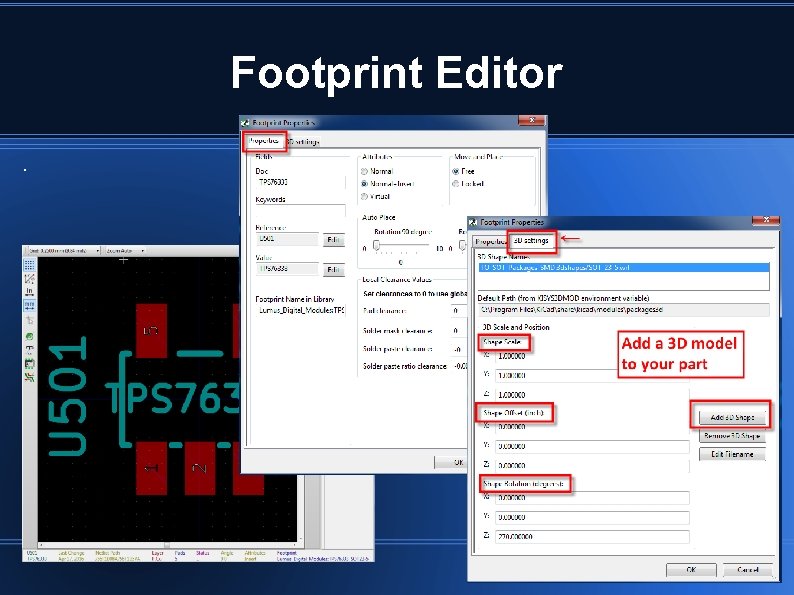
The Footprint Editor: Defines (for each component) Surface mount pads Through hole pads Slots: Plated or non-plated Slots: Caution: different vendors handle slots differently. Read their websites and verify your file formats. Silkscreen Device outline Footprint properties (lock position, 3 D Model, Rotation, etc) To make text or copper on another layer, make it on the active layer and move it to any other layer as necessary.
Footprint Editor.
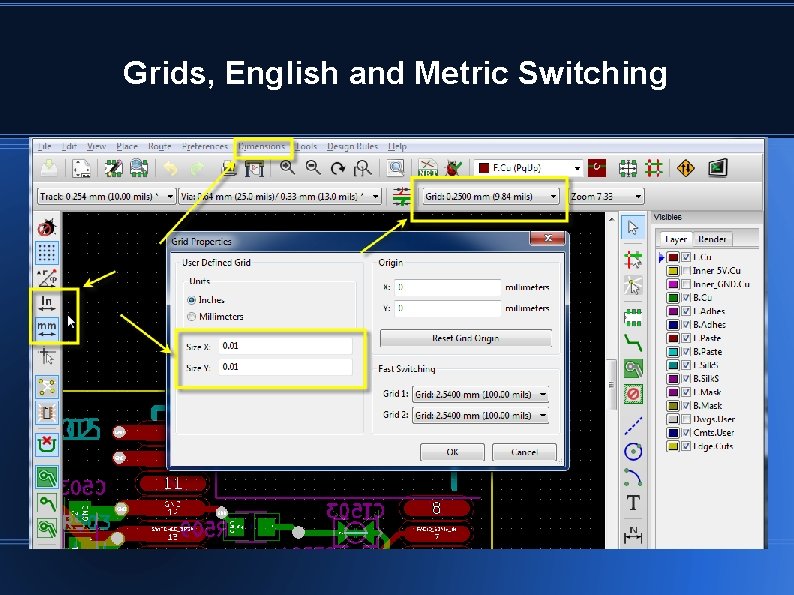
Grids, English and Metric Switching
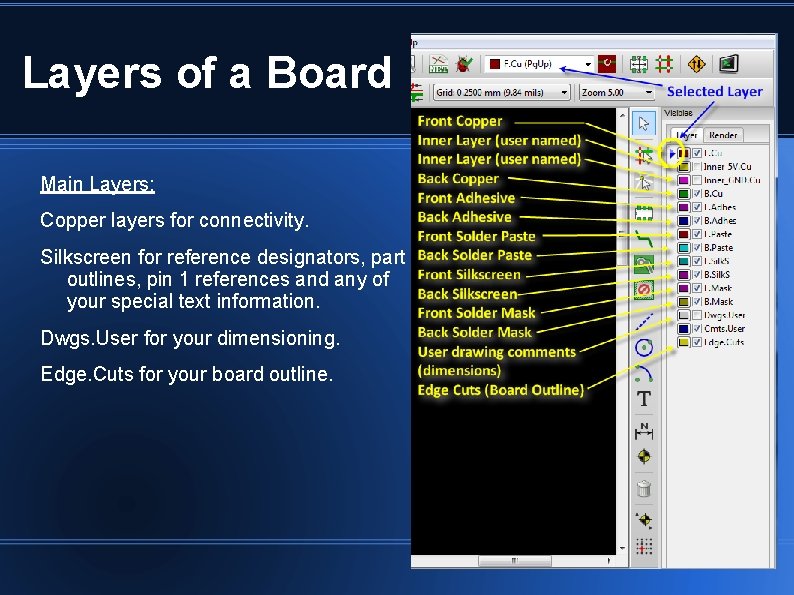
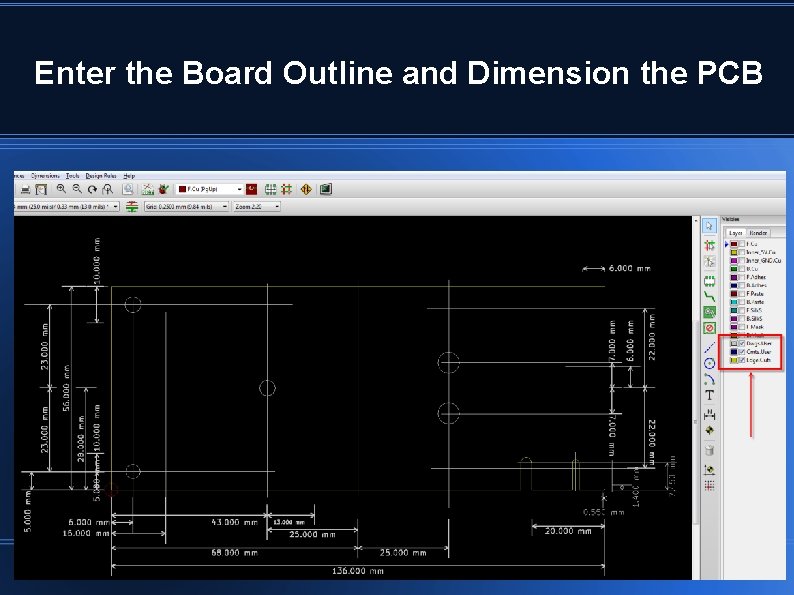
Layers of a Board Main Layers: Copper layers for connectivity. Silkscreen for reference designators, part outlines, pin 1 references and any of your special text information. Dwgs. User for your dimensioning. Edge. Cuts for your board outline.
Enter the Board Outline and Dimension the PCB
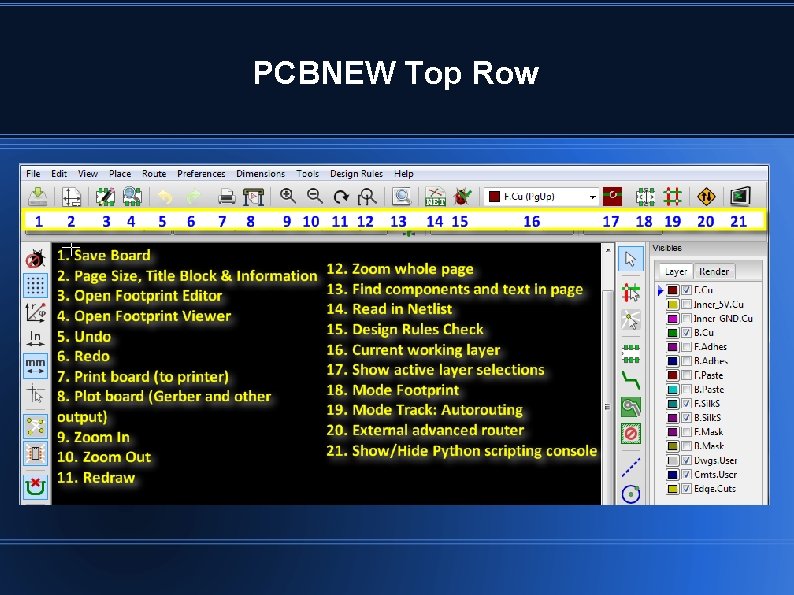
PCBNEW Top Row
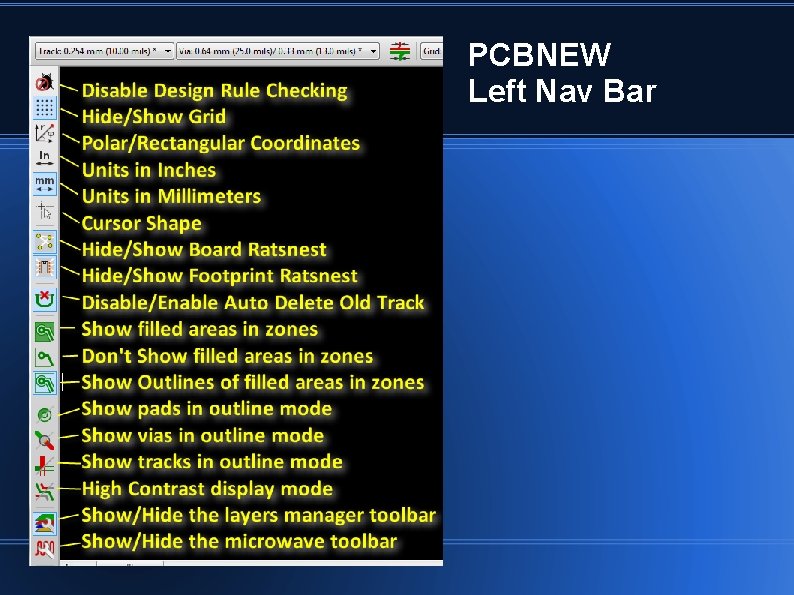
PCBNEW Left Nav Bar
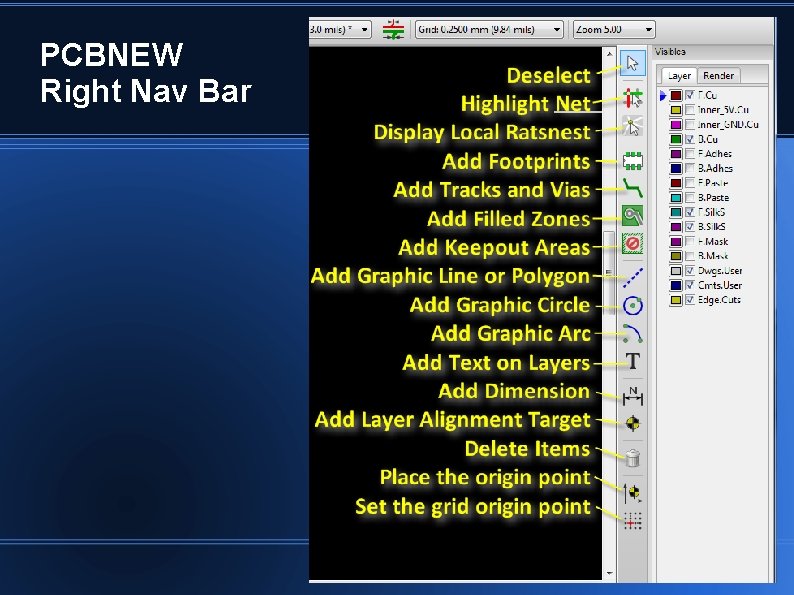
PCBNEW Right Nav Bar
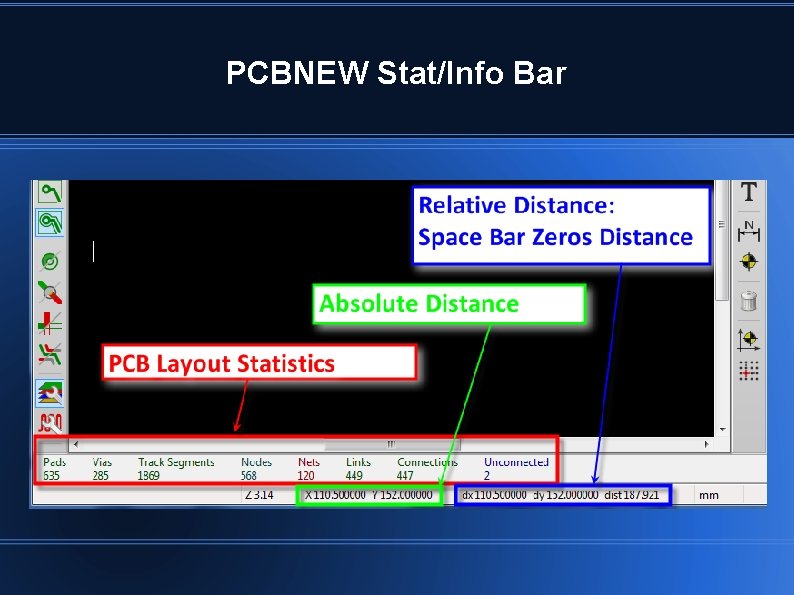
PCBNEW Stat/Info Bar
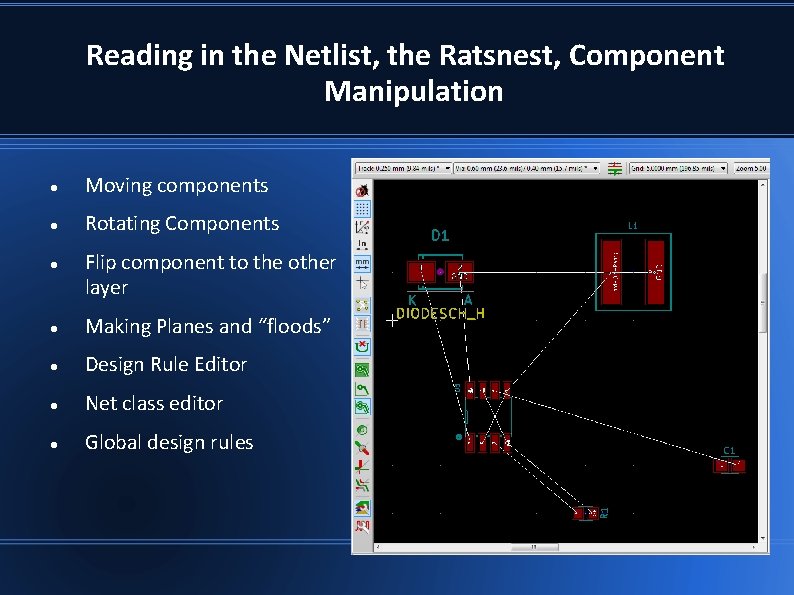
Reading in the Netlist, the Ratsnest, Component Manipulation Moving components Rotating Components Flip component to the other layer Making Planes and “floods” Design Rule Editor Net class editor Global design rules
Routing Switch to Default Canvas, F 9 Switch to Open. GL Canvas, F 11 Switch to Cairo Canvas, F 12 Moving, placing, flipping, rotating components Placing tracks and zooming Push and Shove routing, Open. GL “F 11”, “X” then “E” for mode setting. https: //www. youtube. com/watch? v=fdfz_c 5 Mbrc
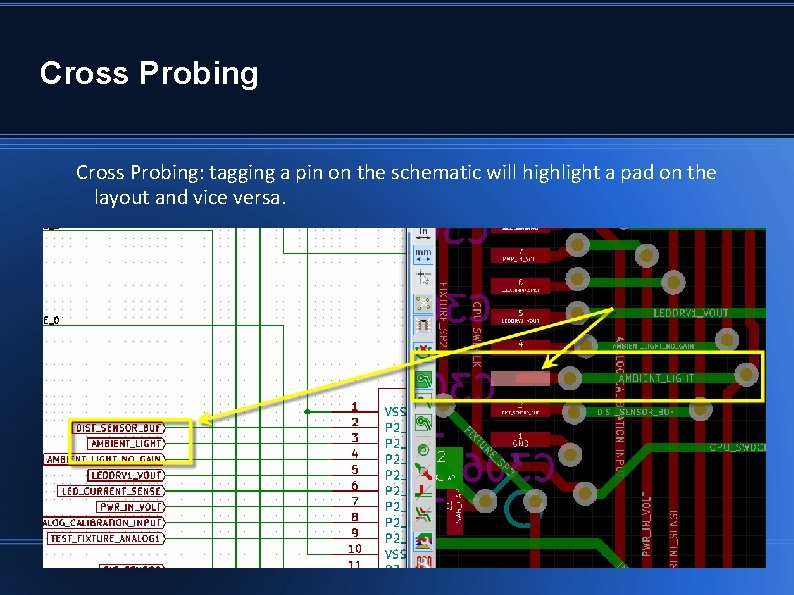
Cross Probing: tagging a pin on the schematic will highlight a pad on the layout and vice versa.
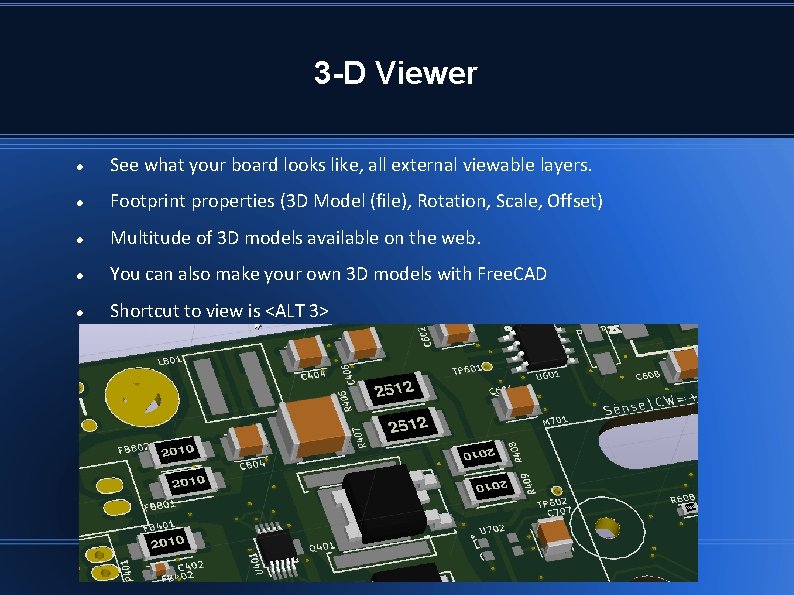
3 -D Viewer See what your board looks like, all external viewable layers. Footprint properties (3 D Model (file), Rotation, Scale, Offset) Multitude of 3 D models available on the web. You can also make your own 3 D models with Free. CAD Shortcut to view is <ALT 3>
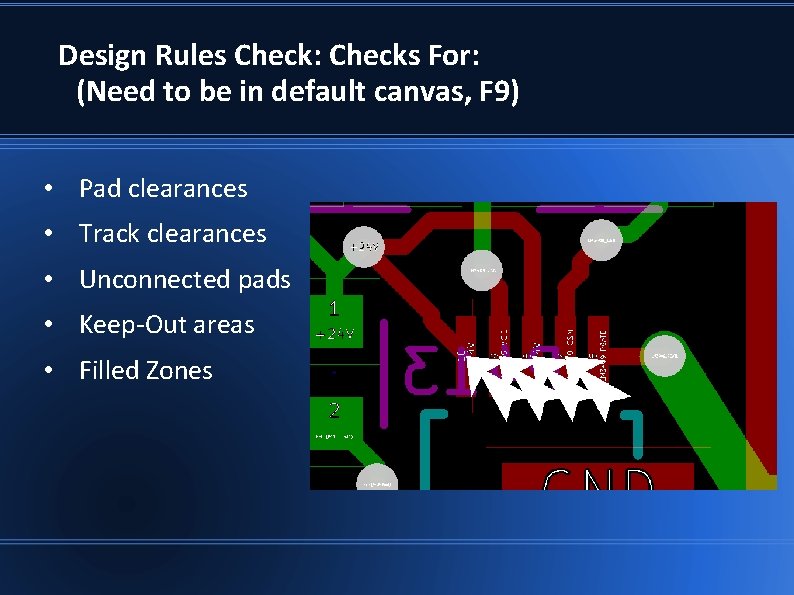
Design Rules Check: Checks For: (Need to be in default canvas, F 9) • Pad clearances • Track clearances • Unconnected pads • Keep-Out areas • Filled Zones
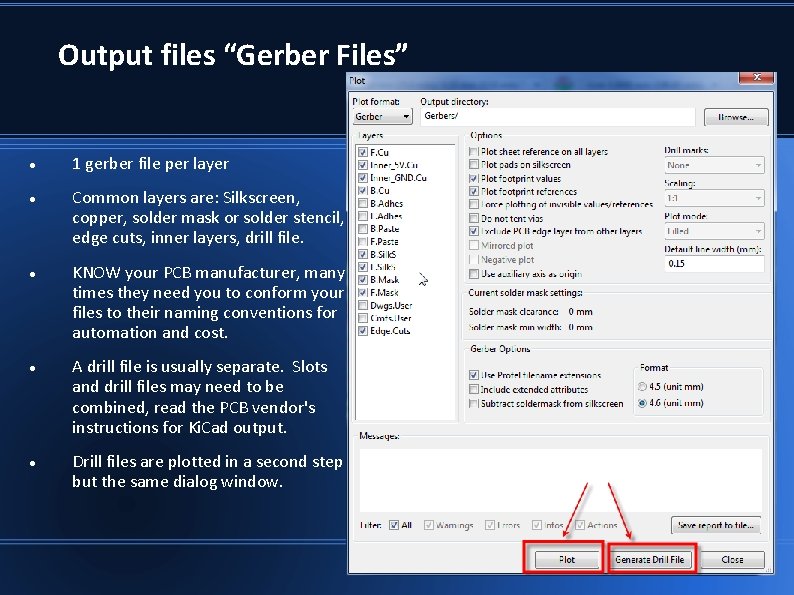
Output files “Gerber Files” 1 gerber file per layer Common layers are: Silkscreen, copper, solder mask or solder stencil, edge cuts, inner layers, drill file. KNOW your PCB manufacturer, many times they need you to conform your files to their naming conventions for automation and cost. A drill file is usually separate. Slots and drill files may need to be combined, read the PCB vendor's instructions for Ki. Cad output. Drill files are plotted in a second step but the same dialog window.
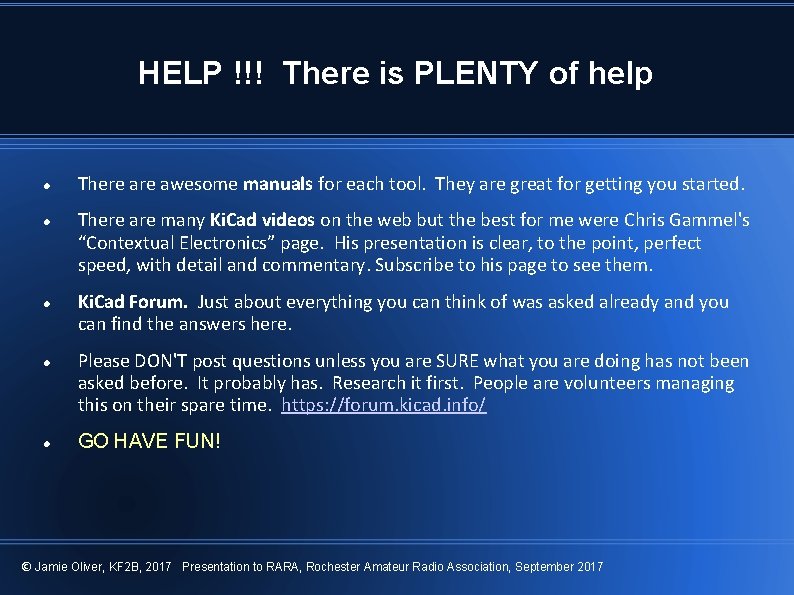
HELP !!! There is PLENTY of help There awesome manuals for each tool. They are great for getting you started. There are many Ki. Cad videos on the web but the best for me were Chris Gammel's “Contextual Electronics” page. His presentation is clear, to the point, perfect speed, with detail and commentary. Subscribe to his page to see them. Ki. Cad Forum. Just about everything you can think of was asked already and you can find the answers here. Please DON'T post questions unless you are SURE what you are doing has not been asked before. It probably has. Research it first. People are volunteers managing this on their spare time. https: //forum. kicad. info/ GO HAVE FUN! © Jamie Oliver, KF 2 B, 2017 Presentation to RARA, Rochester Amateur Radio Association, September 2017
The End GO HAVE FUN! Extras on following pages © Jamie Oliver, KF 2 B, 2017 Presentation to RARA, Rochester Amateur Radio Association, September 2017
Extras: Other PCB Manufacturers USA – x UK Other Countries © Jamie Oliver, KF 2 B, 2017 Presentation to RARA, Rochester Amateur Radio Association, September 2017
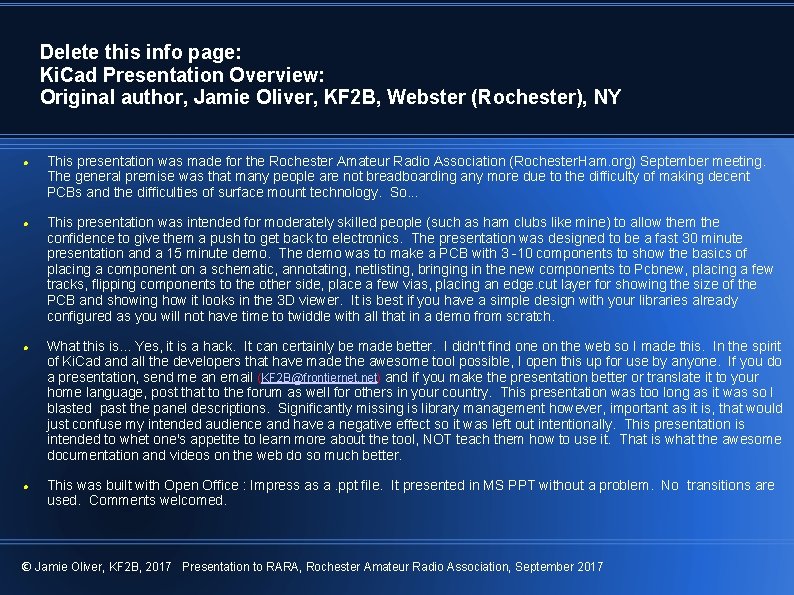
Delete this info page: Ki. Cad Presentation Overview: Original author, Jamie Oliver, KF 2 B, Webster (Rochester), NY This presentation was made for the Rochester Amateur Radio Association (Rochester. Ham. org) September meeting. The general premise was that many people are not breadboarding any more due to the difficulty of making decent PCBs and the difficulties of surface mount technology. So. . . This presentation was intended for moderately skilled people (such as ham clubs like mine) to allow them the confidence to give them a push to get back to electronics. The presentation was designed to be a fast 30 minute presentation and a 15 minute demo. The demo was to make a PCB with 3 -10 components to show the basics of placing a component on a schematic, annotating, netlisting, bringing in the new components to Pcbnew, placing a few tracks, flipping components to the other side, place a few vias, placing an edge. cut layer for showing the size of the PCB and showing how it looks in the 3 D viewer. It is best if you have a simple design with your libraries already configured as you will not have time to twiddle with all that in a demo from scratch. What this is. . . Yes, it is a hack. It can certainly be made better. I didn't find one on the web so I made this. In the spirit of Ki. Cad and all the developers that have made the awesome tool possible, I open this up for use by anyone. If you do a presentation, send me an email (KF 2 B@frontiernet. net) and if you make the presentation better or translate it to your home language, post that to the forum as well for others in your country. This presentation was too long as it was so I blasted past the panel descriptions. Significantly missing is library management however, important as it is, that would just confuse my intended audience and have a negative effect so it was left out intentionally. This presentation is intended to whet one's appetite to learn more about the tool, NOT teach them how to use it. That is what the awesome documentation and videos on the web do so much better. This was built with Open Office : Impress as a. ppt file. It presented in MS PPT without a problem. No transitions are used. Comments welcomed. © Jamie Oliver, KF 2 B, 2017 Presentation to RARA, Rochester Amateur Radio Association, September 2017
Updates (but didn't change the revision in the file due to the fact it would break the link) Version 3 though. . . V 3: added the valid point made by “rachdatu” to add a simple note about Free. CAD on slide 34. Thanks! © Jamie Oliver, KF 2 B, 2017 Presentation to RARA, Rochester Amateur Radio Association, September 2017