
Defining Inventory Storage Location Defaults Concept Defining Inventory
- Slides: 24
Defining Inventory Storage Location Defaults Concept
Defining Inventory Storage Location Defaults
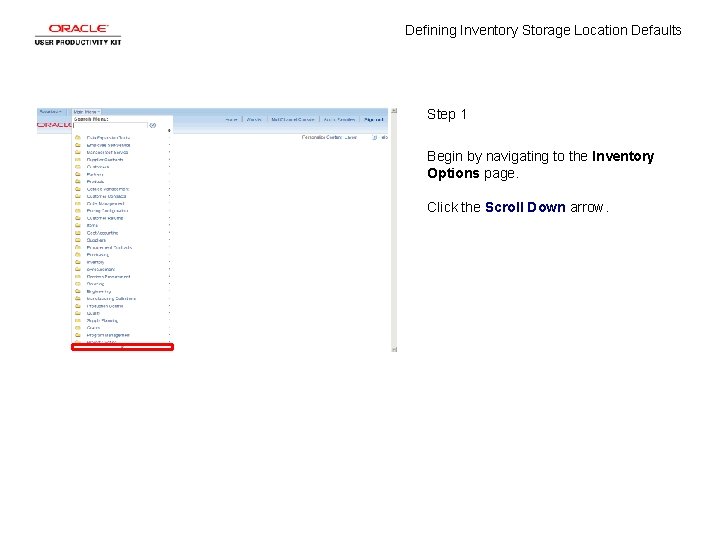
Defining Inventory Storage Location Defaults Step 1 Begin by navigating to the Inventory Options page. Click the Scroll Down arrow.
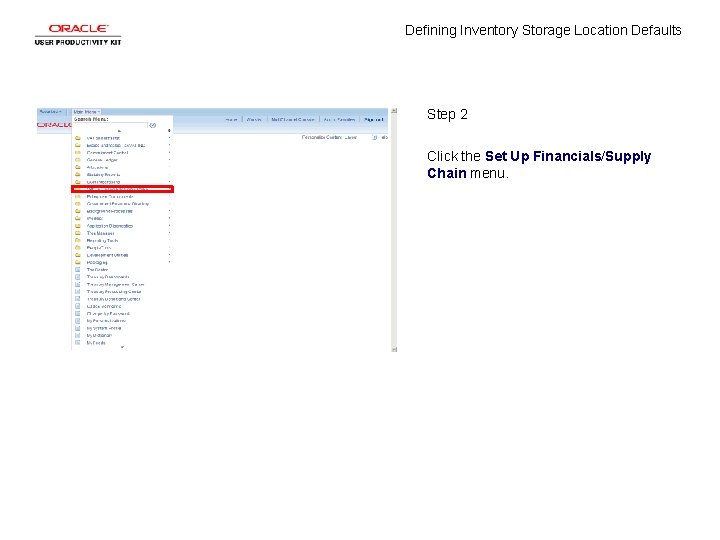
Defining Inventory Storage Location Defaults Step 2 Click the Set Up Financials/Supply Chain menu.
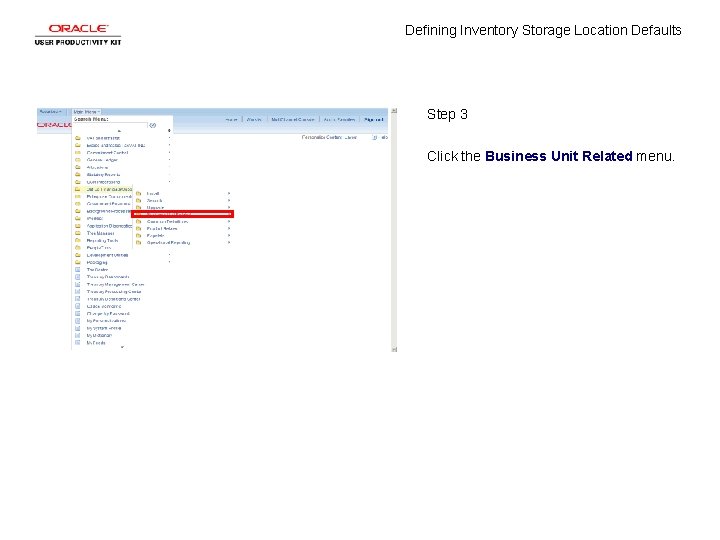
Defining Inventory Storage Location Defaults Step 3 Click the Business Unit Related menu.
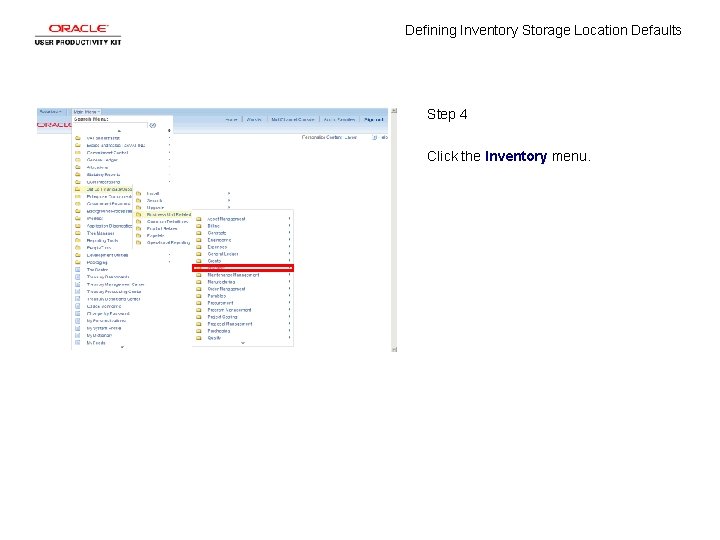
Defining Inventory Storage Location Defaults Step 4 Click the Inventory menu.
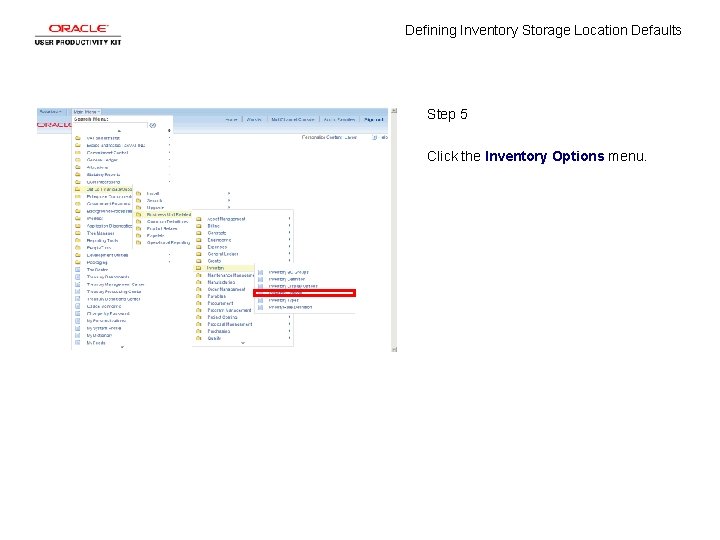
Defining Inventory Storage Location Defaults Step 5 Click the Inventory Options menu.
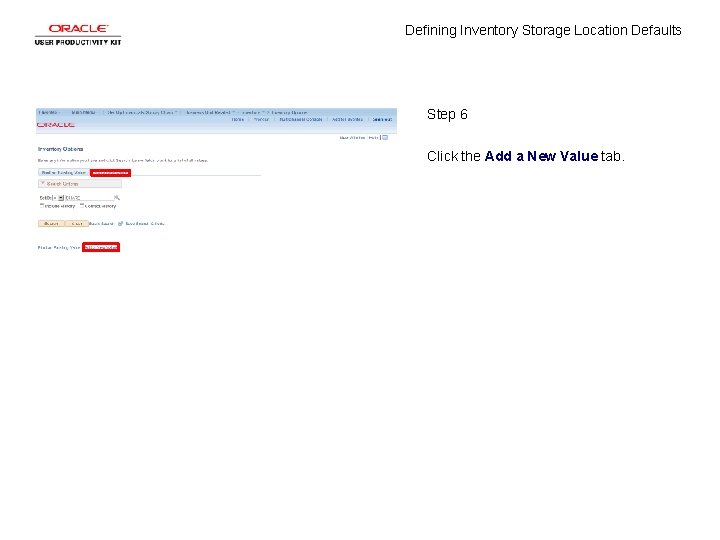
Defining Inventory Storage Location Defaults Step 6 Click the Add a New Value tab.
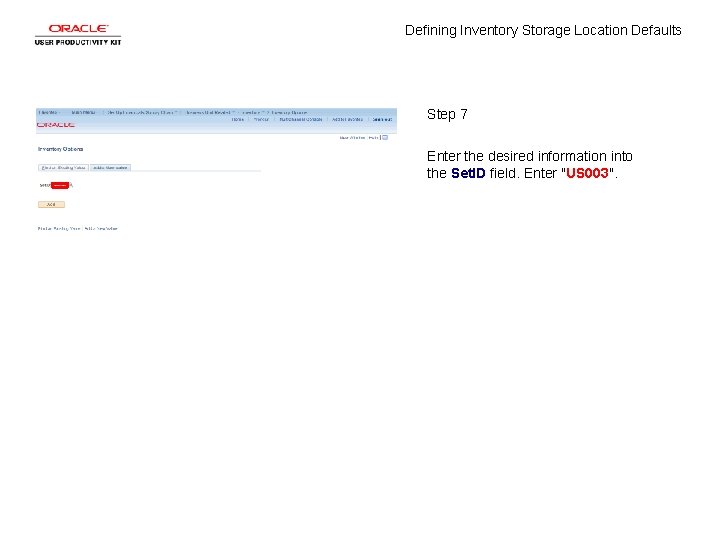
Defining Inventory Storage Location Defaults Step 7 Enter the desired information into the Set. ID field. Enter "US 003".
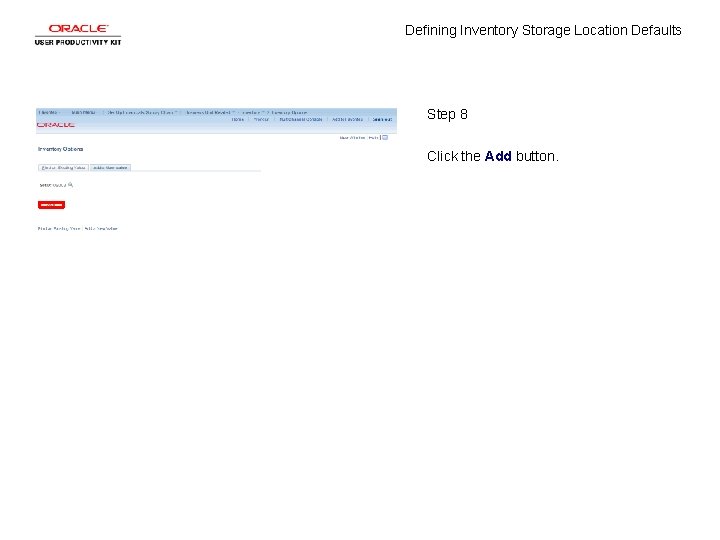
Defining Inventory Storage Location Defaults Step 8 Click the Add button.
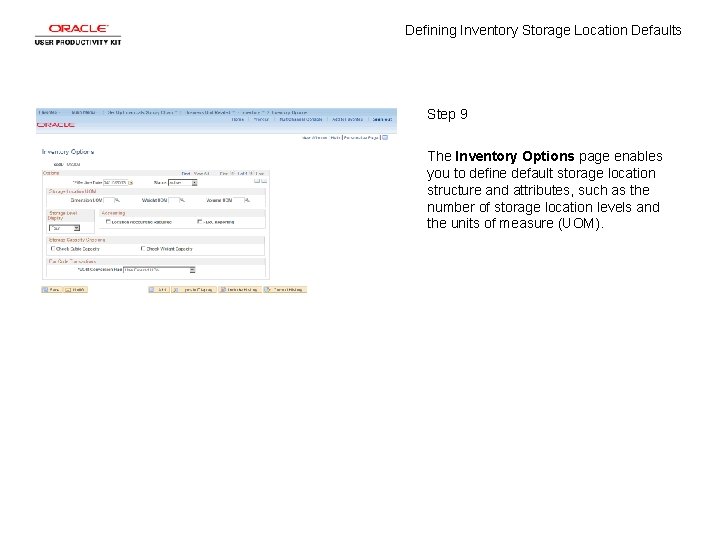
Defining Inventory Storage Location Defaults Step 9 The Inventory Options page enables you to define default storage location structure and attributes, such as the number of storage location levels and the units of measure (UOM).
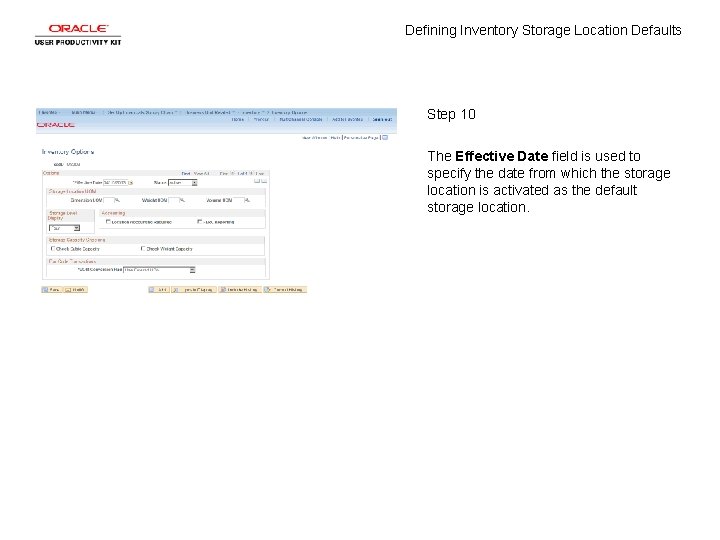
Defining Inventory Storage Location Defaults Step 10 The Effective Date field is used to specify the date from which the storage location is activated as the default storage location.
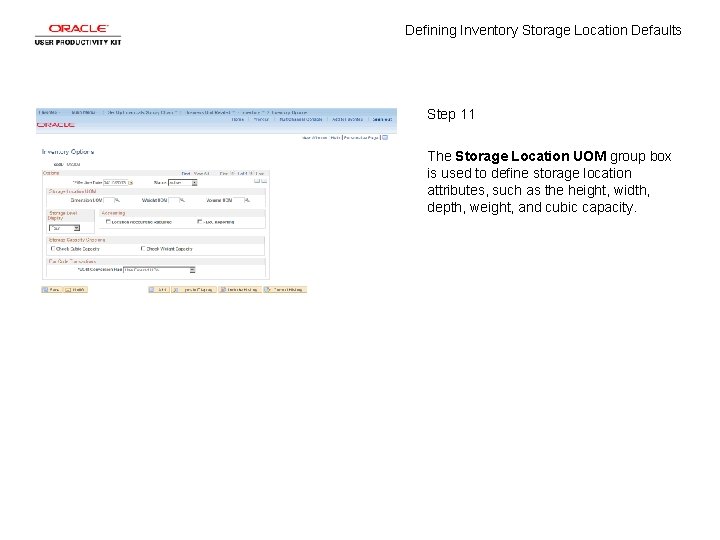
Defining Inventory Storage Location Defaults Step 11 The Storage Location UOM group box is used to define storage location attributes, such as the height, width, depth, weight, and cubic capacity.
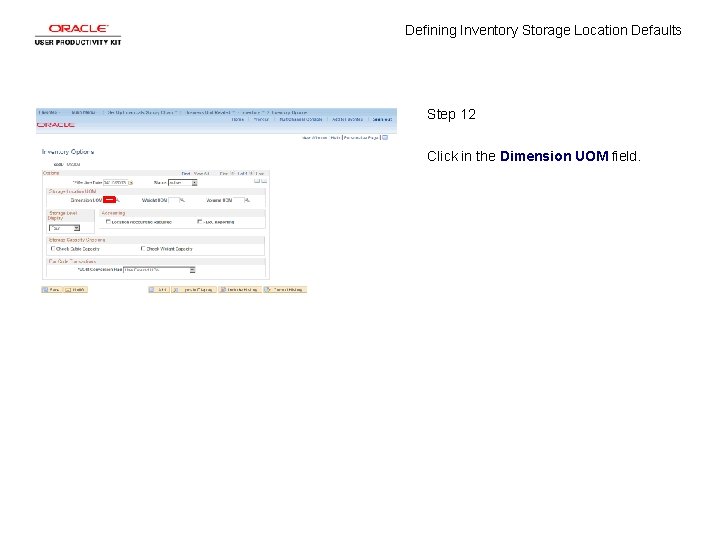
Defining Inventory Storage Location Defaults Step 12 Click in the Dimension UOM field.
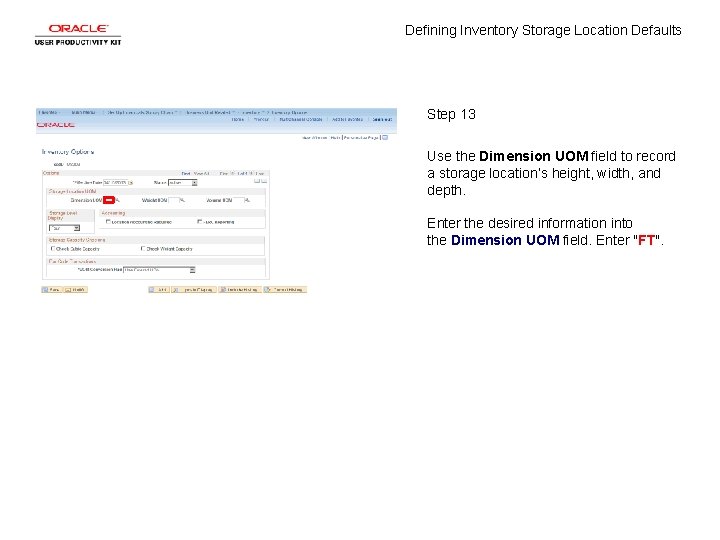
Defining Inventory Storage Location Defaults Step 13 Use the Dimension UOM field to record a storage location’s height, width, and depth. Enter the desired information into the Dimension UOM field. Enter "FT".
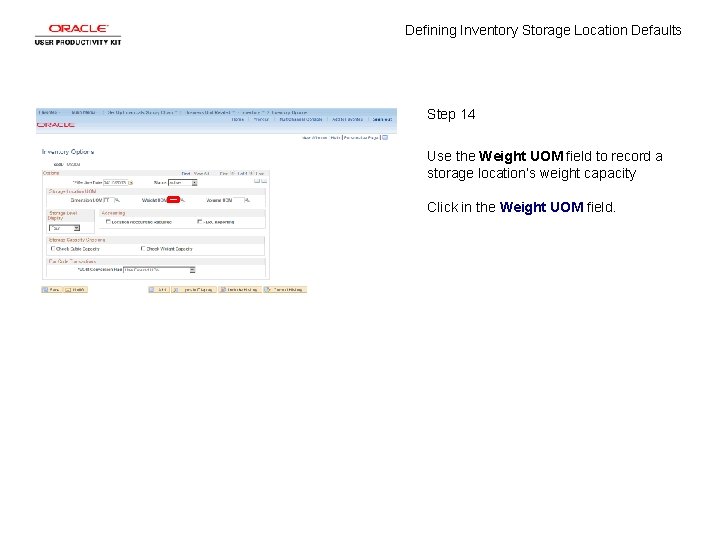
Defining Inventory Storage Location Defaults Step 14 Use the Weight UOM field to record a storage location’s weight capacity Click in the Weight UOM field.
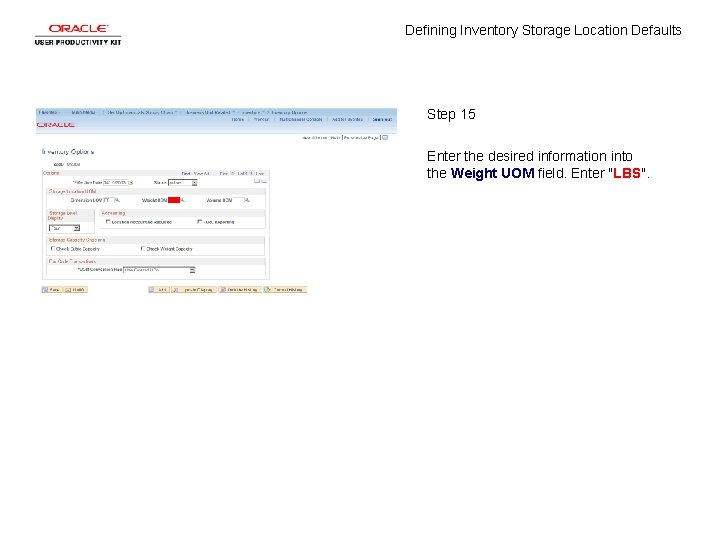
Defining Inventory Storage Location Defaults Step 15 Enter the desired information into the Weight UOM field. Enter "LBS".
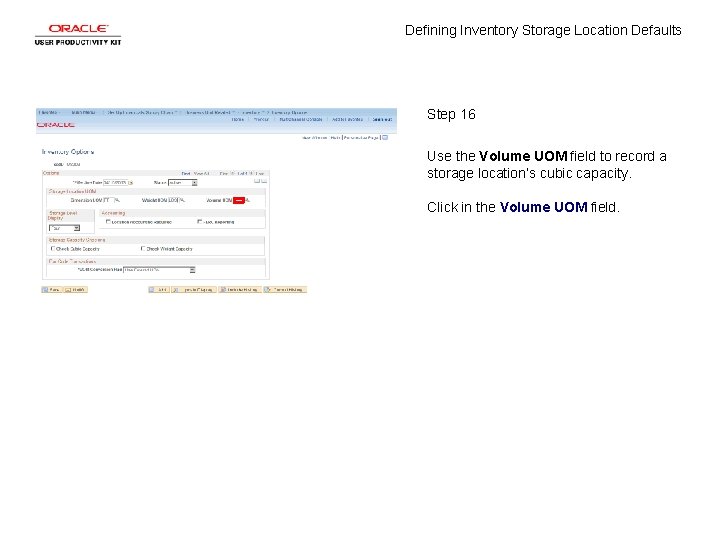
Defining Inventory Storage Location Defaults Step 16 Use the Volume UOM field to record a storage location’s cubic capacity. Click in the Volume UOM field.
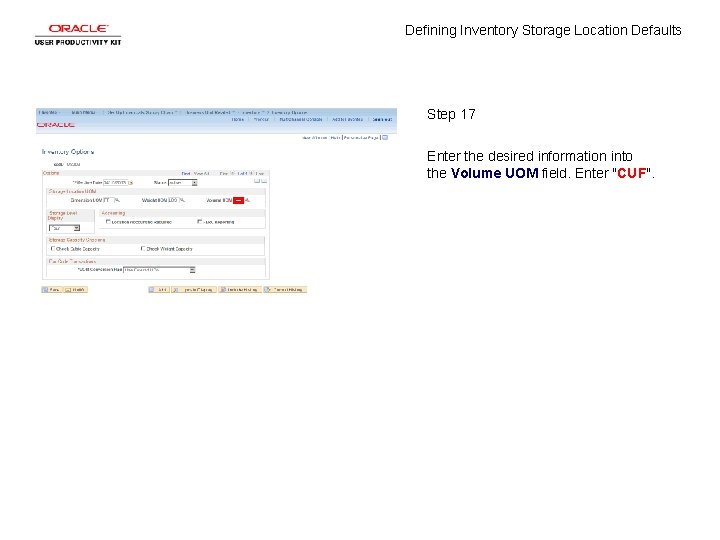
Defining Inventory Storage Location Defaults Step 17 Enter the desired information into the Volume UOM field. Enter "CUF".
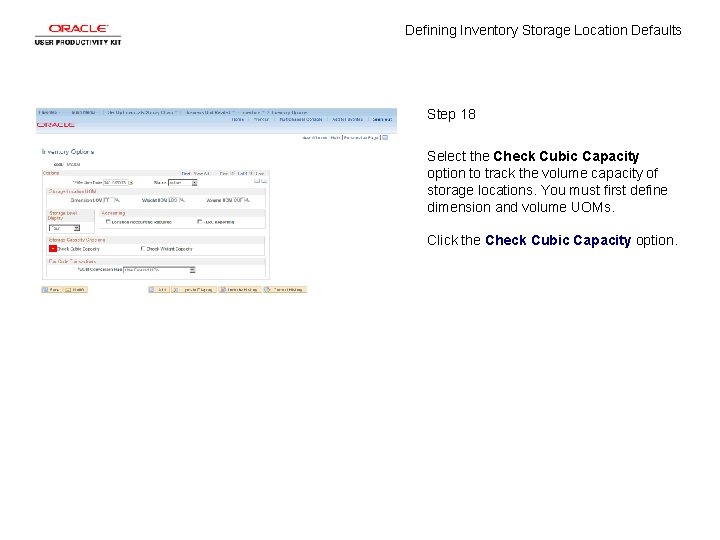
Defining Inventory Storage Location Defaults Step 18 Select the Check Cubic Capacity option to track the volume capacity of storage locations. You must first define dimension and volume UOMs. Click the Check Cubic Capacity option.
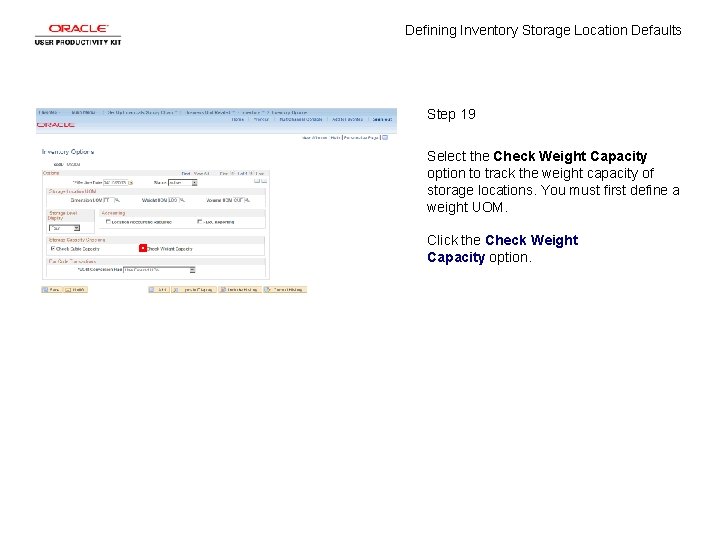
Defining Inventory Storage Location Defaults Step 19 Select the Check Weight Capacity option to track the weight capacity of storage locations. You must first define a weight UOM. Click the Check Weight Capacity option.
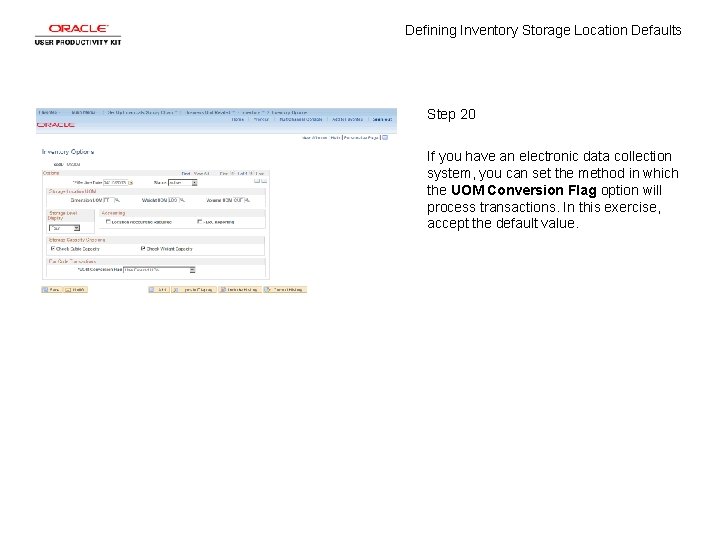
Defining Inventory Storage Location Defaults Step 20 If you have an electronic data collection system, you can set the method in which the UOM Conversion Flag option will process transactions. In this exercise, accept the default value.
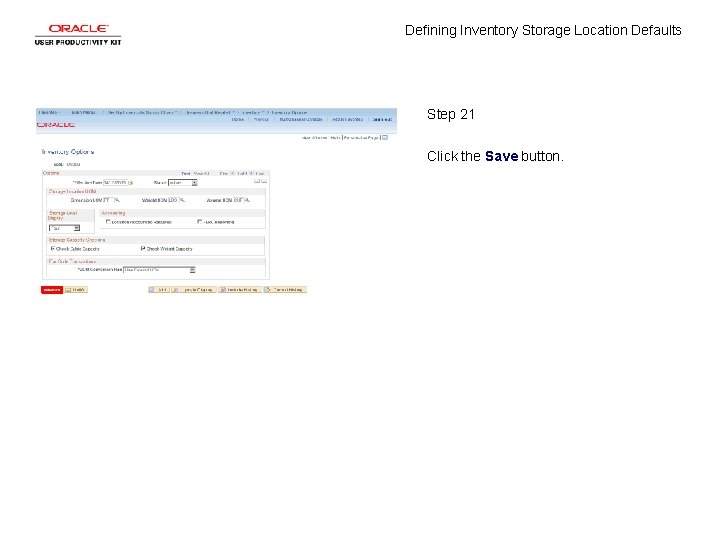
Defining Inventory Storage Location Defaults Step 21 Click the Save button.
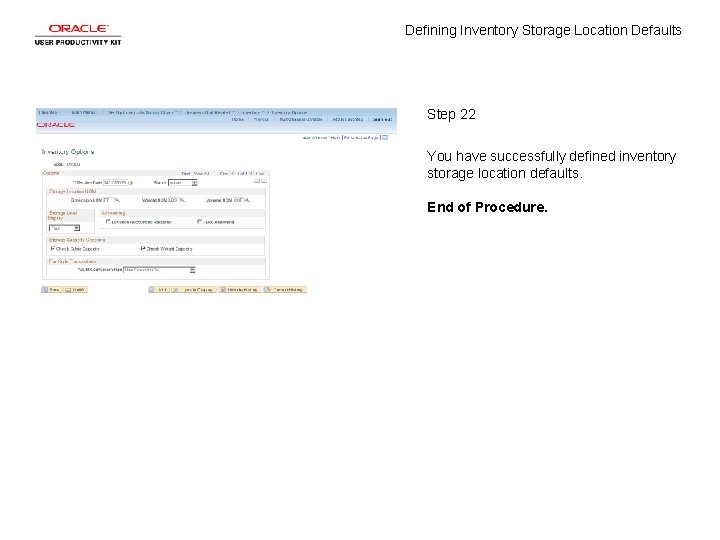
Defining Inventory Storage Location Defaults Step 22 You have successfully defined inventory storage location defaults. End of Procedure.