
Defining Fulfillment Setup for Business Units Concept Defining
Defining Fulfillment Setup for Business Units Concept
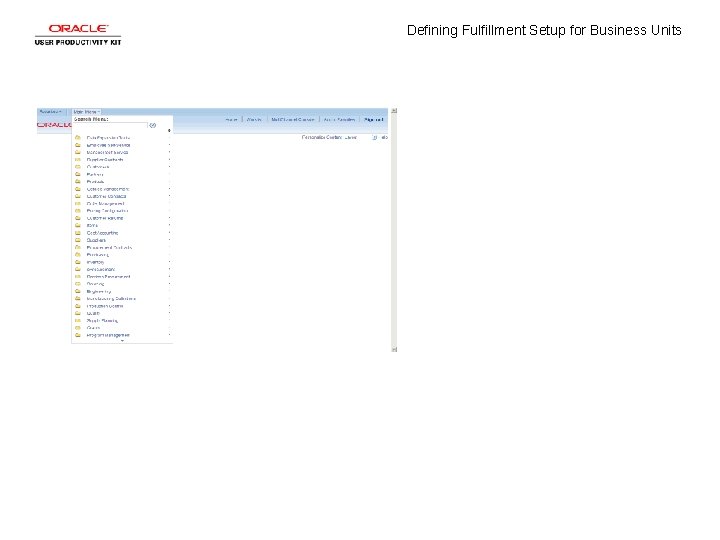
Defining Fulfillment Setup for Business Units
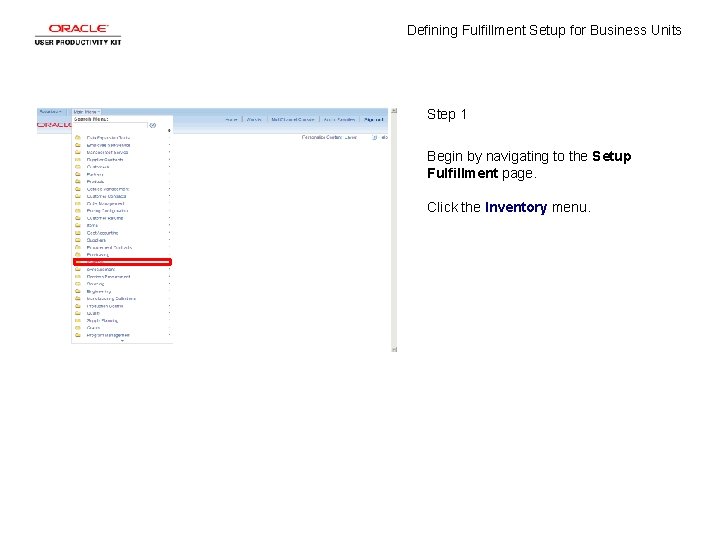
Defining Fulfillment Setup for Business Units Step 1 Begin by navigating to the Setup Fulfillment page. Click the Inventory menu.
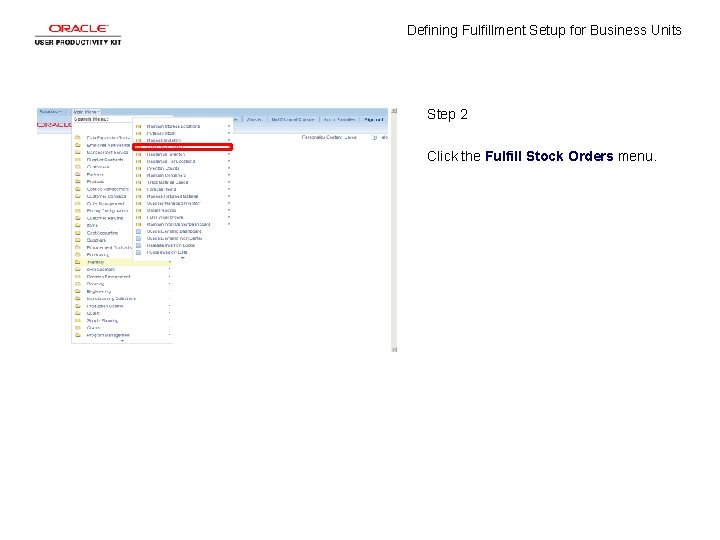
Defining Fulfillment Setup for Business Units Step 2 Click the Fulfill Stock Orders menu.
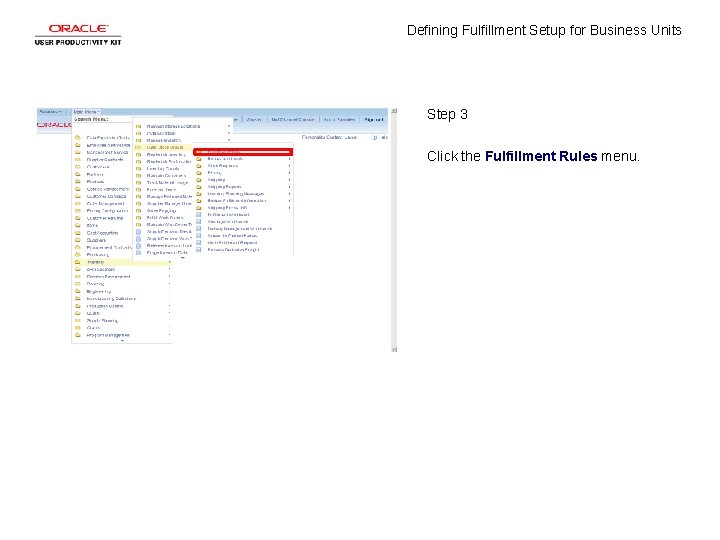
Defining Fulfillment Setup for Business Units Step 3 Click the Fulfillment Rules menu.
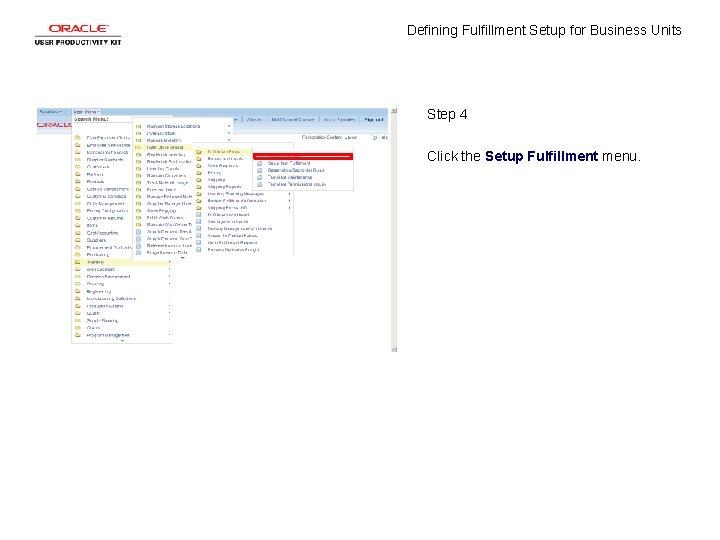
Defining Fulfillment Setup for Business Units Step 4 Click the Setup Fulfillment menu.
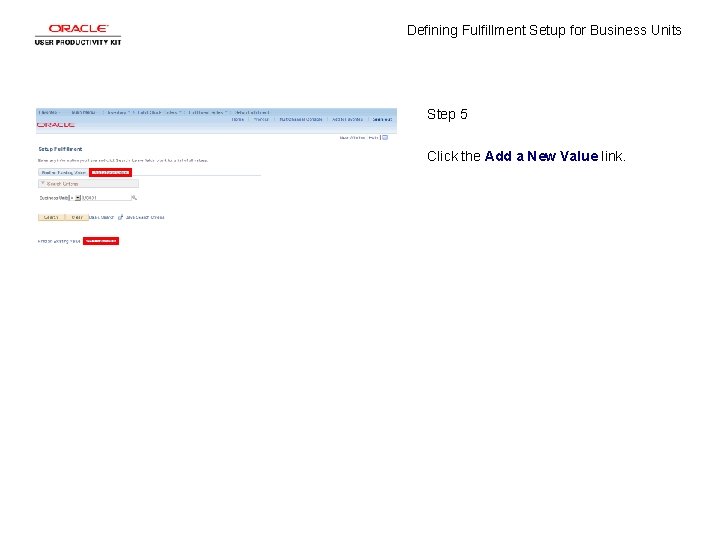
Defining Fulfillment Setup for Business Units Step 5 Click the Add a New Value link.
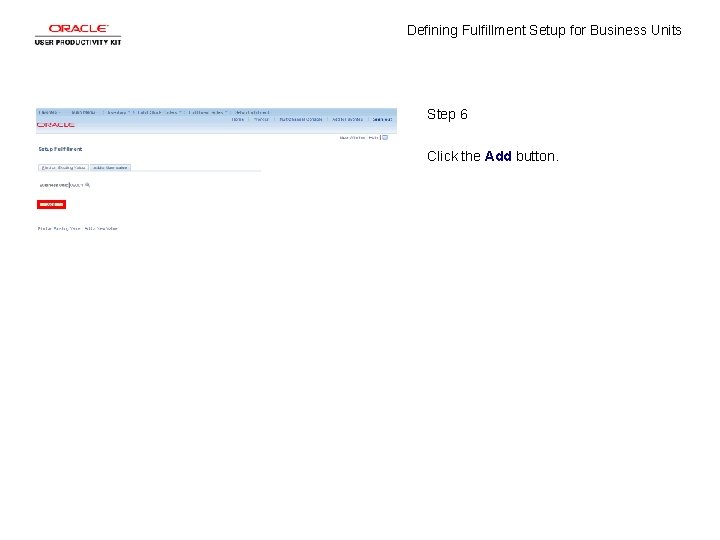
Defining Fulfillment Setup for Business Units Step 6 Click the Add button.
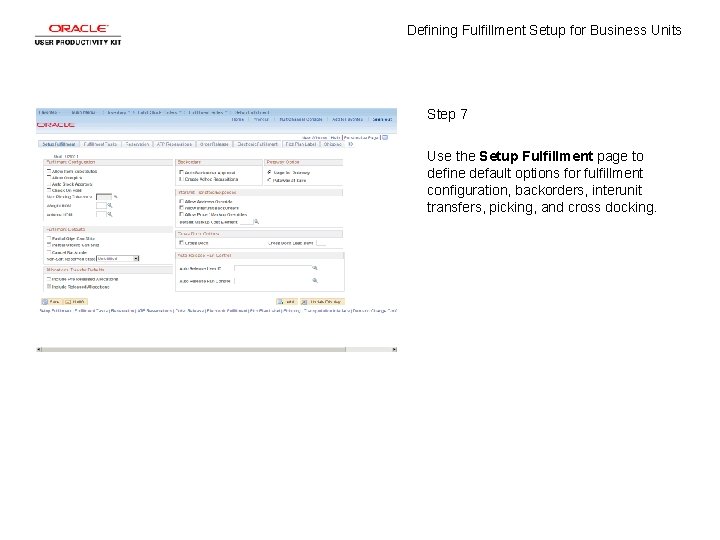
Defining Fulfillment Setup for Business Units Step 7 Use the Setup Fulfillment page to define default options for fulfillment configuration, backorders, interunit transfers, picking, and cross docking.
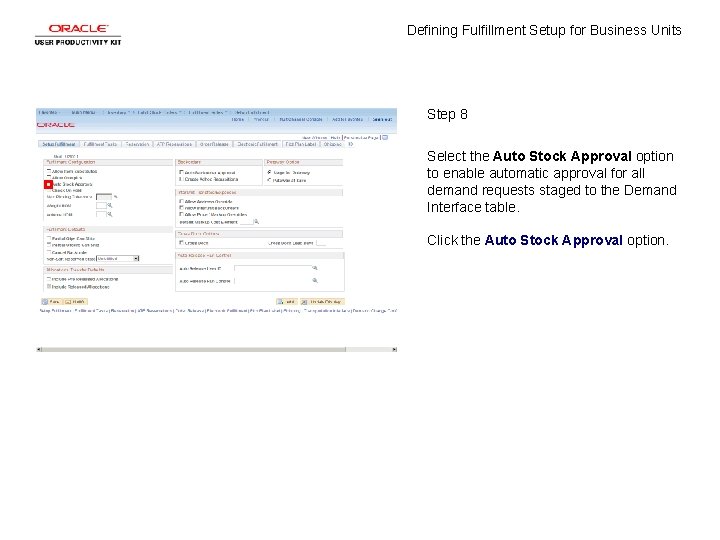
Defining Fulfillment Setup for Business Units Step 8 Select the Auto Stock Approval option to enable automatic approval for all demand requests staged to the Demand Interface table. Click the Auto Stock Approval option.
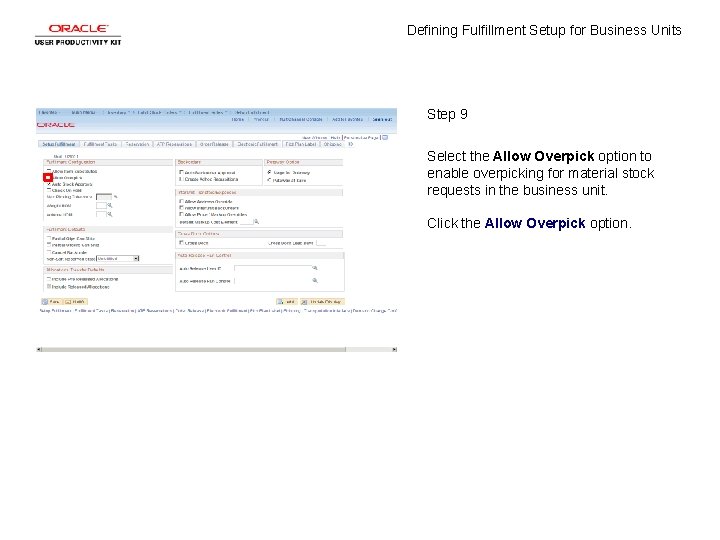
Defining Fulfillment Setup for Business Units Step 9 Select the Allow Overpick option to enable overpicking for material stock requests in the business unit. Click the Allow Overpick option.
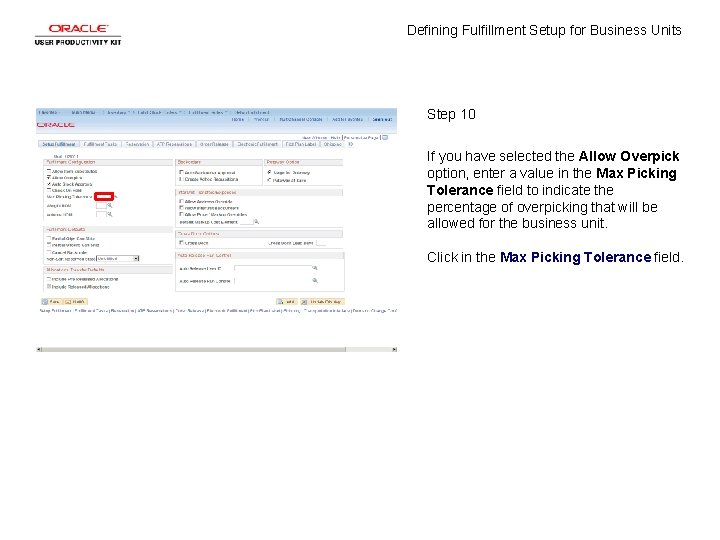
Defining Fulfillment Setup for Business Units Step 10 If you have selected the Allow Overpick option, enter a value in the Max Picking Tolerance field to indicate the percentage of overpicking that will be allowed for the business unit. Click in the Max Picking Tolerance field.
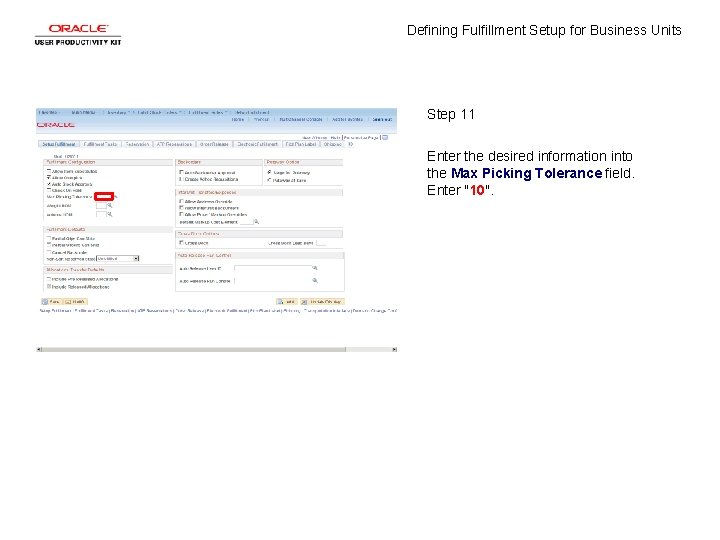
Defining Fulfillment Setup for Business Units Step 11 Enter the desired information into the Max Picking Tolerance field. Enter "10".
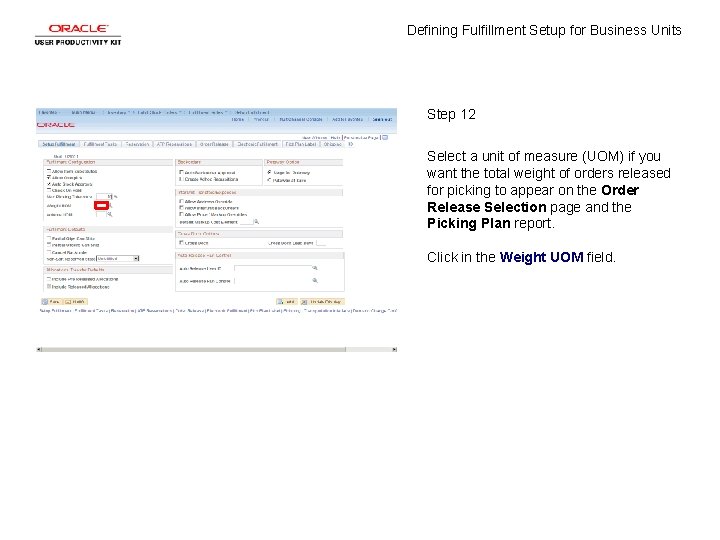
Defining Fulfillment Setup for Business Units Step 12 Select a unit of measure (UOM) if you want the total weight of orders released for picking to appear on the Order Release Selection page and the Picking Plan report. Click in the Weight UOM field.
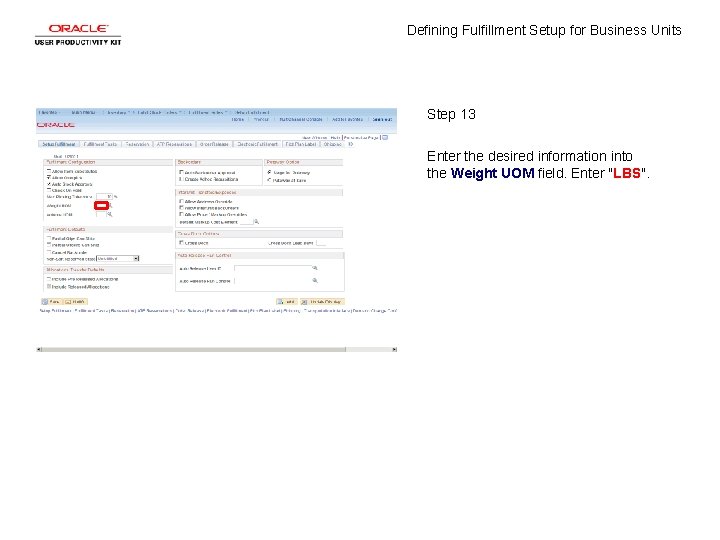
Defining Fulfillment Setup for Business Units Step 13 Enter the desired information into the Weight UOM field. Enter "LBS".
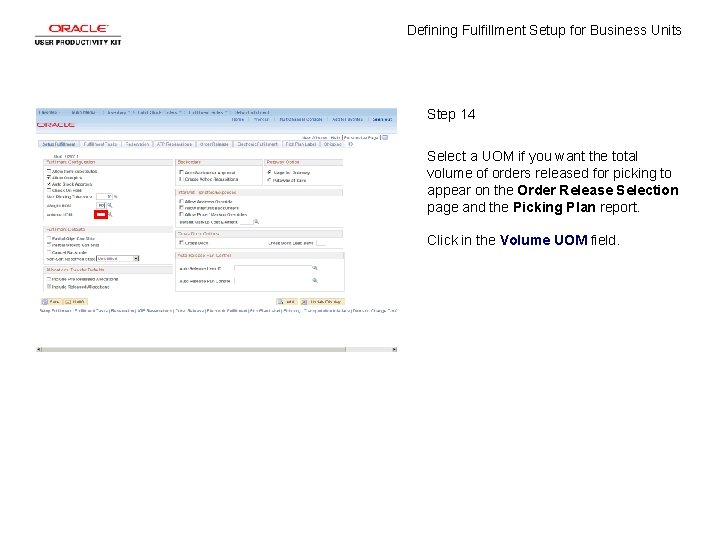
Defining Fulfillment Setup for Business Units Step 14 Select a UOM if you want the total volume of orders released for picking to appear on the Order Release Selection page and the Picking Plan report. Click in the Volume UOM field.
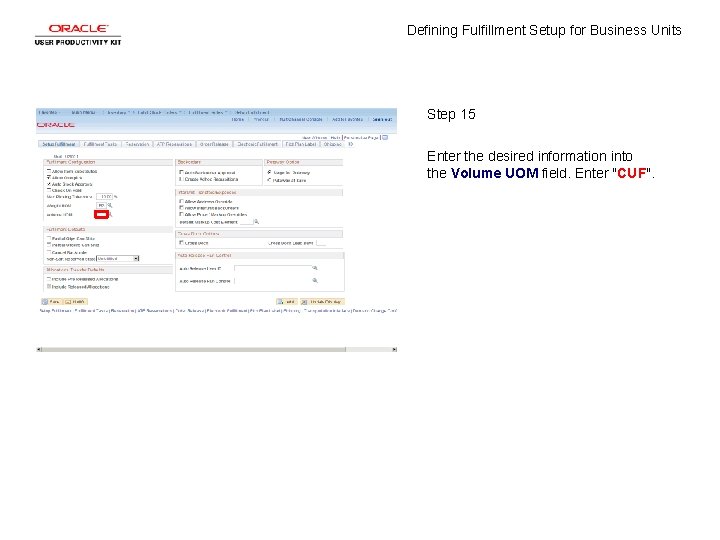
Defining Fulfillment Setup for Business Units Step 15 Enter the desired information into the Volume UOM field. Enter "CUF".
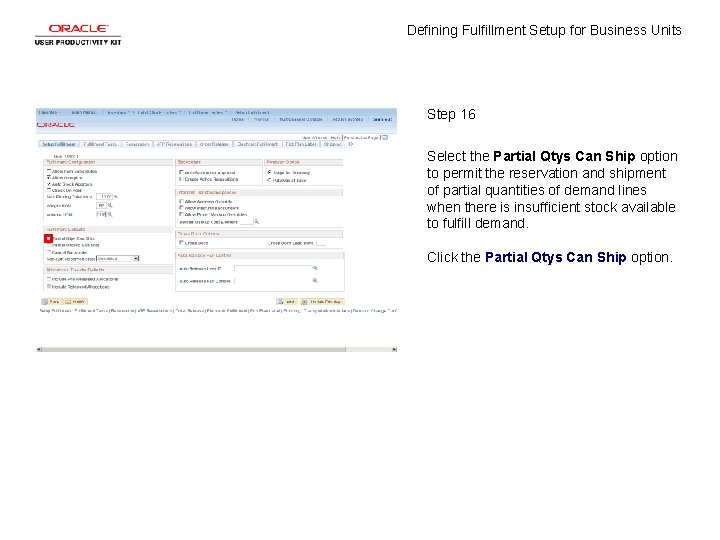
Defining Fulfillment Setup for Business Units Step 16 Select the Partial Qtys Can Ship option to permit the reservation and shipment of partial quantities of demand lines when there is insufficient stock available to fulfill demand. Click the Partial Qtys Can Ship option.
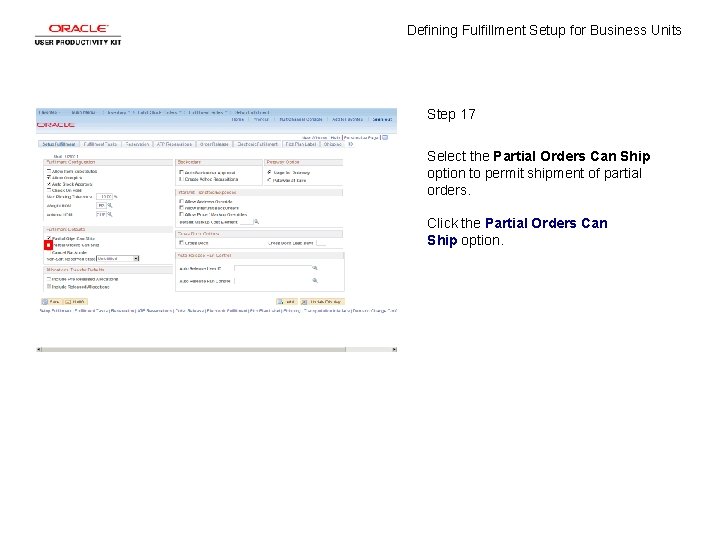
Defining Fulfillment Setup for Business Units Step 17 Select the Partial Orders Can Ship option to permit shipment of partial orders. Click the Partial Orders Can Ship option.
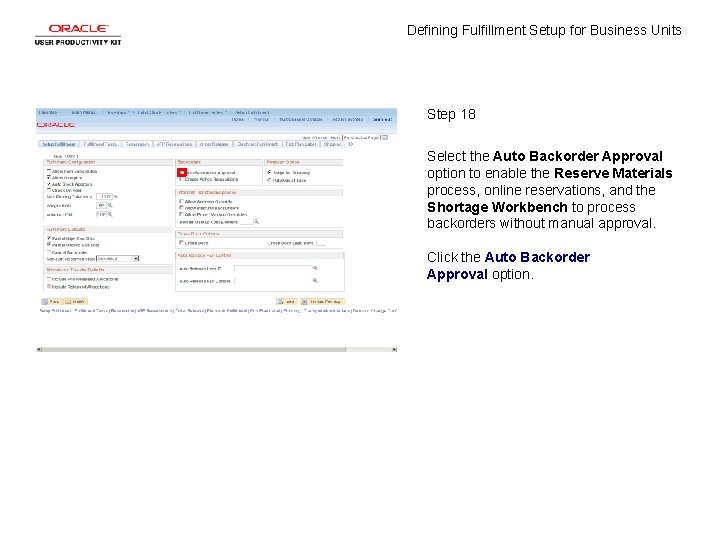
Defining Fulfillment Setup for Business Units Step 18 Select the Auto Backorder Approval option to enable the Reserve Materials process, online reservations, and the Shortage Workbench to process backorders without manual approval. Click the Auto Backorder Approval option.
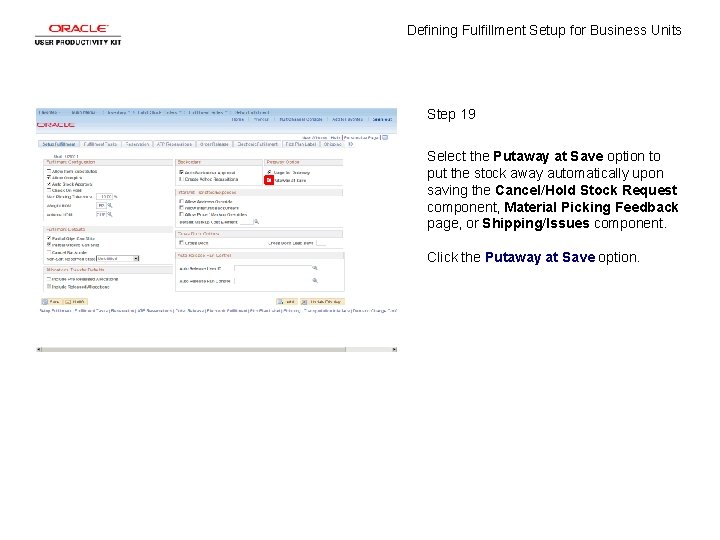
Defining Fulfillment Setup for Business Units Step 19 Select the Putaway at Save option to put the stock away automatically upon saving the Cancel/Hold Stock Request component, Material Picking Feedback page, or Shipping/Issues component. Click the Putaway at Save option.
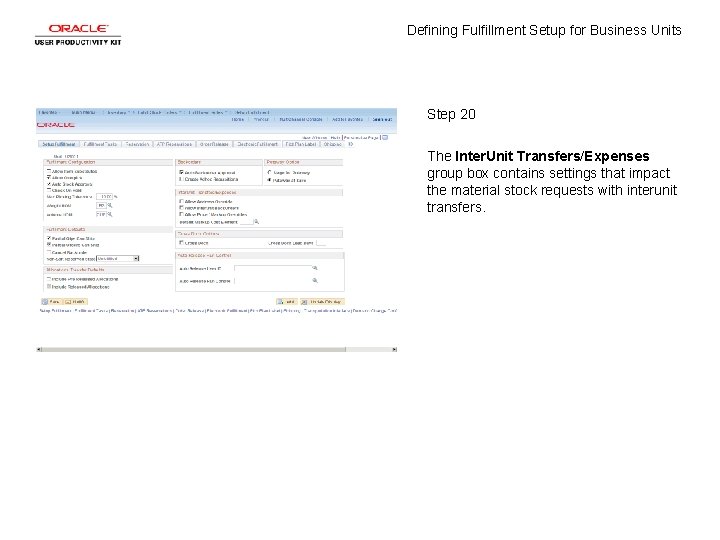
Defining Fulfillment Setup for Business Units Step 20 The Inter. Unit Transfers/Expenses group box contains settings that impact the material stock requests with interunit transfers.
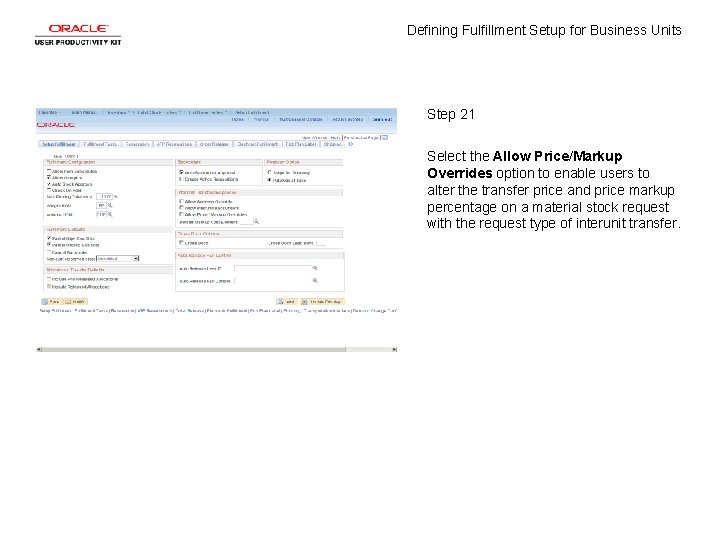
Defining Fulfillment Setup for Business Units Step 21 Select the Allow Price/Markup Overrides option to enable users to alter the transfer price and price markup percentage on a material stock request with the request type of interunit transfer.
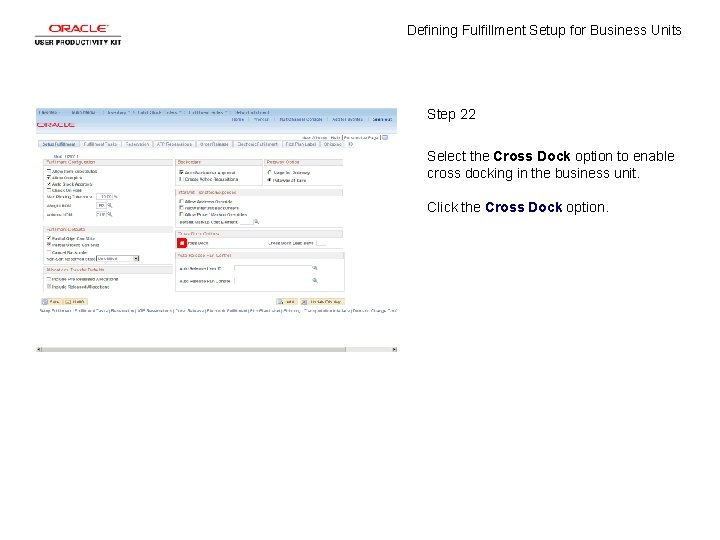
Defining Fulfillment Setup for Business Units Step 22 Select the Cross Dock option to enable cross docking in the business unit. Click the Cross Dock option.
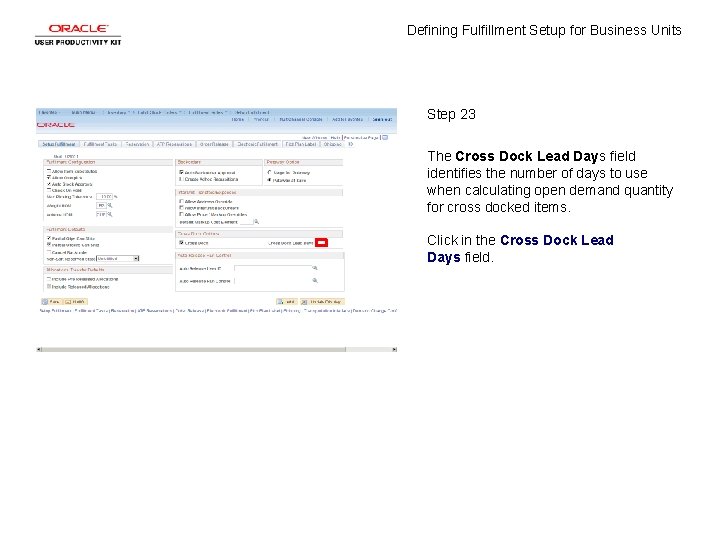
Defining Fulfillment Setup for Business Units Step 23 The Cross Dock Lead Days field identifies the number of days to use when calculating open demand quantity for cross docked items. Click in the Cross Dock Lead Days field.
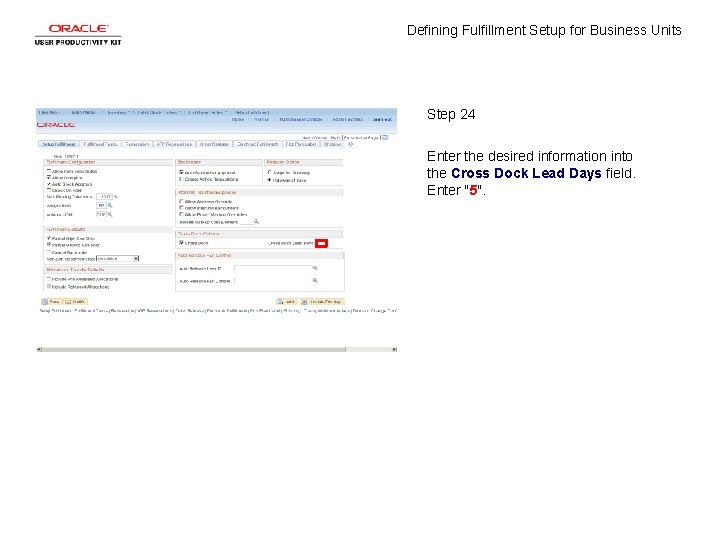
Defining Fulfillment Setup for Business Units Step 24 Enter the desired information into the Cross Dock Lead Days field. Enter "5".
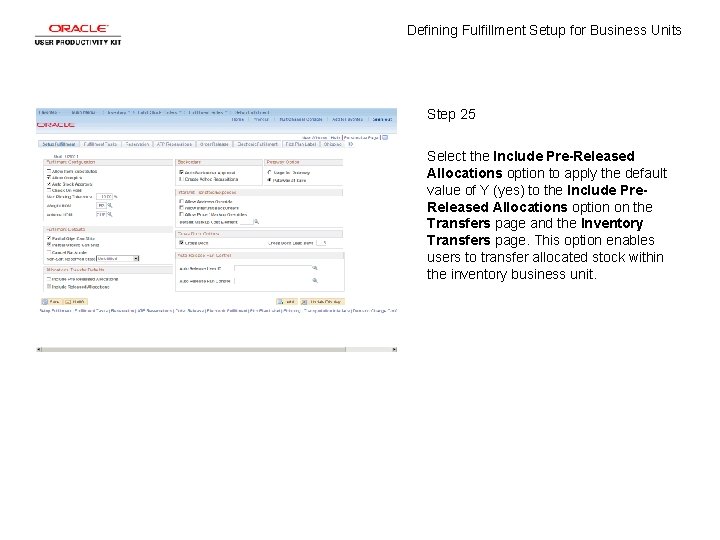
Defining Fulfillment Setup for Business Units Step 25 Select the Include Pre-Released Allocations option to apply the default value of Y (yes) to the Include Pre. Released Allocations option on the Transfers page and the Inventory Transfers page. This option enables users to transfer allocated stock within the inventory business unit.
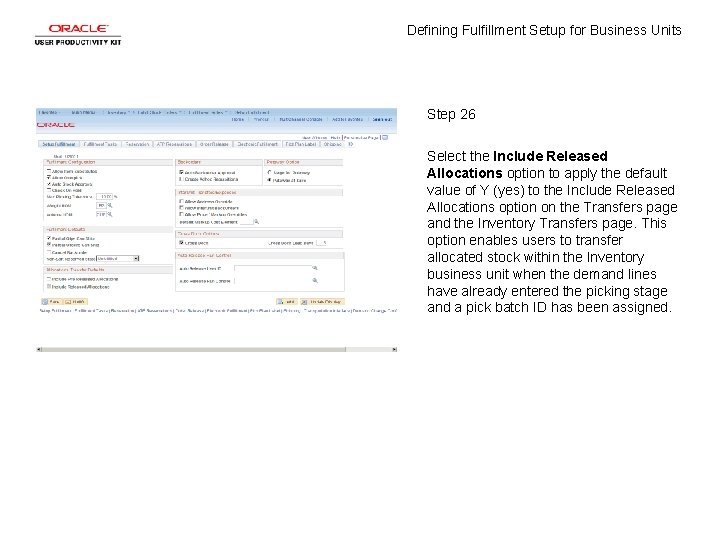
Defining Fulfillment Setup for Business Units Step 26 Select the Include Released Allocations option to apply the default value of Y (yes) to the Include Released Allocations option on the Transfers page and the Inventory Transfers page. This option enables users to transfer allocated stock within the Inventory business unit when the demand lines have already entered the picking stage and a pick batch ID has been assigned.
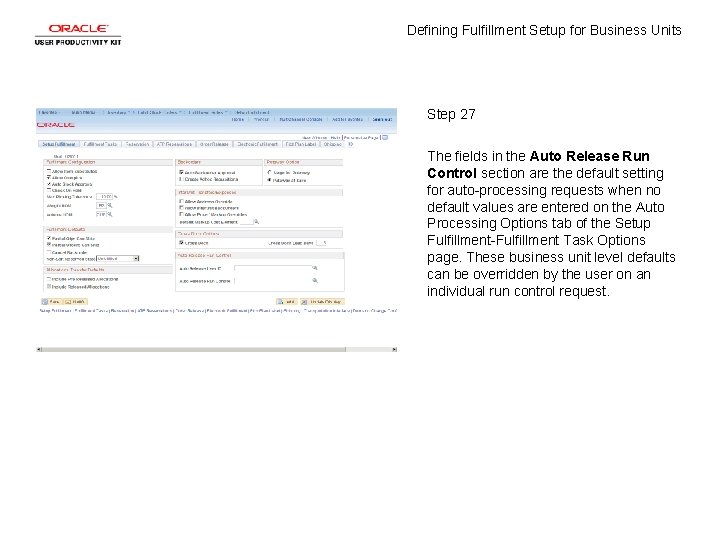
Defining Fulfillment Setup for Business Units Step 27 The fields in the Auto Release Run Control section are the default setting for auto-processing requests when no default values are entered on the Auto Processing Options tab of the Setup Fulfillment-Fulfillment Task Options page. These business unit level defaults can be overridden by the user on an individual run control request.
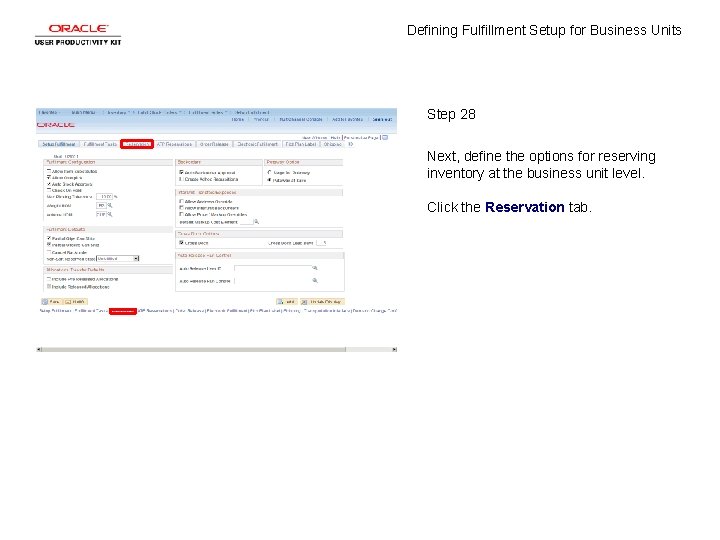
Defining Fulfillment Setup for Business Units Step 28 Next, define the options for reserving inventory at the business unit level. Click the Reservation tab.
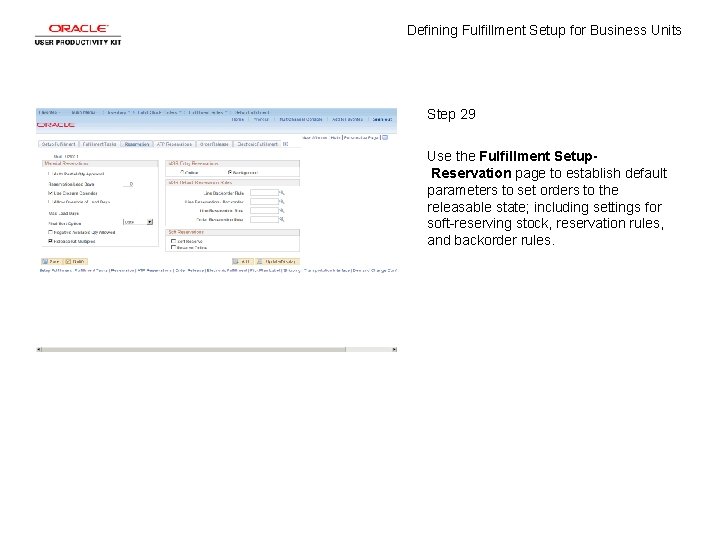
Defining Fulfillment Setup for Business Units Step 29 Use the Fulfillment Setup. Reservation page to establish default parameters to set orders to the releasable state; including settings for soft-reserving stock, reservation rules, and backorder rules.
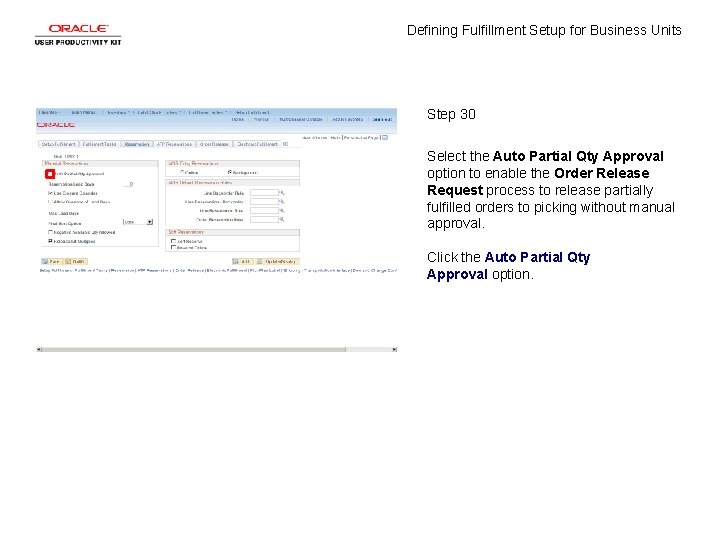
Defining Fulfillment Setup for Business Units Step 30 Select the Auto Partial Qty Approval option to enable the Order Release Request process to release partially fulfilled orders to picking without manual approval. Click the Auto Partial Qty Approval option.
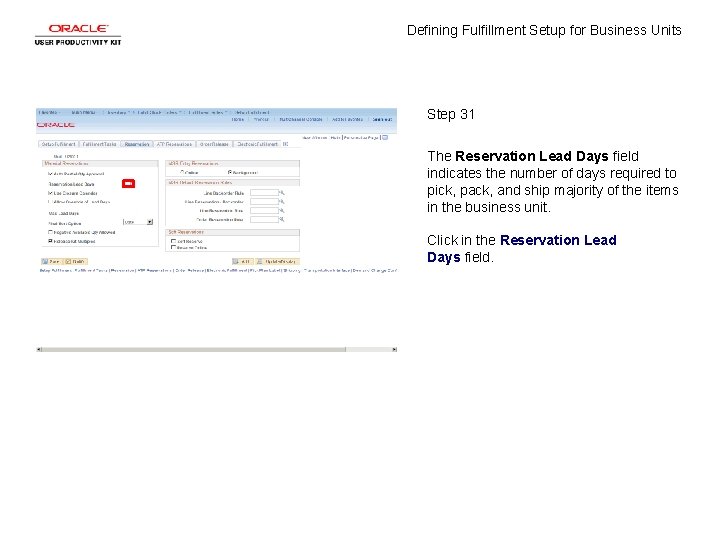
Defining Fulfillment Setup for Business Units Step 31 The Reservation Lead Days field indicates the number of days required to pick, pack, and ship majority of the items in the business unit. Click in the Reservation Lead Days field.
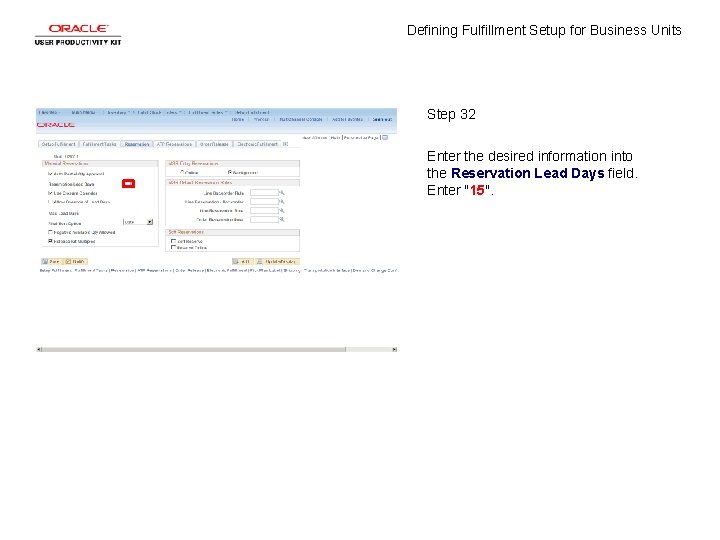
Defining Fulfillment Setup for Business Units Step 32 Enter the desired information into the Reservation Lead Days field. Enter "15".
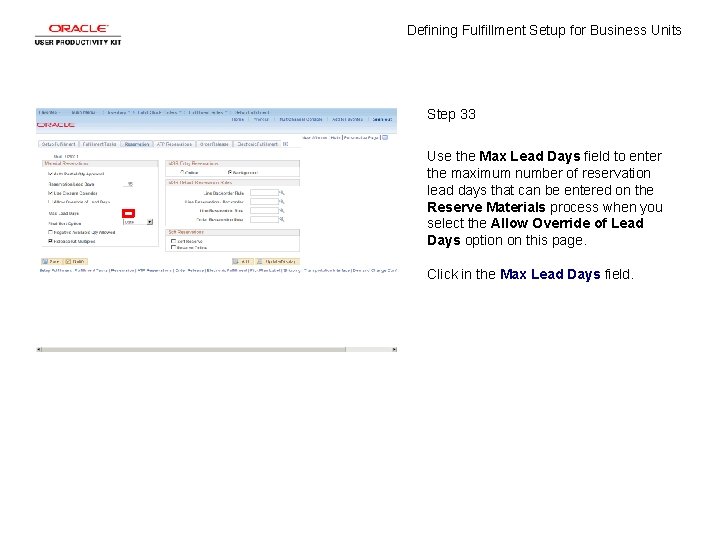
Defining Fulfillment Setup for Business Units Step 33 Use the Max Lead Days field to enter the maximum number of reservation lead days that can be entered on the Reserve Materials process when you select the Allow Override of Lead Days option on this page. Click in the Max Lead Days field.
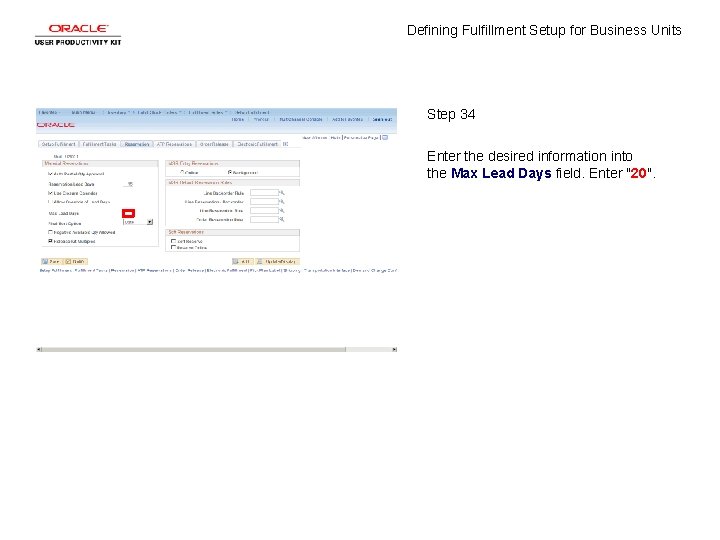
Defining Fulfillment Setup for Business Units Step 34 Enter the desired information into the Max Lead Days field. Enter "20".
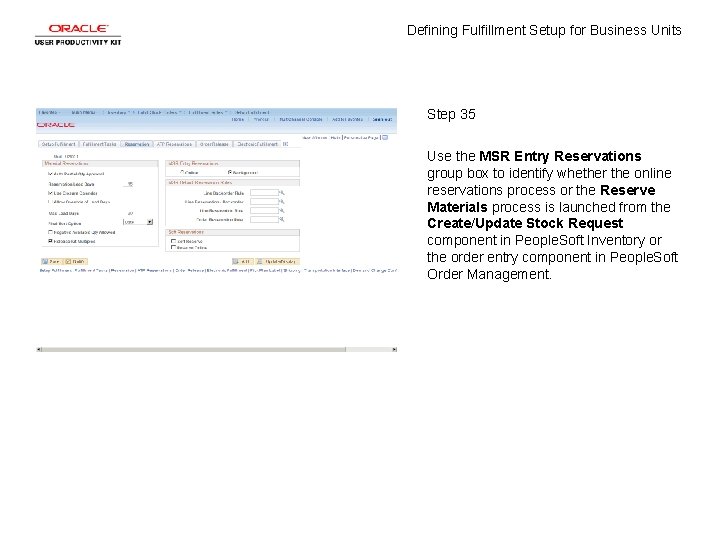
Defining Fulfillment Setup for Business Units Step 35 Use the MSR Entry Reservations group box to identify whether the online reservations process or the Reserve Materials process is launched from the Create/Update Stock Request component in People. Soft Inventory or the order entry component in People. Soft Order Management.
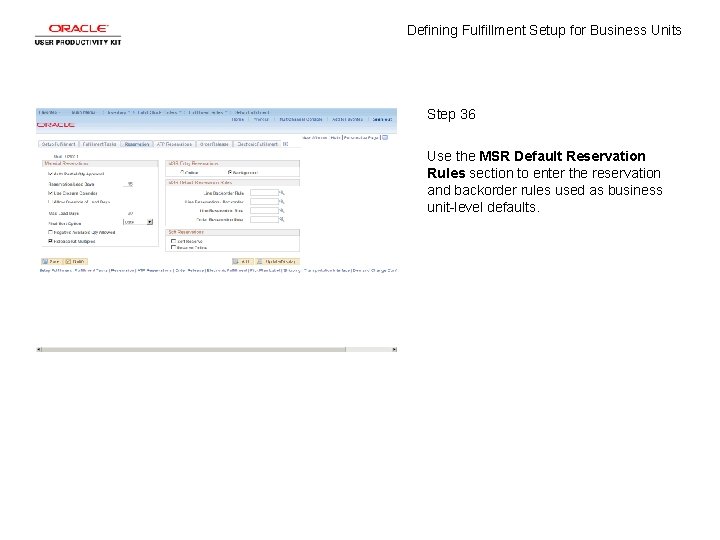
Defining Fulfillment Setup for Business Units Step 36 Use the MSR Default Reservation Rules section to enter the reservation and backorder rules used as business unit-level defaults.
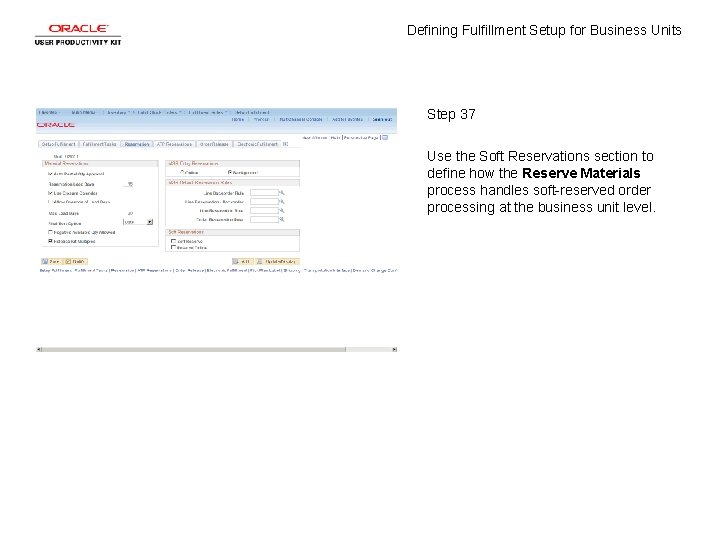
Defining Fulfillment Setup for Business Units Step 37 Use the Soft Reservations section to define how the Reserve Materials process handles soft-reserved order processing at the business unit level.
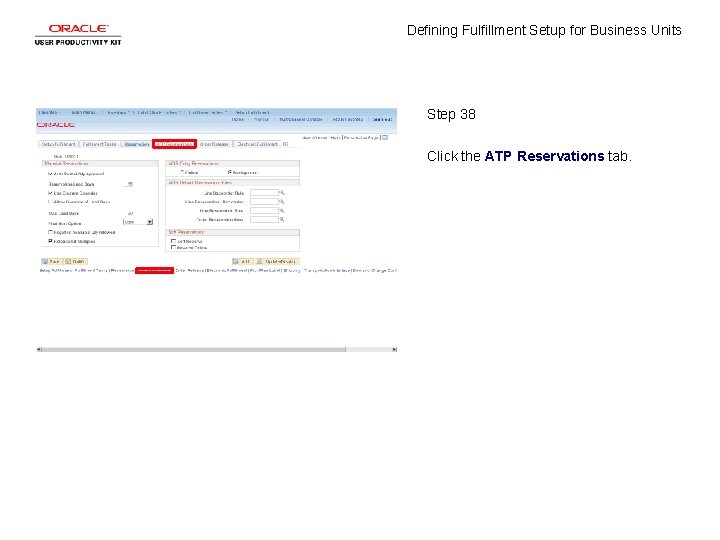
Defining Fulfillment Setup for Business Units Step 38 Click the ATP Reservations tab.
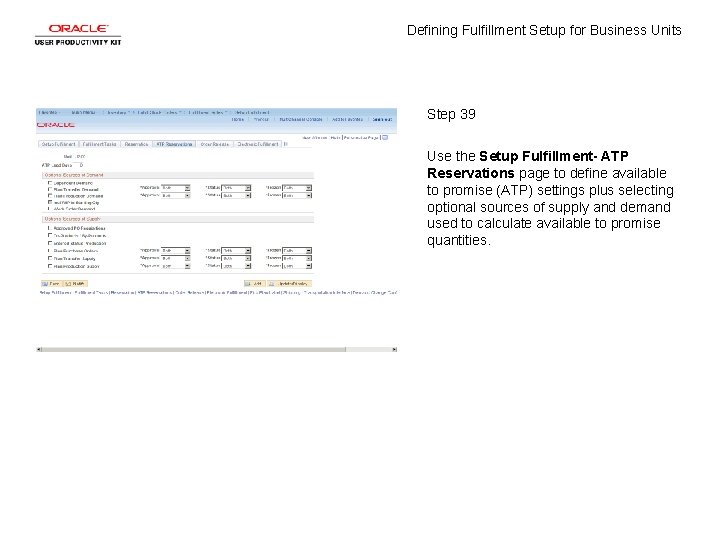
Defining Fulfillment Setup for Business Units Step 39 Use the Setup Fulfillment- ATP Reservations page to define available to promise (ATP) settings plus selecting optional sources of supply and demand used to calculate available to promise quantities.
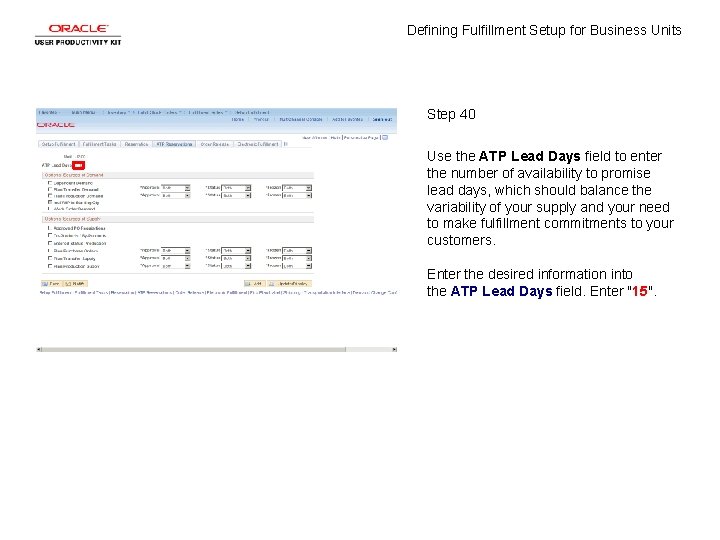
Defining Fulfillment Setup for Business Units Step 40 Use the ATP Lead Days field to enter the number of availability to promise lead days, which should balance the variability of your supply and your need to make fulfillment commitments to your customers. Enter the desired information into the ATP Lead Days field. Enter "15".
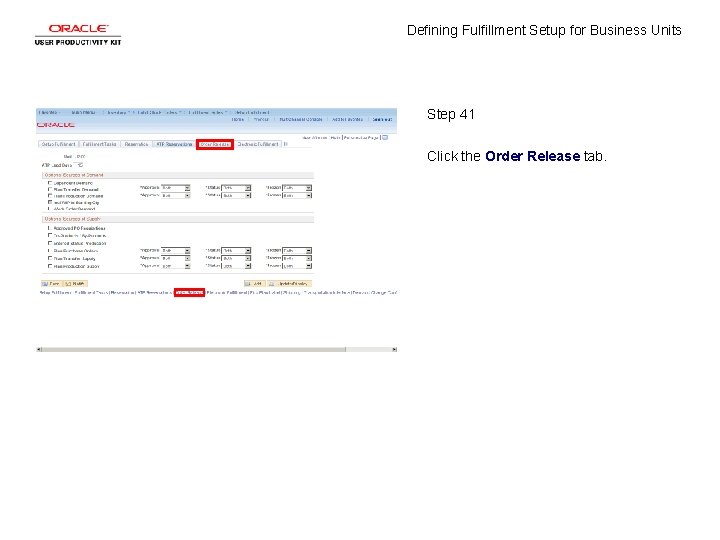
Defining Fulfillment Setup for Business Units Step 41 Click the Order Release tab.
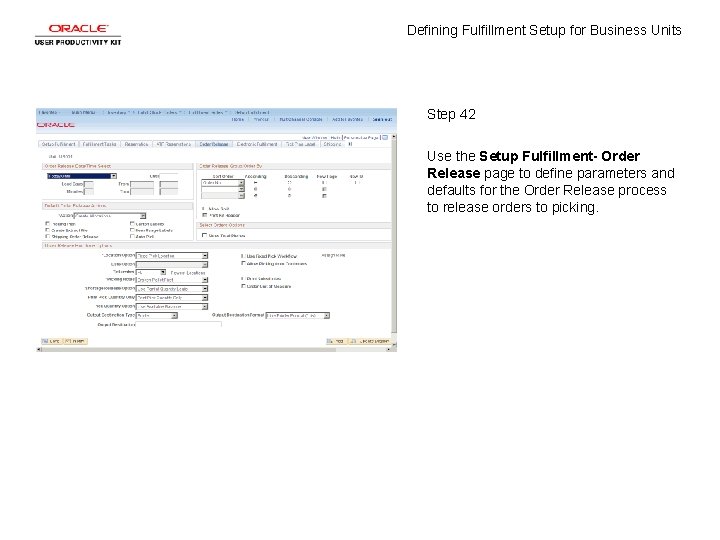
Defining Fulfillment Setup for Business Units Step 42 Use the Setup Fulfillment- Order Release page to define parameters and defaults for the Order Release process to release orders to picking.
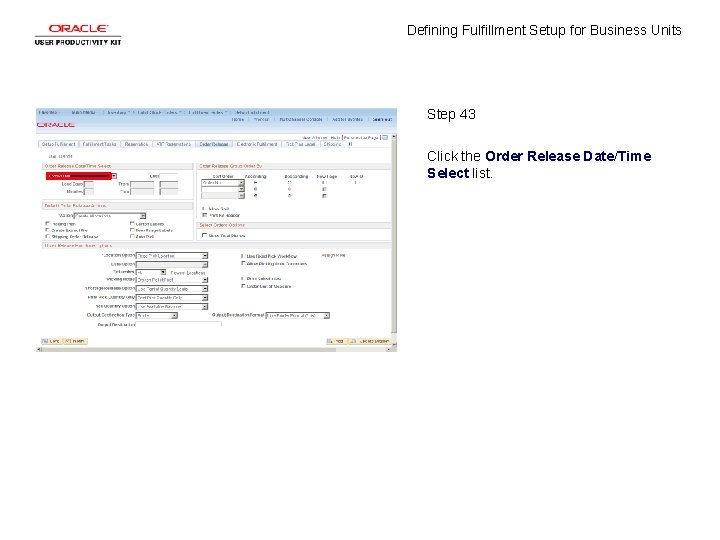
Defining Fulfillment Setup for Business Units Step 43 Click the Order Release Date/Time Select list.
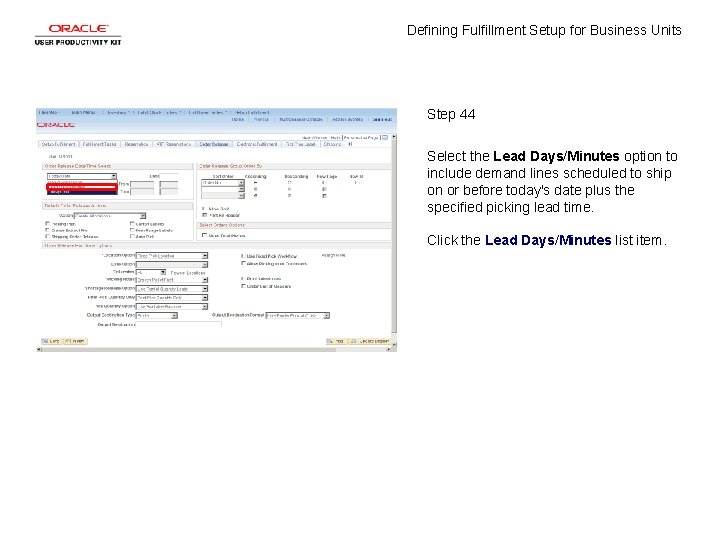
Defining Fulfillment Setup for Business Units Step 44 Select the Lead Days/Minutes option to include demand lines scheduled to ship on or before today's date plus the specified picking lead time. Click the Lead Days/Minutes list item.
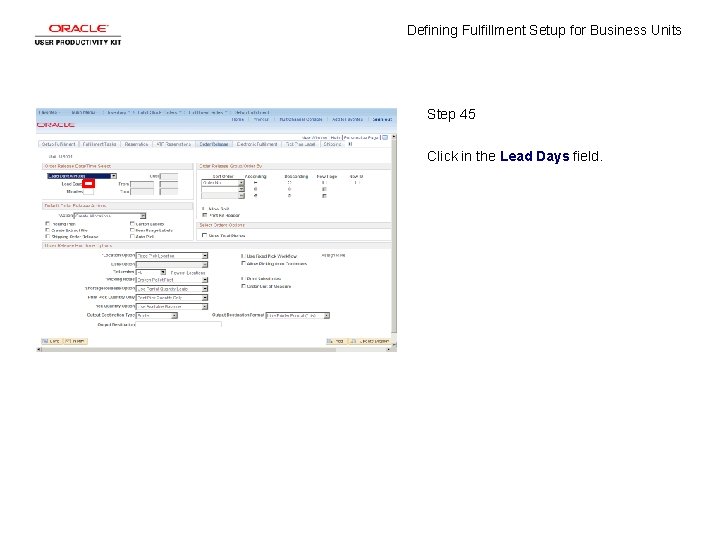
Defining Fulfillment Setup for Business Units Step 45 Click in the Lead Days field.
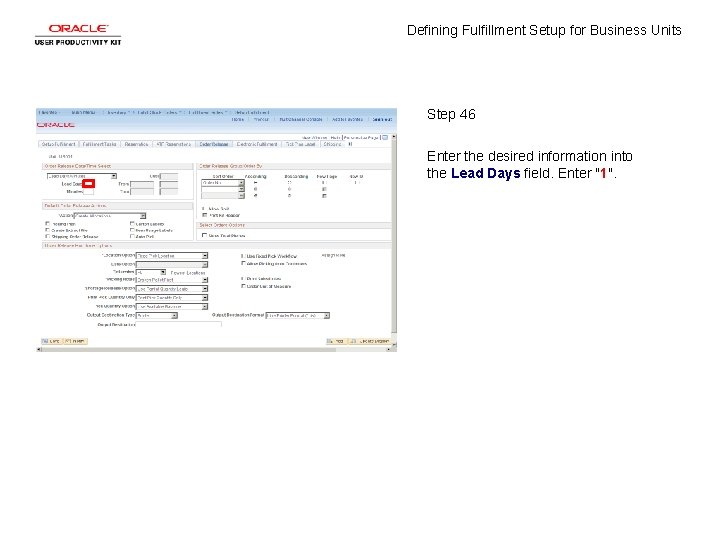
Defining Fulfillment Setup for Business Units Step 46 Enter the desired information into the Lead Days field. Enter "1".
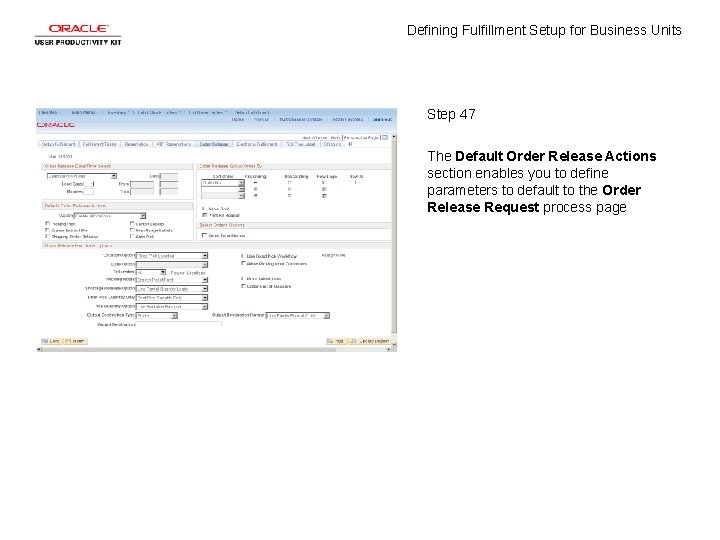
Defining Fulfillment Setup for Business Units Step 47 The Default Order Release Actions section enables you to define parameters to default to the Order Release Request process page
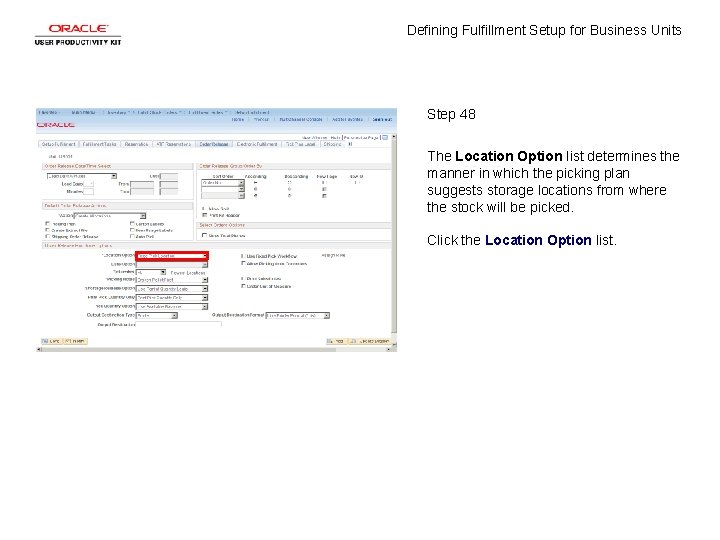
Defining Fulfillment Setup for Business Units Step 48 The Location Option list determines the manner in which the picking plan suggests storage locations from where the stock will be picked. Click the Location Option list.
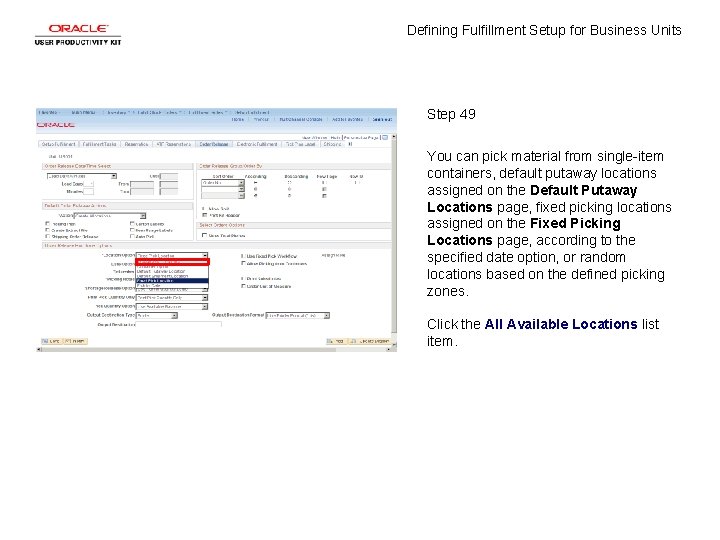
Defining Fulfillment Setup for Business Units Step 49 You can pick material from single-item containers, default putaway locations assigned on the Default Putaway Locations page, fixed picking locations assigned on the Fixed Picking Locations page, according to the specified date option, or random locations based on the defined picking zones. Click the All Available Locations list item.
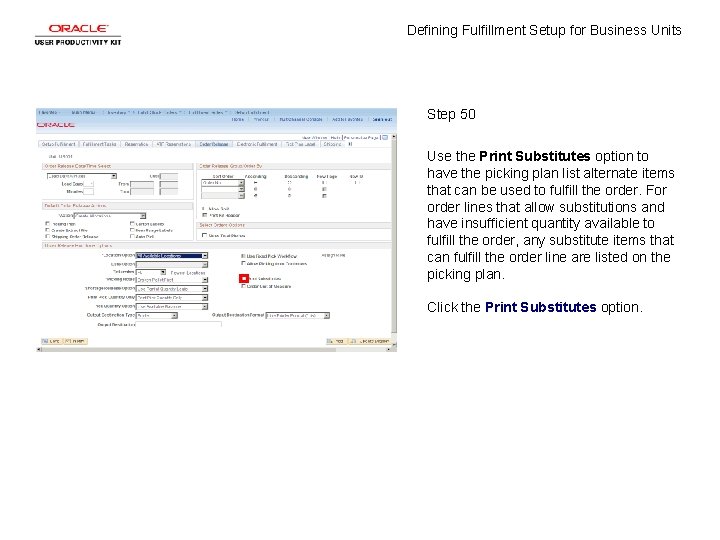
Defining Fulfillment Setup for Business Units Step 50 Use the Print Substitutes option to have the picking plan list alternate items that can be used to fulfill the order. For order lines that allow substitutions and have insufficient quantity available to fulfill the order, any substitute items that can fulfill the order line are listed on the picking plan. Click the Print Substitutes option.
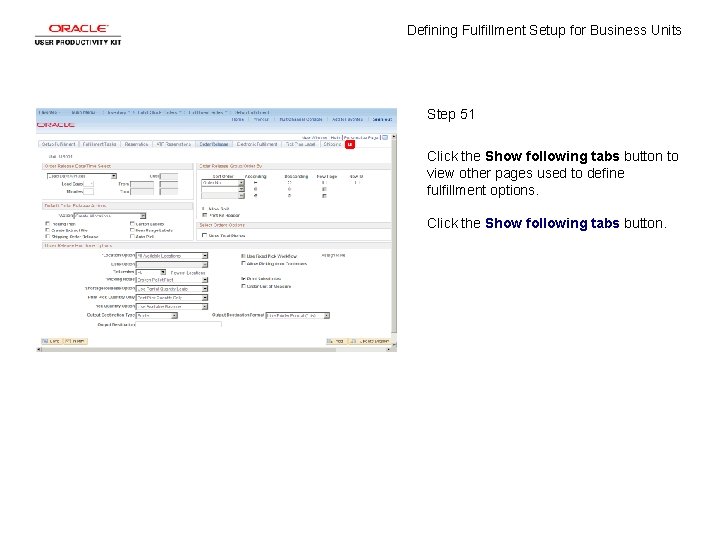
Defining Fulfillment Setup for Business Units Step 51 Click the Show following tabs button to view other pages used to define fulfillment options. Click the Show following tabs button.
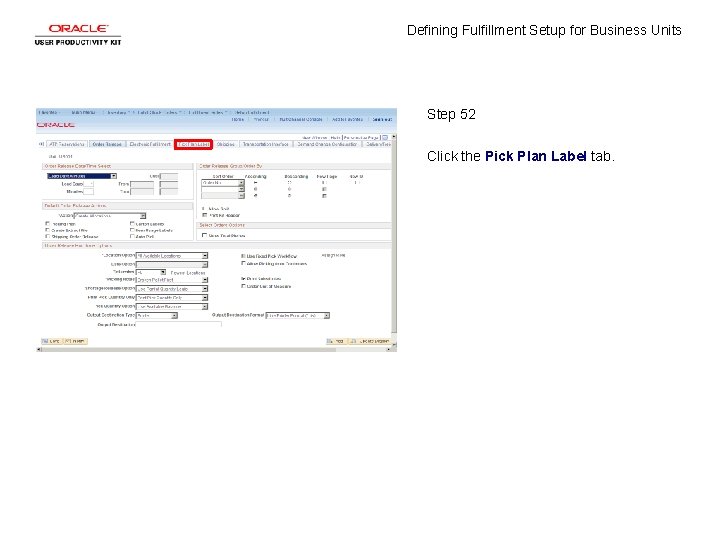
Defining Fulfillment Setup for Business Units Step 52 Click the Pick Plan Label tab.
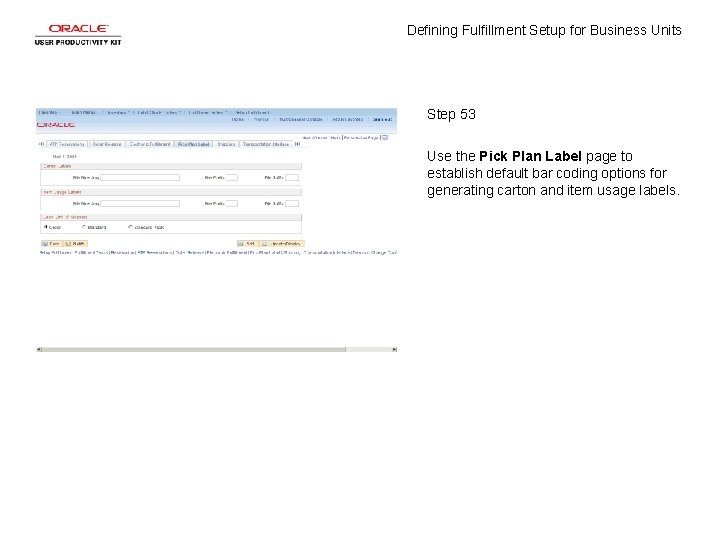
Defining Fulfillment Setup for Business Units Step 53 Use the Pick Plan Label page to establish default bar coding options for generating carton and item usage labels.
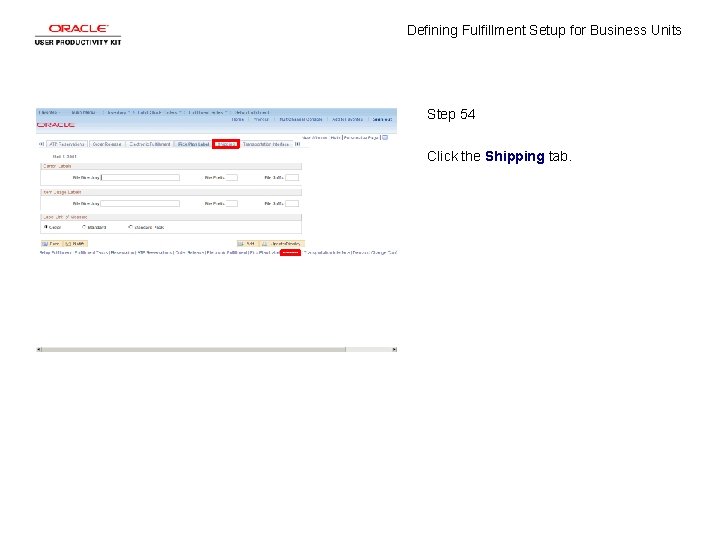
Defining Fulfillment Setup for Business Units Step 54 Click the Shipping tab.
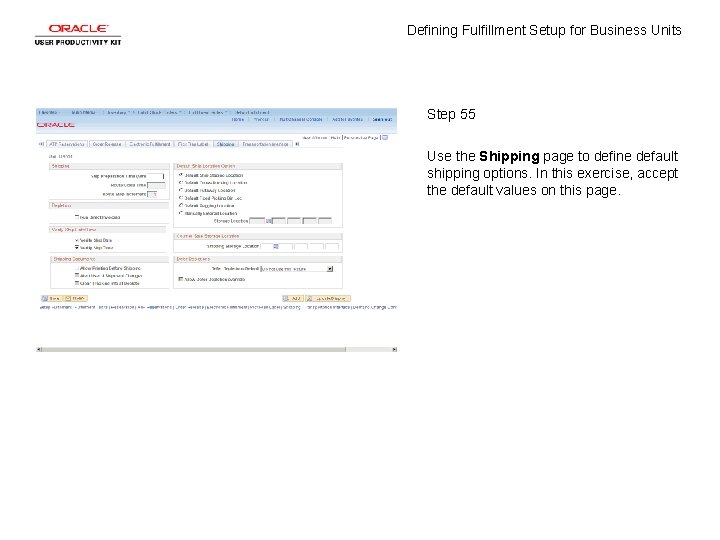
Defining Fulfillment Setup for Business Units Step 55 Use the Shipping page to define default shipping options. In this exercise, accept the default values on this page.
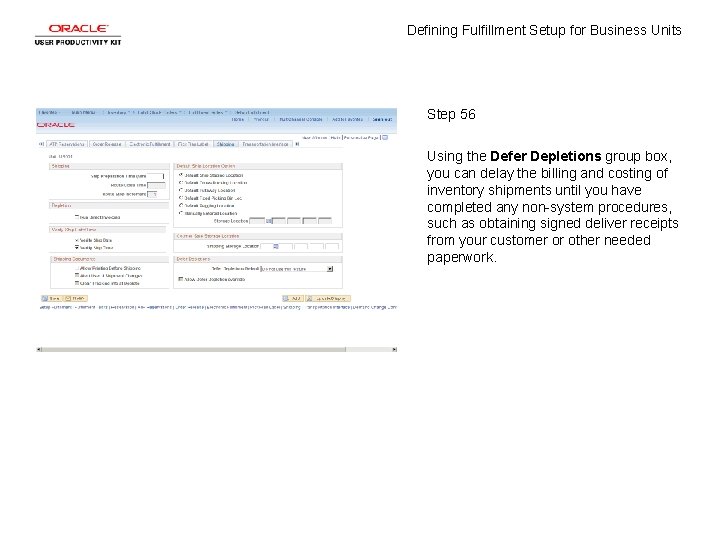
Defining Fulfillment Setup for Business Units Step 56 Using the Defer Depletions group box, you can delay the billing and costing of inventory shipments until you have completed any non-system procedures, such as obtaining signed deliver receipts from your customer or other needed paperwork.
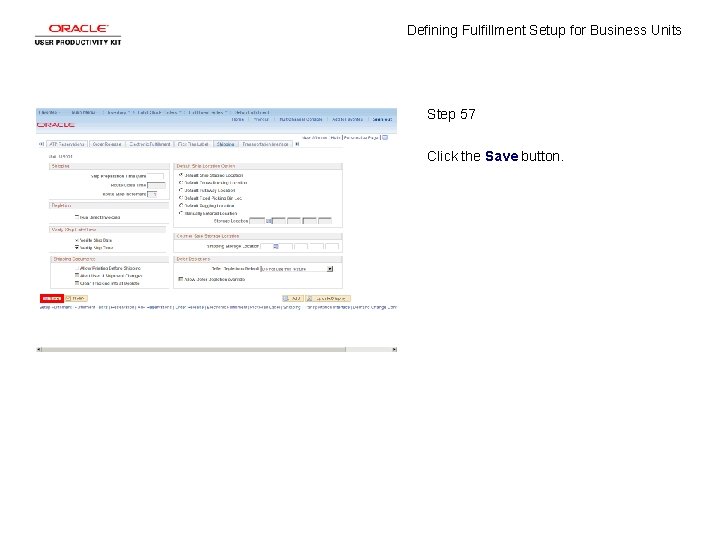
Defining Fulfillment Setup for Business Units Step 57 Click the Save button.
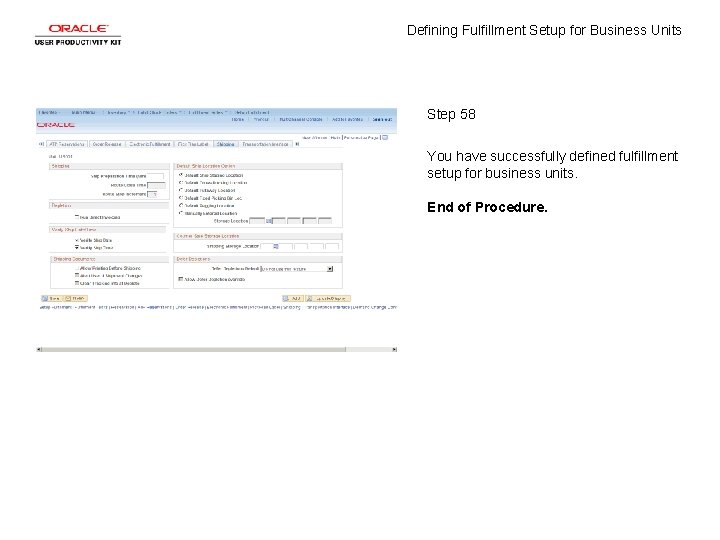
Defining Fulfillment Setup for Business Units Step 58 You have successfully defined fulfillment setup for business units. End of Procedure.
- Slides: 60