
Defense Readiness Reporting System Strategic DRRSS DRRSS Software


- Slides: 21
Defense Readiness Reporting System – Strategic (DRRS-S) DRRS-S Software Tutorial 1 July 2019 UNCLASSIFIED
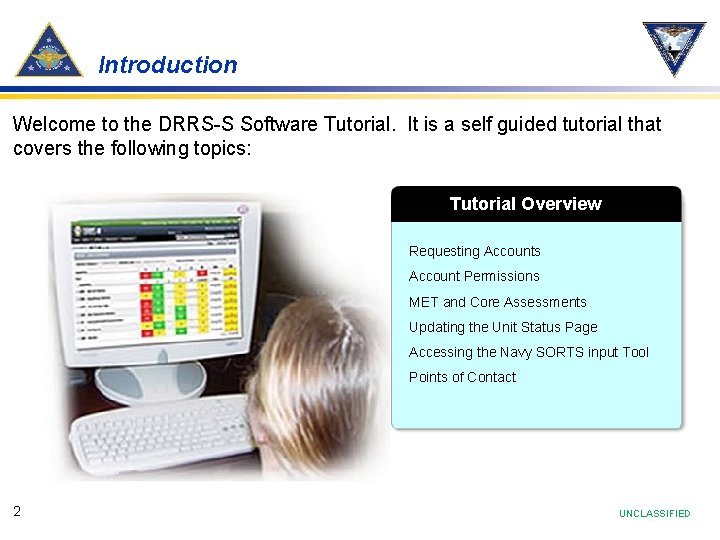
Introduction Welcome to the DRRS-S Software Tutorial. It is a self guided tutorial that covers the following topics: Tutorial Overview Requesting Accounts Account Permissions MET and Core Assessments Updating the Unit Status Page Accessing the Navy SORTS input Tool Points of Contact 2 UNCLASSIFIED
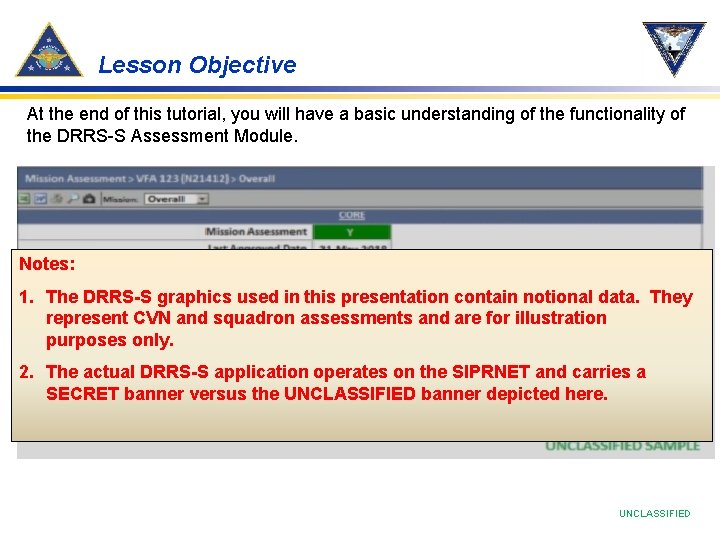
Lesson Objective At the end of this tutorial, you will have a basic understanding of the functionality of the DRRS-S Assessment Module. Notes: 1. The DRRS-S graphics used in this presentation contain notional data. They represent CVN and squadron assessments and are for illustration purposes only. 2. The actual DRRS-S application operates on the SIPRNET and carries a SECRET banner versus the UNCLASSIFIED banner depicted here. UNCLASSIFIED
Requesting DRRS-S Accounts You can access the browser-based DRRS-S application from any SIPRNET connection. • DRRS-S Ashore URL: https: //drrs. csd. disa. smil. mil/drrs/login To register for a account, select the “Request Access” option and complete the account request form Ø Ø The unit of assignment is the unit that you are allowed to edit Only eight accounts per unit are allowed to have Unit Commander Permissions • The Do. D DRRS administrators will only create accounts with "View only" permissions • After your DRRS account has been created, contact the Navy Readiness Support Center to have your permission level upgraded to unit commander. Navy Readiness Support Center (NRSC) Account servicing, Change permissions levels, technical issues Phone: 757 -836 -6365 (DSN 836) Email: nrre@navy. mil or nrre@navy. smil. mil 4 UNCLASSIFIED
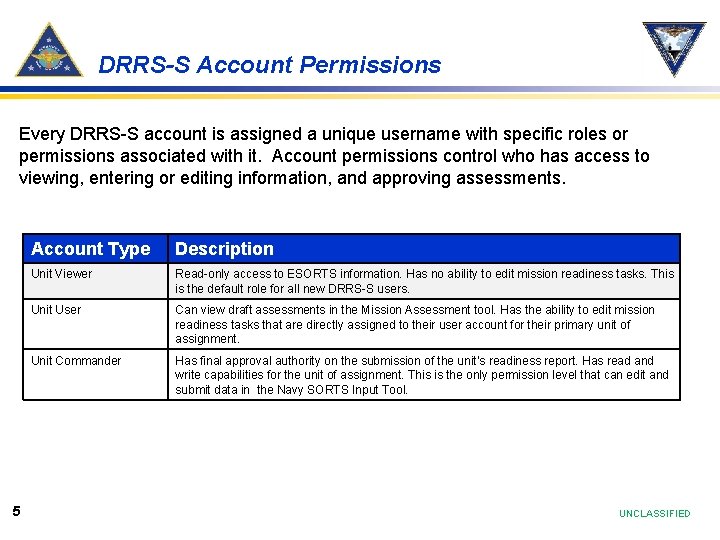
DRRS-S Account Permissions Every DRRS-S account is assigned a unique username with specific roles or permissions associated with it. Account permissions control who has access to viewing, entering or editing information, and approving assessments. 5 Account Type Description Unit Viewer Read-only access to ESORTS information. Has no ability to edit mission readiness tasks. This is the default role for all new DRRS-S users. Unit User Can view draft assessments in the Mission Assessment tool. Has the ability to edit mission readiness tasks that are directly assigned to their user account for their primary unit of assignment. Unit Commander Has final approval authority on the submission of the unit’s readiness report. Has read and write capabilities for the unit of assignment. This is the only permission level that can edit and submit data in the Navy SORTS Input Tool. UNCLASSIFIED
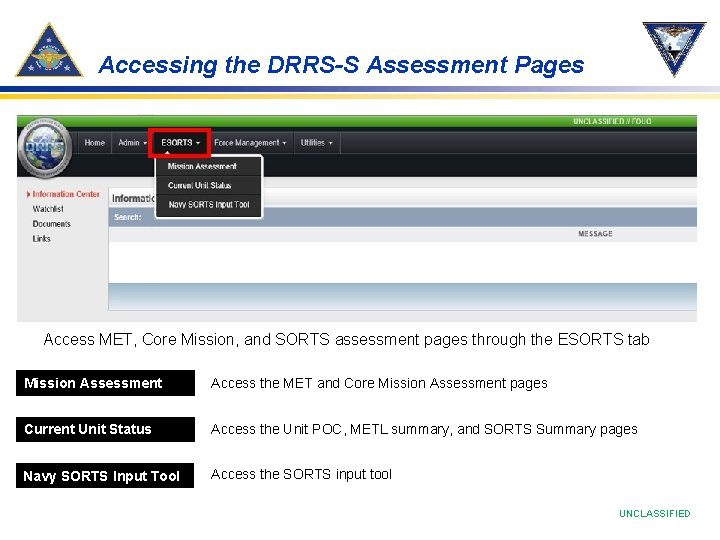
Accessing the DRRS-S Assessment Pages Access MET, Core Mission, and SORTS assessment pages through the ESORTS tab Mission Assessment Access the MET and Core Mission Assessment pages Current Unit Status Access the Unit POC, METL summary, and SORTS Summary pages Navy SORTS Input Tool Access the SORTS input tool UNCLASSIFIED
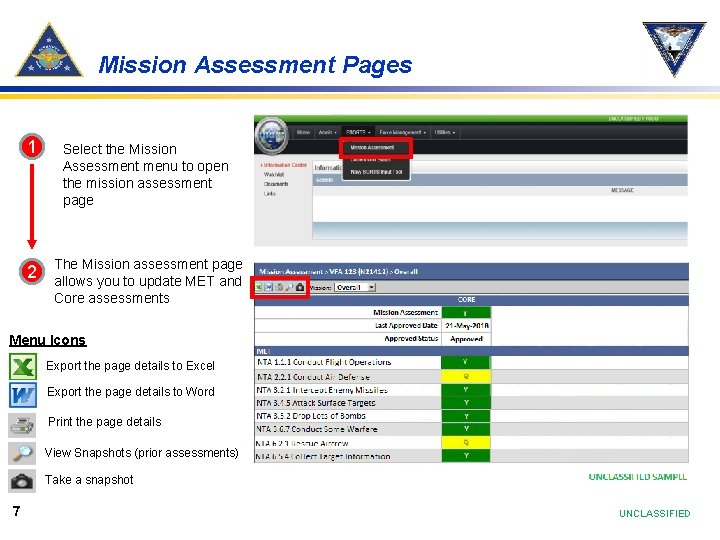
Mission Assessment Pages 1 Select the Mission Assessment menu to open the mission assessment page 2 The Mission assessment page allows you to update MET and Core assessments Menu Icons Export the page details to Excel Export the page details to Word Print the page details View Snapshots (prior assessments) Take a snapshot 7 UNCLASSIFIED
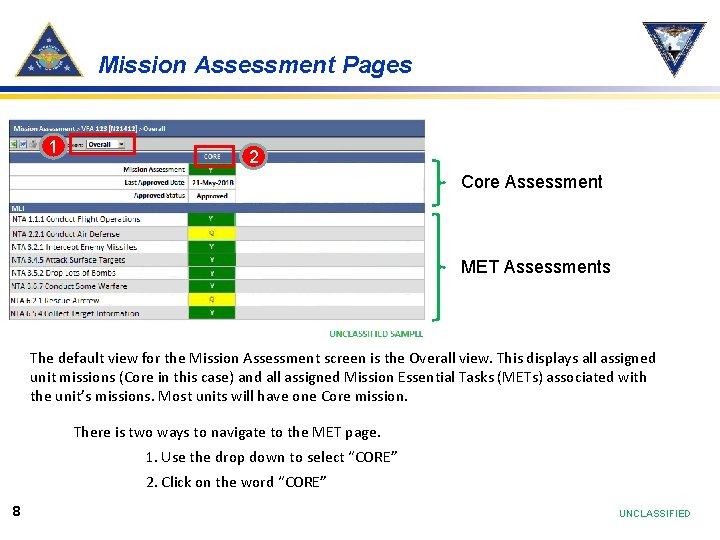
Mission Assessment Pages 1 2 Core Assessment MET Assessments The default view for the Mission Assessment screen is the Overall view. This displays all assigned unit missions (Core in this case) and all assigned Mission Essential Tasks (METs) associated with the unit’s missions. Most units will have one Core mission. There is two ways to navigate to the MET page. 1. Use the drop down to select “CORE” 2. Click on the word “CORE” 8 UNCLASSIFIED
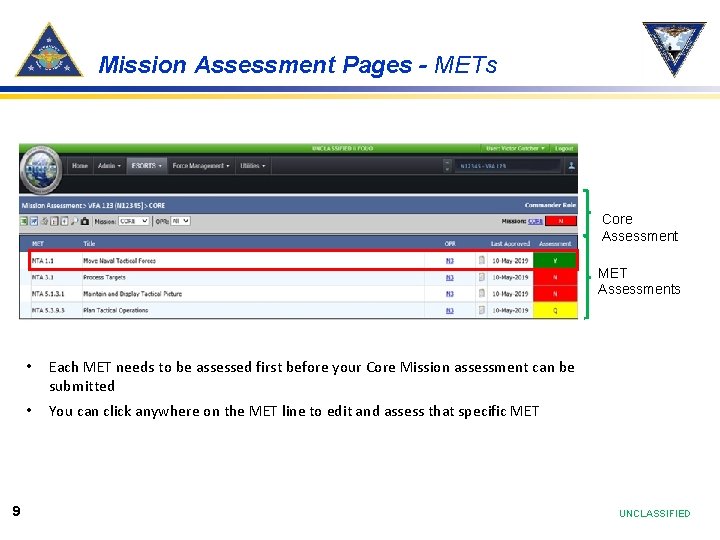
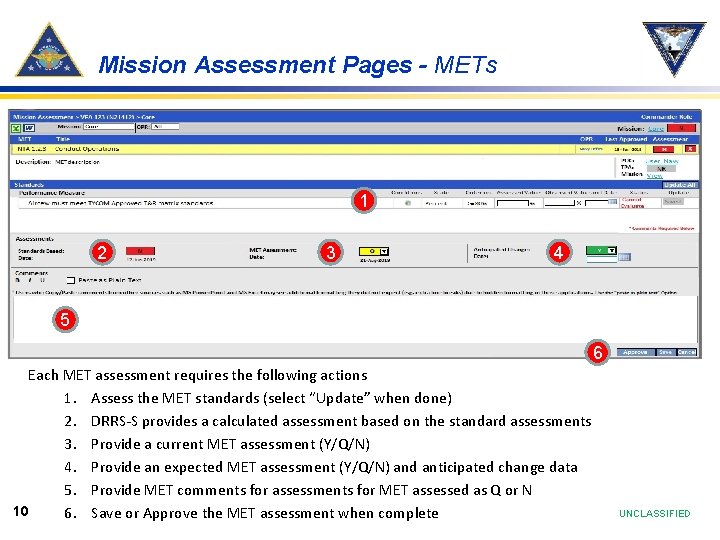
Mission Assessment Pages - METs Core Assessment MET Assessments 9 • Each MET needs to be assessed first before your Core Mission assessment can be submitted • You can click anywhere on the MET line to edit and assess that specific MET UNCLASSIFIED
Mission Assessment Pages - METs 1 2 3 4 5 6 Each MET assessment requires the following actions 1. Assess the MET standards (select “Update” when done) 2. DRRS-S provides a calculated assessment based on the standard assessments 3. Provide a current MET assessment (Y/Q/N) 4. Provide an expected MET assessment (Y/Q/N) and anticipated change data 5. Provide MET comments for assessments for MET assessed as Q or N 10 6. Save or Approve the MET assessment when complete UNCLASSIFIED
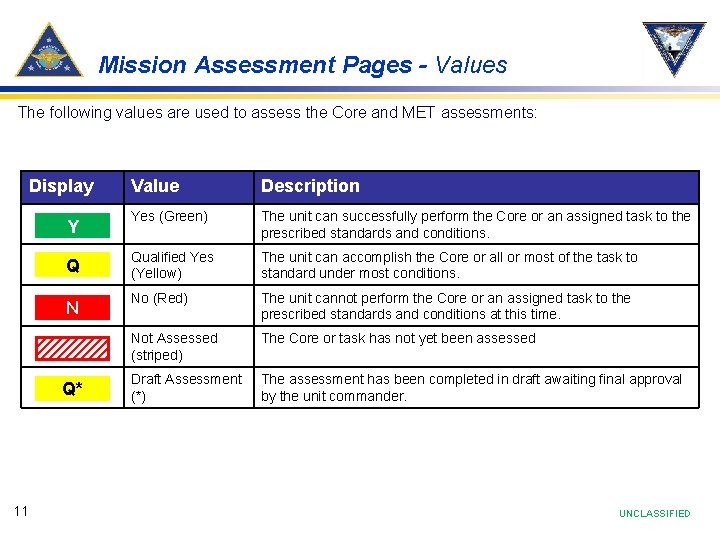
Mission Assessment Pages - Values The following values are used to assess the Core and MET assessments: Display Y Q N Q* 11 Value Description Yes (Green) The unit can successfully perform the Core or an assigned task to the prescribed standards and conditions. Qualified Yes (Yellow) The unit can accomplish the Core or all or most of the task to standard under most conditions. No (Red) The unit cannot perform the Core or an assigned task to the prescribed standards and conditions at this time. Not Assessed (striped) The Core or task has not yet been assessed Draft Assessment (*) The assessment has been completed in draft awaiting final approval by the unit commander. UNCLASSIFIED
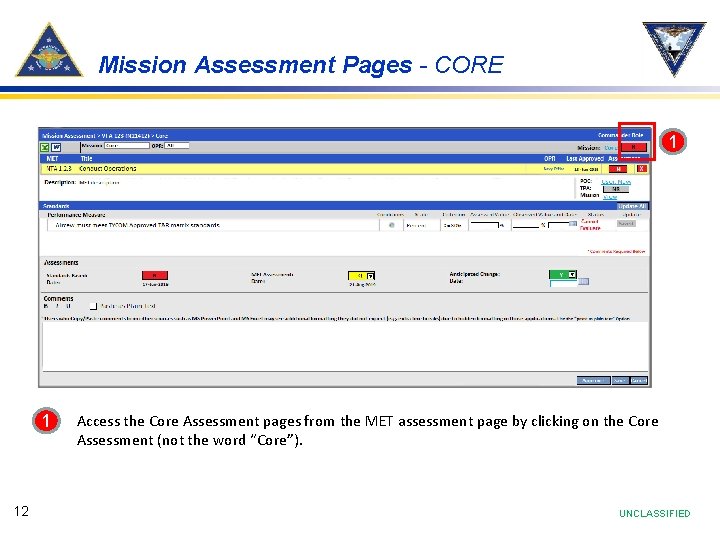
Mission Assessment Pages - CORE 1 1 12 Access the Core Assessment pages from the MET assessment page by clicking on the Core Assessment (not the word “Core”). UNCLASSIFIED
Mission Assessment Pages - CORE Start the Core assessment by 1 clicking on the “Add New Assessment” link Note: You can’t edit the Core assessment from this page. You must select “Add New Assessment” 1 13 UNCLASSIFIED
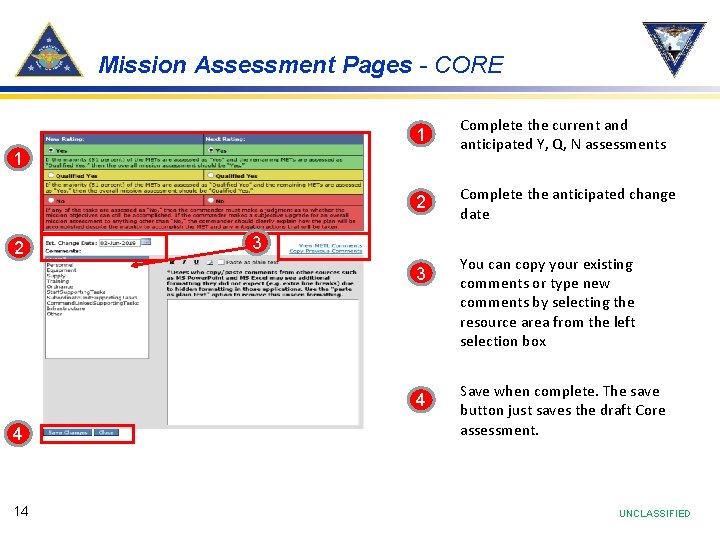
Mission Assessment Pages - CORE 1 Complete the current and anticipated Y, Q, N assessments 2 Complete the anticipated change date 1 2 3 3 4 4 14 You can copy your existing comments or type new comments by selecting the resource area from the left selection box Save when complete. The save button just saves the draft Core assessment. UNCLASSIFIED
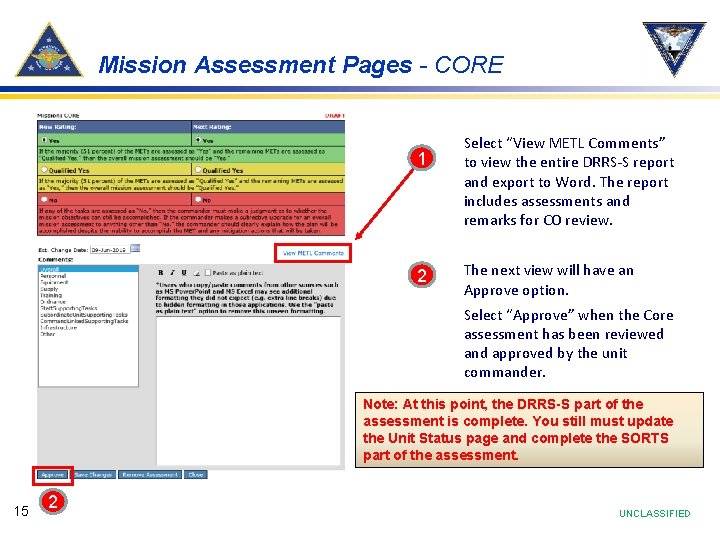
Mission Assessment Pages - CORE 1 2 Select “View METL Comments” to view the entire DRRS-S report and export to Word. The report includes assessments and remarks for CO review. The next view will have an Approve option. Select “Approve” when the Core assessment has been reviewed and approved by the unit commander. Note: At this point, the DRRS-S part of the assessment is complete. You still must update the Unit Status page and complete the SORTS part of the assessment. 15 2 UNCLASSIFIED
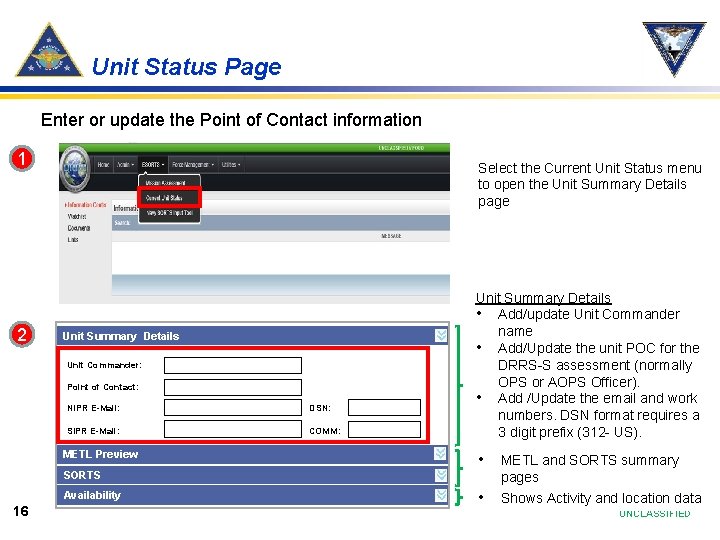
Unit Status Page Enter or update the Point of Contact information 1 2 Select the Current Unit Status menu to open the Unit Summary Details page Unit Summary Details Unit Commander: Point of Contact: NIPR E-Mail: DSN: SIPR E-Mail: COMM : METL Preview SORTS Availability 16 Unit Summary Details • Add/update Unit Commander name • Add/Update the unit POC for the DRRS-S assessment (normally OPS or AOPS Officer). • Add /Update the email and work numbers. DSN format requires a 3 digit prefix (312 - US). • METL and SORTS summary pages • Shows Activity and location data UNCLASSIFIED
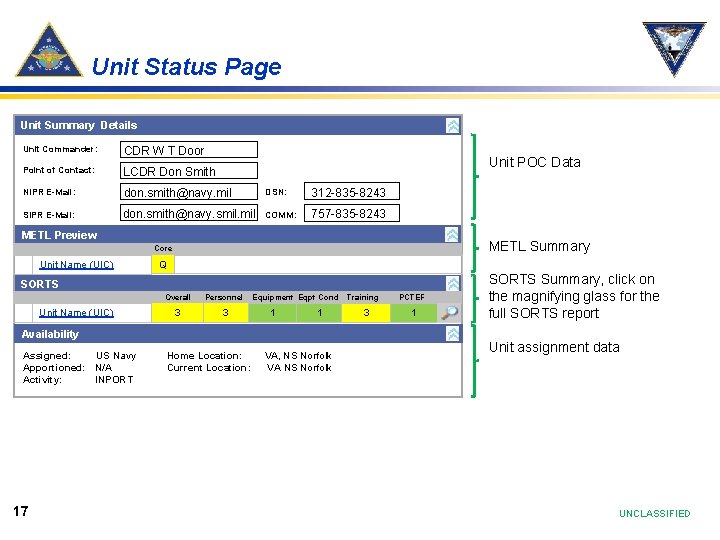
Unit Status Page Unit Summary Details Unit Commander: CDR W T Door Point of Contact: LCDR Don Smith NIPR E-Mail: don. smith@navy. mil DSN: 312 -835 -8243 SIPR E-Mail: don. smith@navy. smil. mil COMM : 757 -835 -8243 Unit POC Data METL Preview METL Summary Core Unit Name (UIC) Q SORTS Unit Name (UIC) Overall Personnel 3 3 Equipment Eqpt Cond 1 1 Availability Assigned: US Navy Apportioned: N/A Activity: INPORT 17 Home Location: Current Location: VA, NS Norfolk VA NS Norfolk Training 3 PCTEF 1 SORTS Summary, click on the magnifying glass for the full SORTS report Unit assignment data UNCLASSIFIED
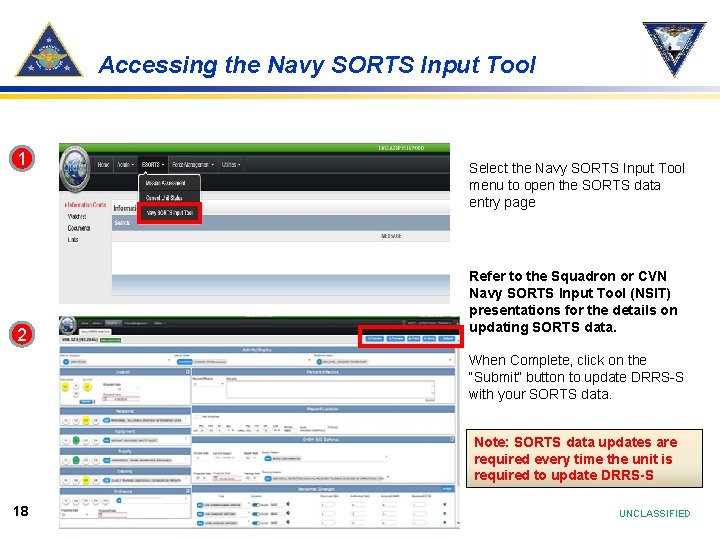
Accessing the Navy SORTS Input Tool 1 2 Select the Navy SORTS Input Tool menu to open the SORTS data entry page Refer to the Squadron or CVN Navy SORTS Input Tool (NSIT) presentations for the details on updating SORTS data. When Complete, click on the “Submit” button to update DRRS-S with your SORTS data. Note: SORTS data updates are required every time the unit is required to update DRRS-S 18 UNCLASSIFIED
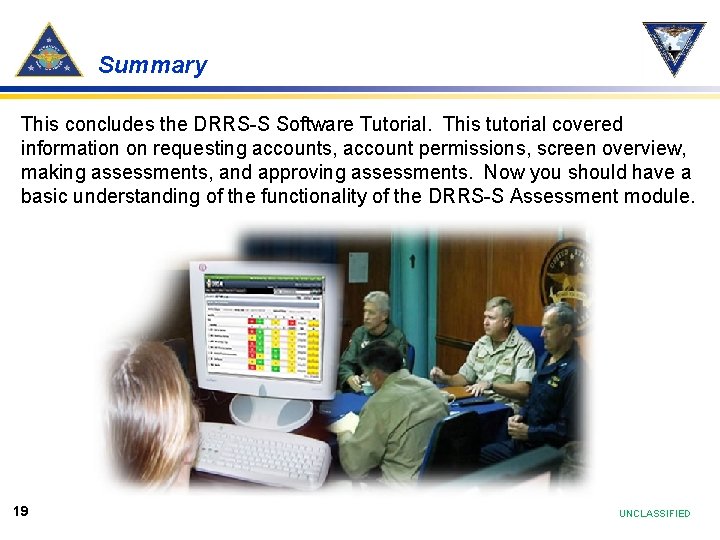
Summary This concludes the DRRS-S Software Tutorial. This tutorial covered information on requesting accounts, account permissions, screen overview, making assessments, and approving assessments. Now you should have a basic understanding of the functionality of the DRRS-S Assessment module. 19 UNCLASSIFIED
CNAF DRRS-S POCs (CVN) CDR David “Lanezies” Lane DRRS-S Program Manager 757 -836 -8244 Mr John Olanowski Personnel 757 -836 -9936 Mr Tom Worthen MFOM/CASREPS 619 -545 -5276 LCDR Sean Lennon METL/CV-SHARP PM 619 -545 -0791 Mr Bill Glenn Ordnance 757 -836 -8261 Contractor Support Leads CNAL Support Mr. Chris Soler 757 -836 -8243 Mr. John Bryson 757 -836 -8242 CNAL_NFLT_N 40_T&R@navy. mil CNAP Support Mr. Derek Teachout 619 -767 -7745 Mr. Dan Raphael 619 -545 -4349 CNAP_T&R@navy. (smil. )mil DRRS-S Account servicing & Technical Support 20 Navy Readiness Support Center (NRSC) U. S. Fleet Forces 757 -836 -6365 nrre@navy. (smil). mil UNCLASSIFIED
CNAF DRRS-S POCs (Squadron) CDR David “Lanezies” Lane DRRS-S Program Manager 757 -836 -8244 Mr. Timothy Leonard T&R / SHARP PM 619 -767 -7748 Contractor Support Leads CNAL Support Mr. Chris Soler 757 -836 -8243 Mr. John Bryson 757 -836 -8242 CNAL_NFLT_N 40_T&R@navy. mil CNAP Support Mr. Derek Teachout 619 -767 -7745 Mr. Dan Raphael 619 -545 -4349 CNAP_T&R@navy. (smil. )mil DRRS-S Account servicing & Technical Support 21 Navy Readiness Support Center (NRSC) U. S. Fleet Forces 757 -836 -6365 nrre@navy. (smil). mil UNCLASSIFIED