
DEFAULT JUDGEMENT FORM 11 B COMPLETING THE FORM
DEFAULT JUDGEMENT FORM 11 B
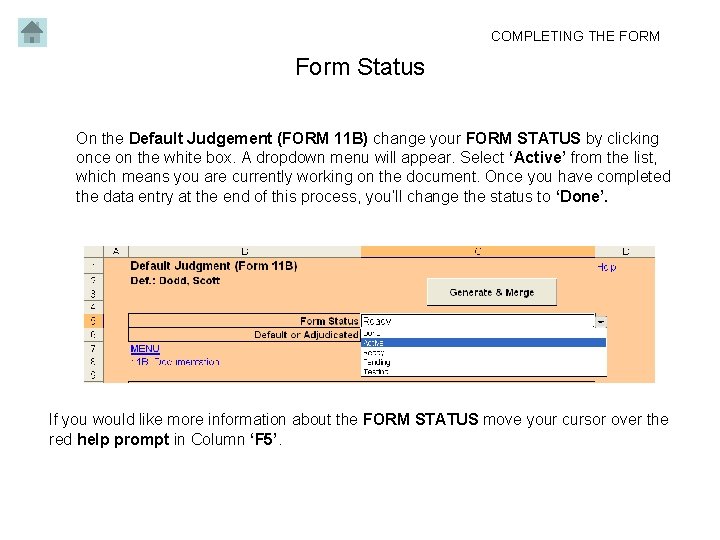
COMPLETING THE FORM Form Status On the Default Judgement (FORM 11 B) change your FORM STATUS by clicking once on the white box. A dropdown menu will appear. Select ‘Active’ from the list, which means you are currently working on the document. Once you have completed the data entry at the end of this process, you’ll change the status to ‘Done’. If you would like more information about the FORM STATUS move your cursor over the red help prompt in Column ‘F 5’.
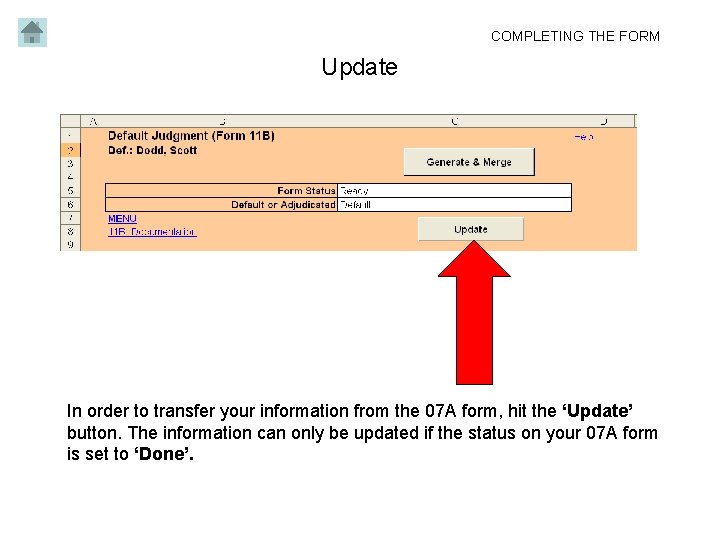
COMPLETING THE FORM Update In order to transfer your information from the 07 A form, hit the ‘Update’ button. The information can only be updated if the status on your 07 A form is set to ‘Done’.

COMPLETING THE FORM Default or Adjudicated? In this Default Judgement form, there are two options in Row 6 which indicate the type of judgement being processed: ‘Default’ or ‘Adjudicated’. If it is a ‘Default Judgement’, the information will be updated from your 07 A form. If it is ‘Adjudicated’ and has already been adjudicated by a regulatory body, you must fill in all the required information. Choose the one that applies to your judgement.
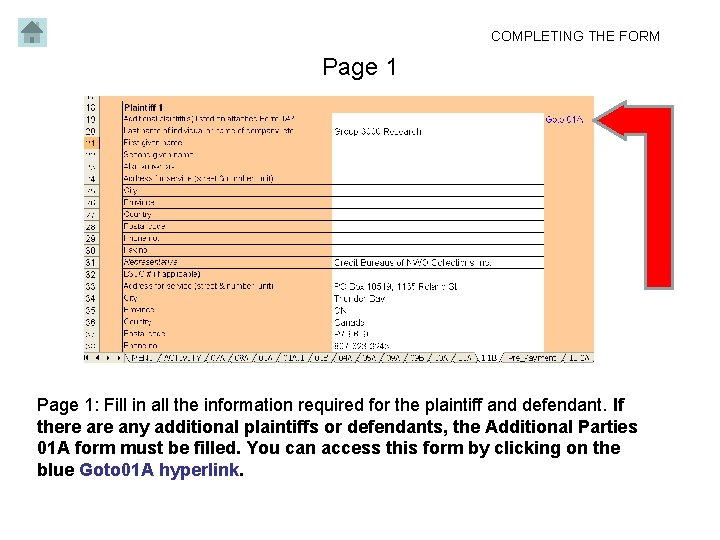
COMPLETING THE FORM Page 1: Fill in all the information required for the plaintiff and defendant. If there any additional plaintiffs or defendants, the Additional Parties 01 A form must be filled. You can access this form by clicking on the blue Goto 01 A hyperlink.
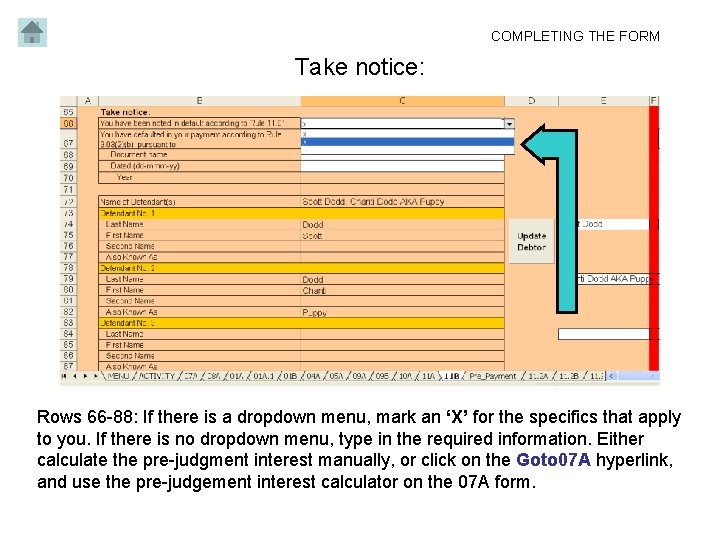
COMPLETING THE FORM Take notice: Rows 66 -88: If there is a dropdown menu, mark an ‘X’ for the specifics that apply to you. If there is no dropdown menu, type in the required information. Either calculate the pre-judgment interest manually, or click on the Goto 07 A hyperlink, and use the pre-judgement interest calculator on the 07 A form.
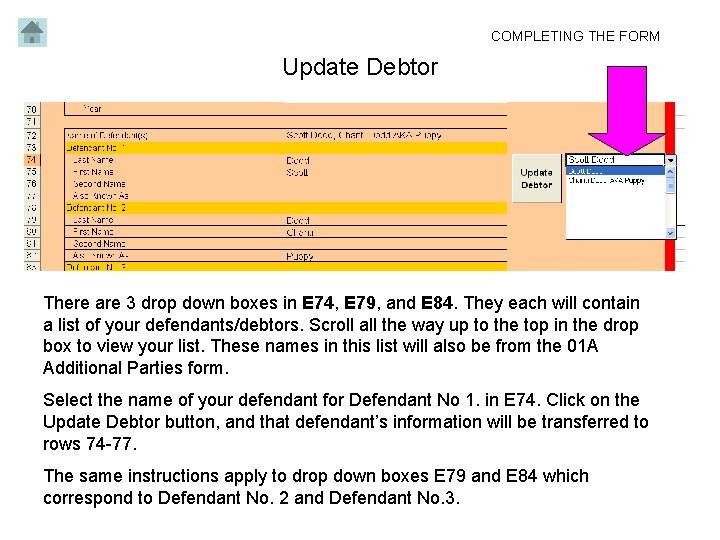
COMPLETING THE FORM Update Debtor There are 3 drop down boxes in E 74, E 79, and E 84. They each will contain a list of your defendants/debtors. Scroll all the way up to the top in the drop box to view your list. These names in this list will also be from the 01 A Additional Parties form. Select the name of your defendant for Defendant No 1. in E 74. Click on the Update Debtor button, and that defendant’s information will be transferred to rows 74 -77. The same instructions apply to drop down boxes E 79 and E 84 which correspond to Defendant No. 2 and Defendant No. 3.
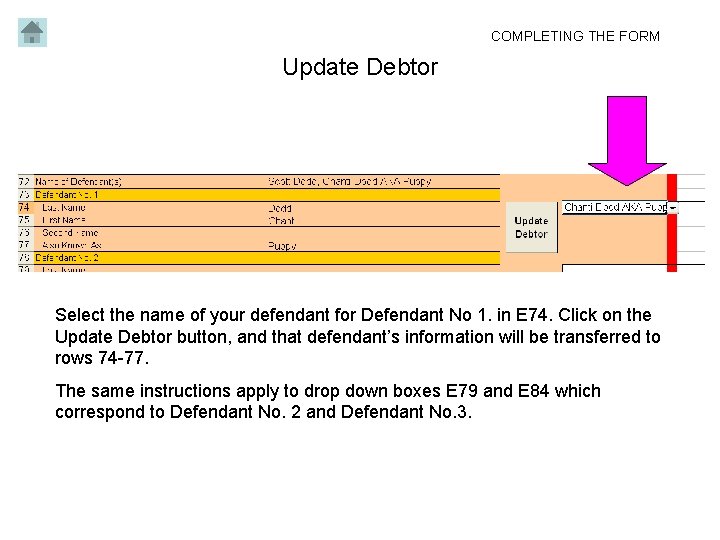
COMPLETING THE FORM Update Debtor Select the name of your defendant for Defendant No 1. in E 74. Click on the Update Debtor button, and that defendant’s information will be transferred to rows 74 -77. The same instructions apply to drop down boxes E 79 and E 84 which correspond to Defendant No. 2 and Defendant No. 3.
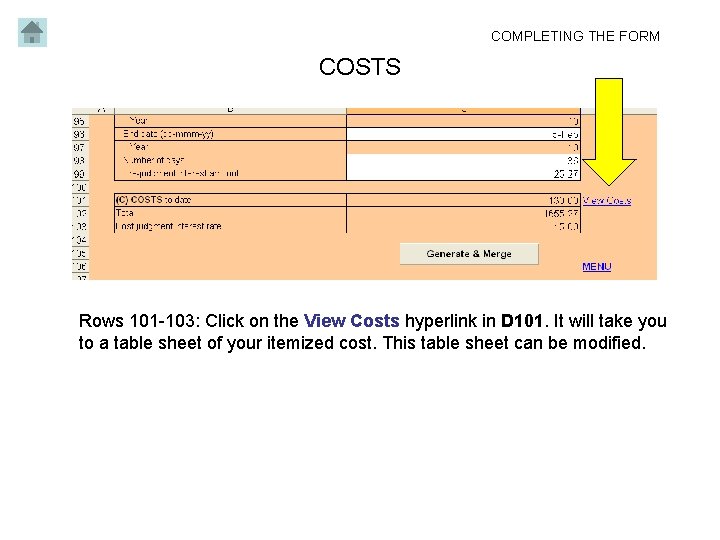
COMPLETING THE FORM COSTS Rows 101 -103: Click on the View Costs hyperlink in D 101. It will take you to a table sheet of your itemized cost. This table sheet can be modified.
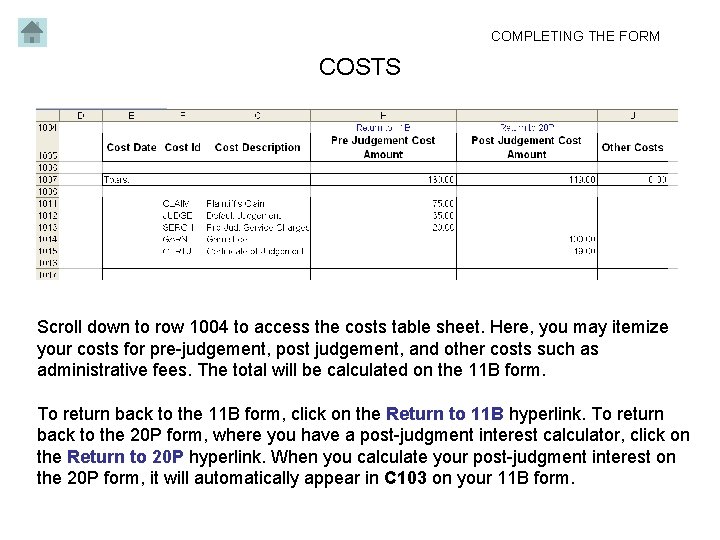
COMPLETING THE FORM COSTS Scroll down to row 1004 to access the costs table sheet. Here, you may itemize your costs for pre-judgement, post judgement, and other costs such as administrative fees. The total will be calculated on the 11 B form. To return back to the 11 B form, click on the Return to 11 B hyperlink. To return back to the 20 P form, where you have a post-judgment interest calculator, click on the Return to 20 P hyperlink. When you calculate your post-judgment interest on the 20 P form, it will automatically appear in C 103 on your 11 B form.
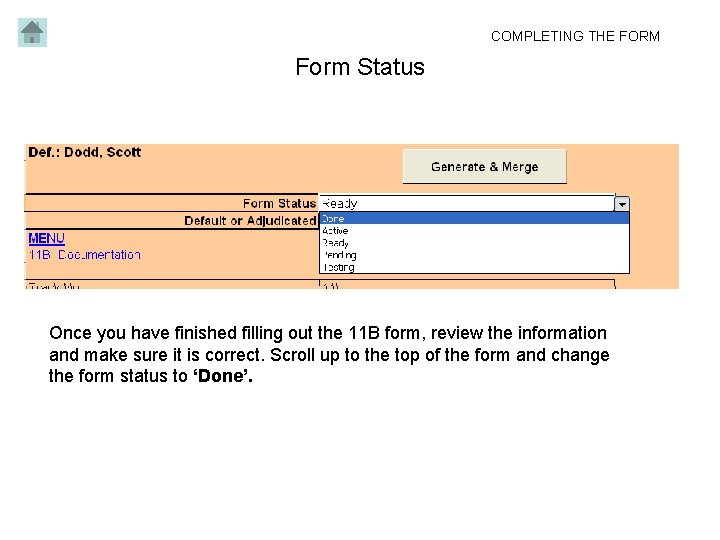
COMPLETING THE FORM Form Status Once you have finished filling out the 11 B form, review the information and make sure it is correct. Scroll up to the top of the form and change the form status to ‘Done’.
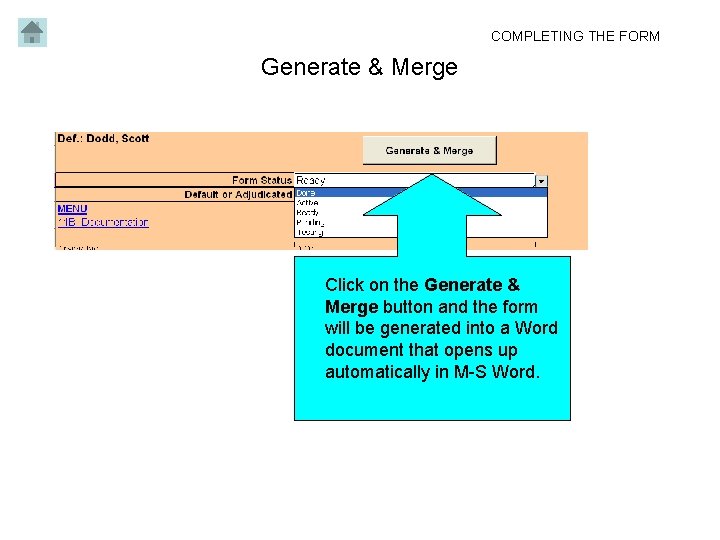
COMPLETING THE FORM Generate & Merge Click on the Generate & Merge button and the form will be generated into a Word document that opens up automatically in M-S Word.
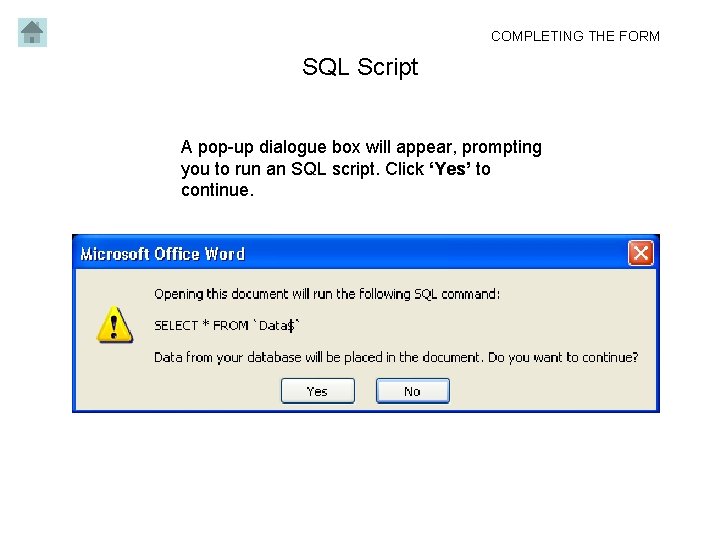
COMPLETING THE FORM SQL Script A pop-up dialogue box will appear, prompting you to run an SQL script. Click ‘Yes’ to continue.
Generating the Word Document COMPLETING THE FORM 1. Two Word documents will appear. ‘Form Letters 1’ is the document you need. Behind it is the merge document SCR_11 B, which you do not need. Please close the merge document without changing it. 2. Review the ‘Form Letters 1’ document carefully to see if all your information has been generated correctly. If you wish, use Save As to save the output where you want to store it. 3. Print as many copies as you need of the document. You can now bring these along with you to the Small Claims Court. To see visual examples, see next few slides.
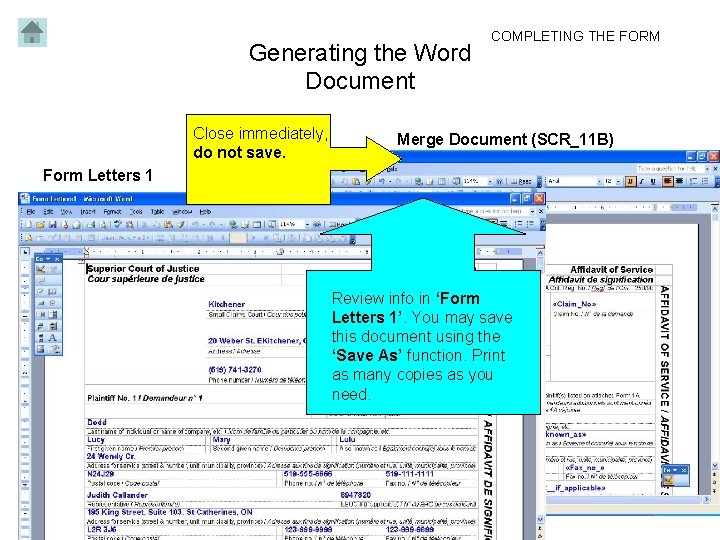
Generating the Word Document Close immediately, do not save. COMPLETING THE FORM Merge Document (SCR_11 B) Form Letters 1 Review info in ‘Form Letters 1’. You may save this document using the ‘Save As’ function. Print as many copies as you need.
- Slides: 15