
Deep Neural Networks A Hands on Challenge Course


- Slides: 31
Deep Neural Networks: A Hands on Challenge • • • Course goals Meeting times and structure Slack: https: //dnn-challenge. slack. com Data handling Infrastructure – Python, Pandas, Tensorflow, Compute cluster • TAs: – Hadar Gorodissky: gorohadar@gmail. com – Niv Haim: nivhaa@gmail. com
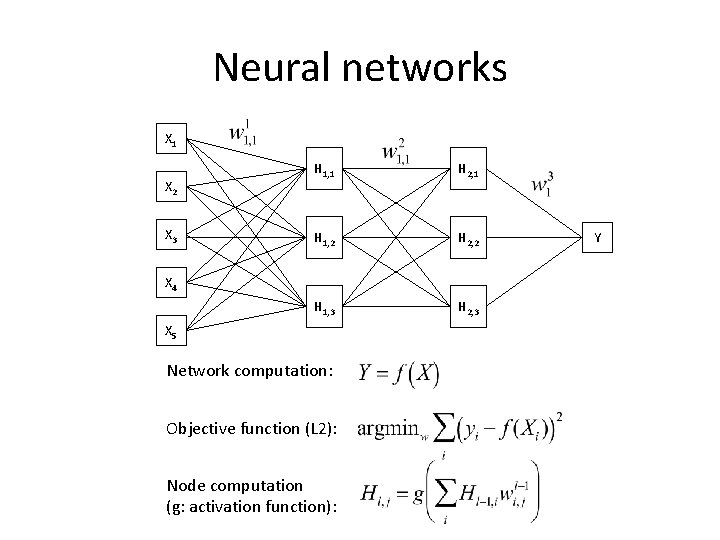
Neural networks X 1 X 2 X 3 H 1, 1 H 2, 1 H 1, 2 H 2, 2 H 1, 3 H 2, 3 X 4 X 5 Network computation: Objective function (L 2): Node computation (g: activation function): Y
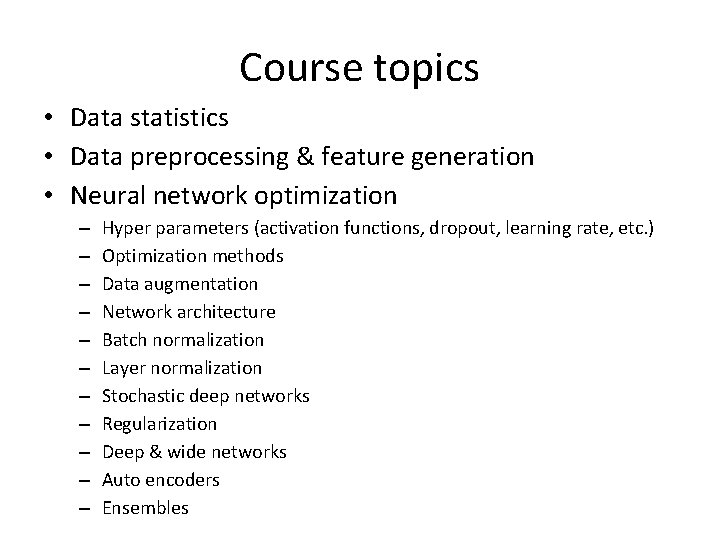
Course topics • Data statistics • Data preprocessing & feature generation • Neural network optimization – – – Hyper parameters (activation functions, dropout, learning rate, etc. ) Optimization methods Data augmentation Network architecture Batch normalization Layer normalization Stochastic deep networks Regularization Deep & wide networks Auto encoders Ensembles
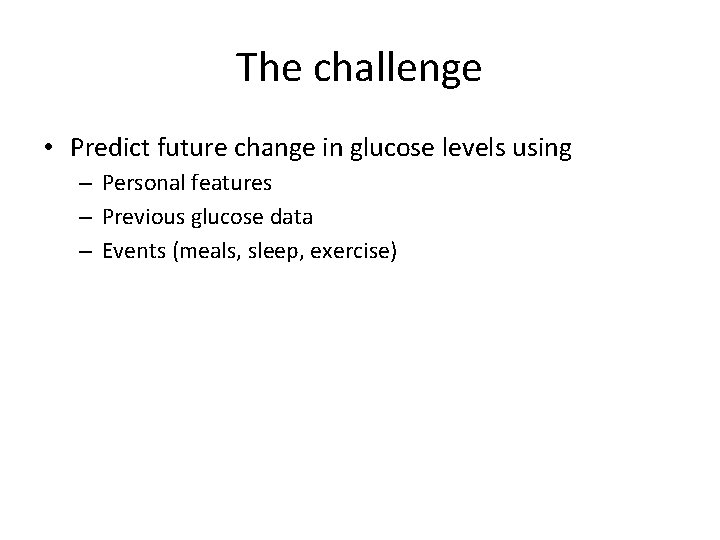
The challenge • Predict future change in glucose levels using – Personal features – Previous glucose data – Events (meals, sleep, exercise)
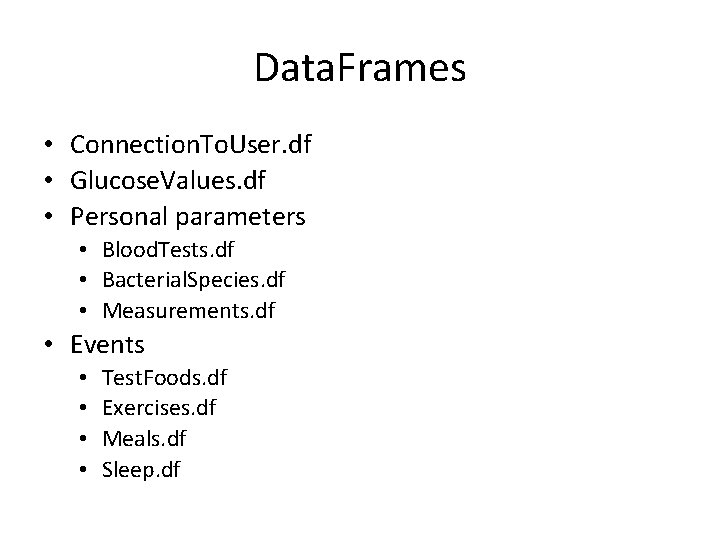
Data. Frames • Connection. To. User. df • Glucose. Values. df • Personal parameters • Blood. Tests. df • Bacterial. Species. df • Measurements. df • Events • • Test. Foods. df Exercises. df Meals. df Sleep. df
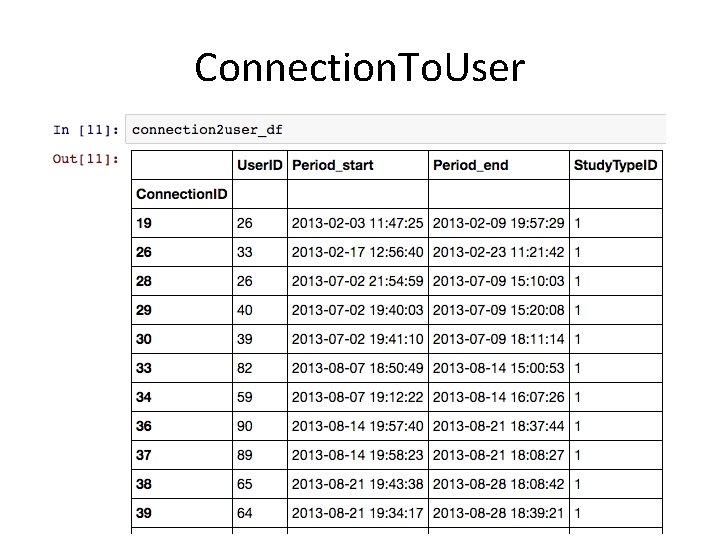
Connection. To. User
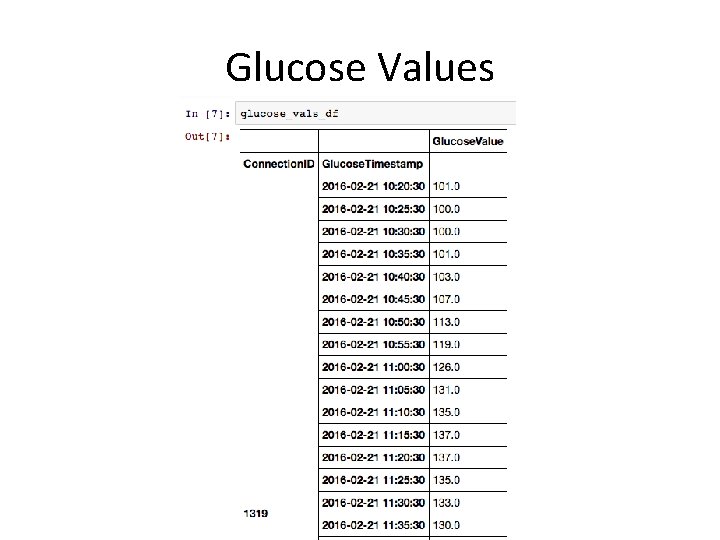
Glucose Values
Glucose Values
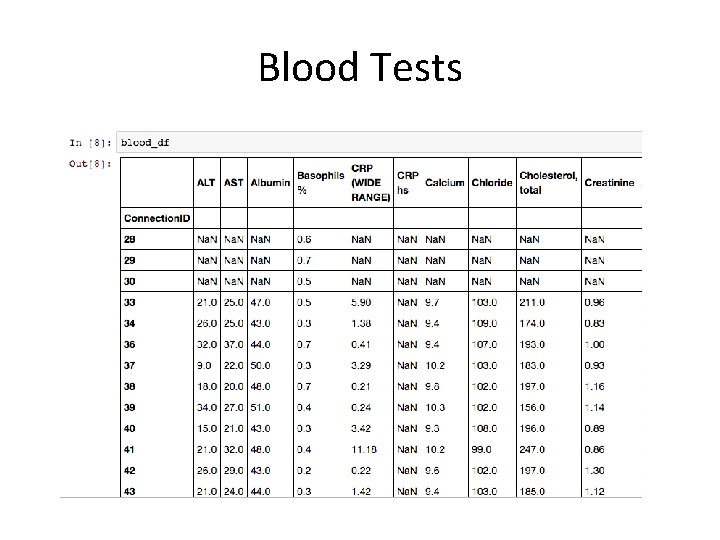
Blood Tests
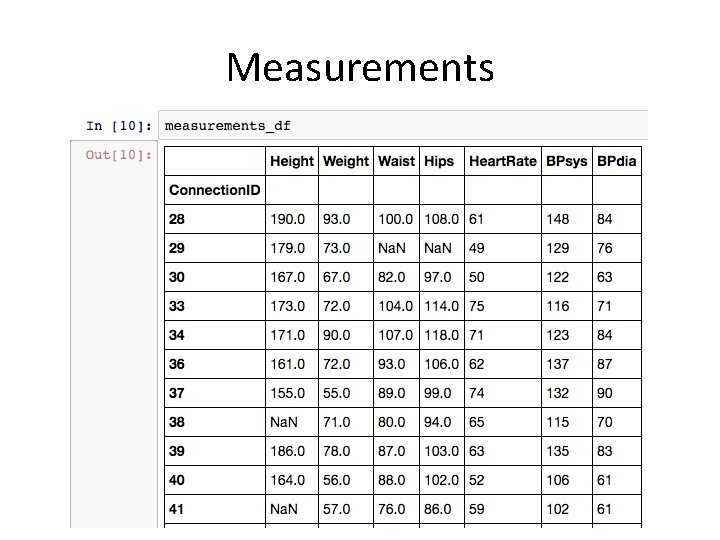
Measurements
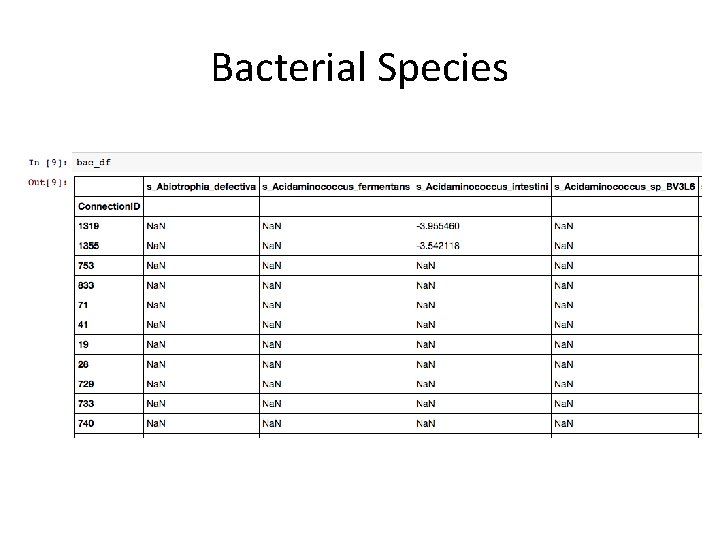
Bacterial Species
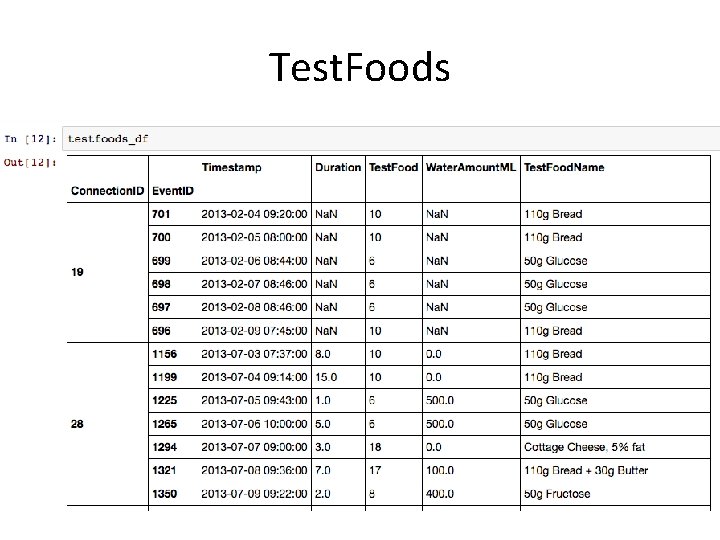
Test. Foods
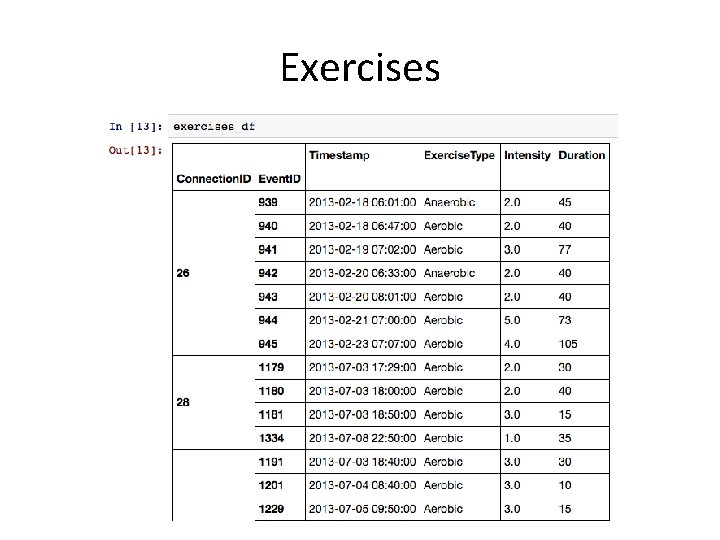
Exercises
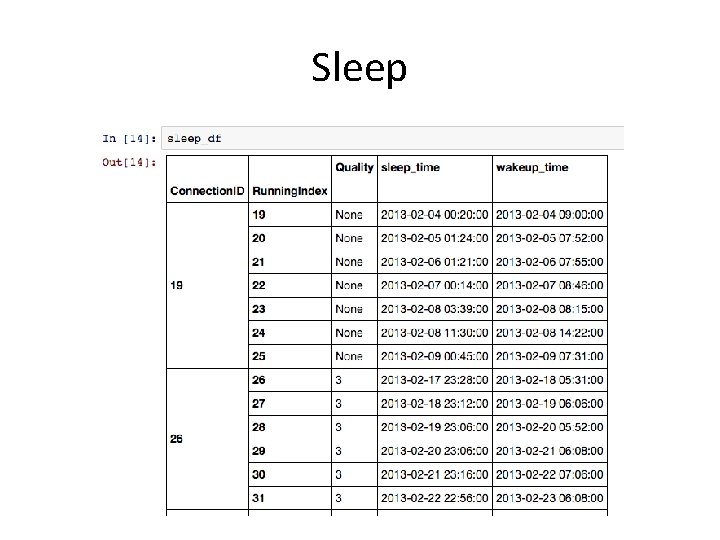
Sleep
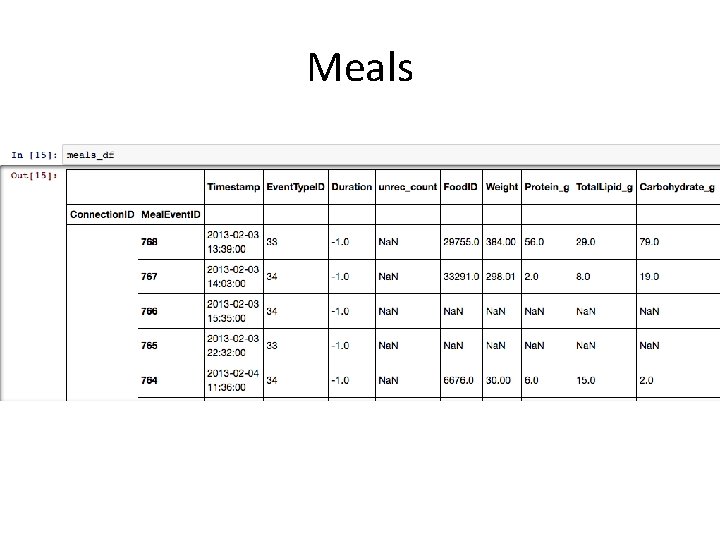
Meals
Features • Personal parameters – Dimensionality reduction (auto encoding, PCA) • Lags – Avg / Min / Max / Sum over features
Technical Review • Python (Anaconda, Py. Charm) • Jupyter • Pandas • Tensorflow
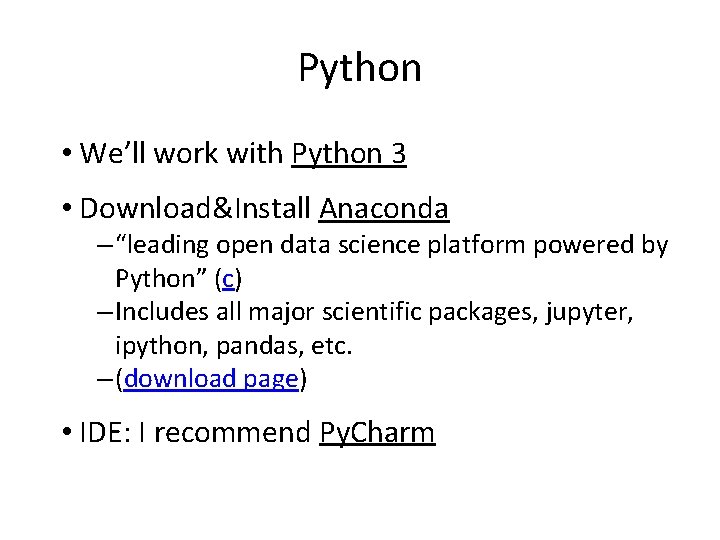
Python • We’ll work with Python 3 • Download&Install Anaconda – “leading open data science platform powered by Python” (c) – Includes all major scientific packages, jupyter, ipython, pandas, etc. – (download page) • IDE: I recommend Py. Charm
Jupyter Pandas walkthrough • “The Jupyter Notebook is a web application that allows you to create and share documents that contain live code, equations, visualizations and explanatory text. ” (c) • “pandas library - providing high-performance, easy-to-use data structures and data analysis tools for the Python” (c) • Short Walkthrough • Gazillions of tutorials online: 1, 2, 3
Jupyter from your folder • Start Jupyter from your folder: – Make a shortcut file in your folder (or copy jupyter-notebook shortcut from start menu) – Change Target to: jupyter notebook – Change Start-in to current folder (ref here)
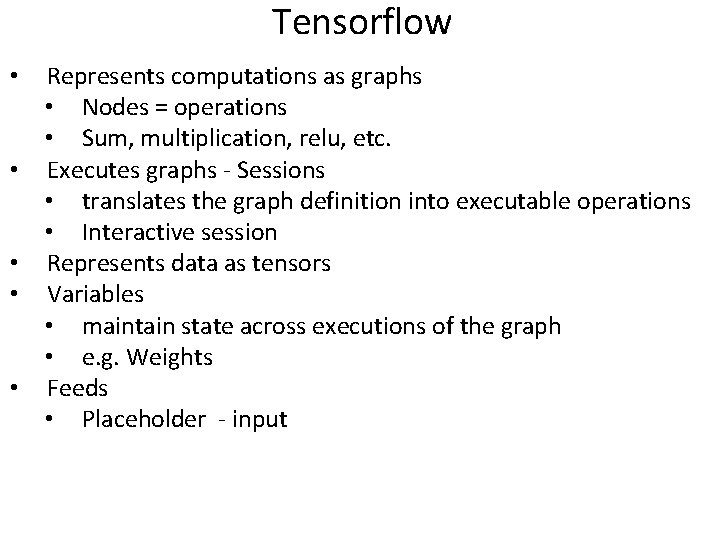
Tensorflow • • • Represents computations as graphs • Nodes = operations • Sum, multiplication, relu, etc. Executes graphs - Sessions • translates the graph definition into executable operations • Interactive session Represents data as tensors Variables • maintain state across executions of the graph • e. g. Weights Feeds • Placeholder - input
Given Code • Vanilla net • Predictor • test script (test+val 1 and test+val 2)
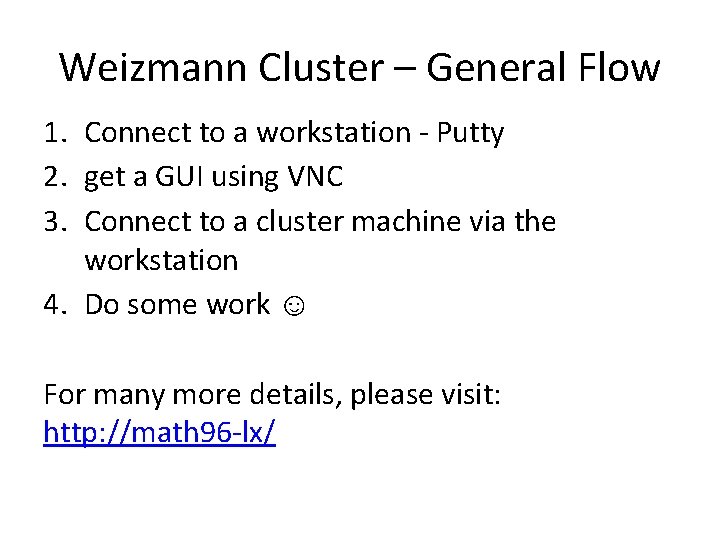
Weizmann Cluster – General Flow 1. Connect to a workstation - Putty 2. get a GUI using VNC 3. Connect to a cluster machine via the workstation 4. Do some work ☺ For many more details, please visit: http: //math 96 -lx/
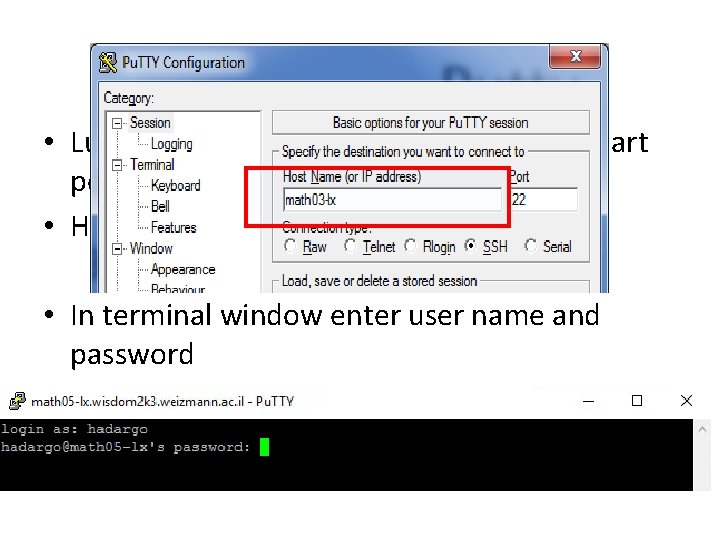
Step 1 – workstation • Lunch Putty - a windows SSH client (standart port : 22) • Host: math 05 -lx or 13, 14, 15 • In terminal window enter user name and password
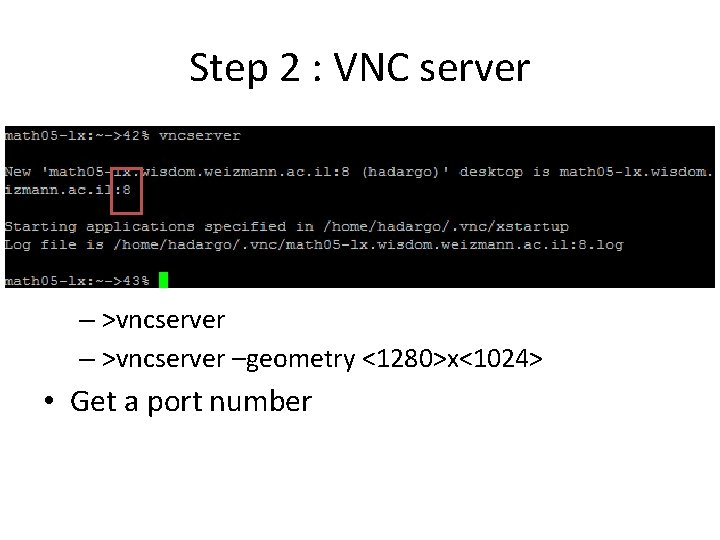
Step 2 : VNC server • Remote connection to a desktop • Install Ultra. VNC or Turbo. VNC on windows machine • Start in the terminal vncserver – >vncserver –geometry <1280>x<1024> • Get a port number
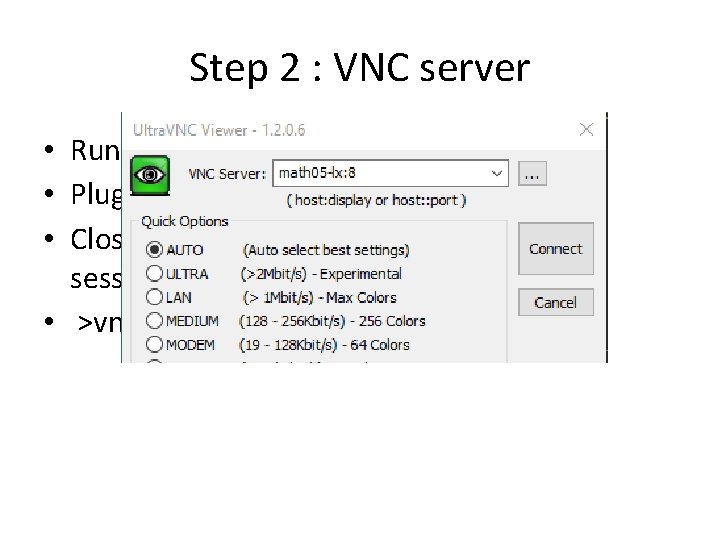
Step 2 : VNC server • Run VNC from windows machine • Plug in : math 03 -lx: number • Closing a VNC viewer will not end your session! • >vncserver –kill : N (terminal)
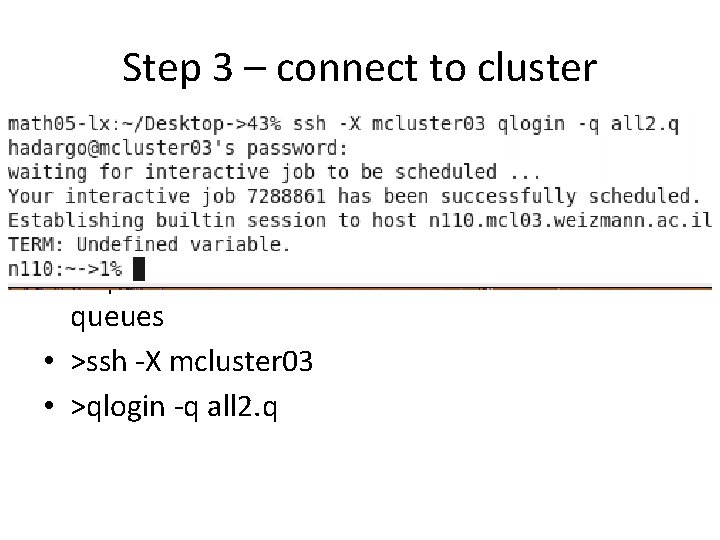
Step 3 – connect to cluster • Open a terminal • The machines on the cluster are split into different queues • request a cluster machine from one of the queues • >ssh -X mcluster 03 • >qlogin -q all 2. q
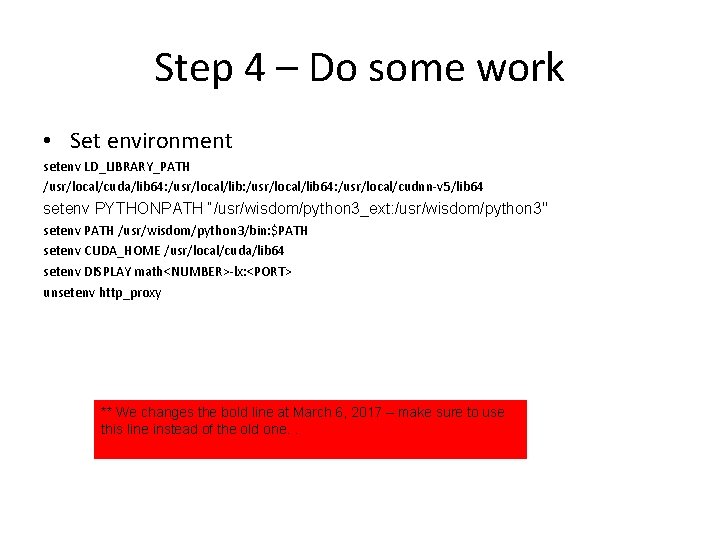
Step 4 – Do some work • Set environment setenv LD_LIBRARY_PATH /usr/local/cuda/lib 64: /usr/local/lib 64: /usr/local/cudnn-v 5/lib 64 setenv PYTHONPATH “/usr/wisdom/python 3_ext: /usr/wisdom/python 3" setenv PATH /usr/wisdom/python 3/bin: $PATH setenv CUDA_HOME /usr/local/cuda/lib 64 setenv DISPLAY math<NUMBER>-lx: <PORT> unsetenv http_proxy ** We changes the bold line at March 6, 2017 – make sure to use this line instead of the old one. .
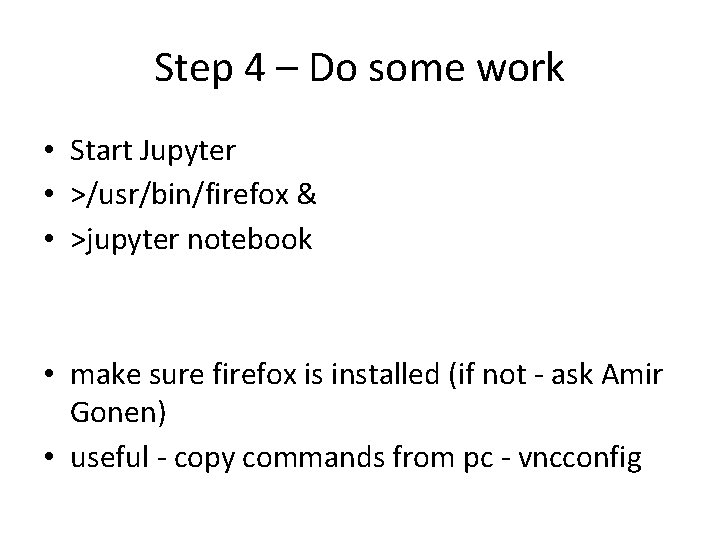
Step 4 – Do some work • Start Jupyter • >/usr/bin/firefox & • >jupyter notebook • make sure firefox is installed (if not - ask Amir Gonen) • useful - copy commands from pc - vncconfig
Slack • Use it • Help each other
Home work • Tutorials : tensorflow, pandas, . . • Connect to cluster : open jupyter, import tensorflow, run the vanilla net • Convince yourselves that the data is correct play with it