
Dayton Metro Library Place photo here Mouse Basics
Dayton Metro Library Place photo here Mouse Basics 16 December
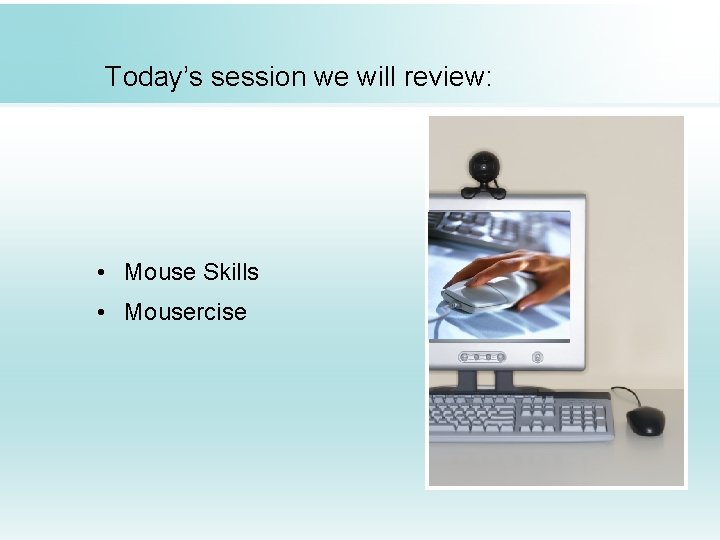
Today’s session we will review: • Mouse Skills • Mousercise
What is a Mouse?
What is a Mouse? • The mouse is a hand held device that lets you interact with the computer by pointing to things on the screen. When you move the mouse on a flat surface a cursor (arrow) moves on the screen. By using the buttons on the mouse you can choose, highlight and move objects

Versions of a Mouse. Optical Wired Wireless Mini Track. Ball Handicap/Senior Assisted
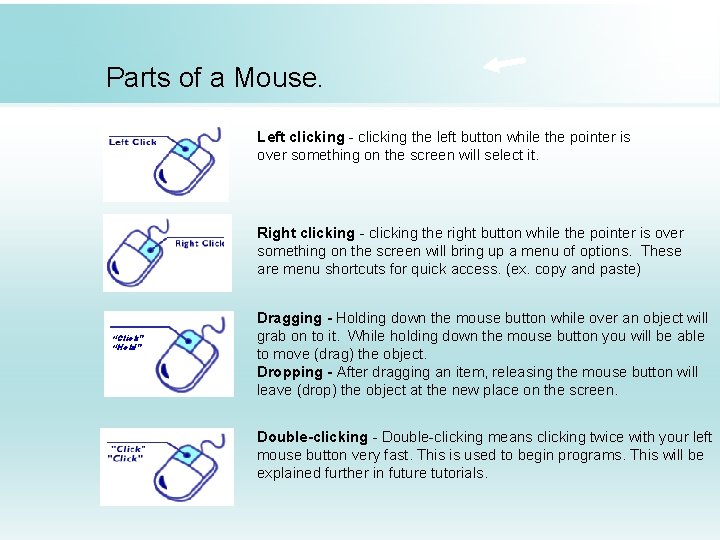
Parts of a Mouse. Left clicking - clicking the left button while the pointer is over something on the screen will select it. Right clicking - clicking the right button while the pointer is over something on the screen will bring up a menu of options. These are menu shortcuts for quick access. (ex. copy and paste) “Click” “Hold” Dragging - Holding down the mouse button while over an object will grab on to it. While holding down the mouse button you will be able to move (drag) the object. Dropping - After dragging an item, releasing the mouse button will leave (drop) the object at the new place on the screen. Double-clicking - Double-clicking means clicking twice with your left mouse button very fast. This is used to begin programs. This will be explained further in future tutorials.
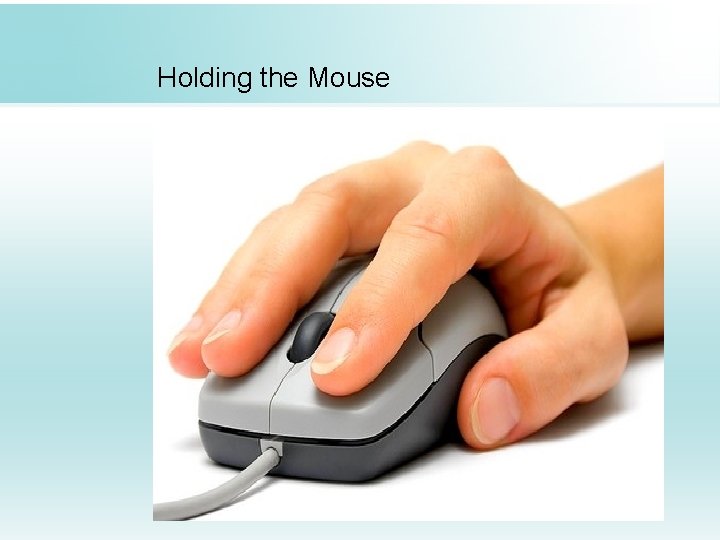
Holding the Mouse
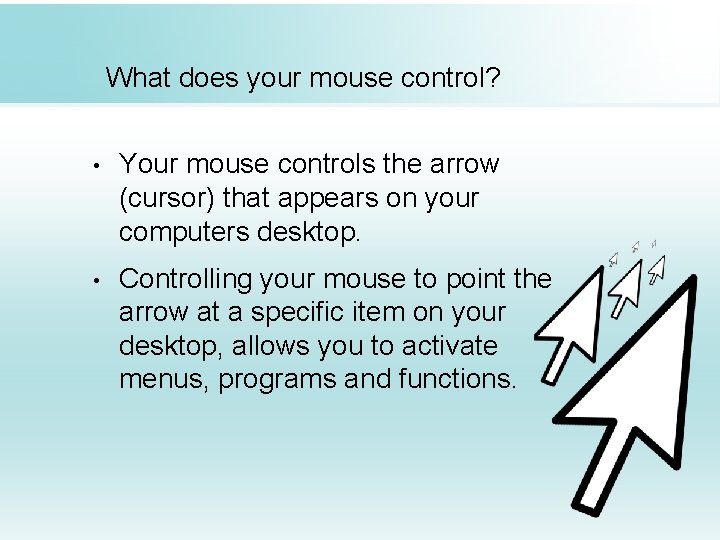
What does your mouse control? • Your mouse controls the arrow (cursor) that appears on your computers desktop. • Controlling your mouse to point the arrow at a specific item on your desktop, allows you to activate menus, programs and functions.
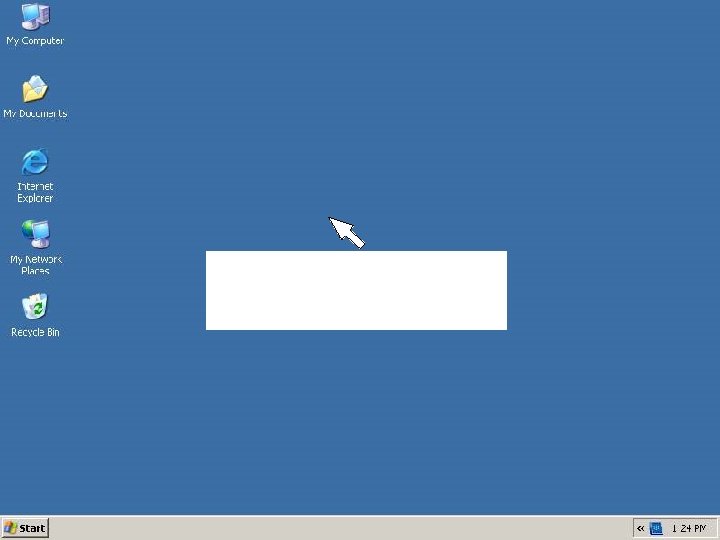
“Cursor”
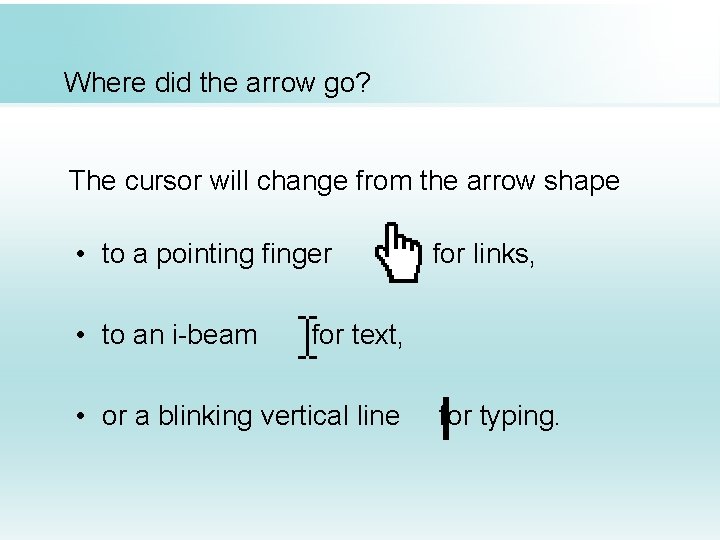
Where did the arrow go? The cursor will change from the arrow shape • to a pointing finger • to an i-beam for links, for text, • or a blinking vertical line Ifor typing.

Mousercise!
Dayton Metro Library Place photo here Mouse Basics
Dayton Metro Library Place photo here Mouse Basics Thank You!
- Slides: 13