
DAY 17 MICROSOFT ACCESS CHAPTER 2 CONTD MICROSOFT


- Slides: 28
DAY 17: MICROSOFT ACCESS – CHAPTER 2 CONTD. MICROSOFT ACCESS – CHAPTER 3 Akhila Kondai akhila. kondai@mail. wvu. edu October 16, 2013
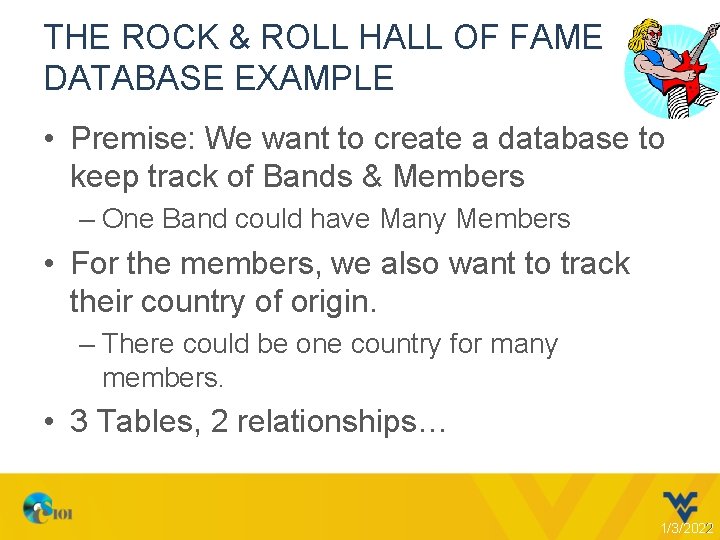
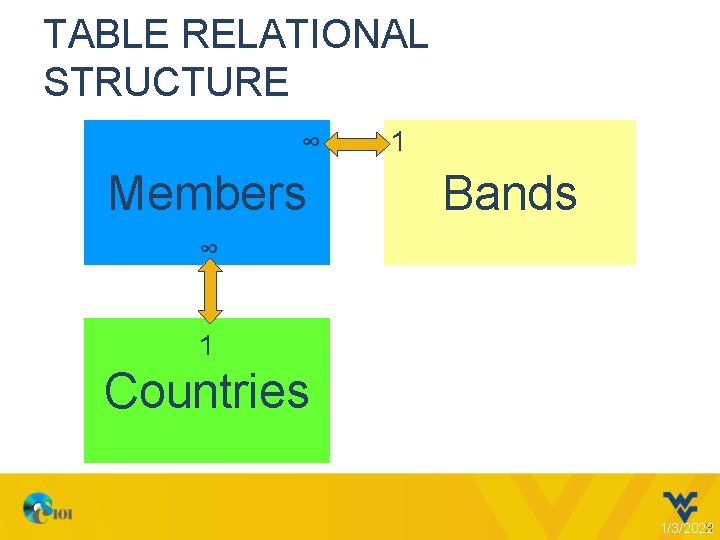
THE ROCK & ROLL HALL OF FAME DATABASE EXAMPLE • Premise: We want to create a database to keep track of Bands & Members – One Band could have Many Members • For the members, we also want to track their country of origin. – There could be one country for many members. • 3 Tables, 2 relationships… 1/3/2022 2
TABLE RELATIONAL STRUCTURE ∞ Members 1 Bands ∞ 1 Countries 1/3/2022 3
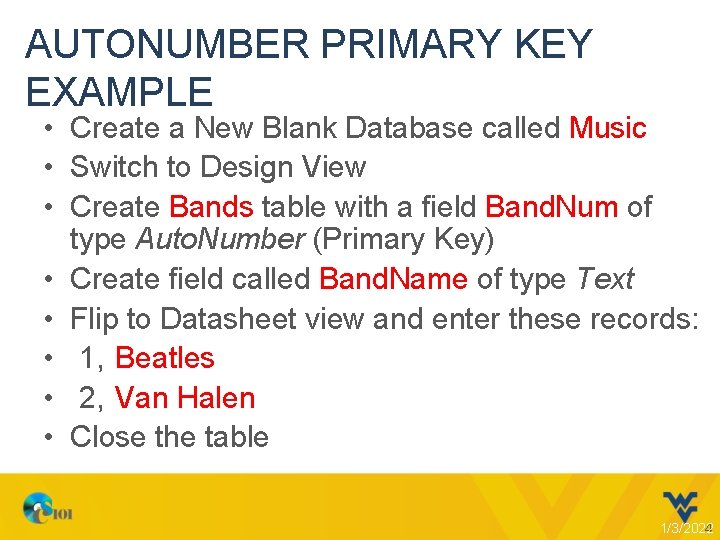
AUTONUMBER PRIMARY KEY EXAMPLE • Create a New Blank Database called Music • Switch to Design View • Create Bands table with a field Band. Num of type Auto. Number (Primary Key) • Create field called Band. Name of type Text • Flip to Datasheet view and enter these records: • 1, Beatles • 2, Van Halen • Close the table 1/3/2022 4
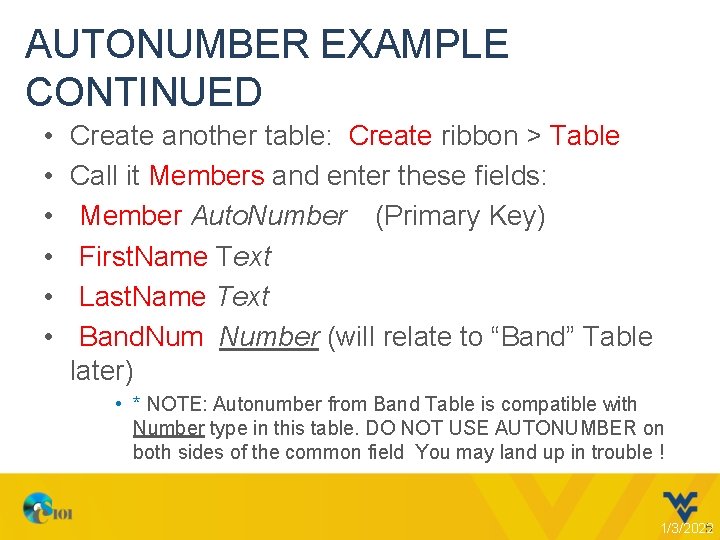
AUTONUMBER EXAMPLE CONTINUED • • • Create another table: Create ribbon > Table Call it Members and enter these fields: Member Auto. Number (Primary Key) First. Name Text Last. Name Text Band. Number (will relate to “Band” Table later) • * NOTE: Autonumber from Band Table is compatible with Number type in this table. DO NOT USE AUTONUMBER on both sides of the common field You may land up in trouble ! 1/3/2022 5
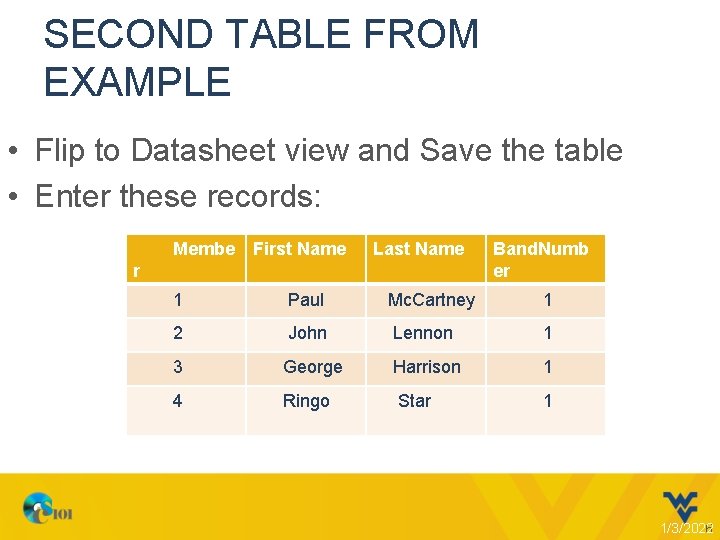
SECOND TABLE FROM EXAMPLE • Flip to Datasheet view and Save the table • Enter these records: Membe First Name Last Name r Band. Numb er 1 Paul Mc. Cartney 1 2 John Lennon 1 3 George Harrison 1 4 Ringo Star 1 1/3/2022 6
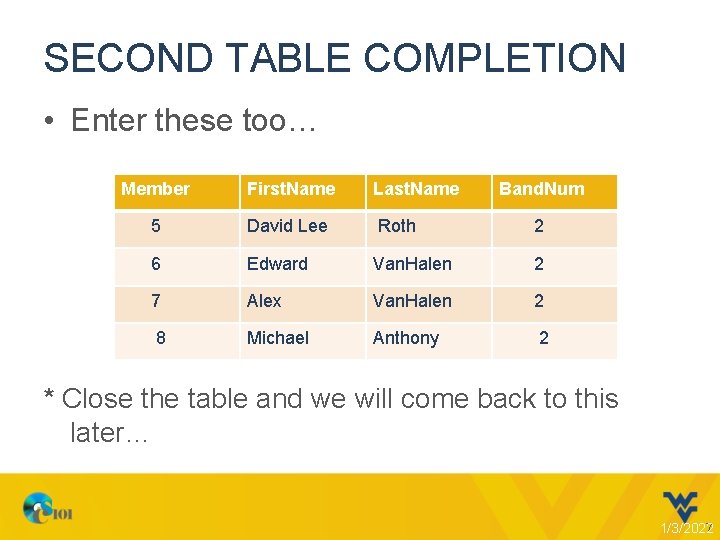
SECOND TABLE COMPLETION • Enter these too… Member First. Name Last. Name Band. Num 5 David Lee Roth 2 6 Edward Van. Halen 2 7 Alex Van. Halen 2 8 Michael Anthony 2 * Close the table and we will come back to this later… 1/3/2022 7
LOOKUP TYPE FIELDS • They help in creating a drop down menu when entering field values while in datasheet view to select predefined items as opposed to having to type them. • Two types of lookup fields: 1. Lookup references uses field values in another table 2. Lookup references items you manually enter in advance in the same table 1/3/2022 8
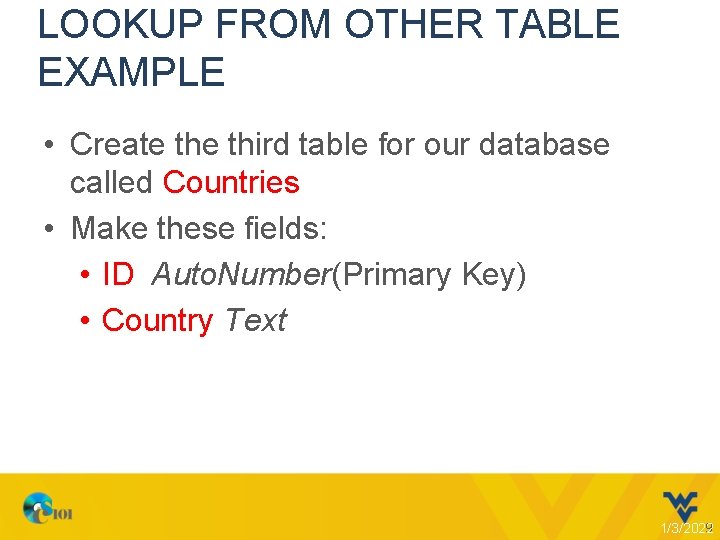
LOOKUP FROM OTHER TABLE EXAMPLE • Create third table for our database called Countries • Make these fields: • ID Auto. Number(Primary Key) • Country Text 1/3/2022 9
LOOKUP FROM OTHER TABLE EXAMPLE • • Flip to Datasheet view Create the following Records: 1, England 2, America • Close the table 1/3/2022 10
LOOKUP FROM OTHER TABLE EXAMPLE • Return to the “Members” table in Design View • Add a 5 th field called Origin of Data type Lookup Wizard • Use I want the lookup column to look up values in a table or query > Next • Select Table: Countries > Next 1/3/2022 11
LOOKUP FROM OTHER TABLE EXAMPLE • • • Add the Country field to Selected fields Next ->Finish… Save Return to Datasheet View in “Members” Click in the Origin file to assign these: Assign England to Beatles members Assign America for Van Helen members 1/3/2022 12
SAME TABLE LOOKUP EXAMPLE • Again in the Members table of our example, return to Design View • Create a new field called Instrument of type Lookup Wizard… • This time select “I will type the values I want. ” • Enter the following: • Vocals, Drums, Guitar, Bass • Press Finish, and return to Datasheet view (and save) 1/3/2022 13
“YES/NO” FIELD TYPE EXAMPLE • Add a field called Living • Make it of Type Yes/No • Save the table and mark all records except John Lennon as Living members • * We will come back to this 1/3/2022 14
CREATE A RELATIONSHIP • • • Close the table Database Tools -> Relationships Note that lookup wizard created one already! Right click, Show Table, add Bands. Drag [Bands/Band. Num] to [Members/Band. Num] • Enforce referential Integrity • Create, and save. 1/3/2022 15
QUERY EXAMPLE • Use the relationships to seamlessly query between fields in the three tables to show the names of the artists, their bands and their countries • Create query in design view • Add all tables (note the relationships showing) 1/3/2022 16
QUERY EXAMPLE • Add these fields: • Bands: Band. Name • Members: First. Name, Last. Name, Instruments, Living • Countries: Country • Run the Query ! • Band/Instrument/Country names only typed in once! • Close and Save Query as Band. Trivia 1/3/2022 17
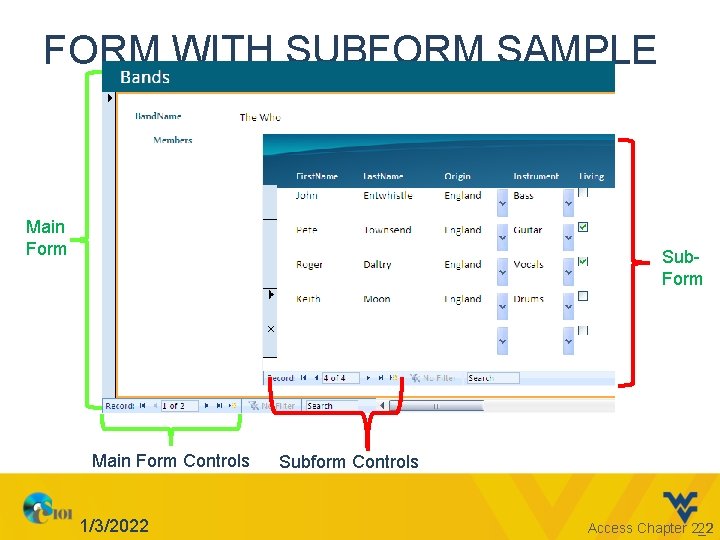
FORMS & SUBFORMS • You can create a form with a subform by including fields from each of two tables that have an established relationship formed • When the relationship between the tables is a one-to-many relationship, the main form will consist of data from the primary table and the subform will consist of data from the related table 1/3/2022 18
FORM WITH SUBFORM EXAMPLE • Create form by using wizard • Create ribbon -> Forms section -> Form Wizard • Click the “Tables/Queries” drop down and select the Bands table, add Band. Name 1/3/2022 19
FORM/SUBFORM CRITICAL STEP! • Switch to appropriate table to add more fields and create Subform! • Click the “Tables/Queries” drop down and switch to the Members Table • Add: First. Name, Last. Name, Origin, Instruments, and Living • Click Next, and verify “Form with subform(s)” is shown at the bottom 1/3/2022 20
FORM WITH SUBFORM EXAMPLE • Next > Select Tabular layout • Click Finish • Use the bottom navigation controls to show the band in the top and the members in the bottom! 1/3/2022 21
FORM WITH SUBFORM SAMPLE Main Form Sub. Form Main Form Controls 1/3/2022 Subform Controls Access Chapter 2_2 22
ADDING RECORDS USING FORMS… • Use the form to add records to 2 tables at once! Ø Click the New Record button at the bottom Ø Type Def Leppard for the band name Ø Enter Joe Elliot, England, Vocals, Living Ø Close the form and look in the Bands and Members tables ! 1/3/2022 Access Chapter 2_2 23
REPORTS • Let us put things into a visually professional format suitable for printing • Creation can be somewhat like doing Forms with Subforms… 24 1/3/2022
REPORTS • • Create ribbon > Reports Group > Report Wizard Add these fields: [Bands] Band Name [Members] First. Name, Last. Name, Instrument, Living • [Countries] Country 25 1/3/2022
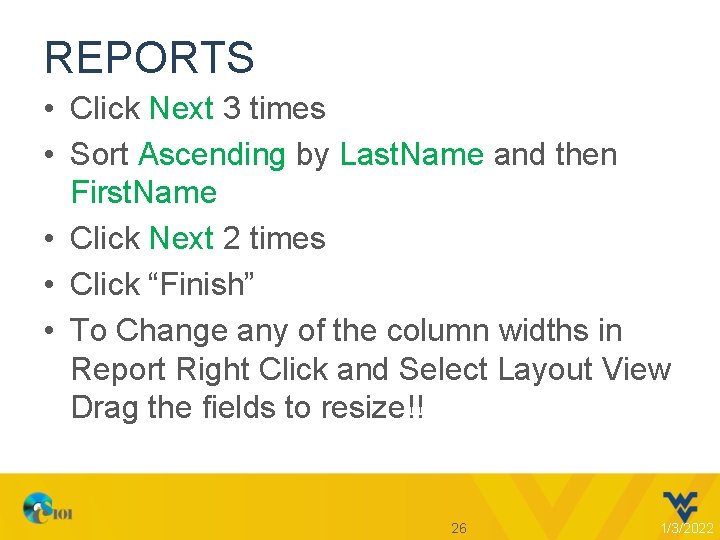
REPORTS • Click Next 3 times • Sort Ascending by Last. Name and then First. Name • Click Next 2 times • Click “Finish” • To Change any of the column widths in Report Right Click and Select Layout View Drag the fields to resize!! 26 1/3/2022
REMINDER • Lesson C in My. ITLab is due on 10/21/2013 (Monday) by 11: 59 P. M.