
Datix Risk Module Training This aim of this
- Slides: 57
Datix Risk Module Training This aim of this course is to train staff on how to use the Risk Module on Datix for submission and ongoing management of Risks on the Trust’s Risk Register An outstanding experience for every patient
Objectives After completing this module you will be able to: q Explain what a risk is q Identify risks appropriate for submission onto the Trust Risk Register q Complete a Risk Assessment q Use the Datix Risk Module to submit and manage risks
Course Contents 1. Who should undertake this training? 2. What is risk management? 3. What is a risk? 4. How is risk managed? 5. How do you identify a risk? 6. Describing a risk 7. Risk Examples 8. Risk Reduction = Controls 9. Human Factors 10. Risk Grading 11. How do you complete a risk assessment? 12. Roles and Responsibilities 13. Ongoing Monitoring and Review 14. Risk Escalation 15. Risk Closure 16. What is a risk register? 17. How to search 18. Risk Register Reports 19. Further Resources 20. Assessment
1. Who should undertake this training? q All managers and departmental leads, in order that they can carry out their responsibility for managing their departmental risk register q Any other identified staff member who has been nominated by their lead to support the risk assessment process within their department q Only band 6 or above staff members should attend this training
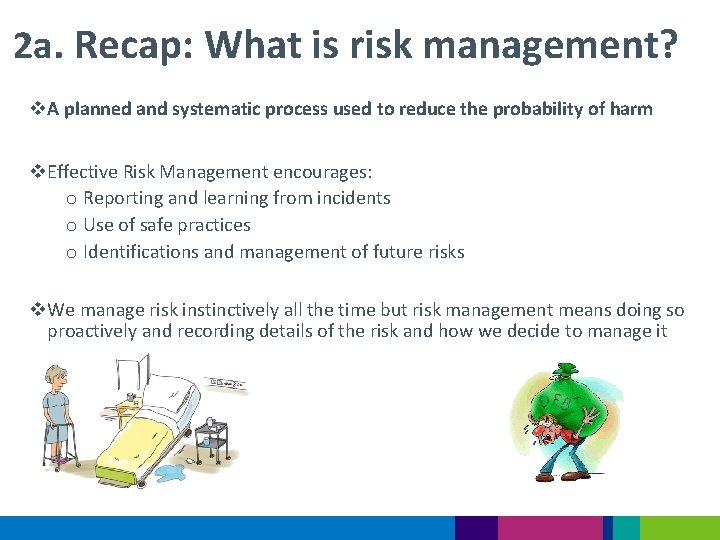
2 a. Recap: What is risk management? v. A planned and systematic process used to reduce the probability of harm v. Effective Risk Management encourages: o Reporting and learning from incidents o Use of safe practices o Identifications and management of future risks v. We manage risk instinctively all the time but risk management means doing so proactively and recording details of the risk and how we decide to manage it
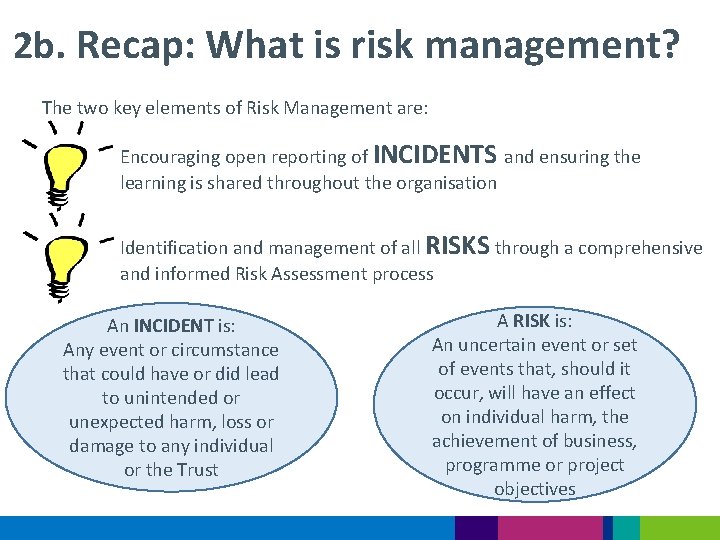
2 b. Recap: What is risk management? The two key elements of Risk Management are: Encouraging open reporting of INCIDENTS and ensuring the learning is shared throughout the organisation Identification and management of all RISKS through a comprehensive and informed Risk Assessment process An INCIDENT is: Any event or circumstance that could have or did lead to unintended or unexpected harm, loss or damage to any individual or the Trust A RISK is: An uncertain event or set of events that, should it occur, will have an effect on individual harm, the achievement of business, programme or project objectives
3. What is a Risk? A RISK is: An uncertain event or set of events that, should it occur, will have an effect on individual harm, the achievement of business, programme or project objectives Risks should be submitted onto the Risk Register when: • An ongoing risk has been identified that could impact on our service users, staff or the Trust • When the risk cannot be promptly and effectively managed between the department and the DMT and requires specific management, further support or escalation in order to be resolved The risk register should not be used: • For an isolated incident or risk assessment specific to one patient or staff member • In this case a paper risk assessment should be completed and filed in the patient’s notes or staff members file.
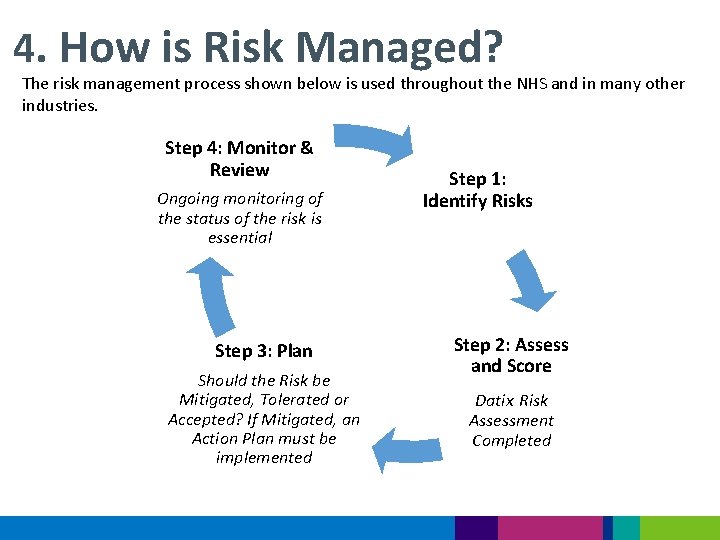
4. How is Risk Managed? The risk management process shown below is used throughout the NHS and in many other industries. Step 4: Monitor & Review Ongoing monitoring of the status of the risk is essential Step 3: Plan Should the Risk be Mitigated, Tolerated or Accepted? If Mitigated, an Action Plan must be implemented Step 1: Identify Risks Step 2: Assess and Score Datix Risk Assessment Completed
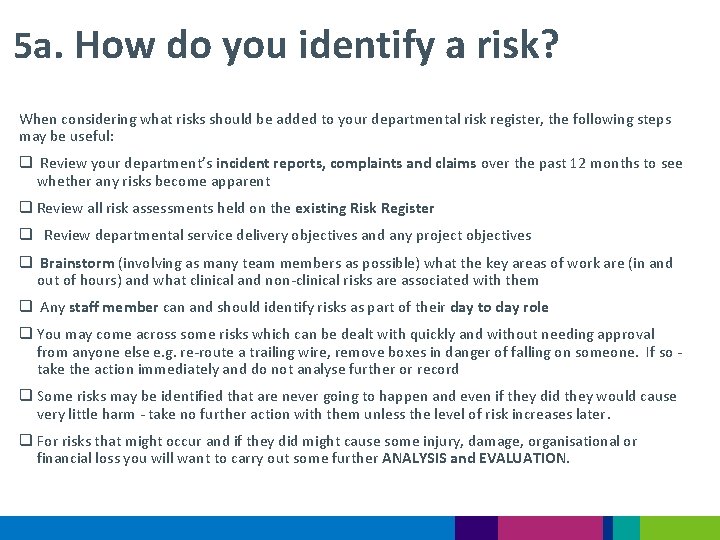
5 a. How do you identify a risk? When considering what risks should be added to your departmental risk register, the following steps may be useful: q Review your department’s incident reports, complaints and claims over the past 12 months to see whether any risks become apparent q Review all risk assessments held on the existing Risk Register q Review departmental service delivery objectives and any project objectives q Brainstorm (involving as many team members as possible) what the key areas of work are (in and out of hours) and what clinical and non-clinical risks are associated with them q Any staff member can and should identify risks as part of their day to day role q You may come across some risks which can be dealt with quickly and without needing approval from anyone else e. g. re-route a trailing wire, remove boxes in danger of falling on someone. If so take the action immediately and do not analyse further or record q Some risks may be identified that are never going to happen and even if they did they would cause very little harm - take no further action with them unless the level of risk increases later. q For risks that might occur and if they did might cause some injury, damage, organisational or financial loss you will want to carry out some further ANALYSIS and EVALUATION.
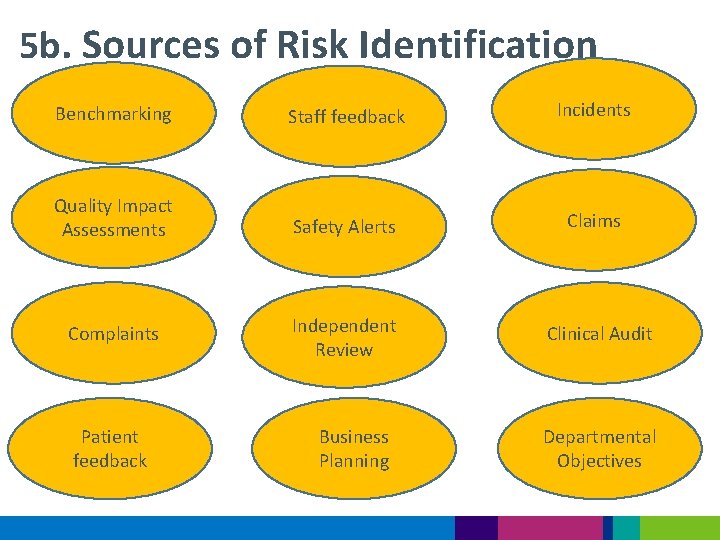
5 b. Sources of Risk Identification Benchmarking Staff feedback Incidents Quality Impact Assessments Safety Alerts Claims Complaints Independent Review Clinical Audit Patient feedback Business Planning Departmental Objectives
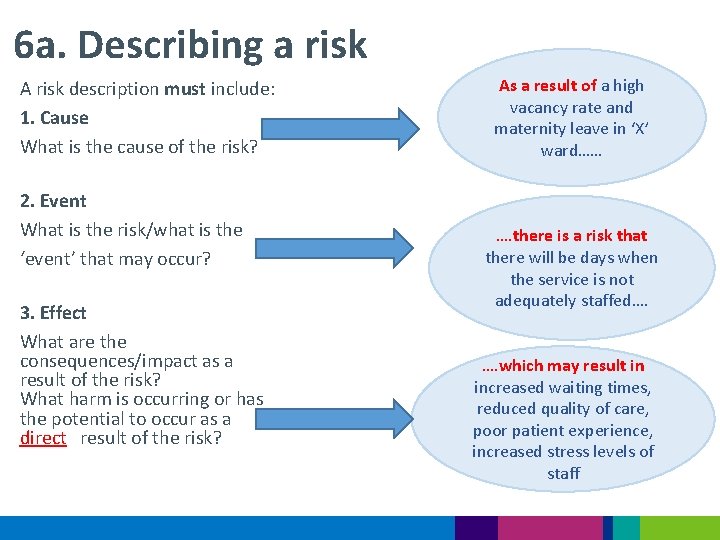
6 a. Describing a risk A risk description must include: 1. Cause What is the cause of the risk? 2. Event What is the risk/what is the ‘event’ that may occur? 3. Effect What are the consequences/impact as a result of the risk? What harm is occurring or has the potential to occur as a direct result of the risk? As a result of a high vacancy rate and maternity leave in ‘X’ ward…… …. there is a risk that there will be days when the service is not adequately staffed…. …. which may result in increased waiting times, reduced quality of care, poor patient experience, increased stress levels of staff
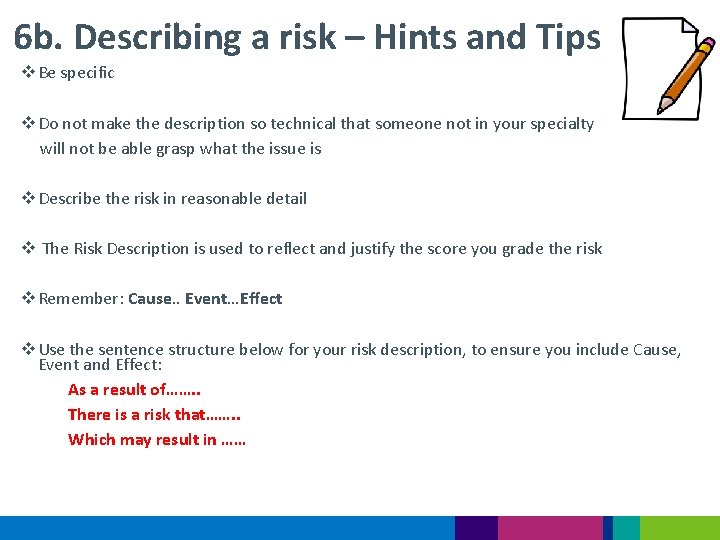
6 b. Describing a risk – Hints and Tips v Be specific v Do not make the description so technical that someone not in your specialty will not be able grasp what the issue is v Describe the risk in reasonable detail v The Risk Description is used to reflect and justify the score you grade the risk v Remember: Cause. . Event…Effect v Use the sentence structure below for your risk description, to ensure you include Cause, Event and Effect: As a result of……. . There is a risk that……. . Which may result in ……
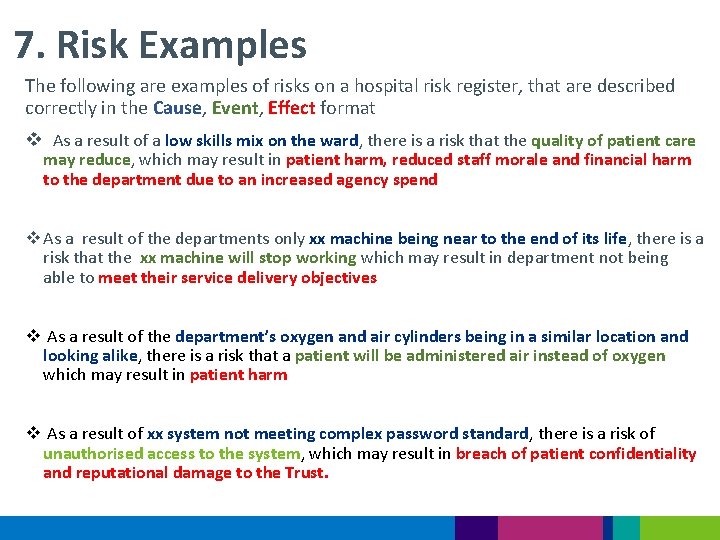
7. Risk Examples The following are examples of risks on a hospital risk register, that are described correctly in the Cause, Event, Effect format v As a result of a low skills mix on the ward, there is a risk that the quality of patient care may reduce, which may result in patient harm, reduced staff morale and financial harm to the department due to an increased agency spend v As a result of the departments only xx machine being near to the end of its life, there is a risk that the xx machine will stop working which may result in department not being able to meet their service delivery objectives v As a result of the department’s oxygen and air cylinders being in a similar location and looking alike, there is a risk that a patient will be administered air instead of oxygen which may result in patient harm v As a result of xx system not meeting complex password standard, there is a risk of unauthorised access to the system, which may result in breach of patient confidentiality and reputational damage to the Trust.
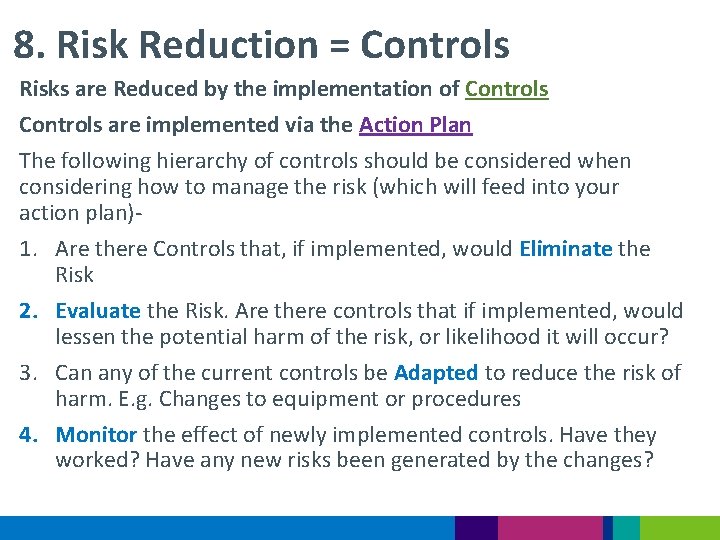
8. Risk Reduction = Controls Risks are Reduced by the implementation of Controls are implemented via the Action Plan The following hierarchy of controls should be considered when considering how to manage the risk (which will feed into your action plan)1. Are there Controls that, if implemented, would Eliminate the Risk 2. Evaluate the Risk. Are there controls that if implemented, would lessen the potential harm of the risk, or likelihood it will occur? 3. Can any of the current controls be Adapted to reduce the risk of harm. E. g. Changes to equipment or procedures 4. Monitor the effect of newly implemented controls. Have they worked? Have any new risks been generated by the changes?
9. Human Factors When considering what controls are needed to be implemented, it is important to consider Human Factors • If a process can go wrong, it will go wrong • Processes should be set up to mitigate the potential for Human Error • Humans will cut corners if they can • Build systems that make it easy to do it right and difficult to so it wrong • Eliminate risk, or reduce by re-organising process, work systems, equipment used etc… • Controls involving instruction to individuals should be a last resort
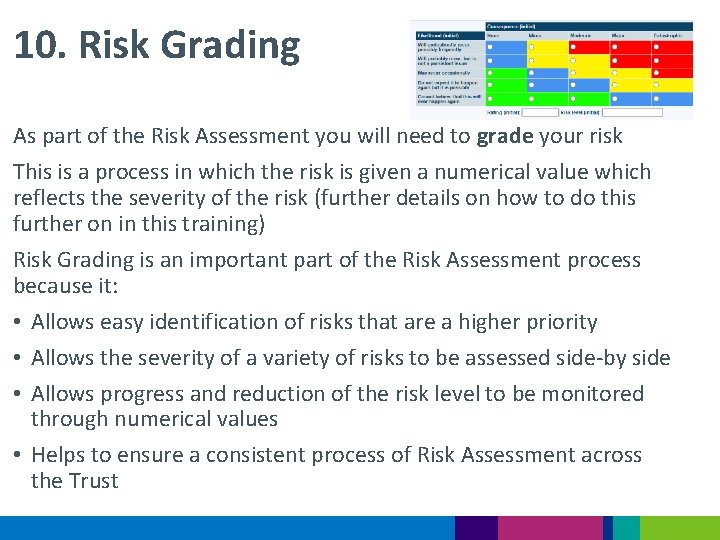
10. Risk Grading As part of the Risk Assessment you will need to grade your risk This is a process in which the risk is given a numerical value which reflects the severity of the risk (further details on how to do this further on in this training) Risk Grading is an important part of the Risk Assessment process because it: • Allows easy identification of risks that are a higher priority • Allows the severity of a variety of risks to be assessed side-by side • Allows progress and reduction of the risk level to be monitored through numerical values • Helps to ensure a consistent process of Risk Assessment across the Trust
11. How do you complete a Risk Assessment Ø All Risk Assessments are submitted onto the Trust Risk Register using the Datix Risk Module Ø The only Risk Assessments not submitted on Datix are those relating to an individual. These risks should be completed using the paper form and filed in the individual's HR record. Ø To access the Trust Risk Register on Datix, an individual must have completed this training and then be assigned a username and password by the Datix Administrator Ø The remainder of section 11 of this presentation will provide step by step instructions on how to add a Risk to the Trust Risk Register using Datix
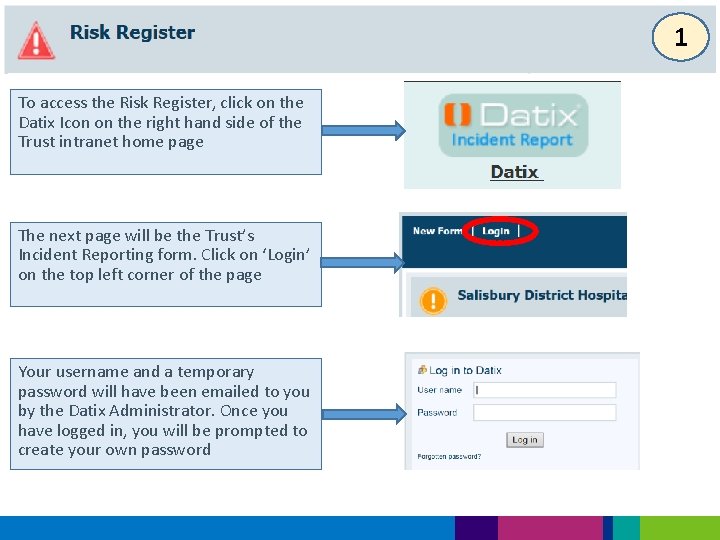
1 To access the Risk Register, click on the Datix Icon on the right hand side of the Trust intranet home page The next page will be the Trust’s Incident Reporting form. Click on ‘Login’ on the top left corner of the page Your username and a temporary password will have been emailed to you by the Datix Administrator. Once you have logged in, you will be prompted to create your own password
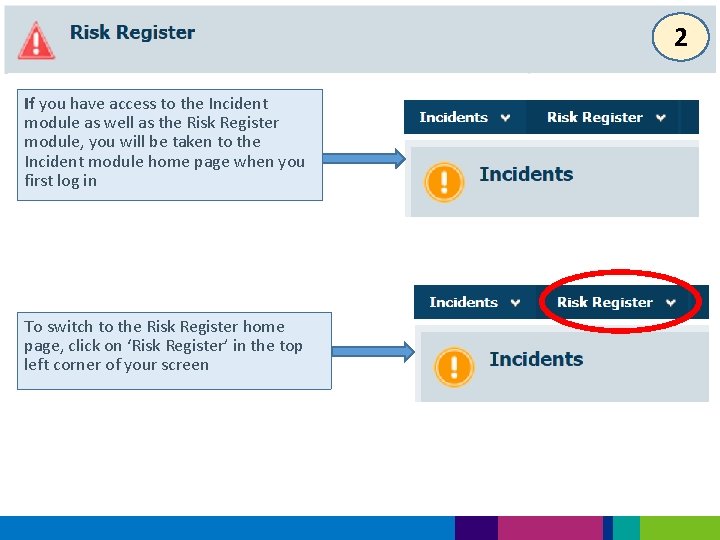
2 If you have access to the Incident module as well as the Risk Register module, you will be taken to the Incident module home page when you first log in To switch to the Risk Register home page, click on ‘Risk Register’ in the top left corner of your screen
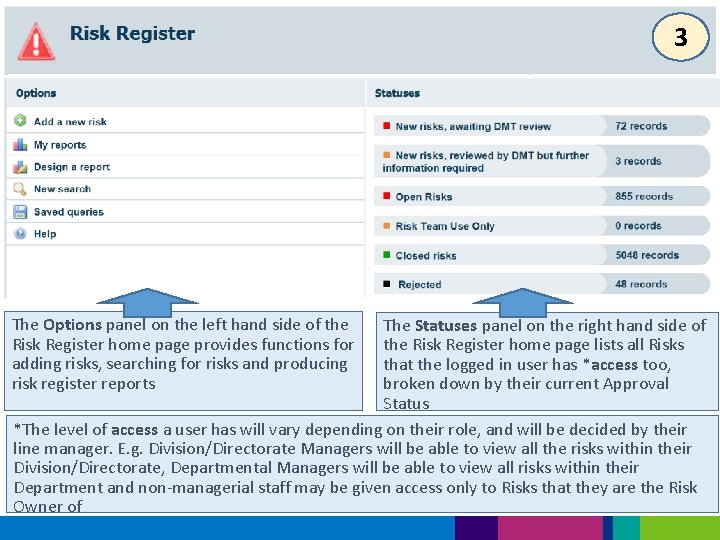
3 The Options panel on the left hand side of the Risk Register home page provides functions for adding risks, searching for risks and producing risk register reports The Statuses panel on the right hand side of the Risk Register home page lists all Risks that the logged in user has *access too, broken down by their current Approval Status *The level of access a user has will vary depending on their role, and will be decided by their line manager. E. g. Division/Directorate Managers will be able to view all the risks within their Division/Directorate, Departmental Managers will be able to view all risks within their Department and non-managerial staff may be given access only to Risks that they are the Risk Owner of
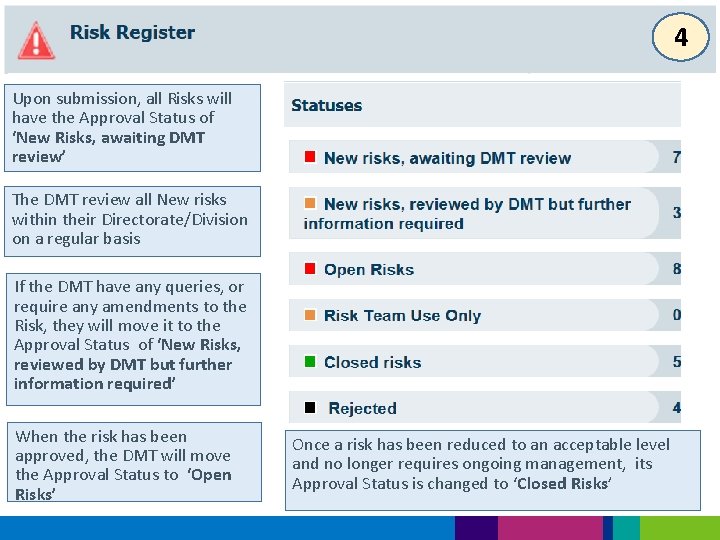
4 Upon submission, all Risks will have the Approval Status of ‘New Risks, awaiting DMT review’ The DMT review all New risks within their Directorate/Division on a regular basis If the DMT have any queries, or require any amendments to the Risk, they will move it to the Approval Status of ‘New Risks, reviewed by DMT but further information required’ When the risk has been approved, the DMT will move the Approval Status to ‘Open Risks’ Once a risk has been reduced to an acceptable level and no longer requires ongoing management, its Approval Status is changed to ‘Closed Risks’
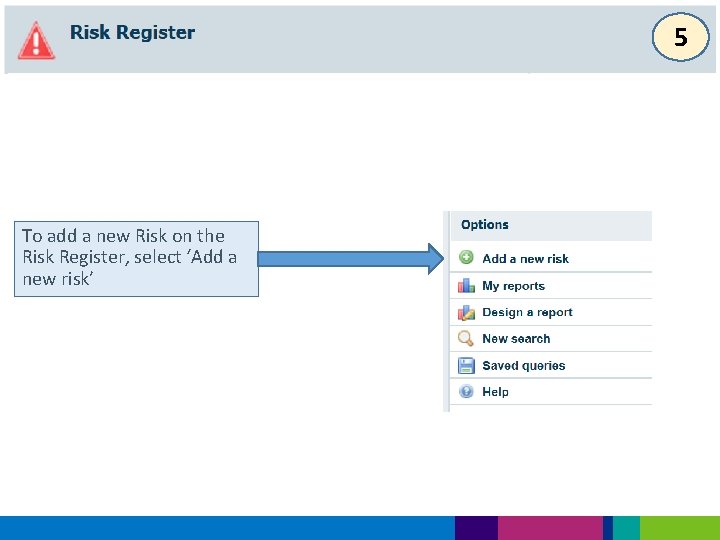
5 To add a new Risk on the Risk Register, select ‘Add a new risk’
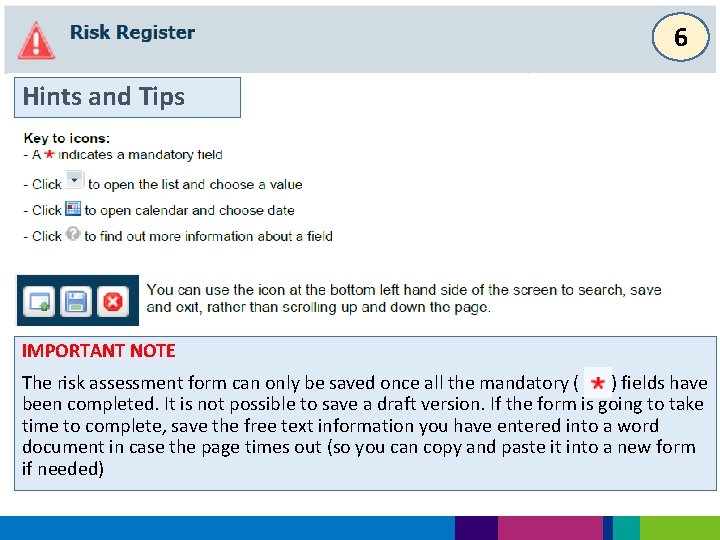
6 Hints and Tips IMPORTANT NOTE The risk assessment form can only be saved once all the mandatory ( ) fields have been completed. It is not possible to save a draft version. If the form is going to take time to complete, save the free text information you have entered into a word document in case the page times out (so you can copy and paste it into a new form if needed)
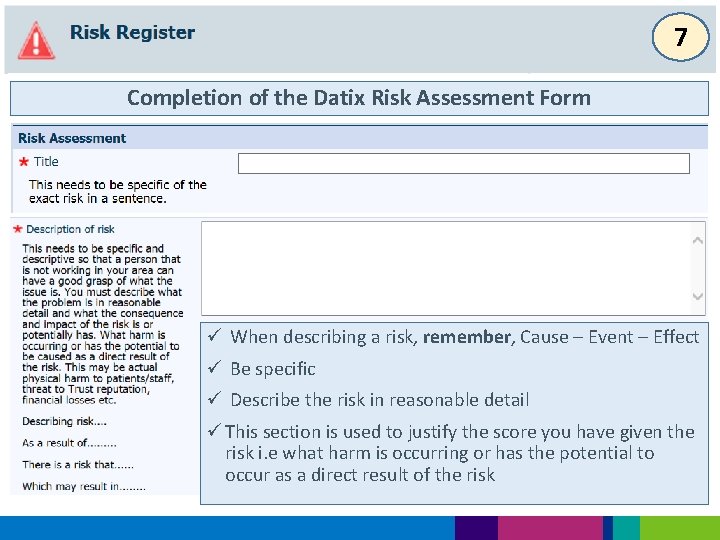
7 Completion of the Datix Risk Assessment Form ü When describing a risk, remember, Cause – Event – Effect ü Be specific ü Describe the risk in reasonable detail ü This section is used to justify the score you have given the risk i. e what harm is occurring or has the potential to occur as a direct result of the risk
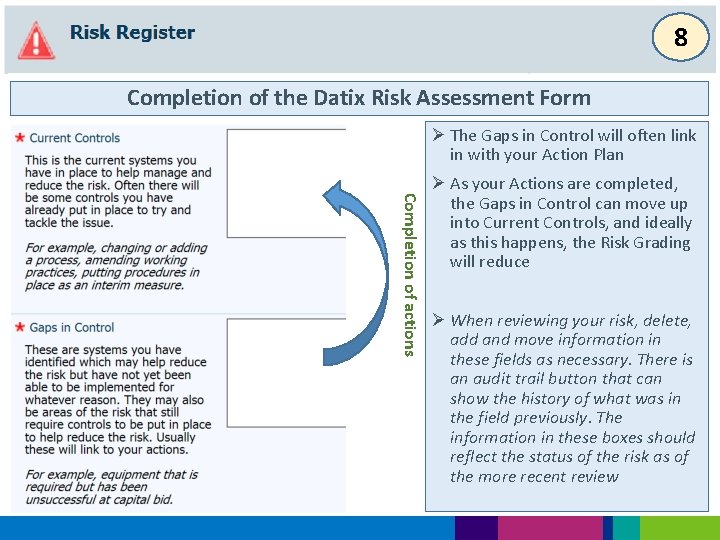
8 Completion of the Datix Risk Assessment Form Ø The Gaps in Control will often link in with your Action Plan Completion of actions Ø As your Actions are completed, the Gaps in Control can move up into Current Controls, and ideally as this happens, the Risk Grading will reduce Ø When reviewing your risk, delete, add and move information in these fields as necessary. There is an audit trail button that can show the history of what was in the field previously. The information in these boxes should reflect the status of the risk as of the more recent review
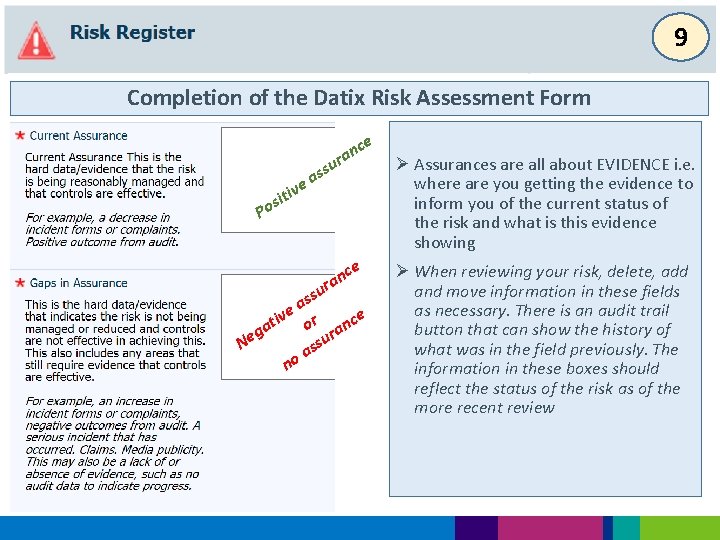
9 Completion of the Datix Risk Assessment Form e e v i t i os nc a r ssu a P ce n a ur ss a ve r nce i t o ra ga e N ssu a no Ø Assurances are all about EVIDENCE i. e. where are you getting the evidence to inform you of the current status of the risk and what is this evidence showing Ø When reviewing your risk, delete, add and move information in these fields as necessary. There is an audit trail button that can show the history of what was in the field previously. The information in these boxes should reflect the status of the risk as of the more recent review
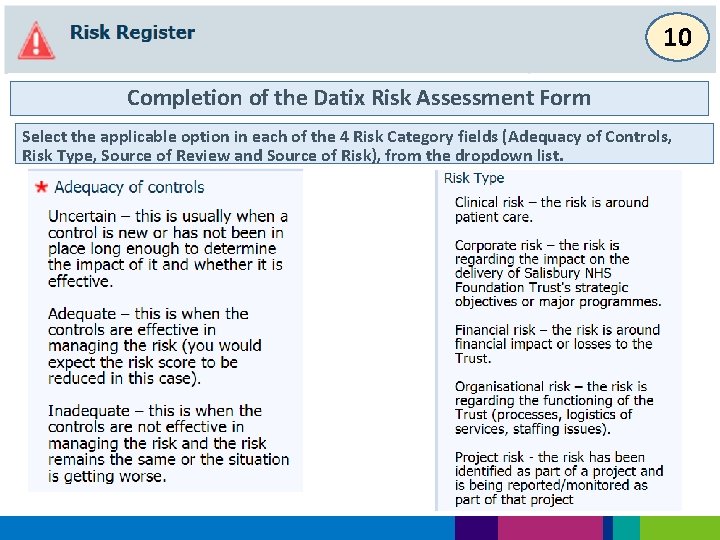
10 Completion of the Datix Risk Assessment Form Select the applicable option in each of the 4 Risk Category fields (Adequacy of Controls, Risk Type, Source of Review and Source of Risk), from the dropdown list.
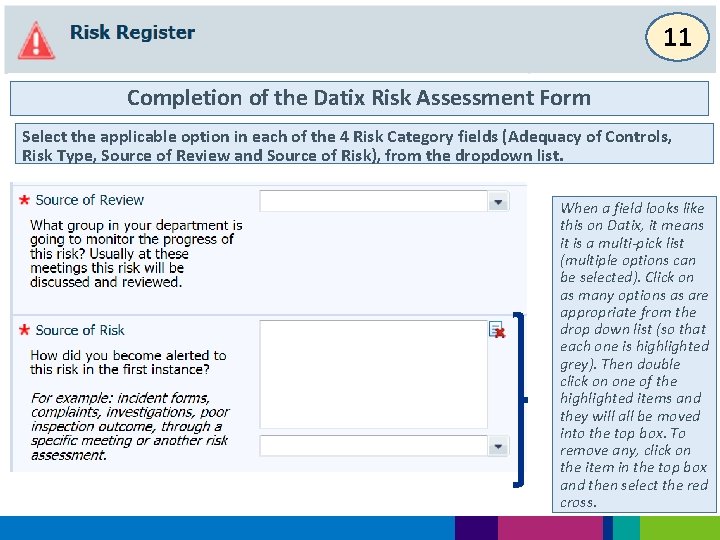
11 Completion of the Datix Risk Assessment Form Select the applicable option in each of the 4 Risk Category fields (Adequacy of Controls, Risk Type, Source of Review and Source of Risk), from the dropdown list. When a field looks like this on Datix, it means it is a multi-pick list (multiple options can be selected). Click on as many options as are appropriate from the drop down list (so that each one is highlighted grey). Then double click on one of the highlighted items and they will all be moved into the top box. To remove any, click on the item in the top box and then select the red cross.
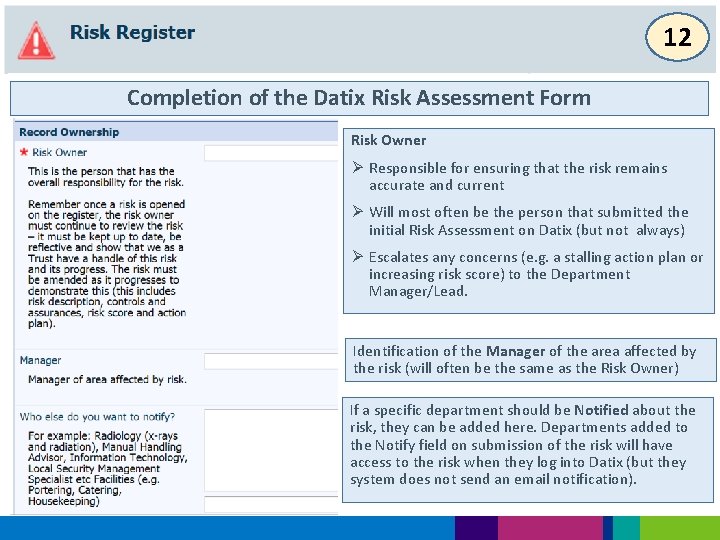
12 Completion of the Datix Risk Assessment Form Risk Owner Ø Responsible for ensuring that the risk remains accurate and current Ø Will most often be the person that submitted the initial Risk Assessment on Datix (but not always) Ø Escalates any concerns (e. g. a stalling action plan or increasing risk score) to the Department Manager/Lead. Identification of the Manager of the area affected by the risk (will often be the same as the Risk Owner) If a specific department should be Notified about the risk, they can be added here. Departments added to the Notify field on submission of the risk will have access to the risk when they log into Datix (but they system does not send an email notification).
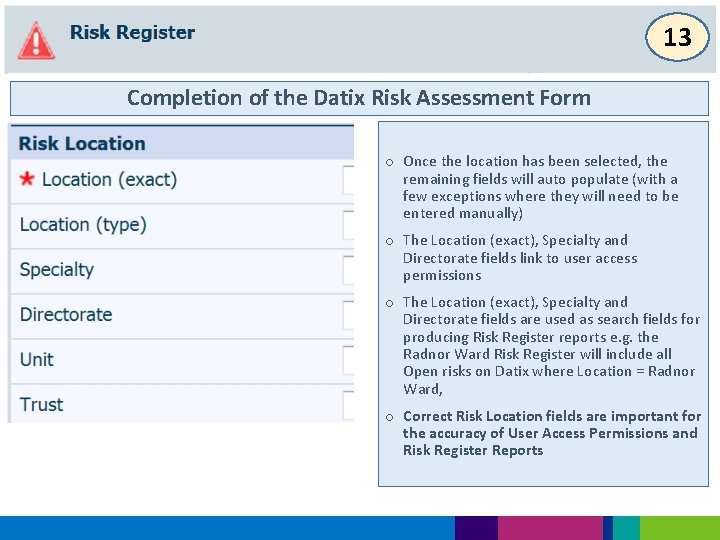
13 Completion of the Datix Risk Assessment Form o Once the location has been selected, the remaining fields will auto populate (with a few exceptions where they will need to be entered manually) o The Location (exact), Specialty and Directorate fields link to user access permissions o The Location (exact), Specialty and Directorate fields are used as search fields for producing Risk Register reports e. g. the Radnor Ward Risk Register will include all Open risks on Datix where Location = Radnor Ward, o Correct Risk Location fields are important for the accuracy of User Access Permissions and Risk Register Reports
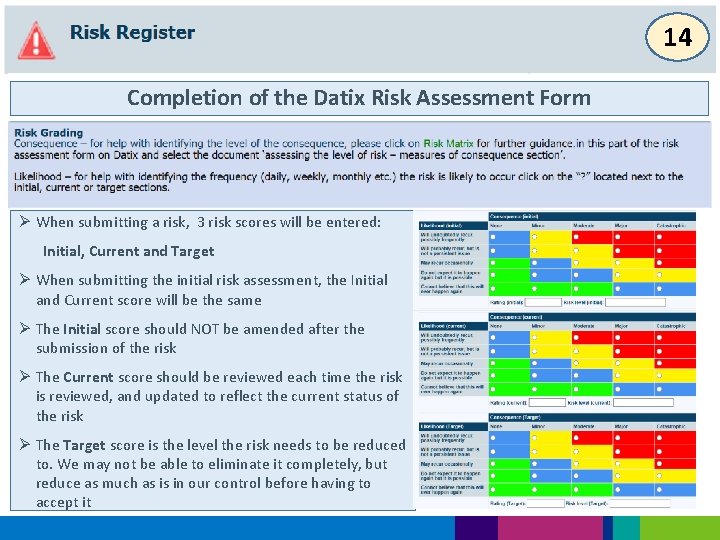
14 Completion of the Datix Risk Assessment Form Ø When submitting a risk, 3 risk scores will be entered: Initial, Current and Target Ø When submitting the initial risk assessment, the Initial and Current score will be the same Ø The Initial score should NOT be amended after the submission of the risk Ø The Current score should be reviewed each time the risk is reviewed, and updated to reflect the current status of the risk Ø The Target score is the level the risk needs to be reduced to. We may not be able to eliminate it completely, but reduce as much as is in our control before having to accept it
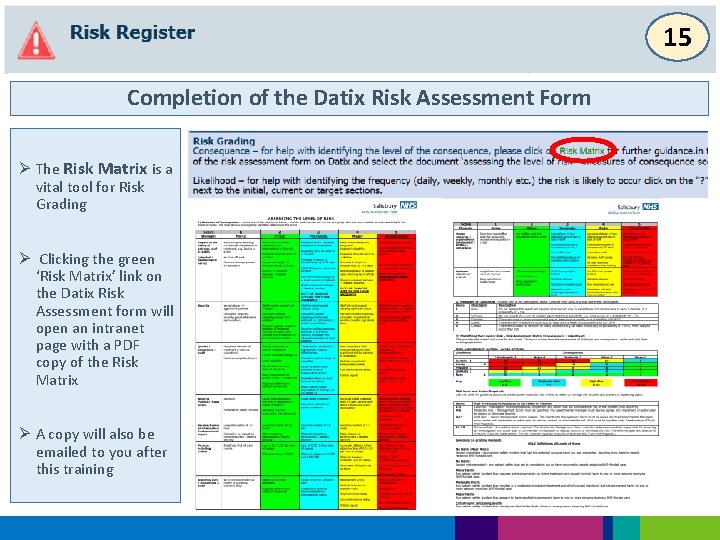
15 Completion of the Datix Risk Assessment Form Ø The Risk Matrix is a vital tool for Risk Grading Ø Clicking the green ‘Risk Matrix’ link on the Datix Risk Assessment form will open an intranet page with a PDF copy of the Risk Matrix Ø A copy will also be emailed to you after this training
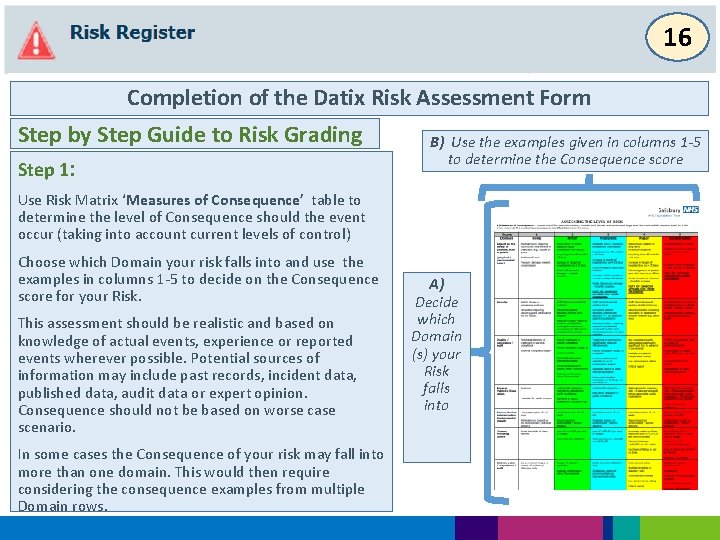
16 Completion of the Datix Risk Assessment Form Step by Step Guide to Risk Grading Step 1: B) Use the examples given in columns 1 -5 to determine the Consequence score Use Risk Matrix ‘Measures of Consequence’ table to determine the level of Consequence should the event occur (taking into account current levels of control) Choose which Domain your risk falls into and use the examples in columns 1 -5 to decide on the Consequence score for your Risk. This assessment should be realistic and based on knowledge of actual events, experience or reported events wherever possible. Potential sources of information may include past records, incident data, published data, audit data or expert opinion. Consequence should not be based on worse case scenario. In some cases the Consequence of your risk may fall into more than one domain. This would then require considering the consequence examples from multiple Domain rows. A) Decide which Domain (s) your Risk falls into
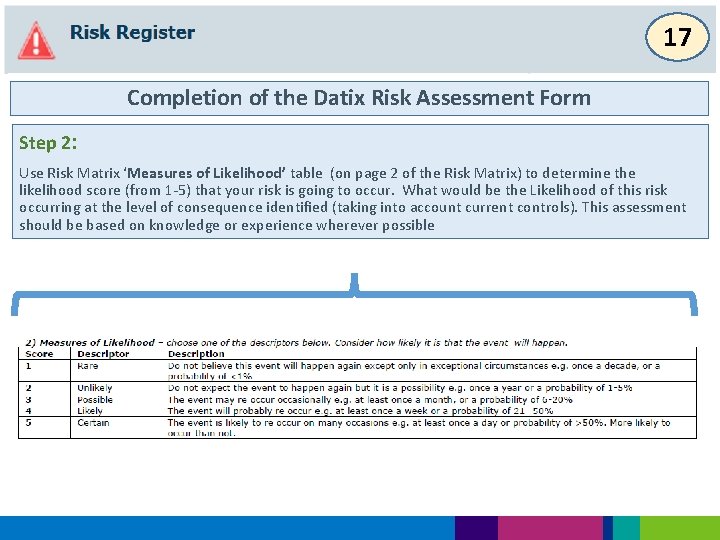
17 Completion of the Datix Risk Assessment Form Step 2: Use Risk Matrix ‘Measures of Likelihood’ table (on page 2 of the Risk Matrix) to determine the likelihood score (from 1 -5) that your risk is going to occur. What would be the Likelihood of this risk occurring at the level of consequence identified (taking into account current controls). This assessment should be based on knowledge or experience wherever possible
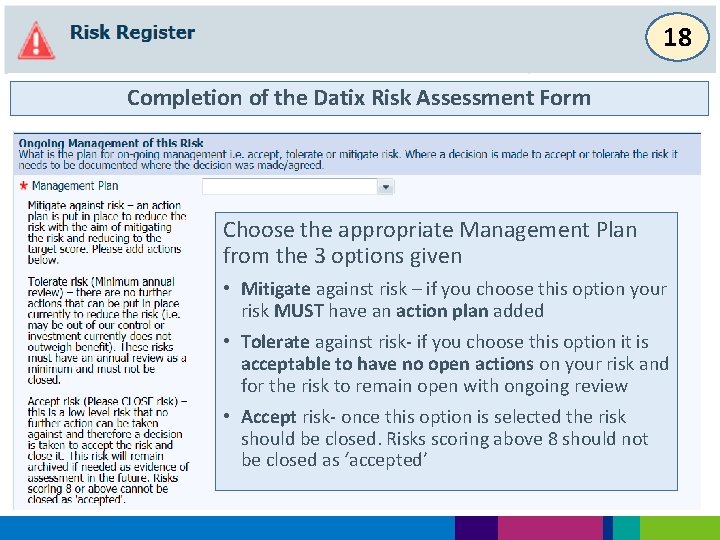
18 Completion of the Datix Risk Assessment Form Choose the appropriate Management Plan from the 3 options given • Mitigate against risk – if you choose this option your risk MUST have an action plan added • Tolerate against risk- if you choose this option it is acceptable to have no open actions on your risk and for the risk to remain open with ongoing review • Accept risk- once this option is selected the risk should be closed. Risks scoring above 8 should not be closed as ‘accepted’
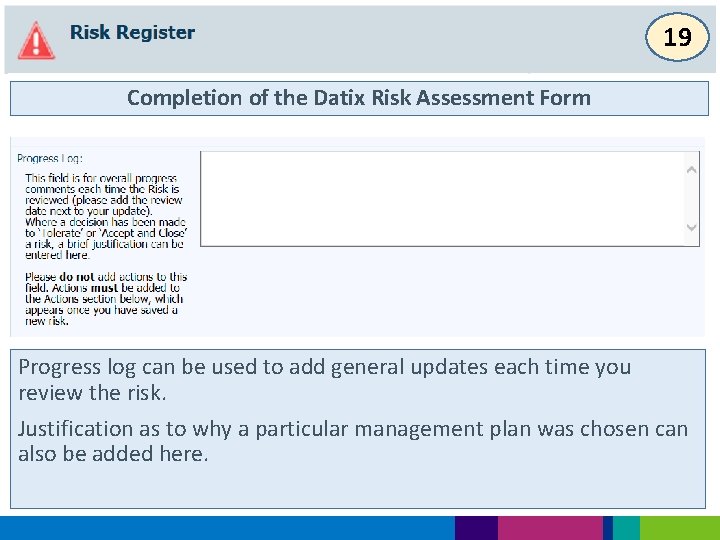
19 Completion of the Datix Risk Assessment Form Progress log can be used to add general updates each time you review the risk. Justification as to why a particular management plan was chosen can also be added here.
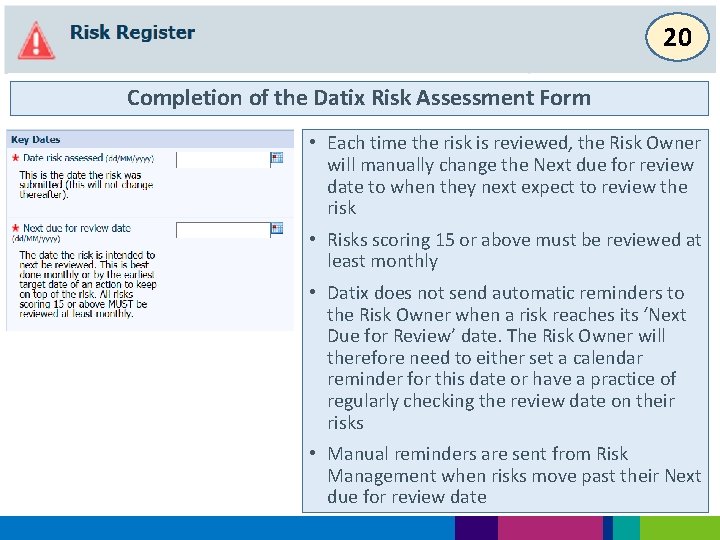
20 Completion of the Datix Risk Assessment Form • Each time the risk is reviewed, the Risk Owner will manually change the Next due for review date to when they next expect to review the risk • Risks scoring 15 or above must be reviewed at least monthly • Datix does not send automatic reminders to the Risk Owner when a risk reaches its ‘Next Due for Review’ date. The Risk Owner will therefore need to either set a calendar reminder for this date or have a practice of regularly checking the review date on their risks • Manual reminders are sent from Risk Management when risks move past their Next due for review date
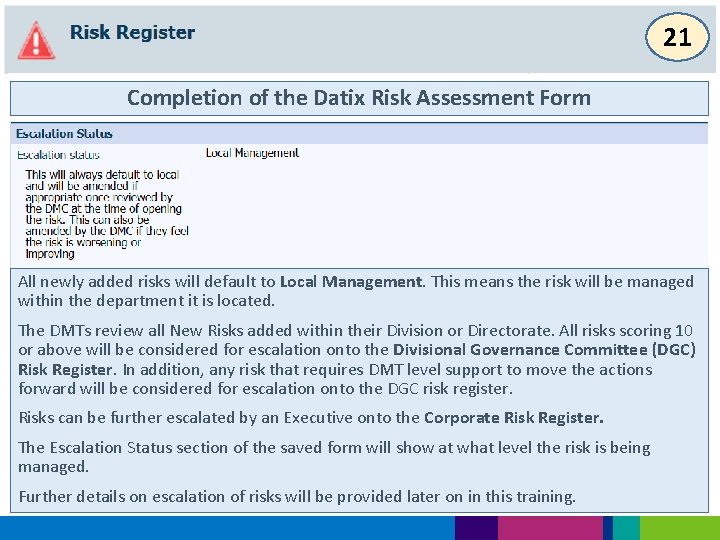
21 Completion of the Datix Risk Assessment Form All newly added risks will default to Local Management. This means the risk will be managed within the department it is located. The DMTs review all New Risks added within their Division or Directorate. All risks scoring 10 or above will be considered for escalation onto the Divisional Governance Committee (DGC) Risk Register. In addition, any risk that requires DMT level support to move the actions forward will be considered for escalation onto the DGC risk register. Risks can be further escalated by an Executive onto the Corporate Risk Register. The Escalation Status section of the saved form will show at what level the risk is being managed. Further details on escalation of risks will be provided later on in this training.
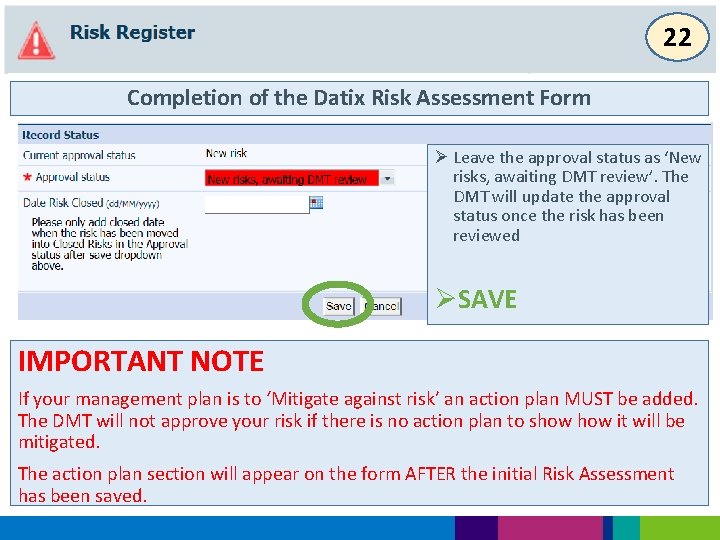
22 Completion of the Datix Risk Assessment Form Ø Leave the approval status as ‘New risks, awaiting DMT review’. The DMT will update the approval status once the risk has been reviewed ØSAVE IMPORTANT NOTE If your management plan is to ‘Mitigate against risk’ an action plan MUST be added. The DMT will not approve your risk if there is no action plan to show it will be mitigated. The action plan section will appear on the form AFTER the initial Risk Assessment has been saved.
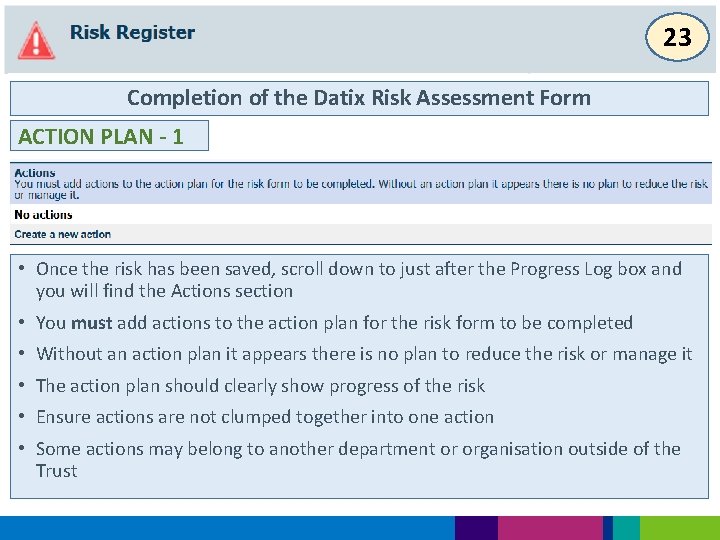
23 Completion of the Datix Risk Assessment Form ACTION PLAN - 1 • Once the risk has been saved, scroll down to just after the Progress Log box and you will find the Actions section • You must add actions to the action plan for the risk form to be completed • Without an action plan it appears there is no plan to reduce the risk or manage it • The action plan should clearly show progress of the risk • Ensure actions are not clumped together into one action • Some actions may belong to another department or organisation outside of the Trust
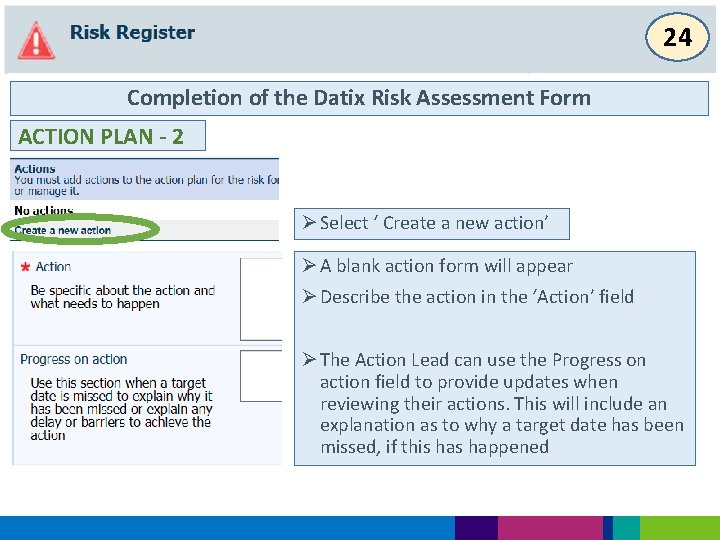
24 Completion of the Datix Risk Assessment Form ACTION PLAN - 2 Ø Select ‘ Create a new action’ Ø A blank action form will appear Ø Describe the action in the ‘Action’ field Ø The Action Lead can use the Progress on action field to provide updates when reviewing their actions. This will include an explanation as to why a target date has been missed, if this happened
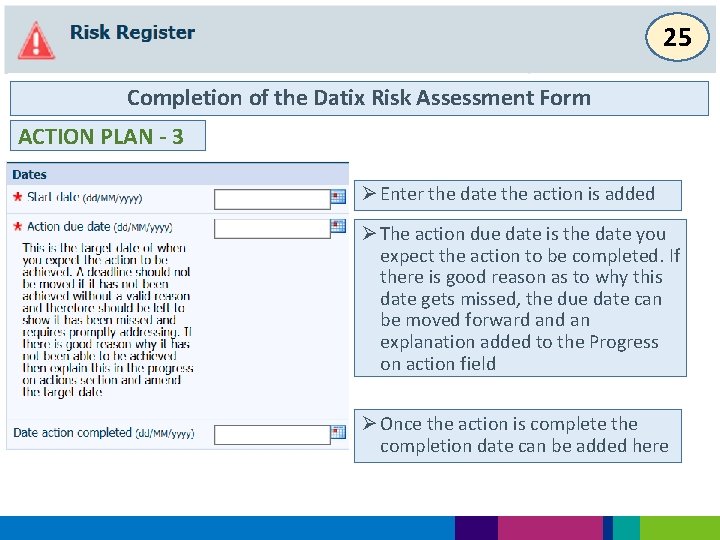
25 Completion of the Datix Risk Assessment Form ACTION PLAN - 3 Ø Enter the date the action is added Ø The action due date is the date you expect the action to be completed. If there is good reason as to why this date gets missed, the due date can be moved forward an explanation added to the Progress on action field Ø Once the action is complete the completion date can be added here
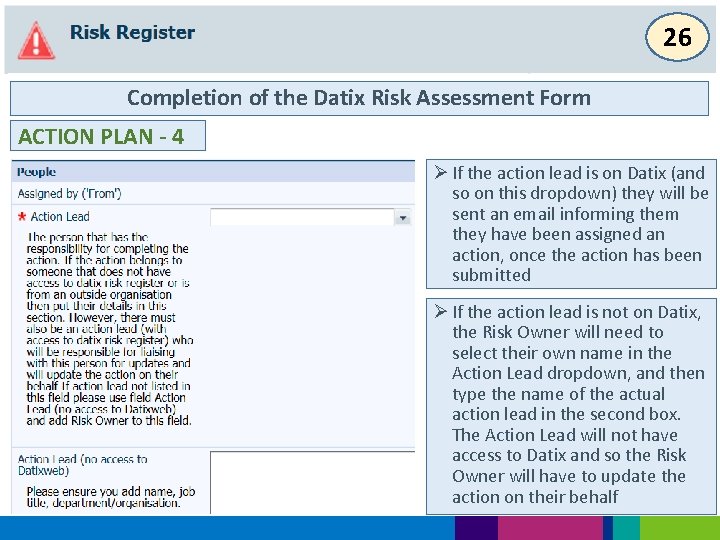
26 Completion of the Datix Risk Assessment Form ACTION PLAN - 4 Ø If the action lead is on Datix (and so on this dropdown) they will be sent an email informing them they have been assigned an action, once the action has been submitted Ø If the action lead is not on Datix, the Risk Owner will need to select their own name in the Action Lead dropdown, and then type the name of the actual action lead in the second box. The Action Lead will not have access to Datix and so the Risk Owner will have to update the action on their behalf
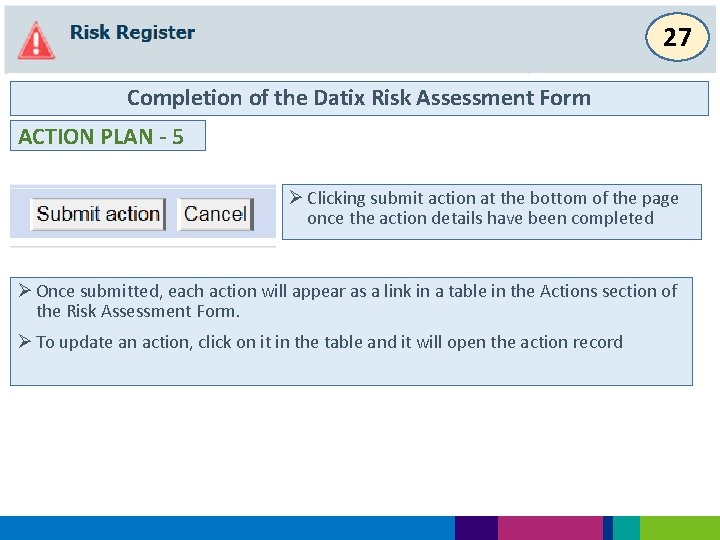
27 Completion of the Datix Risk Assessment Form ACTION PLAN - 5 Ø Clicking submit action at the bottom of the page once the action details have been completed Ø Once submitted, each action will appear as a link in a table in the Actions section of the Risk Assessment Form. Ø To update an action, click on it in the table and it will open the action record
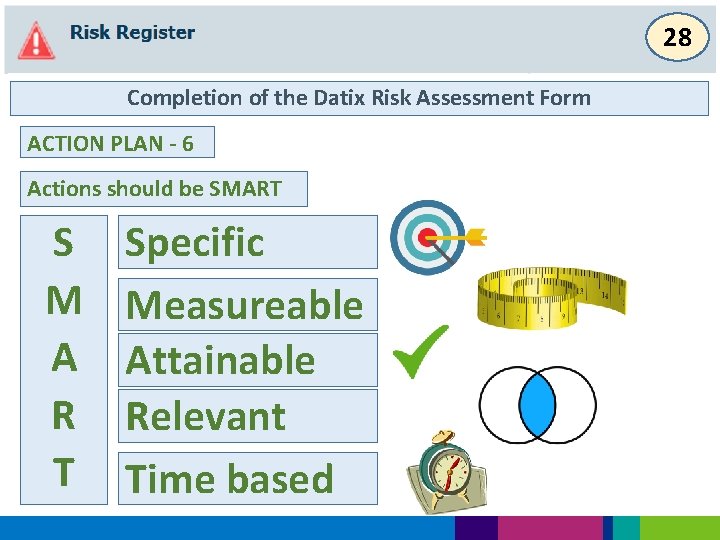
28 Completion of the Datix Risk Assessment Form ACTION PLAN - 6 Actions should be SMART S M A R T Specific Measureable Attainable Relevant Time based
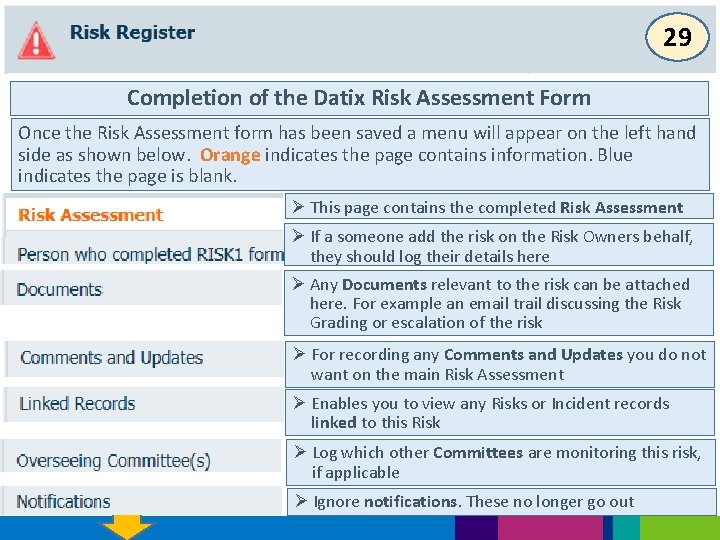
29 Completion of the Datix Risk Assessment Form Once the Risk Assessment form has been saved a menu will appear on the left hand side as shown below. Orange indicates the page contains information. Blue indicates the page is blank. Ø This page contains the completed Risk Assessment Ø If a someone add the risk on the Risk Owners behalf, they should log their details here Ø Any Documents relevant to the risk can be attached here. For example an email trail discussing the Risk Grading or escalation of the risk Ø For recording any Comments and Updates you do not want on the main Risk Assessment Ø Enables you to view any Risks or Incident records linked to this Risk Ø Log which other Committees are monitoring this risk, if applicable Ø Ignore notifications. These no longer go out
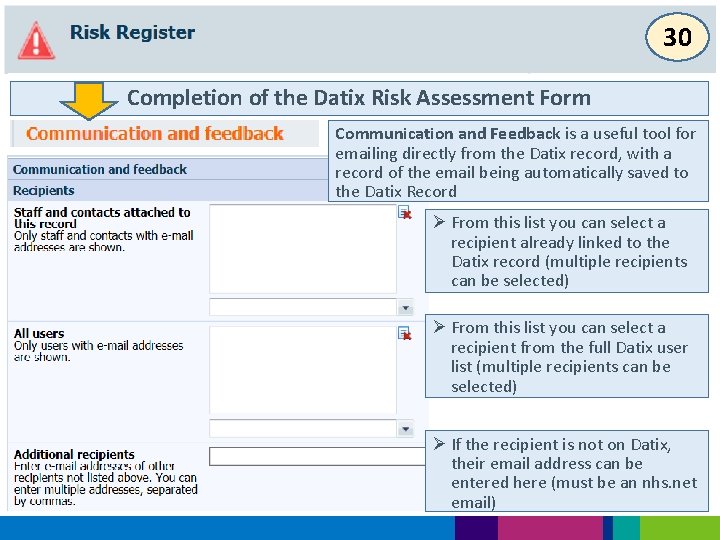
30 Completion of the Datix Risk Assessment Form Communication and Feedback is a useful tool for emailing directly from the Datix record, with a record of the email being automatically saved to the Datix Record Ø From this list you can select a recipient already linked to the Datix record (multiple recipients can be selected) Ø From this list you can select a recipient from the full Datix user list (multiple recipients can be selected) Ø If the recipient is not on Datix, their email address can be entered here (must be an nhs. net email)
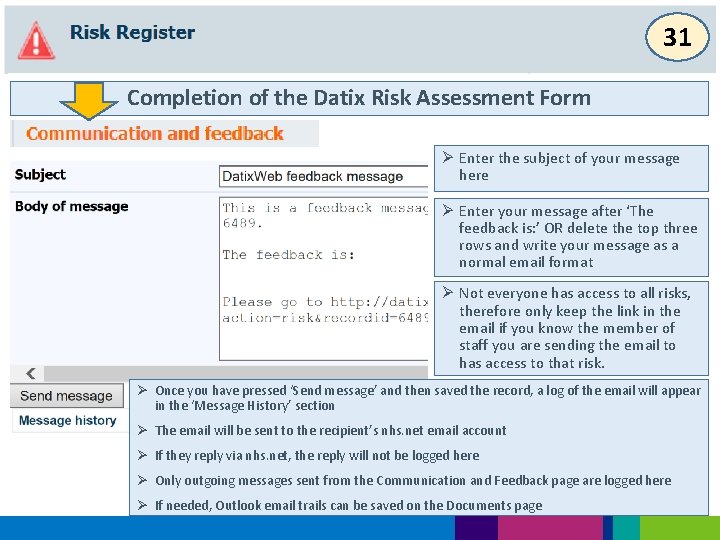
31 Completion of the Datix Risk Assessment Form Ø Enter the subject of your message here Ø Enter your message after ‘The feedback is: ’ OR delete the top three rows and write your message as a normal email format Ø Not everyone has access to all risks, therefore only keep the link in the email if you know the member of staff you are sending the email to has access to that risk. Ø Once you have pressed ‘Send message’ and then saved the record, a log of the email will appear in the ‘Message History’ section Ø The email will be sent to the recipient’s nhs. net email account Ø If they reply via nhs. net, the reply will not be logged here Ø Only outgoing messages sent from the Communication and Feedback page are logged here Ø If needed, Outlook email trails can be saved on the Documents page
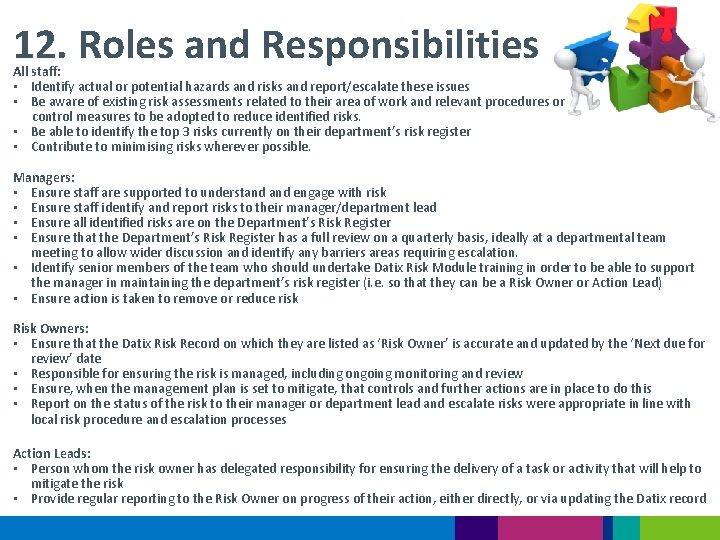
12. Roles and Responsibilities All staff: • Identify actual or potential hazards and risks and report/escalate these issues • Be aware of existing risk assessments related to their area of work and relevant procedures or control measures to be adopted to reduce identified risks. • Be able to identify the top 3 risks currently on their department’s risk register • Contribute to minimising risks wherever possible. Managers: • Ensure staff are supported to understand engage with risk • Ensure staff identify and report risks to their manager/department lead • Ensure all identified risks are on the Department’s Risk Register • Ensure that the Department’s Risk Register has a full review on a quarterly basis, ideally at a departmental team meeting to allow wider discussion and identify any barriers areas requiring escalation. • Identify senior members of the team who should undertake Datix Risk Module training in order to be able to support the manager in maintaining the department’s risk register (i. e. so that they can be a Risk Owner or Action Lead) • Ensure action is taken to remove or reduce risk Risk Owners: • Ensure that the Datix Risk Record on which they are listed as ‘Risk Owner’ is accurate and updated by the ‘Next due for review’ date • Responsible for ensuring the risk is managed, including ongoing monitoring and review • Ensure, when the management plan is set to mitigate, that controls and further actions are in place to do this • Report on the status of the risk to their manager or department lead and escalate risks were appropriate in line with local risk procedure and escalation processes Action Leads: • Person whom the risk owner has delegated responsibility for ensuring the delivery of a task or activity that will help to mitigate the risk • Provide regular reporting to the Risk Owner on progress of their action, either directly, or via updating the Datix record
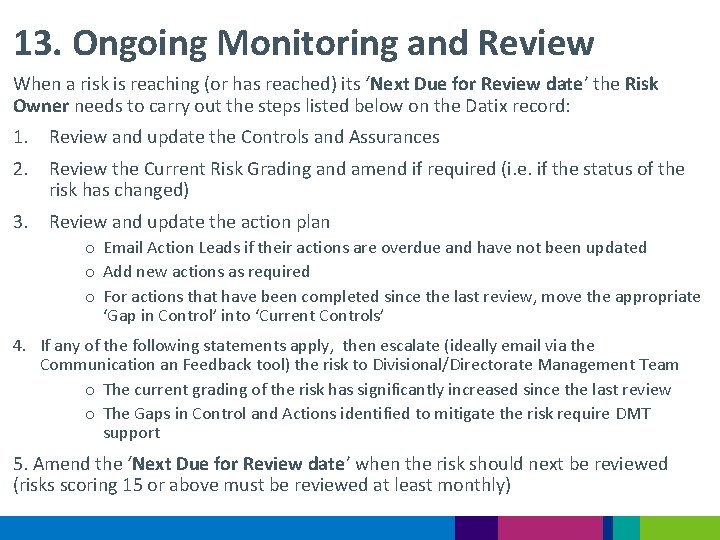
13. Ongoing Monitoring and Review When a risk is reaching (or has reached) its ‘Next Due for Review date’ the Risk Owner needs to carry out the steps listed below on the Datix record: 1. Review and update the Controls and Assurances 2. Review the Current Risk Grading and amend if required (i. e. if the status of the risk has changed) 3. Review and update the action plan o Email Action Leads if their actions are overdue and have not been updated o Add new actions as required o For actions that have been completed since the last review, move the appropriate ‘Gap in Control’ into ‘Current Controls’ 4. If any of the following statements apply, then escalate (ideally email via the Communication an Feedback tool) the risk to Divisional/Directorate Management Team o The current grading of the risk has significantly increased since the last review o The Gaps in Control and Actions identified to mitigate the risk require DMT support 5. Amend the ‘Next Due for Review date’ when the risk should next be reviewed (risks scoring 15 or above must be reviewed at least monthly)
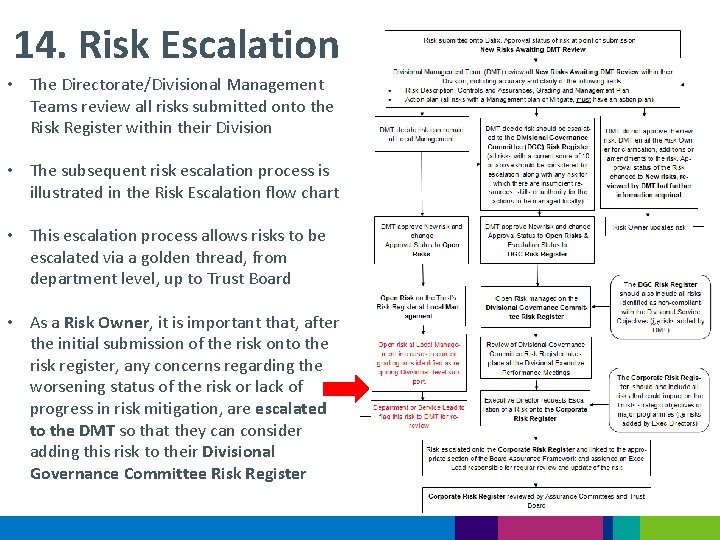
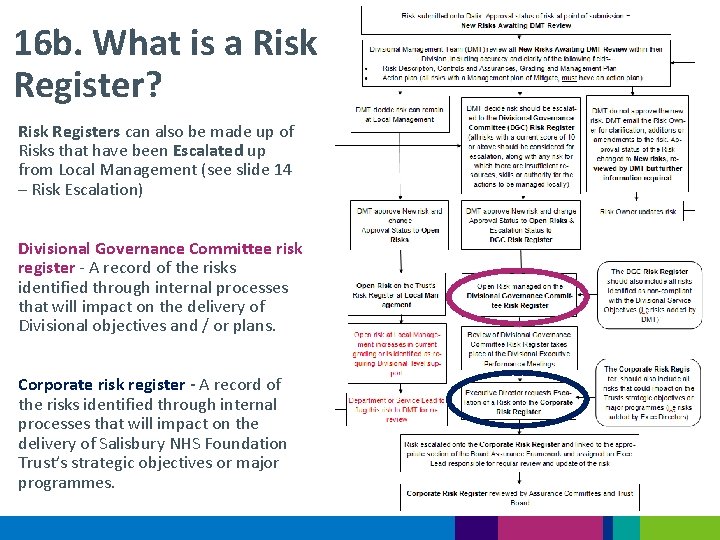
14. Risk Escalation • The Directorate/Divisional Management Teams review all risks submitted onto the Risk Register within their Division • The subsequent risk escalation process is illustrated in the Risk Escalation flow chart • This escalation process allows risks to be escalated via a golden thread, from department level, up to Trust Board • As a Risk Owner, it is important that, after the initial submission of the risk onto the risk register, any concerns regarding the worsening status of the risk or lack of progress in risk mitigation, are escalated to the DMT so that they can consider adding this risk to their Divisional Governance Committee Risk Register
15. Risk Closure When a risk has been reduced to an Acceptable level (i. e. the Target score), it can be closed by the Risk Owner, following the steps below: 1. Update the Controls and Assurances to reflect the current status of the risk 2. Review the Current Risk Grading and amend if required 3. Update the action plan as required (i. e. close off any final actions, or if actions not complete, explain why in the progress on action field) 4. Update the ‘Adequacy of Controls’ field if required 5. Change the ‘Management Plan’ to ‘Accept Risk’ 6. Enter an update in the Progress Log field regarding the decision to close the risk 7. Amend ‘Approval status after save’ to ‘Closed risks’ 8. Enter the date in ‘Date Risk Closed’
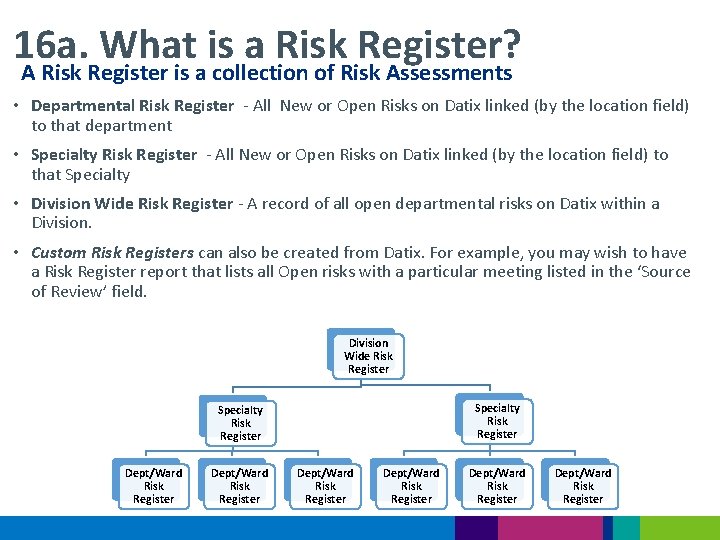
16 a. What is a Risk Register? A Risk Register is a collection of Risk Assessments • Departmental Risk Register - All New or Open Risks on Datix linked (by the location field) to that department • Specialty Risk Register - All New or Open Risks on Datix linked (by the location field) to that Specialty • Division Wide Risk Register - A record of all open departmental risks on Datix within a Division. • Custom Risk Registers can also be created from Datix. For example, you may wish to have a Risk Register report that lists all Open risks with a particular meeting listed in the ‘Source of Review’ field. Division Wide Risk Register Specialty Risk Register Dept/Ward Risk Register Dept/Ward Risk Register
16 b. What is a Risk Register? Risk Registers can also be made up of Risks that have been Escalated up from Local Management (see slide 14 – Risk Escalation) Divisional Governance Committee risk register - A record of the risks identified through internal processes that will impact on the delivery of Divisional objectives and / or plans. Corporate risk register - A record of the risks identified through internal processes that will impact on the delivery of Salisbury NHS Foundation Trust’s strategic objectives or major programmes.
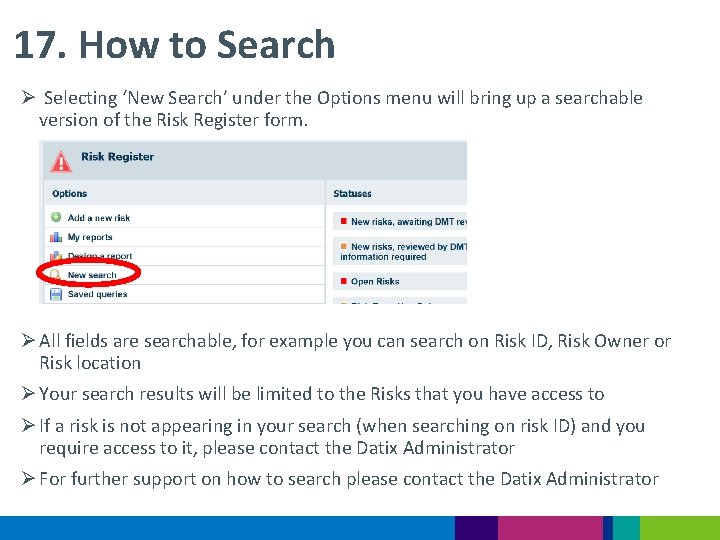
17. How to Search Ø Selecting ‘New Search’ under the Options menu will bring up a searchable version of the Risk Register form. Ø All fields are searchable, for example you can search on Risk ID, Risk Owner or Risk location Ø Your search results will be limited to the Risks that you have access to Ø If a risk is not appearing in your search (when searching on risk ID) and you require access to it, please contact the Datix Administrator Ø For further support on how to search please contact the Datix Administrator
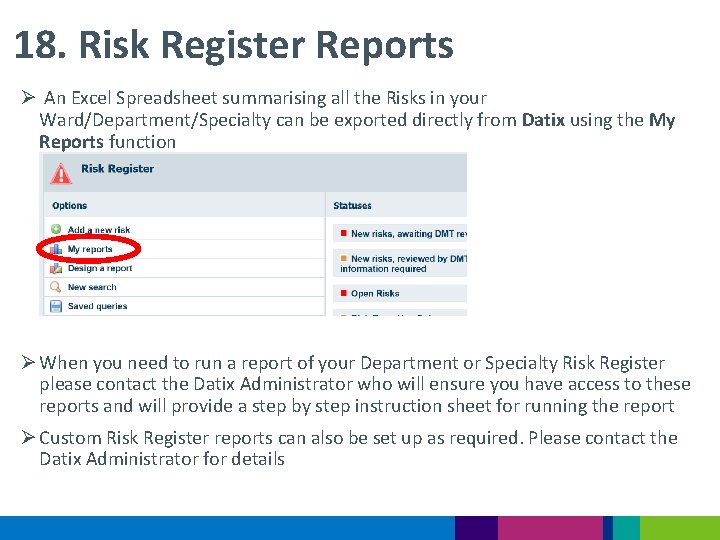
18. Risk Register Reports Ø An Excel Spreadsheet summarising all the Risks in your Ward/Department/Specialty can be exported directly from Datix using the My Reports function Ø When you need to run a report of your Department or Specialty Risk Register please contact the Datix Administrator who will ensure you have access to these reports and will provide a step by step instruction sheet for running the report Ø Custom Risk Register reports can also be set up as required. Please contact the Datix Administrator for details
19. Further Resources Ø For further information please refer to the Risk Management Policy which is available on Microguide Ø If you have any questions please contact the Risk Management Team on the details below Head of Risk Management Ext 2496 Patient Safety Facilitator Ext 2683 Patient Safety Facilitator Ext 4829 Datix/Risk Management Administrator Ext 4829 Data Quality Analyst Ext 2035 Data Quality Clerk Ext 2035 shc-tr. Riskmanagement@nhs. net