
Database Lesson 4 Creating Relationships In a relational
Database Lesson 4 Creating Relationships
In a relational database, relationships enable you to prevent redundant data i. e. repetition of data. Instead of storing all the data in one table, data is designed and stored in different tables and then these tables are linked together through a common field. This is called a Relationship.

Open MS Access and load the Supermarket database. When you open MS Access, the supermarket database may be listed in the Recent section at the top left corner of your screen.
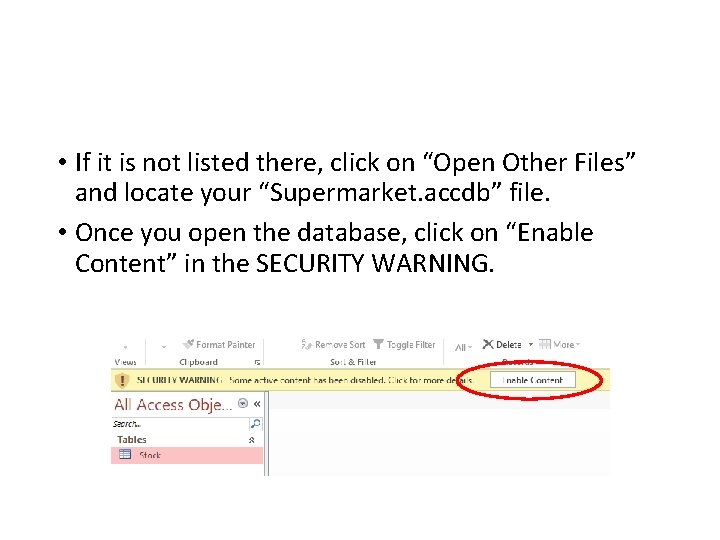
• If it is not listed there, click on “Open Other Files” and locate your “Supermarket. accdb” file. • Once you open the database, click on “Enable Content” in the SECURITY WARNING.
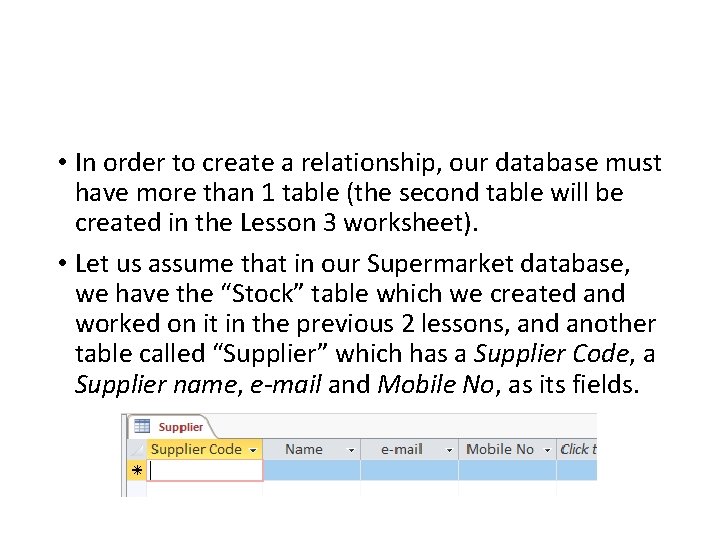
• In order to create a relationship, our database must have more than 1 table (the second table will be created in the Lesson 3 worksheet). • Let us assume that in our Supermarket database, we have the “Stock” table which we created and worked on it in the previous 2 lessons, and another table called “Supplier” which has a Supplier Code, a Supplier name, e-mail and Mobile No, as its fields.
In order create a relationship, there must be a common field in both tables and therefore we will add the field “Supplier Code” in the Stock table as well. This field will be used to link the 2 tables together.
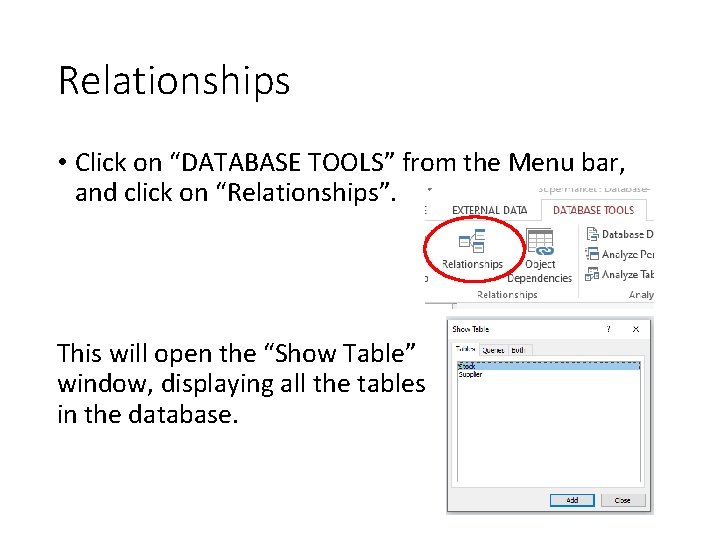
Relationships • Click on “DATABASE TOOLS” from the Menu bar, and click on “Relationships”. This will open the “Show Table” window, displaying all the tables in the database.
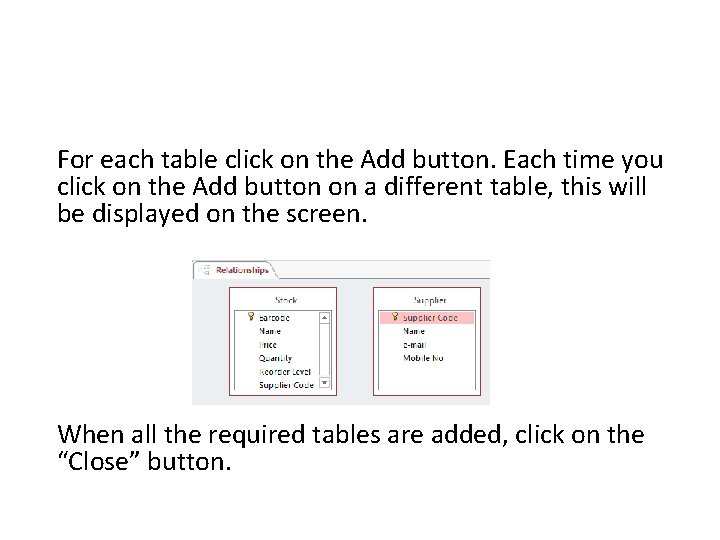
For each table click on the Add button. Each time you click on the Add button on a different table, this will be displayed on the screen. When all the required tables are added, click on the “Close” button.
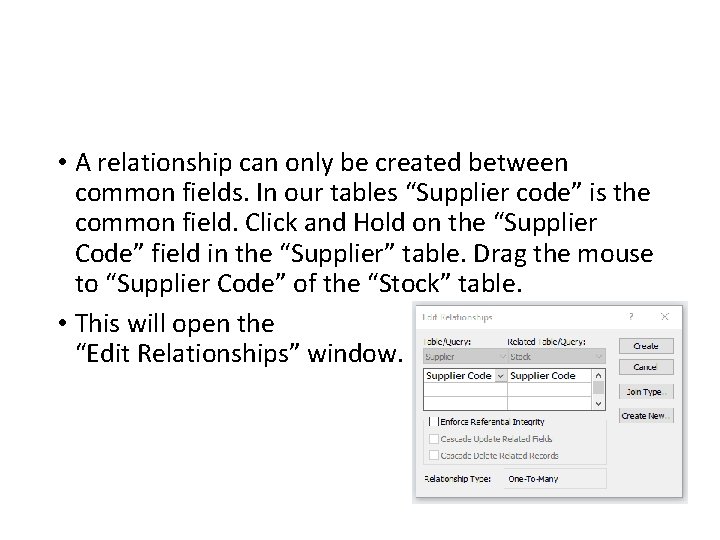
• A relationship can only be created between common fields. In our tables “Supplier code” is the common field. Click and Hold on the “Supplier Code” field in the “Supplier” table. Drag the mouse to “Supplier Code” of the “Stock” table. • This will open the “Edit Relationships” window.
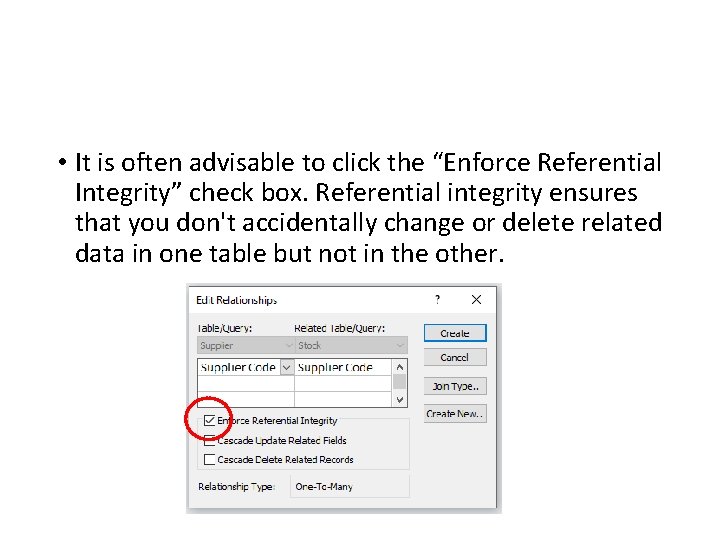
• It is often advisable to click the “Enforce Referential Integrity” check box. Referential integrity ensures that you don't accidentally change or delete related data in one table but not in the other.
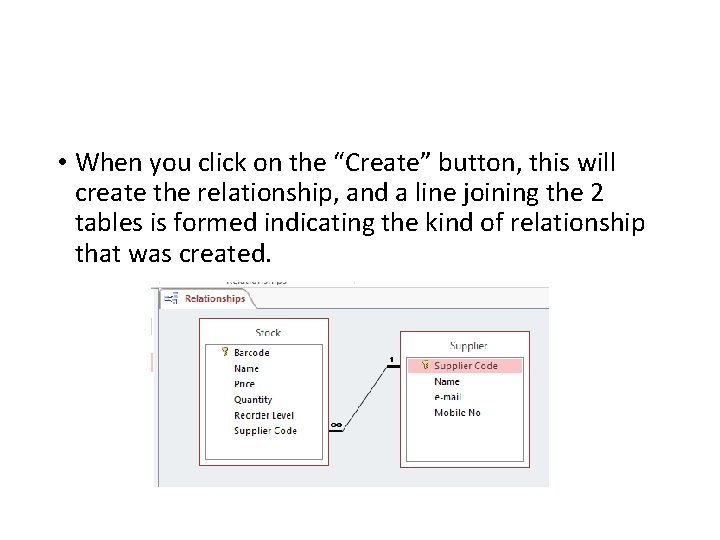
• When you click on the “Create” button, this will create the relationship, and a line joining the 2 tables is formed indicating the kind of relationship that was created.
• Close and Save the Relationships window. • You can now start adding the Supplier details in the Supplier table and then enter the Supplier Code in the Stock table. • If you input a Supplier code in the “Stock” table, that does not exist in the “Supplier” table, the database will not accept it because we enforced referential integrity.
- Slides: 12