
Database Lesson 1 Introduction to databases What is
Database Lesson 1 Introduction to databases
What is a Database? A database is an organized collection of structured information, or data, typically stored electronically in a computer system. A database is usually controlled by a database management system (DBMS). Together, the data and the DBMS, along with the applications that are associated with them, are referred to as a database system, often shortened to just database. https: //www. oracle. com/database/what-is-database. html
Open Microsoft Access is part of Microsoft Office. Depending on your installation, look of the Access Icon or search for the program in order to start using it.
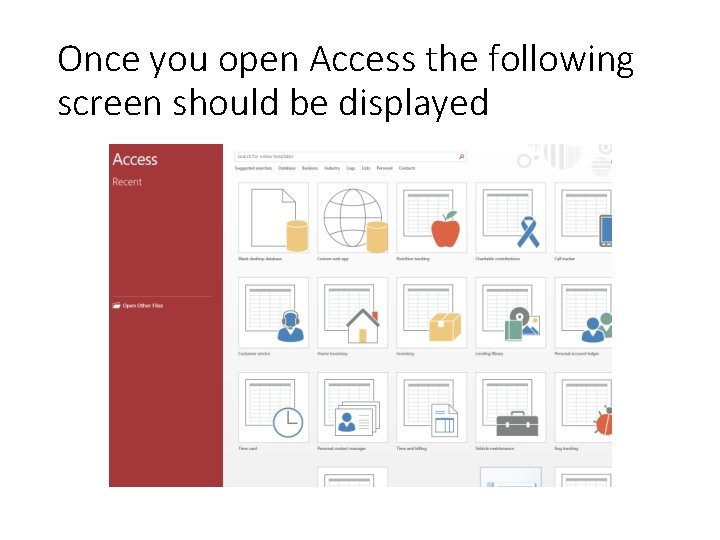
Once you open Access the following screen should be displayed
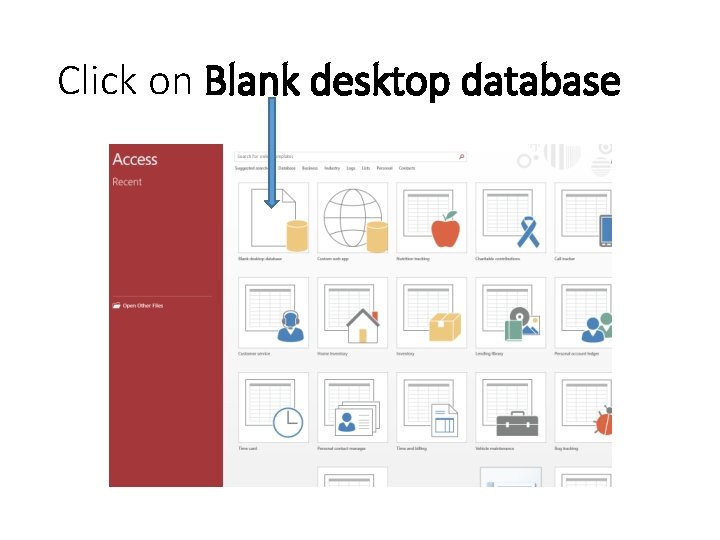
Click on Blank desktop database
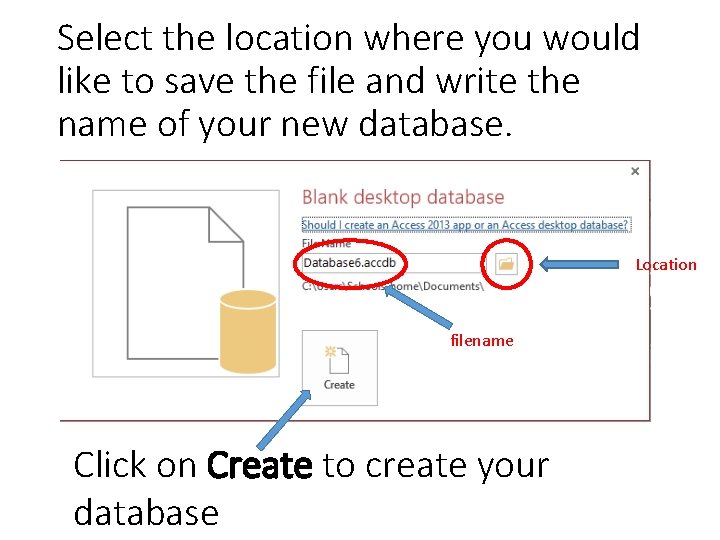
Select the location where you would like to save the file and write the name of your new database. Location filename Click on Create to create your database
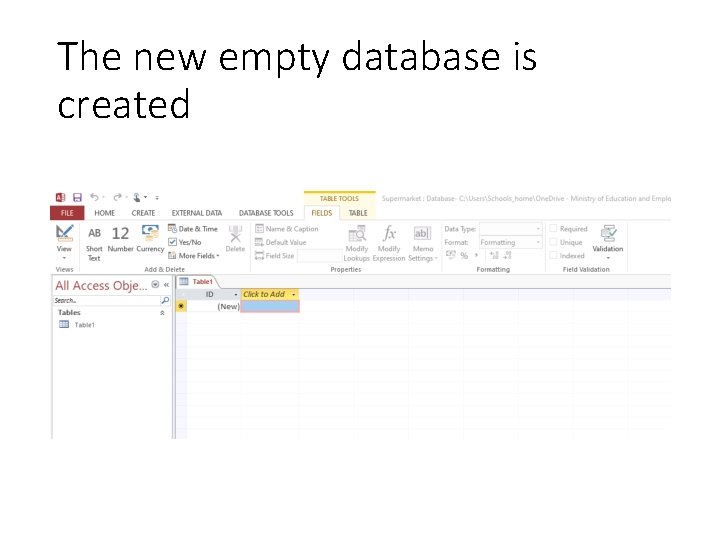
The new empty database is created
Tables The database table is where all the data in a database is stored. It is a collection of related data held in a table format within a database. It consists of columns and rows.
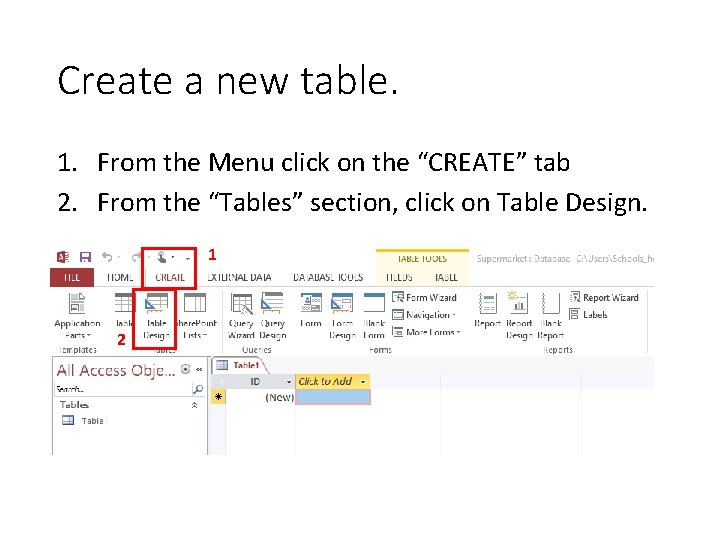
Create a new table. 1. From the Menu click on the “CREATE” tab 2. From the “Tables” section, click on Table Design. 1 • 2
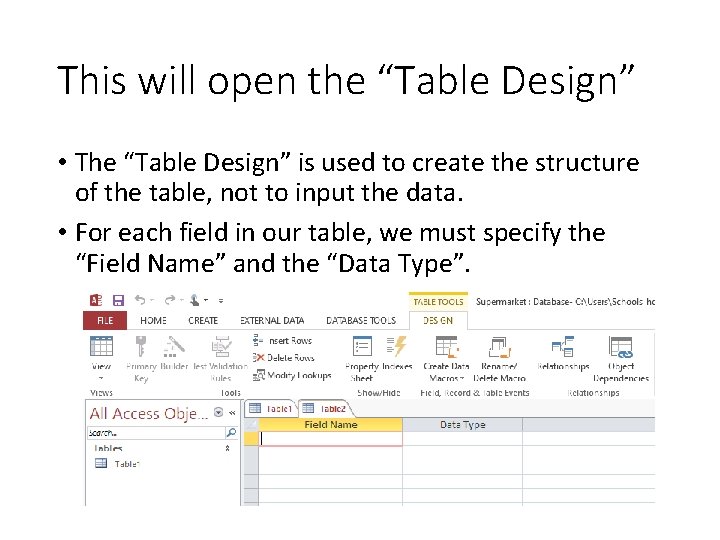
This will open the “Table Design” • The “Table Design” is used to create the structure of the table, not to input the data. • For each field in our table, we must specify the “Field Name” and the “Data Type”.
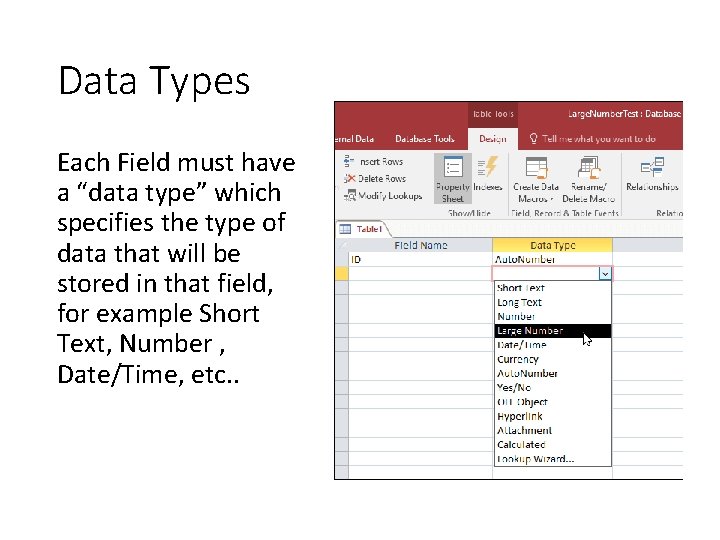
Data Types Each Field must have a “data type” which specifies the type of data that will be stored in that field, for example Short Text, Number , Date/Time, etc. .
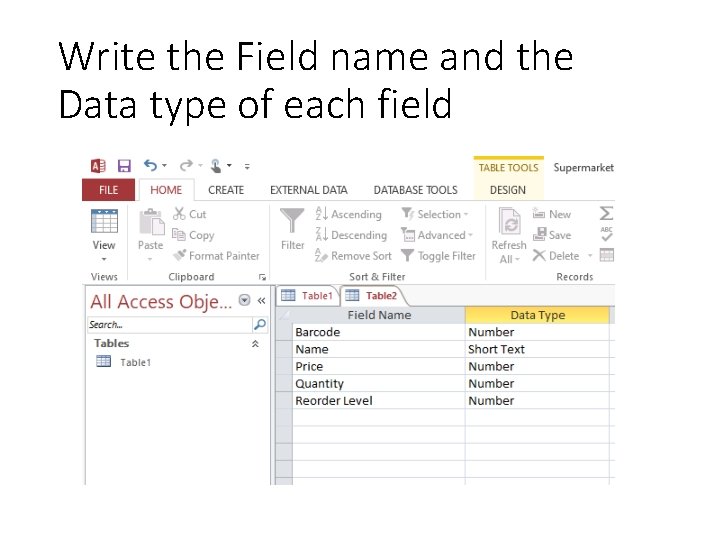
Write the Field name and the Data type of each field
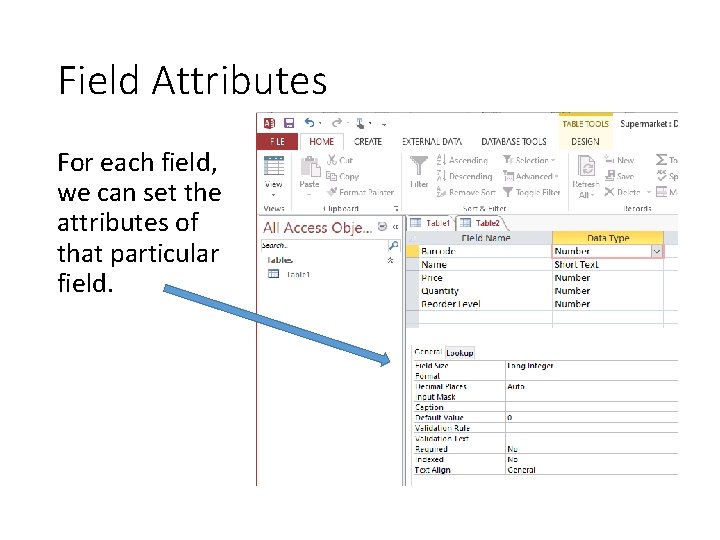
Field Attributes For each field, we can set the attributes of that particular field.
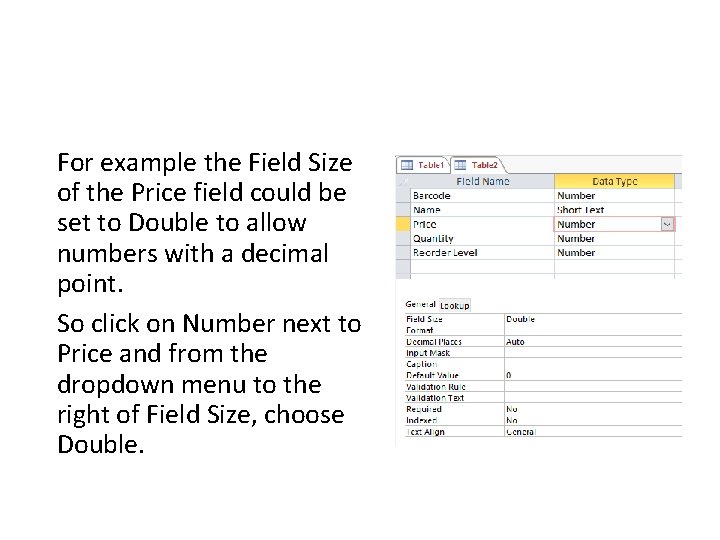
For example the Field Size of the Price field could be set to Double to allow numbers with a decimal point. So click on Number next to Price and from the dropdown menu to the right of Field Size, choose Double.
Primary Key • A Primary Key is a field in a table that uniquely identifies a record. This field must be unique that is all data items in this field should be different. • It is recommended that you set the primary key for each table. • Select a field that is unique, such as ID number, barcode, worker number, supplier code etc. . and from the Design Menu, click on the Primary Key.
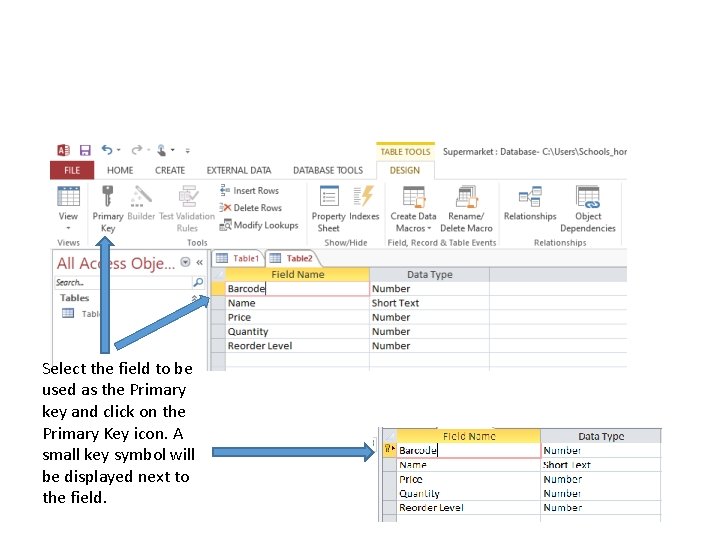
Select the field to be used as the Primary key and click on the Primary Key icon. A small key symbol will be displayed next to the field.
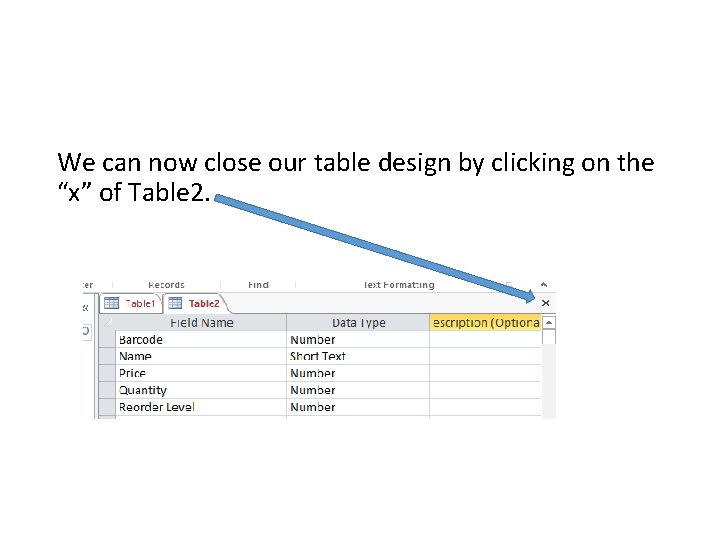
We can now close our table design by clicking on the “x” of Table 2.
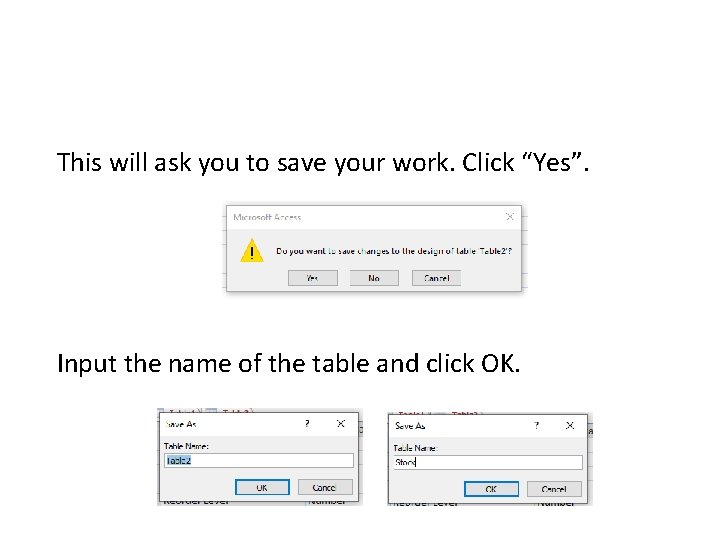
This will ask you to save your work. Click “Yes”. Input the name of the table and click OK.
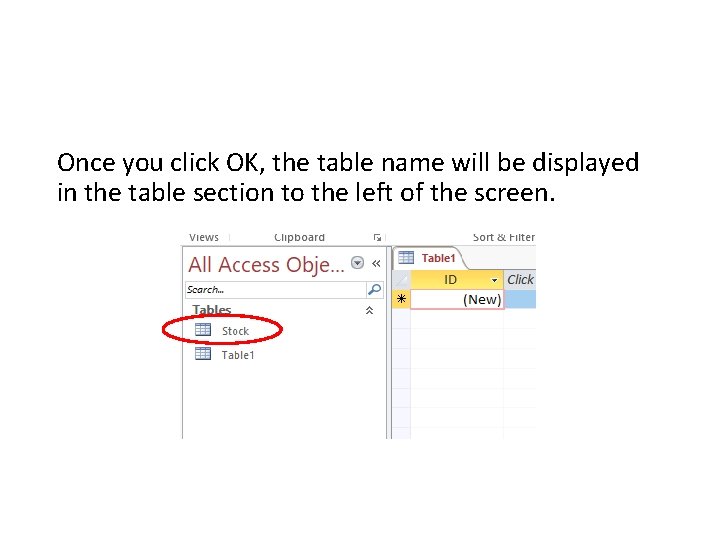
Once you click OK, the table name will be displayed in the table section to the left of the screen.
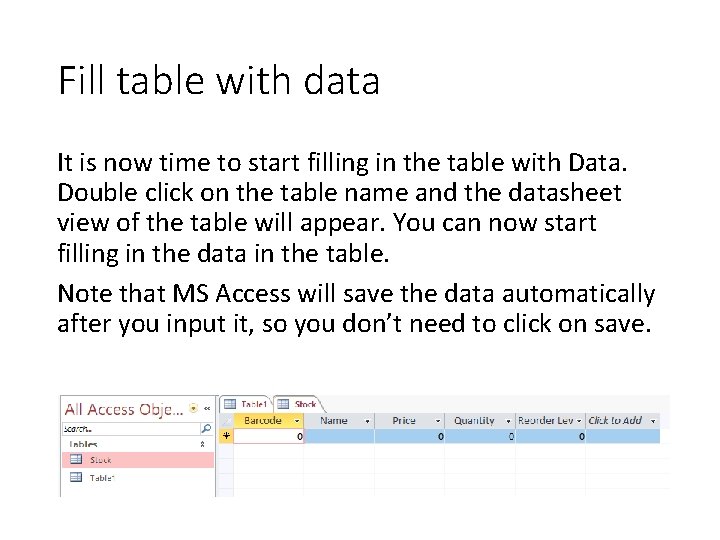
Fill table with data It is now time to start filling in the table with Data. Double click on the table name and the datasheet view of the table will appear. You can now start filling in the data in the table. Note that MS Access will save the data automatically after you input it, so you don’t need to click on save.
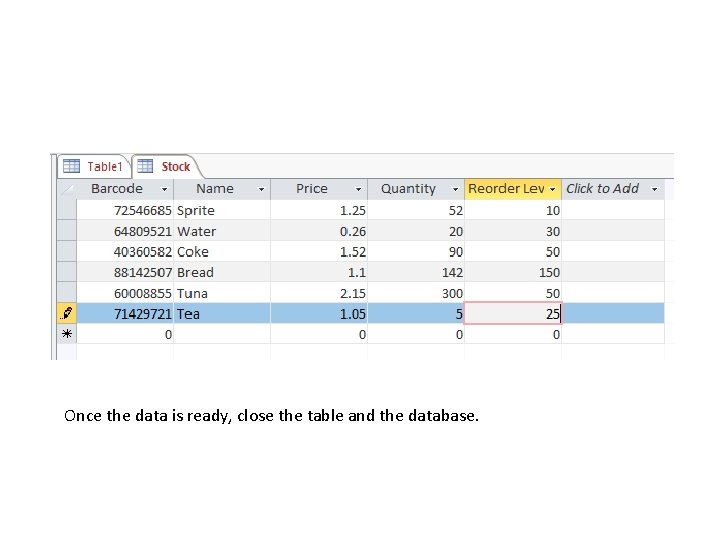
Once the data is ready, close the table and the database.
- Slides: 21