
DATA WAREHOUSE LOGGING IN AND ACCESSING NC FAST
- Slides: 15
DATA WAREHOUSE LOGGING IN AND ACCESSING NC FAST SUBSIDIZED CHILD CARE DATA
�URL to access Data Warehouse: �http: //csdwportal. dhhs. state. nc. us/csdwlogi n/ �Access to CSDW requires an assigned log- in and password. �To receive this log-in and password, please contact your LME or Institution Security Officer
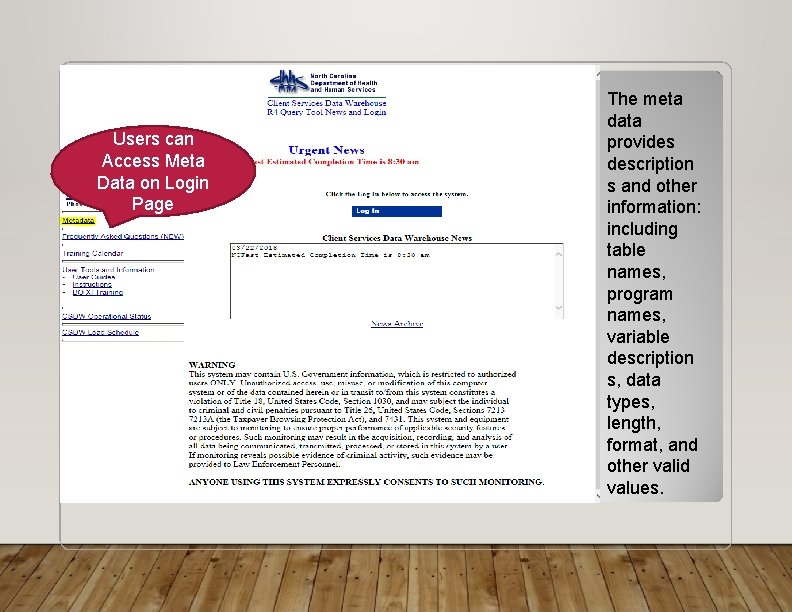
Users can Access Meta Data on Login Page The meta data provides description s and other information: including table names, program names, variable description s, data types, length, format, and other valid values.
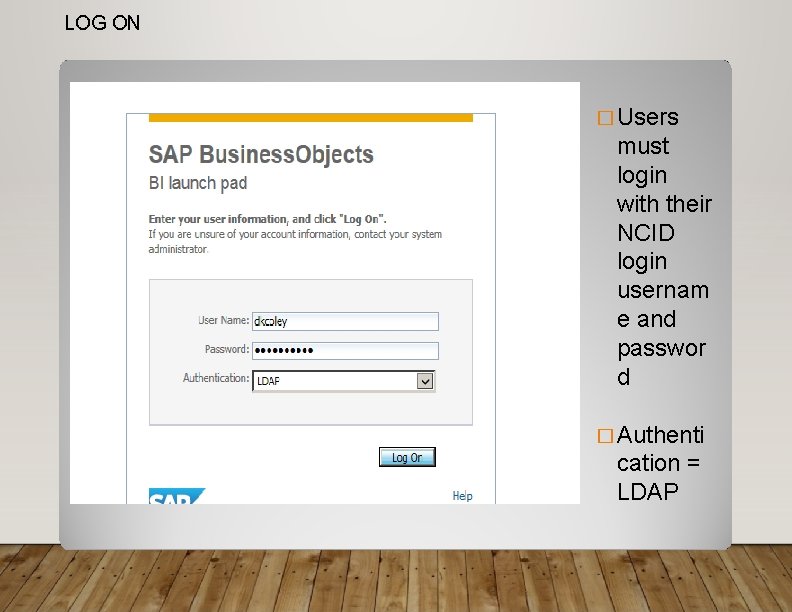
LOG ON � Users must login with their NCID login usernam e and passwor d � Authenti cation = LDAP
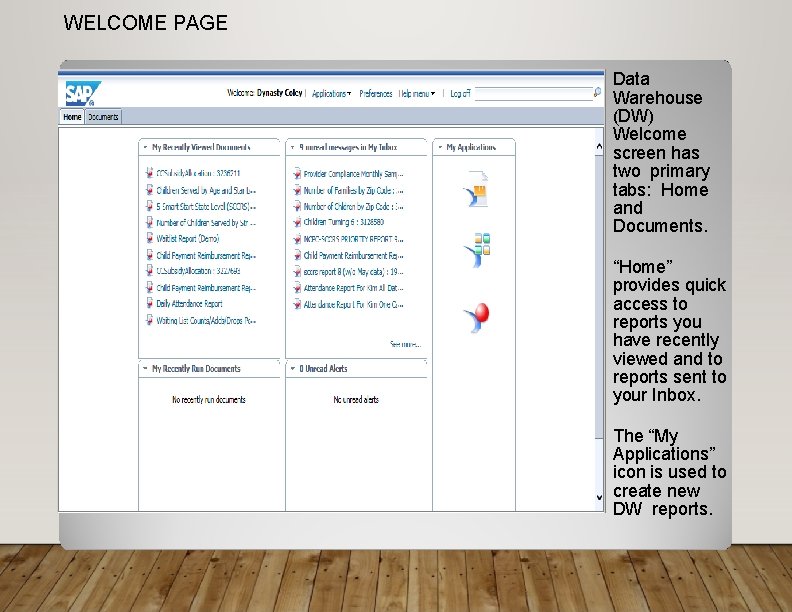
WELCOME PAGE Data Warehouse (DW) Welcome screen has two primary tabs: Home and Documents. “Home” provides quick access to reports you have recently viewed and to reports sent to your Inbox. The “My Applications” icon is used to create new DW reports.
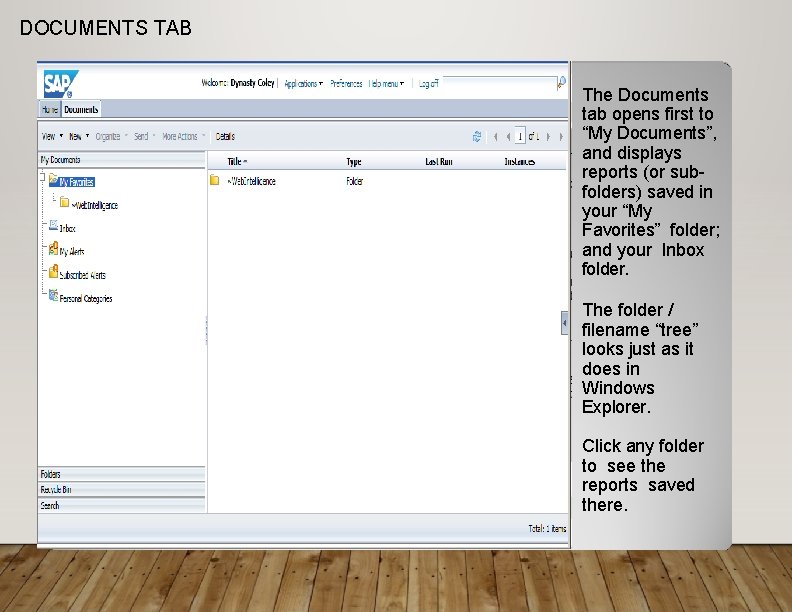
DOCUMENTS TAB The Documents tab opens first to “My Documents”, and displays reports (or subfolders) saved in your “My Favorites” folder; and your Inbox folder. The folder / filename “tree” looks just as it does in Windows Explorer. Click any folder to see the reports saved there.
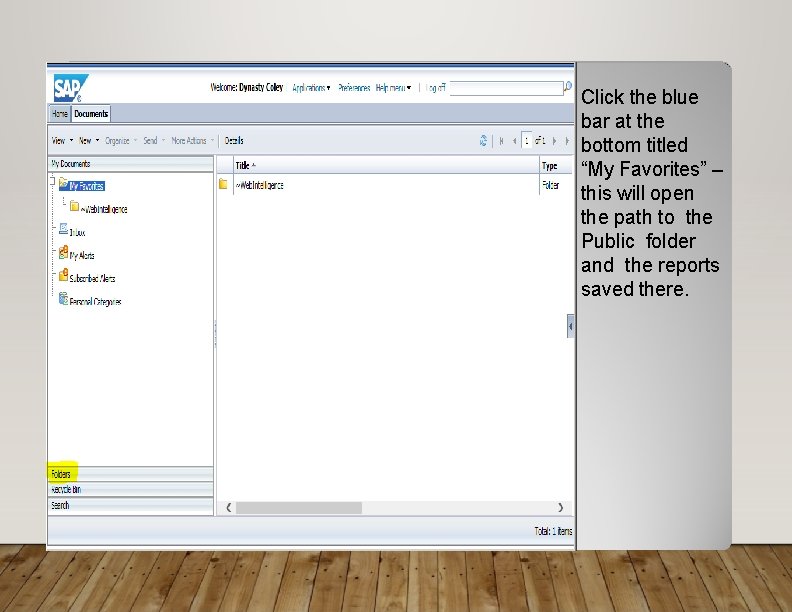
Click the blue bar at the bottom titled “My Favorites” – this will open the path to the Public folder and the reports saved there.
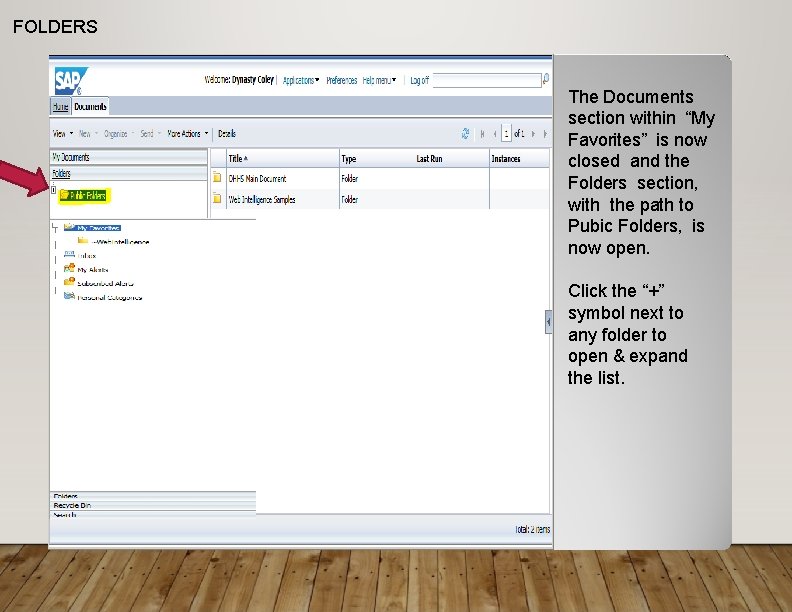
FOLDERS The Documents section within “My Favorites” is now closed and the Folders section, with the path to Pubic Folders, is now open. Click the “+” symbol next to any folder to open & expand the list.
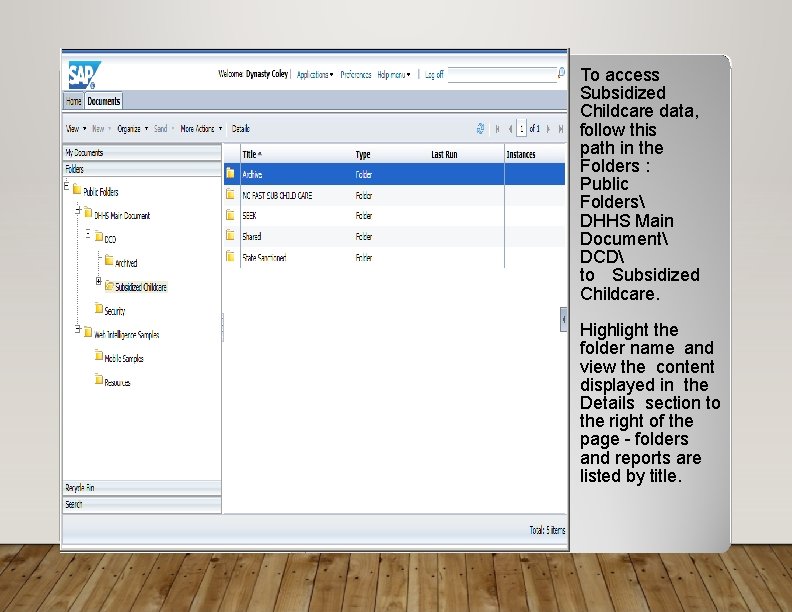
To access Subsidized Childcare data, follow this path in the Folders : Public Folders DHHS Main Document DCD to Subsidized Childcare. Highlight the folder name and view the content displayed in the Details section to the right of the page - folders and reports are listed by title.
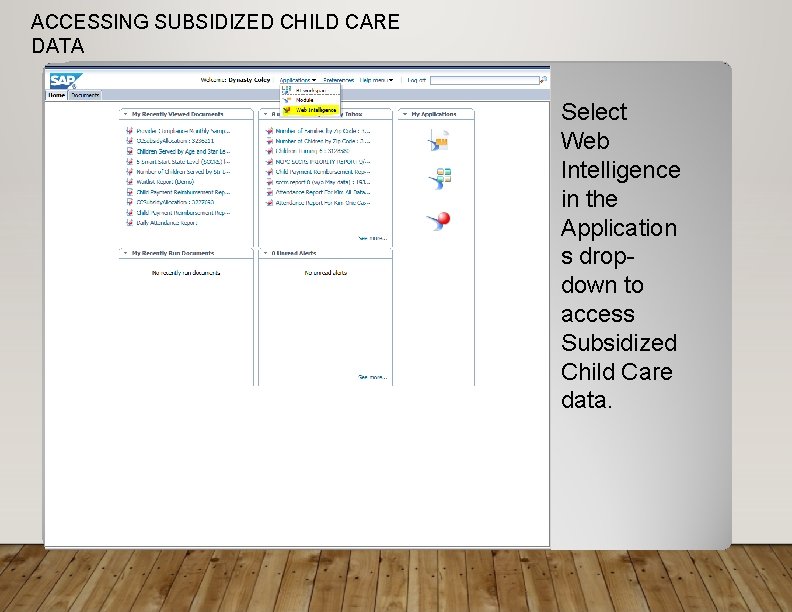
ACCESSING SUBSIDIZED CHILD CARE DATA Select Web Intelligence in the Application s dropdown to access Subsidized Child Care data.
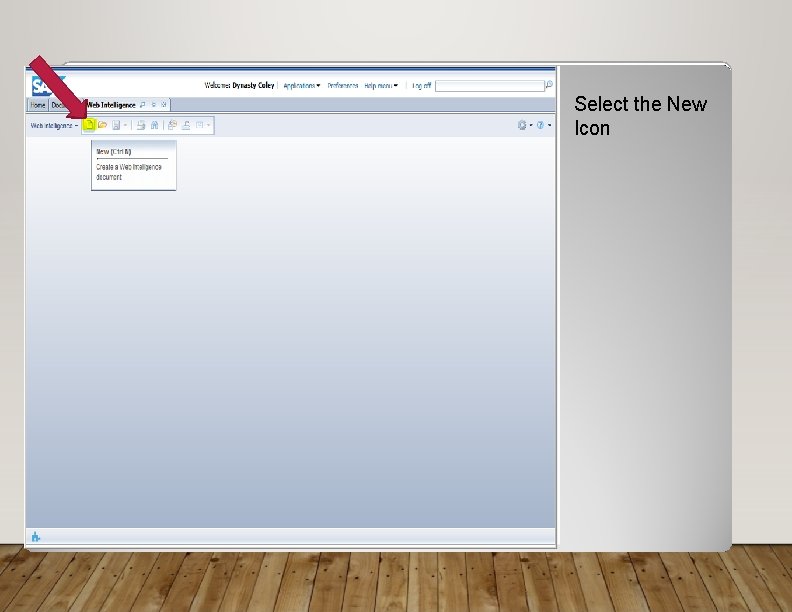
Select the New Icon
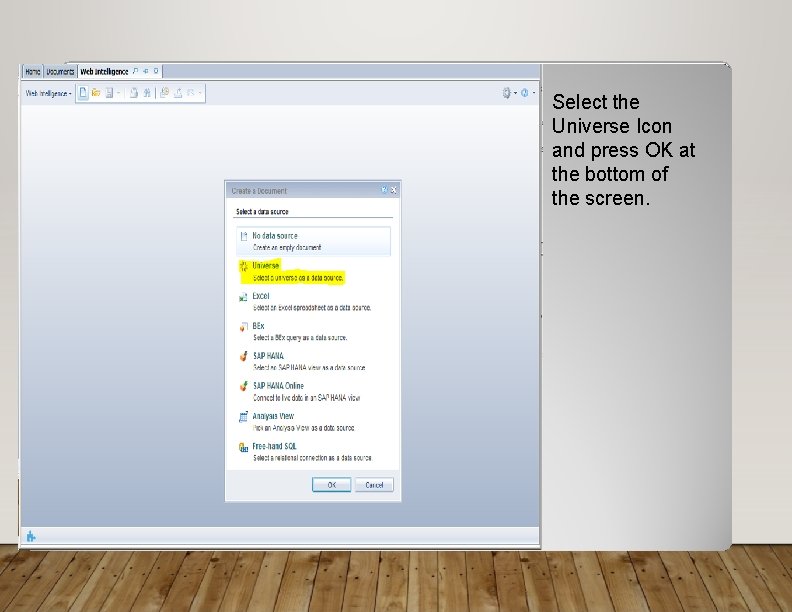
Select the Universe Icon and press OK at the bottom of the screen.
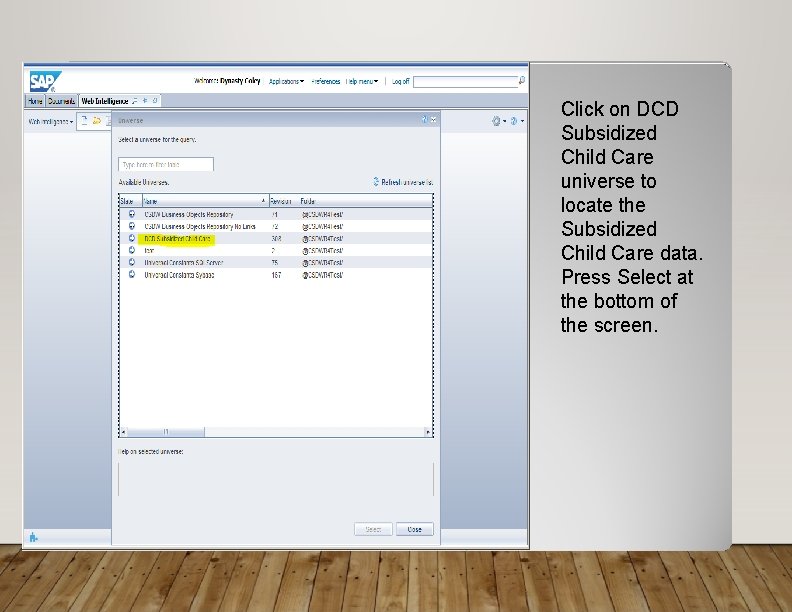
Click on DCD Subsidized Child Care universe to locate the Subsidized Child Care data. Press Select at the bottom of the screen.
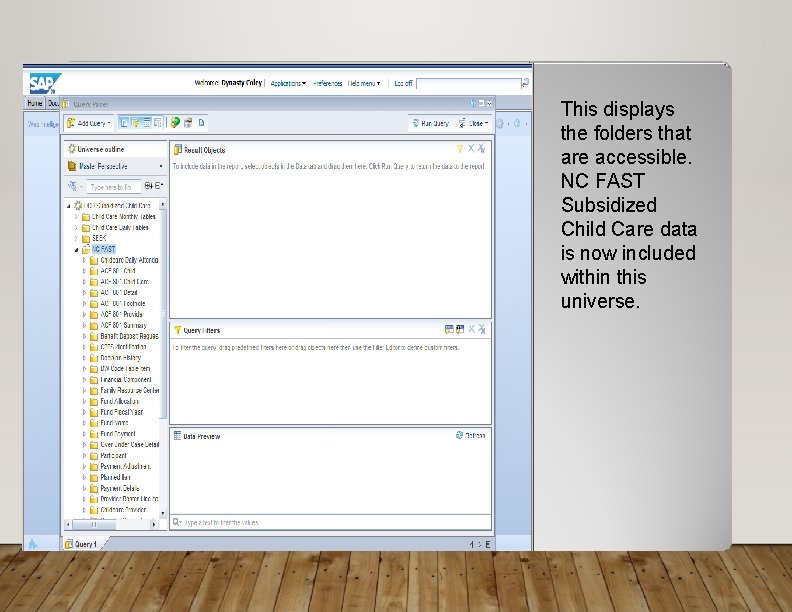
This displays the folders that are accessible. NC FAST Subsidized Child Care data is now included within this universe.
THIS CONCLUDES LOGGING IN AND ACCESSING NC FAST SUBSIDIZED CHILD CARE DATA Should you encounter any type of discrepancies, please share your feedback with Dynasty Coley at DCDEE at dynasty. coley@dhhs. nc. gov.