
Data Visualization Exploration COMPSCI 590 Lab 1 D
Data Visualization & Exploration – COMPSCI 590 Lab 1: D 3 Setup John Fallon 1 -25 -2019
Lab 1 Goals Understand what D 3 is Be able to locally run D 3 code on your machine Get an example D 3 visualization showing in the web browser
What is D 3? 2
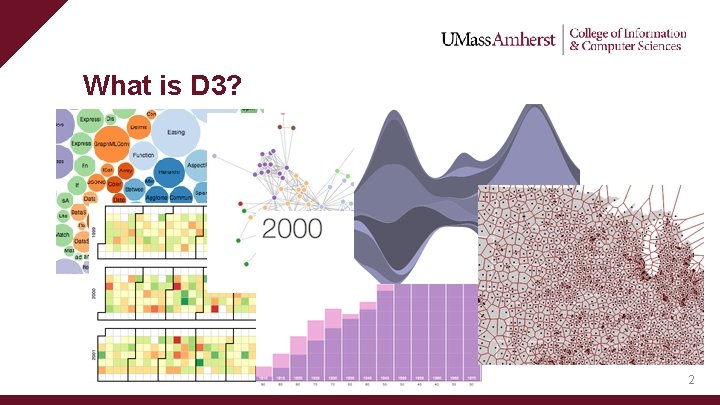
What is D 3? • D 3. js is a Java. Script library for manipulating documents based on data. (https: //d 3 js. org/) • At it’s core, D 3 is a graphics library for the web • D 3 is a targeted library – data visualization • D 3 visualizations can be embedded into any web page • D 3 Links: – – – Homepage: https: //d 3 js. org/ Github: https: //github. com/d 3 Latest Online Release: https: //d 3 js. org/d 3. v 5. min. js 3
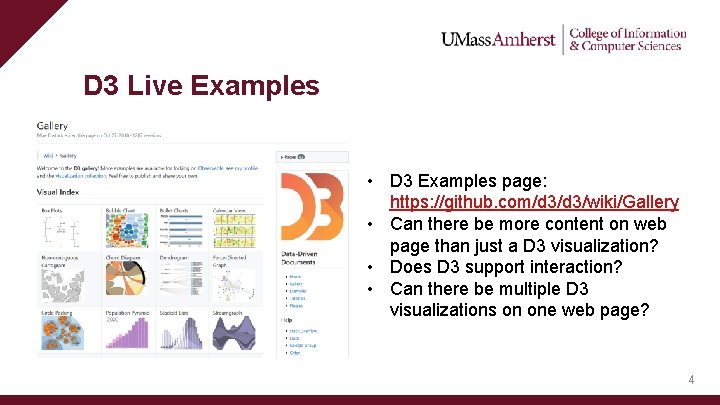
D 3 Live Examples • D 3 Examples page: https: //github. com/d 3/wiki/Gallery • Can there be more content on web page than just a D 3 visualization? • Does D 3 support interaction? • Can there be multiple D 3 visualizations on one web page? 4
Running D 3 • What does D 3 require to run? – – A web browser D 3 source code Valid HTML document Server • Most people probably have a web browser • D 3 source code can be added to any HTML file by including: – <script src="https: //d 3 js. org/d 3. v 5. min. js"></script> • Server: – – Can use a remote setup like: https: //bl. ocks. org/ Host a local server 5
Remote Server – Using bl. ocks • Bl. ocks. org is the website of Mike Bostock – • Mike Bostock is the creator and maintainer of D 3 Bl. ocks. org can point to a Gist on Github – Gist is a one off mini-repo • Bl. ocks. org is an easy way to share your visualization on the web without having to worry about hosting • Bl. ocks. org has a great collection of D 3 examples alongside their code. Reference it! • Another good resource: https: //blockbuilder. org/ 6
Local Server - Python • Running D 3 locally requires a server • I recommend Python, since it is easy and straightforward • Mac comes pre-installed with Python 2. 7. Windows will need to install Python • Python 2. X or 3. X will work, but there are different commands to run a server • Install Python from: https: //www. python. org/downloads/ 7
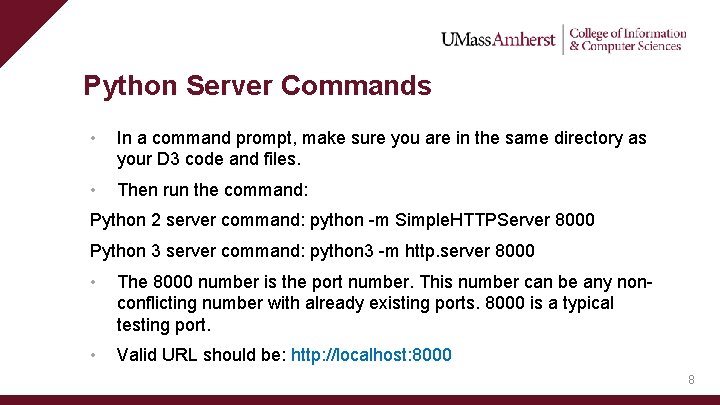
Python Server Commands • In a command prompt, make sure you are in the same directory as your D 3 code and files. • Then run the command: Python 2 server command: python -m Simple. HTTPServer 8000 Python 3 server command: python 3 -m http. server 8000 • The 8000 number is the port number. This number can be any nonconflicting number with already existing ports. 8000 is a typical testing port. • Valid URL should be: http: //localhost: 8000 8
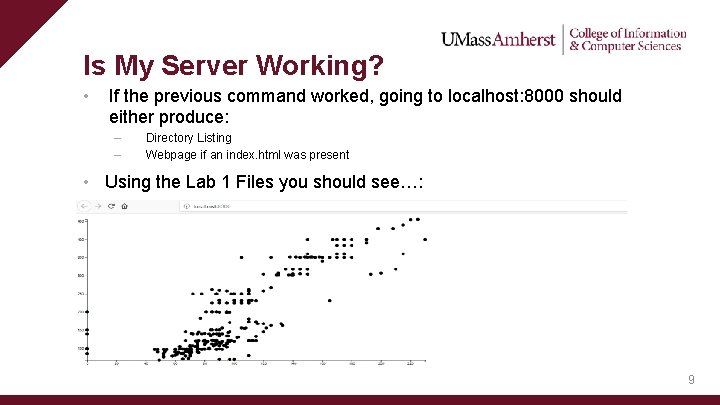
Is My Server Working? • If the previous command worked, going to localhost: 8000 should either produce: – – Directory Listing Webpage if an index. html was present • Using the Lab 1 Files you should see…: 9
Server Success • If you see the visualization on the localhost webpage, Congratulations! • You’ve now successfully run a D 3 visualization using your local environment • If you want to explore further/debug the example try opening the Developer Tools in the web browser. (F 12 in Chrome and Firefox) 10
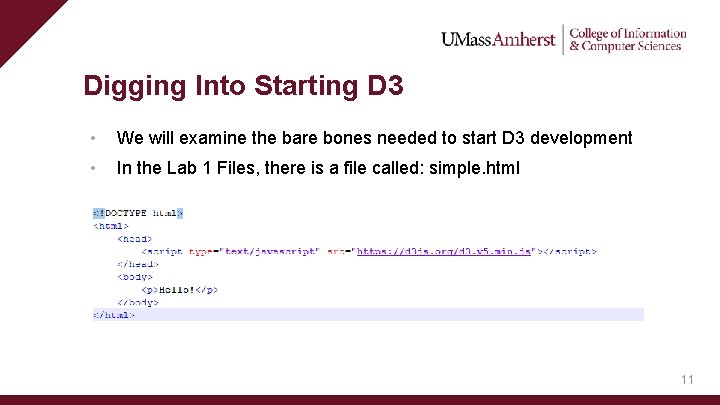
Digging Into Starting D 3 • We will examine the bare bones needed to start D 3 development • In the Lab 1 Files, there is a file called: simple. html 11
Simple. html • If we want our server to display that page in our browser we can go to: localhost: 8000/simple. html • We could also change simple. html to be called index. html, and our localhost: 8000 will default to that page • Key components of this file: – – Valid HTML Included script tag for D 3 source 12
Javascript Console • Let’s test using D 3 live: d 3. select("body"). append("p"); D 3 Select • The D 3. js Select method uses CSS 3 selectors to grab DOM elements • D 3 looks at the document and selects the first descendant DOM element that contains the tag body • Once an element is selected, D 3. js allows you to apply operators to the element you have selected • These operators can get or set things like "attributes", "properties", "styles", "HTML", and "text content“ D 3 Append • The Append Operator appends a new element as the last child of the element in the current selection • Since our current selection was d 3. select("body"), the append operator added the "p" element last. 13
For Next Time… • Playing around with SVG elements • Start talking about groups for the term project – Teams should have Undergraduates and Graduates Questions? 14
- Slides: 15