
Data Manipulation with SQL HRP 223 2010 October
Data Manipulation (with SQL) HRP 223 – 2010 October 13, 2010 Copyright © 1999 -2010 Leland Stanford Junior University. All rights reserved. Warning: This presentation is protected by copyright law and international treaties. Unauthorized reproduction of this presentation, or any portion of it, may result in severe civil and criminal penalties and will be prosecuted to maximum extent possible under the law.
Topics For Today • Organization • Sharing a SAS dataset – As. sas 7 bdat files or other formats • Renaming – Datasets – Variables • Subsetting a dataset – Select a few variables – Select a few records • SQL reports for a single table of data – Selecting/renaming variables – Applying labels and formats – Creating tables with SQL 2
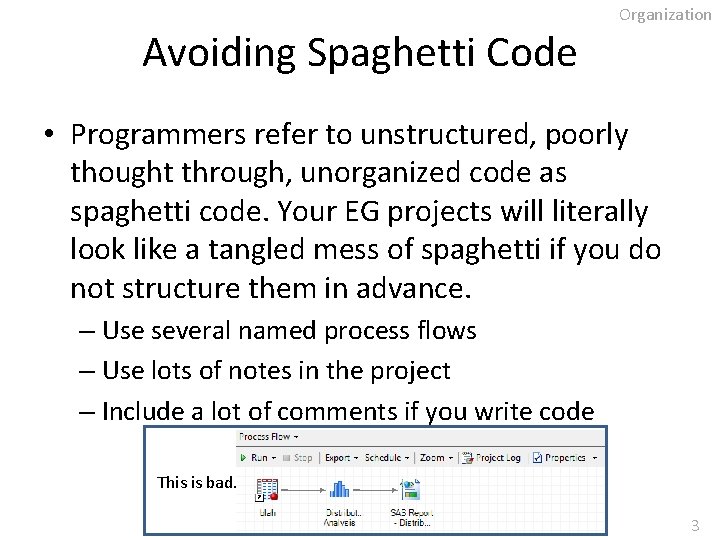
Avoiding Spaghetti Code Organization • Programmers refer to unstructured, poorly thought through, unorganized code as spaghetti code. Your EG projects will literally look like a tangled mess of spaghetti if you do not structure them in advance. – Use several named process flows – Use lots of notes in the project – Include a lot of comments if you write code This is bad. 3
Organization Process Management • Typically you will have a process flow that tells EG where to find existing SAS data or it says to import from the source file(s) from a database like REDCap or from Excel and then does data cleaning and splits the data into subsets. • If you do different sets of analyses to the subsets, add in a process flow for each subset. • Have one of the process flows create a dataset called analysis that has the cleaned data with all the information used in the analyses. 4
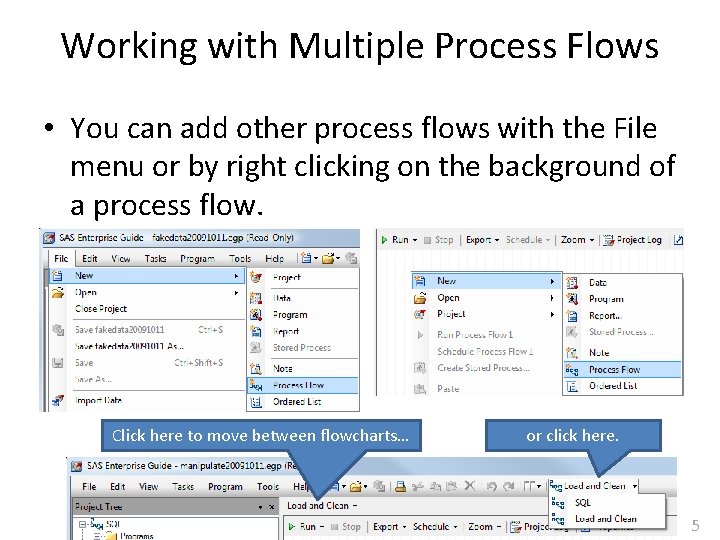
Working with Multiple Process Flows • You can add other process flows with the File menu or by right clicking on the background of a process flow. Click here to move between flowcharts… or click here. 5
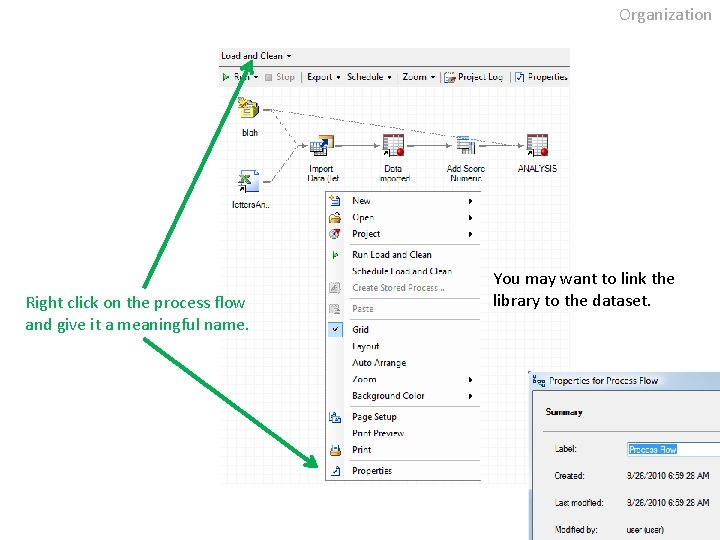
Organization Right click on the process flow and give it a meaningful name. You may want to link the library to the dataset. 6
Organization The Greater Right of the Left • Your process flows should have the source of the data on the left. The left margin should have: – A note saying what the flowchart does – A code node that creates a toy dataset or a library (or libraries) that contains the data 7
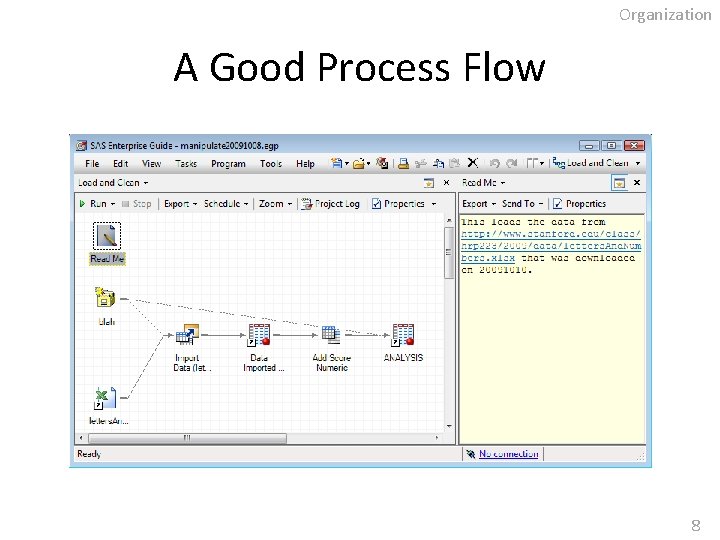
Organization A Good Process Flow 8
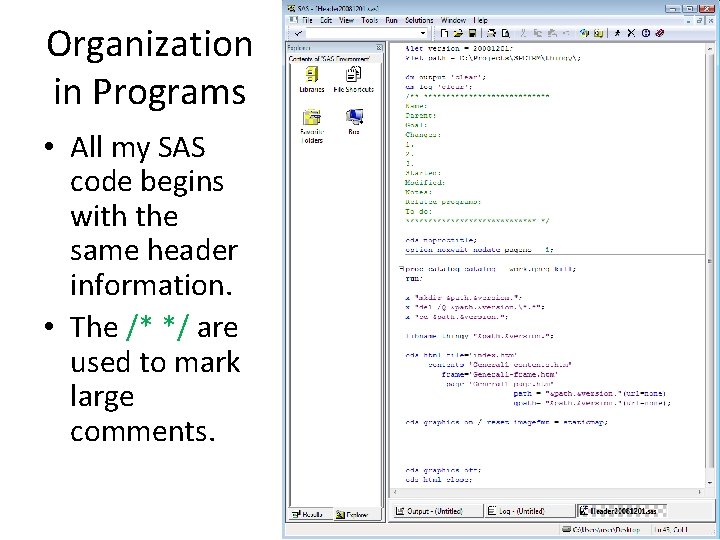
Organization in Programs • All my SAS code begins with the same header information. • The /* */ are used to mark large comments. 9
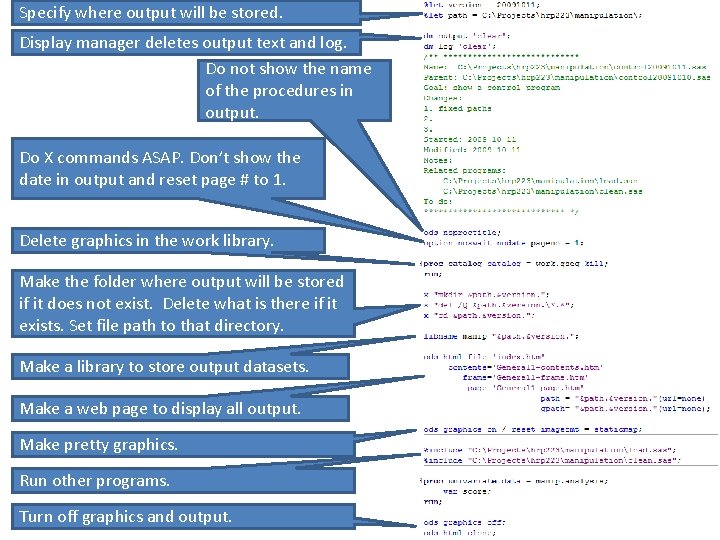
Specify where output will be stored. Display manager deletes output text and log. Do not show the name of the procedures in output. Do X commands ASAP. Don’t show the date in output and reset page # to 1. Delete graphics in the work library. Make the folder where output will be stored if it does not exist. Delete what is there if it exists. Set file path to that directory. Make a library to store output datasets. Make a web page to display all output. Make pretty graphics. Run other programs. Turn off graphics and output. 10
Sharing Data • • You can share SAS data sets just like Excel files. Create a library. Copy the data into the library. If the data has formats associated with it, be sure to send the formats. – More on this on a later date. 11
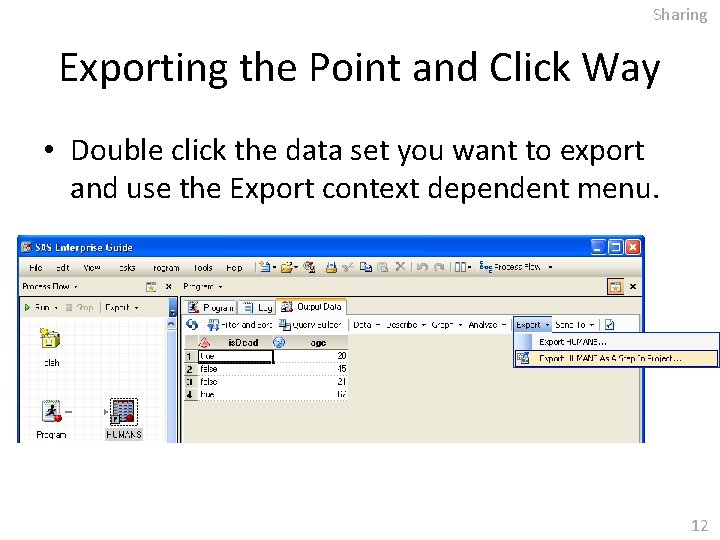
Sharing Exporting the Point and Click Way • Double click the data set you want to export and use the Export context dependent menu. 12
Libraries • Recall that a library is reference to a location on a hard drive. • If you tell EG to move a data set into a library it moves it into the folder that the library “points at”. 13
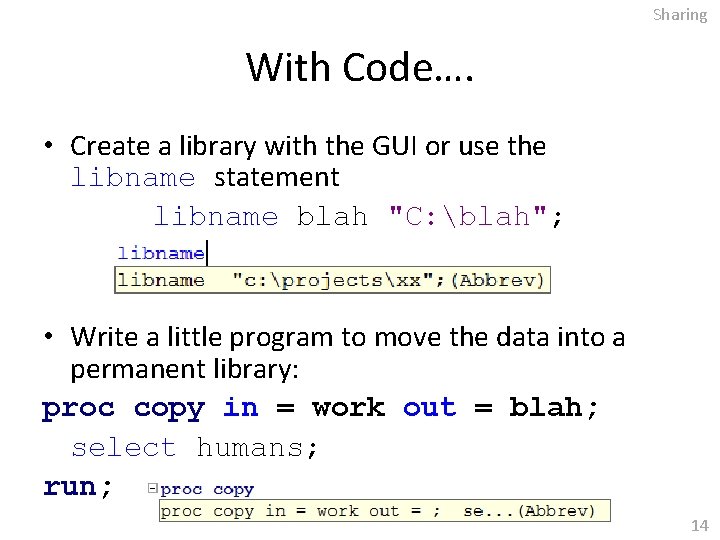
Sharing With Code…. • Create a library with the GUI or use the libname statement libname blah "C: blah"; • Write a little program to move the data into a permanent library: proc copy in = work out = blah; select humans; run; 14
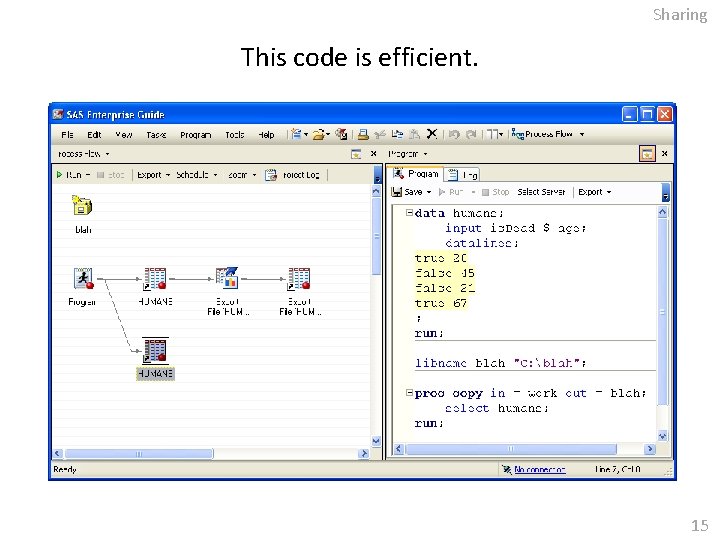
Sharing This code is efficient. 15
Sharing Alternatives • Novices underuse proc copy. Instead they typically write less efficient data steps. For example, data blah. humans; set work. humans; run; • Or they may write: data "C: blahhumans. sas 7 bdat"; set work. humans; run; 16
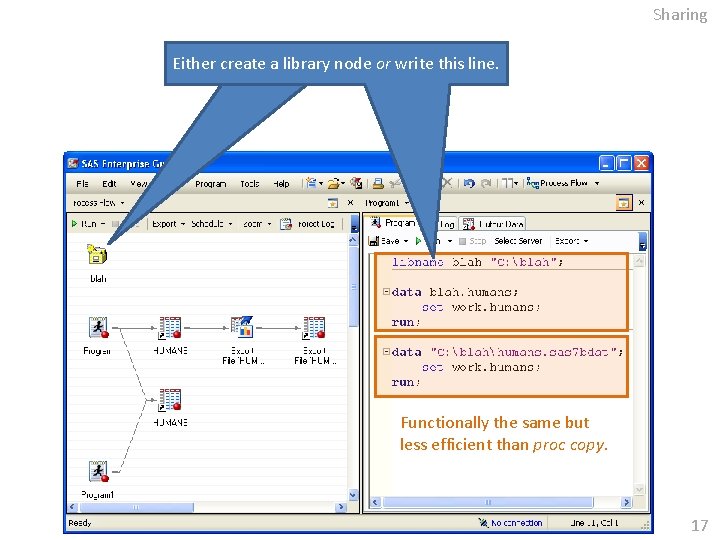
Sharing Either create a library node or write this line. Functionally the same but less efficient than proc copy. 17
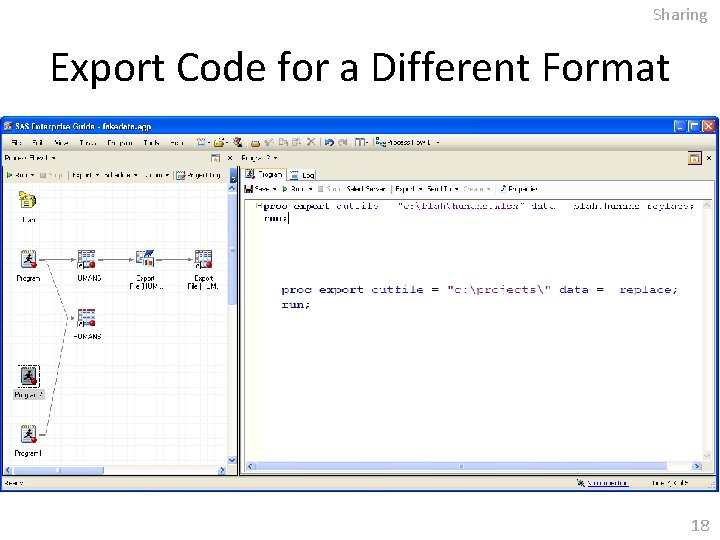
Sharing Export Code for a Different Format 18
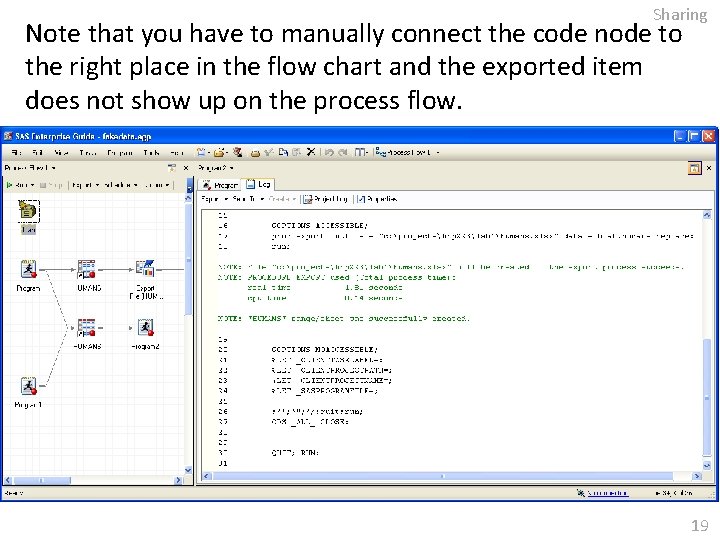
Sharing Note that you have to manually connect the code node to the right place in the flow chart and the exported item does not show up on the process flow. 19
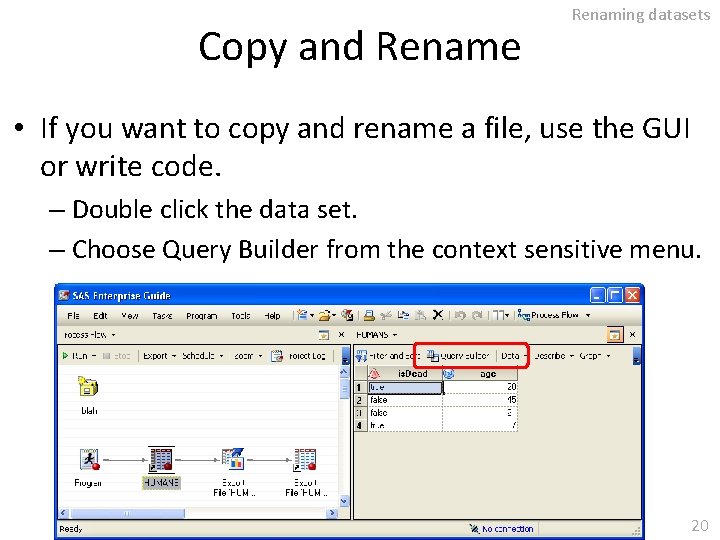
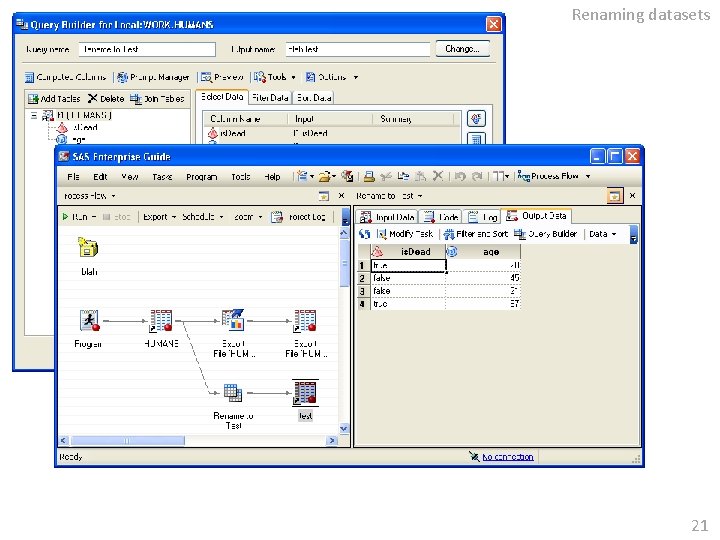
Copy and Rename Renaming datasets • If you want to copy and rename a file, use the GUI or write code. – Double click the data set. – Choose Query Builder from the context sensitive menu. 20
Renaming datasets 21
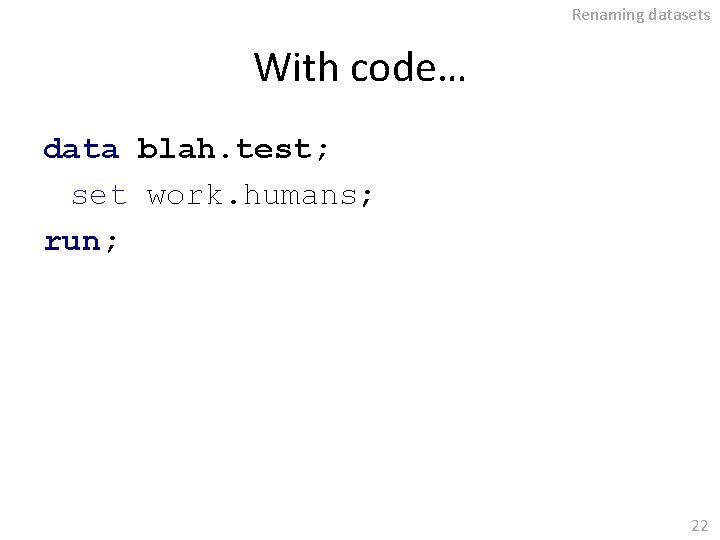
Renaming datasets With code… data blah. test; set work. humans; run; 22
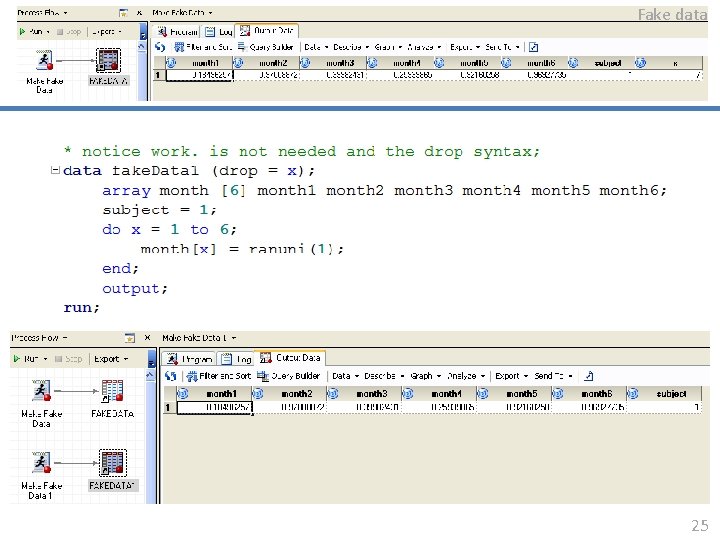
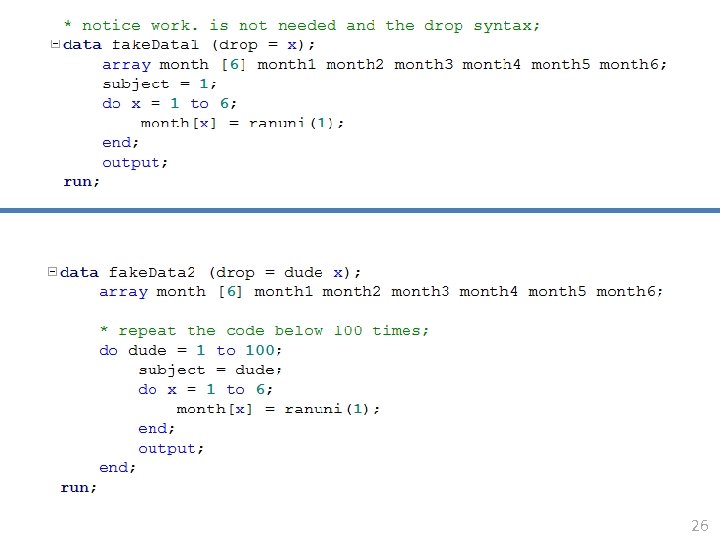
Fake data Select a Few Variables From Fake Data • The next task is to select a couple of variables from a data set that has a LOT of variables. • If you get a premade dataset with lots of extra variables, you want to drop the ones you will never use. Do this as soon as you can. • First I will make some fake data. The data set will have a simulated test value filled into 6 “month” variables. 23
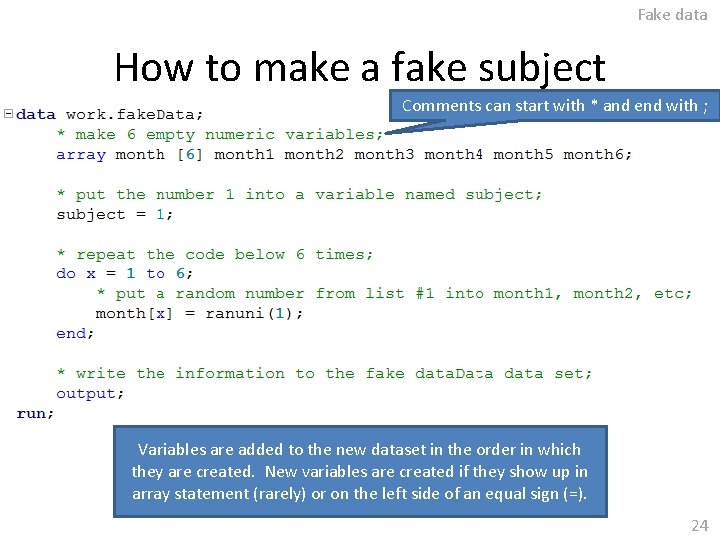
Fake data How to make a fake subject Comments can start with * and end with ; Variables are added to the new dataset in the order in which they are created. New variables are created if they show up in array statement (rarely) or on the left side of an equal sign (=). 24
Fake data 25
26
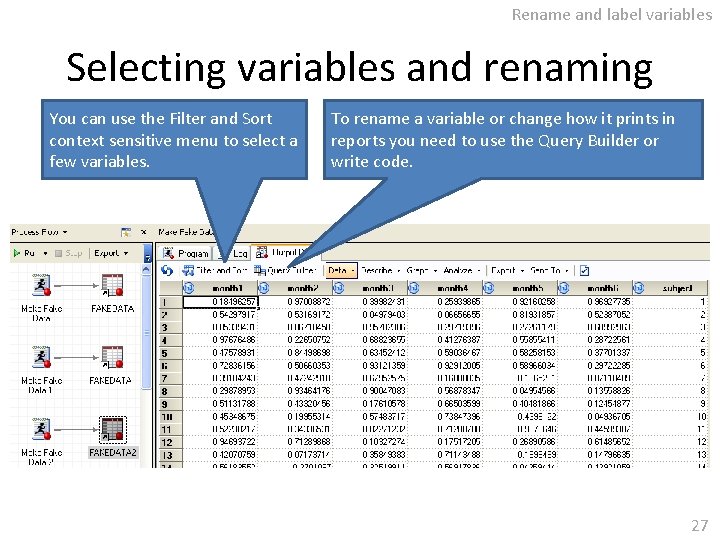
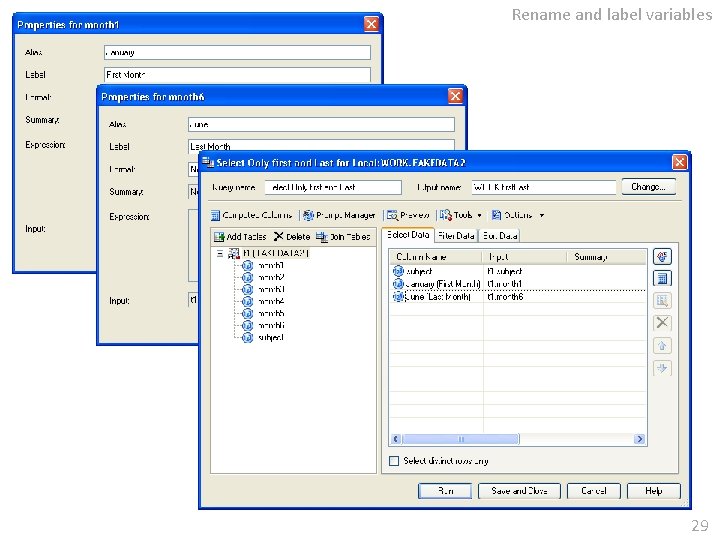
Rename and label variables Selecting variables and renaming You can use the Filter and Sort context sensitive menu to select a few variables. To rename a variable or change how it prints in reports you need to use the Query Builder or write code. 27
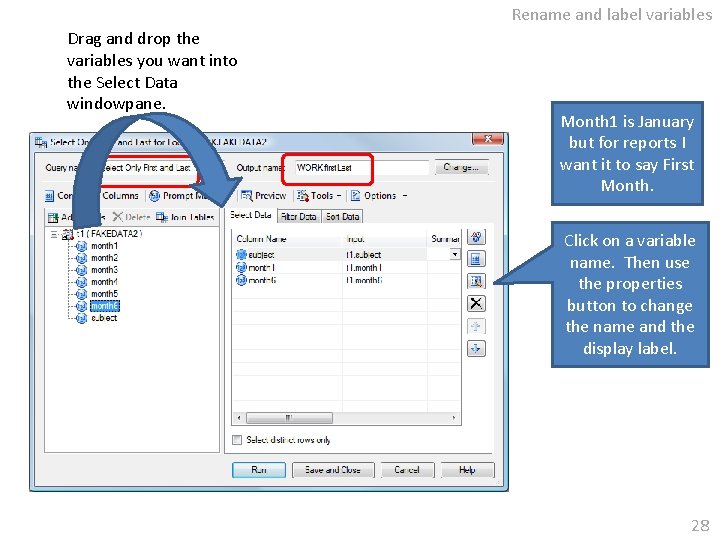
Rename and label variables Drag and drop the variables you want into the Select Data windowpane. Month 1 is January but for reports I want it to say First Month. Click on a variable name. Then use the properties button to change the name and the display label. 28
Rename and label variables 29
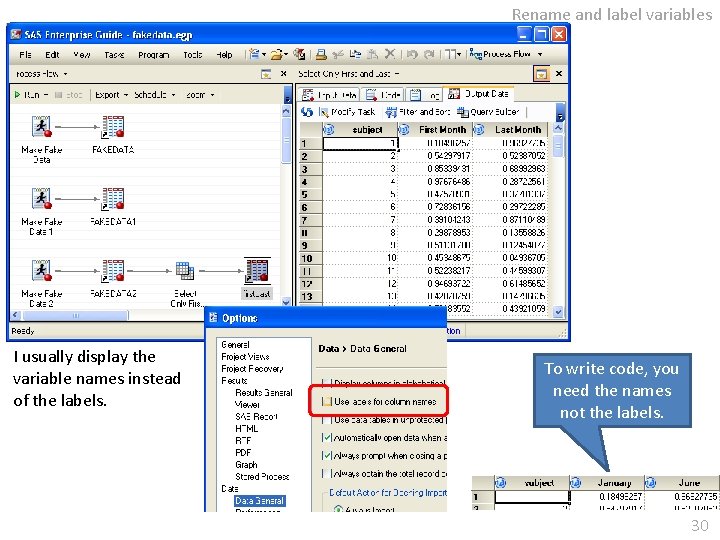
Rename and label variables I usually display the variable names instead of the labels. To write code, you need the names not the labels. 30
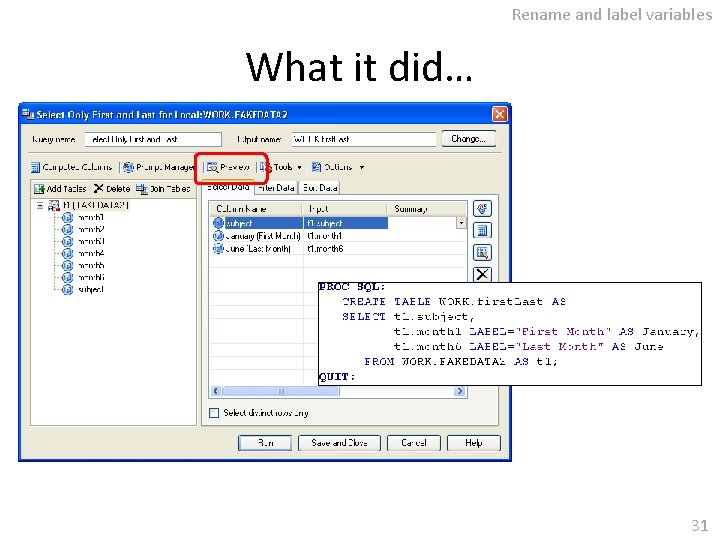
Rename and label variables What it did… 31
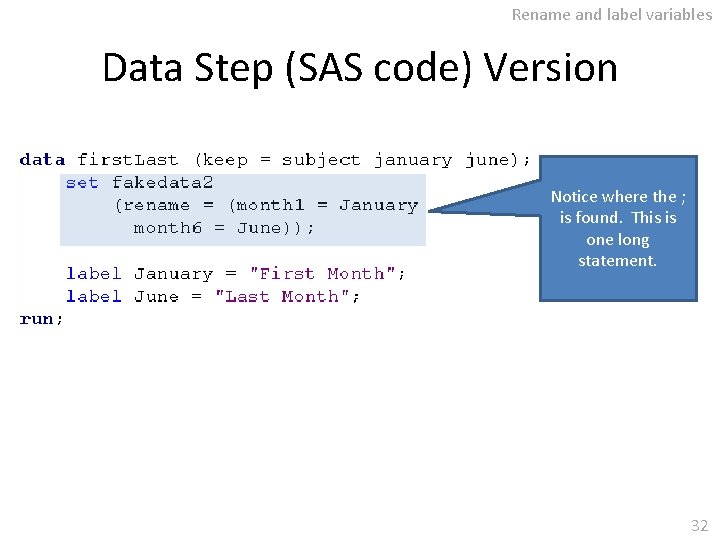
Rename and label variables Data Step (SAS code) Version Notice where the ; is found. This is one long statement. 32
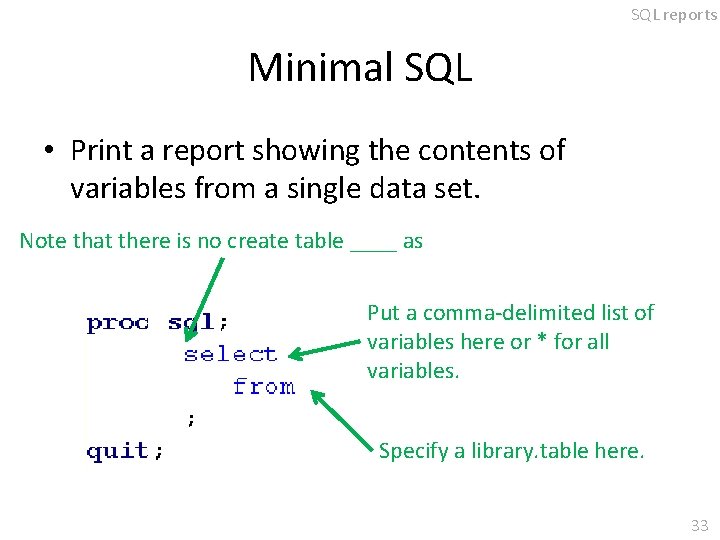
SQL reports Minimal SQL • Print a report showing the contents of variables from a single data set. Note that there is no create table ____ as Put a comma-delimited list of variables here or * for all variables. Specify a library. table here. 33
SQL reports What variables? • Typically you will use a coma delimited list but you can use an * to indicate that you want all variables selected instead of typing them all. • There is no syntax to specify variables based on position in the source files. That is, you can not specify that you want to select the 2 nd and 7 th variables (from left to right) or to select the first 3 variables. 34
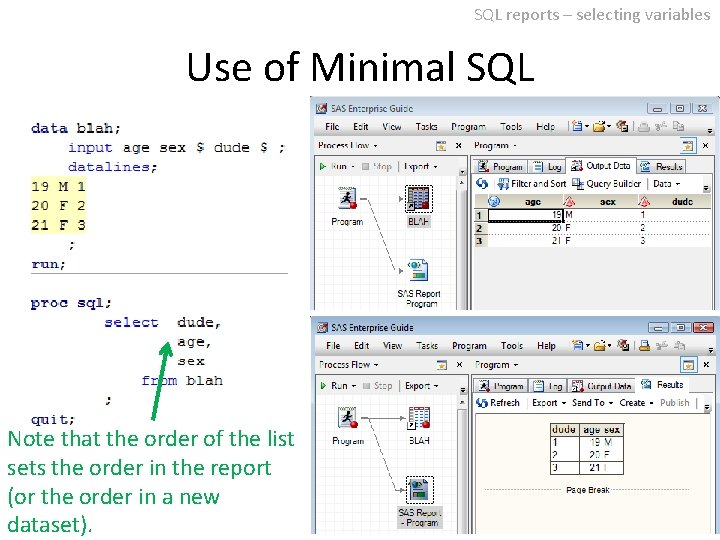
SQL reports – selecting variables Use of Minimal SQL Note that the order of the list sets the order in the report (or the order in a new dataset). 35
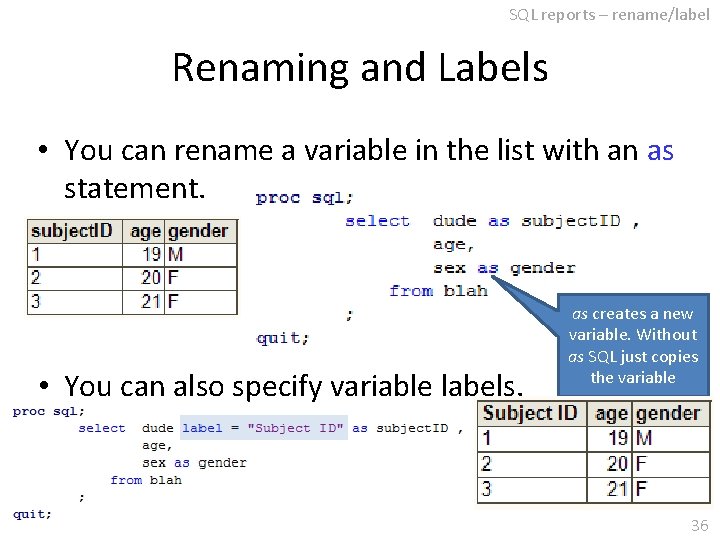
SQL reports – rename/label Renaming and Labels • You can rename a variable in the list with an as statement. • You can also specify variable labels. as creates a new variable. Without as SQL just copies the variable 36
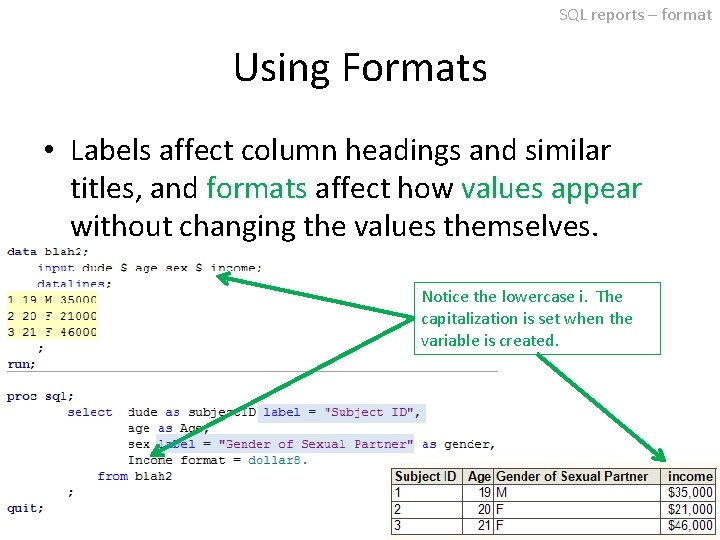
SQL reports – format Using Formats • Labels affect column headings and similar titles, and formats affect how values appear without changing the values themselves. Notice the lowercase i. The capitalization is set when the variable is created. 37
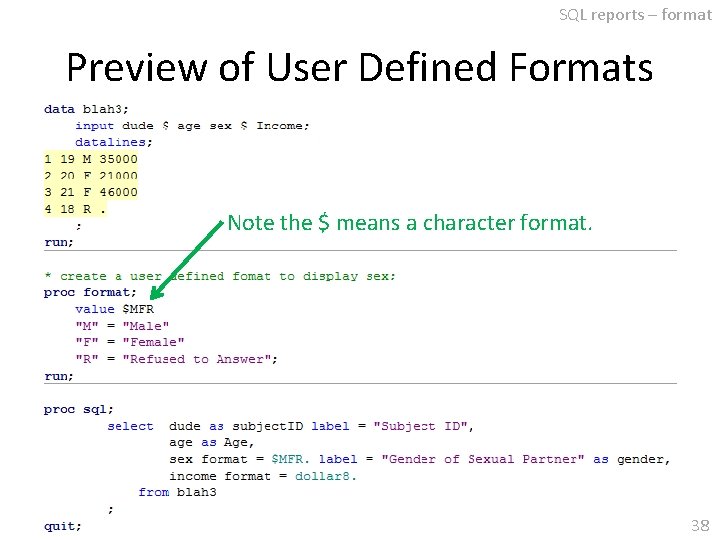
SQL reports – format Preview of User Defined Formats Note the $ means a character format. 38
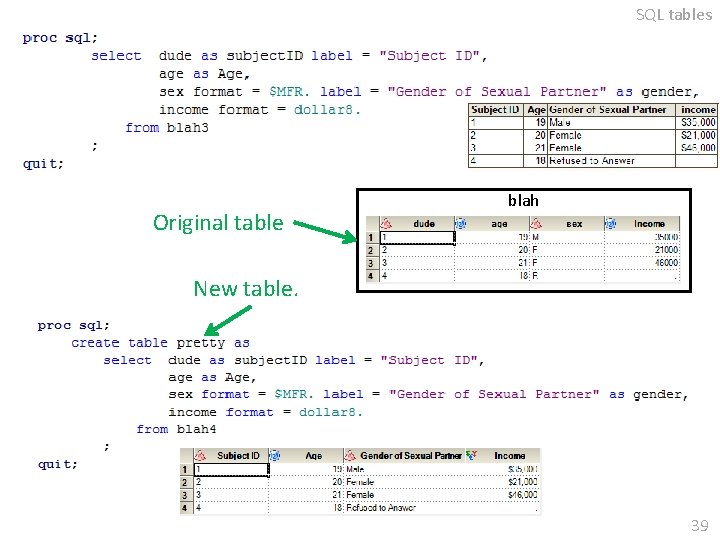
SQL tables Original table blah New table. 39
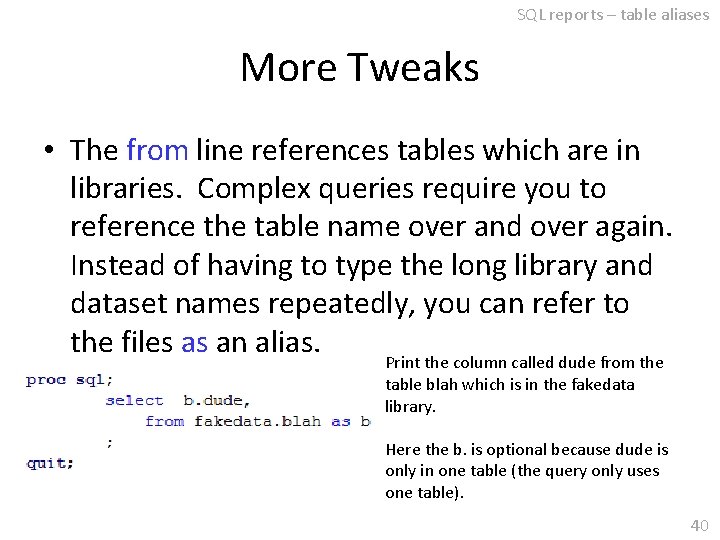
SQL reports – table aliases More Tweaks • The from line references tables which are in libraries. Complex queries require you to reference the table name over and over again. Instead of having to type the long library and dataset names repeatedly, you can refer to the files as an alias. Print the column called dude from the table blah which is in the fakedata library. Here the b. is optional because dude is only in one table (the query only uses one table). 40
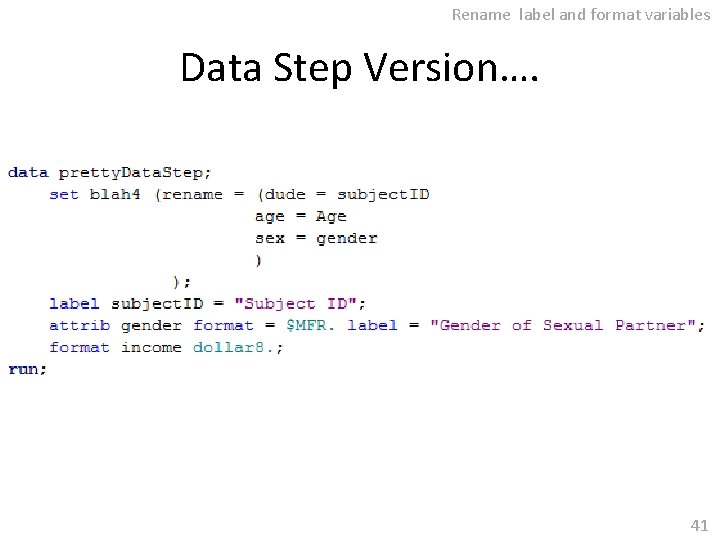
Rename label and format variables Data Step Version…. 41
- Slides: 41