
Data List Spreadsheets or simple databases a different

Data List Spreadsheets or simple databases - a different use of Spreadsheets Bent Thomsen 1
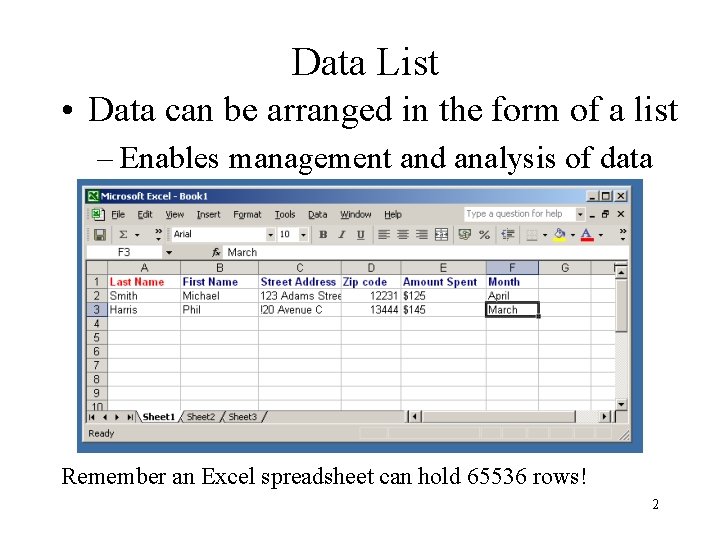
Data List • Data can be arranged in the form of a list – Enables management and analysis of data Remember an Excel spreadsheet can hold 65536 rows! 2

Planning a Data List • Counter examples of guidelines Format column labels consistently Avoid blank rows and Avoid leading and columns trailing spaces Unhide columns and rows before editing Critical data at top or bottom of list Only one data list per worksheet 3
Entering Records Using a Data Form • Columns label the fields included in the data base – Enter directly in cells or … – Use a data form to create fields • Data form can be also used to – Locate records – Edit records – Delete records 4
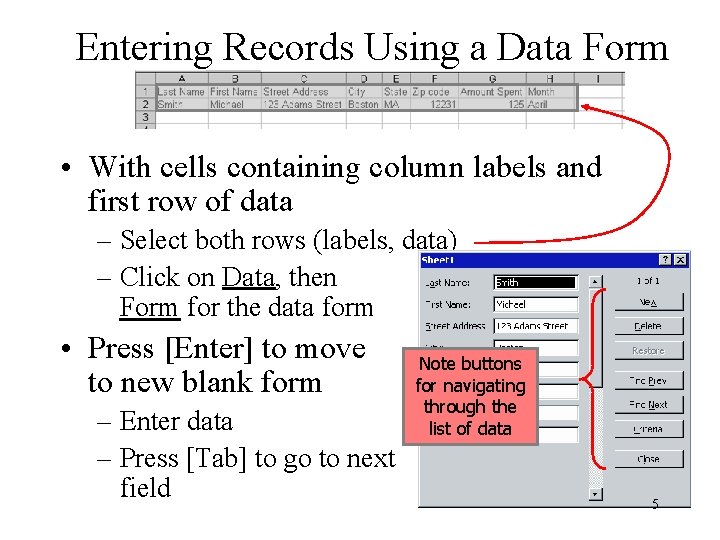
Entering Records Using a Data Form • With cells containing column labels and first row of data – Select both rows (labels, data) – Click on Data, then Form for the data form • Press [Enter] to move to new blank form – Enter data – Press [Tab] to go to next field Note buttons for navigating through the list of data 5
Adding a Data Validation Rule • Rules can be set for certain fields – Values entered are checked – Invalid entries rejected with polite message • Validation rules include checks for – Proper type (character, numeric) – Range of values (low to high) – One of a small set of valid values 6
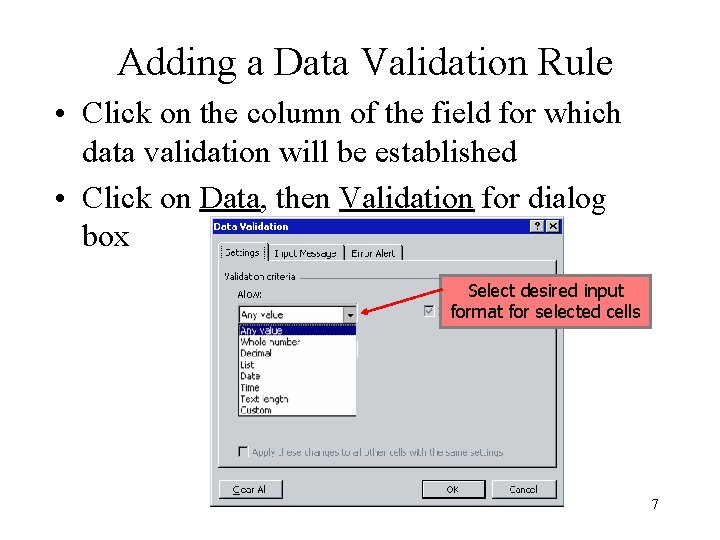
Adding a Data Validation Rule • Click on the column of the field for which data validation will be established • Click on Data, then Validation for dialog box Select desired input format for selected cells 7
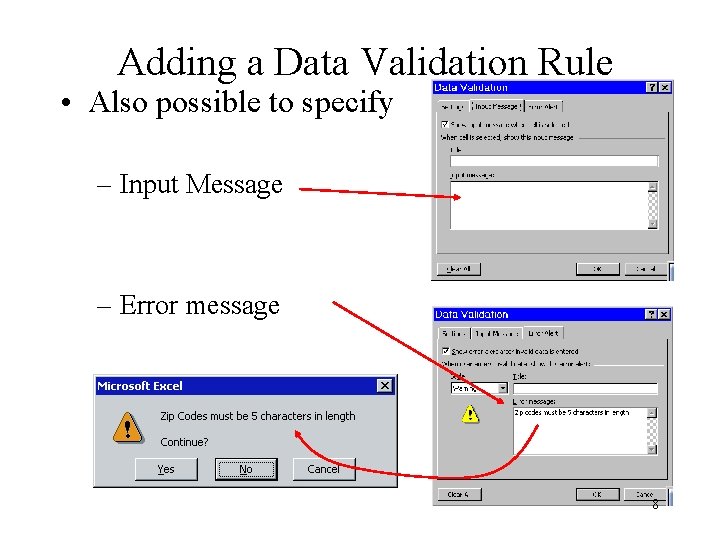
Adding a Data Validation Rule • Also possible to specify – Input Message – Error message 8
Searching for a Record • Difficult to look through a large data base for a particular record • Solution – Set criteria for search – Specify for single field • Example – Look for record with last name containing value "Martindale" 9
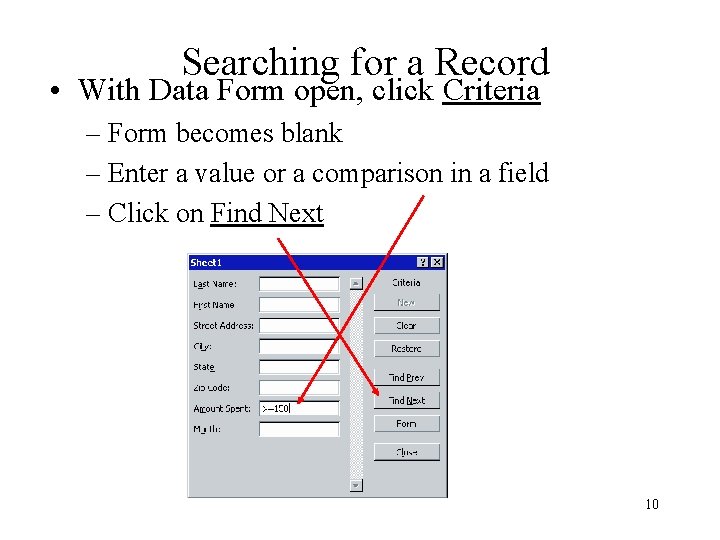
Searching for a Record • With Data Form open, click Criteria – Form becomes blank – Enter a value or a comparison in a field – Click on Find Next 10
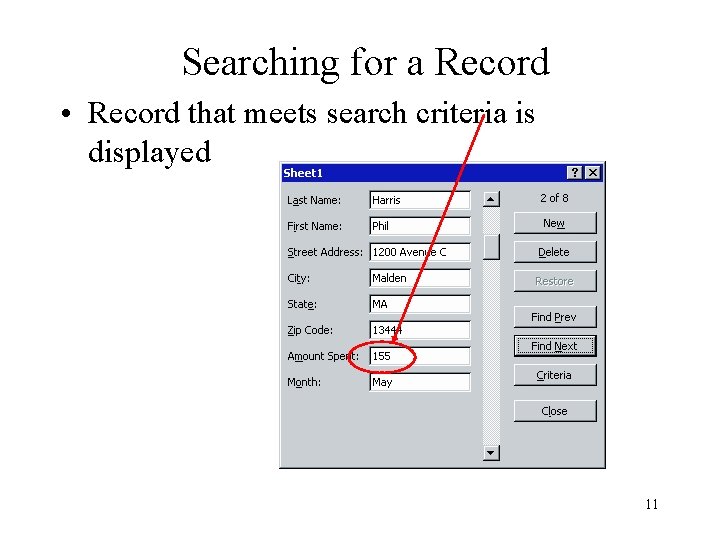
Searching for a Record • Record that meets search criteria is displayed 11
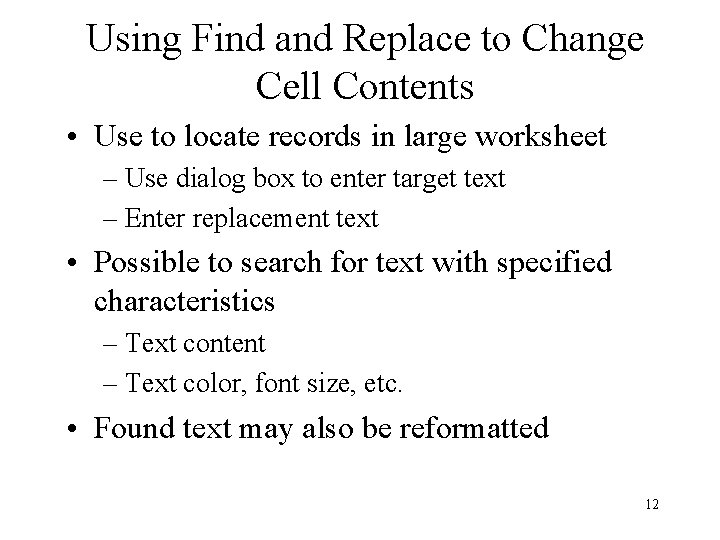
Using Find and Replace to Change Cell Contents • Use to locate records in large worksheet – Use dialog box to enter target text – Enter replacement text • Possible to search for text with specified characteristics – Text content – Text color, font size, etc. • Found text may also be reformatted 12
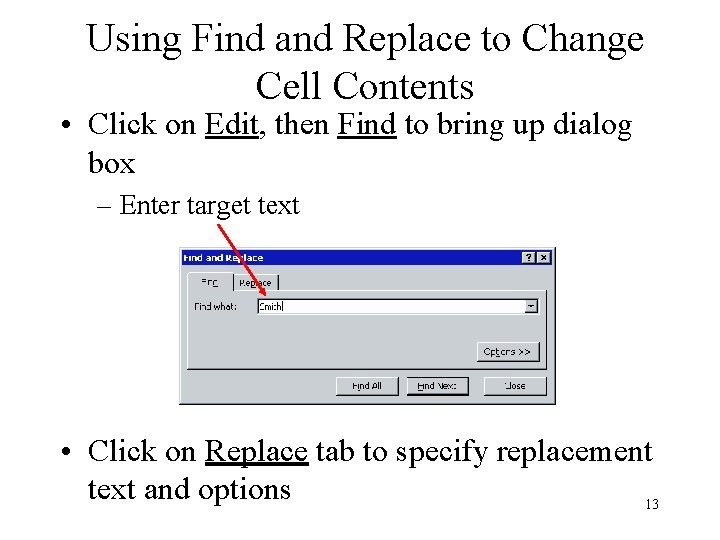
Using Find and Replace to Change Cell Contents • Click on Edit, then Find to bring up dialog box – Enter target text • Click on Replace tab to specify replacement text and options 13
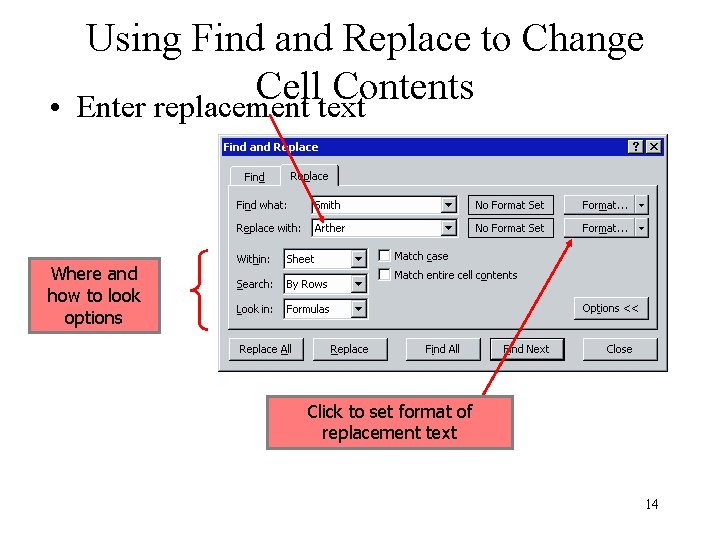
Using Find and Replace to Change Cell Contents • Enter replacement text Where and how to look options Click to set format of replacement text 14
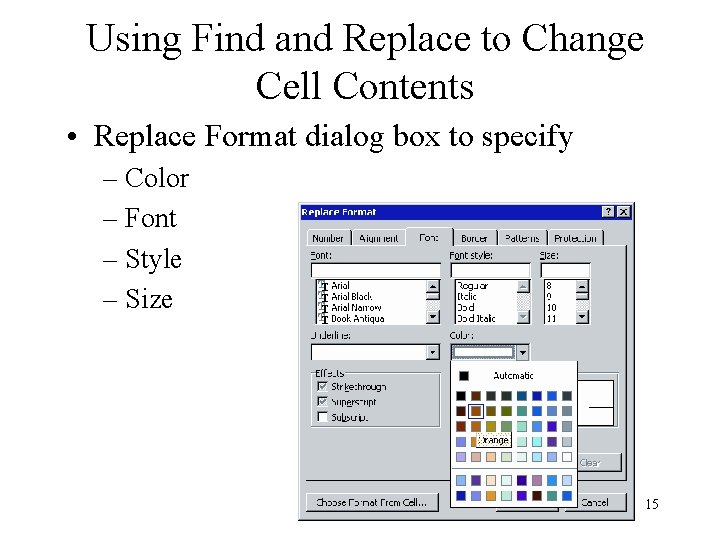
Using Find and Replace to Change Cell Contents • Replace Format dialog box to specify – Color – Font – Style – Size 15
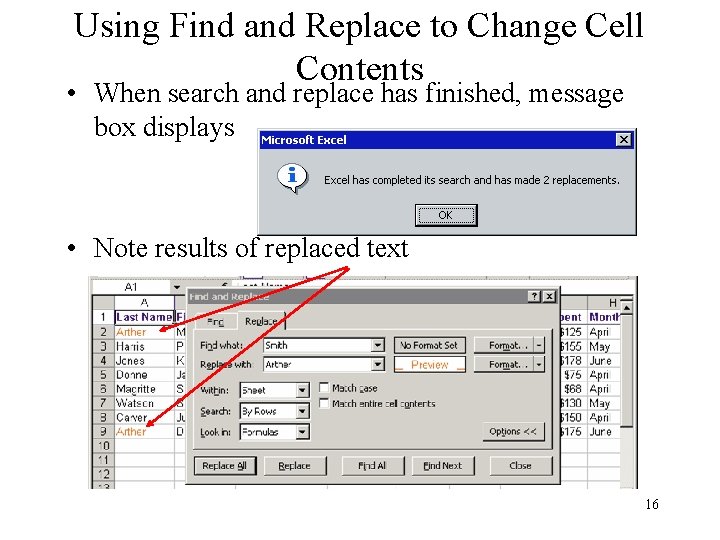
Using Find and Replace to Change Cell Contents • When search and replace has finished, message box displays • Note results of replaced text 16
Sorting a Data List • A database must provide ability to organize data in a specific order (sorting) • Data is entered as it comes in – Records are arranged in different order at later time • Sorting can be done – By any one of the fields – Multi-level, by up to three fields 17
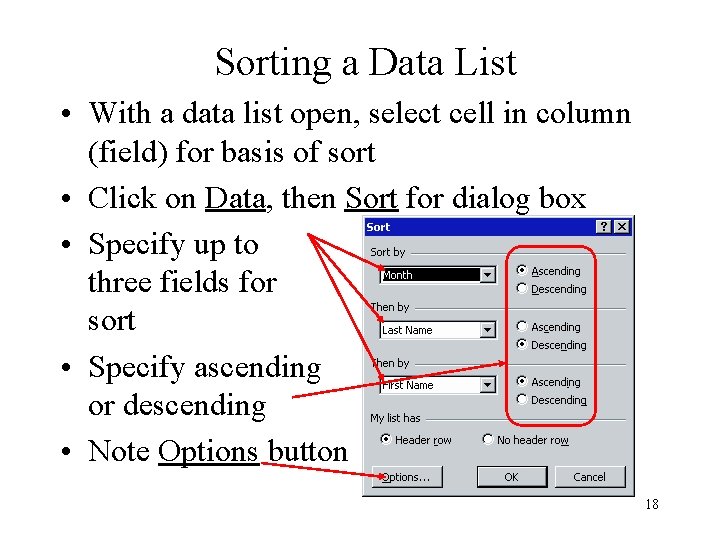
Sorting a Data List • With a data list open, select cell in column (field) for basis of sort • Click on Data, then Sort for dialog box • Specify up to three fields for sort • Specify ascending or descending • Note Options button 18
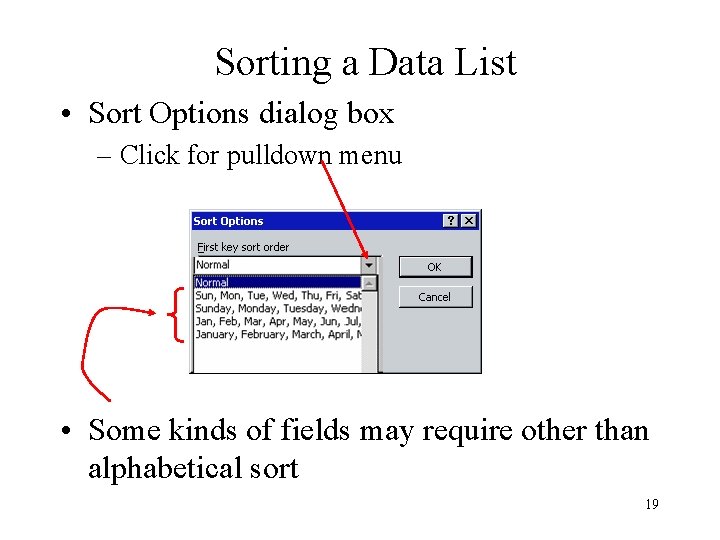
Sorting a Data List • Sort Options dialog box – Click for pulldown menu • Some kinds of fields may require other than alphabetical sort 19
Filtering a Data List • Filtering produces a subset of a database – Based on specified criteria – Finds specific information from database • Useful for working with smaller portion of a large database – Records for a single month – Records for a sales region – Inventory items from a single department 20
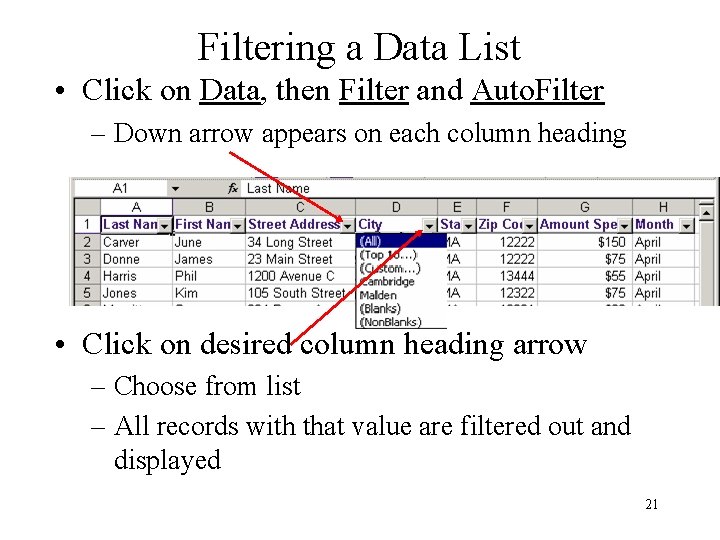
Filtering a Data List • Click on Data, then Filter and Auto. Filter – Down arrow appears on each column heading • Click on desired column heading arrow – Choose from list – All records with that value are filtered out and displayed 21
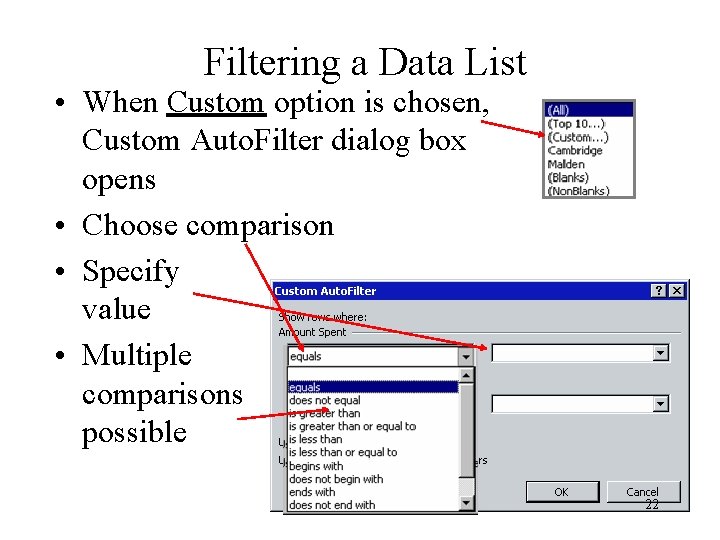
Filtering a Data List • When Custom option is chosen, Custom Auto. Filter dialog box opens • Choose comparison • Specify value • Multiple comparisons possible 22
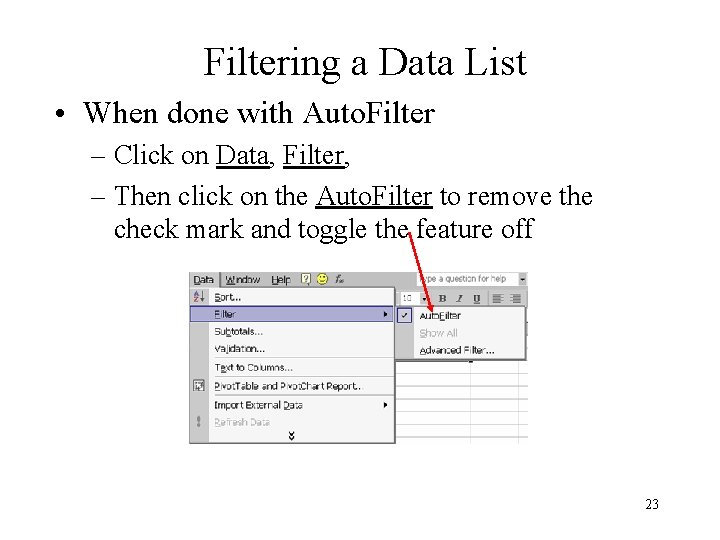
Filtering a Data List • When done with Auto. Filter – Click on Data, Filter, – Then click on the Auto. Filter to remove the check mark and toggle the feature off 23
Adding Record Subtotals • Consider a database with groups of records with same value in a field – Region, zip code, etc. • Possible to summarize data based on those groupings • For any field we can determine – Sum, average, count, min, max, etc. • Important to sort on the field on which the groupings or subtotals will be based 24
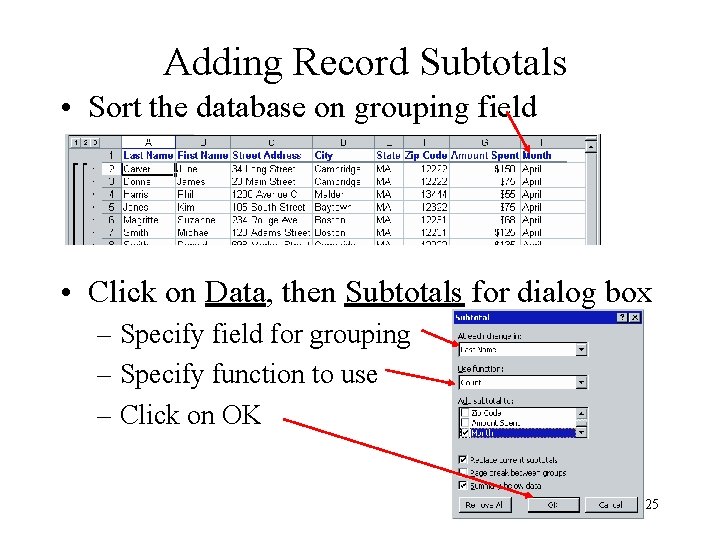
Adding Record Subtotals • Sort the database on grouping field • Click on Data, then Subtotals for dialog box – Specify field for grouping – Specify function to use – Click on OK 25
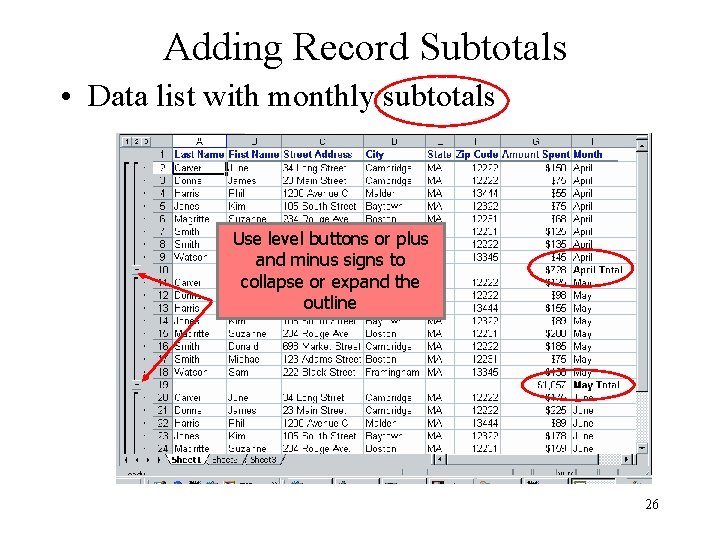
Adding Record Subtotals • Data list with monthly subtotals Use level buttons or plus and minus signs to collapse or expand the outline 26
Extracting a Subset • The Auto. Filter feature provides a subset of the data – But it is only for viewing • Occasionally the subset must be extracted to another, separate data list – Useful for creating a chart based on the subset of data • The Advanced Filter provides this capability 27
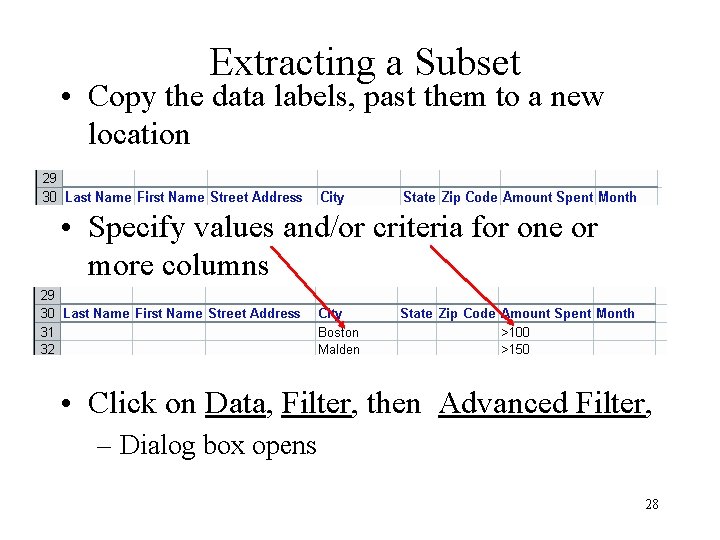
Extracting a Subset • Copy the data labels, past them to a new location • Specify values and/or criteria for one or more columns • Click on Data, Filter, then Advanced Filter, – Dialog box opens 28
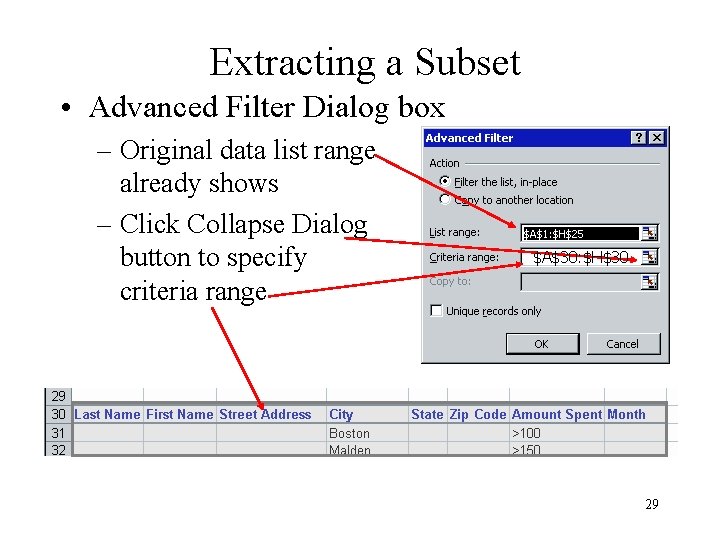
Extracting a Subset • Advanced Filter Dialog box – Original data list range already shows – Click Collapse Dialog button to specify criteria range $A$30: $H$30 29
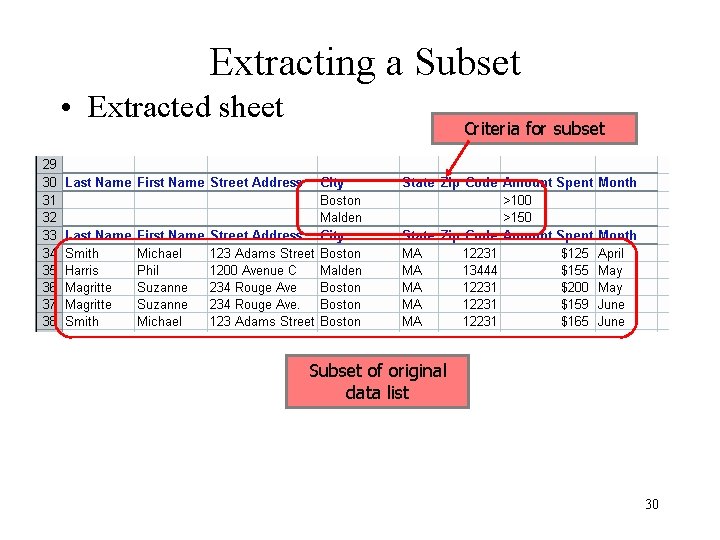
Extracting a Subset • Extracted sheet Criteria for subset Subset of original data list 30
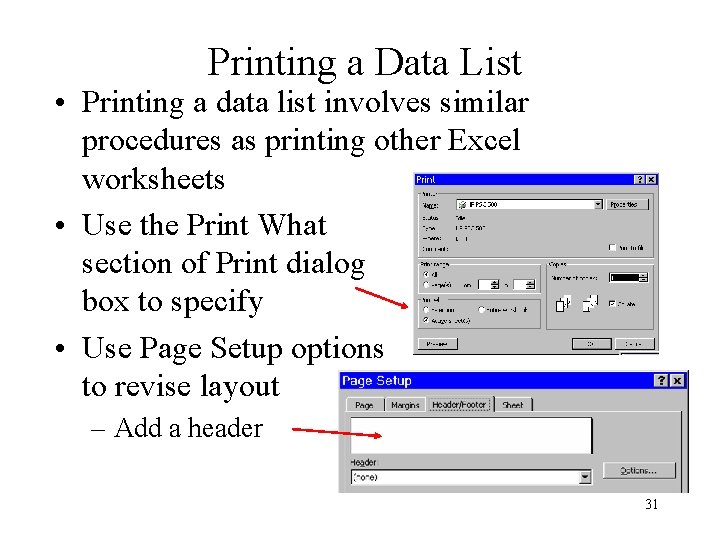
Printing a Data List • Printing a data list involves similar procedures as printing other Excel worksheets • Use the Print What section of Print dialog box to specify • Use Page Setup options to revise layout – Add a header 31
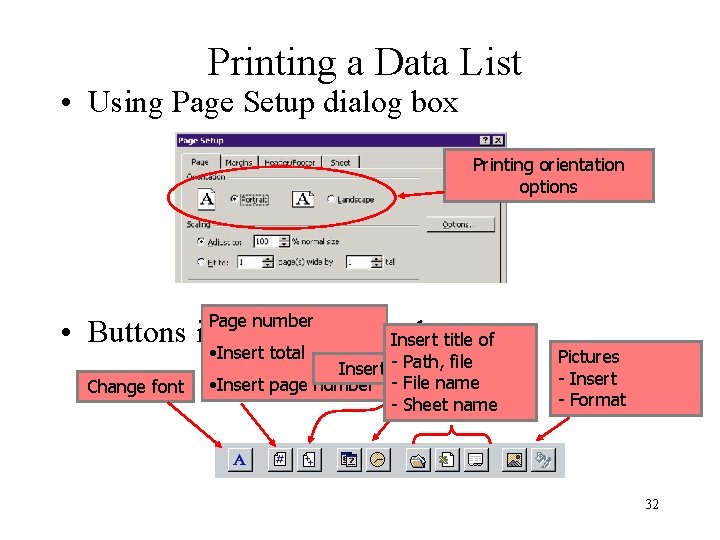
Printing a Data List • Using Page Setup dialog box Printing orientation options Page number • Buttons in Header dialog box Insert title of • Insert total Change font Path, time file Insert -date, • Insert page number - File name - Sheet name Pictures - Insert - Format 32
Data List Guidelines 1. 2. 3. 4. 5. Limit of one list per worksheet Keep similar items in the same column in all rows Place important data at top or bottom of list When editing list contents, unhide all columns/rows Column label formatting 1. 2. 6. 7. In first row Different from data Avoid blank rows, columns Avoid leading/trailing spaces in data 33
- Slides: 33